
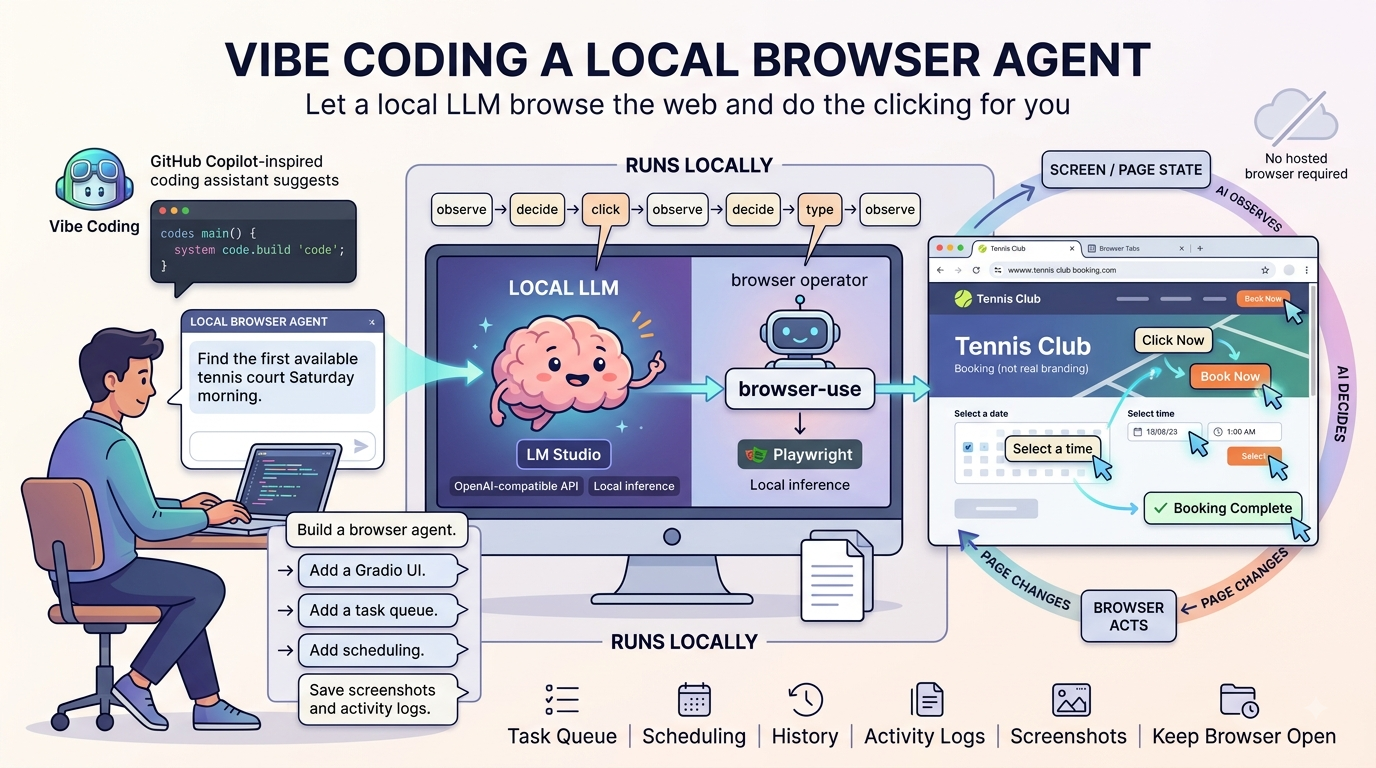
This is the story of how I built a local browser agent to solve a very specific problem: booking a tennis court during a pandemic-era rush.
It’s hard to believe that the COVID-19 pandemic was only three years ago, when the world was in and out of lockdown and something as simple as being able to play tennis felt like a luxury because otherwise we were stuck at home in isolation.
My wife was very into tennis during that period and was willing to wake up at 6am to call every club in the city, only to be told there were no spots left. We were not club members, so we had no booking priority. The only way in was to call right when the lines opened and hope for a cancellation. She is not a morning person, but for tennis she would set alarms and dial, only to hear “sorry, all booked, try again tomorrow.”
I’ve built my share of RPA-style apps with Selenium (https://blog.terenceluk.com/2023/06/automating-creation-of-azure-calculator.html), but those always felt like a slog. I would carefully inspect the HTML, write brittle selectors, and hope the site did not change. It only takes one tweak from the provider for the entire thing to break. I have always wanted to build something smarter, like an agent I could just tell, Book the first available court for Saturday morning, and let it figure out the rest.
Fast forward to today, with the advancements in large language models, and this idea is actually possible. I was playing with Claude’s Chrome browser extension the other day and it reminded me of this tool I had always wanted to build. With a little help from GitHub Copilot, I ended up creating a fully local browser automation agent that takes natural language instructions, opens a browser, and does the work for you. The key difference compared to using something like Claude directly is that I can run this entirely on a local LLM without worrying about token consumption.
The Idea
Rather than trying to build an application that scrapes HTML and relies on predefined rules to process and extract data, the idea was to shift that responsibility to an LLM. Instead of hardcoding logic, the LLM would be given a specific request and use its own reasoning to figure out how to fulfill it.
For example, instead of writing code to parse product listings on Amazon, you could simply ask the LLM to find the lowest priced headset. From there, you equip it with the ability to browse web pages and navigate through them, allowing it to apply reasoning and logic in real time as it works toward the goal.
What Does the Local Browser Agent Actually Do?
You open a Gradio chat window at http://127.0.0.1:7860, type a task, and watch the browser execute it. The agent uses a local LLM to plan browser actions then proceed to navigate, click, type, scroll and then loops through them until the task is complete, returning a summary of what it found.
Here are a few examples of what you can hand it:
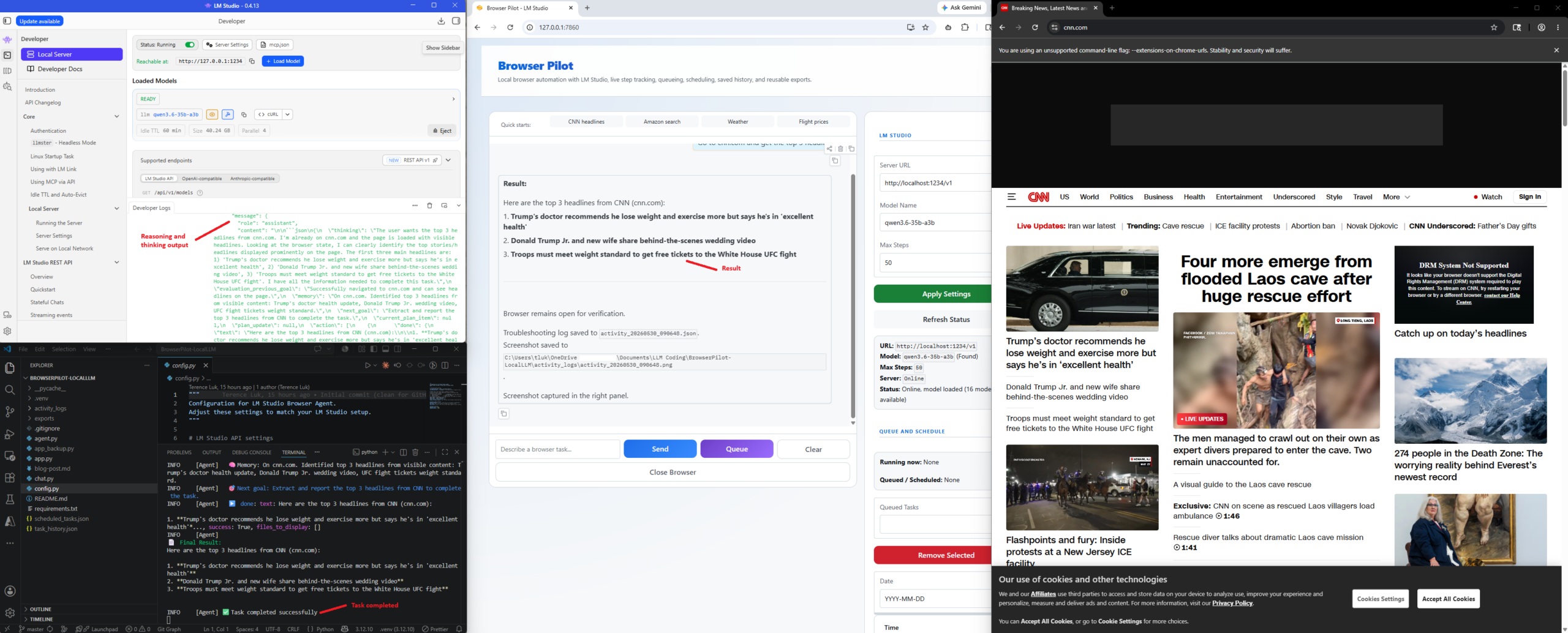
Go to cnn.com and get the top 3 headlines

Go to amazon.ca and find the best rated wireless headphones under $100

Go to weather.com and check the 5-day forecast for Toronto, Ontario

Go to aircanada.com and find the cheapest one-way flights from Toronto to Vancouver this week
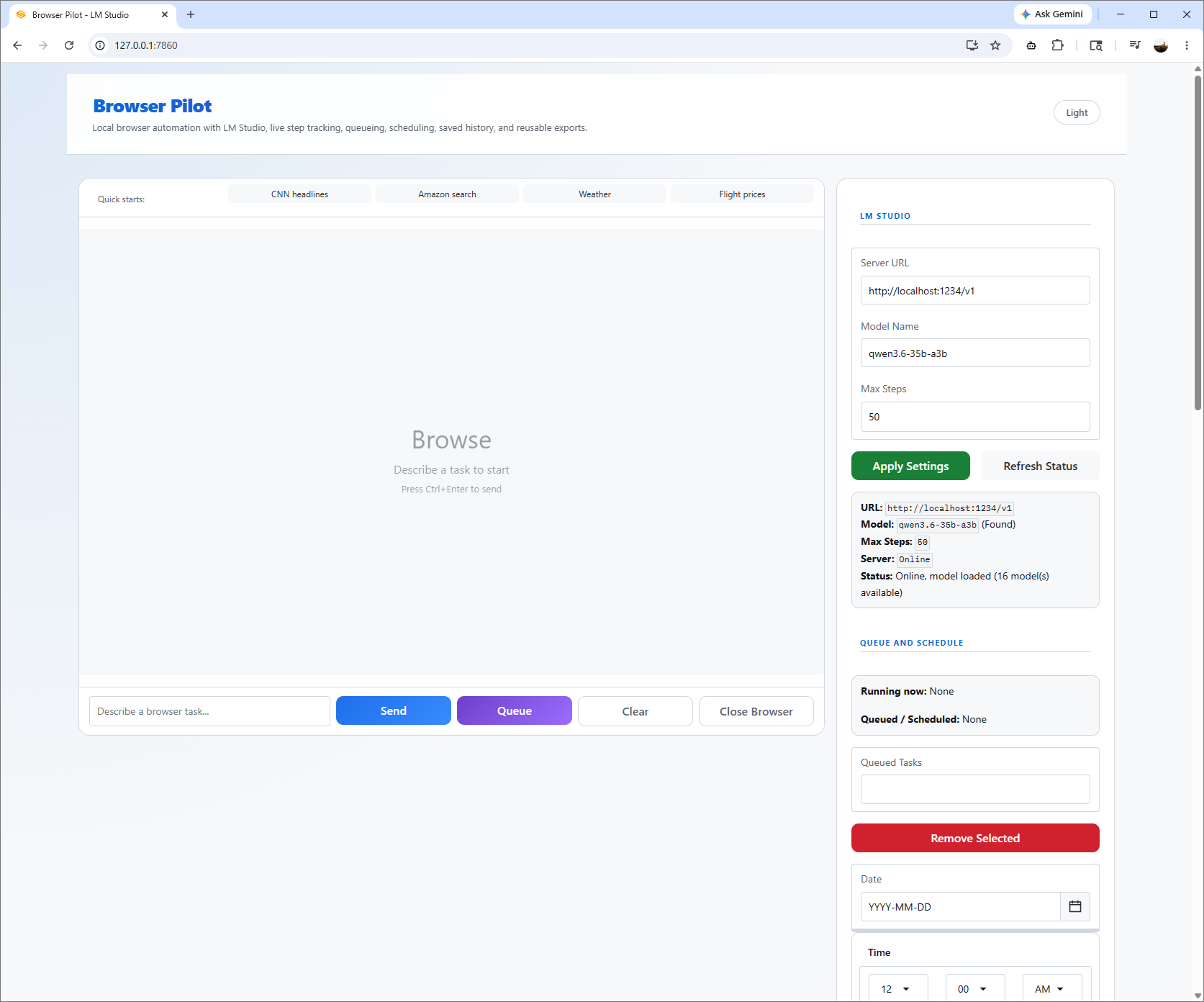
Demo 1: CNN Headlines and Weather
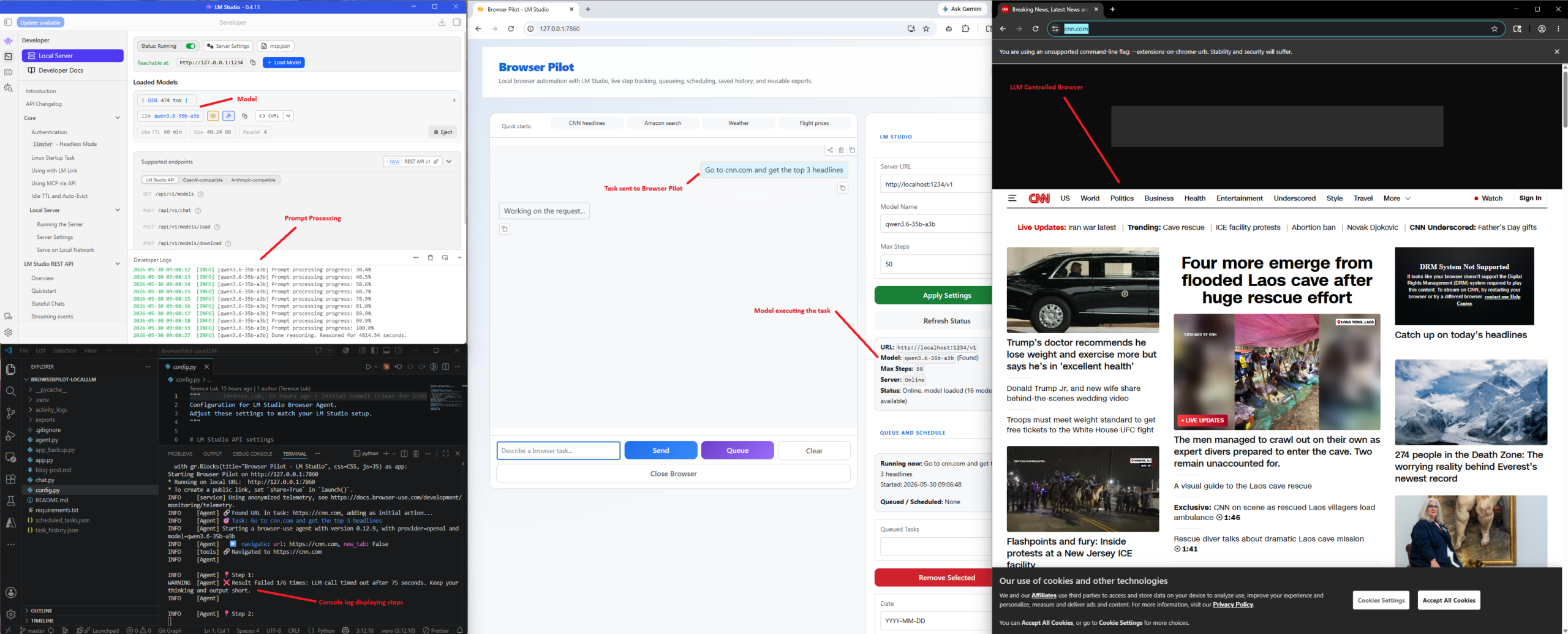
The fastest way to understand how this feels is to watch two short tasks run end to end.
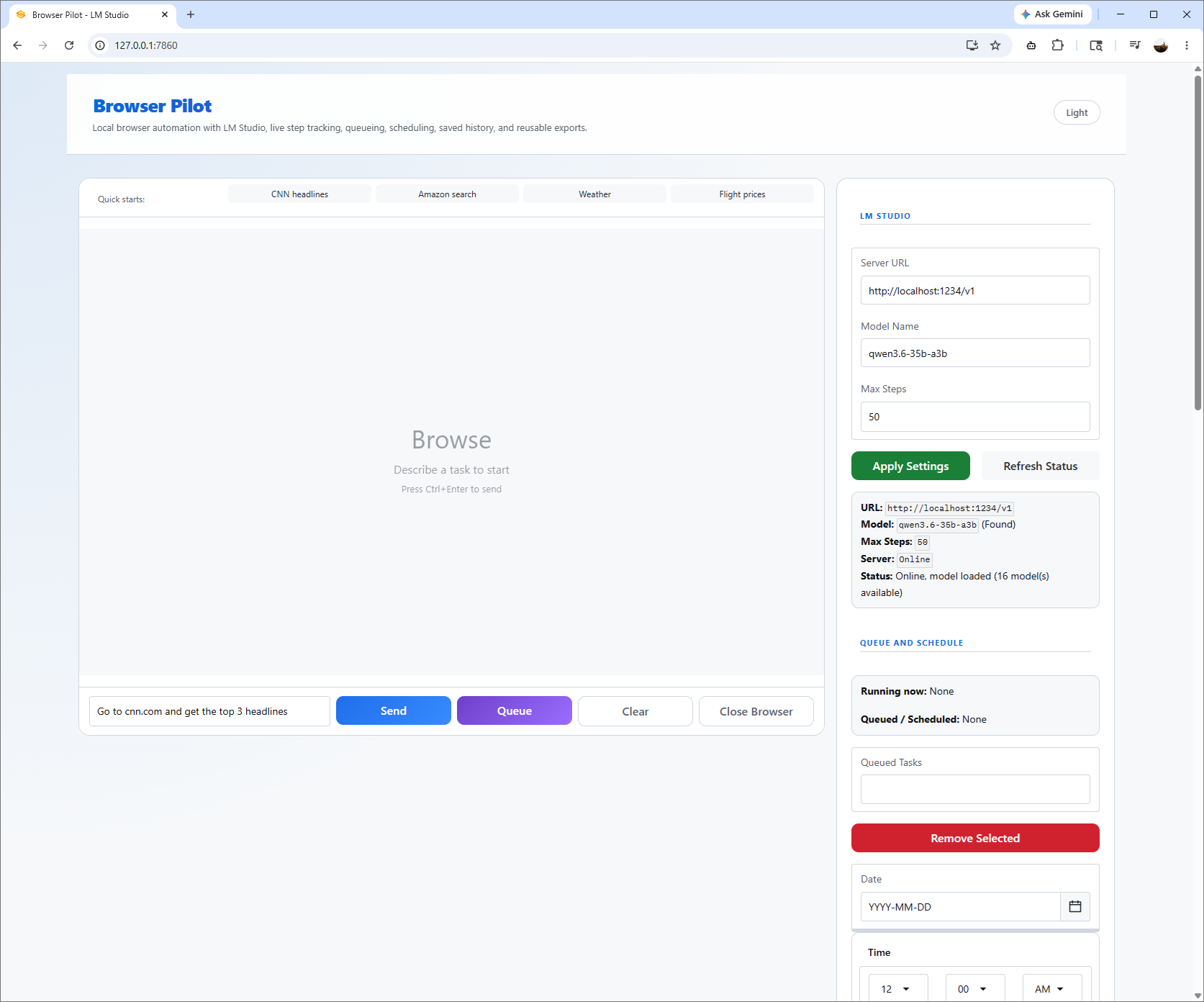
For headlines, I used this prompt:
Go to cnn.com and summarize the top 5 headlines right now.
Then I ran a weather check with:
Navigate to weather.com and tell me the 5-day forecast for Toronto.
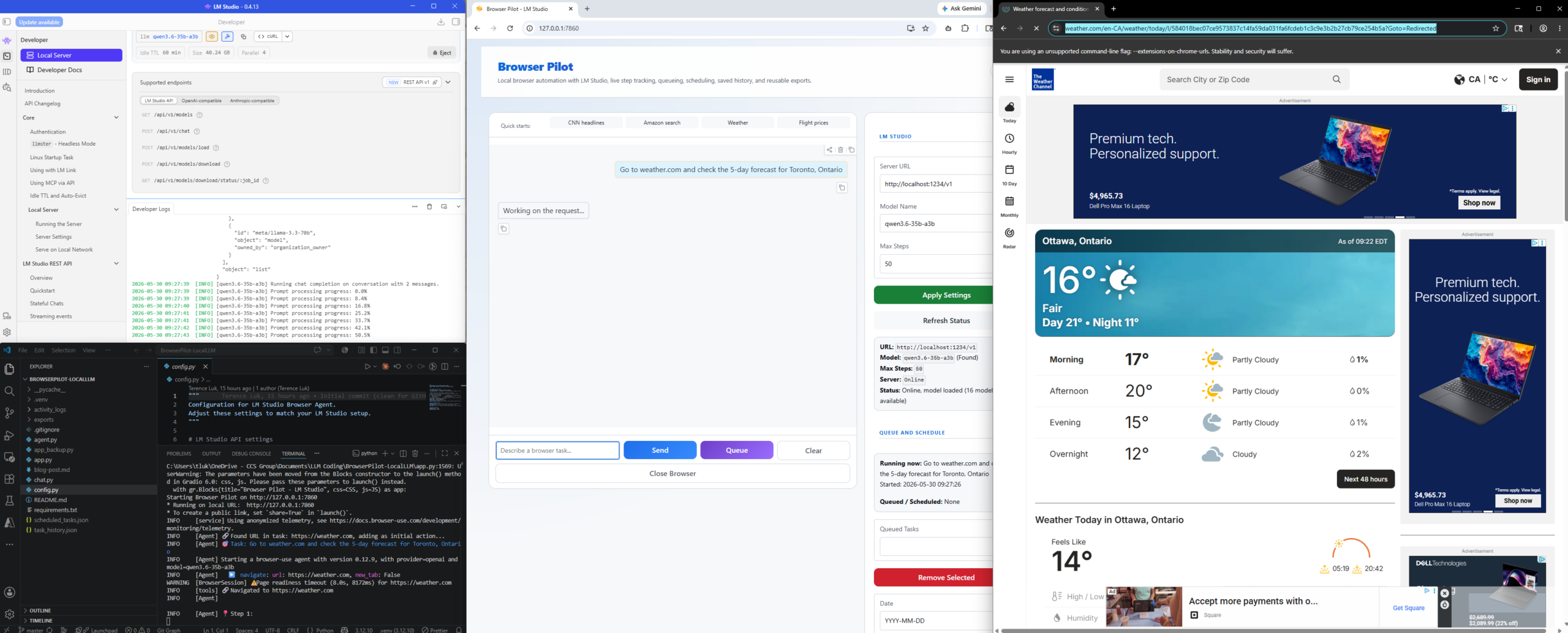
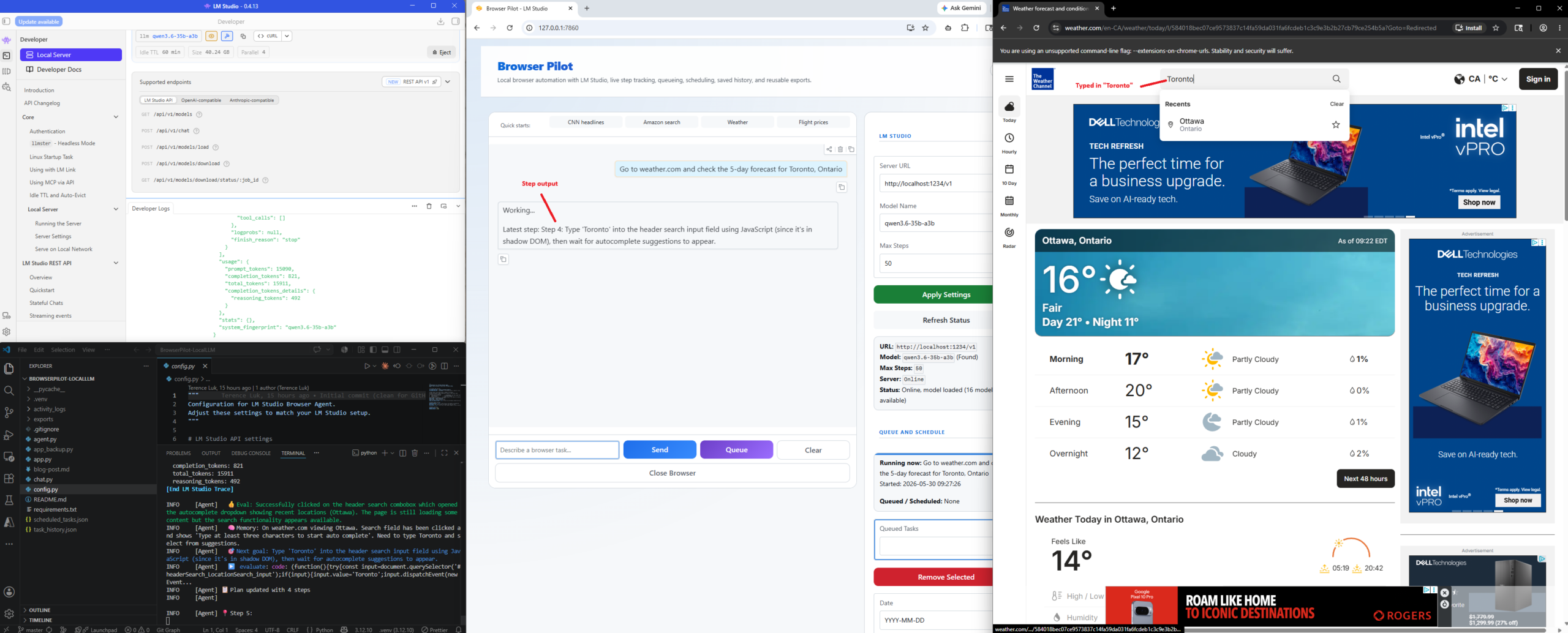
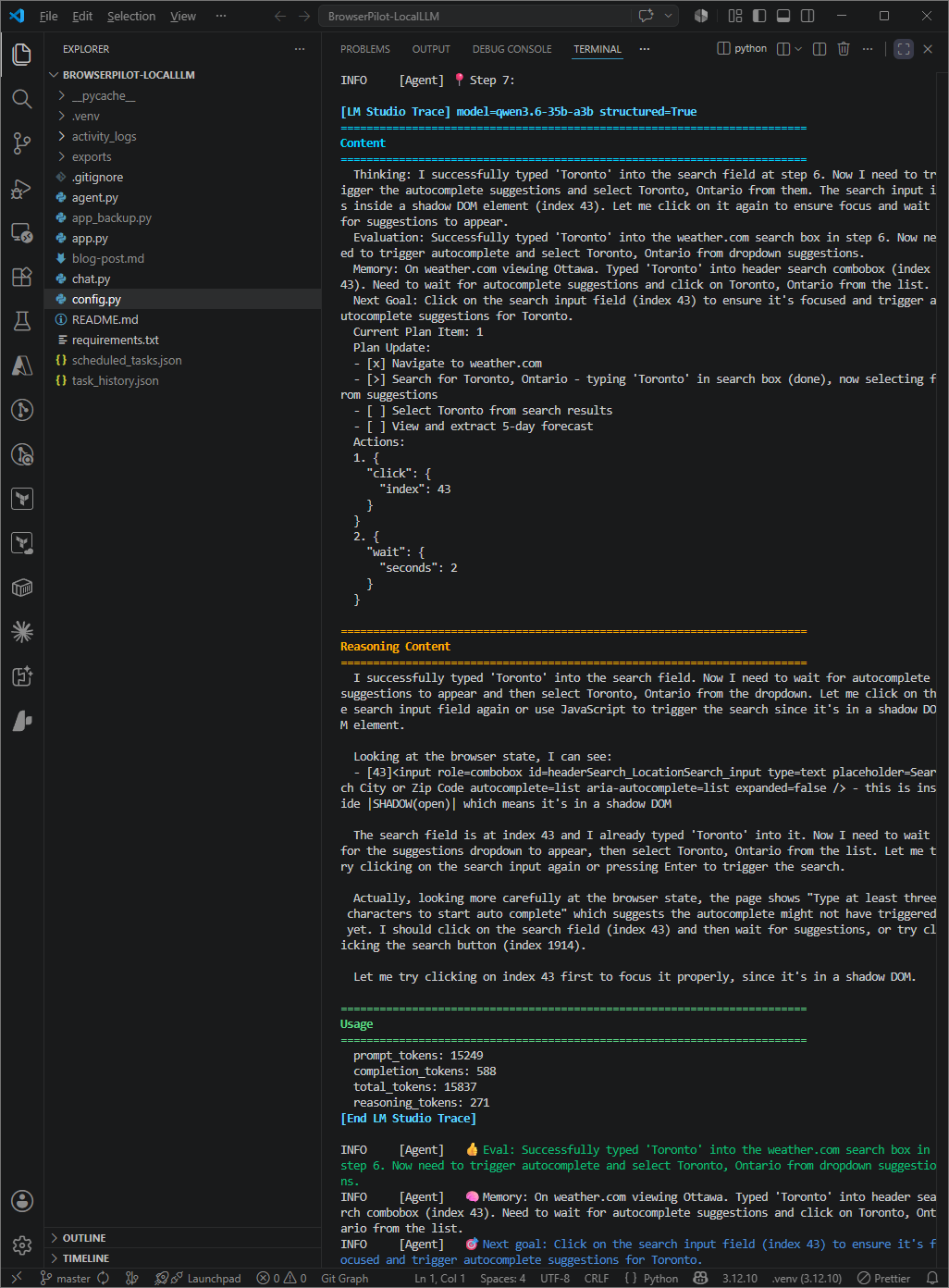
These two tasks are simple, but they show the full loop clearly: prompt, browser actions, extraction, and final answer. What amazes me is when I browse the reasoning logs of the LLM during the activity:
Demo 2: Booking a Residence Weight Room
This is where the agent becomes practical. Here is the exact booking-style prompt I used, with credentials shown as placeholders so you can keep secrets out of the blog post:
Can you navigate to https://megaclubsharedfacility.simplybook.me/ and book the weight room for Wednesday June 3 at 6:00 AM? There should be a “Book Now” button at the top of the page. You will then need to log in with my user name: <YOUR_USERNAME> and password: <YOUR_PASSWORD>. When confirming the booking, you will be asked: “I understand the rules and regulations for my booking:” and “I agree with Mega Club Shared Facility Terms & Conditions*” which both have a checkbox to check in order to complete the booking. Once both of them are checked, you can ignore the message: “Value is required and cannot be empty” and proceed to click on “Confirm booking” to book.
The request will be sent to the LLM and a browser will be launched to start the task:

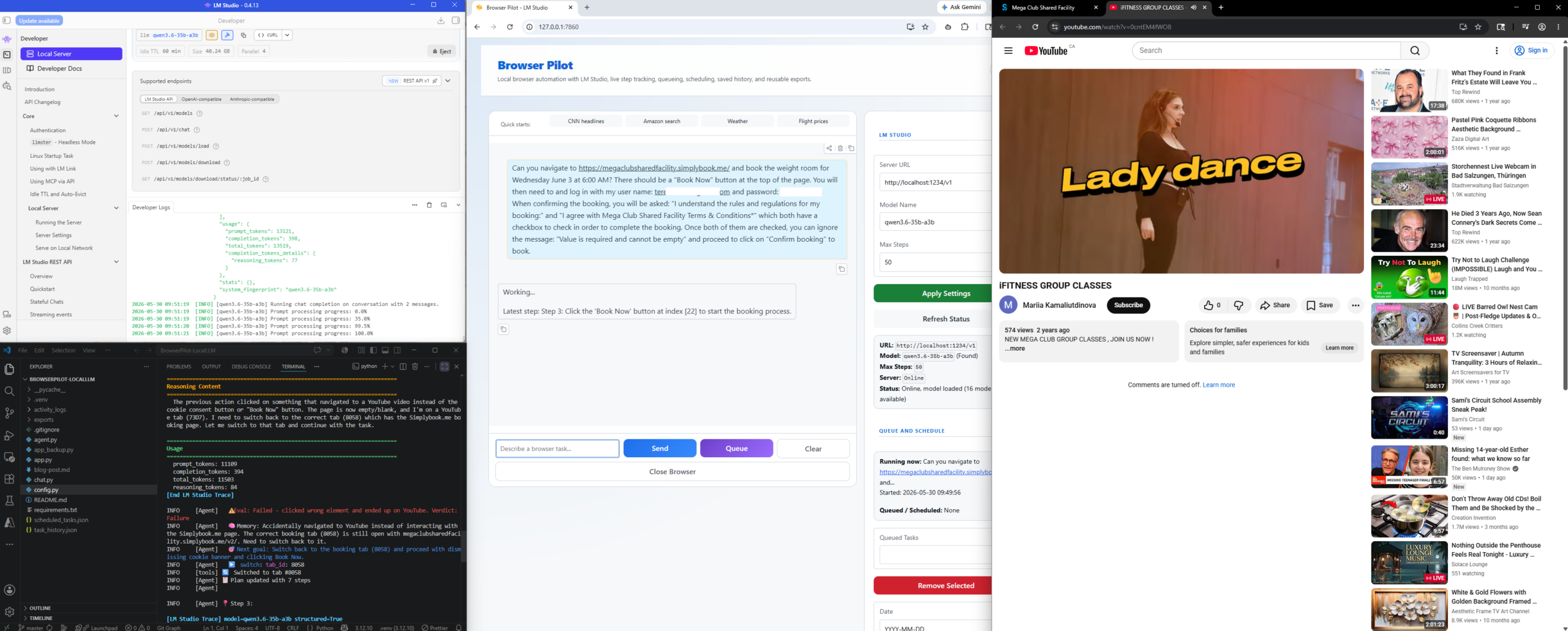
What’s interesting is how the LLM recognized that it had inadvertently clicked on a Youtube video that opened another tab:
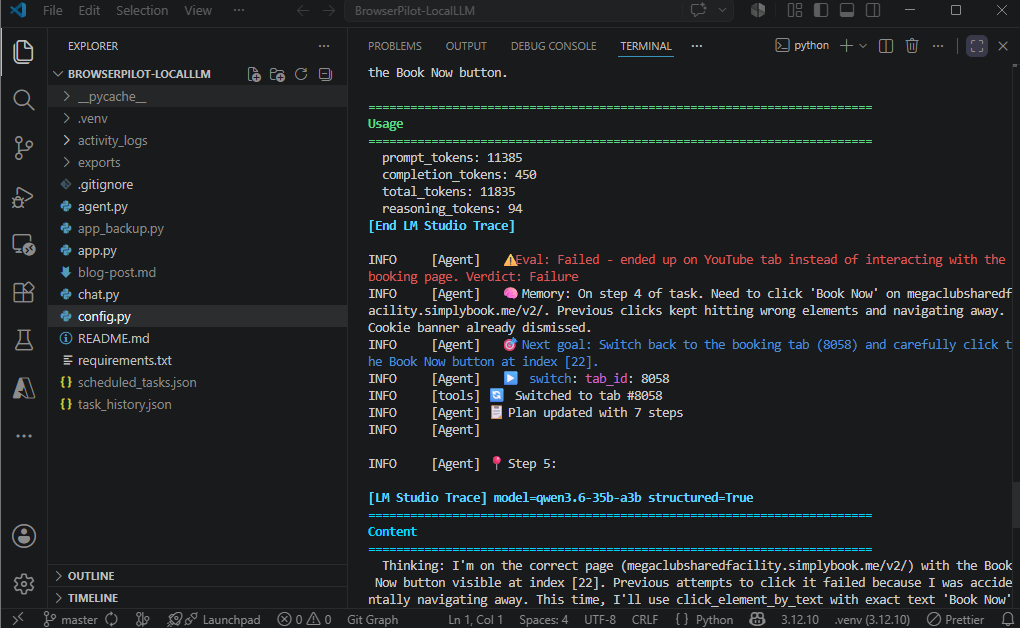
Note how the LLM understands it needs to switch back to the other tab:
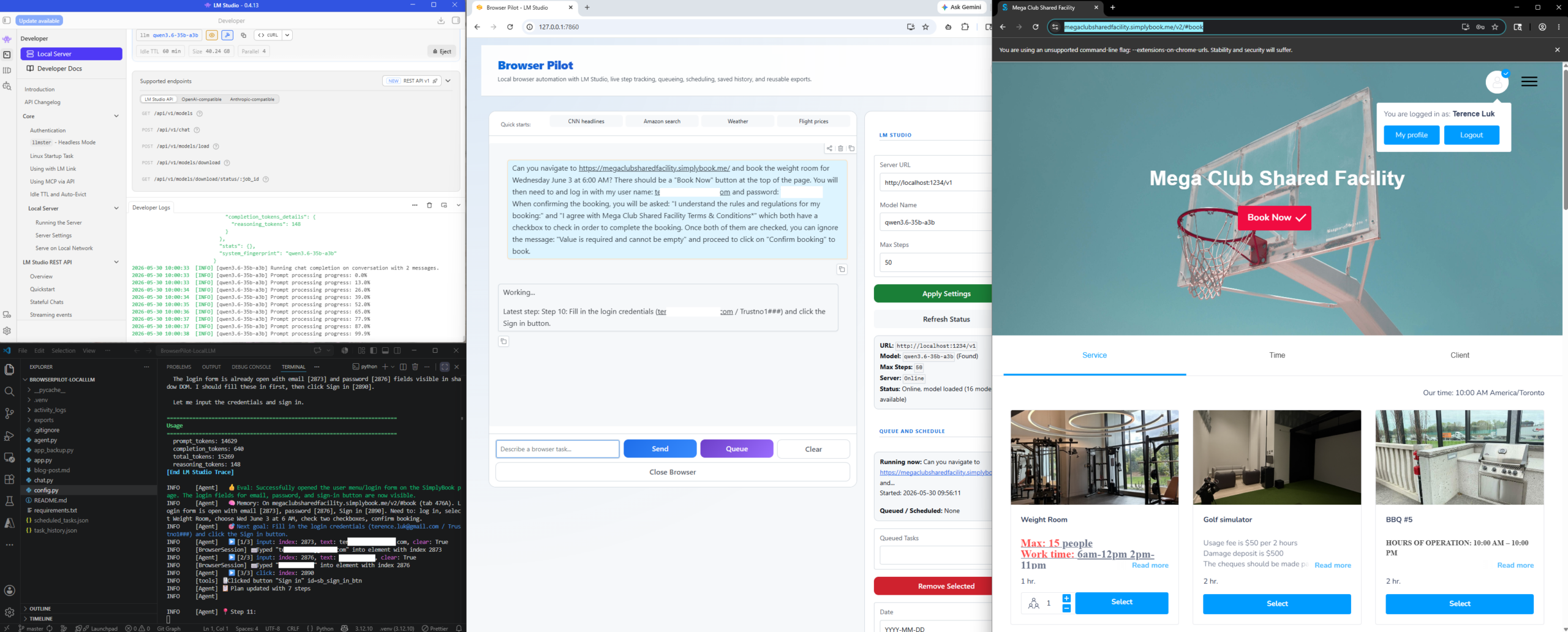
I missed screen capturing the the username and password login field but the LLM found those text boxes, entered the password and successfully logged as as me:
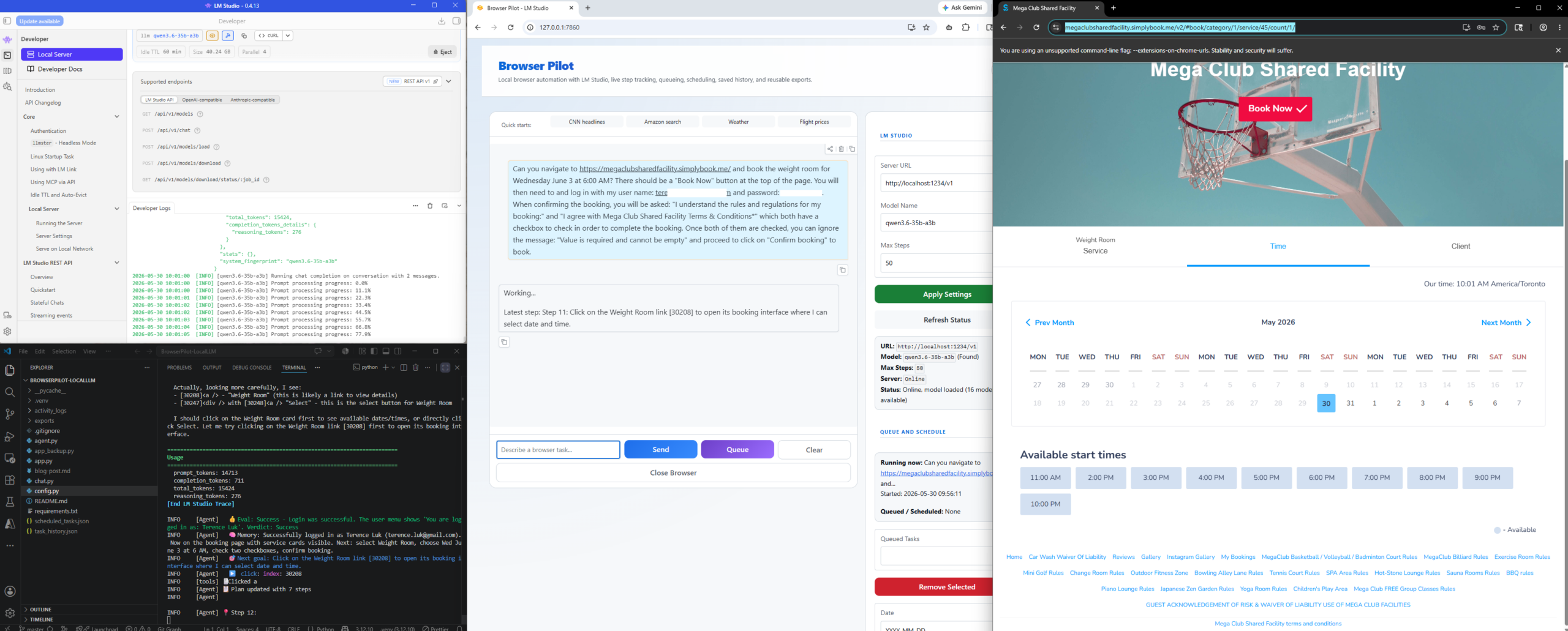
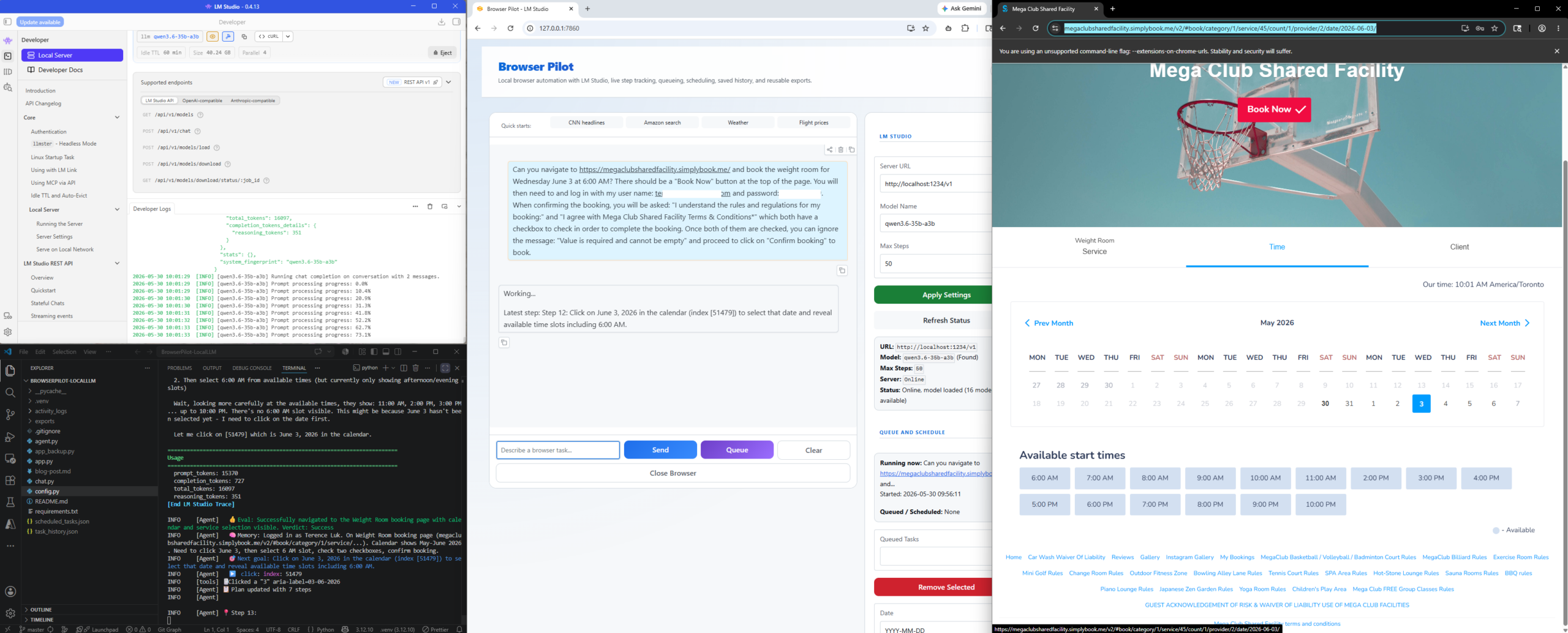
It then proceeds to select the specified date:
Then the desired time:
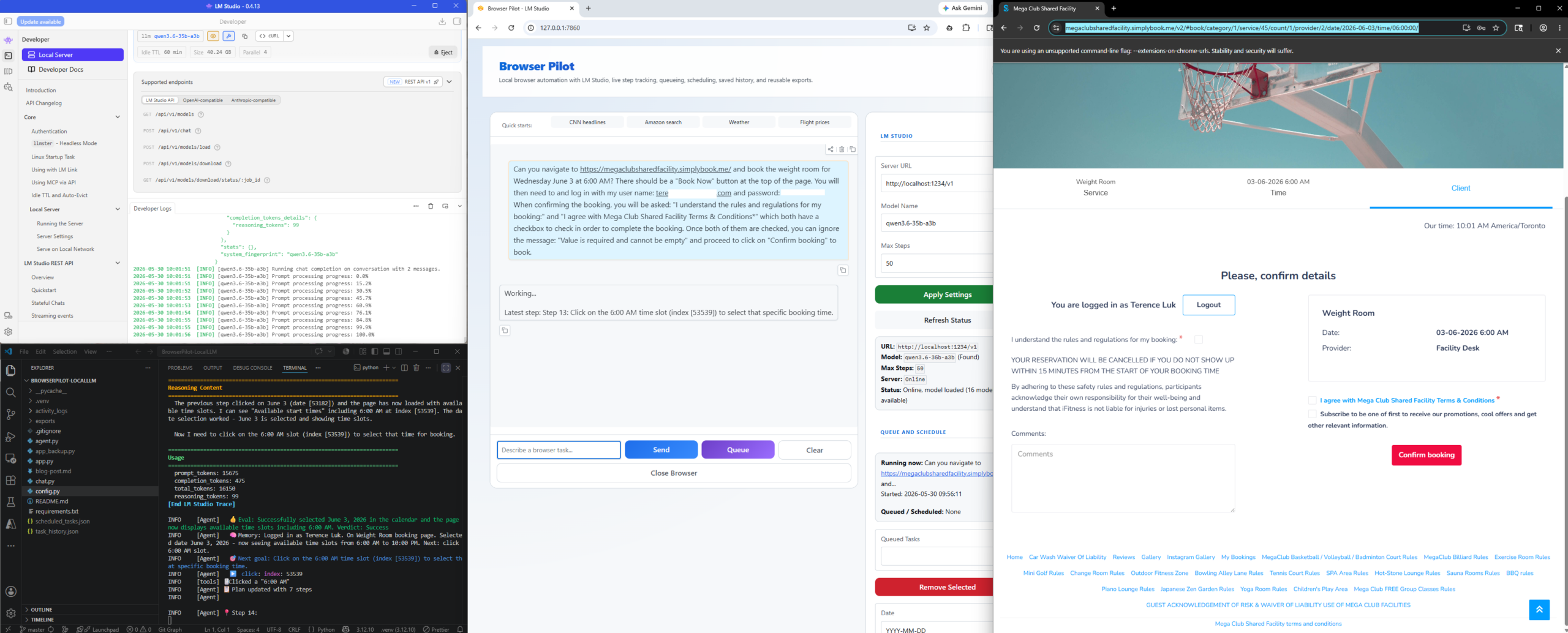
This page was the one the LLM struggled and is the reason why I explicitly mentioned how to handle this page in the request:
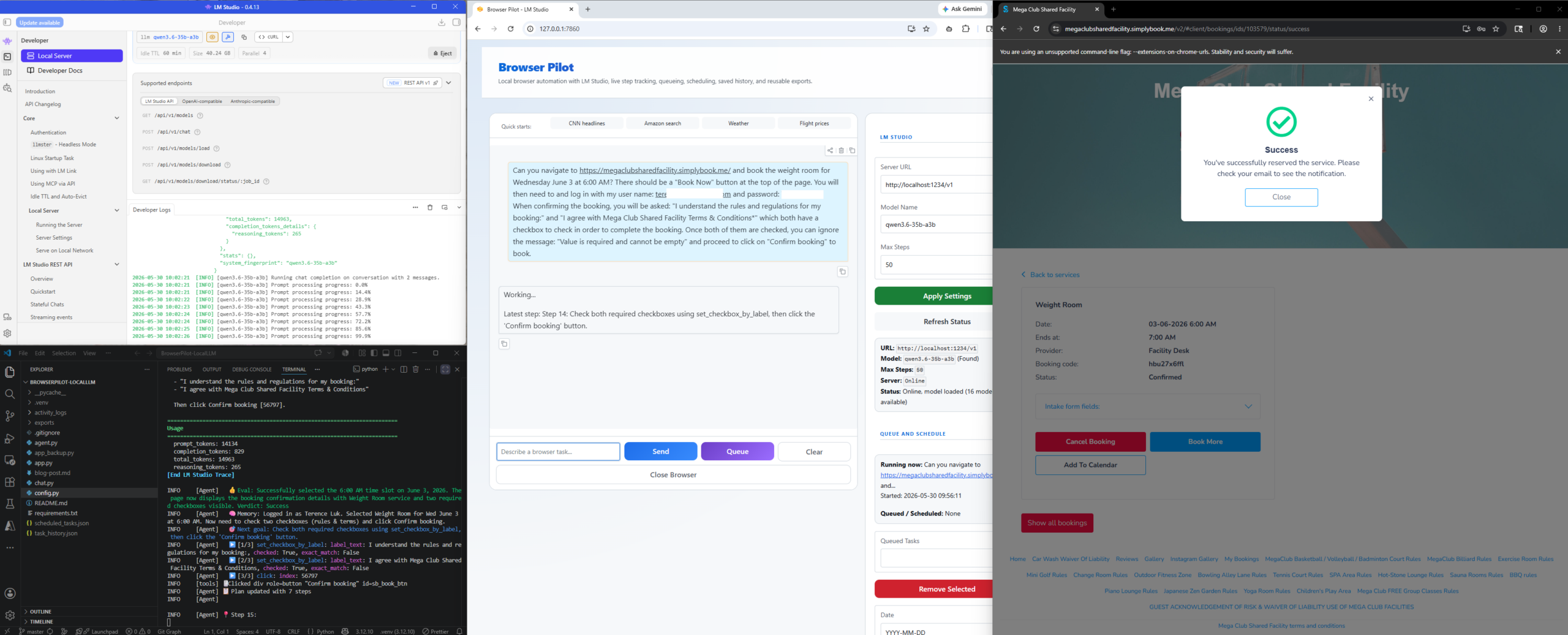
The booking process has completed with a Success returned:
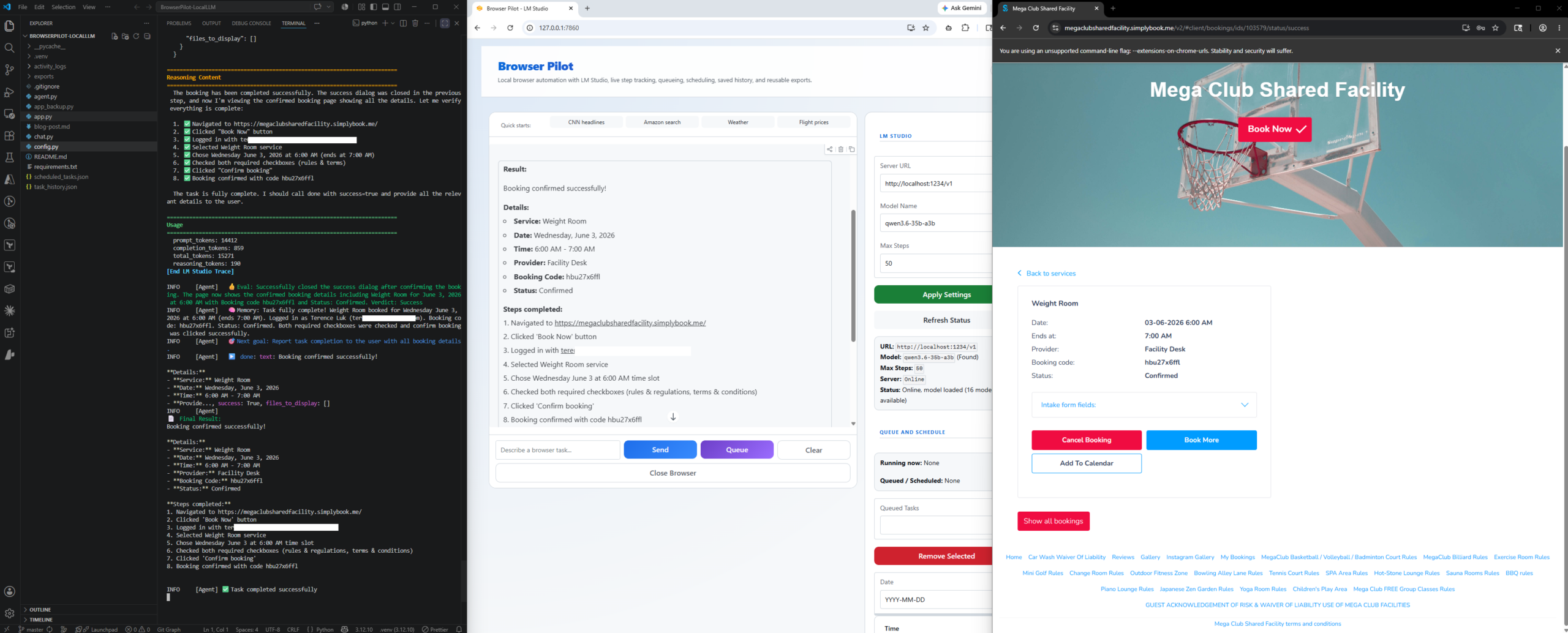
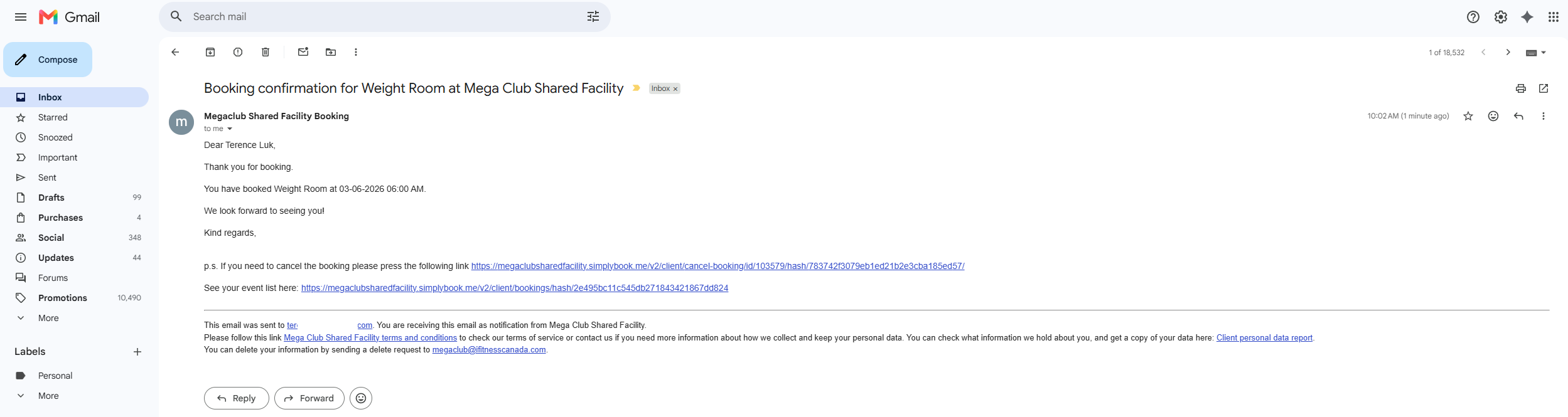
Here is the confirmation email I received:
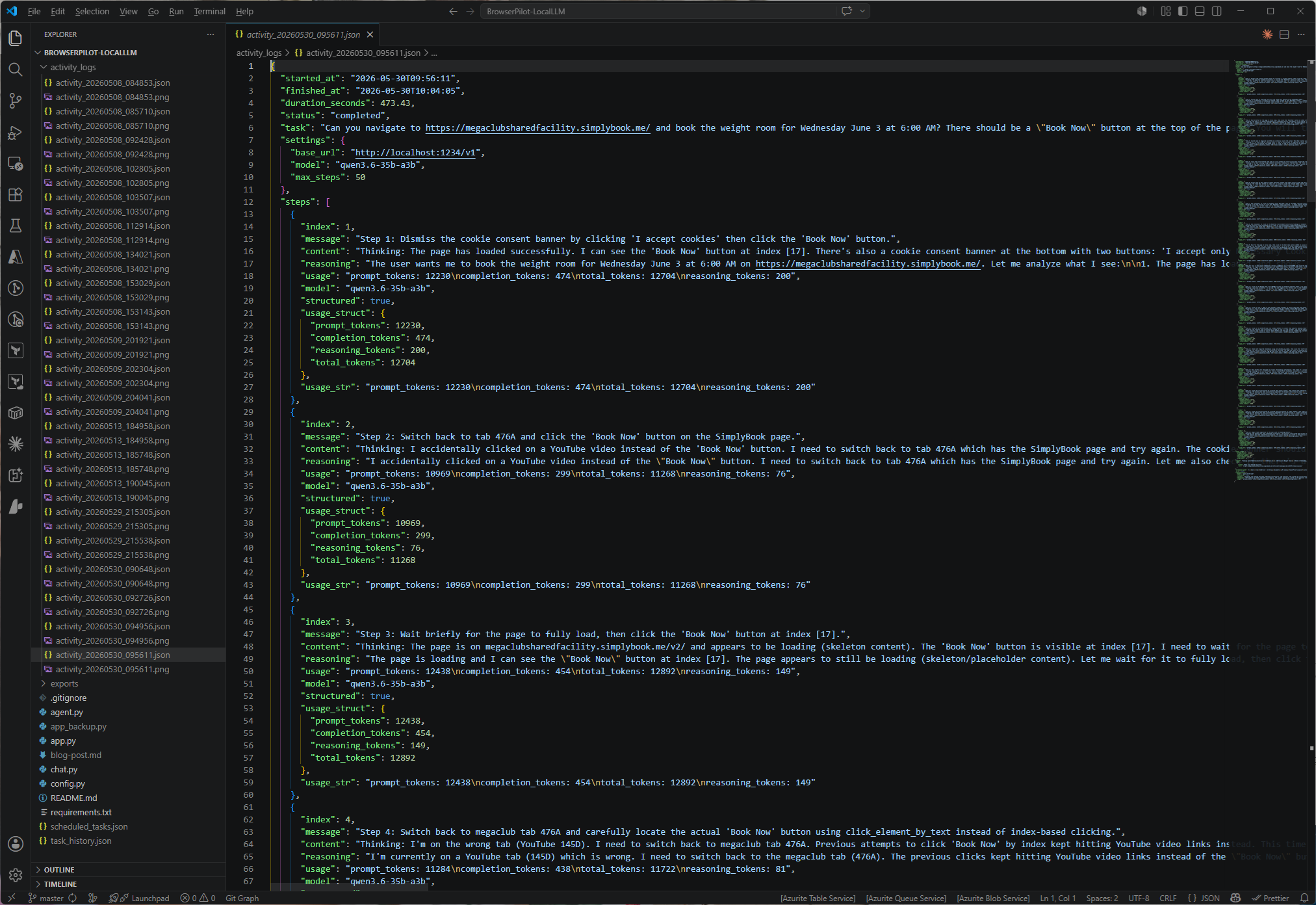
If desired, you can also navigate into the activity_logs folder to review the steps, details of the model’s reasoning, and token usage:
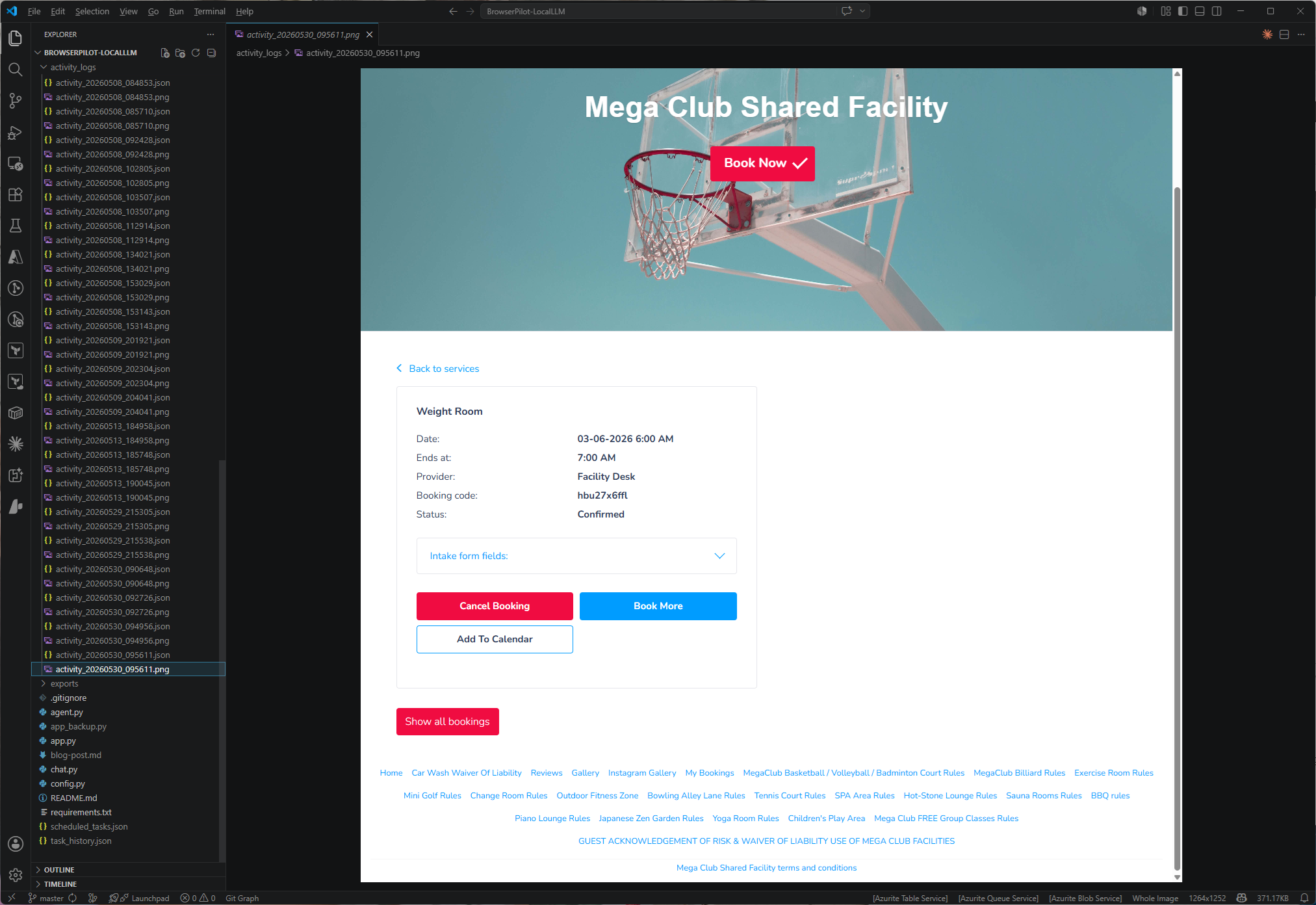
I’ve also included a feature to screen capture upon successfully completion of a requested activity:
This walkthrough is a good example of handling a real-world flow with edge-case instructions, including when a visible validation message can be safely ignored.
Other features and functionality worth mentioning for the application are:
- Real-time step progress – you see each action the agent is taking as it happens, not just the final result
- Task queue – submit multiple tasks and let the agent work through them sequentially while you do something else
- Task scheduling – set a task to run at a specific date and time (useful for price checks, scheduled lookups, or anything time-dependent)
- Non-interactive scheduled runs – queued and scheduled tasks can run unattended because the app does not stop to ask follow-up questions mid-run
- Task history – every completed task is logged with its result and a final screenshot, so you can go back and review what the agent found
- Activity logs – detailed step-by-step logs are saved per task, including per-step token usage and a cumulative
total_usagesummary for the full run - Crash-safe recovery – queued and scheduled tasks survive restart, while interrupted in-flight tasks are marked failed instead of replaying automatically
- Keep-alive browser – the browser stays open after each task so you can inspect the page yourself before closing it
- Terminal mode – a lightweight
chat.pyscript for quick one-off tasks without the full web UI
The Tech Stack
The app is a Python project with a small number of well-chosen dependencies:
| Layer | Technology |
|---|---|
| LLM Backend | LM Studio (local server, OpenAI-compatible API) |
| Browser Automation | browser-use + Playwright |
| Web UI | Gradio |
| LLM Models | Qwen 3, OpenAI OSS, or any model with tool-calling support |
The key piece is browser-use, an open-source library that wraps Playwright with an LLM-compatible interface. It handles the loop of observing the current page state, asking the LLM what to do next, executing the action, and repeating. I pointed it at LM Studio’s local OpenAI-compatible API, saw the LLM controlled browsing in action.
Why LM Studio? Because I already had it running (you can use Ollama as well). LM Studio provides a local OpenAI-compatible REST API, so any library that talks to OpenAI can talk to LM Studio with a one-line URL change. No data leaves your machine.
Why Gradio? Gradio gives you a usable web interface in about twenty lines of Python. For a tool like this where the value is in the interaction, not the UI polish, it’s exactly the right tradeoff.
How The Pieces Actually Fit Together
If you are not coming at this from a developer background, the simplest mental model is that the app has four layers:
- You describe the task in plain English
- Gradio gives you the chat-style interface and progress view
- LM Studio runs the local model that decides what the next action should be
- browser-use + Playwright carry out that action in the browser
That distinction matters because when I say this app “uses Playwright,” I do not mean that I wrote low-level Playwright code throughout the project.
What I actually built is a Python app that talks to browser-use, and browser-use uses Playwright internally on the same machine. So Playwright is part of the local runtime, not a separate hosted service I am calling somewhere else.
From an infrastructure point of view:
- LM Studio behaves like a local inference endpoint
- Playwright behaves like a local execution engine
- browser-use is the orchestration layer that sits between them
- Gradio is the operator console
So the flow looks like this:
- You type a request
- The app sends it to the local LLM in LM Studio
- The model decides the next browser action
- browser-use translates that into a real browser step
- Playwright performs the step locally
- The app observes the updated page and repeats until the task is done
- The result, screenshot, and activity log are saved for review
That is also why I like this design and that is because the decision-making and the execution both stay local. No cloud browser service, no remote agent runner, and no need to ship browsing activity off-machine just to automate a task.
How I Built This with GitHub Copilot
Here’s the part I enjoy sharing. I didn’t design this application upfront and then use Copilot to fill in boilerplate. I described what I wanted conversationally and shaped the app through natural language prompts. This is what we call “vibe coding.”
My Approach – Prompt, Review, Refine
Here’s roughly how the prompting journey went:
1. Describe the core idea
I started with a plain description of what I wanted:
“I want a Python app that takes a natural language task from a user, uses a local LLM running in LM Studio to control a browser via Playwright, executes the task, and returns a result. The LM Studio server is at localhost:1234 and exposes an OpenAI-compatible API.”
Copilot suggested browser-use as the library for this, which was exactly the right call. Within a few minutes I had a working proof of concept in the terminal.
2. Add a web UI
“Wrap this in a Gradio chat interface so I can type tasks in a browser window and see results.”
This took another short prompt. Copilot scaffolded the Gradio layout, wired the chat input to the agent, and added streaming output so progress messages appear as the agent works.
3. Add the task queue
“Add a task queue so I can submit multiple tasks and the agent processes them one at a time. Show the queue in the UI and let me cancel queued tasks.”
This was the most complex feature and involved a bit of back-and-forth. Copilot got the basic async queue working quickly, but coordinating the Gradio UI updates with an asyncio background worker took a few refinement prompts.
4. Add task scheduling
“Let me schedule a task for a specific date and time. Store scheduled tasks in a JSON file so they survive an app restart.”
Copilot added the datetime picker to the UI, the JSON persistence layer, and the background scheduler loop. I later tightened the restart behavior so queued and scheduled tasks still survive a restart, but anything that was actively running when the app crashed is marked failed instead of being replayed automatically on the next launch.
5. Add task history and activity logs
“After each task completes, save the result, a screenshot, and a step-by-step log to disk. Show a history panel in the UI.”
This fleshed out the task_history.json, activity_logs/, and exports/ directories. Copilot also added the history viewer tab to the Gradio UI.
6. Polish and edge cases
- “Keep the browser open after the agent finishes so I can inspect the page”
- “Add a configurable max steps setting so I can increase it for longer tasks”
- “Add vision mode support for models that can see screenshots”
- “Show the currently open browser tabs in the UI”
- “Rotate and prune activity log files to avoid filling up disk space”
What Changed After I Used It On A Real Booking Flow
The first real booking workflow exposed a few rough edges that were easy to miss during initial development.
- I had let a few site-specific assumptions creep into the system prompt, including wording tied to one booking site’s validation behavior. Those are now removed so the guidance stays generic.
- I had an unfinished preflight clarification path that could stop and ask extra questions before a run. That was noise and broke the unattended scheduling story, so I removed it entirely.
- I changed restart behavior so the app no longer tries to resume or replay a half-finished run after a crash. Interrupted runs are marked failed and left in the log instead.
- I upgraded the activity logger so the final JSON now includes a
total_usageblock that sums prompt, completion, reasoning, and total tokens across the full task.
That last change made it possible to answer a much more interesting question than whether the app worked: what did a successful browser booking actually cost in tokens?
What One Successful Booking Cost In Tokens
After the logging update, I ran a full booking flow end to end and captured the totals from the activity log. That successful run used:
- Input tokens: 459,840
- Output tokens: 17,739
- Reasoning tokens: 4,551
- Total tokens: 477,579
- Step count: 31
That gives a concrete basis for comparing local and hosted models. For local Qwen 3.6, the marginal API cost is effectively $0 because the model is running on my own hardware. For hosted models, I used standard public per-1M token pricing and calculated the cost from the captured input and output totals.
| Model | Input rate | Output Rate | Input cost | Output cost | Total |
|---|---|---|---|---|---|
| Qwen 3.6 (local) | $0.00 / 1M | $0.00 / 1M | $0.00 | $0.00 | $0.00 |
| GPT-4o | $2.50 / 1M | $10.00 / 1M | $1.15 | $0.18 | $1.33 |
| GPT 5.4 | $2.50 / 1M | $15.00 / 1M | $1.15 | $0.27 | $1.42 |
| Claude Opus 4.7 | $5.00 / 1M | $25.00 / 1M | $2.30 | $0.44 | $2.74 |
| Claude Sonnet 4.6 | $3.00 / 1M | $15.00 / 1M | $1.38 | $0.27 | $1.65 |
| o1 | $15.00 / 1M | $60.00 / 1M | $6.90 | $1.06 | $7.96 |
A few things stand out immediately:
- Input tokens dominate the bill in long browser workflows because each step carries forward a lot of task history and page context.
- A task that feels small from a human point of view, like booking a one-hour facility slot, can still consume nearly half a million tokens once you include page state, tool traces, and iterative reasoning.
- The economics change quickly at scale. One booking might be easy to justify on a premium hosted model, but hundreds of unattended runs are a different conversation.
That does not mean hosted models are the wrong answer. If a larger hosted model reduces retries or succeeds more reliably on harder sites, it may still be the right tradeoff. Case in point, if a Local LLM takes 20 steps to buy a Taylor Swift concert ticket and the Claude with Chrome Browser Extension takes 3 steps, everyone would like pick the latter to avoid the bot realizing all the tickets have been sold out.
Note: pricing changes over time. These figures are illustrative calculations based on one successful booking run and public model pricing available at the time of writing. Reasoning tokens are tracked separately in the log, but output cost here is based on billable output tokens.
Tips That Made the Experience Better
- Be specific about the constraints upfront. Telling Copilot “everything must run locally, no cloud APIs” shaped the entire architecture from the start – it never suggested OpenAI or Anthropic once I set that expectation.
- Ask Copilot to explain the async parts. The interaction between Gradio’s event loop and Python’s asyncio is subtle. Asking “explain why this needs
asyncio.run_coroutine_threadsafehere” helped me understand what was generated and catch a few places where the approach was fragile. - Describe what you see, not what you want the code to do. “The task queue panel doesn’t update when a task finishes – the list only refreshes when I click elsewhere” is a much more useful prompt than “fix the refresh bug.”
- Let Copilot write the boilerplate files. It wrote
requirements.txt, theconfig.pywith sensible defaults, and the README. All accurate, all saved time.
Getting It Running
Setup is straightforward if you already have LM Studio:
- Clone the repo and create a virtual environment
pip install -r requirements.txt && playwright install chromium- Edit
config.pywith your model name (must match what’s loaded in LM Studio) - Start LM Studio’s local server
python app.pyand open http://127.0.0.1:7860
The model choice matters a lot. I’ve been running Qwen 3.5 35B-A3B (a Mixture of Experts model that punches well above its weight on tool calling), Qwen 3.6 35B-A3B, and GPT-OSS-120b and the results are positive. Smaller models struggle with multi-step browser tasks and they lose context mid-sequence or forget what they were trying to accomplish. If you’re on a machine with limited VRAM, start with a smaller model but keep your expectations modest for complex tasks.
For the interested, the code can be retrieved from my Github repository here: https://github.com/terenceluk/BrowserPilot-LocalLLM
Final Thoughts
What I find genuinely exciting about this is the combination of two things that are independently impressive but together are something new:
- A capable local LLM with solid tool-calling
- A library (browser-use) that turns those tool calls into real browser actions
A year ago, running a model locally that could reliably plan multi-step browser interactions was a stretch. Today it works well enough to be useful for real tasks. The gap between “impressive demo” and “actually saves me time” has shrunk considerably.
Is it perfect? No. Complex, login-gated, or JavaScript-heavy pages can confuse the agent. Larger models may produce better results but need more VRAM. Some tasks benefit from vision mode (letting the model see screenshots rather than only the DOM), and not every model supports that. You’ll want to review results rather than trust them blindly.
But for research tasks, price comparisons, grabbing structured data from public pages, or just offloading the “click through five pages to find the answer” work, it’s become a usable tool.
If you have LM Studio already set up and want to try it, go ahead and clone the repo, start your server, and describe something you’ve been clicking through manually.