
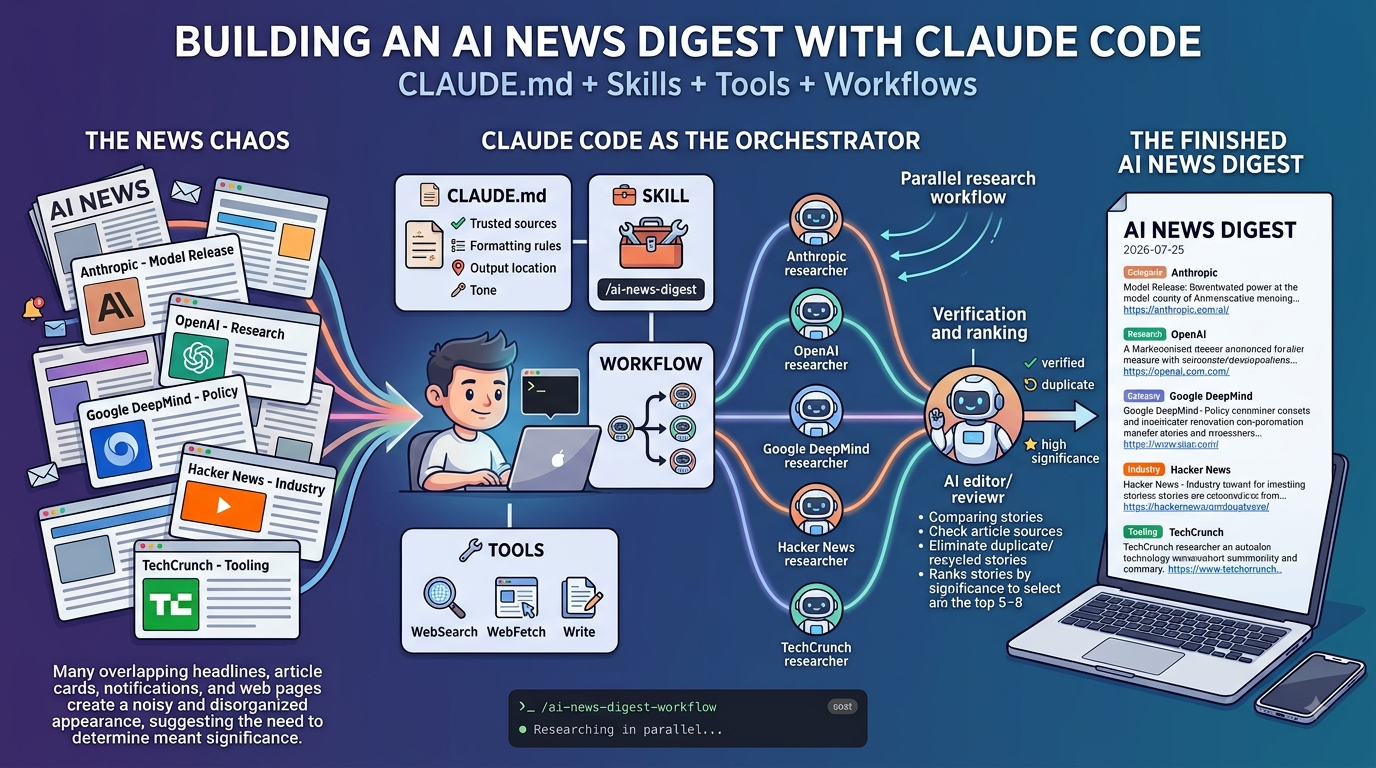
 I’ve always found that keeping up with technology news was difficult and while there are plenty of mailing lists you can sign up for, the emails coming into your inbox, no matter how condensed or concise, will eventually become noise and unread. One of the side projects I’ve been working on lately was to build an app that would use my locally ran AI models to intelligently fetch various news, score them, and present them as an HTML page that I can browse on my phone. That side project hasn’t been done yet so I wanted write a post that takes a bit less time and that is how I use Claude Code to perform something very similar.
The purpose of this post is to demonstrate how we can create a Claude Code project — essentially an AI News Digest — that researches AI news and write the results to a dated markdown file, and along the demonstrate four of the core building blocks: a CLAUDE.md for project instructions, a skill for the repeatable task, the built-in tools that do the actual searching, and a workflow that fans the research out in parallel so the searches run at the same time. I love Claude Code even though we now have Cowork so I hope this post will encourage others to use it if you haven’t already.
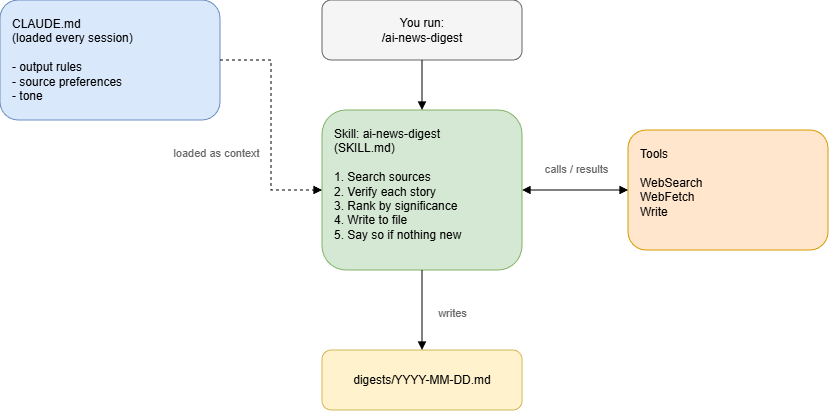
What each piece is doing
Before writing any files, it helps to know which building block is responsible for what. It took me a while to fully grasp the purpose of these components when I read through the Claude Code docs the first time, so here’s an easy to read breakdown:
| Building block | What it does in this project |
|---|---|
CLAUDE.md |
Standing instructions Claude reads at the start of every session: where to save digests, what sources to trust, how to format an entry |
| Skill | The repeatable procedure, invoked with /ai-news-digest, that Claude follows to actually produce an AI News Digest |
| Tools | The built-in WebSearch and WebFetch tools the skill uses to find and verify stories, plus Write to save the file |
| Workflow | The orchestration layer that runs several research agents in parallel, one per source, instead of searching sequentially |
Note that none of this requires an MCP server or a third-party API key. Everything here ships with Claude Code.
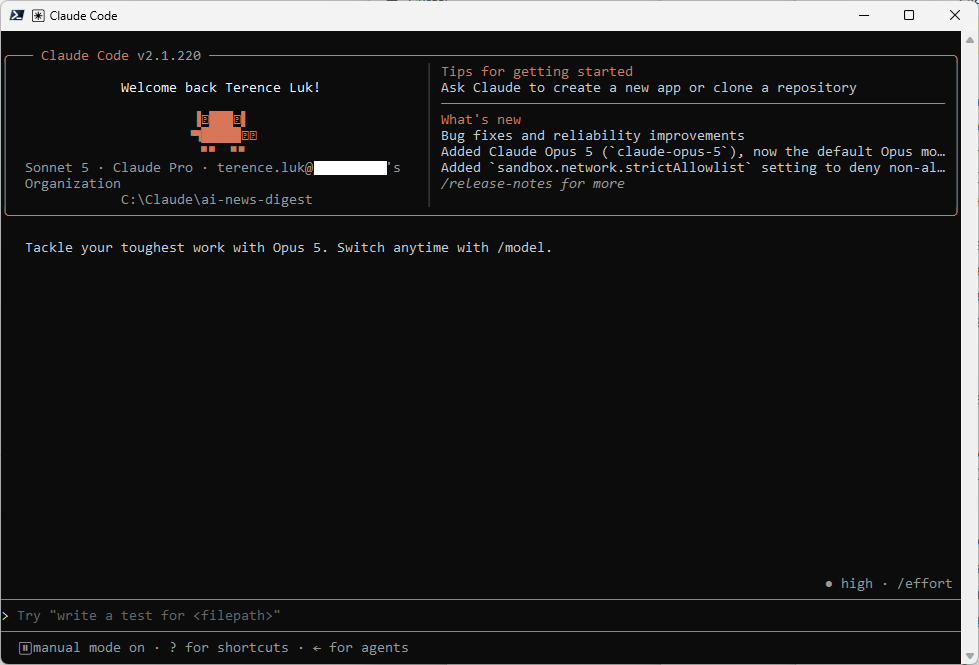
Step #1 – Set up the project folder
Create a folder anywhere on your local hard drive and start Claude Code inside it.
C:\
cd \
mkdir Claude
cd claude
mkdir ai-news-digest
cd ai-news-digest
claude
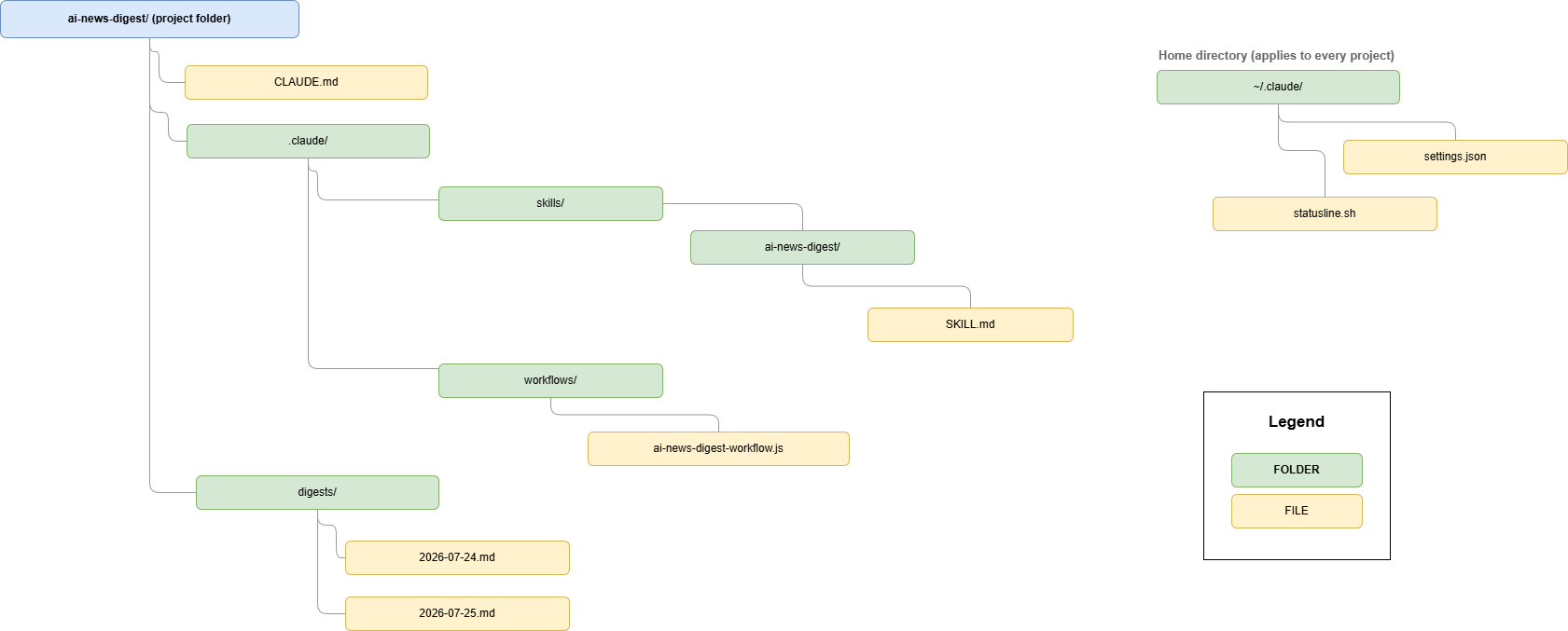
The following is a diagram of the files and folders we’ll be creating. I’ll be including the mkdir folder creation commands but you can also immediately set up the following folders in preparation for the following steps where we’ll be creating files:
Step #2 – Write the CLAUDE.md
CLAUDE.md is the file Claude reads at the start of every session in this folder. It’s the right place for anything you’d otherwise have to repeat every time you asked for an AI News Digest: where the output goes, which sources to trust, and how an entry should be formatted. Anything more procedural than that belongs in the skill instead, which is the distinction Anthropic’s own docs draw between the two.
# CLAUDE.md

## Project Purpose
This project generates a daily digest of top AI news headlines and saves
it as a dated markdown file for personal review. Nothing in this project
sends, publishes, or posts content automatically.

## Output Rules
- Save each digest to `digests/YYYY-MM-DD.md`, using today's date.
- Start with a one-line summary of the day's biggest story, followed by
  5 to 8 headline entries.
- Format each entry as:
  ## [Headline]
  **Source:** [Publication], [Date]
  **Category:** Model Release | Research | Policy | Industry | Tooling
  [Two to three sentence summary in plain language.]
  [Link]

## Source Preferences
Prioritize primary sources first, then reputable tech press:
1. Anthropic, OpenAI, Google DeepMind, and Meta AI official blogs
2. Hacker News front page (AI-tagged threads)
3. TechCrunch AI, The Verge AI, Ars Technica

## Tone
Factual and concise. No editorializing, no hype language such as
"game-changing" or "revolutionary." Flag anything that is a rumor or an
unconfirmed report explicitly.
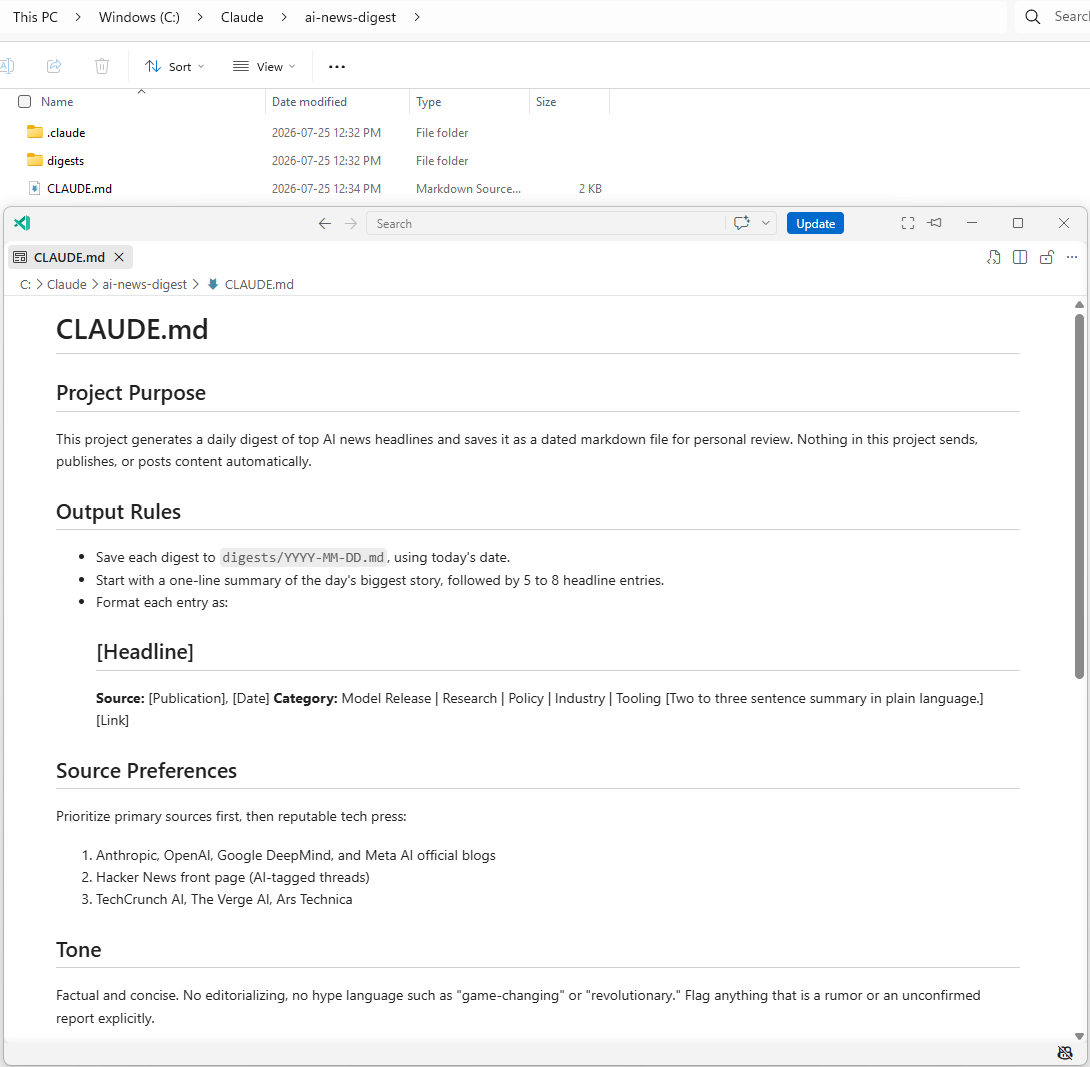
It’s generally agreed that this file should be kept well under 200 lines because Claude Code loads it in full at the start of every session, so a bloated CLAUDE.md costs context and, according to Anthropic’s own guidance, actually reduces how consistently Claude follows it. If I ever want per-source formatting rules or a much longer source list, that would be a job for a scoped rule under .claude/rules/, not for this file.
Step #3 – Build the skill
A skill is where the actual procedure lives. It’s a directory with a SKILL.md file, and unlike CLAUDE.md its content only loads into context when you invoke it, so it costs nothing on sessions where you’re not running a digest.
mkdir -p .claude/skills/ai-news-digest
---
name: ai-news-digest
description: Researches today's top AI news across primary sources and
  tech press, then writes a dated markdown digest to the digests folder.
disable-model-invocation: true
allowed-tools: WebSearch WebFetch Write
---

# AI News Digest

Research and compile today's AI news digest.

## Steps

1. Search for AI news from the last 24 hours across the sources listed
   in CLAUDE.md's Source Preferences.
2. For each candidate story, confirm it's genuinely new, not a rehash of
   yesterday's coverage, and fetch the source article to verify the
   headline claim before including it.
3. Rank stories by significance. A model release or a major funding or
   policy event outranks a minor feature update.
4. Select the 5 to 8 most significant stories and write them to
   `digests/$ARGUMENTS.md`, using the format defined in CLAUDE.md.
   Default the filename to today's date if no argument is given.
5. If a search turns up nothing genuinely new, say so in the digest
   instead of padding it with recycled news.
Save that as .claude/skills/ai-news-digest/SKILL.md.
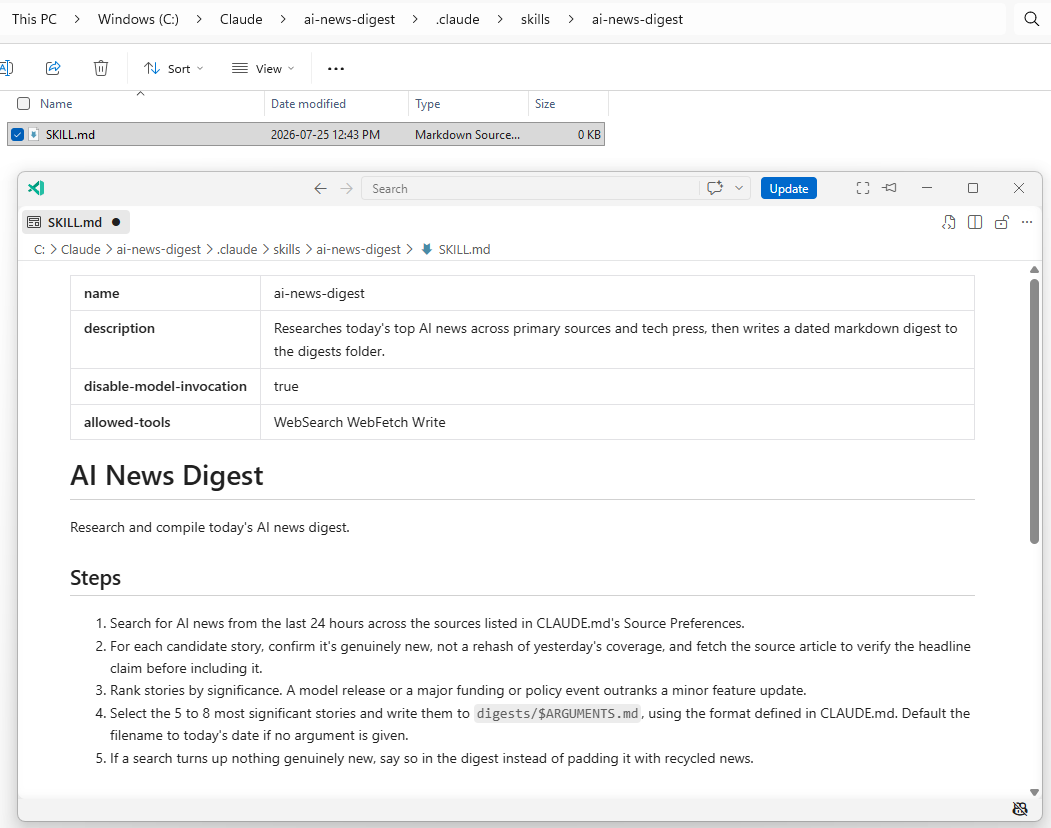
The following two frontmatter choices are worth calling out:
disable-model-invocation: truemeans Claude will never run this on its own. I have to type/ai-news-digestmyself.Without that flag, Claude Code reads a skill’s description and can decide for itself, mid-conversation, that the skill applies to whatever I’m doing right now, and just run it. So if I were working on something else entirely in this same project and happened to type a sentence like “anything new in AI today?”, Claude could match that to the skill and kick off the whole search-and-write process without me ever asking for a digest.
disable-model-invocation: truecloses that door. The skill only runs when I explicitly type the slash command.I keep this rule for anything I build that goes out and touches the internet or writes a file on its own: it should wait until I ask for it. It should never fire on its own because Claude guessed I probably wanted it. A wrong guess here just wastes a few cents and leaves an unwanted file behind, but the habit of requiring an explicit ask is the same one I’d want in place for something that actually mattered.
allowed-tools: WebSearch WebFetch Writepre-approves those three tools for the turn that invokes the skill, so I’m not clicking through a permission prompt for every search. That’s the tool layer of this project, and it’s worth being specific about what each one is doing.
Step #4 – Understand the tools doing the work
Claude Code ships with WebSearch and WebFetch as built-in tools, no MCP server or API key required. WebSearch finds candidate stories, WebFetch pulls the full article so Claude can verify the headline actually says what the search snippet implies, and Write saves the finished digest to disk.
| Tool | Role in this skill |
|---|---|
WebSearch |
Finds candidate AI news stories from the last 24 hours |
WebFetch |
Fetches the full article to verify a claim before including it |
Write |
Saves the finished digest to digests/YYYY-MM-DD.md |
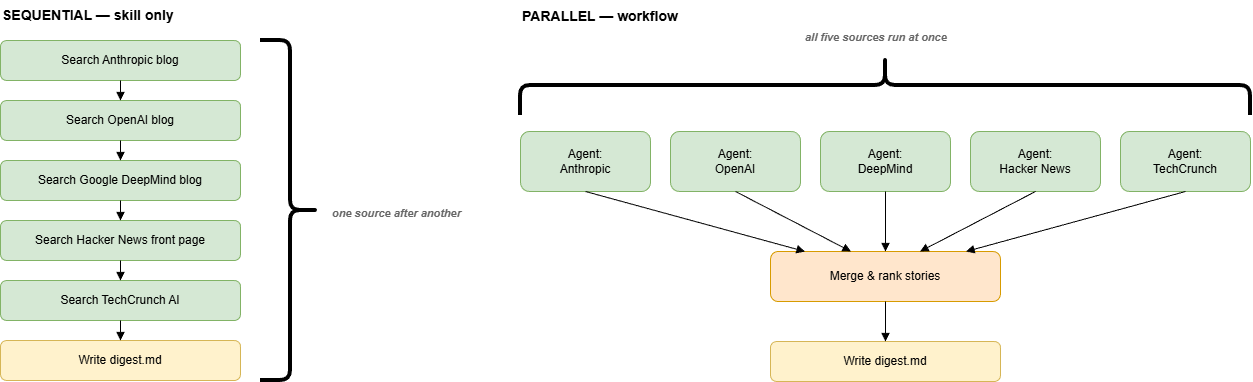
This is also where it’s worth deciding whether creating a workflow in step #5 is needed. Running the skill as written above already works as it will have Claude search each source, fetches what looks promising, and writes the file. The sequential nature of the execution where each search and fetch happens one after another in the same conversation, albeit slow, is fine for a handful of sources. If the the amount of required searches grows then a workflow would be more appropriate as concurrent streams can be ran.
Step #5 – Turn it into a workflow
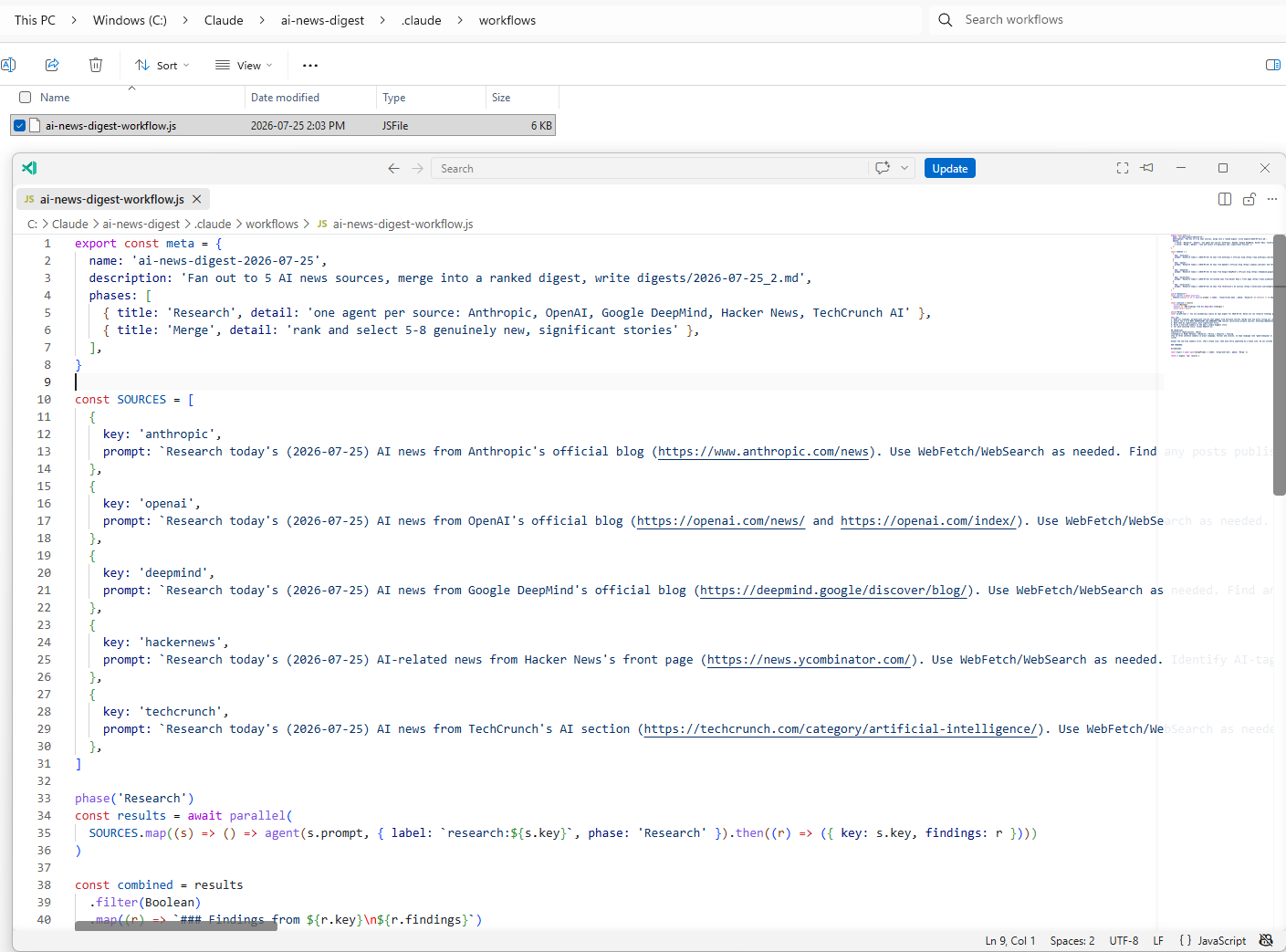
This is where a dynamic workflow earns its place over just running the skill directly. A workflow spawns one subagent per source, runs them concurrently, and merges the results once they’re all back. Claude no longer works through the sources one at a time in a single conversation.
The following prompt will direct Claude Code to write the orchestration script for you:
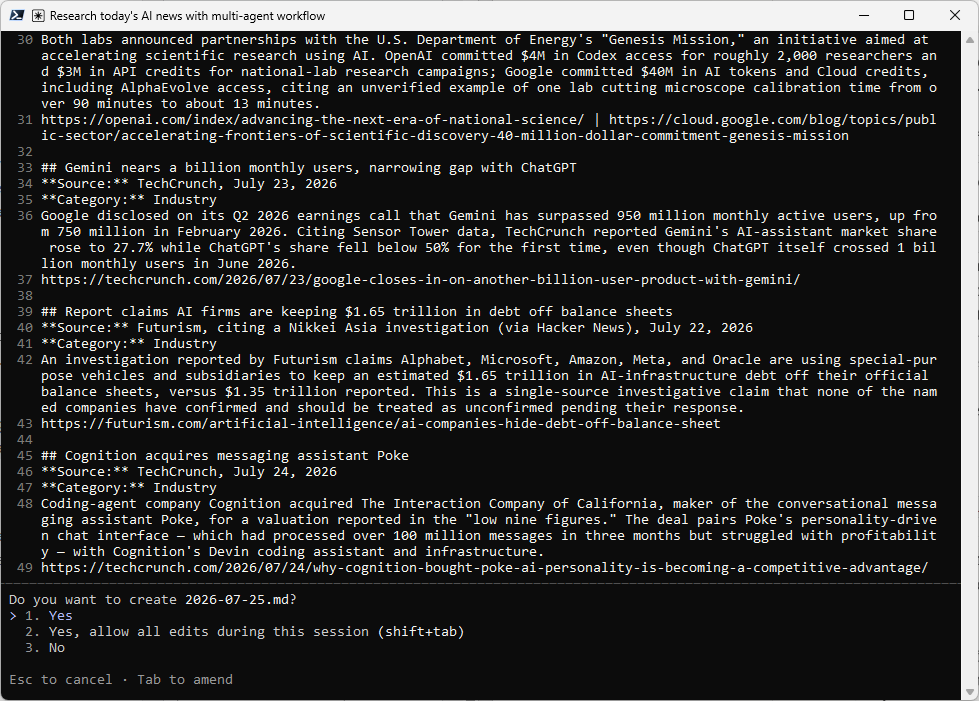
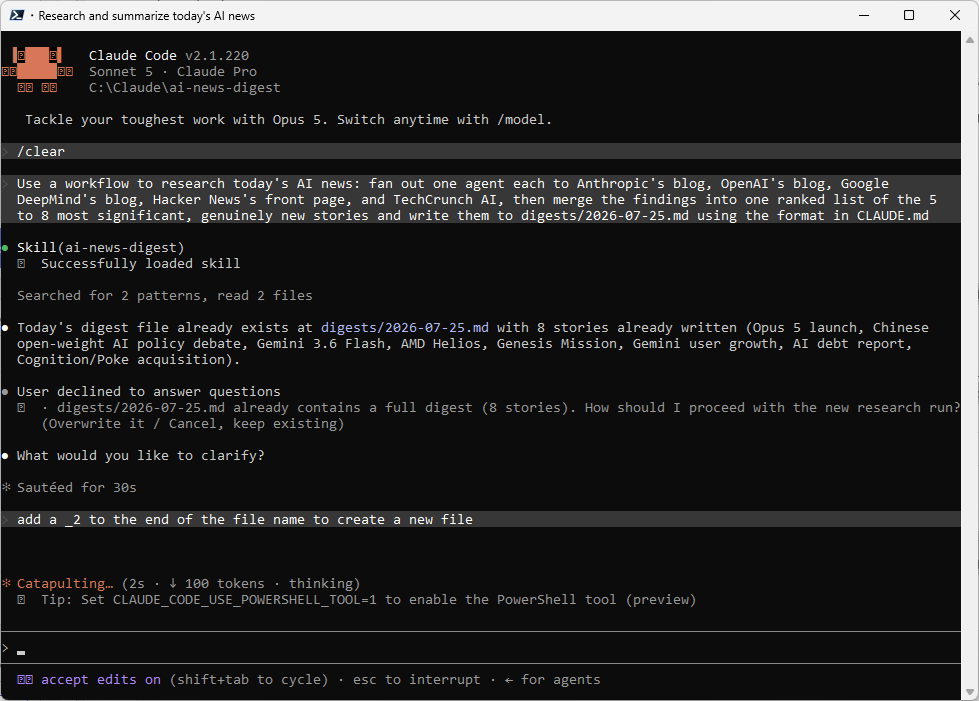
Use a workflow to research today's AI news: fan out one agent each to Anthropic's blog, OpenAI's blog, Google DeepMind's blog, Hacker News's front page, and TechCrunch AI, then merge the findings into one ranked list of the 5 to 8 most significant, genuinely new stories and write them to digests/2026-07-25.md using the format in CLAUDE.md
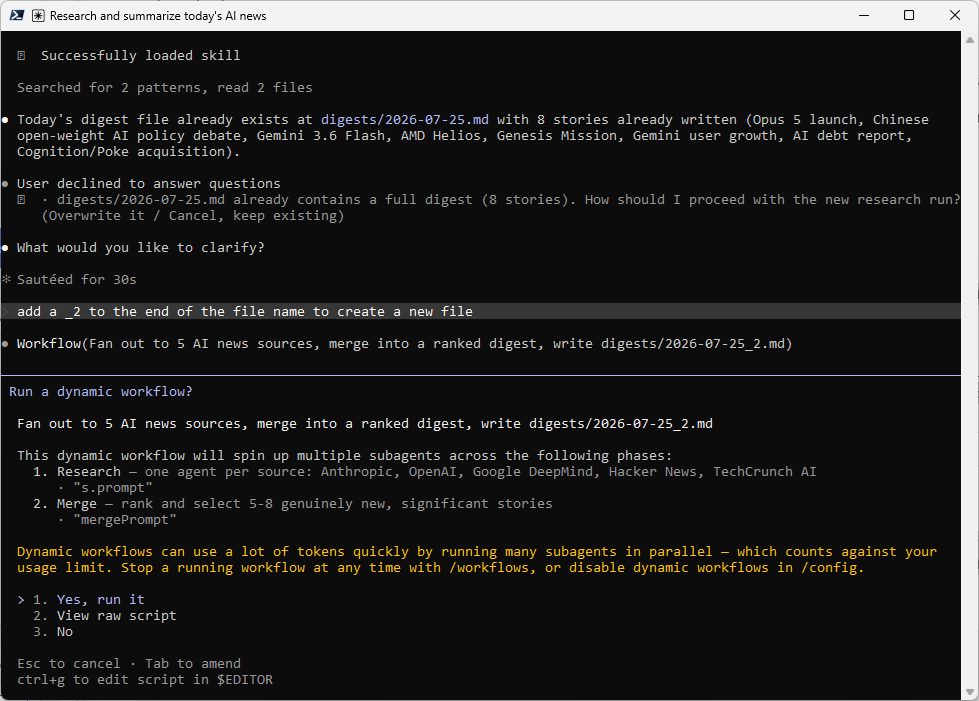
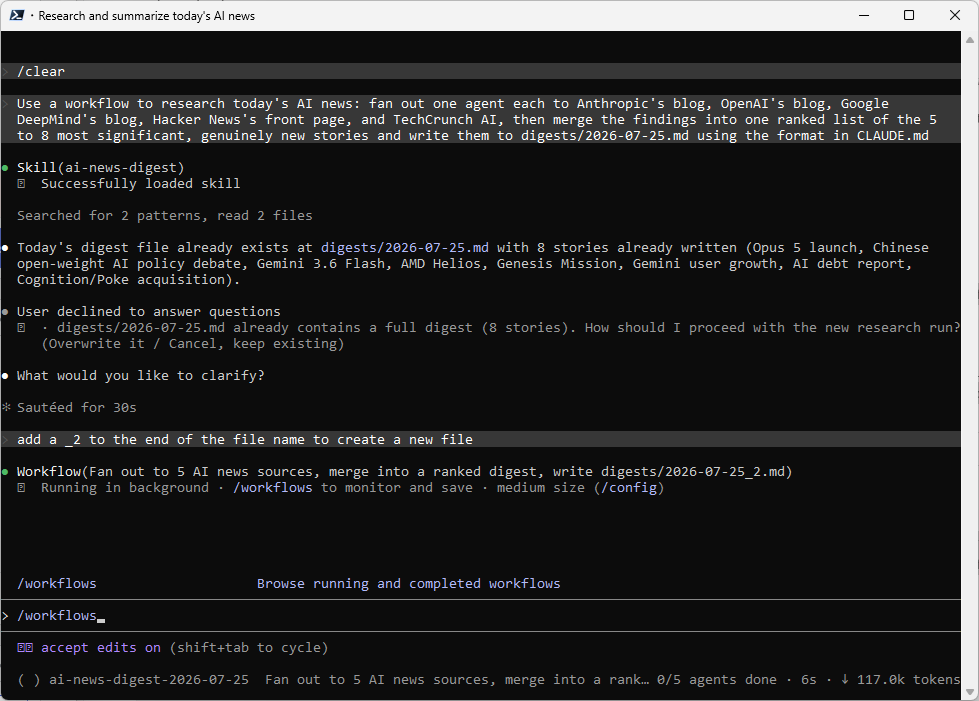
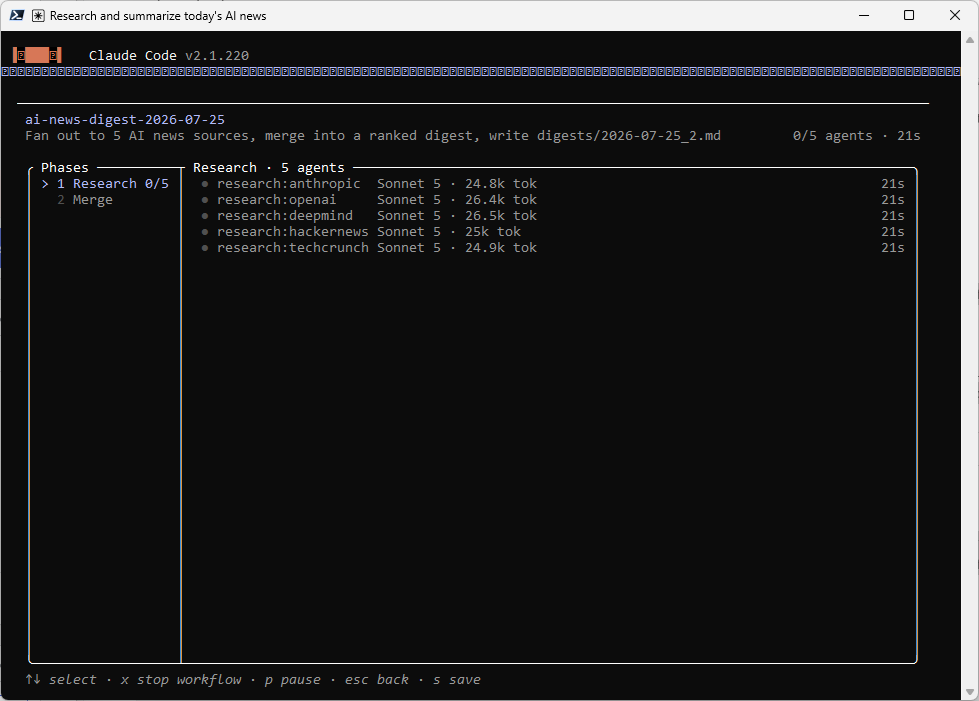
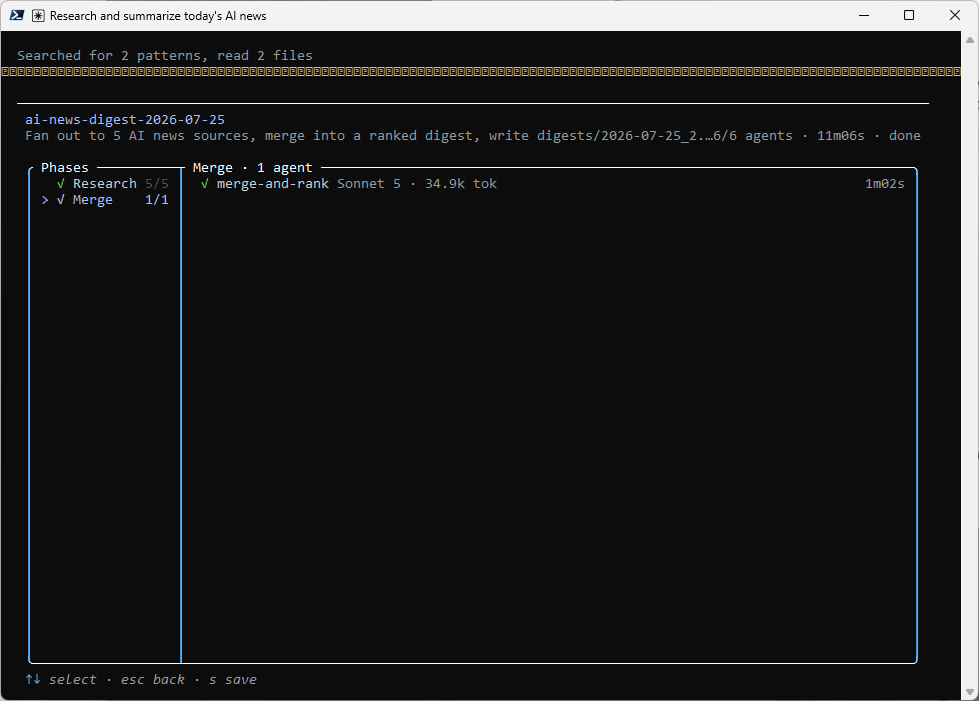
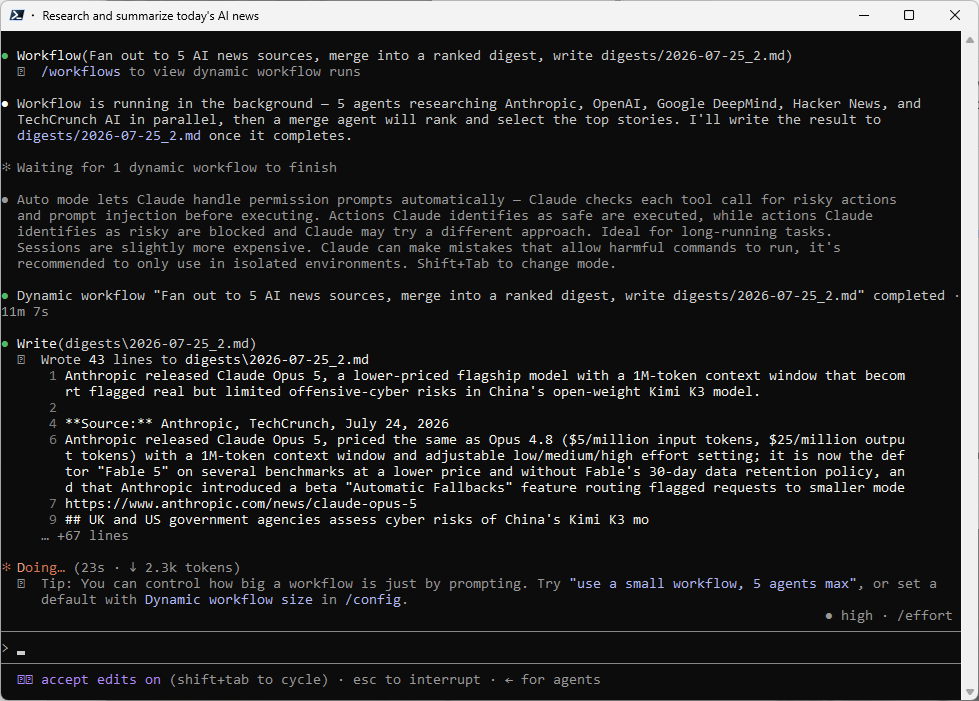
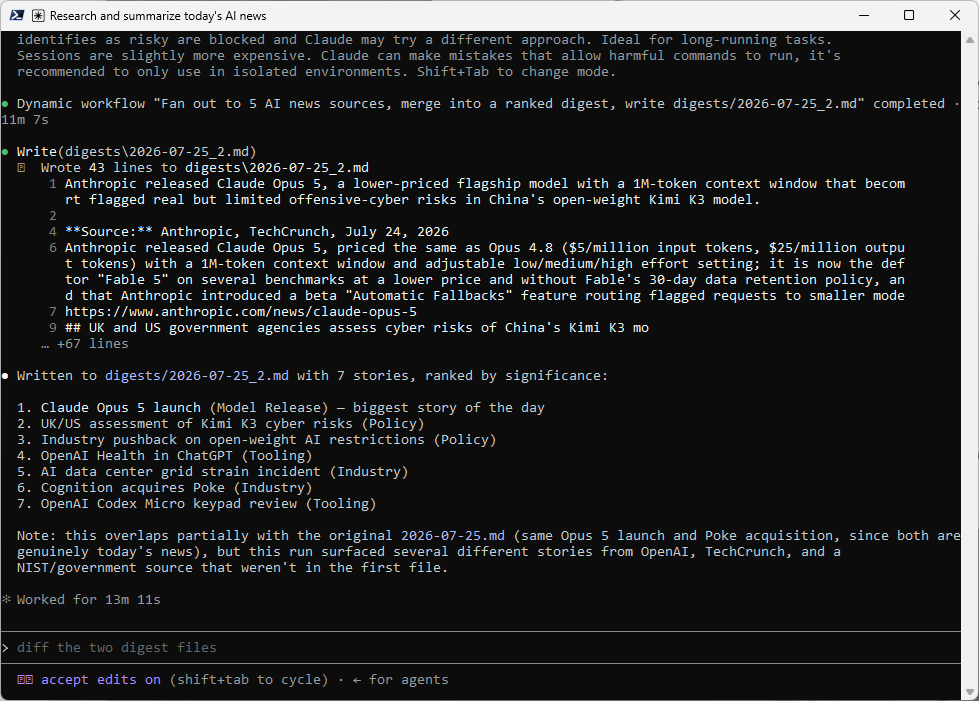
Claude Code shows the planned phases before it runs anything, and you approve or decline the plan the same way you’d approve a tool call. Once it’s running, you don’t have to guess what’s happening: each source gets its own agent, and Claude reports back as each one finishes.
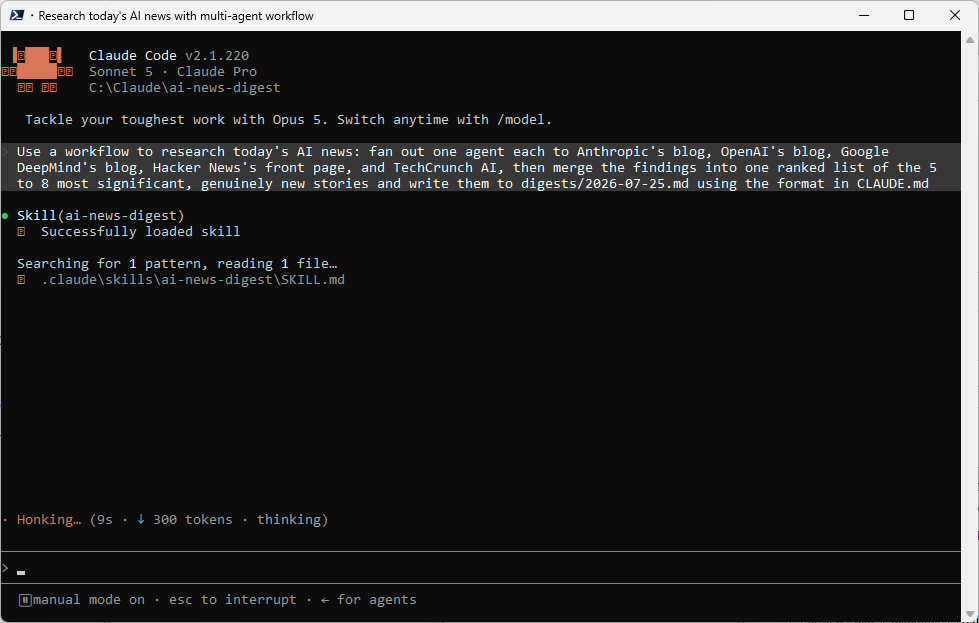
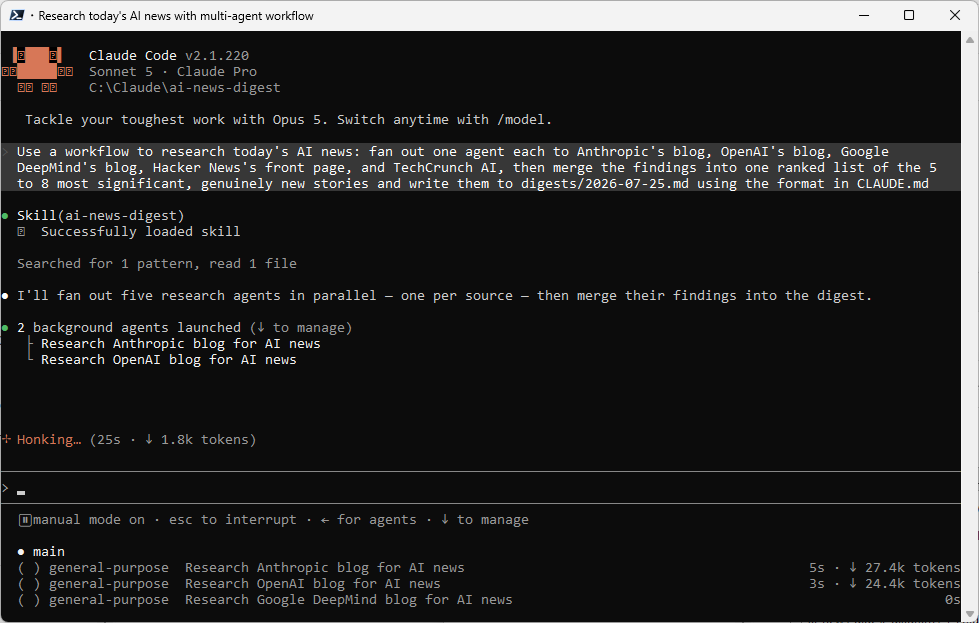
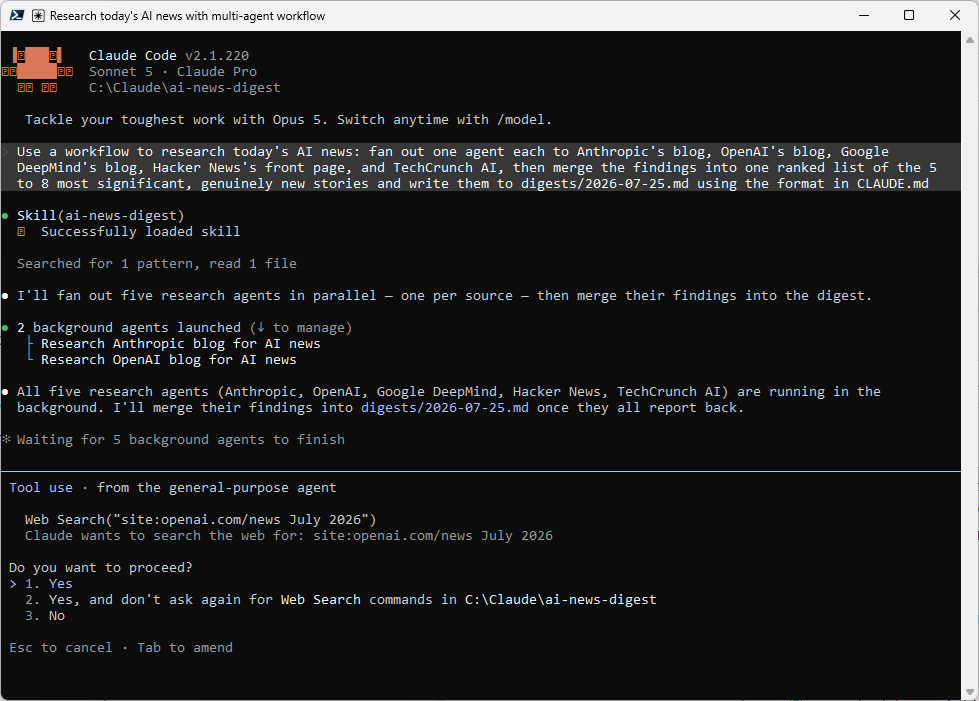
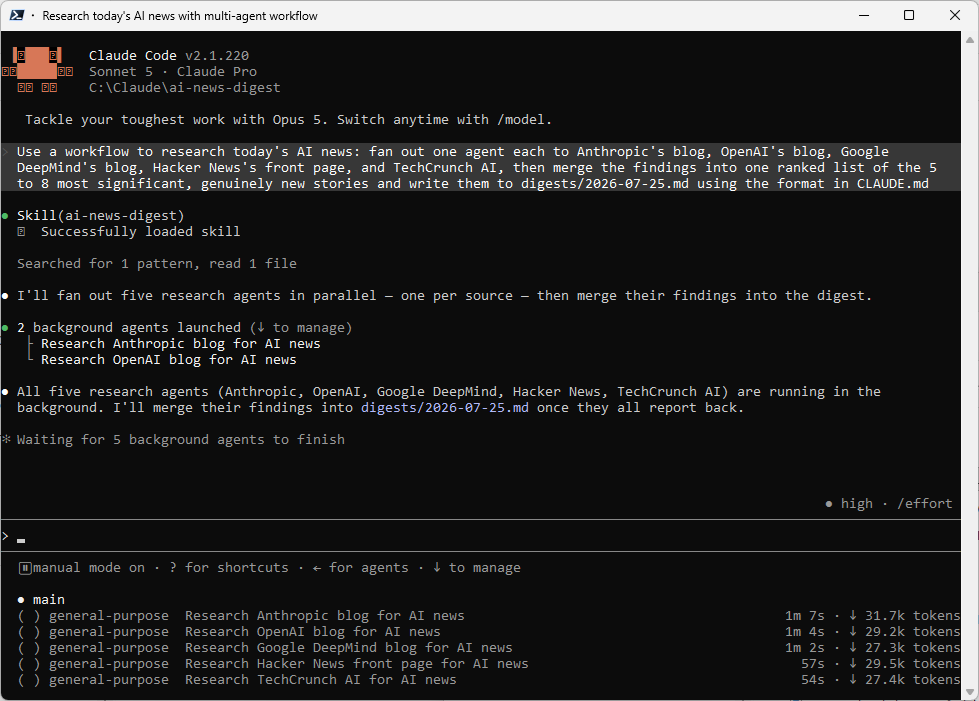
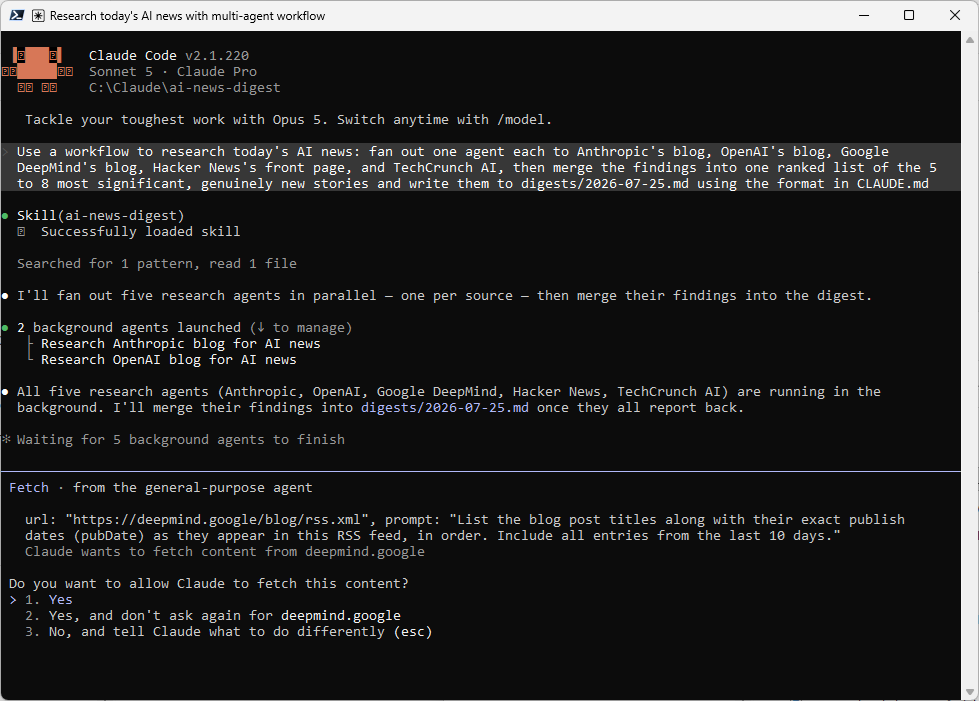
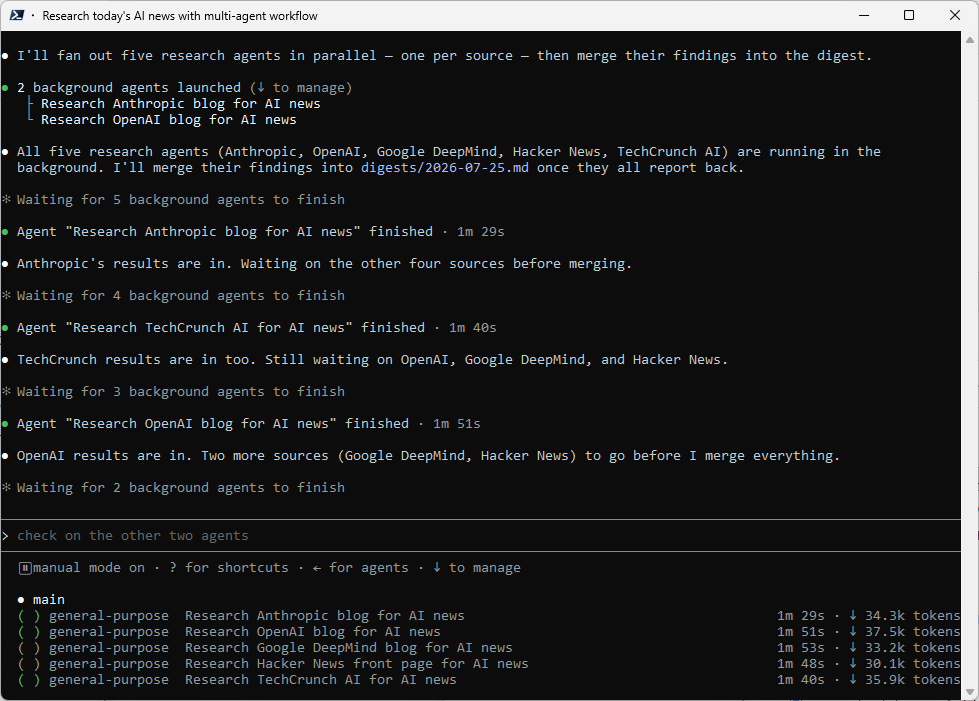
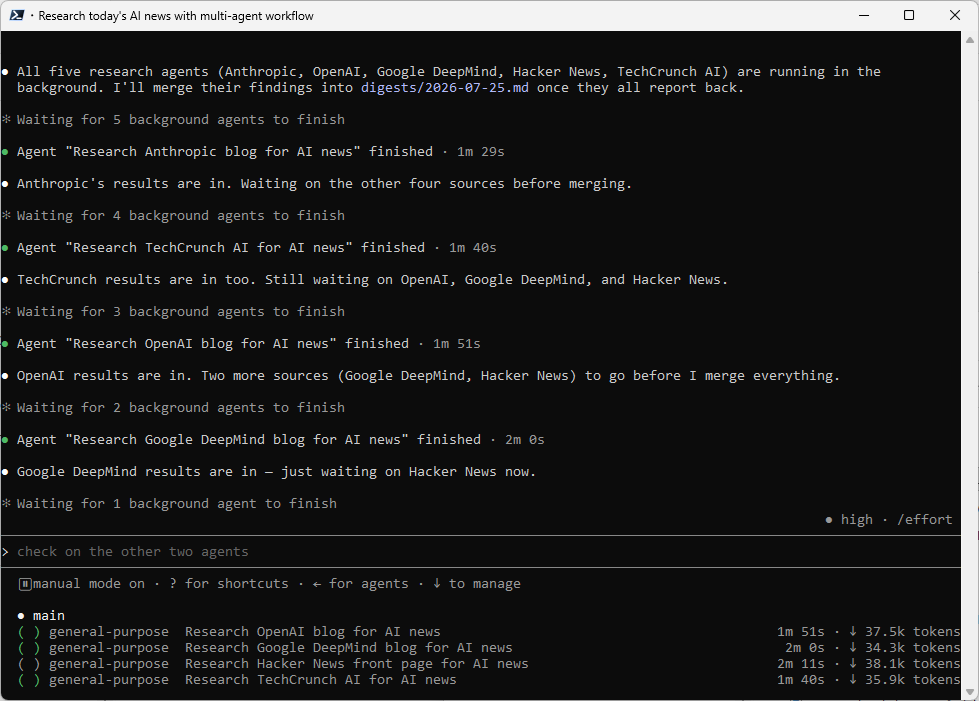
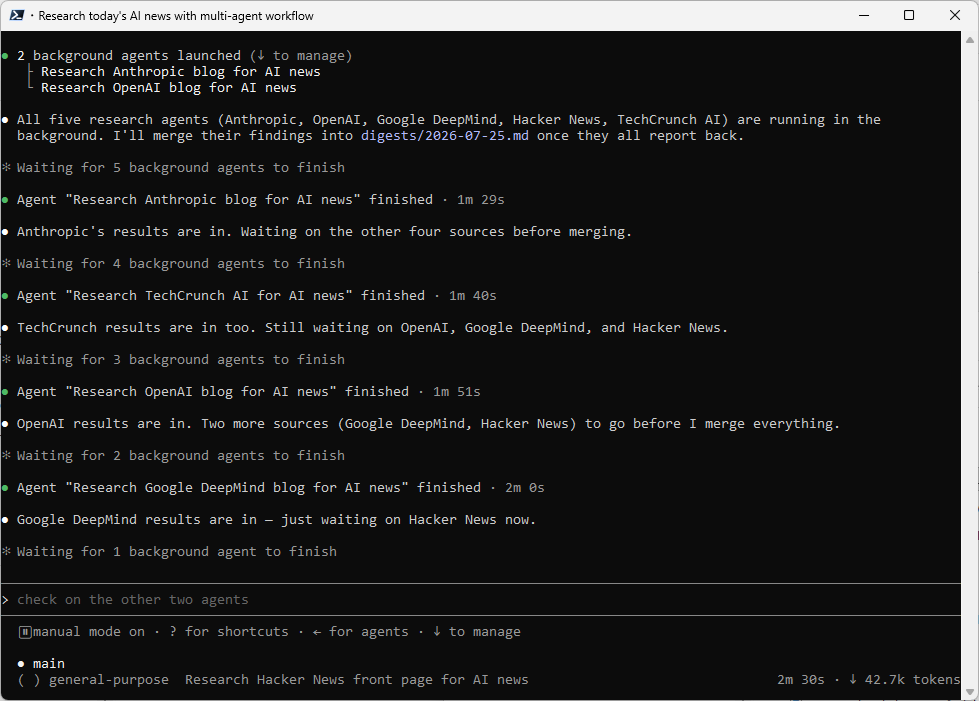
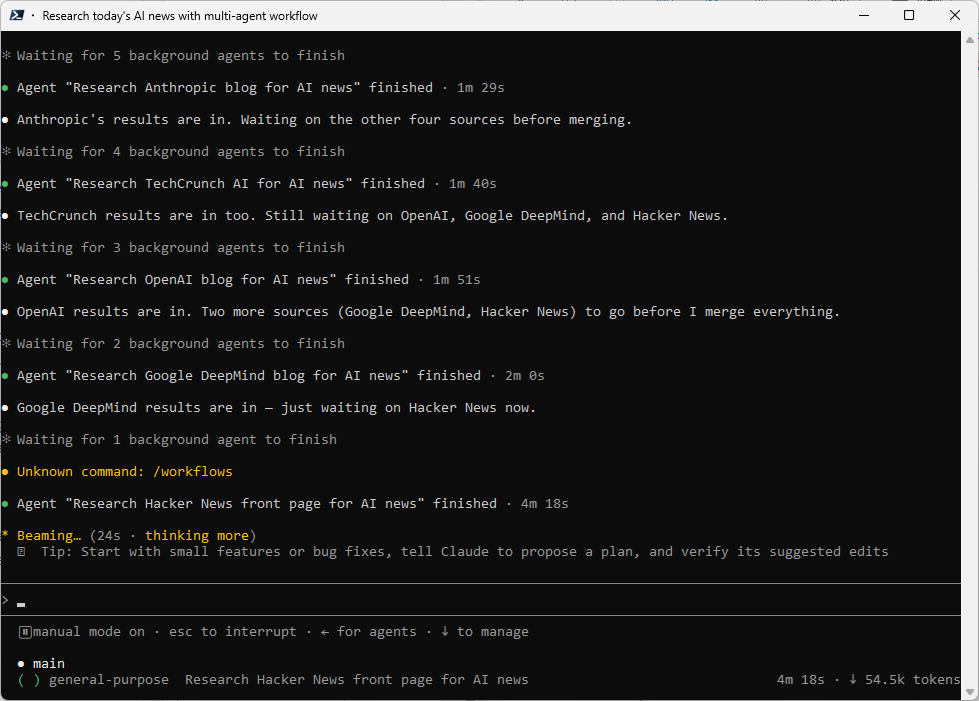
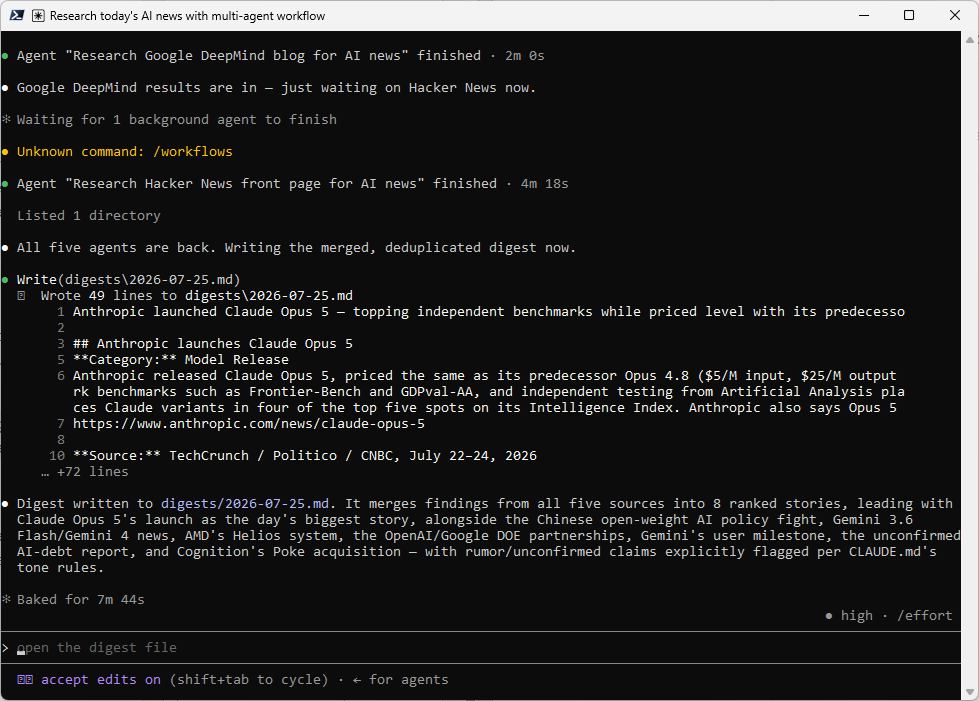
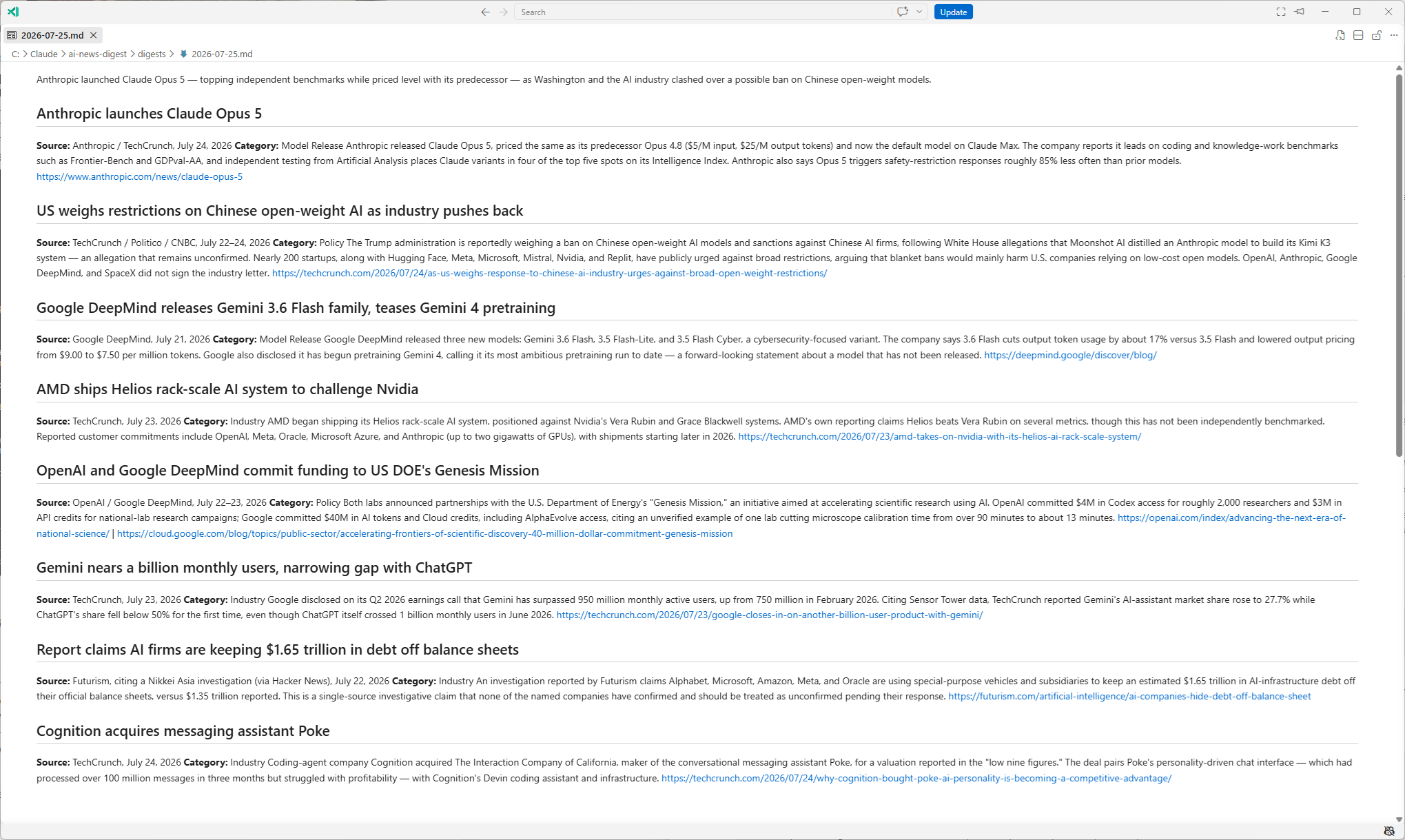
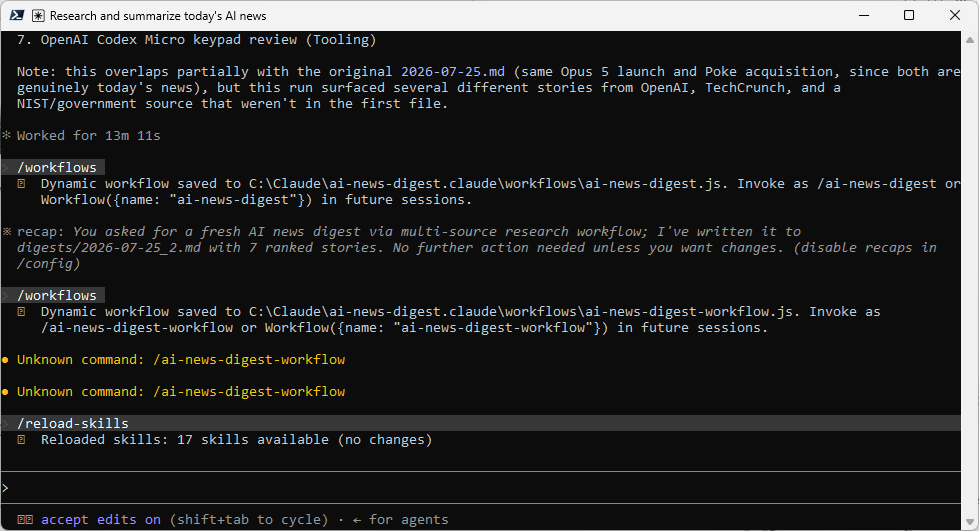
If you’re not on a MAX or above plan, the dedicated /workflows command that is supposed to open a live progress view with per-agent token counts can return Unknown command: /workflows as shown at the bottom of the last Claude Code screenshot above. If that happens to you, it could because you’re on a Pro plan.
The first item to check is the version of Claude by runing: claude --version to confirm you’re on 2.1.154 or later:

If you’re on a same or newer version, check /config for a workflows toggle, since it’s off by default on the Pro plan.
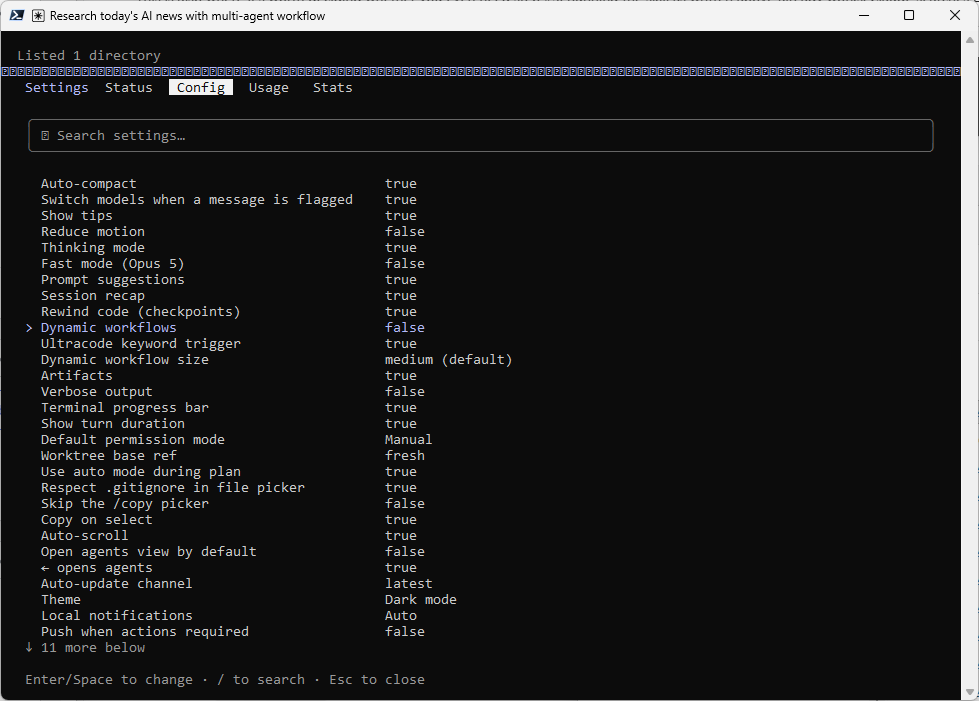
In my example here, the Dynamic workflows is set to false, which is expected because that’s the default on the Pro plan. Flipping it to true is what actually turns on the feature this section describes. Here is a side-by-side comparison of having it on and off:
| Dynamic workflows: false (this run) | Dynamic workflows: true | |
|---|---|---|
| How it starts | Claude reads the “fan out one agent each to…” sentence and improvises, calling the general-purpose subagent tool five times in one turn | Claude formally plans named phases and asks you to approve the plan before running anything |
| Watching it run | Plain text updates as each agent reports back, which is exactly what the earlier screenshot shows | /workflows opens a dedicated dashboard with per-agent status and live token counts |
| Reusing it tomorrow | You retype the whole prompt from scratch, every morning | Press s after a good run and it’s saved as .claude/workflows/ai-news-digest.js, reusable as /ai-news-digest-workflow |
So the setting doesn’t decide whether the research runs in parallel. It ran in parallel either way, and the digest came out the same. What it decides is whether that parallel run is a going to be a once-off execution that will not be retained when the process completes, or will it run as a workflow that can be saved, reusable, and with a dashboard to watch it. /workflows had nothing to open because there was no formal workflow object yet. The underlying research still fanned out fine.
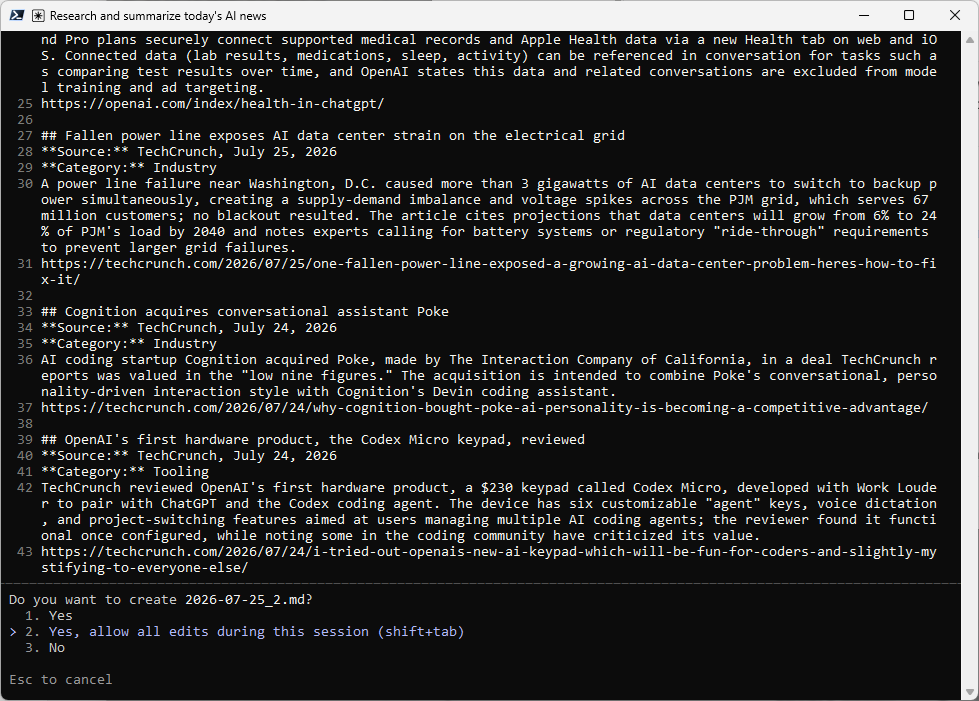
Let’s flip it to true now and execute again:
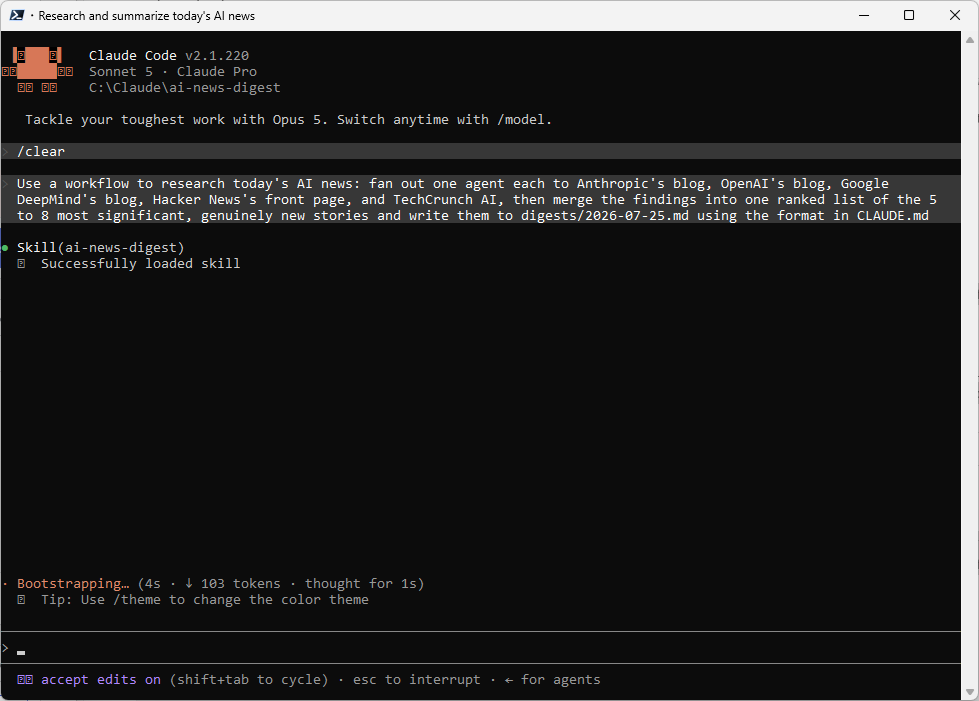
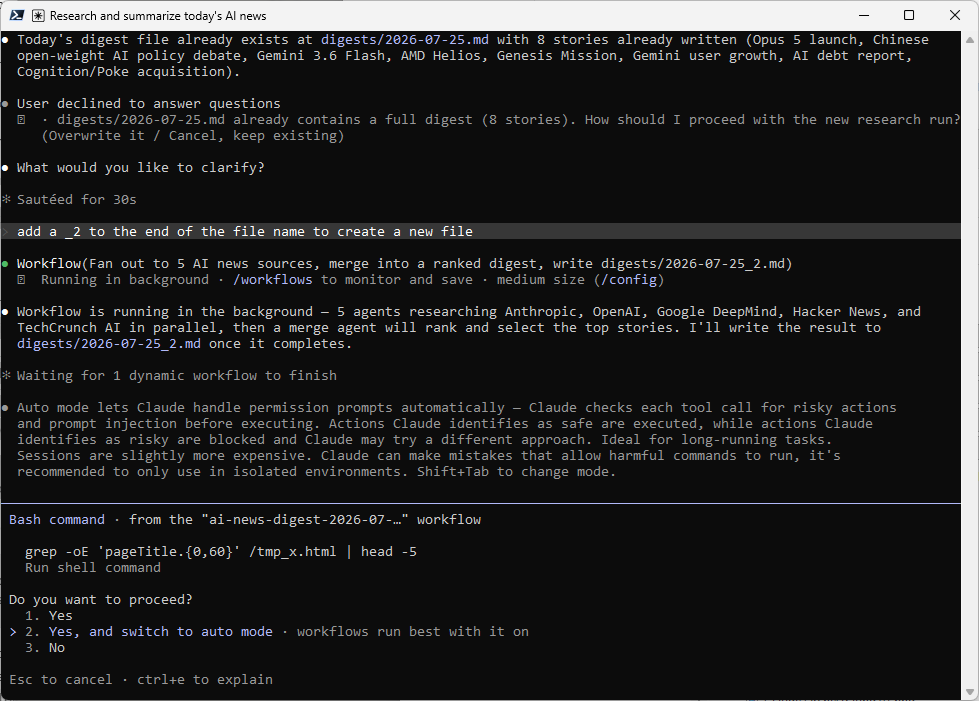
Anthropic also ships a bundled workflow, /deep-research, that does something close to this out of the box for any question:
> /deep-research What are the most significant AI developments in the
> last 24 hours?
I usually use /deep-research for a one-off question while the custom workflow above when I want the same source list and the same output format every single morning, because that’s exactly the kind of orchestration worth saving as a reusable command. After a run completes, execute /workflows:
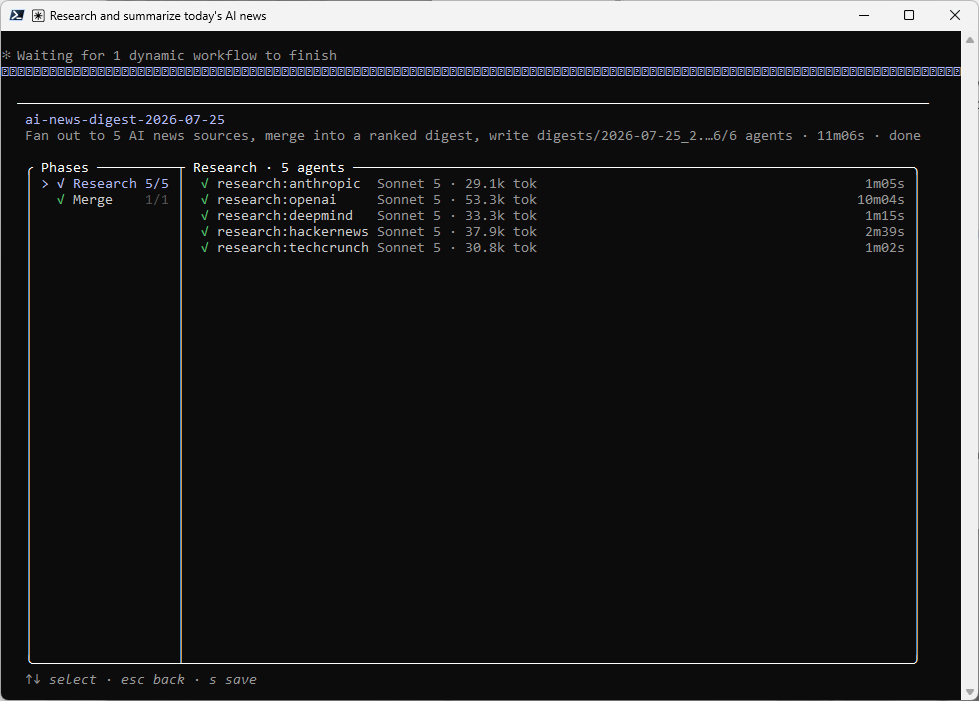
Select the run, and press s to save it as .claude/workflows/ai-news-digest.js:
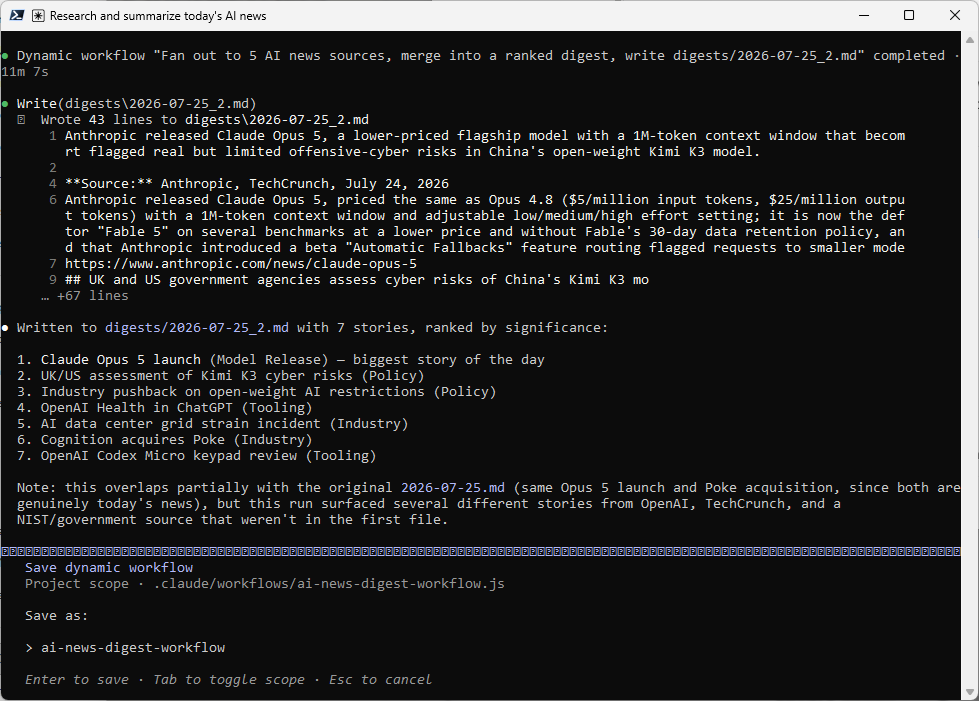
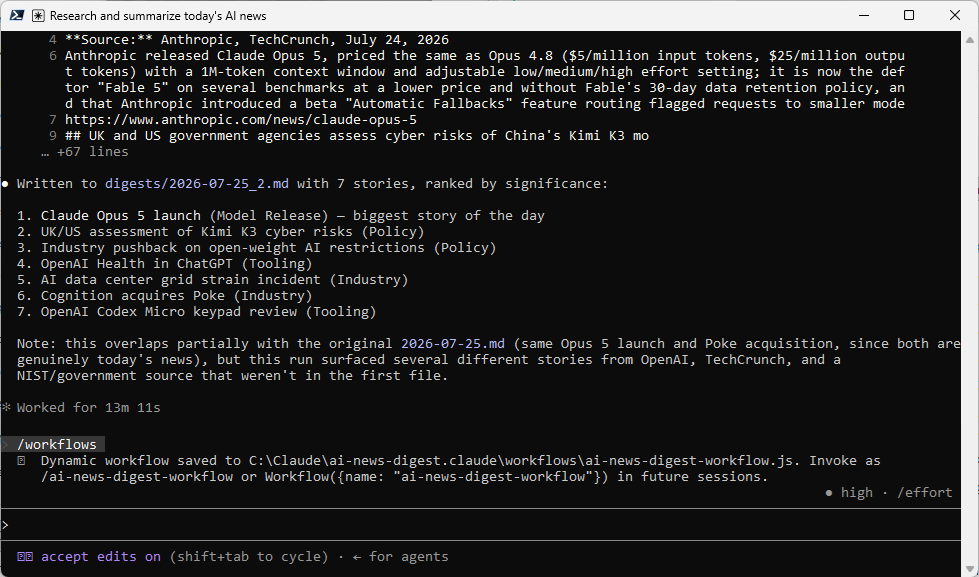
From then on it runs as /ai-news-digest-workflow, right alongside the skill.
As shown above dynamic workflows require Claude Code v2.1.154 or later, and on the Pro plan they need to be turned on from /config first.
Step #6 – Run it and review the output
With everything in place, running the whole thing is one line:
/ai-news-digest
or, if I want the parallel version:
/ai-news-digest-workflow
One item to note is that Claude Code may not be aware of the new workflow until it is restarted or you issue /reload-skills:
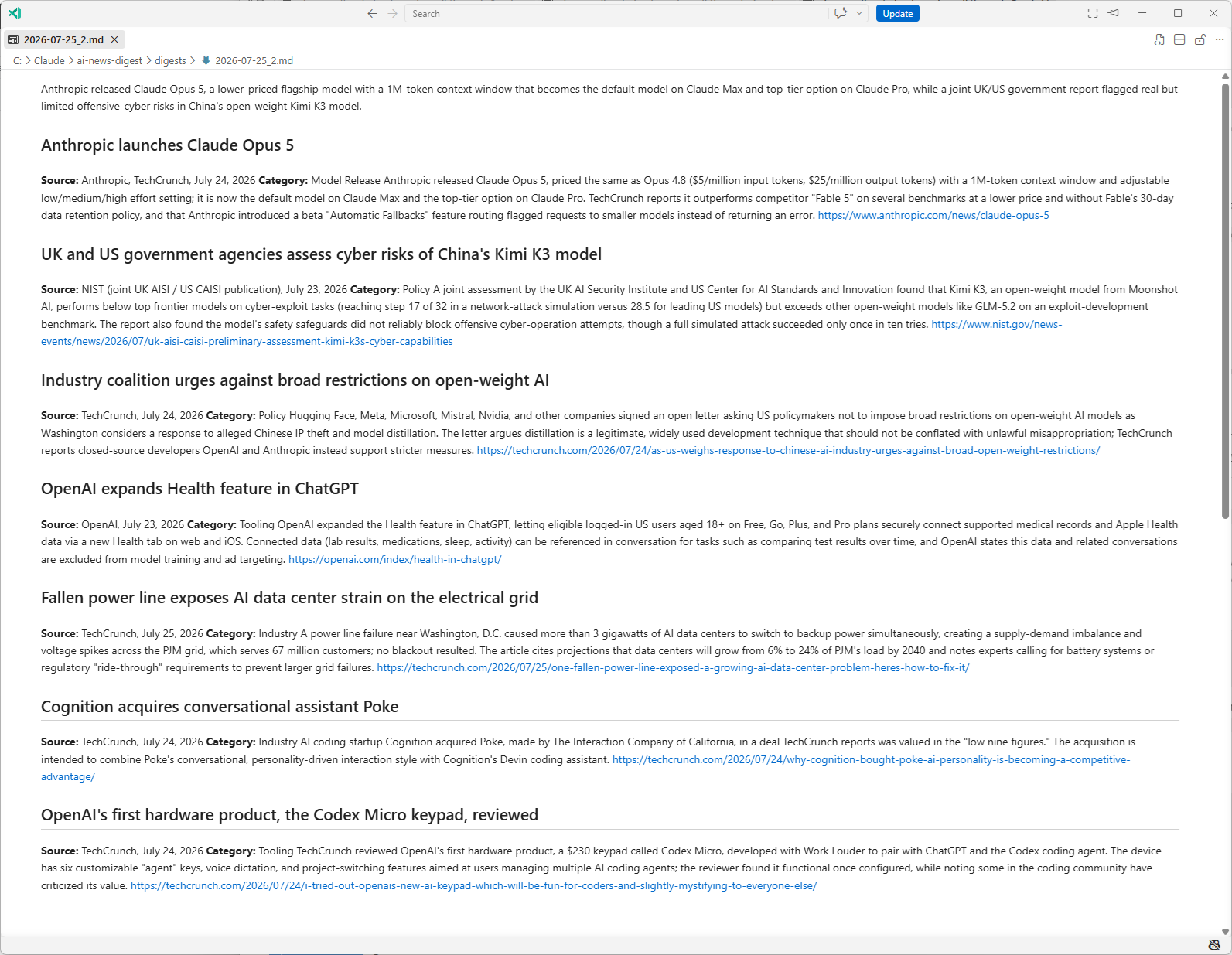
A finished digest, trimmed down and with placeholder content since actual headlines age out fast, looks like this:
# AI News Digest — 2026-07-25

Today's biggest story: [Lab] released [capability], with [notable detail].

## [Headline]
**Source:** [Publication], [Date]
**Category:** Model Release
[Two to three sentence summary.]
[Link]

## [Headline]
**Source:** [Publication], [Date]
**Category:** Research
[Two to three sentence summary.]
[Link]
Step #7 – Check what it cost
Before wiring in a cost report, I went looking for the obvious place to put one: a hook that fires when the skill or workflow finishes and appends a dollar figure to the bottom of the digest file. That mechanism doesn’t exist yet. Hooks in Claude Code don’t currently receive token or cost data at all, which is a known gap rather than something I’m assuming; it shows up as an open feature request on Anthropic’s own GitHub repository, filed more than once by people trying to build exactly this kind of automated cost tracker. So there’s no supported way, today, for a skill or a hook to know its own spend and write it into a file.
What does exist, and reliably, is the built-in /usage command, aliased to /cost and /stats. Run it right after /ai-news-digest or /ai-news-digest-workflow finishes and it prints a session summary:
Total cost: $3.16
Total duration (API): 13m 5s
Total duration (wall): 36m 24s
Total code changes: 44 lines added, 0 lines removed
Usage by model:
claude-haiku-4-5: 386.1k input, 17.0k output, 0 cache read, 0 cache write, 18 web search ($0.65)
claude-sonnet-5: 4.7k input, 42.4k output, 3.4m cache read, 209.8k cache write ($2.51)
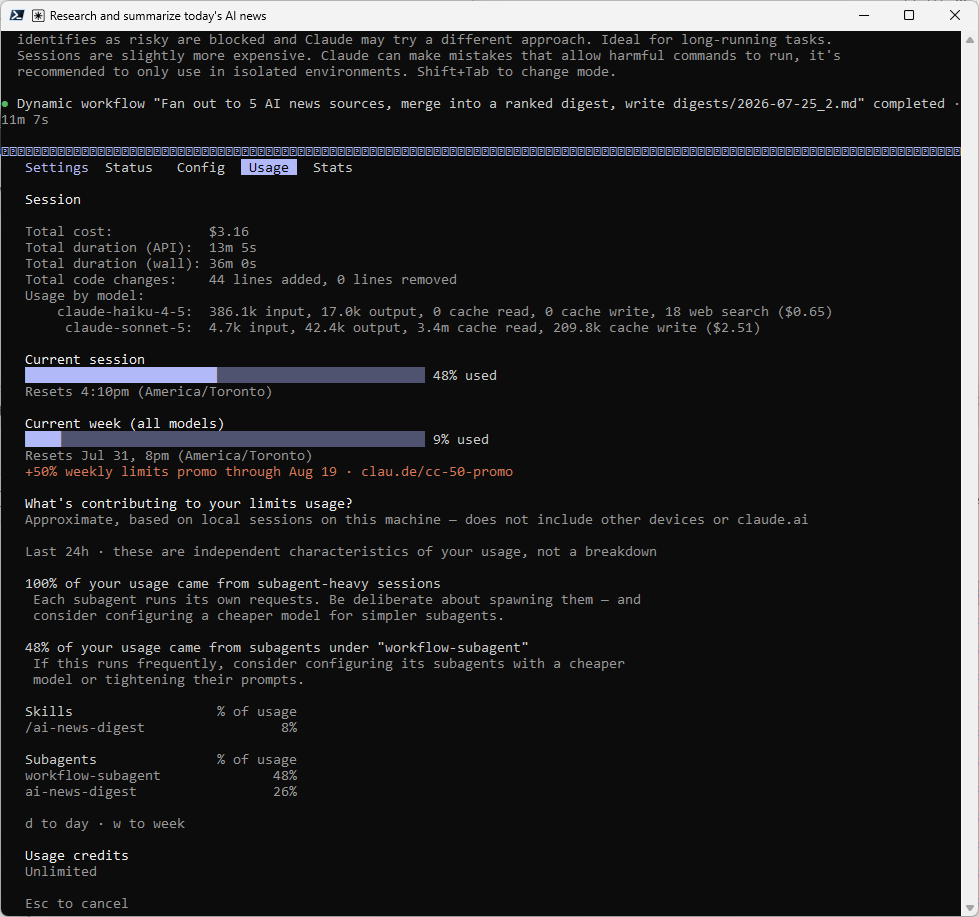
That figure is computed locally from token counts at standard list rates, so it’s an estimate rather than an authoritative bill, and if you’re on a Pro or Max subscription the dollar amount isn’t the number that matters anyway since usage counts against your plan limits instead. /usage shows that breakdown too.
Note that I ran the workflow twice so the numbers above are not an accurate reflection of the cost. We can get an approximate cost by dividing it by 2.
For the workflow version specifically, where several source-agents run in parallel, I wanted the running total visible the whole time rather than only at the end, since a fan-out across five sources burns tokens faster than a single conversation. A statusline handles that:
/statusline show session cost and elapsed time
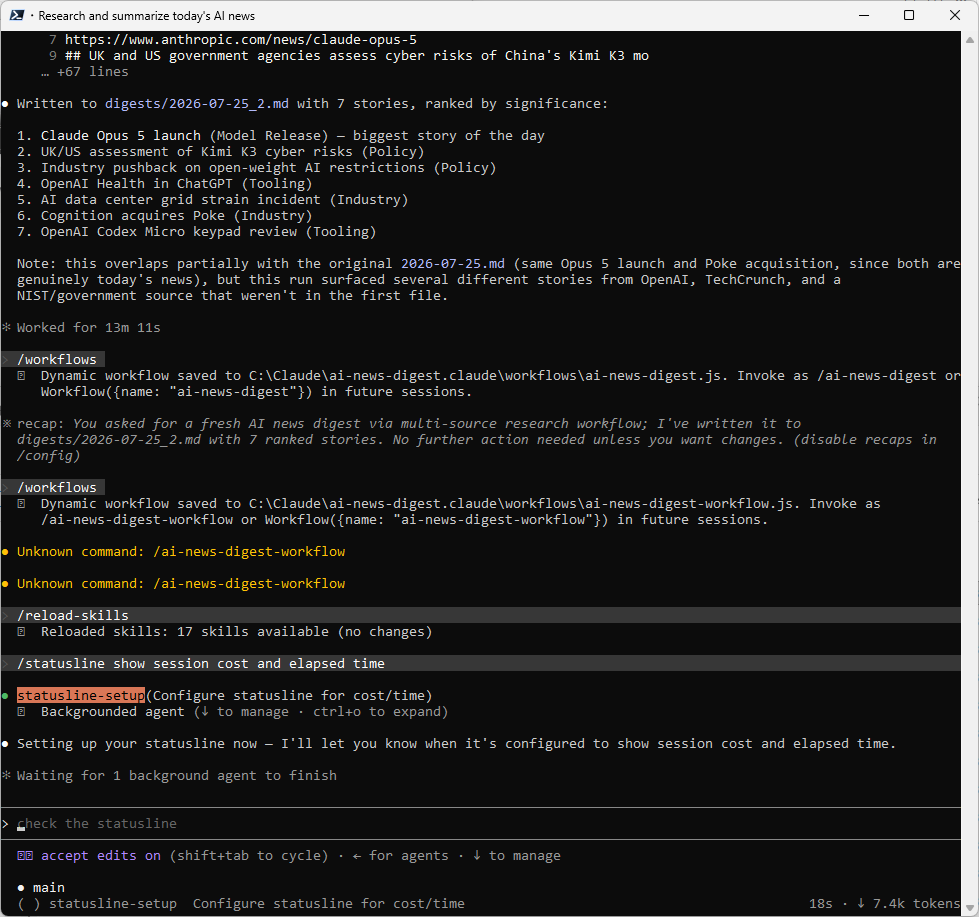
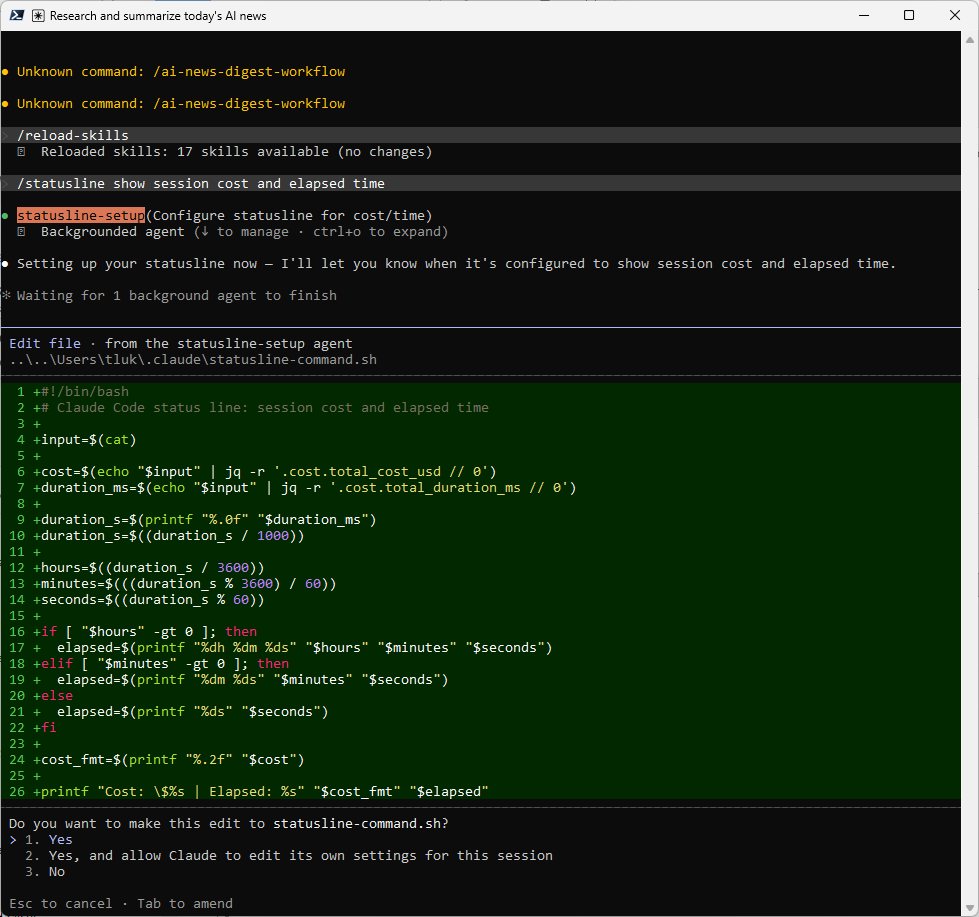
Claude Code generates the script and adds it to your settings automatically.
From then on, the bottom of the terminal shows the running cost live while /ai-news-digest-workflow is fanning out, updating the same cost.total_cost_usd figure /usage reports at the end.
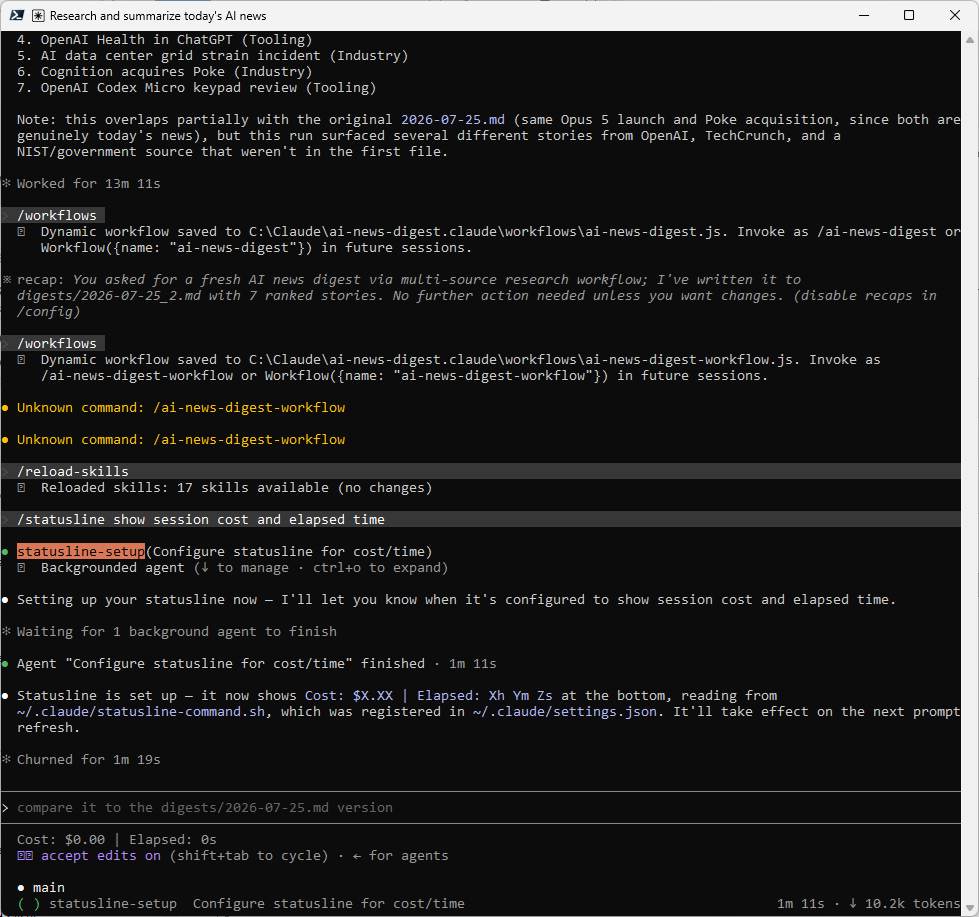
/ai-news-digest-workflow spawns five subagents that each report back as their own message when they finish, so the statusline gets several trigger points to update against as the run goes. /ai-news-digest, on the other hand, does its five searches, five fetches, and the write all inside one continuous assistant turn, so nothing triggers a refresh until that entire turn ends. The cost figure just sits frozen the whole time the skill is running, then jumps once at the very end. If you’re running the skill on its own, /usage right after it finishes is still the accurate way to check cost, not the statusline. To remove the status line, simply type /statusline remove to get Claude Code to remove it.Final Thoughts
I’m sure there are many more complex workflows out on the internet but I hope this serves as a way to demonstrate layering components such as CLAUDE.md for durable context, a skill for the procedure, built-in tools for the legwork, and a workflow when the procedure is slow enough or repeated enough to be worth parallelizing. Once you’ve built one project this way, the pattern extends to almost anything else you’d want automated such as a weekly dependency-update summary, a competitor changelog watch, a status report pulled from three different tools.