
The Initiative
Other than trying to find time for my many side learning projects involving Logic Apps AI Agent and Azure AI Foundry, I’ve also been carving out time to improve how I use the Chat feature in Visual Studio Code with GitHub Copilot to better use it for writing Terraform, Python for Azure Function Apps, and PowerShell scripts. One area I wanted to explore further was whether this chat experience could be powered by a locally run LLM, instead of relying solely on hosted models.
This functionality isn’t generally available in standard VS Code today, but it is available in VS Code Insiders, which made it the perfect place to experiment. I wanted to use this post to demonstrate how VS Code Insiders can be configured to use any LLM that’s accessible via an HTTP endpoint, whether that endpoint is exposed by a model running locally on the same machine, or by another computer (or even a small cluster) that’s reachable over the network.
The local LLM space has been buzzing with excitement around the recently released Qwen 3.x models, particularly Qwen 3.5 35B A3B and the Qwen 3 Coder Next. The internet is flooded with mix reviews with praise and disappointment. I won’t be going into that rabbit hole as there are plenty of material out there but what I do feel is that these models strike an interesting balance between capability and efficiency, making them practical candidates for local execution. Given the capabilities of my HP 14″ ZBook Ultra G1a (AMD Ryzen AI Max+ Pro 395 with 128 GB LPDDR5X RAM), this felt like the right opportunity to put that hardware and these models to real use.
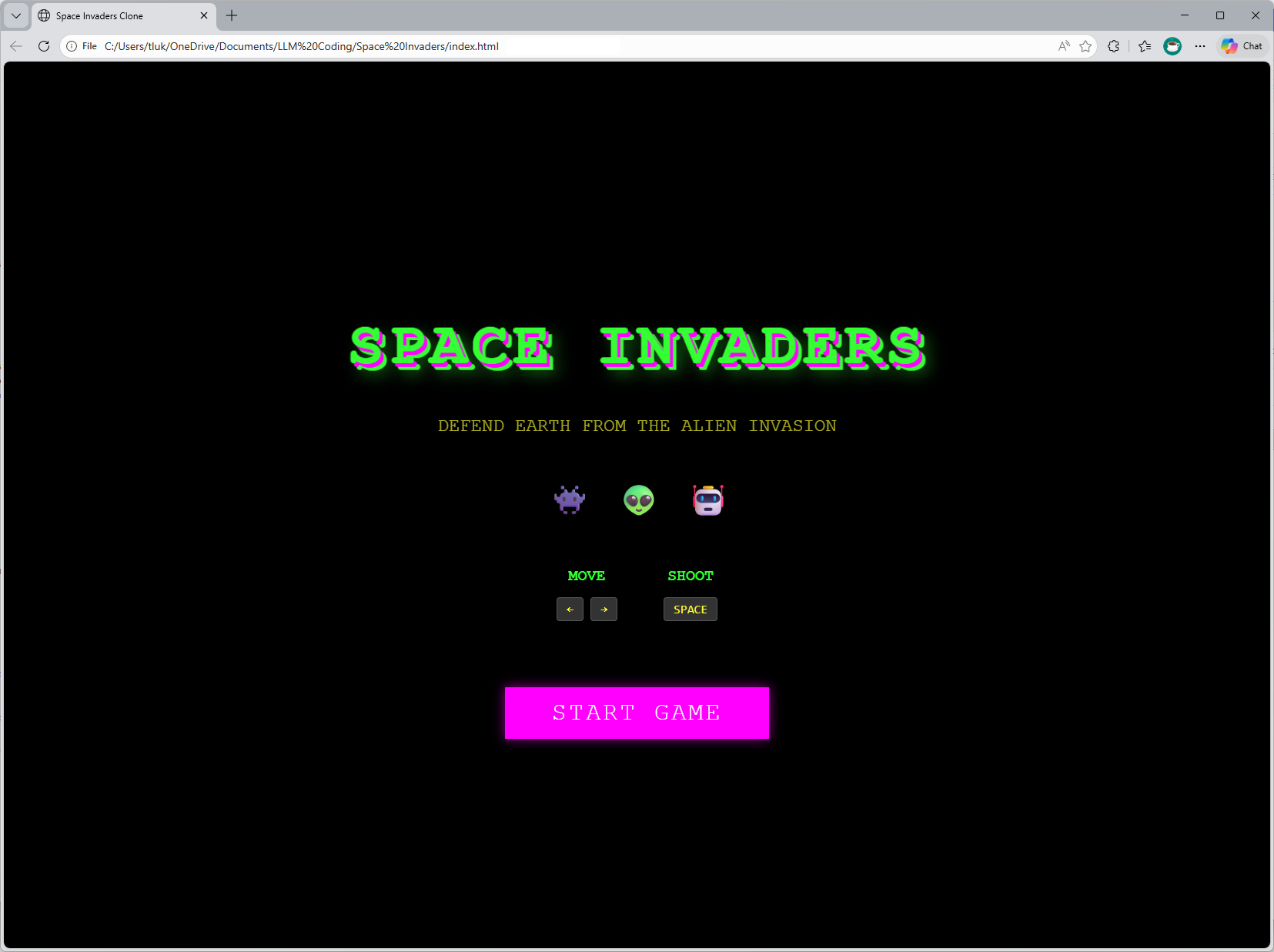
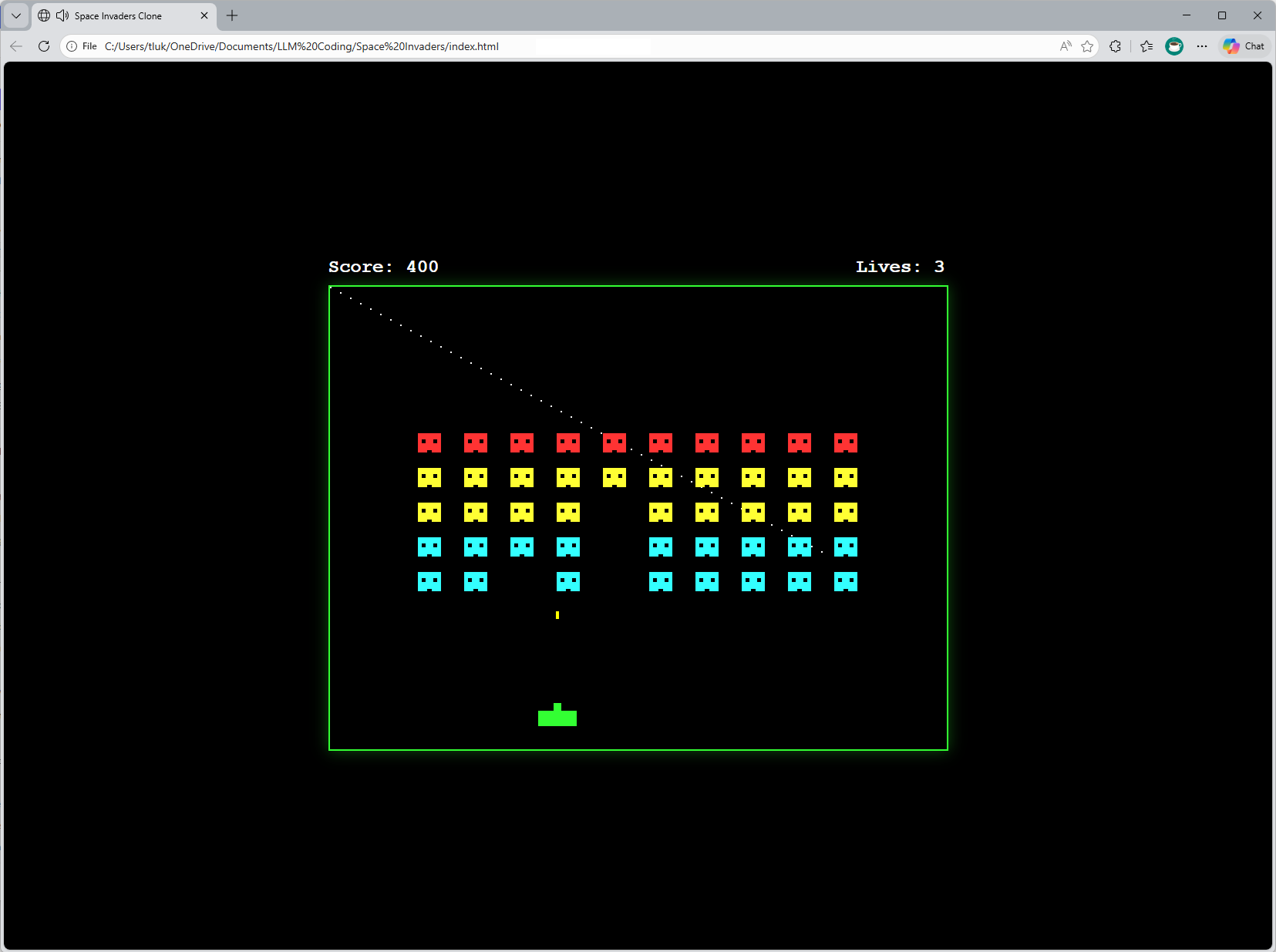
To add a bit of fun to this post, I’m going to use this locally powered LLM VS Code Insiders at the end to create a Space Invaders game with a nice intro splash screen.
The game can be loaded here: https://htmlpreview.github.io/?https://github.com/terenceluk/Demos/blob/main/HTML/Space-Invaders.html
The code for the HTML file can be found at my follow GitHub repo: https://github.com/terenceluk/Demos/blob/main/HTML/Space-Invaders.html
My Test Rig
As I described in my previous post: https://blog.terenceluk.com/2026/01/using-browser-mcp-with-lm-studio-local-llm-models-on-hp-14-zbook-ultra-g1a-with-amd-ryzen-ai-max-pro-395-with-128gb-lpddr5x-ram.html
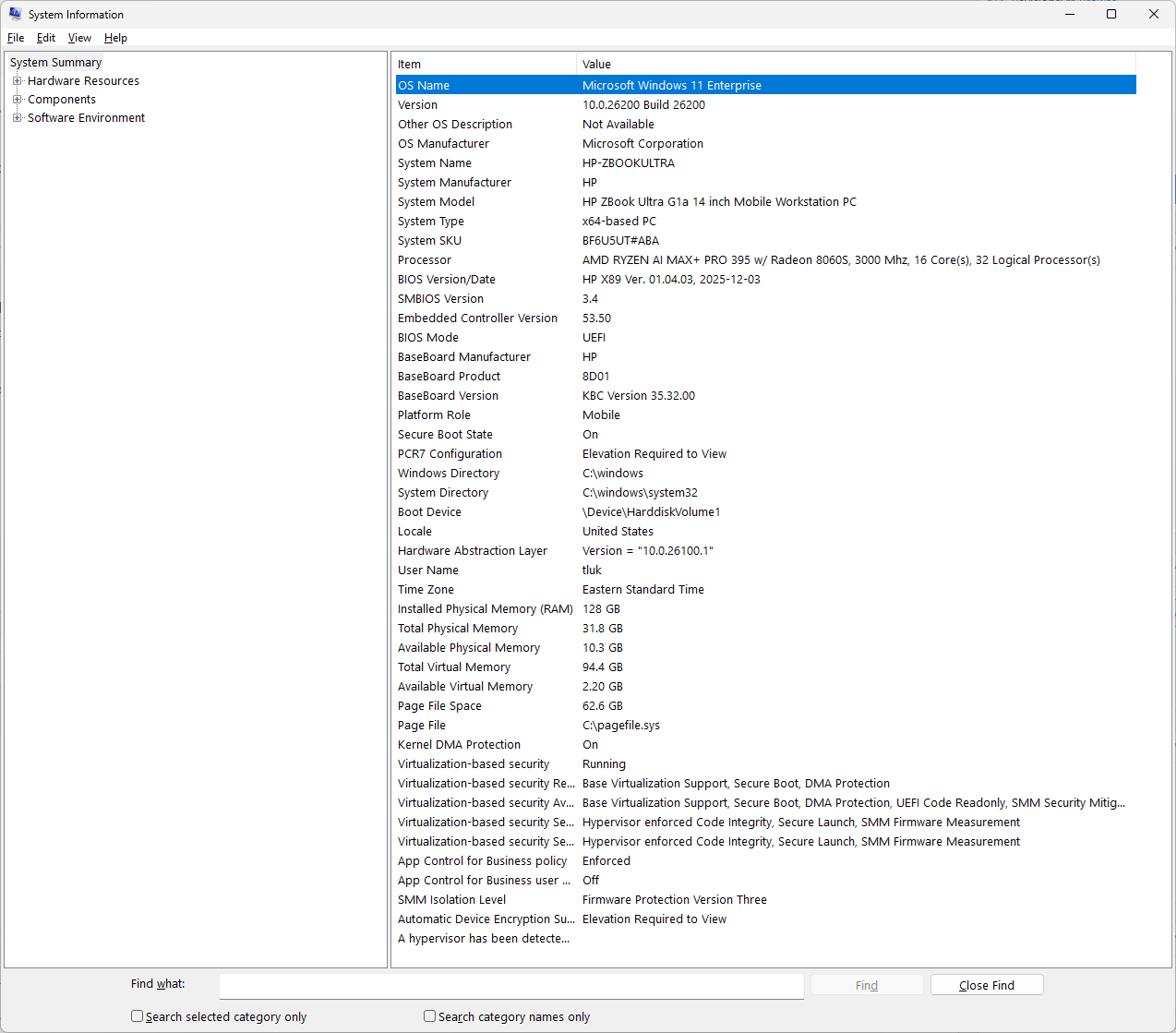
My test laptop specifications are:
- Laptop: HP 14″ ZBook Ultra G1a
- CPU: AMD Ryzen AI Max+ Pro 395 (a.k.a Strix Halo)
- RAM: 128GB LPDDR5X
- Video: Integrated AMD Radeon 8060S graphics
Versions used (add yours here)
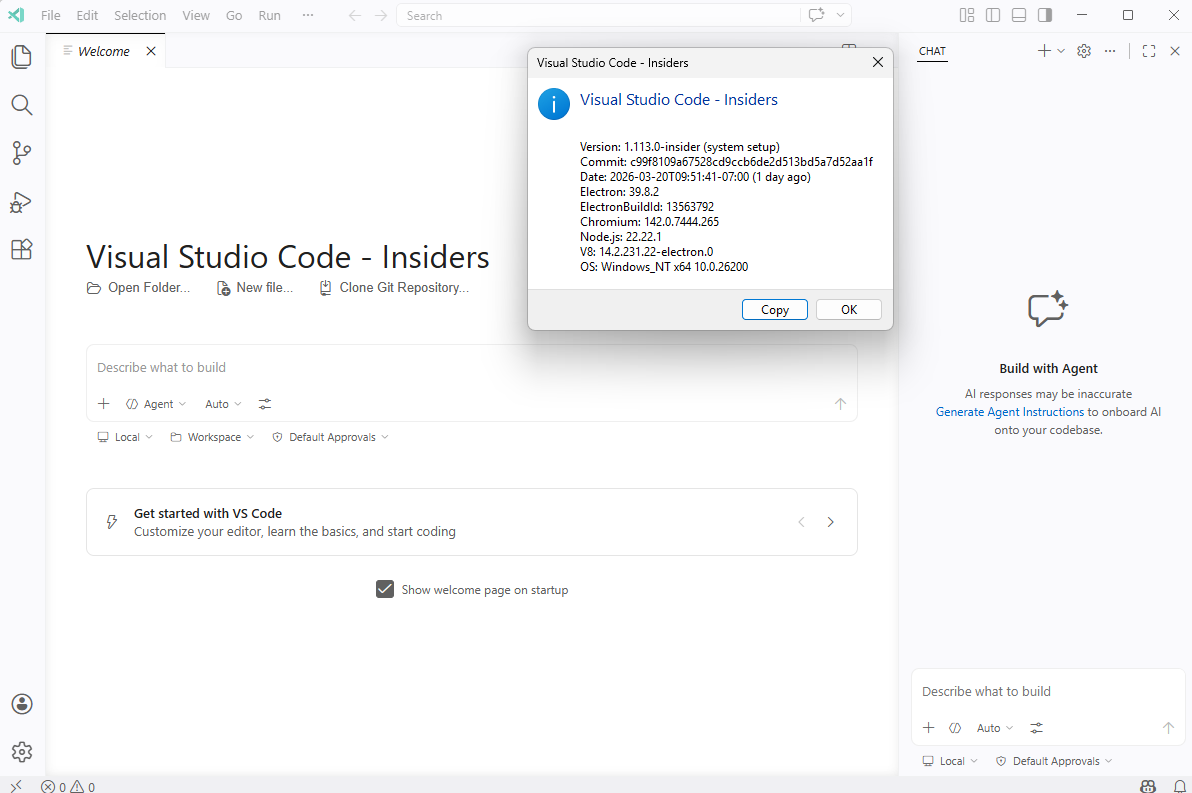
This post is very version-sensitive, as VS Code Insiders receive continuous improvements and changes so I’m calling out what I used:
- VS Code Insiders: 1.113.0
- LM Studio: 0.4.7 (Build 4)
- Model: Qwen 3.5‑35B‑A3B (Q4_K_M) and Qwen 3 Coder Next (Q4_K_M)
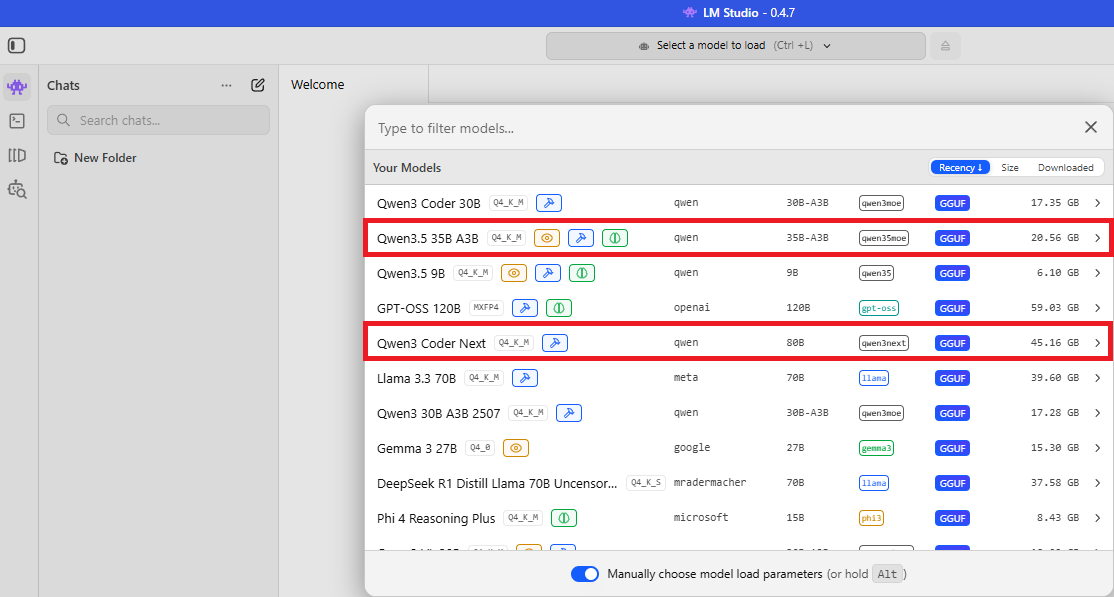
Step 1 – Run Qwen 3.5 and Qwen 3 Coder Next locally in LM Studio
Qwen 3.5‑35B‑A3B (Q4_K_M)
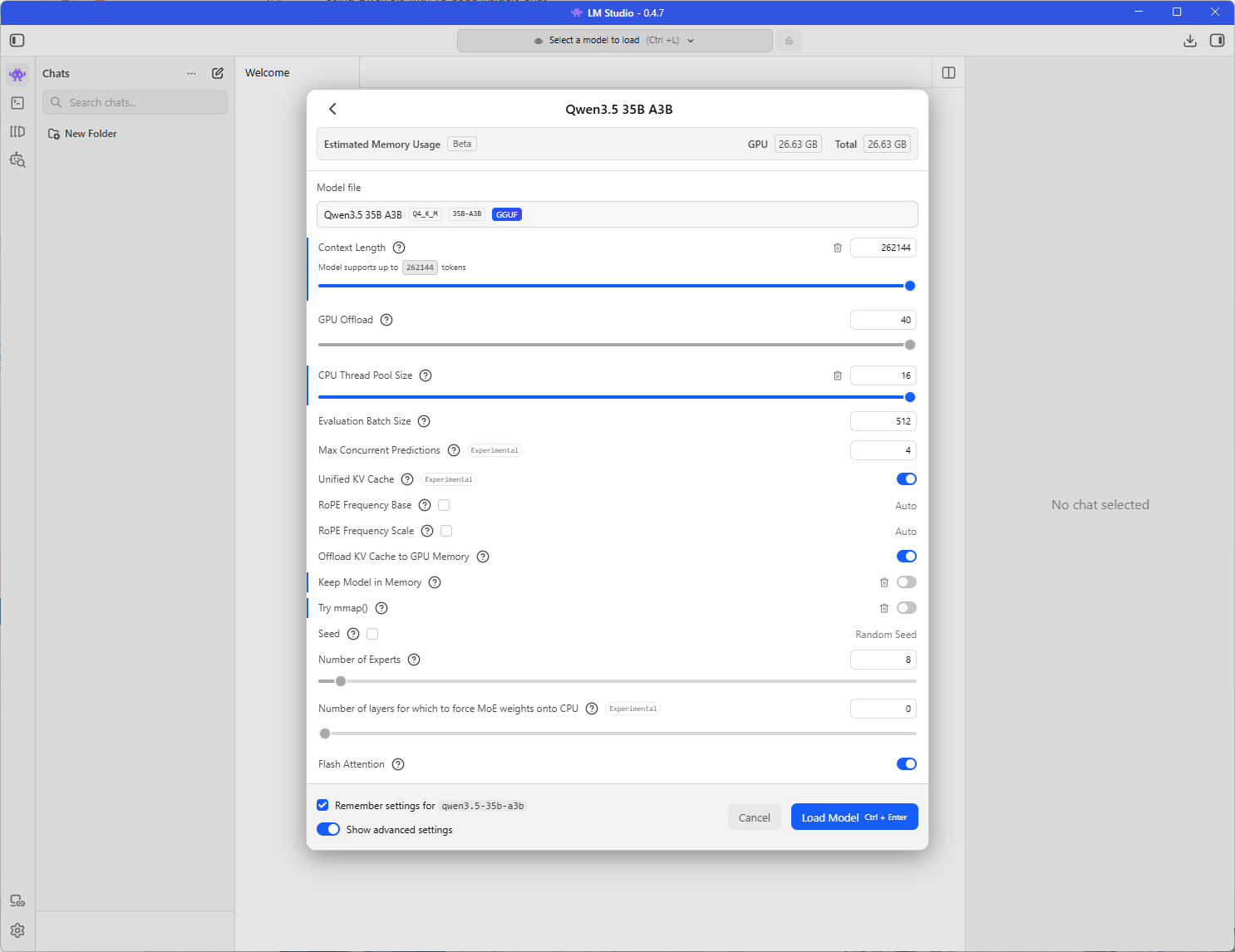
43.99 tokens per second is pretty good even though I’m fond with the 12.22 seconds of thinking (note that you could turn off thinking):
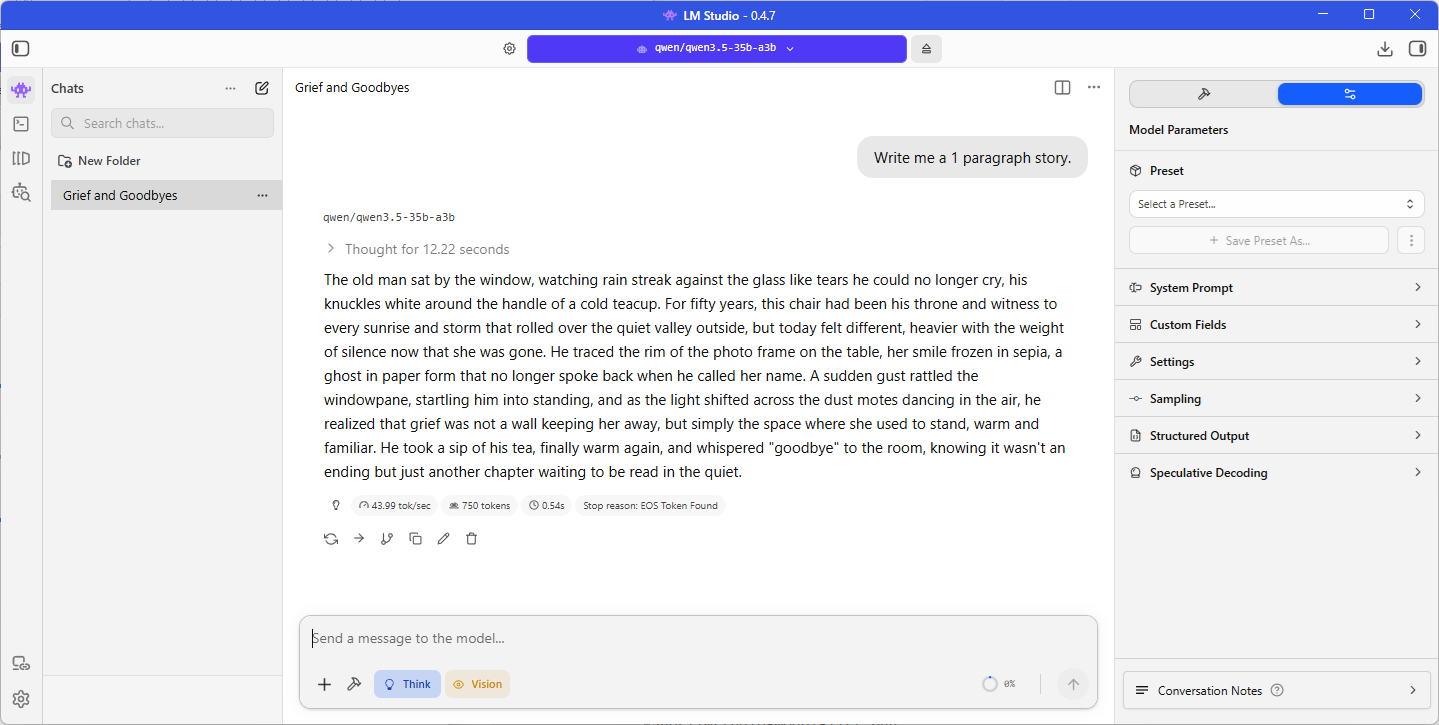
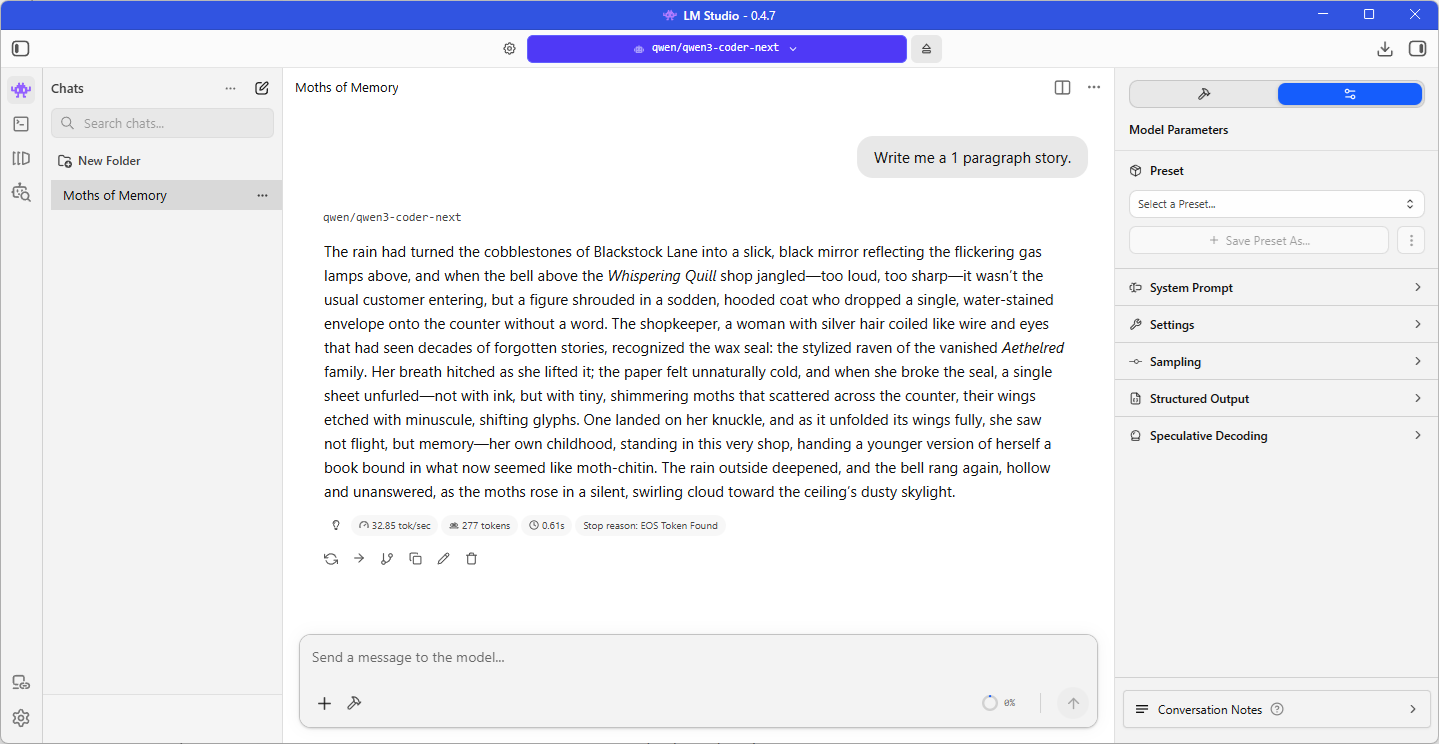
Qwen 3 Coder Next (Q4_K_M)
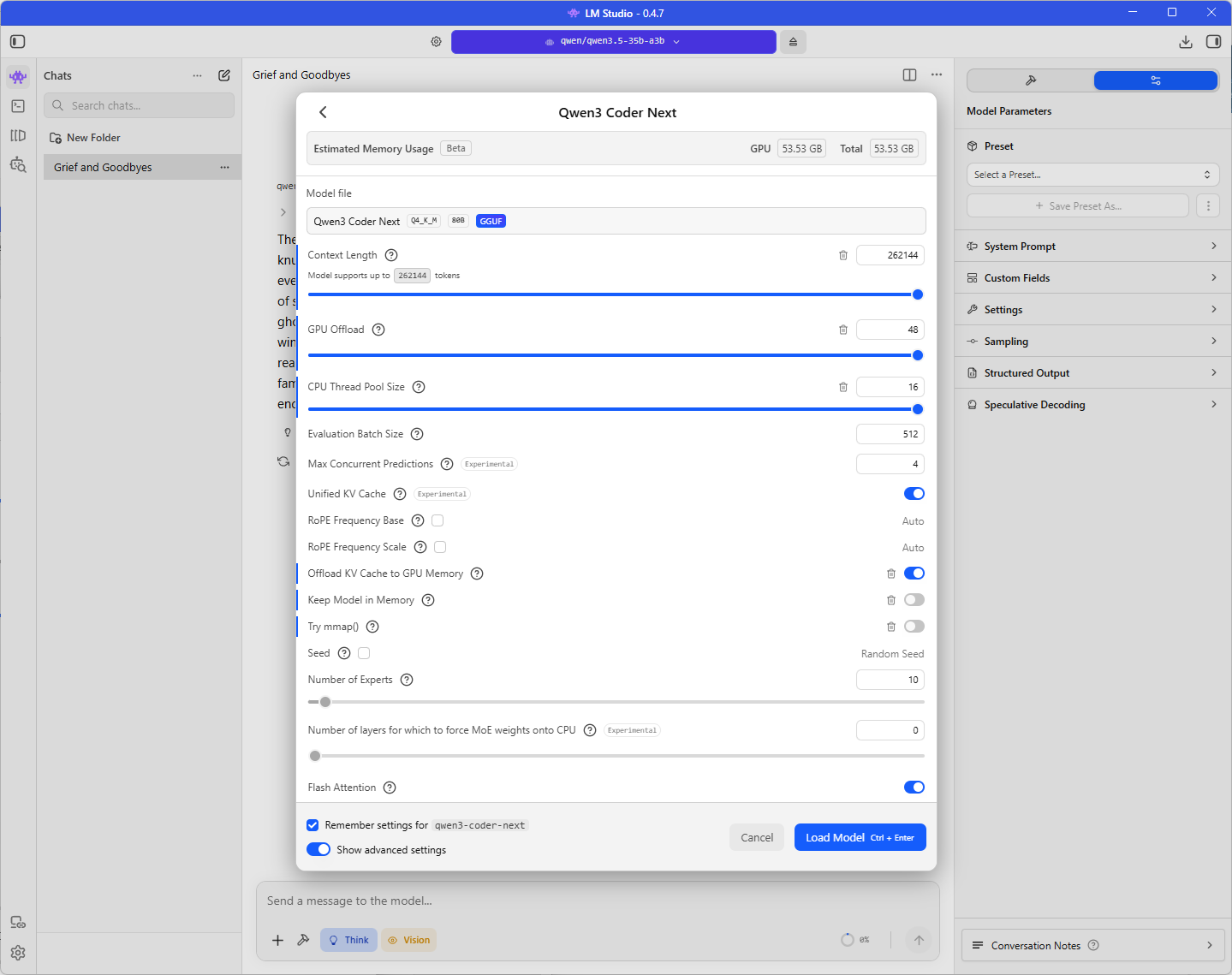
Slightly slower of 32.85 tokens per second but this model is twice the size of the Qwen 3.5:
Step 2 – LM Studio’s Local Server (OpenAI-Compatible)
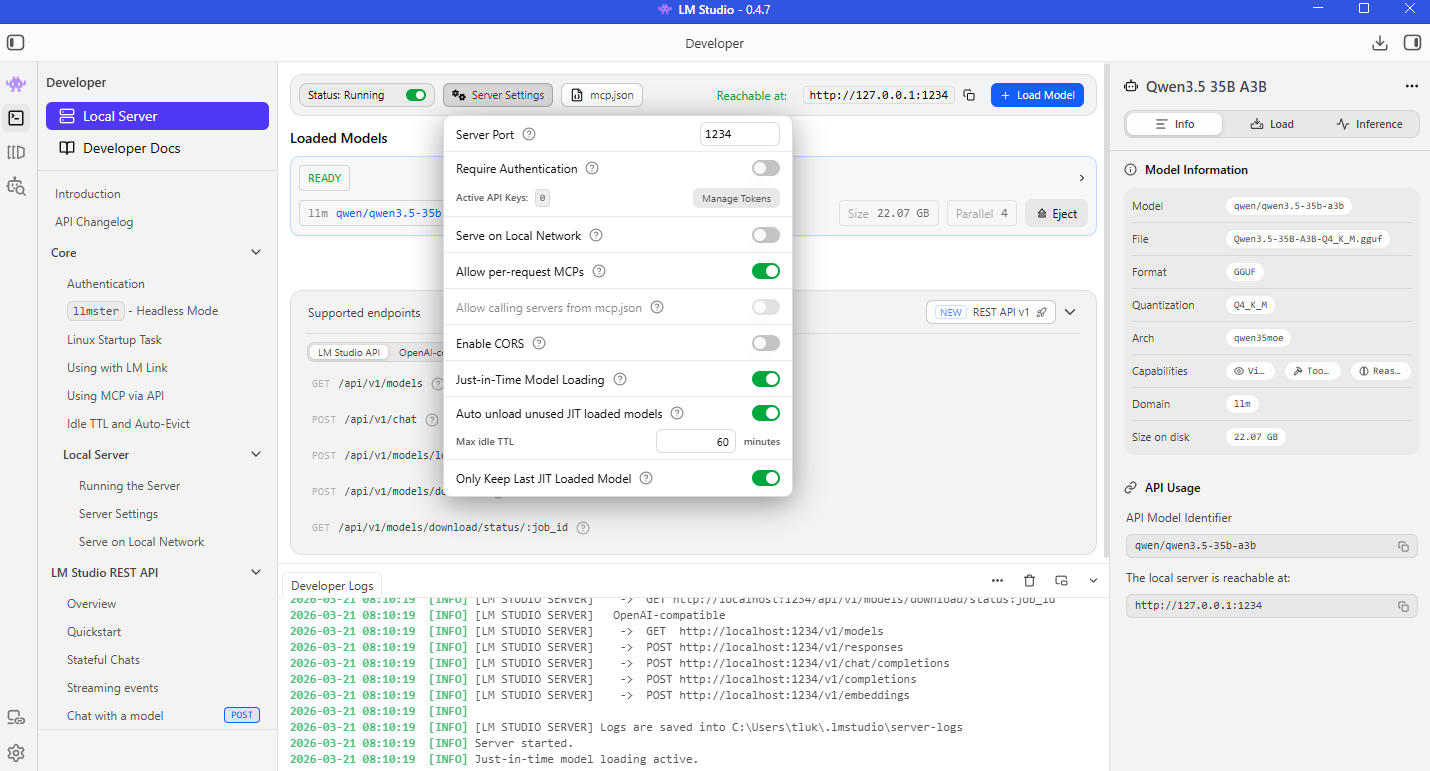
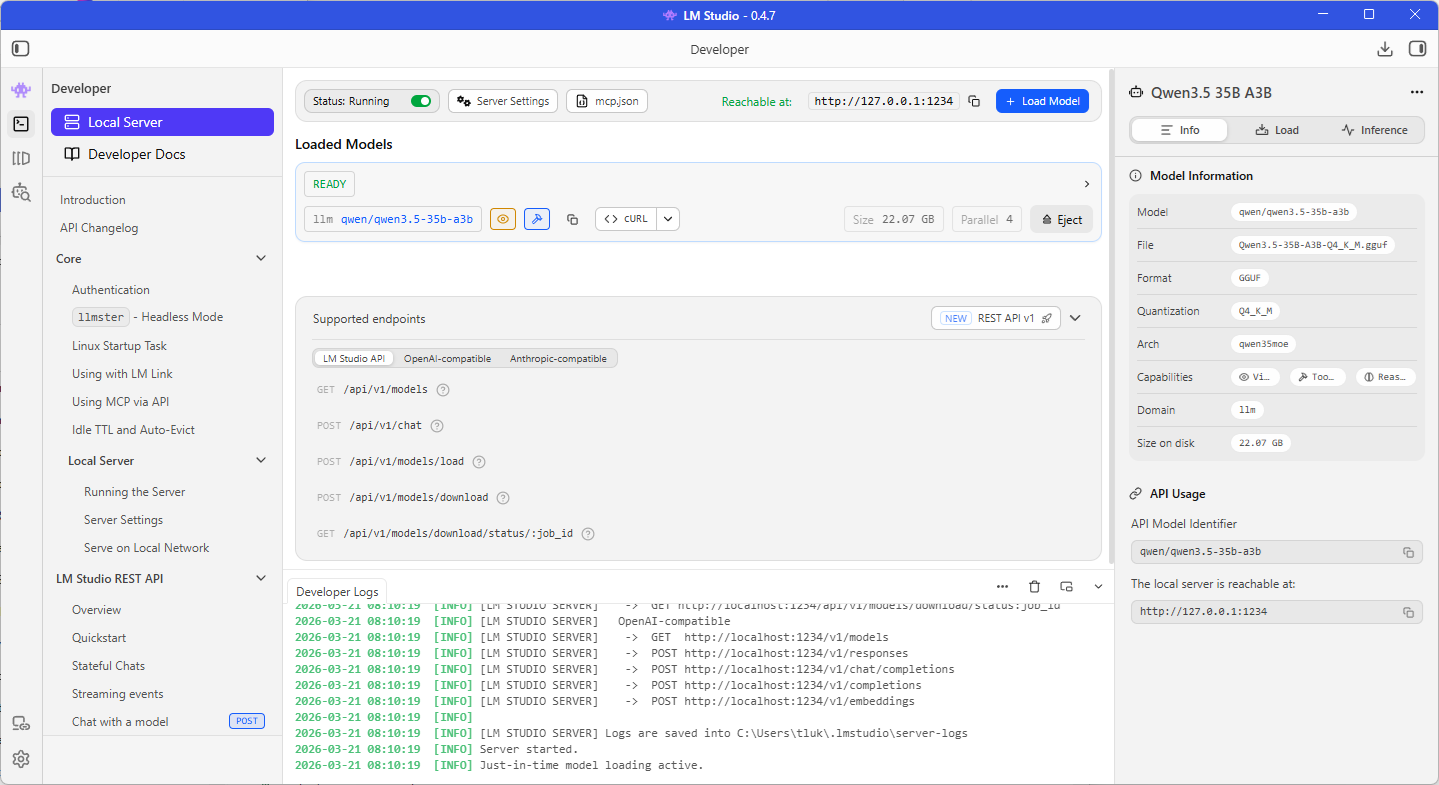
Verify that the Local Server service for LM Studio is running after the model is running as we will need the IP address, port, as well as an API key (if you want authentication) to connect to it. For the purpose of this example, we won’t be requiring authentication as I’ll be running this directly on the same laptop as my VS Code Insider.
Note the Require Authentication is disabled, the Reachable at is http://127.0.0.1:1234 and the model name is qwen/qwen3.5-35b-a3b under the READY label and beside the llm text below:
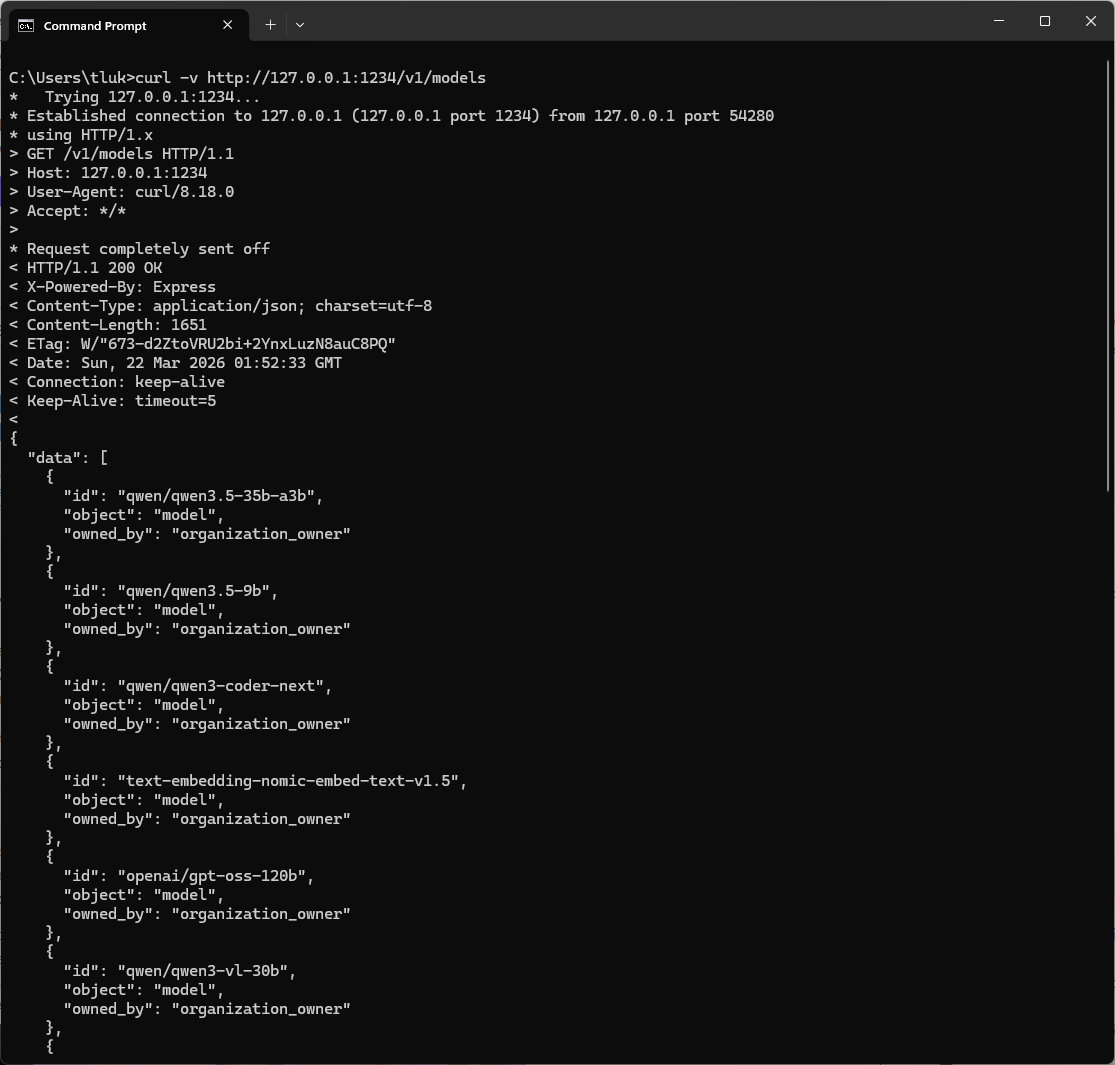
You should be able to validate the endpoint by using curl commands such as:
curl http://127.0.0.1:1234/v1/models
Step 3 – Set up VS Code Insiders
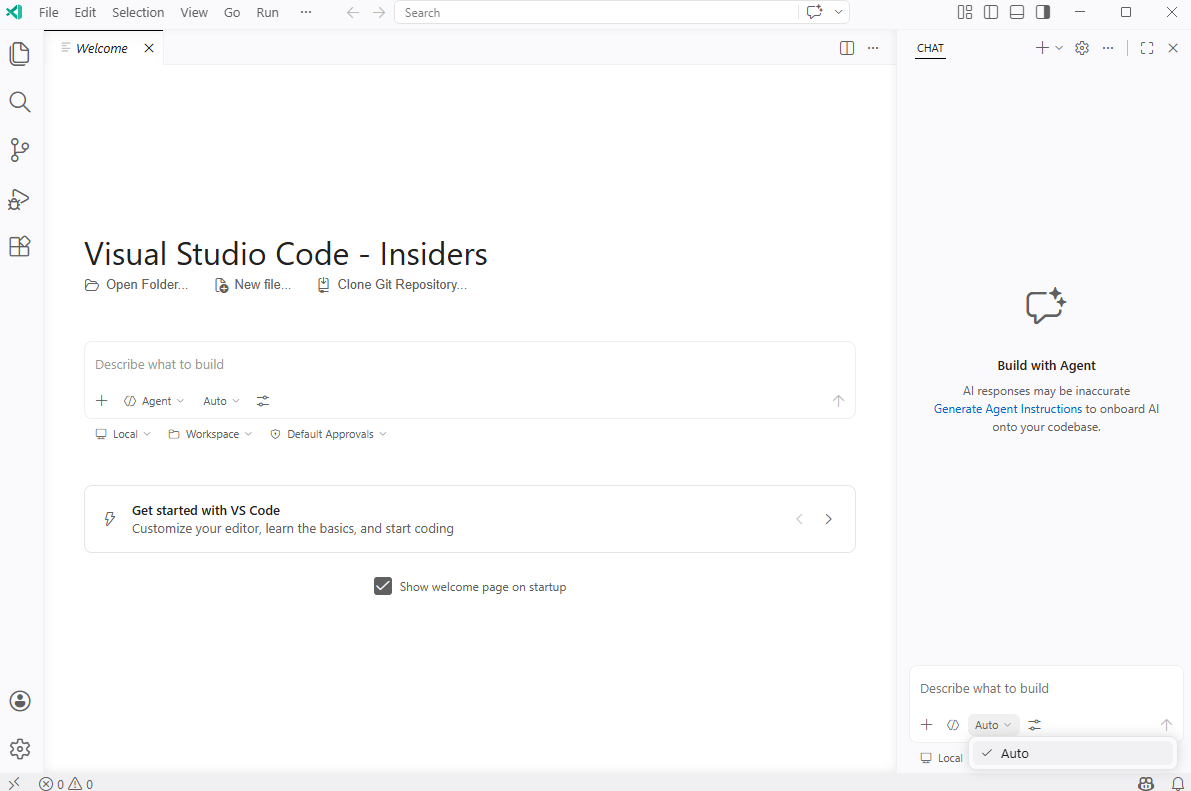
The next step is to configure VS Code Insiders with an OpenAI Compatible model that points to the LLM provided by LM Studio. A plain vanilla install of VS Code Insider will display a white themed UI as such:
You’ll notice that there isn’t any options to select when clicking on the Auto button in the chat window:
In order to display the options for configuration, we’ll need to sign into GitHub CoPilot:
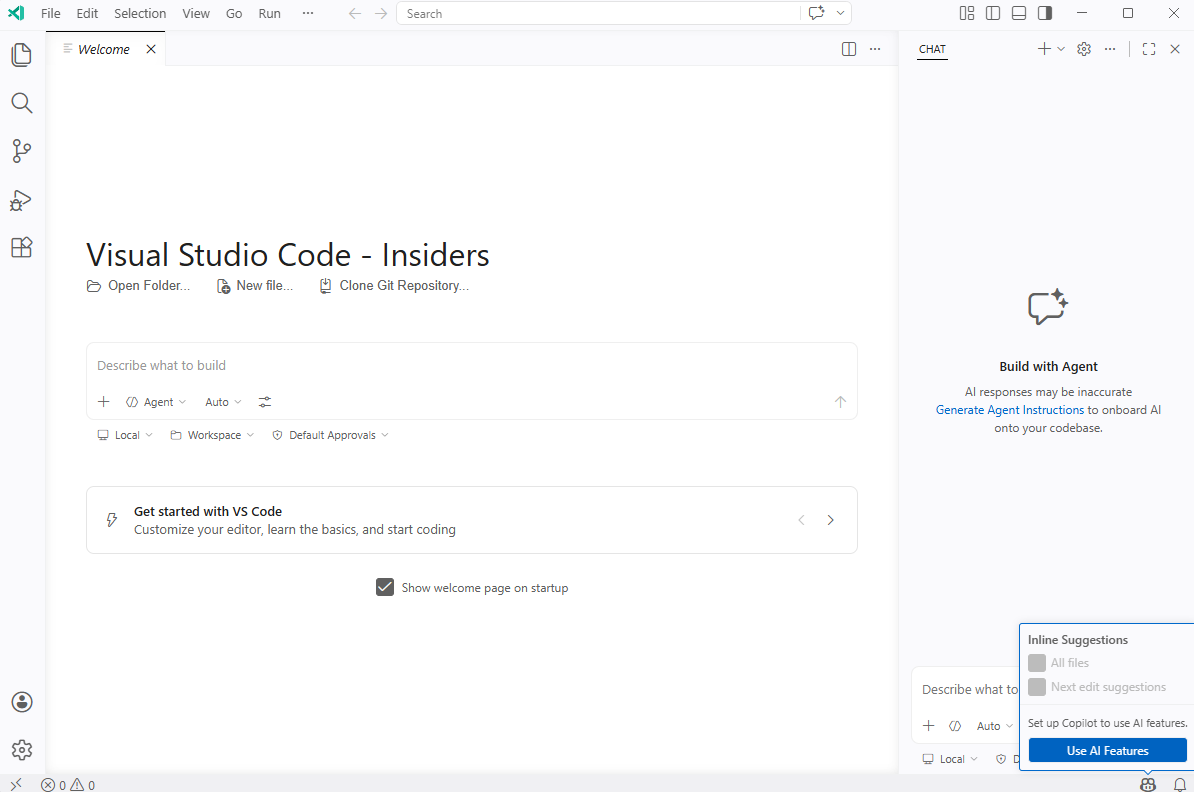
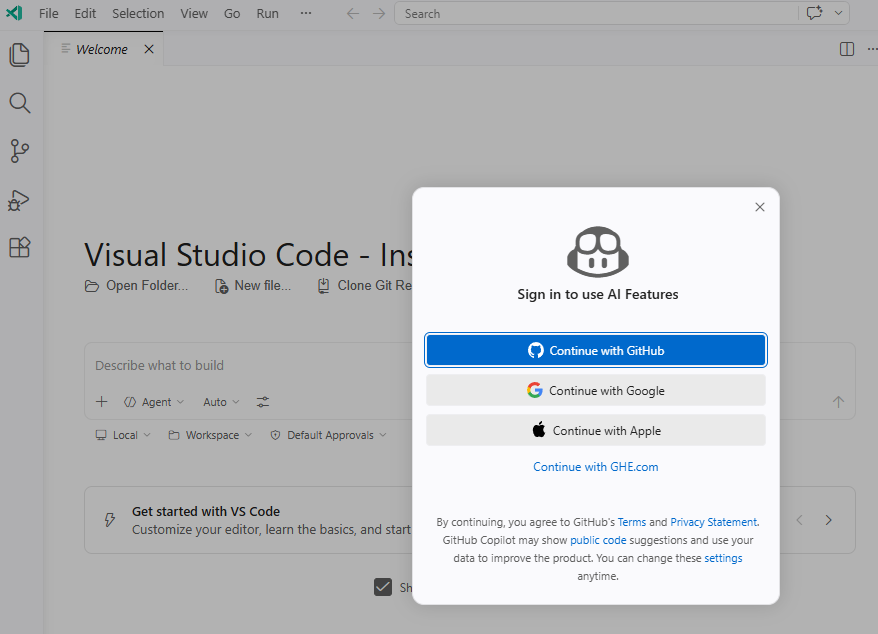
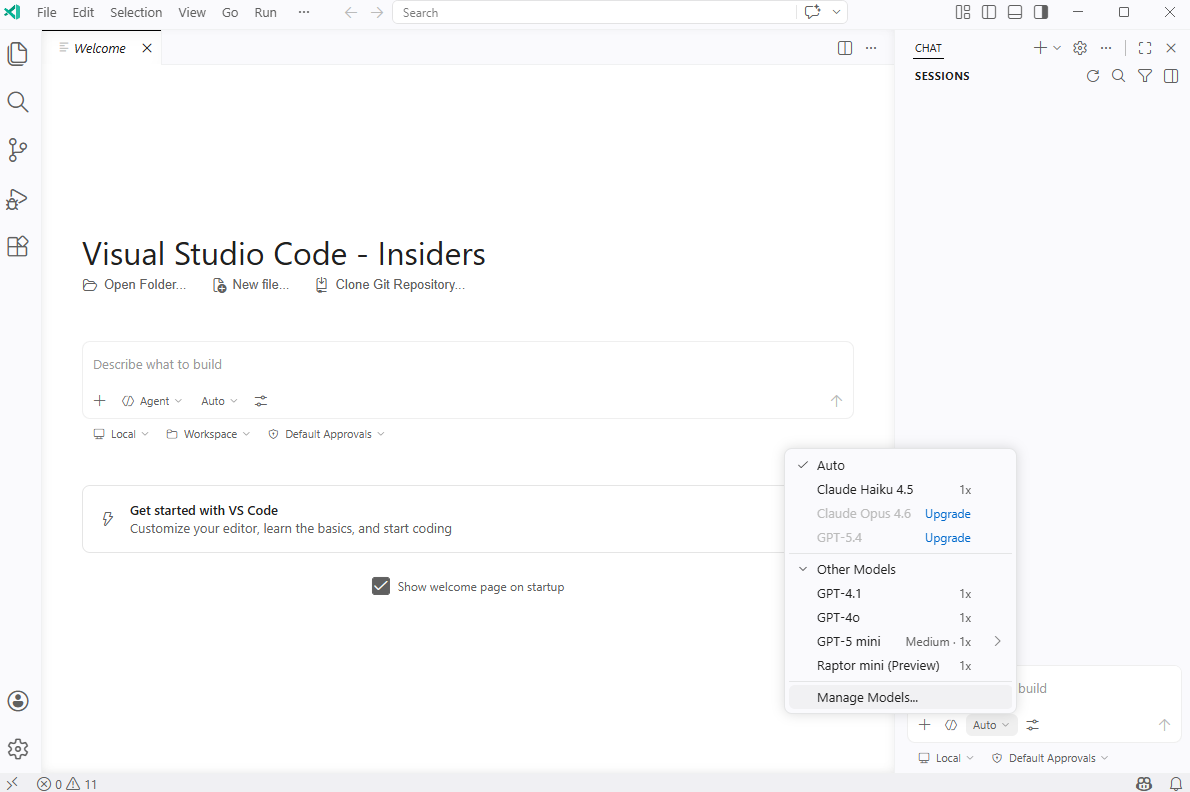
Upon signing in, you’ll see the option Manage Models:
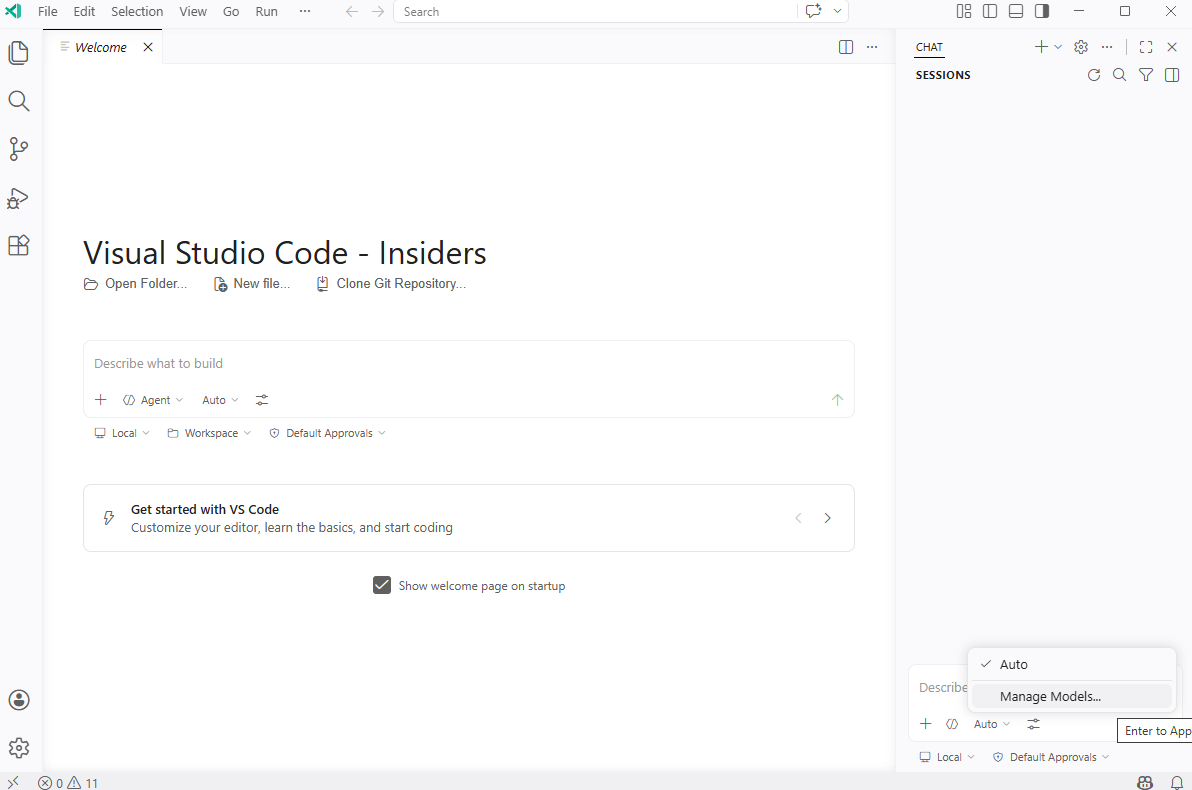
I already have the free subscription set up so the models I have access to will be displayed a few seconds later. Proceed to click on Manage Models…:
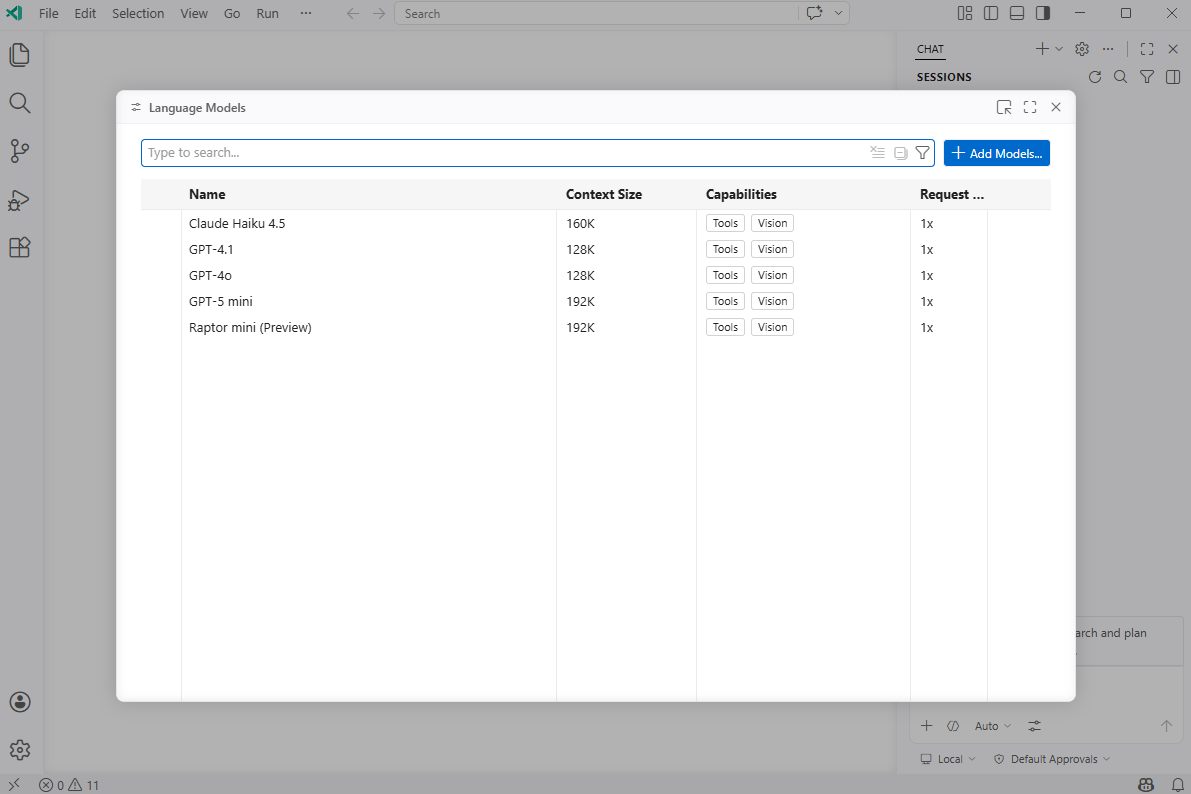
Click on the Add Models… in this Language Models window:
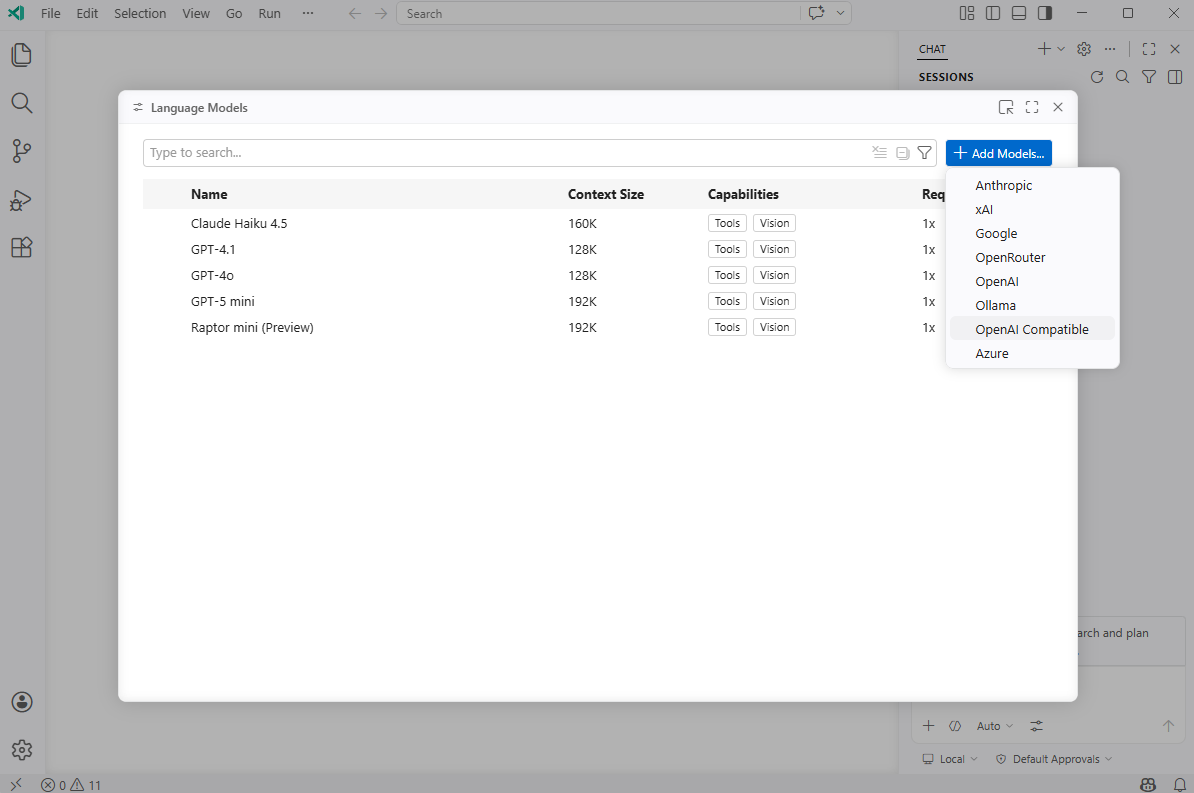
Select OpenAI Compatible from the drop down options:
####################################################################################################################
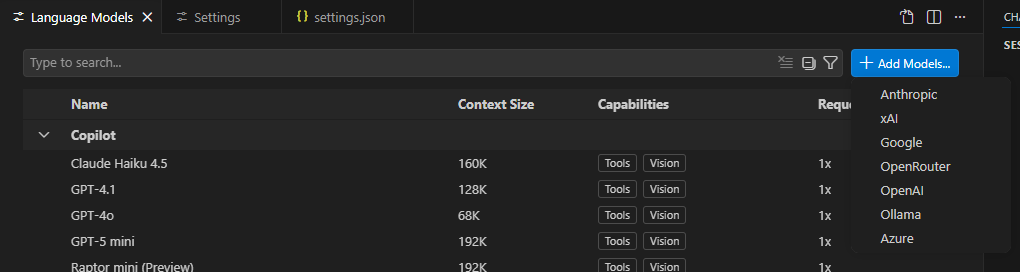
Note how the regular VS Code does not have the OpenAI Compatible option:
####################################################################################################################
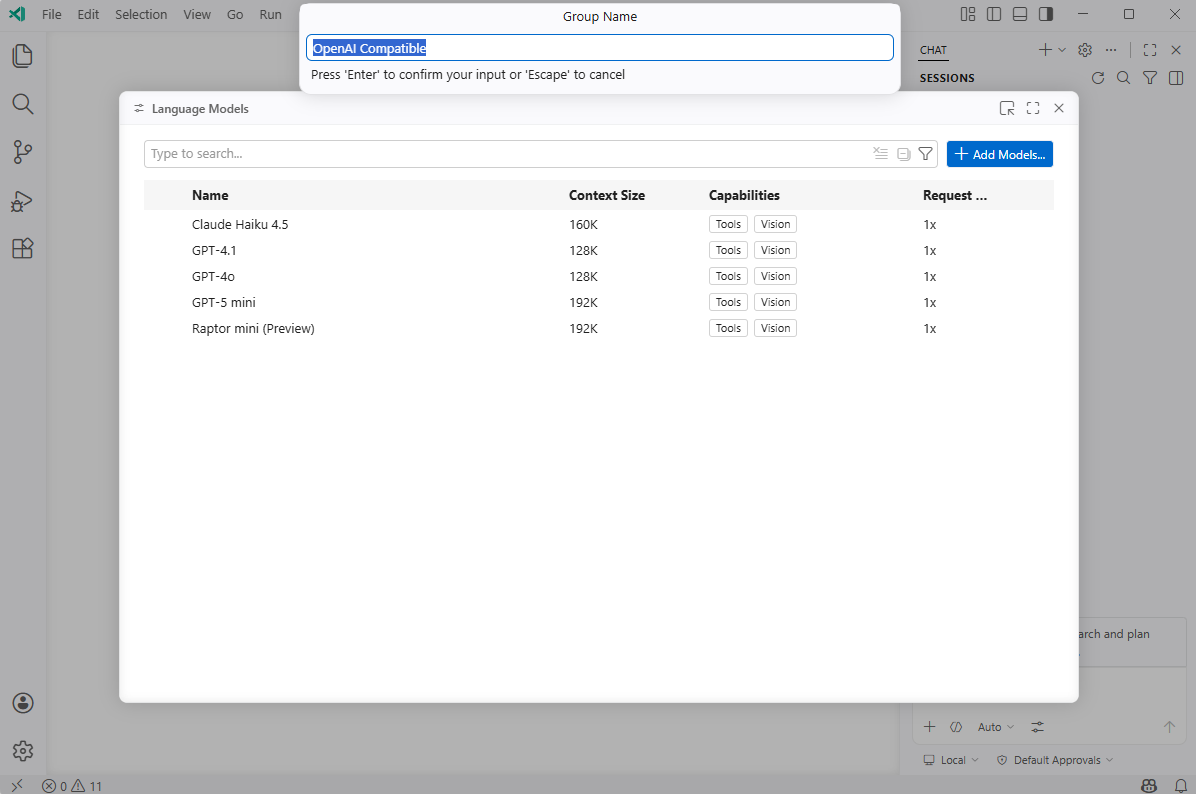
You can enter a group name you want or just leave it as the OpenAI Compatible default where the model we’re adding to be listed under:
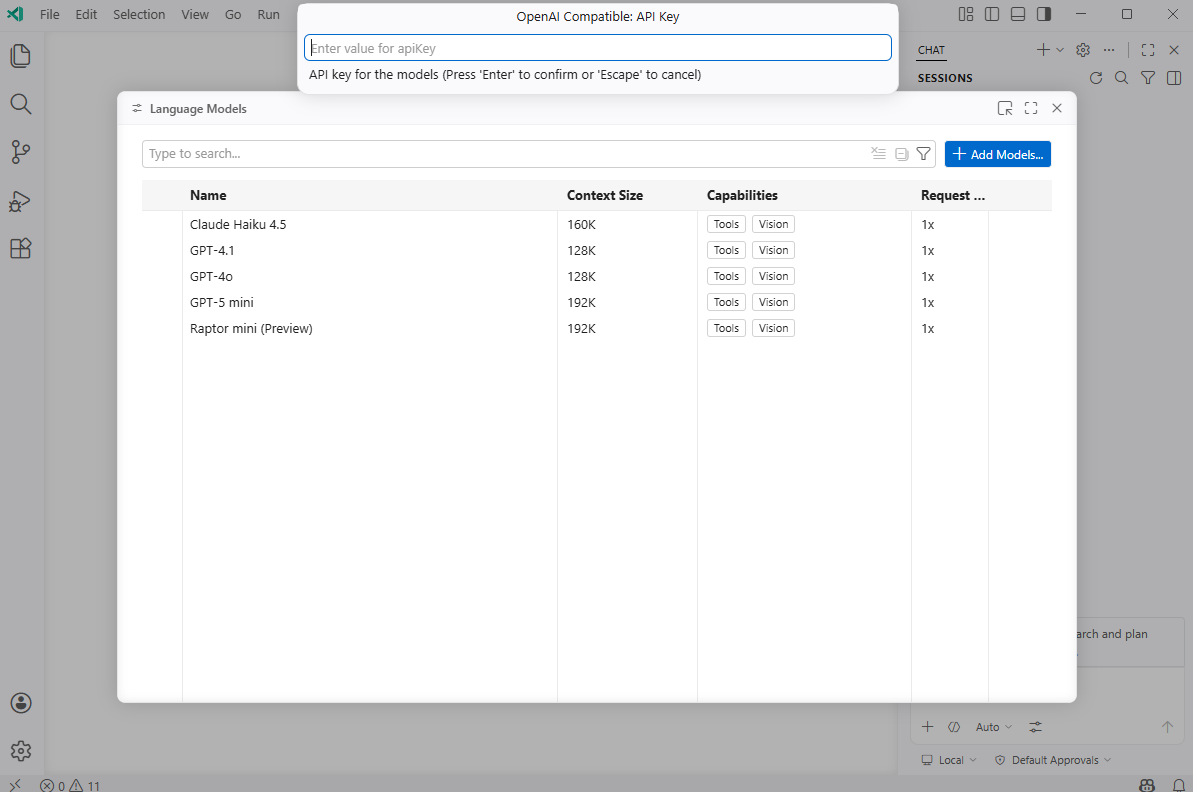
Our LM Studio server is not configured for an API Key so we’ll leave this blank:
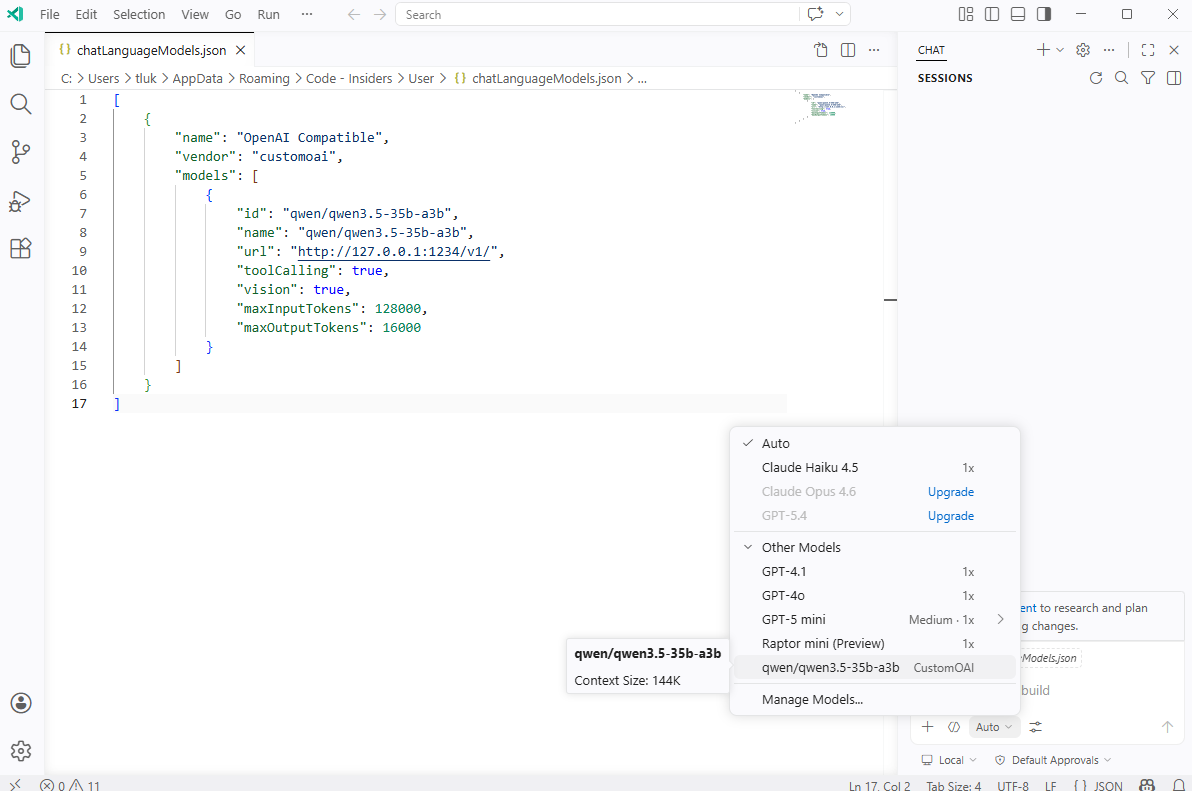
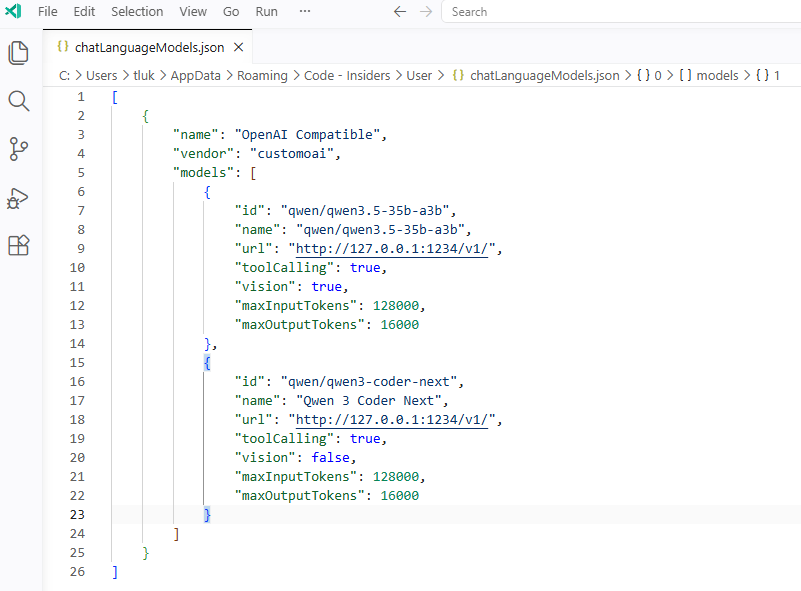
A default set of JSON key values for configuring the LLM model will be displayed. Proceed to fill in the fields:
id: <The ID of them model>
name: <A logical name of your choice>
URL: <The URL to call, we are using LM studio hosted on the same laptop as VS Code Insiders>
toolCalling: <Does this tool support tool calling?
vision: <Does this tool support vision?>
maxInputTokens: <Max input token supported by model>
maxOutputTokens: <Max output token supported by model>
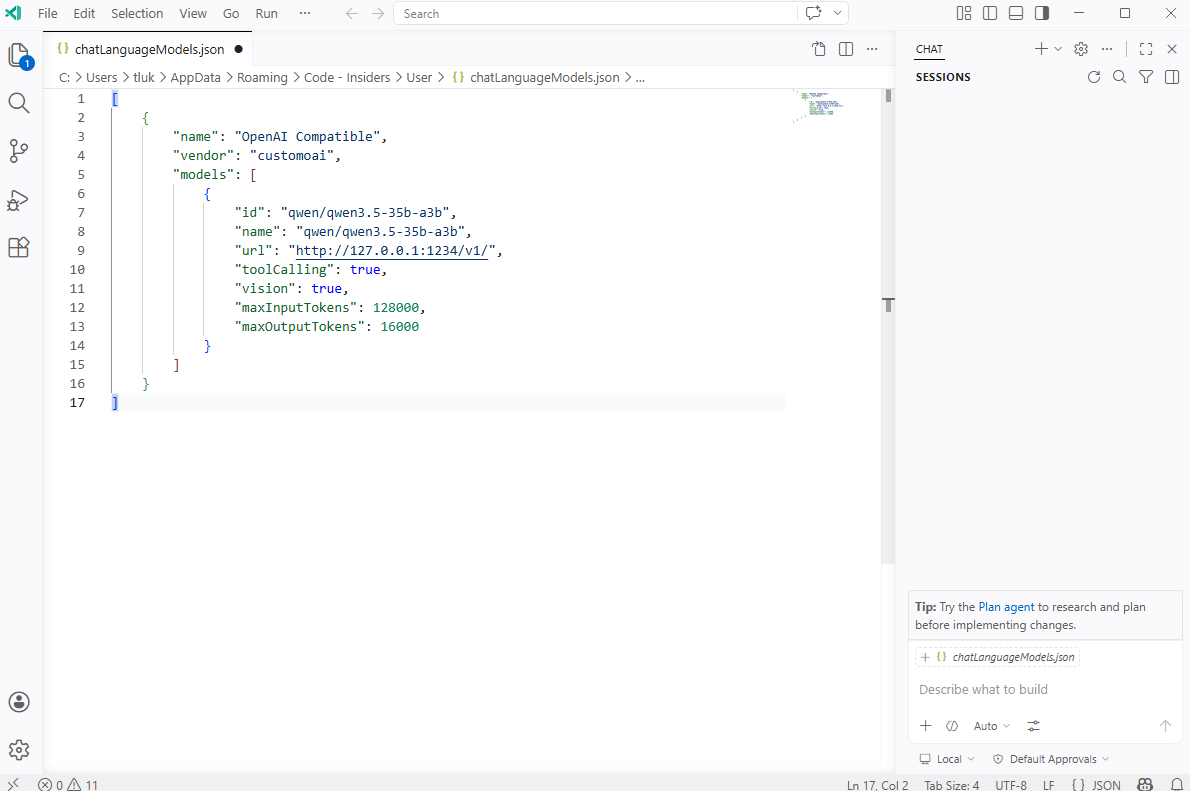
You’ll notice that saving the JSON and click on the Auto list will not display the model:
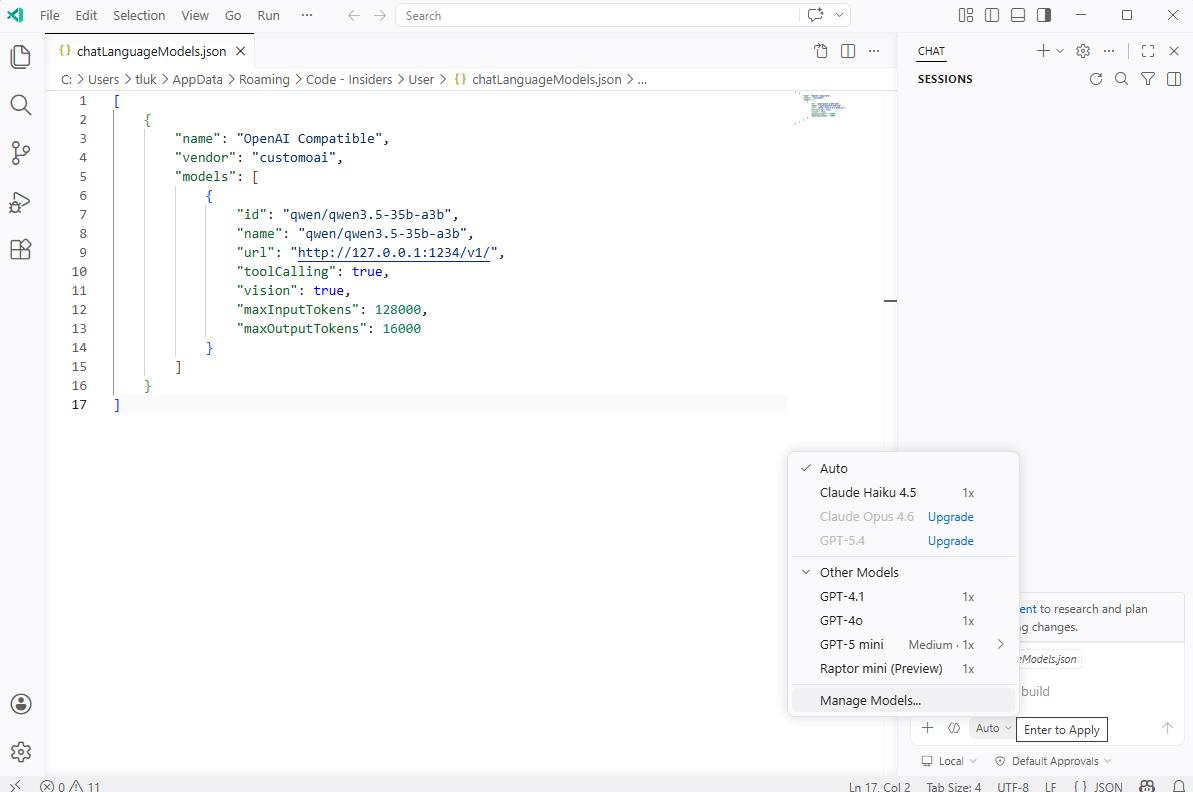
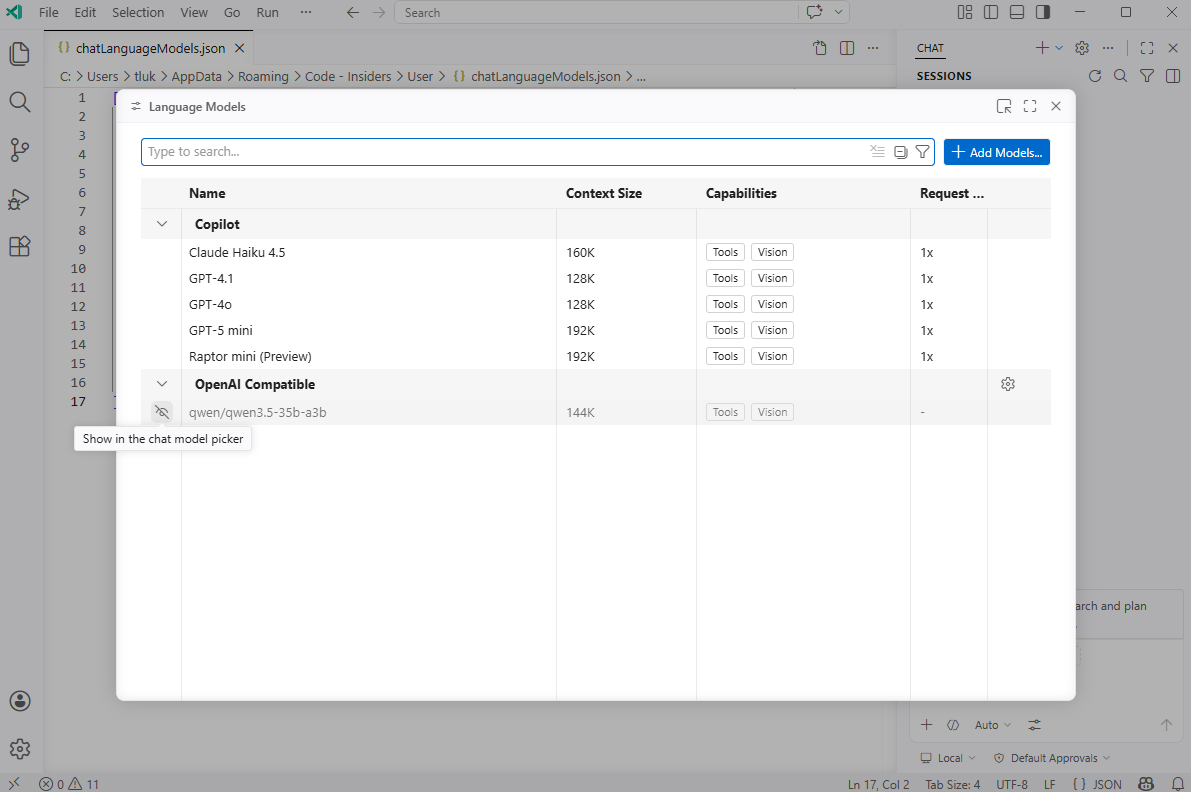
This is because we need to unhide it so proceed to click on Manage Models… again to bring up the Language Models window, move the mouse to the left side of the model where an eye with a line crossing it is displayed, then click on it to unhide it:
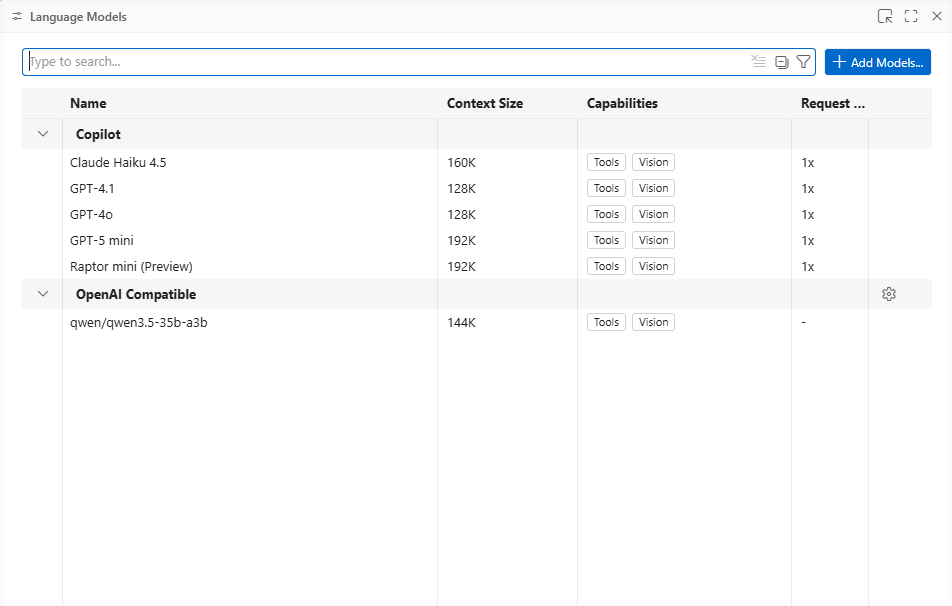
You should now see the newly added model labeled as a CustomOAI model:
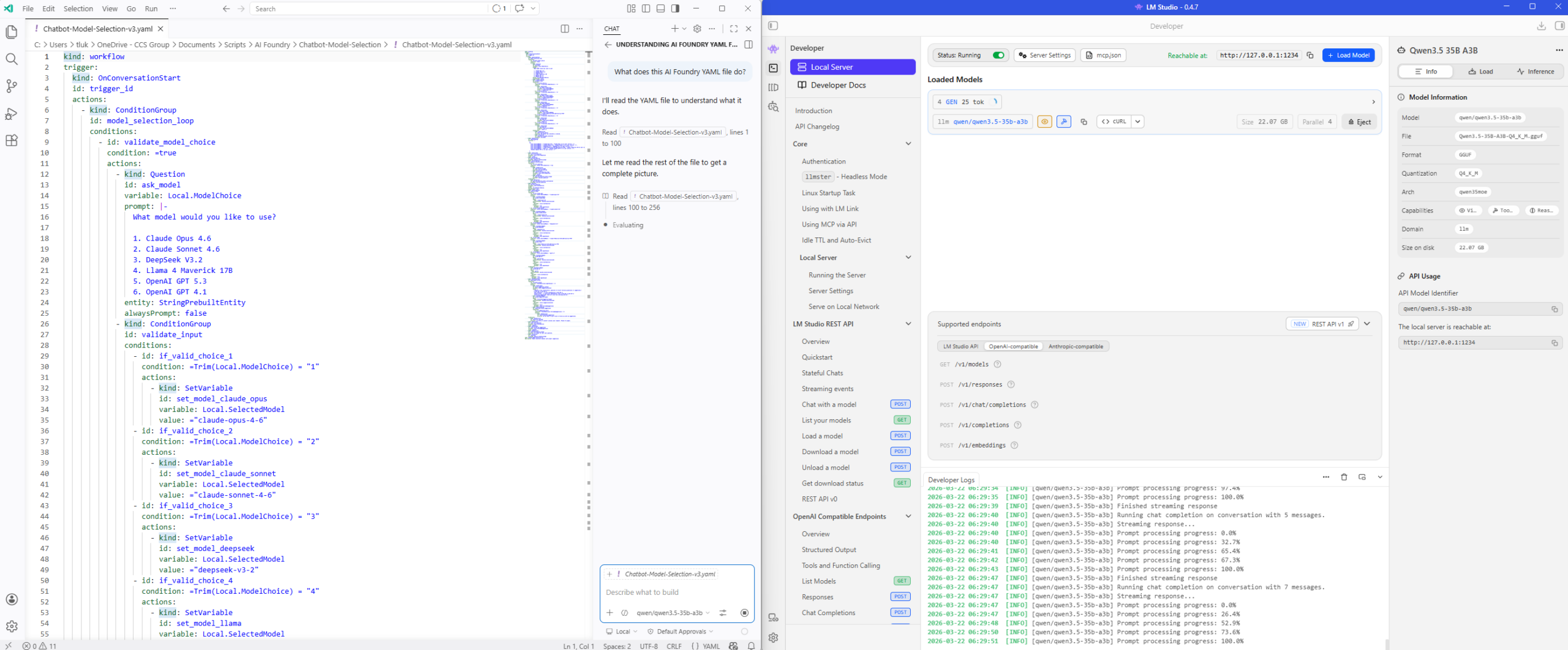
Selecting it will allow you analyze your code with the locally run model:
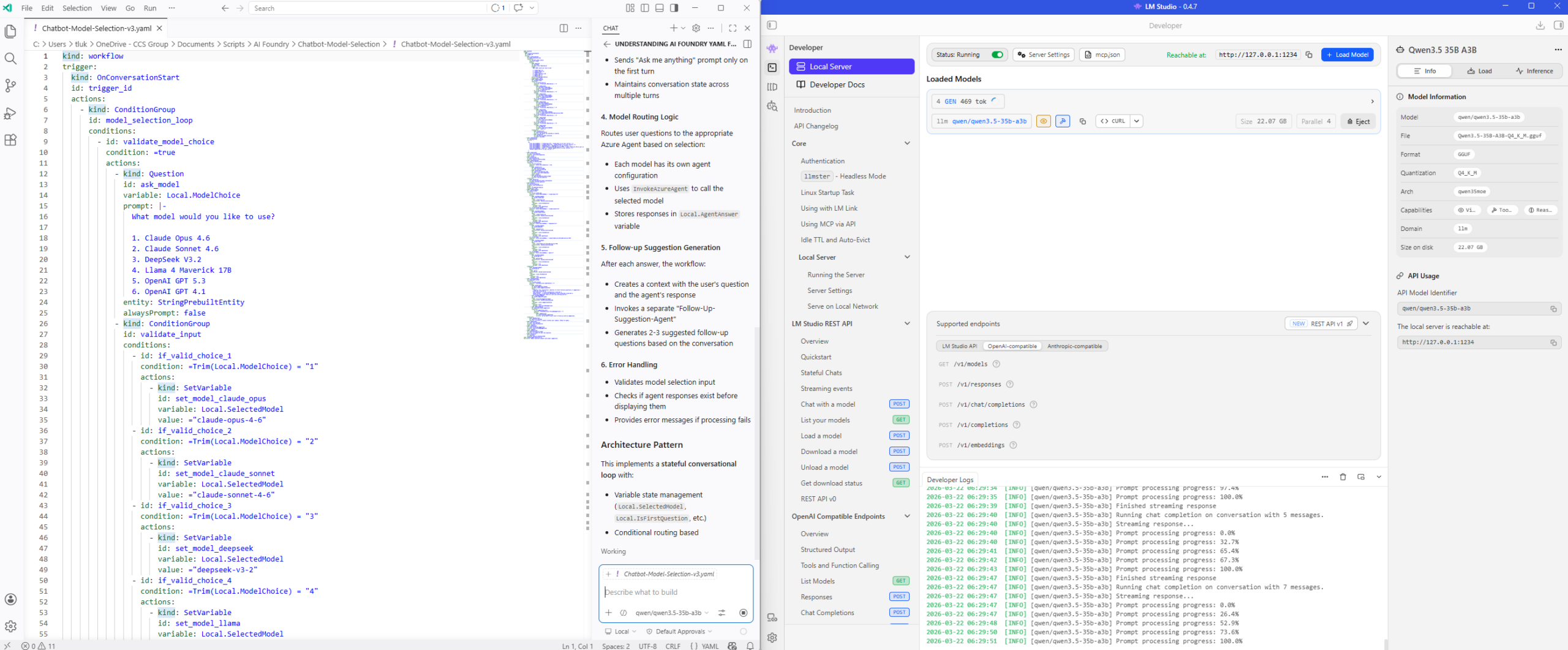
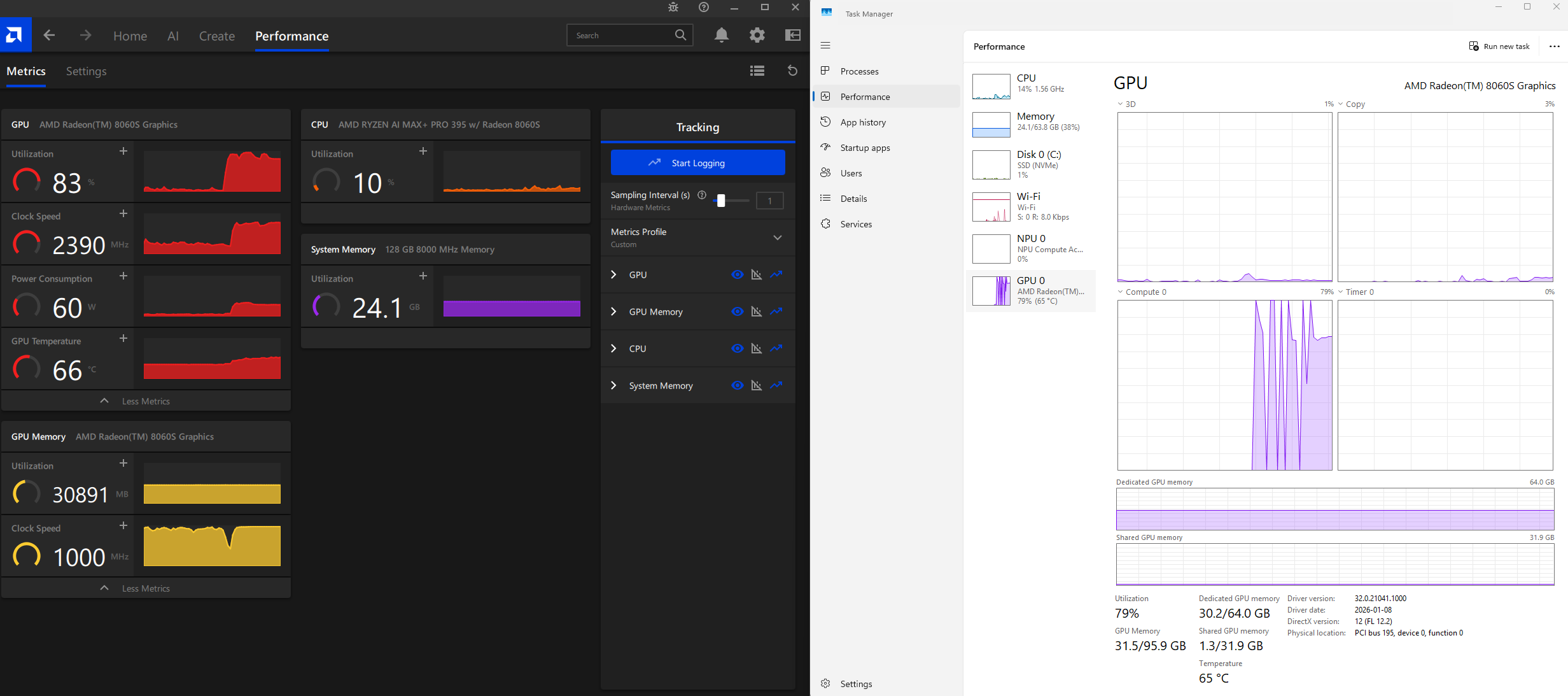
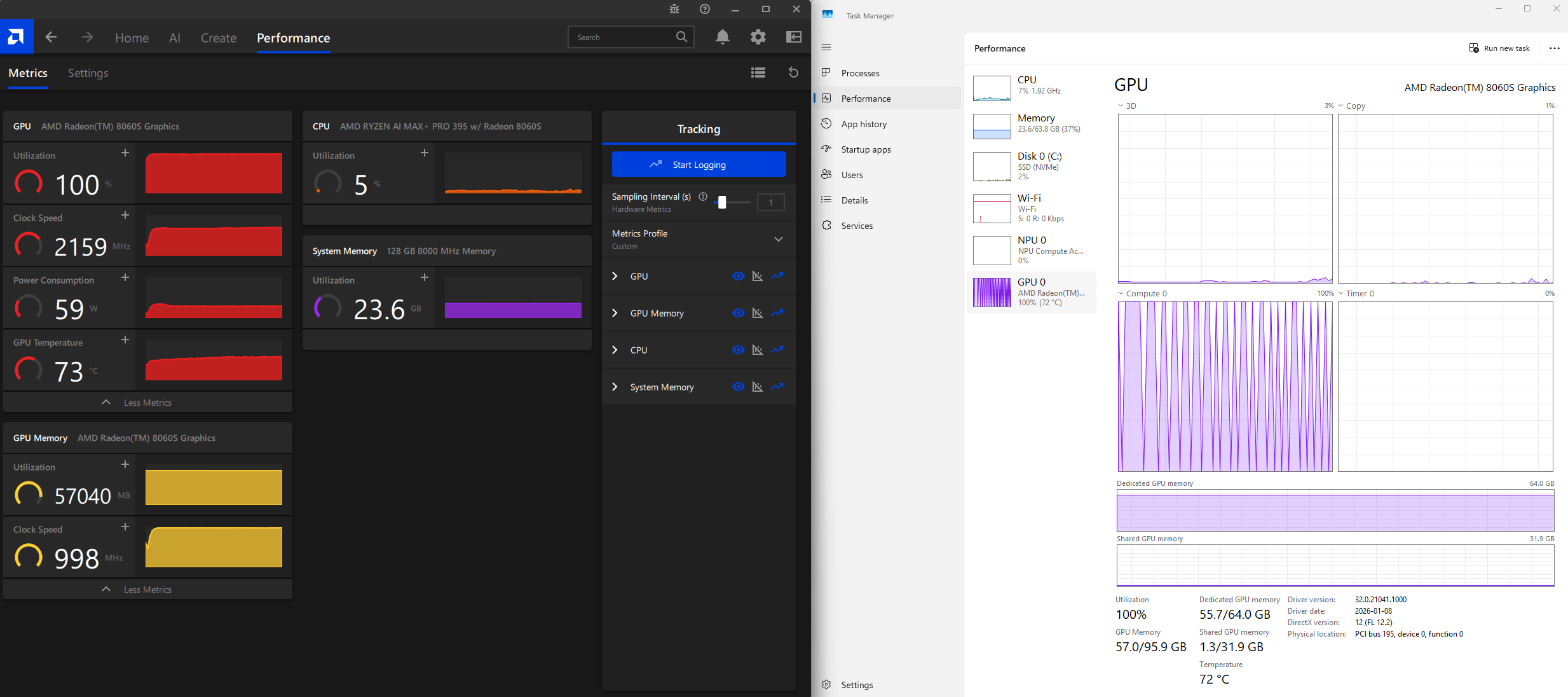
Here is a screenshot of the GPU usage during the chat processing:
Adding the Qwen3 Coder Next model is simply a matter of duplicating the JSON code and adjusting the parameters, then unhiding it:
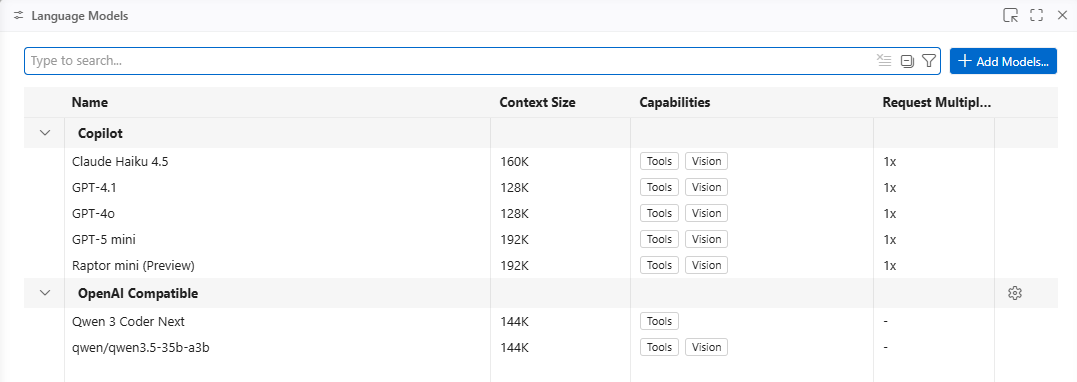
The LLM should now be available to use:
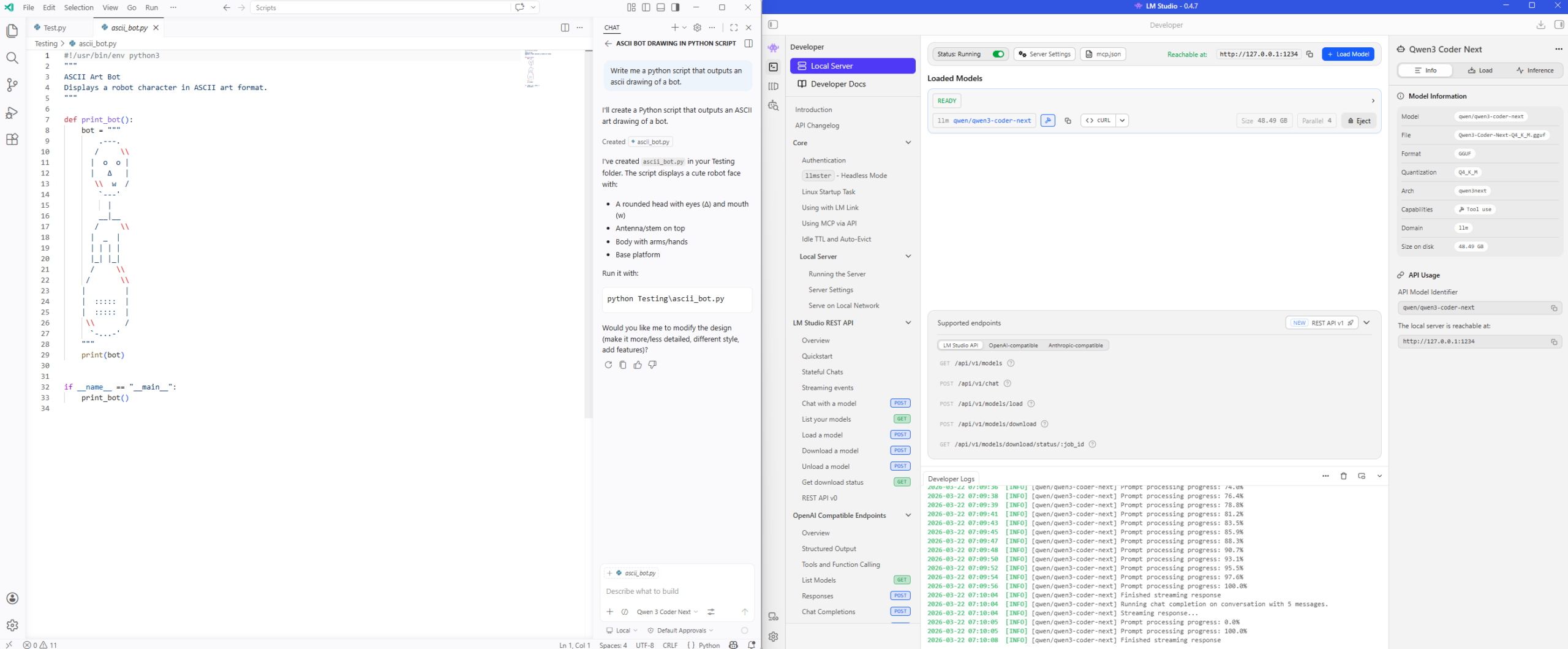
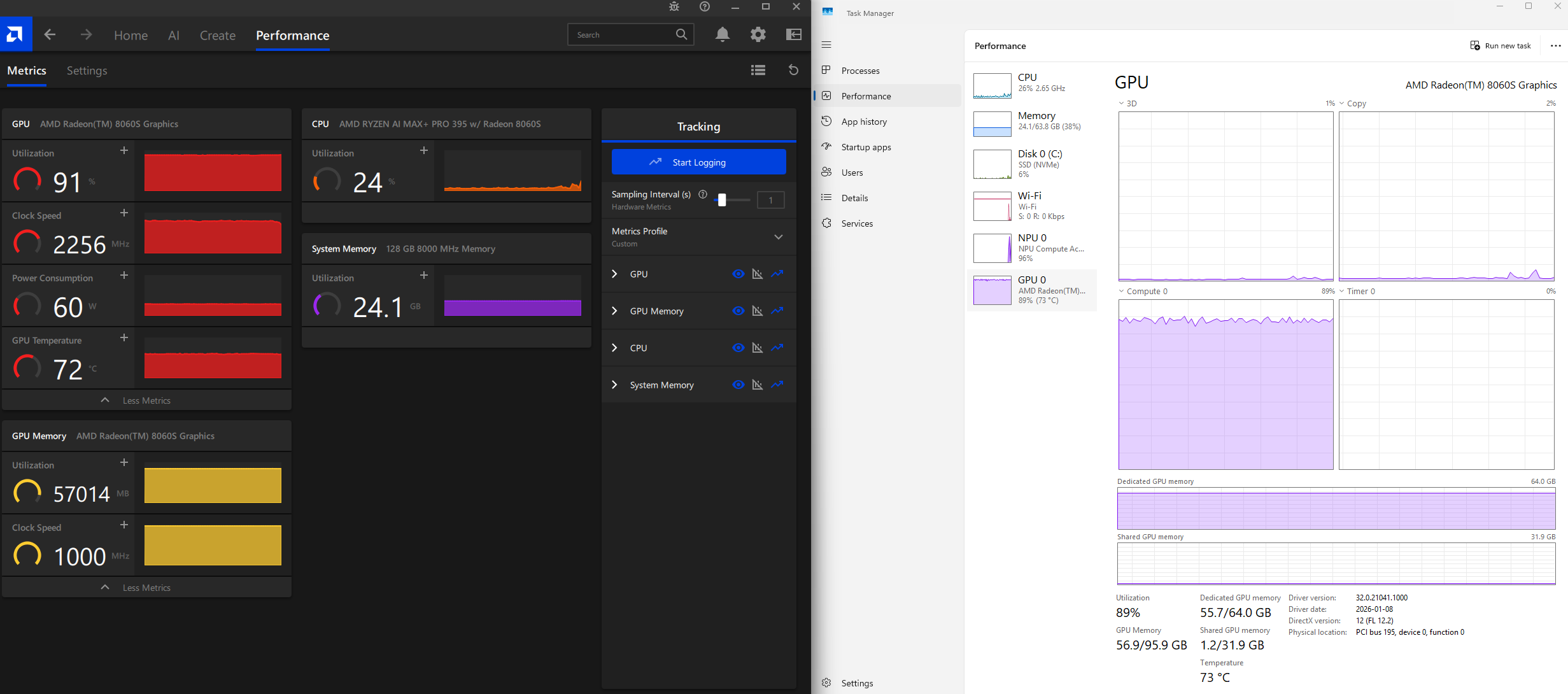
The Qwen3 Coder Next is a much larger model and uses more GPU memory:
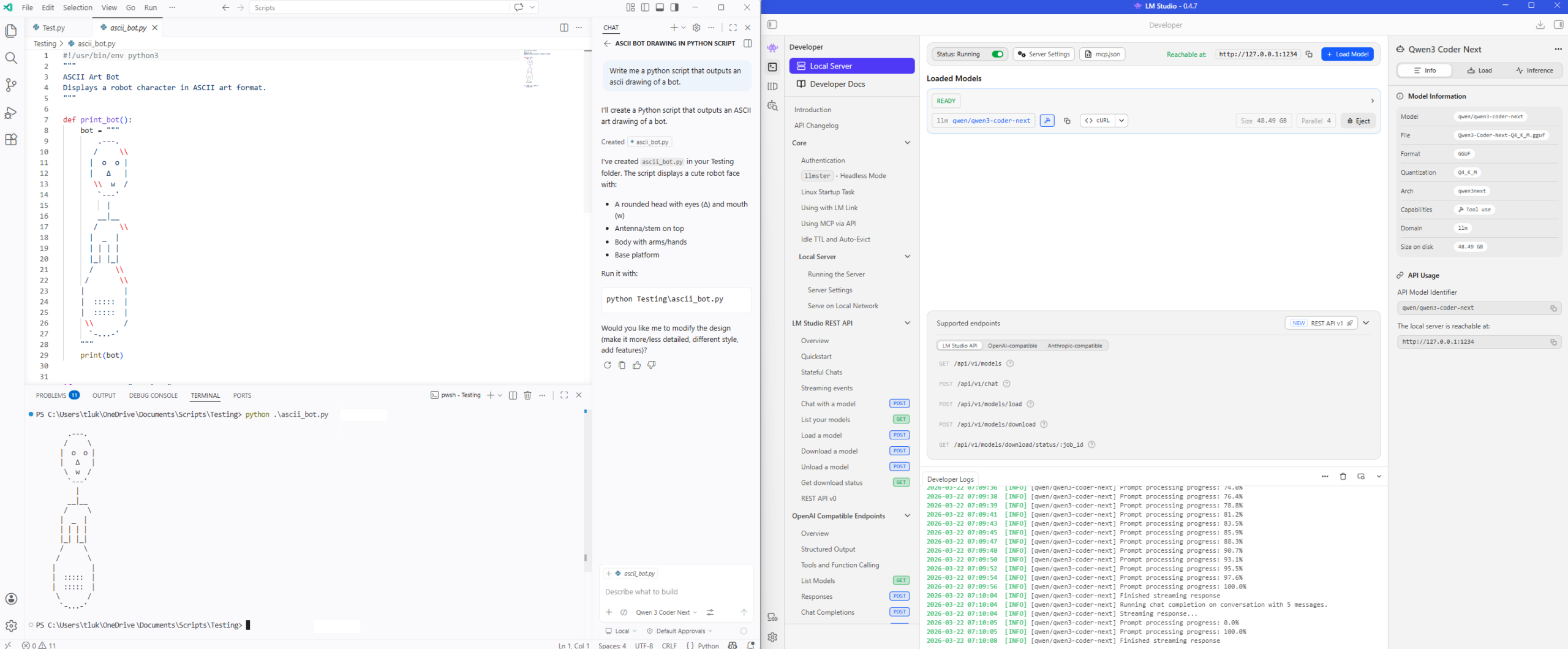
Validating the python script works:
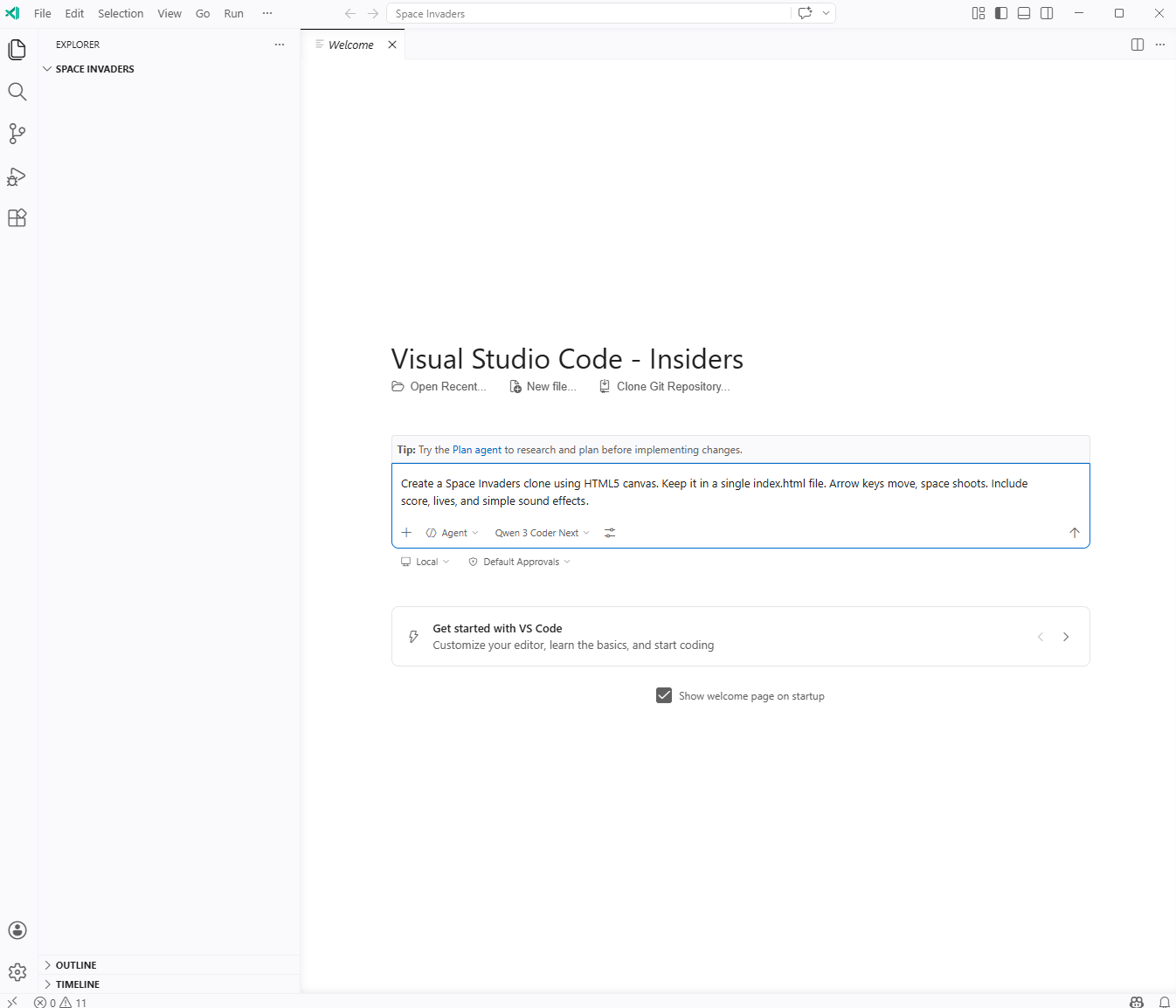
Using Qwen3 Coder Next to create a Space Invaders Game
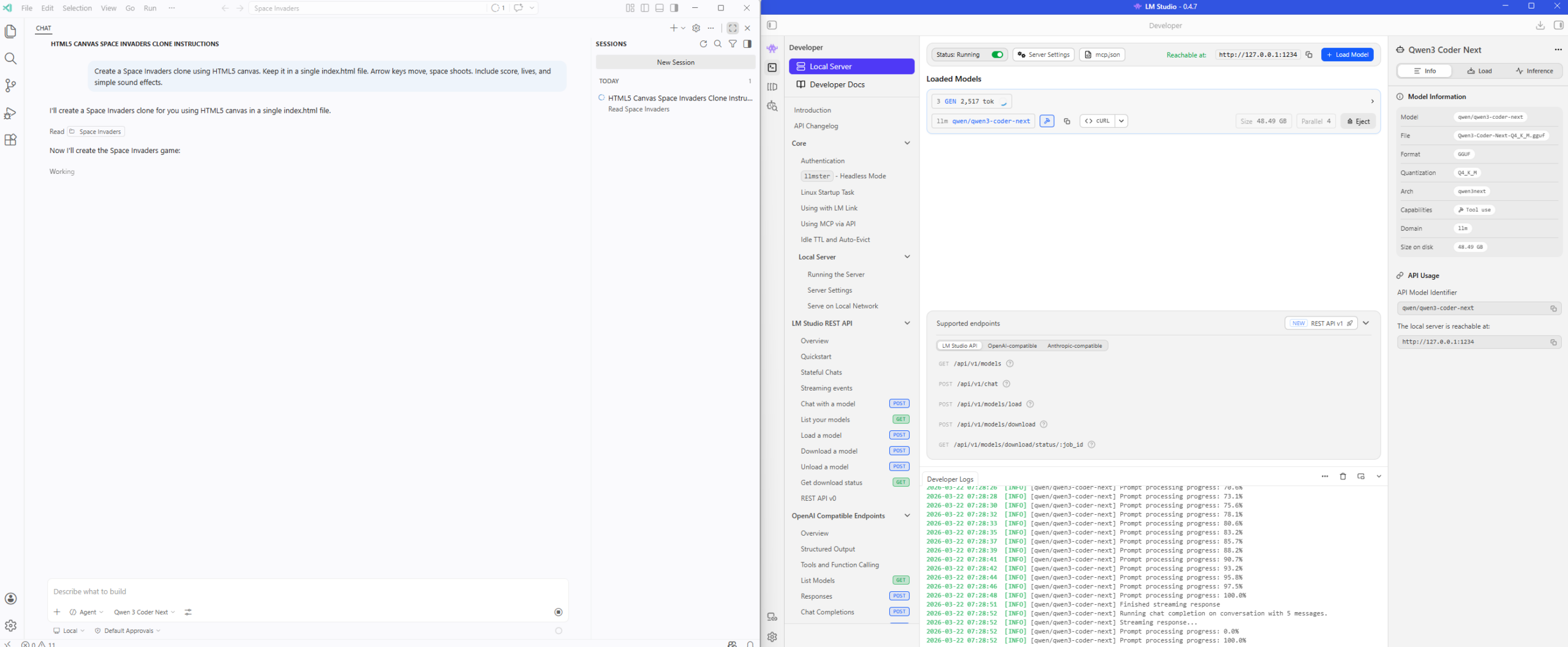
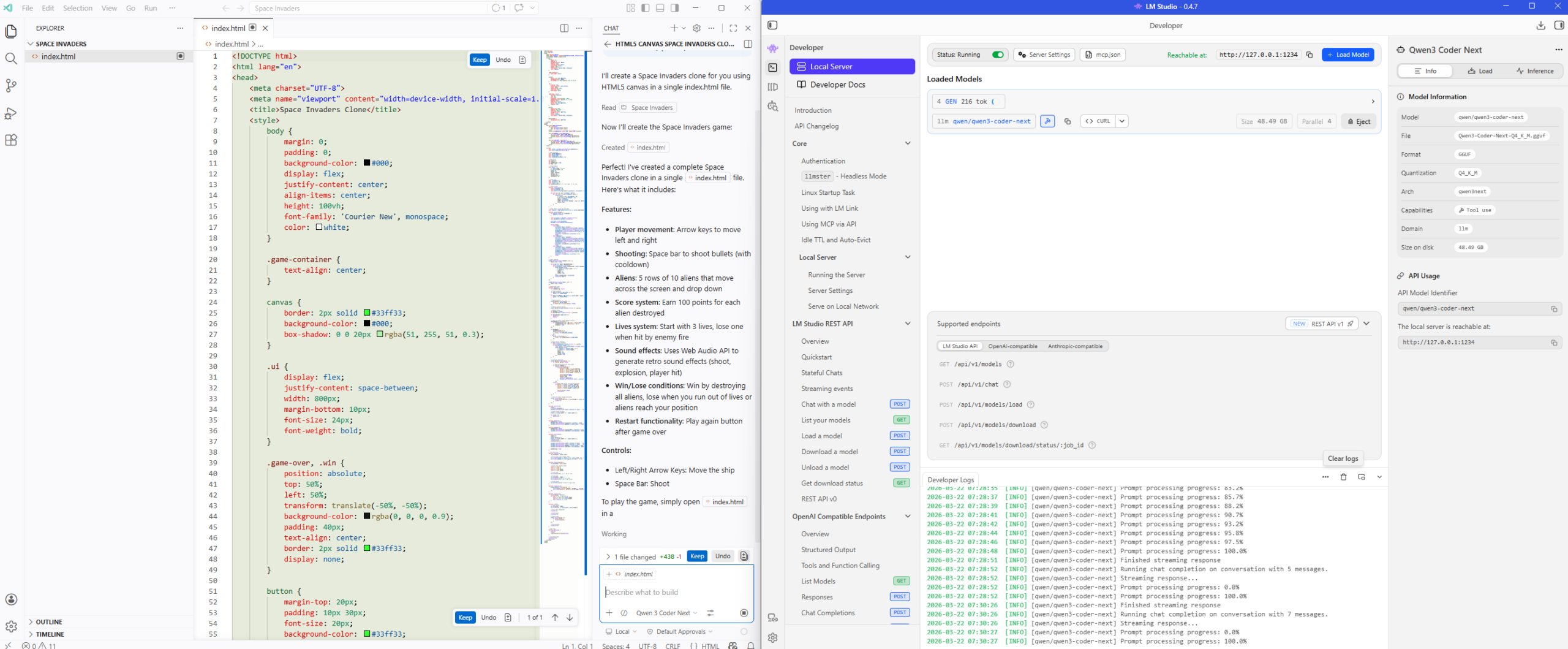
Let’s now have a bit of fun and try creating a game with my the locally provided Qwen3 Coder Next LLM:
Create a Space Invaders clone using HTML5 canvas. Keep it in a single index.html file. Arrow keys move, space shoots. Include score, lives, and simple sound effects.
Here is the finished product:
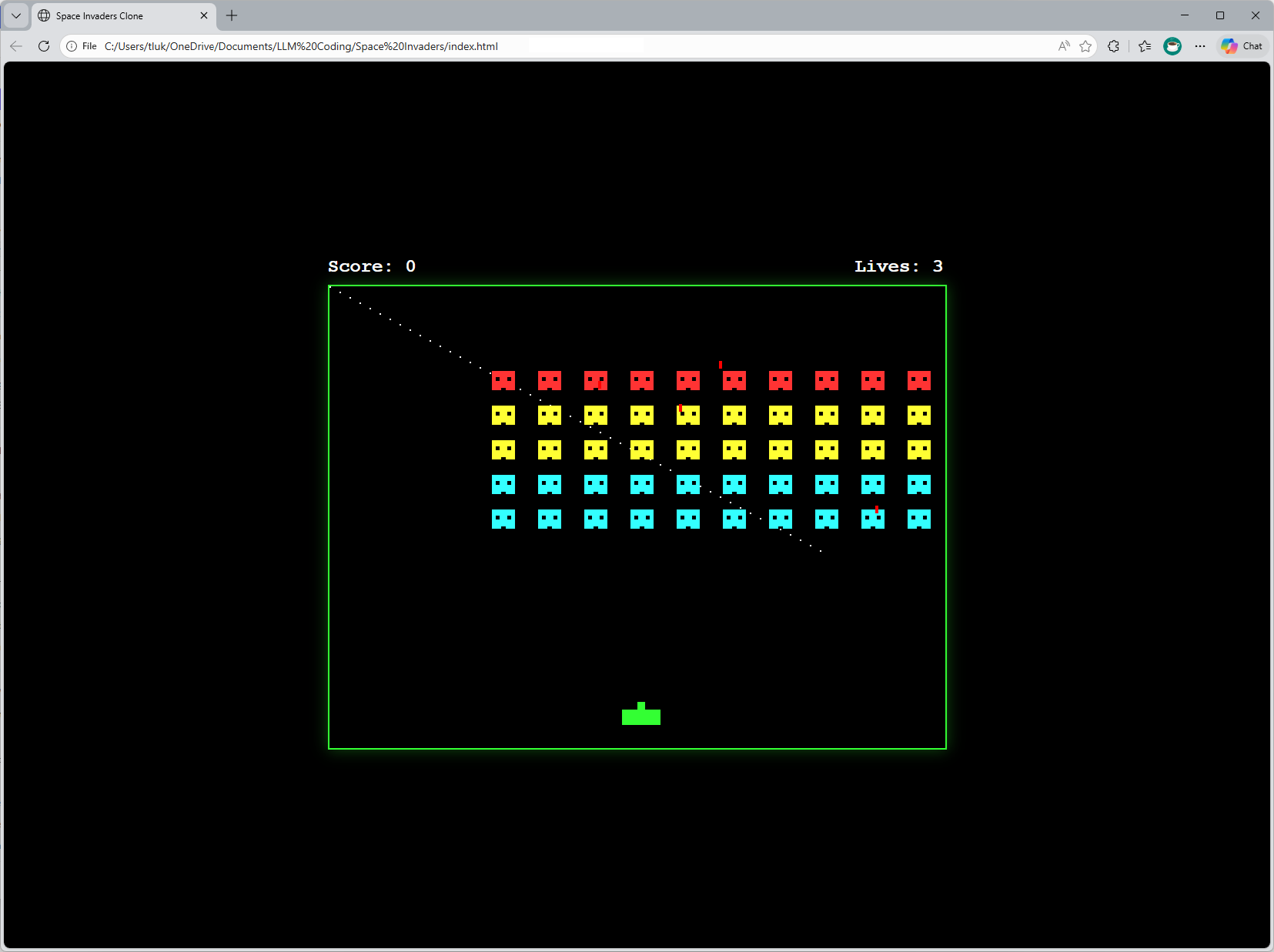
The game actually allows you to shoot with the space bar:
Let’s ask the LLM to make some additions to add a intro page:
Add a cool intro page before the game begins with a retro Space Invaders title.
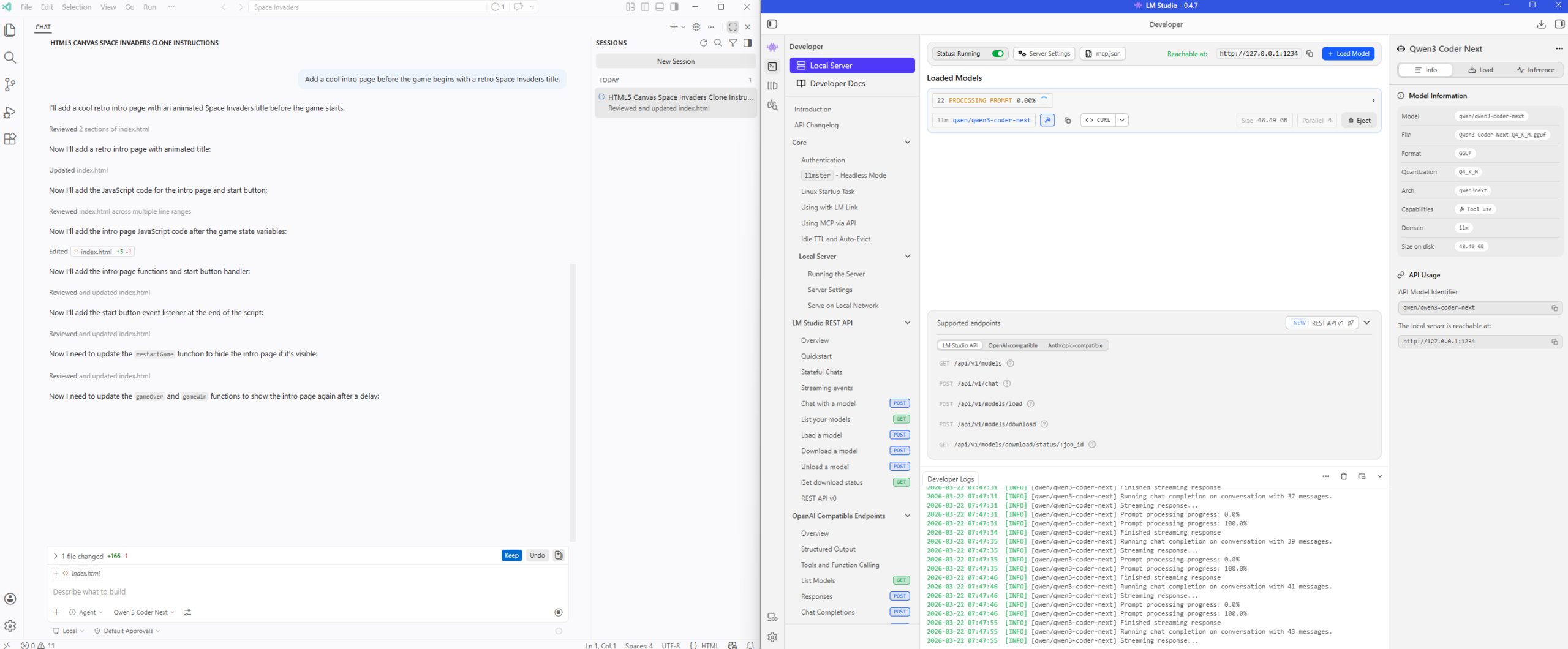
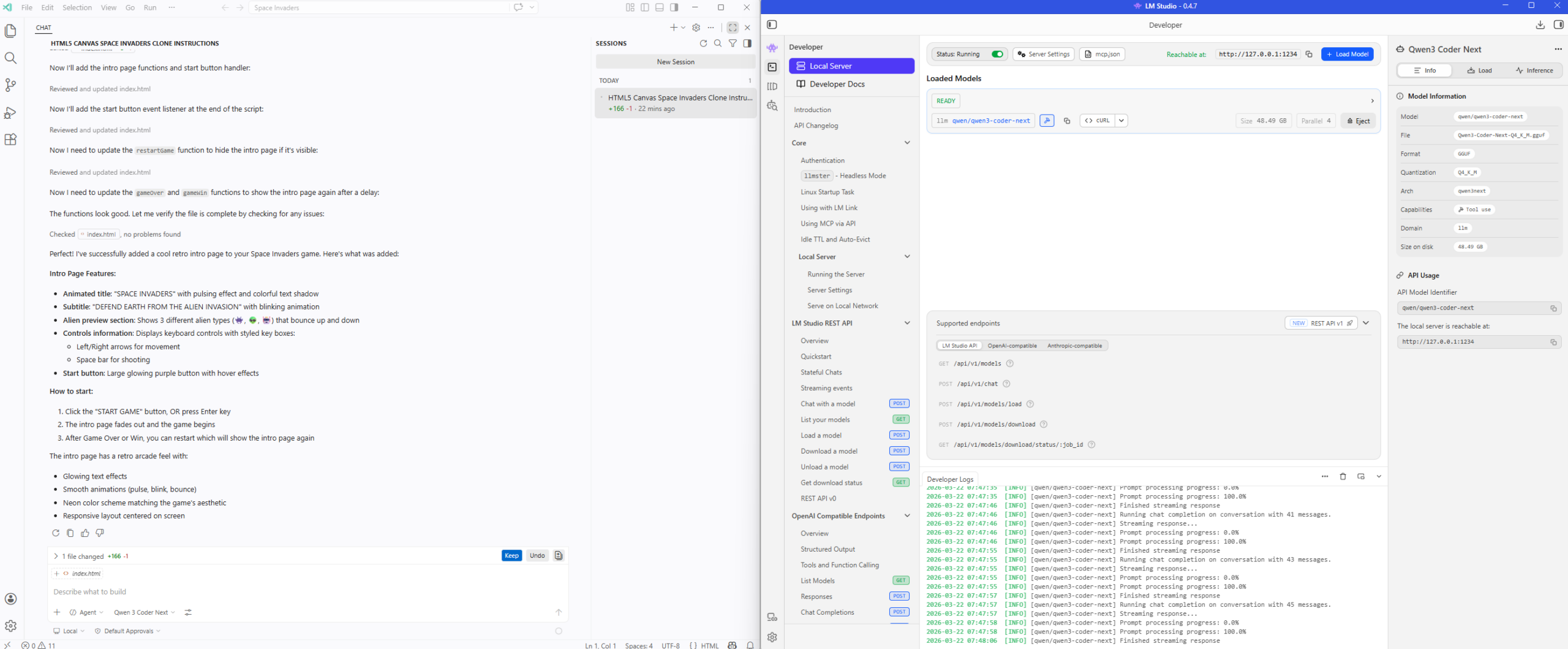
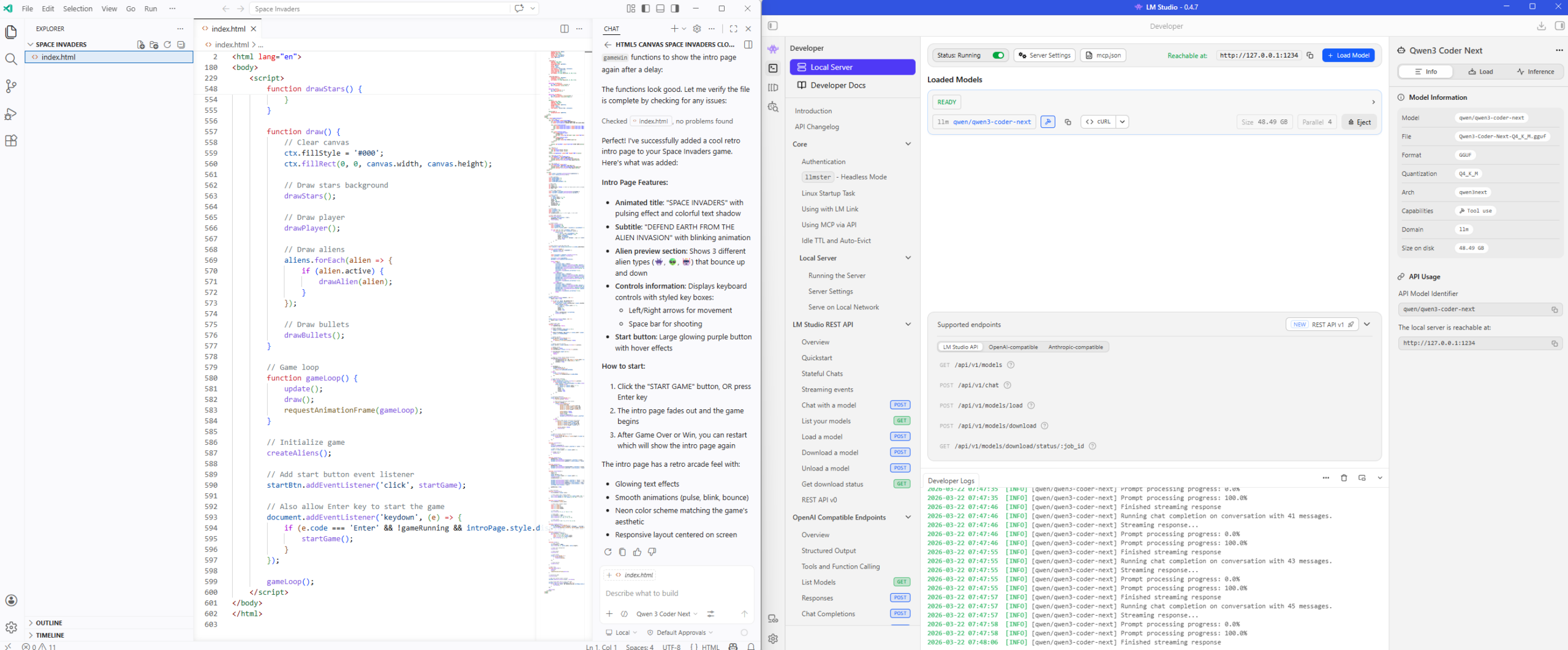
The single HTML file now incorporates a intro page with a start button:
Clicking on the Start Game button will start the game:
… and there we have it. The performance of my laptop isn’t going to quite as fast as cloud hosted models but the ability to experiment and not have to worry about GitHub CoPilot quotas and subscription models charges makes running a local LLM incredibly compelling.
Mario Cart Game Attempt
For those who may be interested, I’ve also tried using the Qwen 3.5 35b-a3b to create a Mario Cart Game with the prompt:
Create a mario cart clone using HTML5 canvas. Keep it in a single mario-index.html file. Arrow keys move. Include score, simple sound effects.
The first attempt gave me something that was not functional and the 2nd shot follow up gave me this:
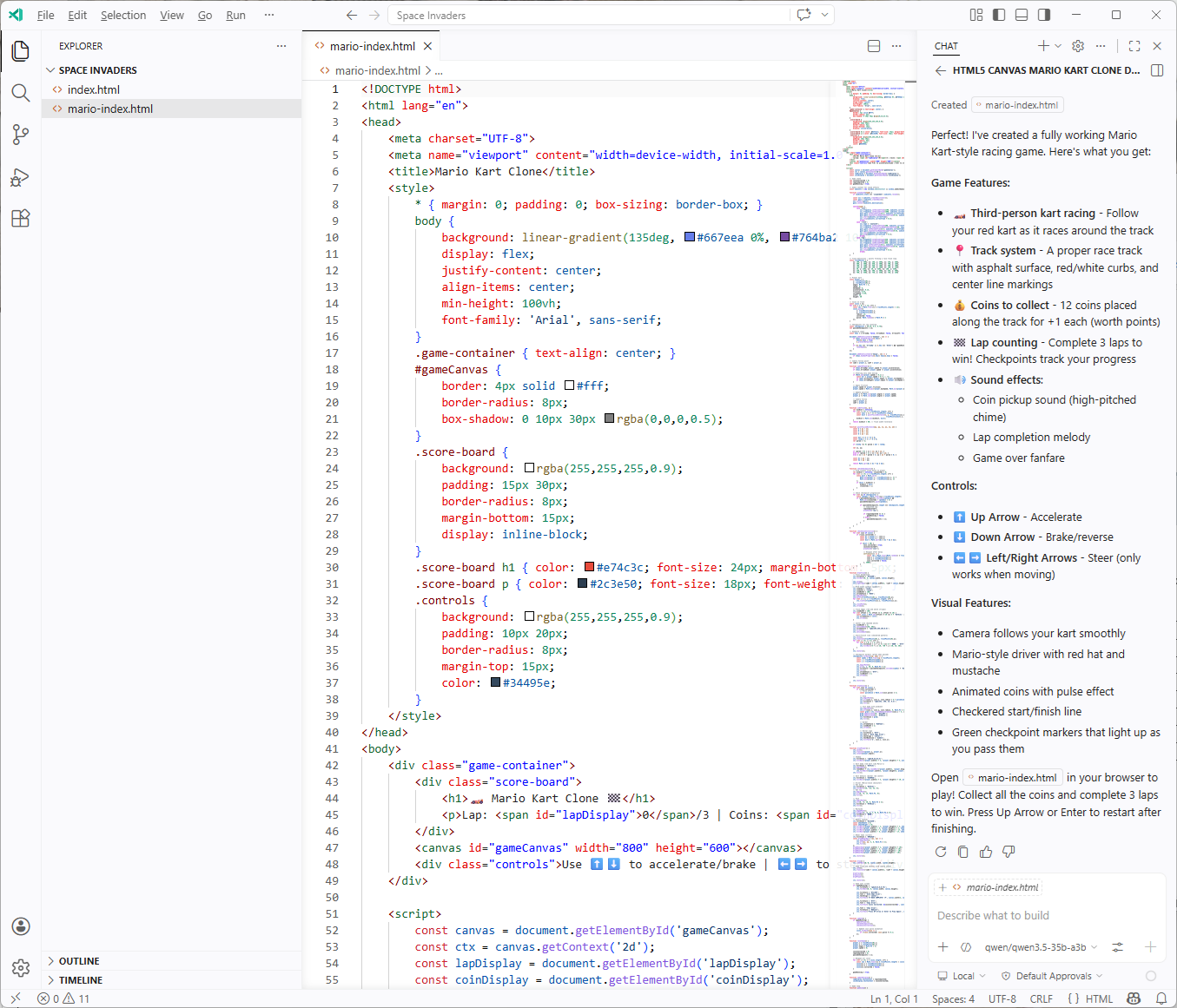
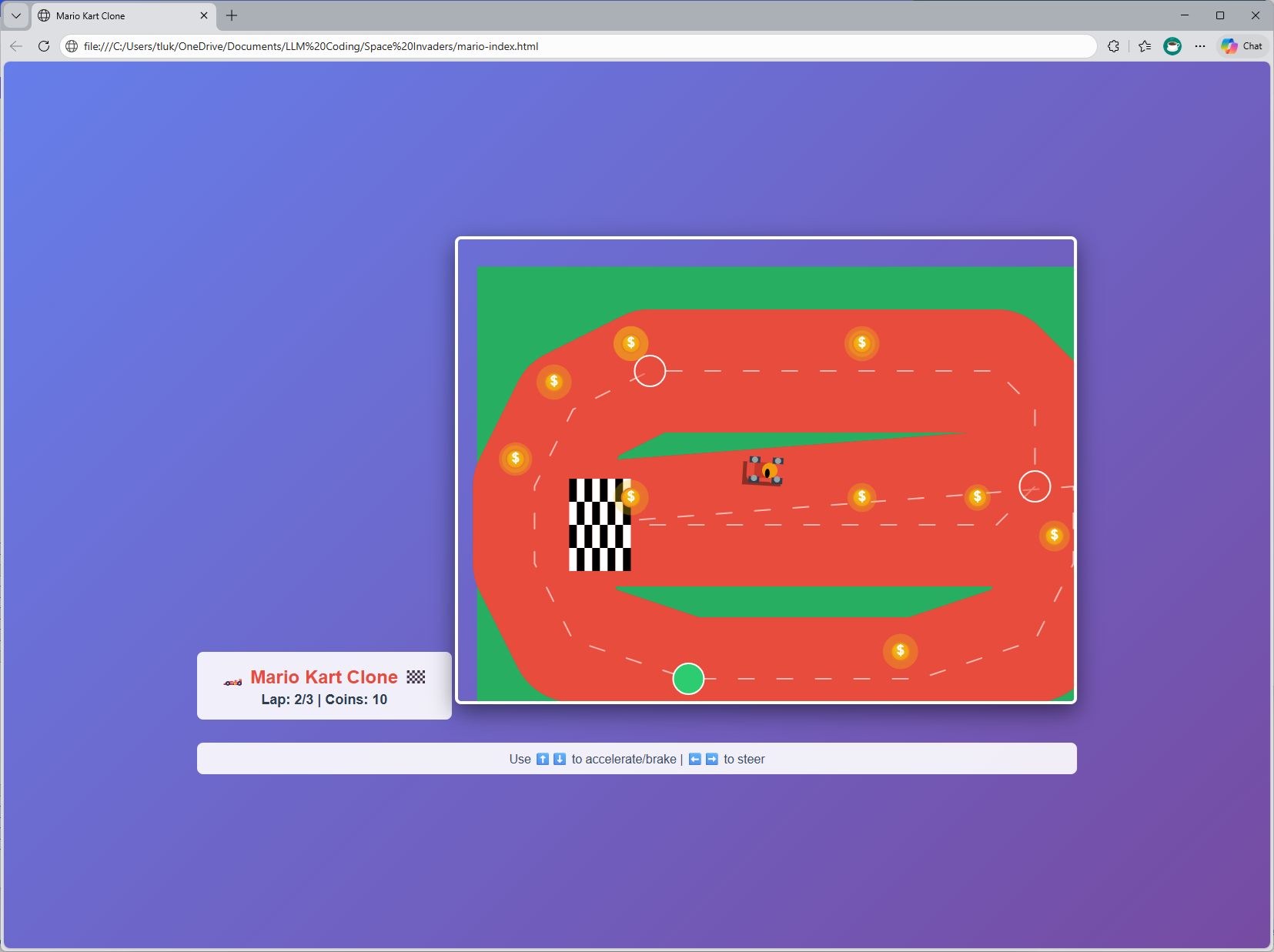
Certainly not what I would expect but it can probably get better if I gave it better instructions.
The game can be loaded here: https://htmlpreview.github.io/?https://github.com/terenceluk/Demos/blob/main/HTML/mario-index.html

