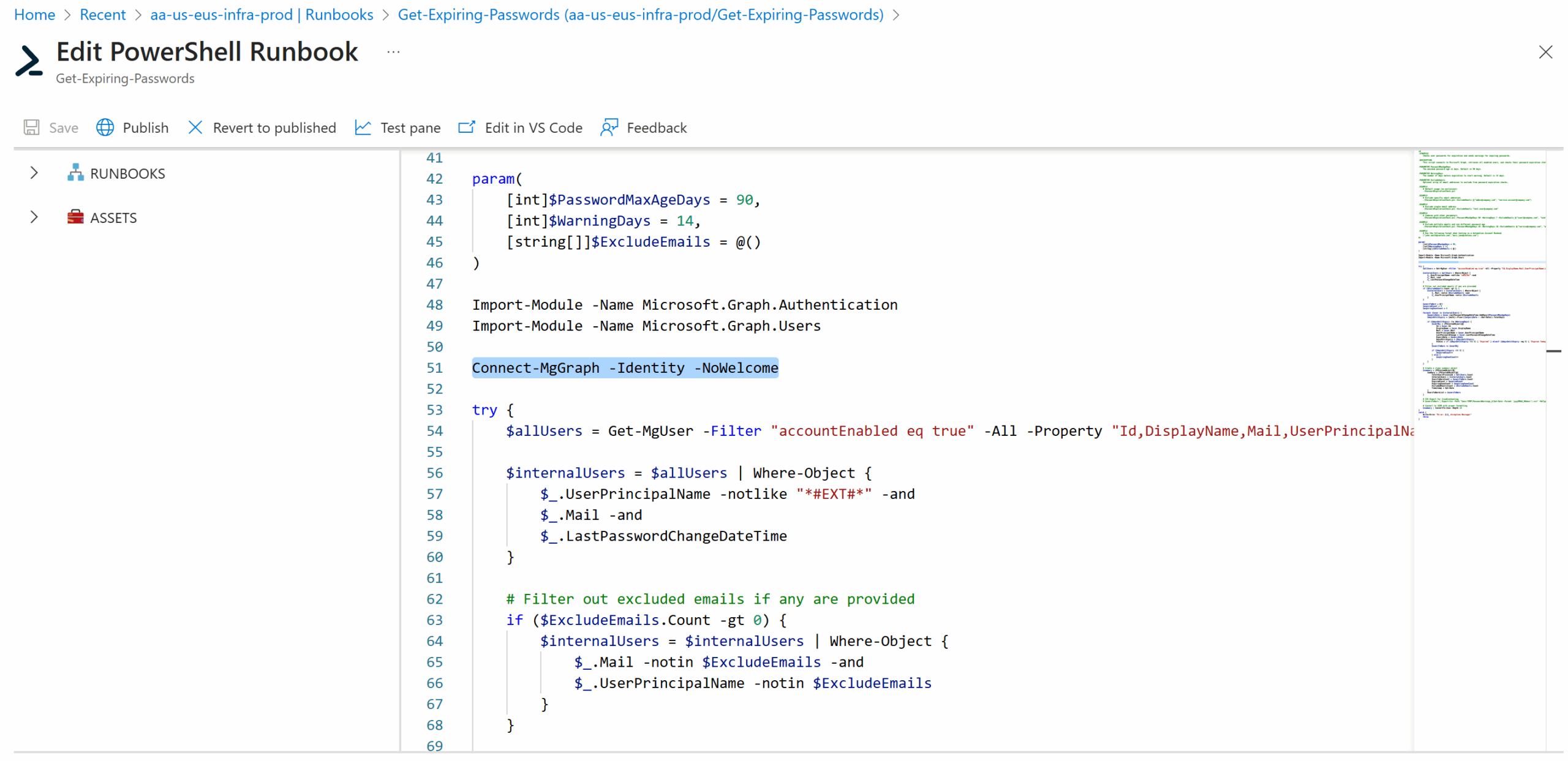
I’ve recently been working on an Automation Account Runbook that uses PowerShell 7.2 to execute Connect-MgGraph -Identity to use the Automation Account’s managed identity to authenticate but it would fail with:
Connect-MgGraph:
Line |
8 | Connect-MgGraph -Identity
| ~~~~~~~~~~~~~~~~~~~~
| Invalid JWT access token.

I’ve made sure I went ahead to add the required modules that I needed for my PowerShell script as such:


But could not get the runbook to execute past the Connect-MgGraph. After a bit of troubleshooting, I realized that the newer version of the module, currently at version 2.31.0 did not work from within an Automation Account Runbook and the only way around this at the moment was to downgrade to 2.25.0.
There are several ways to add a lower version of the PowerShell module and for the purpose of this post, I’ll demonstrate how to download the packages and use the GUI to import them.
Step #1 – Download older modules
Search for the modules and the corresponding version. My script requires
- Microsoft.Graph.Authentication – https://www.powershellgallery.com/packages/Microsoft.Graph.Authentication/2.25.0
- Microsoft.Graph.Users – https://www.powershellgallery.com/packages/Microsoft.Graph.Users/2.25.0
Navigate to the web page and download the nupkg file:

Step #2 – Rename package to zip
Rename the file’s extension from .nupkg to .zip:


Opening the zip file will show the files for the module:
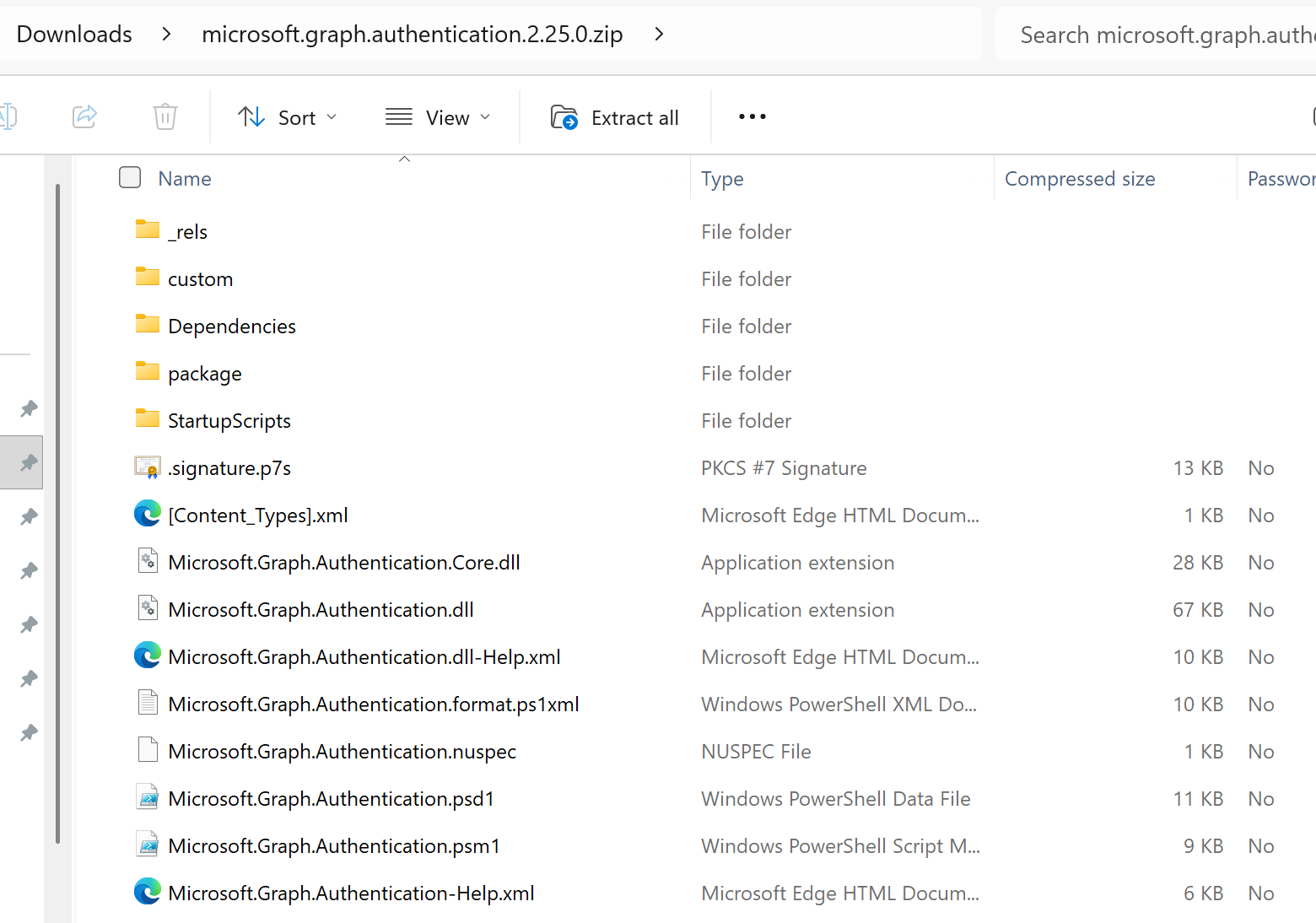
Step #3 – Create upload package
The problem with simply uploading this package is that the Automation Account module import will not recognize the way the files are bundled in this zip package. Rather than having files directly in the zip file, we need to place the files into a folder as such:
Zip Package –> Module Folder –> Module Files
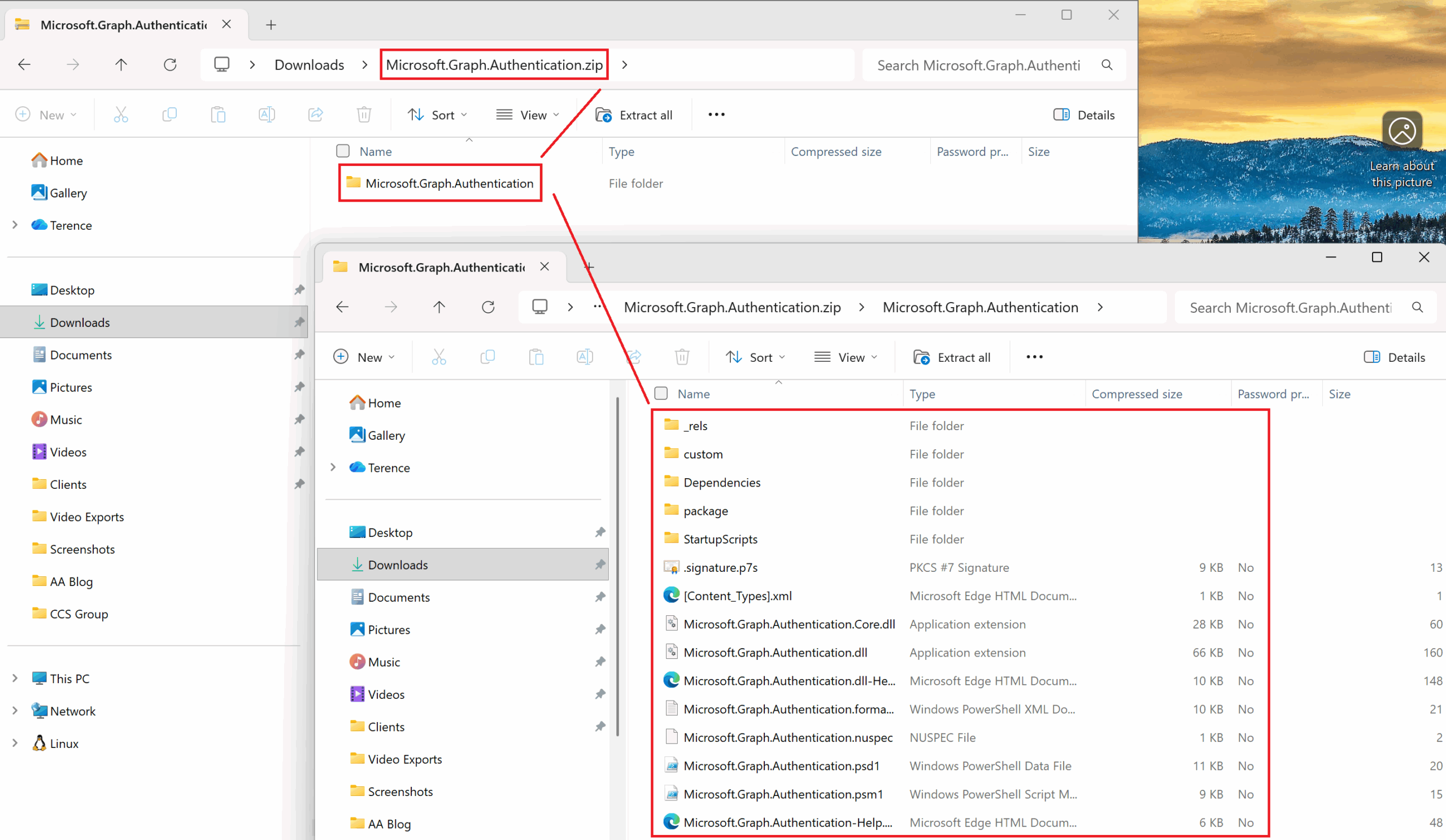
Step #4 – Upload module package
With this zip package created, we can proceed to import the module into the Automation Account:

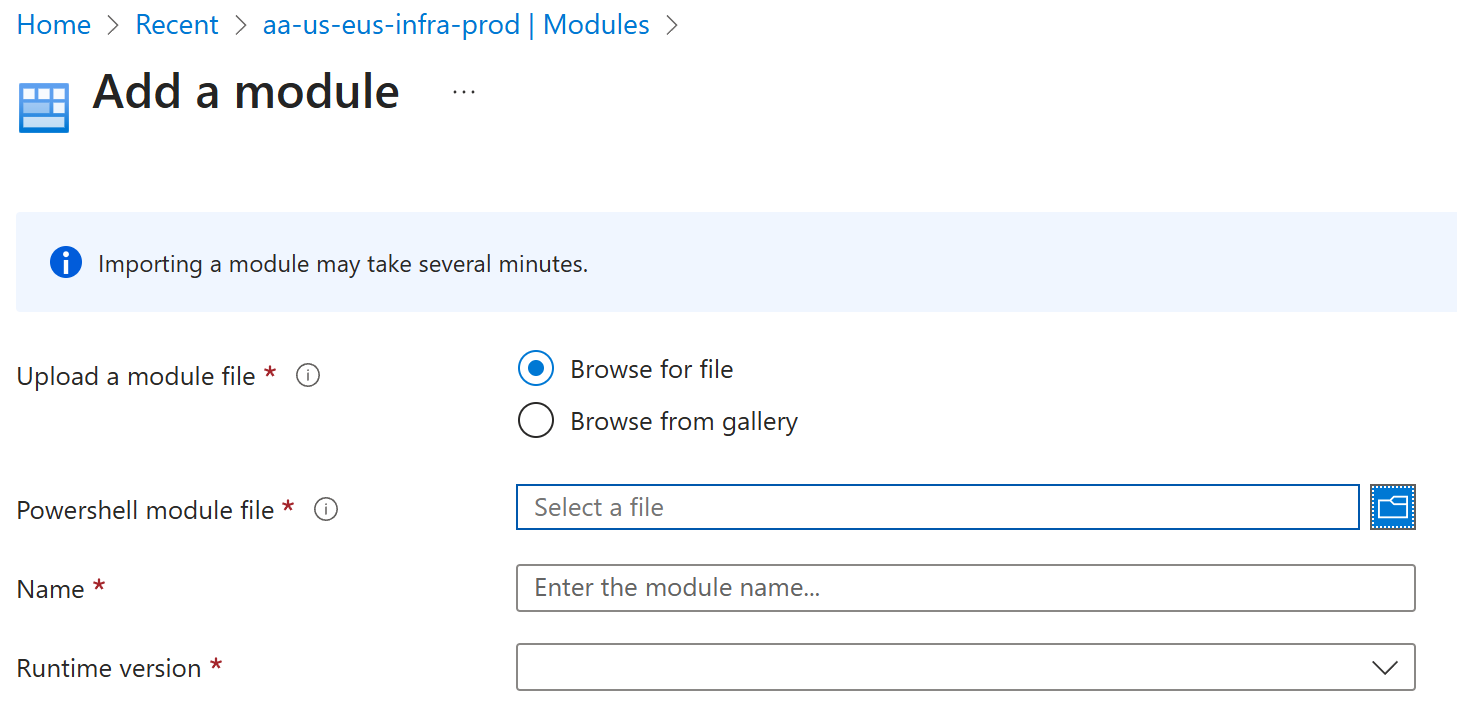
The lower version modules should be displayed when the import is completed:

Step #5 – Test Script
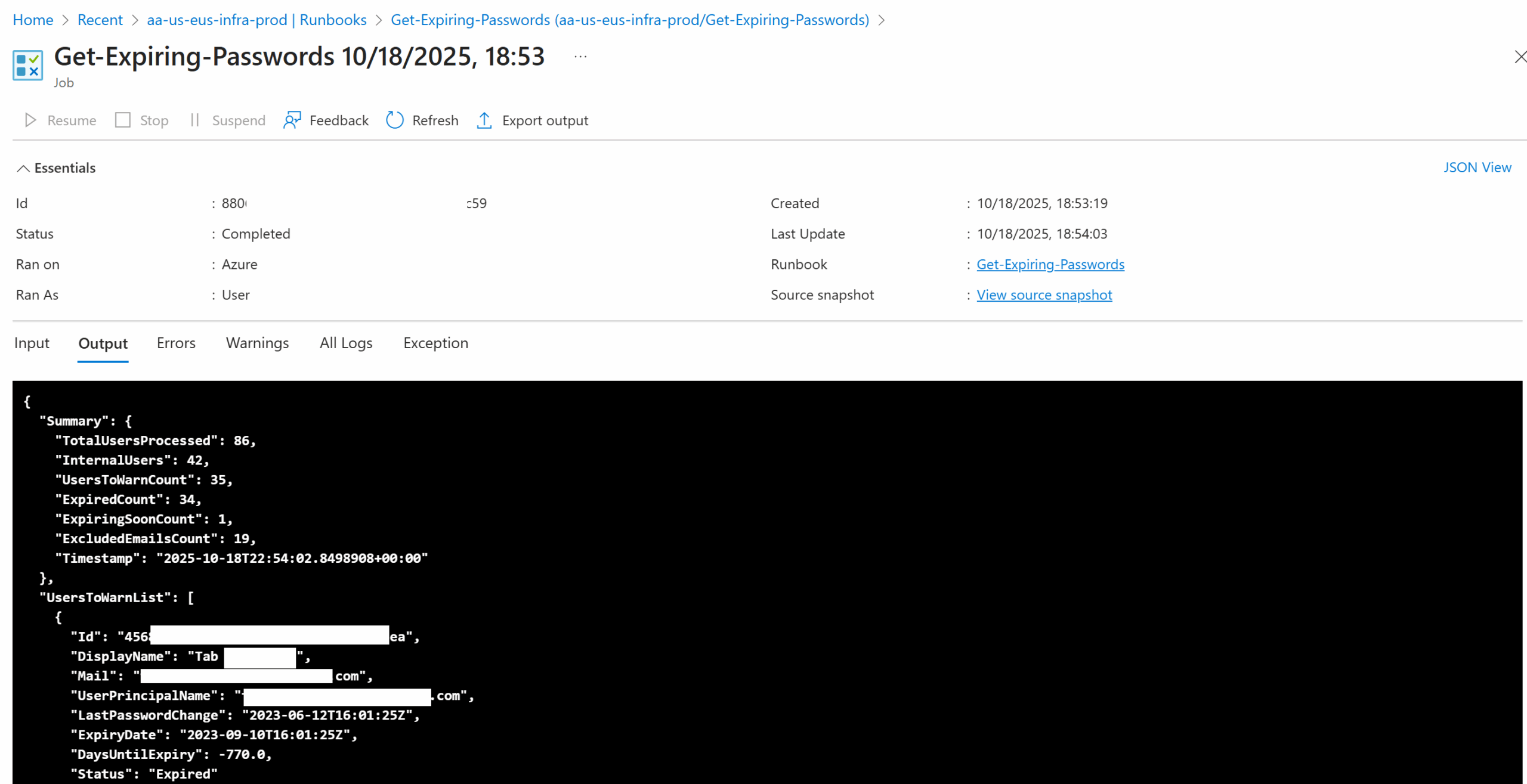
With the downgraded modules imported, we should now be able to run the PowerShell script that calls Connect-MgGraph with the system managed identity of the Automation Account: