
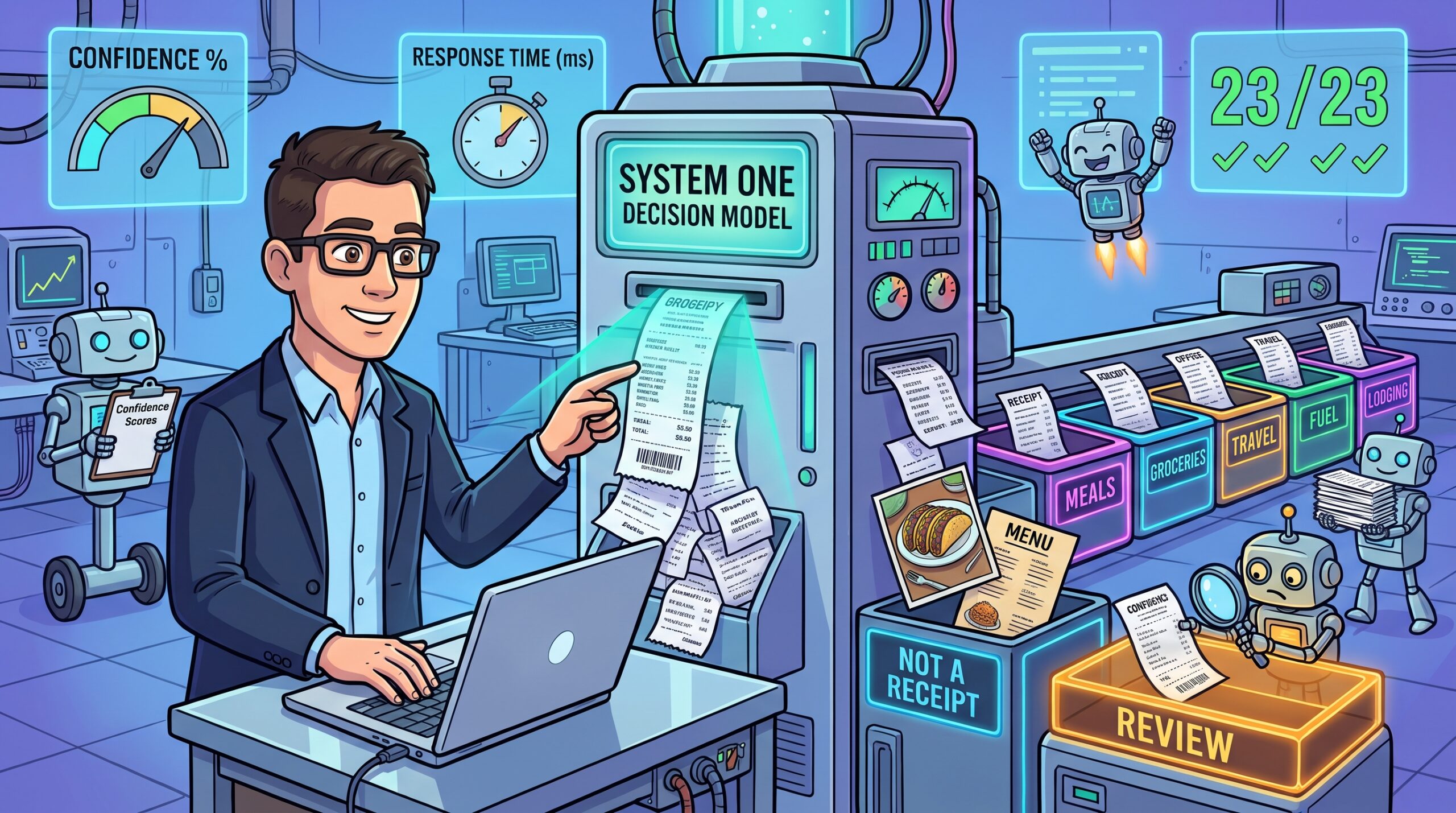
In my first post about Jev, I tested TypeSafe AI’s System One model against support tickets and Azure Monitor alerts through Vercel AI Gateway because TypeSafe had paused new signups at the time and the gateway was the only way in that I could find. A few weeks later, in my post about running decision models locally with llama.cpp, I noticed that OpenJev loaded an image projector alongside the model and made a note to test screenshots once I had the time.
I now have a TypeSafe console account with credits and on October 14, 2026 the company released Jev 1.14 along with experimental image input and a new question type called Box so I decided it was time to give Jev something to look at.
In this post, I will go through what 1.14 added, how images are attached to a request, and the limits they have to fit within and then test Jev receipt sorting by categorizing photos of receipts into expense categories, which depends on Jev reading the text printed on each receipt. I will write a separate post to test the new Box question type separately on photos of cats and dogs as a follow up post to keep this post at a reasonable length.
Here is a short demonstration of Jev sorting the photos before I get into the details.
Here is the link to the video recording on YouTube: https://youtu.be/lnpSq15fhSA
What Jev 1.14 Added
Jev 1.14 is available as jev-1.14.0 and according to the models page both the jev-latest and jev-preview aliases now point to it. TypeSafe groups the new capabilities under what it calls the danger zone, which is a set of experimental features that are each switched on with a request header:
| Feature | Header | Models |
|---|---|---|
| Image input | TypeSafe-Danger-Zone-Images: true |
jev-1.13.0 and jev-1.14.0 |
| Box questions | TypeSafe-Danger-Zone-Images: true |
jev-1.14.0 only |
| Long context, up to 262k tokens | TypeSafe-Danger-Zone-Long-Context: true |
jev-1.13.0 and jev-1.14.0 |
TypeSafe is upfront that none of these features are ready for production. The release post says there is still “way too much jaggedness” for TypeSafe to vouch for them and that multimodal performance is worse than text-only performance for every model so it recommends breaking visual questions into the simplest parts possible. TypeSafe’s images guide adds that the request format, answers, and limits may change between releases. I pinned every request in this post to jev-1.14.0 for that reason because an alias that moves to a new version partway through a test would make the results impossible to compare.
How Are Images Added to a Request
Images are defined once in a top-level assets map, where each key is a reference string that you choose and each value describes the image. Wherever that reference string appears in state, instructions or criteria, Jev replaces it with the image. Questions then refer to the image by its field name in state, wrapped in backticks, the same way they would refer to any other field:
{
  "model": "jev-1.14.0",
  "state": {
    "receipt": "3f6c1a9e-2b7d-4e8a-9c51-7d2e0b4a6f13"
  },
  "assets": {
    "3f6c1a9e-2b7d-4e8a-9c51-7d2e0b4a6f13": { "type": "image", "part": "image" }
  },
  "questions": {
    "is_receipt": {
      "type": "noul",
      "instructions": "Is `receipt` a photo or scan of a purchase receipt?"
    }
  }
}
The part field points at a file part in a multipart request, which is the format the API reference recommends, with the JSON body sent as a part named request and each image sent as its own file part. Base64 inside the JSON body also works through a data_base64 field, although it adds roughly a third to the payload size. I ran into a few rules while reading the documentation that are easy to miss:
| Rule | Consequence |
|---|---|
| Every asset must be referenced somewhere in the request | An unreferenced asset fails the whole request with a 400 |
| Each use of a reference adds another copy of the image to the model’s input | Referencing the same image in three places bills it three times |
| References are replaced wherever the exact string appears | Short references can match inside other words so TypeSafe recommends UUIDs |
An image in state is seen by every question |
An image placed in instructions is only sent with that one question |
For my testing, I put the image in state once and had each question reference it. This meant I wasn’t adding another copy of the image to the model’s input for each question so this is the approach I used throughout the post.
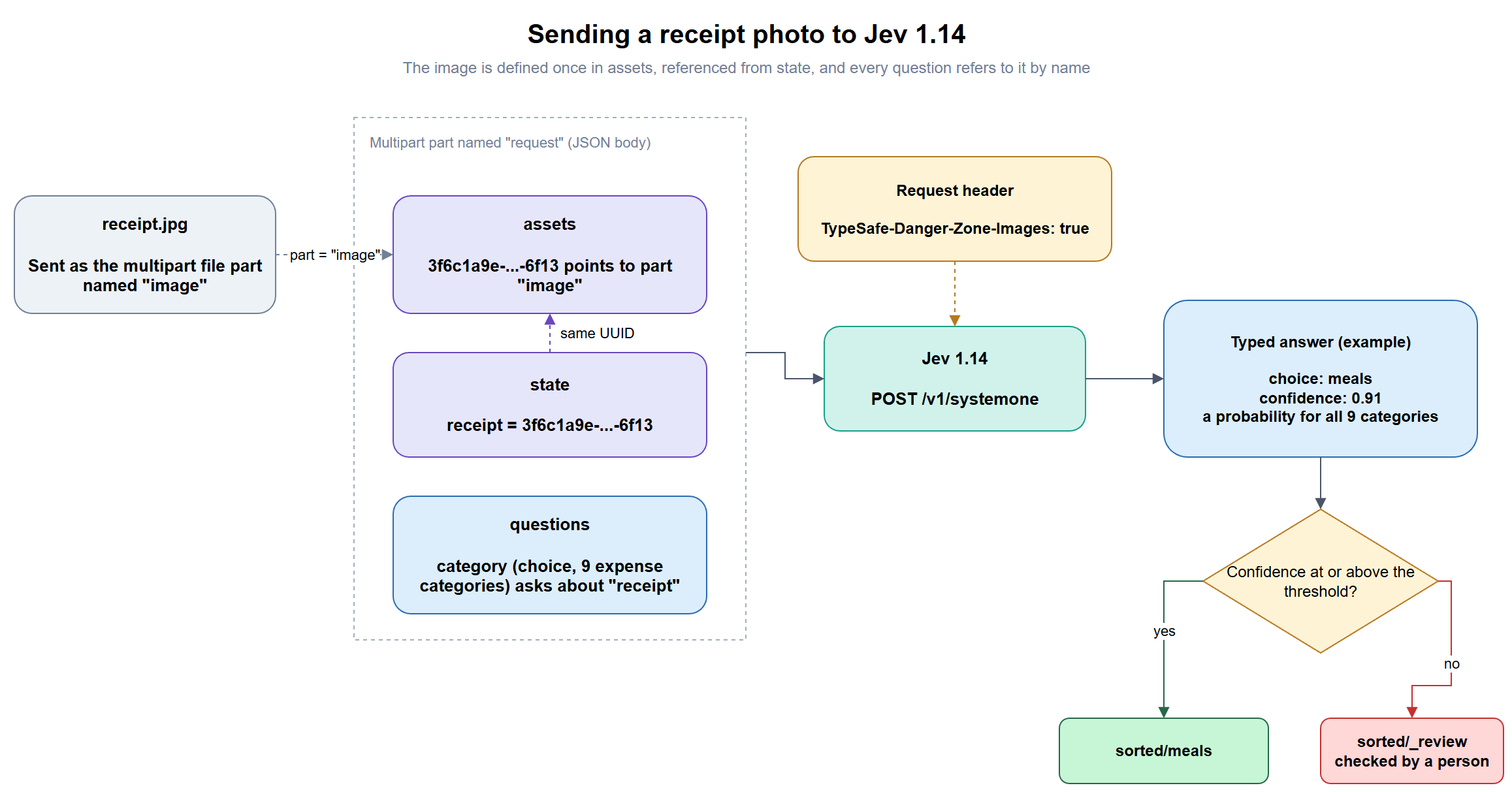
Image Requirements
The images guide lists the following limits:
| Limit | Value |
|---|---|
| Formats | PNG or JPEG, still images only (animated PNGs are rejected) |
| File size | 16 MiB per image |
| Width and height | 280 to 1,568 px each |
| Total pixels | 78,400 to 2,458,624 |
| Request body | 32 MiB, including the JSON and multipart framing |
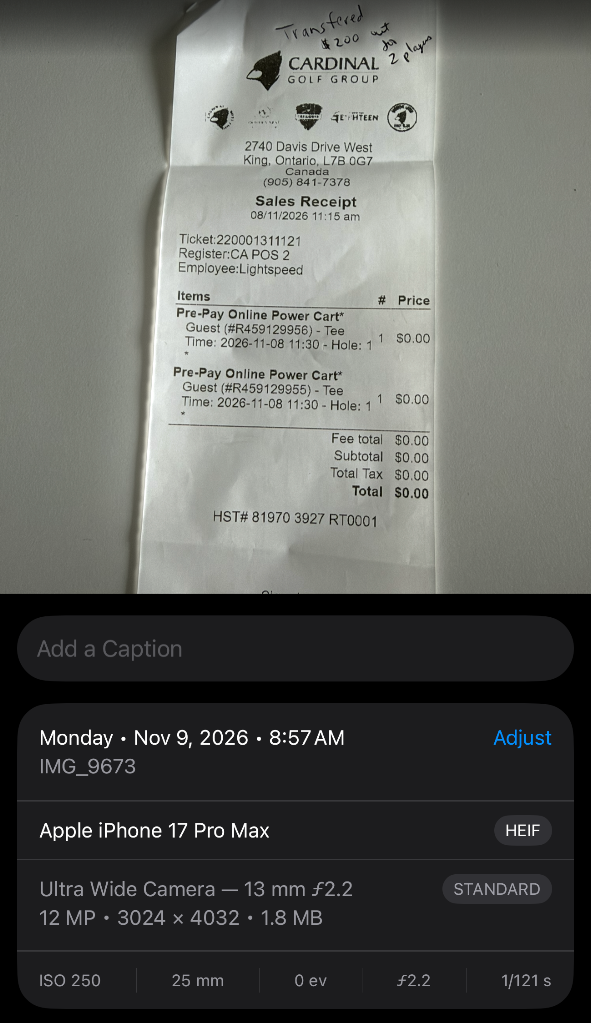
Jev rejects any image outside these limits instead of resizing it and a single invalid image fails the entire request with no partial answers. The API also strips all metadata including the EXIF orientation flag so a phone photo that appears upright in Windows Photos can reach the model sideways. My receipt photos run into these limits because my iPhone saves them at 3024 x 4032, which is far above the 1,568 px maximum on both sides.
The Images I Used
| Source | Licence | Images |
|---|---|---|
| Humans in the Loop Free Receipt OCR dataset, all restaurant receipts | CC0 1.0 | 10 |
| My own receipt photos and publicly sourced receipts that cover the categories the dataset doesn’t | Mixed (my own photos plus publicly sourced receipts) | 10 |
| Images that are not receipts (a photo of my desk, a restaurant menu, and a plate of tacos) | Mine | 3 |
The Humans in the Loop receipts are almost all from restaurants, which only covers the meals category in Step #5 so I had to find receipts for every other category myself.
| Category | Where to find one | What I used |
|---|---|---|
groceries |
A supermarket receipt | Publicly sourced Walmart |
office_supplies |
An Amazon receipt or an online order for paper, ink, or pens | Amazon Pen Order |
office_equipment |
An Amazon order confirmation for a monitor or other electronics | Amazon Monitor Order |
travel_transport |
An Uber or Lyft trip receipt email, a parking receipt, a transit receipt, or an airline e-ticket | Uber receipt |
fuel |
A gas station receipt | Publicly sourced gas receipt |
lodging |
A hotel folio or checkout email | Publicly sourced hotel receipt |
other |
A receipt for a category not defined | Publicly sourced Netflix receipt |
Screenshots of emailed receipts work as well as photos and they make a useful test on their own because a clean digital layout looks nothing like a crumpled thermal paper receipt. Before copying any of them into my project I blacked out card numbers, addresses, booking references, and loyalty numbers since every image is sent to TypeSafe. Every category ended up with at least one image and a Netflix receipt covered other.
Setting Up
The setup is an API key, a Python environment, and a small helper that sends an image to Jev. Steps #1 and #2 only need to be done once.
Step #1 – Create an API key and set up the Python environment
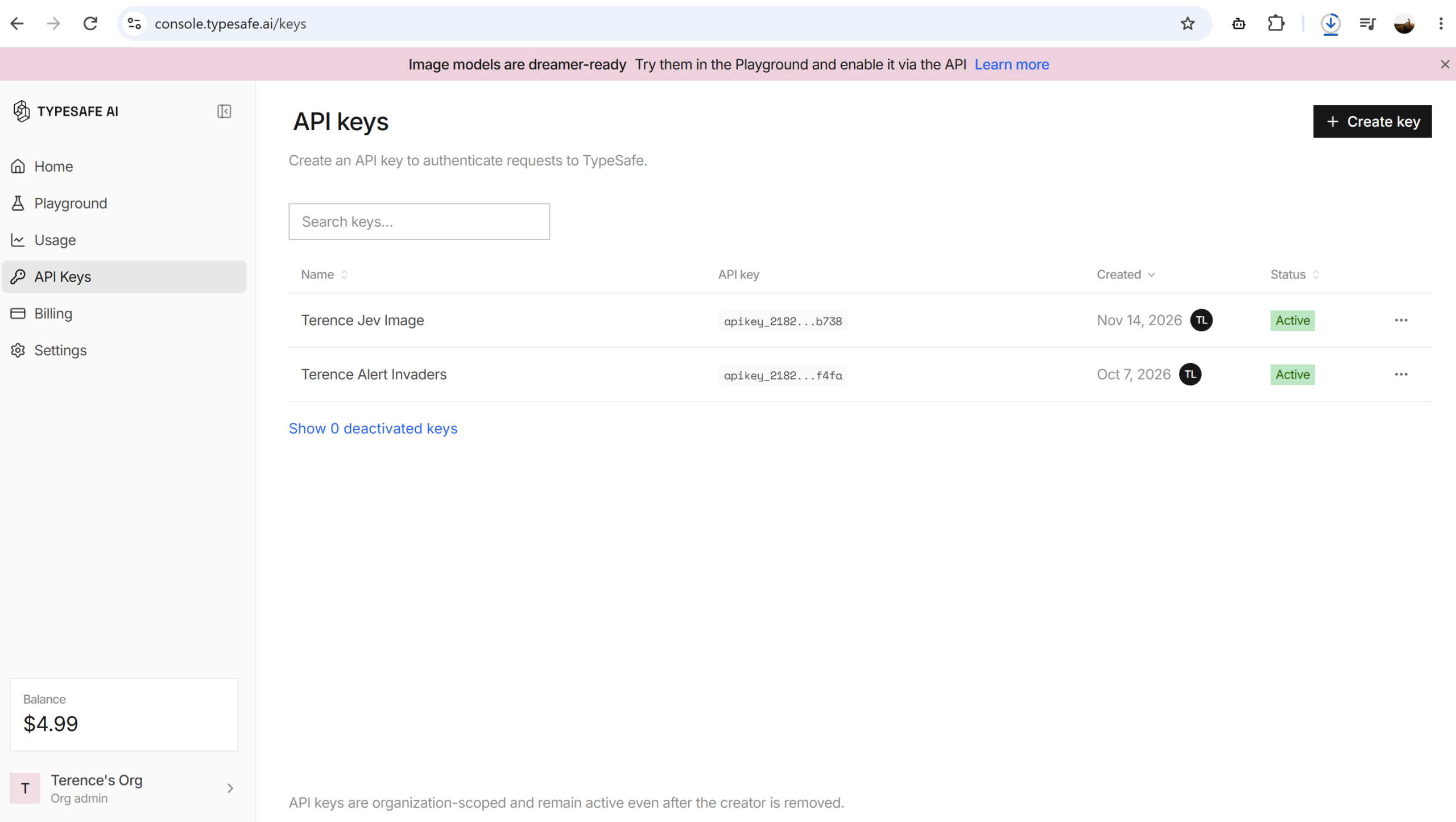
API keys are created in the TypeSafe console under API Keys and the key is only displayed once so copy it before closing the dialog.
TypeSafe publishes a Python SDK, although I decided to send the multipart request myself with requests so that the request is visible in the post exactly as it goes over the wire. The only other package needed is Pillow for preparing the images:
mkdir jev-image-sorting
cd jev-image-sorting
python -m venv .venv
.\.venv\Scripts\Activate.ps1
pip install requests pillow
$env:TYPESAFE_API_KEY = "<your-typesafe-api-key>"
Every command in the rest of this post is run from the jev-image-sorting folder with the virtual environment activated. The $env:TYPESAFE_API_KEY variable only lasts for the current PowerShell window so set it again if you open a new one.
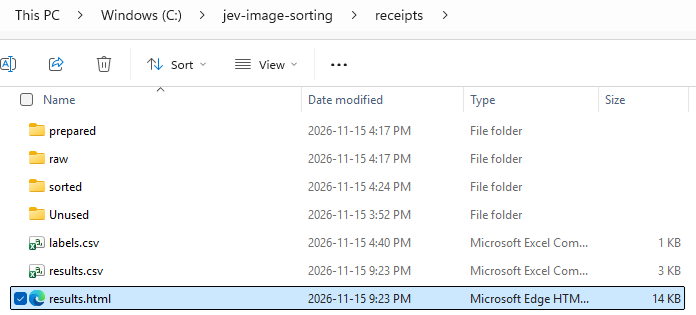
The folders and files below are what you will end up with by the last step, and each script is saved into the jev-image-sorting folder as it is introduced:
jev-image-sorting\
├── .venv\
├── jev_client.py           Step #2
├── prepare_images.py       Step #3
├── first_call.py           Step #4
├── sort_receipts.py        Step #5
└── receipts\
    ├── raw\                original receipt photos and scans, added in Step #3
    ├── prepared\           resized JPEG copies written by prepare_images.py
    ├── sorted\             category folders written by sort_receipts.py
    ├── labels.csv          expected category for each receipt, created in Step #5
    ├── results.csv         written by sort_receipts.py
    └── results.html        visual report written by sort_receipts.py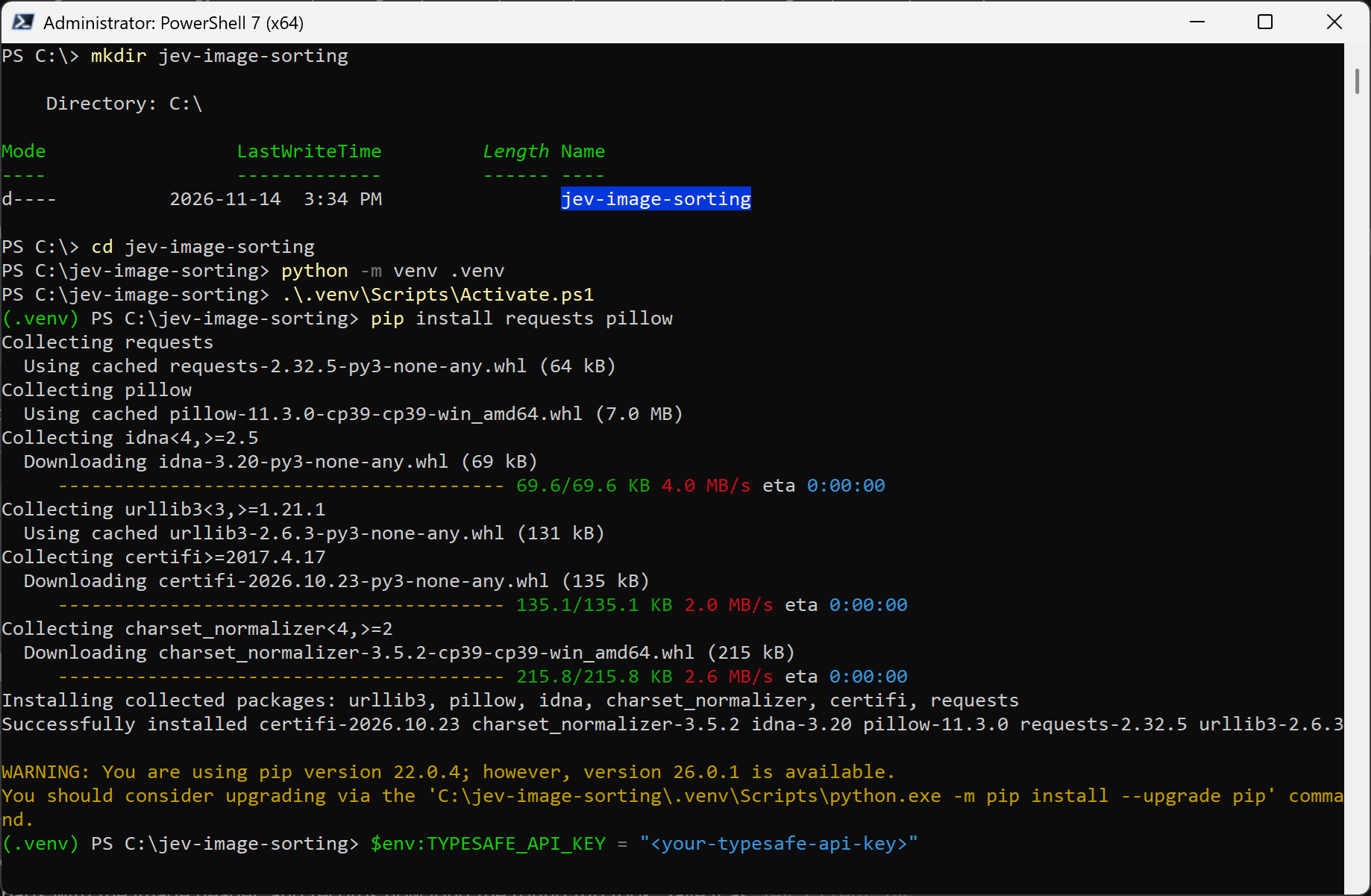
Step #2 – Write the helper that sends an image to Jev
Every request in this post sends one image along with a set of questions so I put the request into a single function. It generates a UUID for the reference, places the image in state under the name the questions will use, sends the JSON and the image as multipart parts with the image header, and records how long the round trip took. Save it as jev_client.py:
import json
import os
import time
import uuid
from pathlib import Path

import requests

API_URL = "https://api.typesafe.ai/v1/systemone"
MODEL = "jev-1.14.0"


def ask(image_path, questions, image_name="photo"):
    """Send one image and a set of questions to Jev and return the parsed response."""
    reference = str(uuid.uuid4())
    body = {
        "model": MODEL,
        "state": {image_name: reference},
        "assets": {reference: {"type": "image", "part": "image"}},
        "questions": questions,
    }

    image_path = Path(image_path)
    files = [
        ("request", (None, json.dumps(body), "application/json")),
        ("image", (image_path.name, image_path.read_bytes(), "image/jpeg")),
    ]
    headers = {
        "Authorization": f"Bearer {os.environ['TYPESAFE_API_KEY']}",
        "TypeSafe-Danger-Zone-Images": "true",
    }

    started = time.perf_counter()
    response = requests.post(API_URL, headers=headers, files=files, timeout=60)
    elapsed_ms = round((time.perf_counter() - started) * 1000)

    if response.status_code != 200:
        raise RuntimeError(f"{response.status_code} from Jev: {response.text}")

    result = response.json()
    result["elapsed_ms"] = elapsed_ms
    return result
The image header has to be sent with every request because images are switched off by default. I tested what happens without it using curl.exe because it comes with Windows 10 and 11 and can send the same request without touching any of the scripts. Writing the JSON body to a file first avoids fighting PowerShell’s quoting rules:
'{"model":"jev-1.14.0","state":{"receipt":"ref-1"},"assets":{"ref-1":{"type":"image","part":"image"}},"questions":{"is_receipt":{"type":"noul","instructions":"Is `receipt` a receipt?"}}}' | Set-Content request.json
Then I sent it with a receipt image attached but without the image header. I used one of the receipts that the prepare script in Step #3 writes to receipts\prepared so if you are following along in order, either come back to this test after Step #3 or point the command at any JPEG that is between 280 and 1,568 px on each side. The < in request=<request.json sends the file’s contents as the request part, the @ in image=@... uploads the image itself, and -w prints the HTTP status code after the response:
curl.exe -s https://api.typesafe.ai/v1/systemone -H "Authorization: Bearer $env:TYPESAFE_API_KEY" -F "request=<request.json;type=application/json" -F "image=@receipts\prepared\1007-receipt.jpg;type=image/jpeg" -w "`nHTTP %{http_code}`n"
TypeSafe rejects it with a 400 that names the missing header:
{"detail":{"error_type":"api_usage_error","message":"Images are experimental. Send the header TypeSafe-Danger-Zone-Images: true to use them."}}
HTTP 400
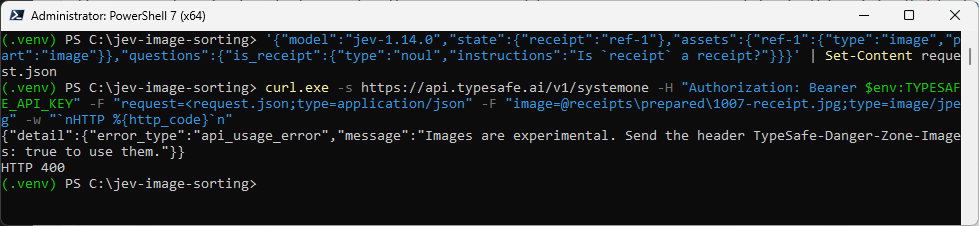
The ask function raises this as a RuntimeError with the same message so a missing header is easy to spot from the script as well. Writing curl.exe instead of curl matters in Windows PowerShell 5.1, where curl is an alias for Invoke-WebRequest and doesn’t accept these options. Once you’re done, Remove-Item request.json cleans up the temporary file.
Jev Receipt Sorting by Expense Category
Step #3 – Prepare the images
The preparation script rotates each image upright when the file carries an EXIF orientation flag, converts it to RGB, and scales it so that the longest side is no more than 1,568 px and the shortest side is at least 280 px. A very long, narrow receipt can’t satisfy both limits by scaling alone so in that case the script scales to the maximum and pads the short side with white. Save it as prepare_images.py:
import sys
from pathlib import Path

from PIL import Image, ImageOps

MIN_SIDE = 280
MAX_SIDE = 1568
EXTENSIONS = {".jpg", ".jpeg", ".png"}


def prepare(source, destination):
    with Image.open(source) as original:
        image = ImageOps.exif_transpose(original).convert("RGB")

    width, height = image.size
    scale = 1.0
    if max(width, height) > MAX_SIDE:
        scale = MAX_SIDE / max(width, height)
    if min(width, height) * scale < MIN_SIDE:
        scale = MIN_SIDE / min(width, height)
    if max(width, height) * scale > MAX_SIDE:
        scale = MAX_SIDE / max(width, height)

    new_size = (round(width * scale), round(height * scale))
    image = image.resize(new_size, Image.Resampling.LANCZOS)

    if min(new_size) < MIN_SIDE:
        padded = Image.new("RGB", (max(new_size[0], MIN_SIDE), max(new_size[1], MIN_SIDE)), "white")
        padded.paste(image, (0, 0))
        image = padded

    image.save(destination, "JPEG", quality=90)
    return (width, height), image.size


def main(source_folder, destination_folder):
    destination = Path(destination_folder)
    destination.mkdir(parents=True, exist_ok=True)
    for path in sorted(Path(source_folder).iterdir()):
        if path.suffix.lower() not in EXTENSIONS:
            continue
        before, after = prepare(path, destination / f"{path.stem}.jpg")
        print(f"{path.name:<40} {before[0]}x{before[1]} -> {after[0]}x{after[1]}")


if __name__ == "__main__":
    main(sys.argv[1], sys.argv[2])
With the script saved, the next task is to gather the receipts into a receipts\raw folder:
- Create the folder:
mkdir receipts\raw - Download the Humans in the Loop Free Receipt OCR dataset, extract it, and copy the receipt images you want to use into
receipts\raw. There were 198 in total and I used 10 of them. - Copy your own receipt photos into the same folder. My iPhone saves photos as HEIC, which Pillow can’t open without an extra package so I converted them to PNG first. Black out any card numbers or addresses before copying them in since these images are sent to TypeSafe.
- Add two or three images that are not receipts, such as a restaurant menu, taco dish, an office desk so the
not_a_receiptcategory in Step #5 has something to catch.
Then run the script with receipts\raw as the source and receipts\prepared as the destination, which it creates if it doesn’t exist:
python prepare_images.py receipts\raw receipts\prepared
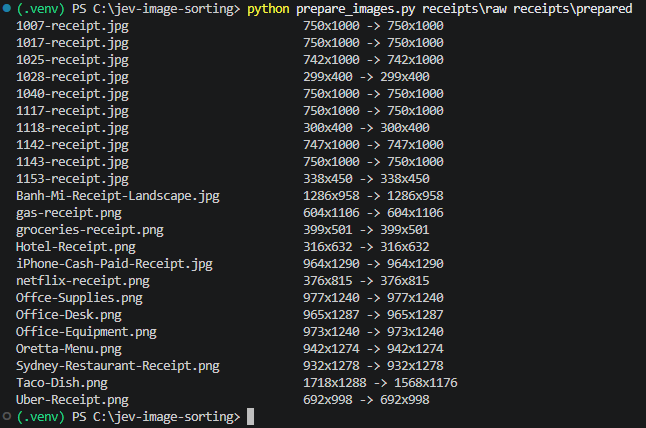
The script only corrects the orientation when a photo has an EXIF orientation flag, which phone cameras use to indicate the correct way the image should be displayed. To test how Jev handles a receipt that is on its side with no flag to fix it, I rotated Banh-Mi-Receipt-Landscape.png sideways in Windows Photos and resaved it, which rotates the pixels themselves and leaves no flag behind. As expected, it came out of the script exactly as it went in at 1286 x 958 and still sideways.
The reason I’m calling this out is to highlight that comparing the width and height wouldn’t be a good way to catch this case because a wide image is often a landscape photo that is already the right way up. If the Taco-Dish.png had text then it would be a good example that a landscape oriented photo shouldn’t be rotated. The images guide is clear that the API won’t rotate anything either so I left the receipt sideways to see how Jev handles it in Step #5.
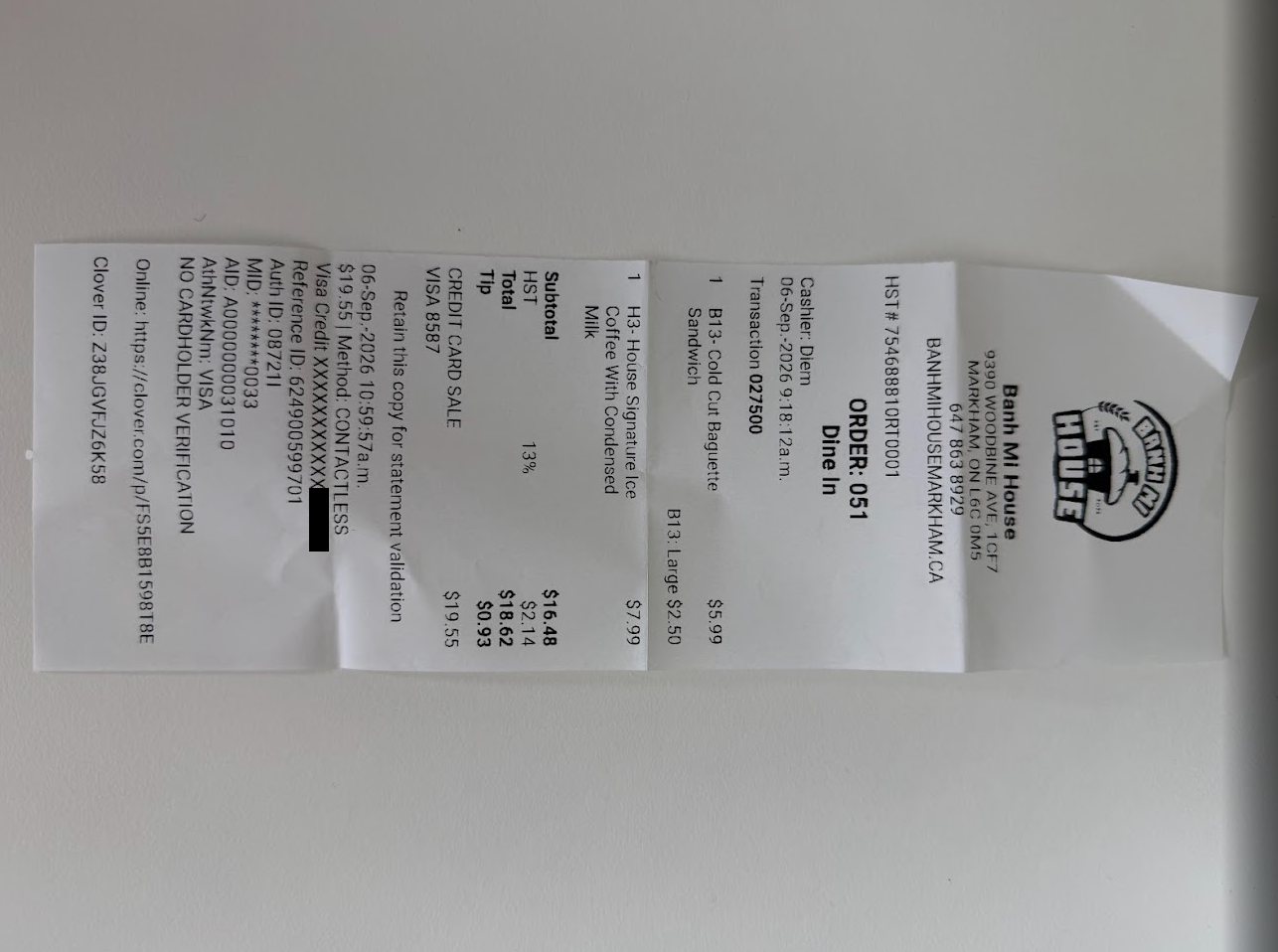
Here is the set of receipts that are prepared with the script:
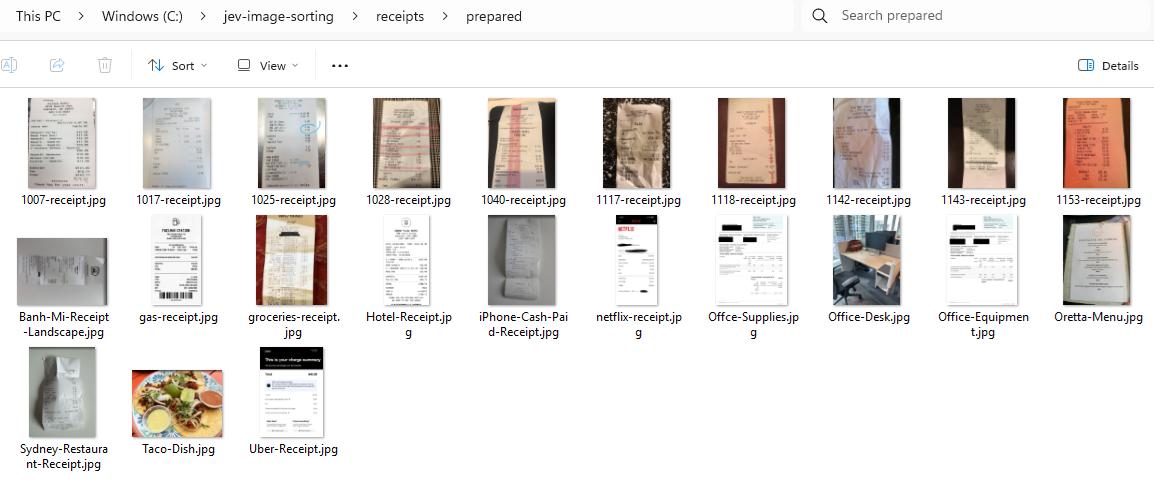
Step #4 – First call with a single receipt
Before sorting anything, I wanted to confirm that the image was reaching the model so the first call asks a single noul question about one receipt and prints the full response. Save it as first_call.py:
import json
import sys

from jev_client import ask

questions = {
    "is_receipt": {
        "type": "noul",
        "instructions": "Is `receipt` a photo or scan of a purchase receipt?",
    }
}

result = ask(sys.argv[1], questions, image_name="receipt")
print(json.dumps(result, indent=2))
Run it against any one of the files in receipts\prepared. The prepare script saves every image as a .jpg so a receipt that started as a PNG ends up with a .jpg extension here:
python first_call.py receipts\prepared\1007-receipt.jpg{
"model": "jev-1.14.0",
"answers": {
"is_receipt": {
"type": "noul",
"noul": 0.98
}
},
"usage": {
"input_tokens": 2263,
"output_tokens": 22
},
"elapsed_ms": 432
}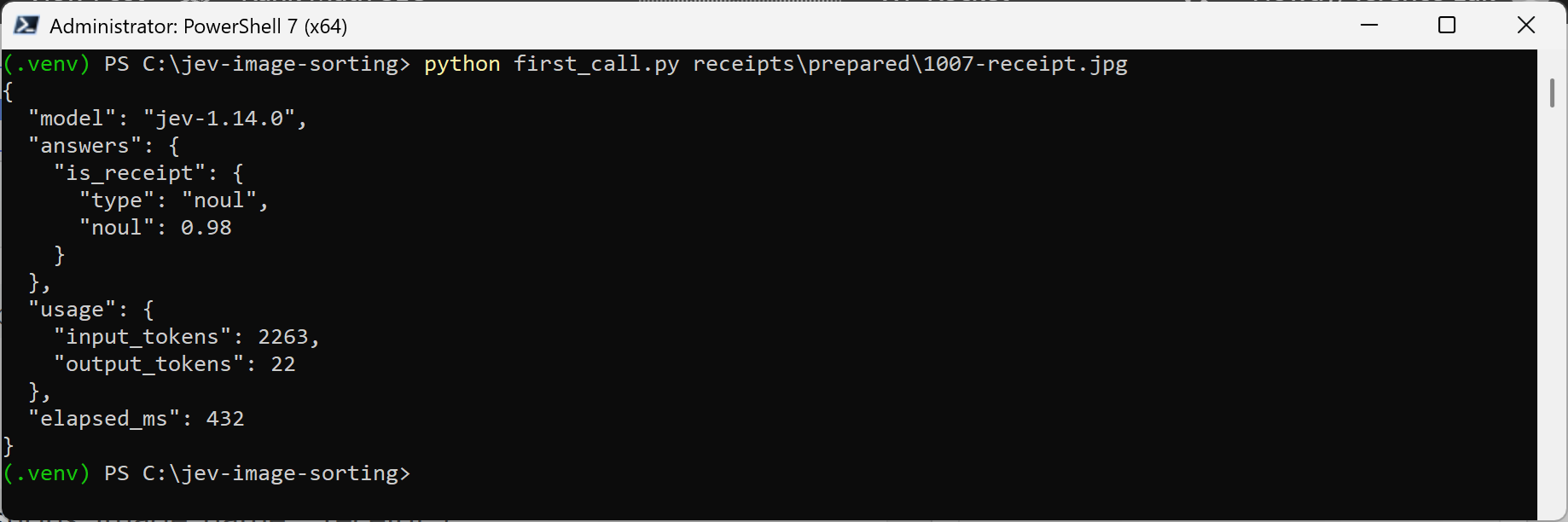
The usage.input_tokens value in this response is the first indication of what an image costs since TypeSafe bills images as ordinary input tokens and doesn’t publish a formula for converting an image into tokens. This one receipt came to 2,263 input tokens, which is almost eight times the 290 input tokens of the one-question text request in my first Jev post. At $0.042 per million input tokens that still works out to about $0.000095 per image or roughly 9.5 cents for every thousand receipts. Jev put the probability that the image was a receipt at 0.98 and the answer came back in 432 ms.
Step #5 – Sort the receipts by expense category
The sorting script asks two questions about each receipt in the same request. The first is a choice question with nine categories described in the criteria and the second is a noul question that asks whether the text on the receipt is sideways, which I added after the banh mi receipt in Step #3 came through the prepare script still on its side. I split office purchases into supplies and equipment on purpose because a box of pens and a monitor can come from the same store and expense policies often treat them differently.
| Category | Description sent in the criteria |
|---|---|
meals |
Restaurants, cafes, bars, takeout, and food delivery |
groceries |
Supermarkets and grocery stores where most items are food to take home |
office_supplies |
Stationery, paper, ink, toner, pens, and small desk items |
office_equipment |
Computers, monitors, printers, phones, furniture, and other electronics |
travel_transport |
Taxis, rideshare, parking, public transit, trains, and airfare |
fuel |
Gasoline or diesel purchased at a gas station |
lodging |
Hotels, motels, and short-term rentals |
other |
A receipt that does not fit any of the other categories |
not_a_receipt |
The image is not a receipt, such as a business card, boarding pass or photo |
Jev’s answers need something to be graded against so before running the script you need an answer key. This is a receipts\labels.csv file where you look at each image yourself and write down the category it belongs to and the script compares Jev’s choice with your category to work out whether Jev got it right. These commands create the file with a header and one line for every image in receipts\prepared, which was 23 images in my case, then open it in Notepad:
"filename,expected" | Set-Content receipts\labels.csv
Get-ChildItem receipts\prepared\*.jpg | ForEach-Object { "$($_.Name)," } | Add-Content receipts\labels.csv
notepad receipts\labels.csv
Each line has nothing after its comma when the file first opens:
filename,expected
1007-receipt.jpg,
1017-receipt.jpg,
1025-receipt.jpg,
1028-receipt.jpg,
1040-receipt.jpg,
1117-receipt.jpg,
1118-receipt.jpg,
1142-receipt.jpg,
1143-receipt.jpg,
1153-receipt.jpg,
Banh-Mi-Receipt-Landscape.jpg,
gas-receipt.jpg,
groceries-receipt.jpg,
Hotel-Receipt.jpg,
iPhone-Cash-Paid-Receipt.jpg,
netflix-receipt.jpg,
Offce-Supplies.jpg,
Office-Desk.jpg,
Office-Equipment.jpg,
Oretta-Menu.jpg,
Sydney-Restaurant-Receipt.jpg,
Taco-Dish.jpg,
Uber-Receipt.jpg,
Open each image in receipts\prepared, decide which category it belongs to, and type that category after the comma using the names from the table above exactly as written. A line left blank counts as a wrong answer because Jev’s choice can never match an empty category. When you are done the file looks like this:
filename,expected
1007-receipt.jpg,meals
1017-receipt.jpg,meals
1025-receipt.jpg,meals
1028-receipt.jpg,meals
1040-receipt.jpg,meals
1117-receipt.jpg,meals
1118-receipt.jpg,meals
1142-receipt.jpg,meals
1143-receipt.jpg,meals
1153-receipt.jpg,meals
Banh-Mi-Receipt-Landscape.jpg,meals
gas-receipt.jpg,fuel
groceries-receipt.jpg,groceries
Hotel-Receipt.jpg,lodging
iPhone-Cash-Paid-Receipt.jpg,meals
netflix-receipt.jpg,other
Offce-Supplies.jpg,office_supplies
Office-Desk.jpg,not_a_receipt
Office-Equipment.jpg,office_equipment
Oretta-Menu.jpg,not_a_receipt
Sydney-Restaurant-Receipt.jpg,meals
Taco-Dish.jpg,not_a_receipt
Uber-Receipt.jpg,travel_transport
Avoid saving the file from Excel as CSV UTF-8 because it adds a byte order mark to the start of the file, which the script reads as part of the first column name and fails with KeyError: 'filename'. Saving as plain CSV (Comma delimited) or editing the file in Notepad both work.
I chose each category based on what I thought an approver would pick, except for one receipt that I couldn’t categorize myself and labelled meals as my best guess, which I cover in Step #6. Any answer with a confidence below the threshold goes to a _review folder instead of a category folder. I started with a threshold of 0.6, which is an arbitrary first value that should be tuned against a larger labelled set. Save the script as sort_receipts.py:
import csv
import html
import shutil
import time
import webbrowser
from pathlib import Path

from jev_client import ask

CATEGORIES = {
    "meals": "Restaurants, cafes, bars, takeout, and food delivery",
    "groceries": "Supermarkets and grocery stores where most items are food to take home",
    "office_supplies": "Stationery, paper, ink, toner, pens, and small desk items",
    "office_equipment": "Computers, monitors, printers, phones, furniture, and other electronics",
    "travel_transport": "Taxis, rideshare, parking, public transit, trains, and airfare",
    "fuel": "Gasoline or diesel purchased at a gas station",
    "lodging": "Hotels, motels, and short-term rentals",
    "other": "A receipt that does not fit any of the other categories",
    "not_a_receipt": "The image is not a receipt, such as a business card, boarding pass or photo",
}

QUESTIONS = {
    "category": {
        "type": "choice",
        "instructions": "Which expense category does the purchase shown in `receipt` belong to?",
        "criteria": CATEGORIES,
    },
    "sideways": {
        "type": "noul",
        "instructions": "Is the text on `receipt` rotated sideways or upside down instead of reading normally?",
    },
}

CONFIDENCE_THRESHOLD = 0.6
LIVE_DELAY = 1.0  # seconds to pause after each receipt so the live page can be followed, 0 turns it off
PREPARED = Path("receipts/prepared")
SORTED = Path("receipts/sorted")
REPORT = Path("receipts/results.html")
COLUMNS = list(CATEGORIES) + ["_review"]


def write_report(rows, current=None, total=0):
    """Write receipts/results.html, which refreshes itself every second while sorting is running."""
    running = current is not None
    done = len(rows)
    correct = sum(1 for row in rows if row["choice"] == row["expected"])
    reviewed = sum(1 for row in rows if row["folder"] == "_review")
    percent = done / total * 100 if total else 100

    columns = []
    for folder in COLUMNS:
        cards = []
        for row in [row for row in rows if row["folder"] == folder]:
            match = row["choice"] == row["expected"]
            classes = "card correct" if match else "card wrong"
            if running and row is rows[-1]:
                classes += " newest"
            mark = "✔" if match else "✘"
            sideways = "<span class='flag'>sideways</span>" if row["sideways"] >= 0.5 else ""
            cards.append(f"""
          <div class="{classes}">
            <div class="thumb"><img src="prepared/{html.escape(row['filename'])}" alt=""></div>
            <div class="meta">
              <div class="pick">{mark} {html.escape(row['choice'])}</div>
              <div class="bar"><span style="width: {row['confidence'] * 100:.0f}%"></span></div>
              <div class="small">confidence {row['confidence']:.2f}, expected {html.escape(row['expected'])} {sideways}</div>
            </div>
          </div>""")
        title = "Sent to review" if folder == "_review" else folder.replace("_", " ")
        extra = " review" if folder == "_review" else ""
        content = "".join(cards) or "<p class='empty'>Nothing yet</p>"
        columns.append(f"""
        <section class="column{extra}">
          <h2>{html.escape(title)}<span class="count">{len(cards)}</span></h2>{content}
        </section>""")

    if running:
        refresh = '<meta http-equiv="refresh" content="1">'
        status = f"""
      <div class="now">
        <img src="prepared/{html.escape(current.name)}" alt="">
        <div>
          <div class="label"><span class="pulse"></span>Asking Jev</div>
          <div class="file">{html.escape(current.name)}</div>
          <div class="hint">Receipt {done + 1} of {total}</div>
        </div>
      </div>"""
    else:
        refresh = ""
        status = """
      <div class="now">
        <div>
          <div class="label">Finished</div>
          <div class="file">All receipts sorted</div>
        </div>
      </div>"""

    page = f"""<!doctype html>
<html><head><meta charset="utf-8">{refresh}<title>Jev receipt sorting</title>
<style>
  * {{ box-sizing: border-box; }}
  html, body {{ background: #f4f5f7; }}
  body {{ margin: 0; font-family: "Segoe UI", system-ui, sans-serif; color: #1f2933; }}
  header {{ background: #1f2933; color: #fff; padding: 18px 32px; display: flex; align-items: center; gap: 32px; flex-wrap: wrap; }}
  header h1 {{ font-size: 20px; font-weight: 600; margin: 0; }}
  .now {{ display: flex; align-items: center; gap: 14px; }}
  .now img {{ width: 56px; height: 72px; object-fit: cover; border-radius: 6px; border: 2px solid #f59f00; background: #fff; }}
  .label {{ display: flex; align-items: center; gap: 6px; font-size: 11px; letter-spacing: 0.08em; text-transform: uppercase; color: #9fb3c8; }}
  .file {{ font-weight: 600; }}
  .hint {{ font-size: 12px; color: #9fb3c8; }}
  .pulse {{ width: 8px; height: 8px; border-radius: 50%; background: #f59f00; animation: pulse 1s infinite; }}
  @keyframes pulse {{ 50% {{ opacity: 0.2; }} }}
  .stats {{ display: flex; gap: 10px; margin-left: auto; }}
  .stats div {{ min-width: 96px; padding: 8px 14px; border-radius: 8px; background: rgba(255, 255, 255, 0.08); text-align: center; }}
  .stats b {{ display: block; font-size: 22px; }}
  .stats span {{ font-size: 11px; color: #9fb3c8; }}
  .progress {{ height: 4px; background: #334e68; }}
  .progress span {{ display: block; height: 100%; background: #f59f00; }}
  main {{ padding: 24px 32px; }}
  .legend {{ margin: 0 0 16px; font-size: 13px; color: #6b7785; }}
  .board {{ display: grid; grid-template-columns: repeat(auto-fill, minmax(190px, 1fr)); gap: 14px; align-items: start; }}
  .column {{ min-height: 140px; padding: 10px; border-radius: 10px; background: #e9ecf0; }}
  .column.review {{ background: #fff4e6; }}
  .column.review h2 {{ text-transform: none; }}
  .column h2 {{ display: flex; justify-content: space-between; margin: 2px 4px 10px; font-size: 13px; text-transform: capitalize; }}
  .count {{ padding: 0 8px; border-radius: 10px; background: #fff; font-size: 12px; color: #6b7785; }}
  .card {{ margin-bottom: 10px; overflow: hidden; border-radius: 8px; border-left: 4px solid #ced4da; background: #fff; box-shadow: 0 1px 3px rgba(0, 0, 0, 0.08); }}
  .card.correct {{ border-left-color: #2f9e44; }}
  .card.wrong {{ border-left-color: #e03131; }}
  .card.newest {{ box-shadow: 0 0 0 3px #f59f00; }}
  .thumb {{ display: flex; align-items: center; justify-content: center; height: 120px; background: #f1f3f5; }}
  .thumb img {{ max-width: 100%; max-height: 120px; }}
  .meta {{ padding: 8px 10px; }}
  .pick {{ font-size: 13px; font-weight: 600; }}
  .correct .pick {{ color: #2f9e44; }}
  .wrong .pick {{ color: #e03131; }}
  .bar {{ height: 4px; margin: 6px 0; border-radius: 2px; background: #e9ecef; }}
  .bar span {{ display: block; height: 100%; border-radius: 2px; background: #1c7ed6; }}
  .small {{ font-size: 11px; color: #6b7785; }}
  .flag {{ margin-left: 4px; padding: 0 4px; border-radius: 4px; background: #fff3bf; color: #946200; }}
  .empty {{ margin-top: 30px; font-size: 12px; text-align: center; color: #adb5bd; }}
</style></head><body>
<header>
  <h1>Jev receipt sorting</h1>{status}
  <div class="stats">
    <div><b>{done}</b><span>sorted</span></div>
    <div><b>{correct}</b><span>matched my label</span></div>
    <div><b>{reviewed}</b><span>sent to review</span></div>
  </div>
</header>
<div class="progress"><span style="width: {percent:.0f}%"></span></div>
<main>
  <p class="legend">Green edge: Jev's choice matched labels.csv. Red edge: it did not. Blue bar: Jev's confidence. Yellow outline: the receipt Jev just answered. Confidence threshold for sorting: {CONFIDENCE_THRESHOLD}</p>
  <div class="board">{''.join(columns)}</div>
</main>
</body></html>"""

    temporary = REPORT.with_suffix(".tmp")
    temporary.write_text(page, encoding="utf-8")
    temporary.replace(REPORT)


def main():
    with open("receipts/labels.csv", newline="") as file:
        labels = list(csv.DictReader(file))

    rows = []
    write_report(rows, PREPARED / labels[0]["filename"], len(labels))
    webbrowser.open(REPORT.resolve().as_uri())

    for label in labels:
        image = PREPARED / label["filename"]
        write_report(rows, image, len(labels))
        result = ask(image, QUESTIONS, image_name="receipt")
        answer = result["answers"]["category"]
        sideways = result["answers"]["sideways"]["noul"]

        top_two = sorted(answer["probabilities"].items(), key=lambda item: item[1], reverse=True)[:2]
        confident = answer["confidence"] >= CONFIDENCE_THRESHOLD
        folder = answer["choice"] if confident else "_review"

        (SORTED / folder).mkdir(parents=True, exist_ok=True)
        shutil.copy(image, SORTED / folder / image.name)

        rows.append({
            "filename": label["filename"],
            "expected": label["expected"],
            "choice": answer["choice"],
            "confidence": answer["confidence"],
            "sideways": sideways,
            "top_two": " / ".join(f"{name} {probability:.2f}" for name, probability in top_two),
            "folder": folder,
            "input_tokens": result["usage"]["input_tokens"],
            "elapsed_ms": result["elapsed_ms"],
        })
        print(f"{label['filename']:<32} {label['expected']:<18} {answer['choice']:<18} "
              f"{answer['confidence']:.2f}  sideways {sideways:.2f}  {folder}")
        time.sleep(LIVE_DELAY)

    write_report(rows)

    correct = sum(1 for row in rows if row["choice"] == row["expected"])
    sent_to_review = sum(1 for row in rows if row["folder"] == "_review")
    print(f"\n{correct} of {len(rows)} correct, {sent_to_review} sent to review")

    with open("receipts/results.csv", "w", newline="") as file:
        writer = csv.DictWriter(file, fieldnames=rows[0].keys())
        writer.writeheader()
        writer.writerows(rows)


if __name__ == "__main__":
    main()
python sort_receipts.py
1007-receipt.jpg                 meals              meals              1.00  sideways 0.02  meals
1017-receipt.jpg                 meals              meals              0.36  sideways 0.01  _review
1025-receipt.jpg                 meals              meals              1.00  sideways 0.02  meals
1028-receipt.jpg                 meals              meals              1.00  sideways 0.04  meals
1040-receipt.jpg                 meals              meals              1.00  sideways 0.02  meals
1117-receipt.jpg                 meals              meals              1.00  sideways 0.02  meals
1118-receipt.jpg                 meals              meals              1.00  sideways 0.21  meals
1142-receipt.jpg                 meals              meals              1.00  sideways 0.03  meals
1143-receipt.jpg                 meals              meals              1.00  sideways 0.02  meals
1153-receipt.jpg                 meals              meals              1.00  sideways 0.03  meals
Banh-Mi-Receipt-Landscape.jpg    meals              meals              1.00  sideways 0.81  meals
gas-receipt.jpg                  fuel               fuel               1.00  sideways 0.01  fuel
groceries-receipt.jpg            groceries          groceries          0.94  sideways 0.06  groceries
Hotel-Receipt.jpg                lodging            lodging            1.00  sideways 0.01  lodging
iPhone-Cash-Paid-Receipt.jpg     meals              meals              1.00  sideways 0.03  meals
netflix-receipt.jpg              other              other              1.00  sideways 0.00  other
Offce-Supplies.jpg               office_supplies    office_supplies    1.00  sideways 0.01  office_supplies
Office-Desk.jpg                  not_a_receipt      not_a_receipt      0.98  sideways 0.26  not_a_receipt
Office-Equipment.jpg             office_equipment   office_equipment   1.00  sideways 0.01  office_equipment
Oretta-Menu.jpg                  not_a_receipt      not_a_receipt      0.74  sideways 0.02  not_a_receipt
Sydney-Restaurant-Receipt.jpg    meals              meals              1.00  sideways 0.05  meals
Taco-Dish.jpg                    not_a_receipt      not_a_receipt      0.78  sideways 0.09  not_a_receipt
Uber-Receipt.jpg                 travel_transport   travel_transport   0.96  sideways 0.01  travel_transport

23 of 23 correct, 1 sent to review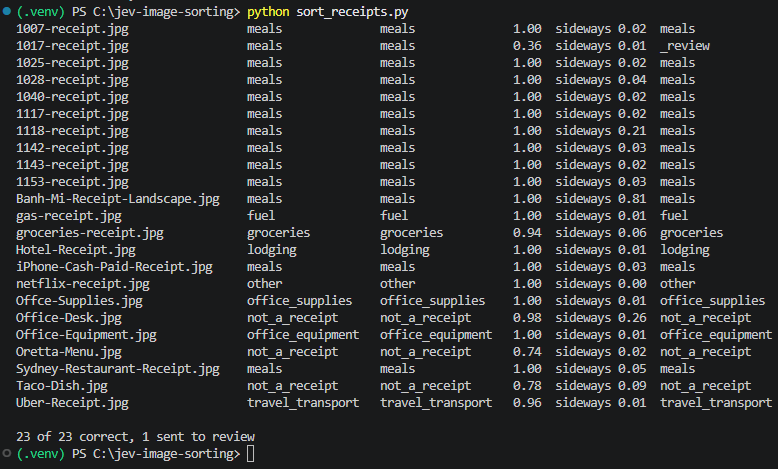
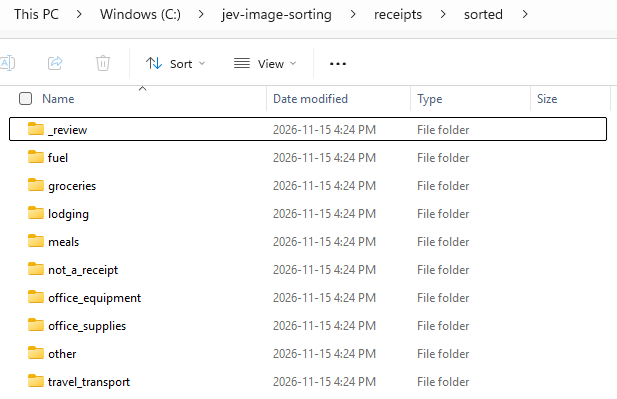
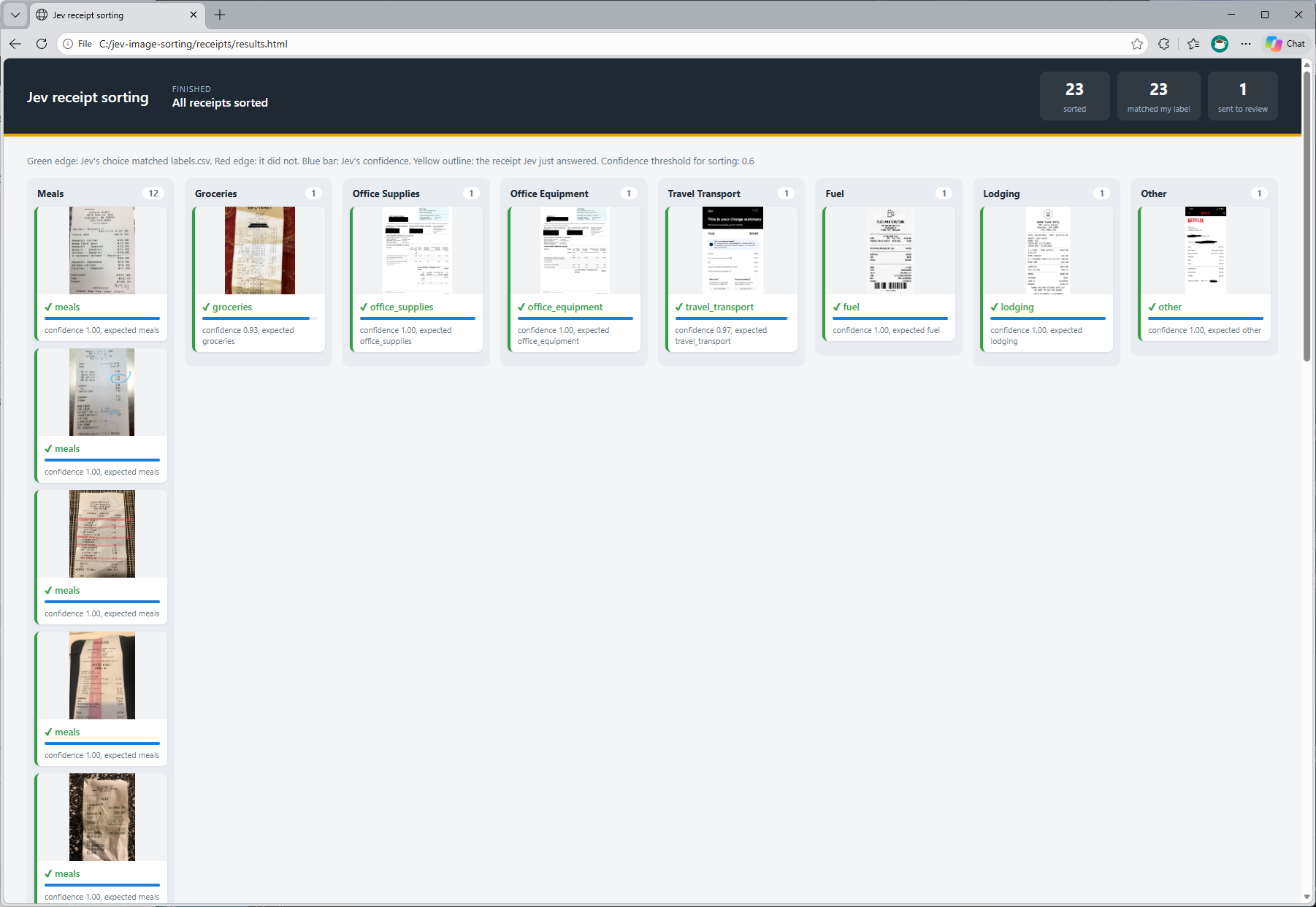
The folders hold the sorted files although they don’t show the sorting as it happens so the script also writes a receipts\results.html page and opens it in the default browser as soon as it starts. The page refreshes itself every second while the script is running.
A dark bar across the top shows the receipt currently being sent to Jev, a progress bar, and running totals for how many receipts have been sorted, how many matched my label, and how many were sent to review. Underneath is a column for each category and as each answer comes back, the receipt drops into the column for the folder it was sorted into.
Each card shows Jev’s choice with a tick or a cross, a blue bar for the confidence, the category I expected, and a sideways tag when the sideways probability is 0.5 or higher. A green edge on the card means Jev’s choice matched labels.csv, a red edge means it didn’t, and a yellow outline marks the receipt that was just answered. Jev answered my first call in 432 ms so I added a LIVE_DELAY of one second after each receipt to make the page possible to follow and setting it to 0 runs the script at full speed.
When the last receipt is sorted the page stops refreshing and the status line changes to the final score. The page loads the images straight from receipts\prepared so it only displays them on the machine that ran the script.
| Images | Count | Matched my label | Average confidence | Sent to review |
|---|---|---|---|---|
| Humans in the Loop dataset receipts | 10 | 10 | 0.94 | 1 |
| My own receipts | 10 | 10 | 0.99 | 0 |
| Images that are not receipts | 3 | 3 | 0.83 | 0 |
| Total | 23 | 23 | 0.95 | 1 |
Jev put every one of the 23 images in the category I expected, including the three images that aren’t receipts at all. Only one answer fell below the 0.6 threshold, which was 1017-receipt.jpg from the dataset at 0.36 and that is the receipt I couldn’t categorize myself, which I cover in Step #6.
Twenty of the 23 answers came back with a confidence of 0.94 or higher and the lowest values after 1017 were on two of the images that aren’t receipts, with 0.74 for the restaurant menu and 0.78 for the plate of tacos. I suspect both of those sit close to meals because a menu lists food and prices the same way a restaurant receipt does and a plate of tacos is exactly what a meals receipt pays for.
The sideways question worked as well. Jev gave Banh-Mi-Receipt-Landscape.jpg a sideways probability of 0.81 and still put it in meals with a confidence of 1.00, while every upright receipt scored 0.21 or lower. The highest value on an image that wasn’t sideways was 0.26 for the photo of my desk, which isn’t a document at all.
A high sideways probability could be used to rotate the image and send it to Jev again, although I kept the script simple and only recorded the value so I could compare it across every receipt.
Step #6 – The receipt I couldn’t categorize myself
1017-receipt.jpg is the one receipt that went to review and I put it in the set on purpose because I couldn’t tell what it was for either. It comes from a shop called UMIX in Brownsville, Texas and lists two items, PARIS at $5.25 and LE CLASSIQUE at $4.95, with nothing on the receipt that says whether those are crepes, drinks, or something else entirely. The Humans in the Loop dataset is made up of restaurant receipts so I labelled it meals in labels.csv as my best guess, which means the match in the Step #5 results only tells me Jev agreed with my guess.
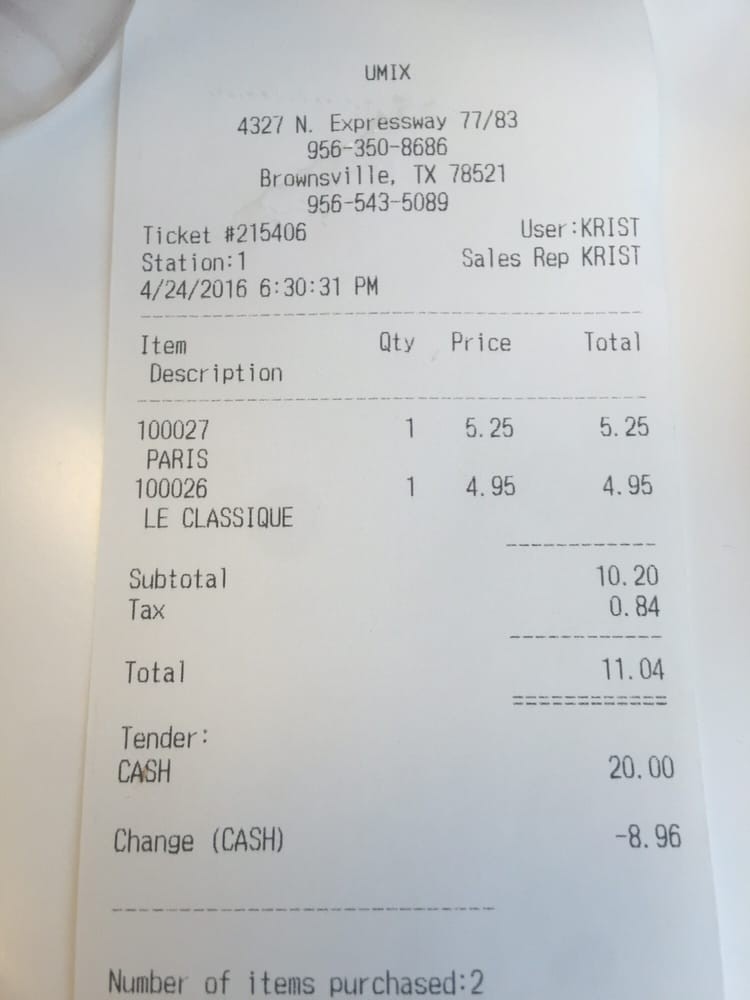
The receipt was already sorted in Step #5 so nothing new needs to be run here. The two most likely categories and their probabilities are in the top_two column of receipts\results.csv:
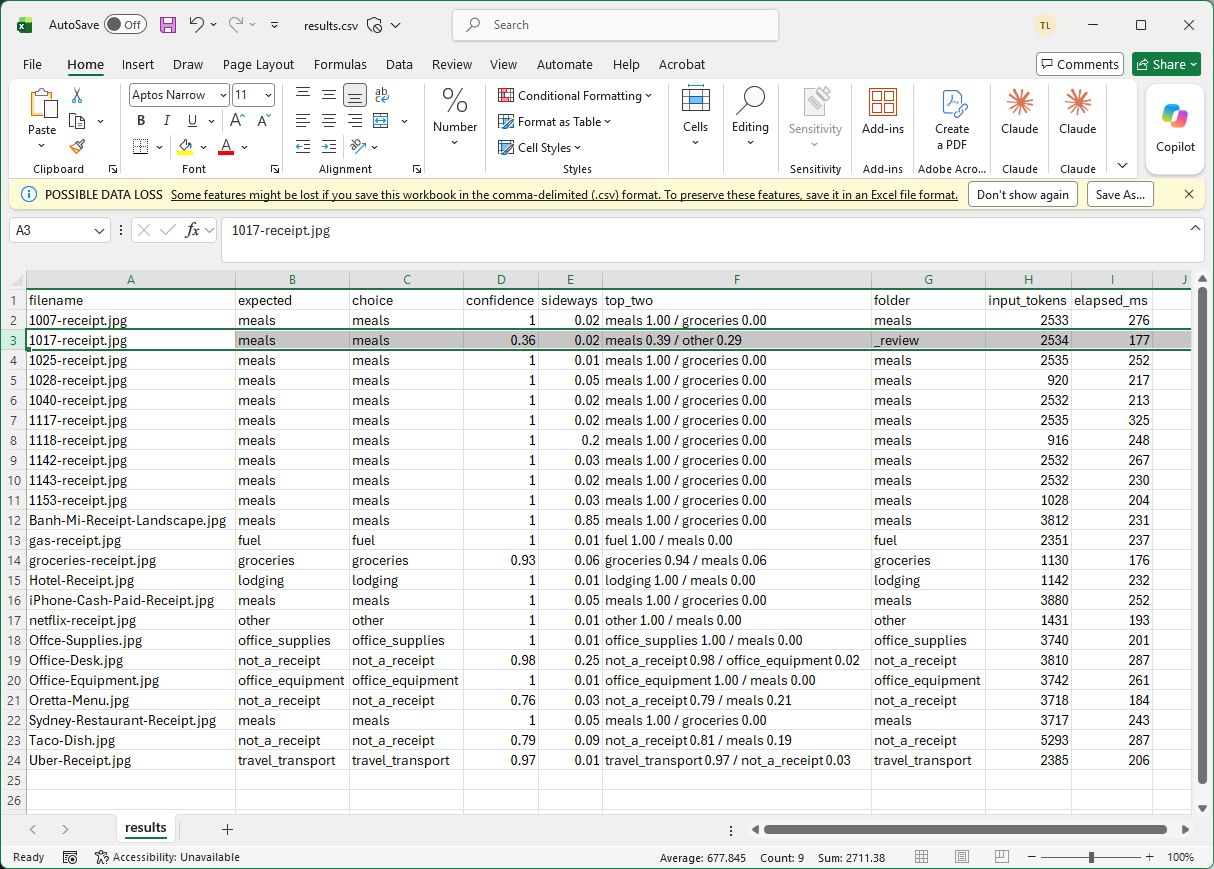
Jev picked meals like I did although with a confidence of only 0.36, which was well below the 0.6 threshold so the script sent the receipt to _review instead of the meals folder. That is the outcome I would want for a receipt that a person can’t categorize either because the low confidence told the script not to trust the answer, even though the answer happened to match my guess.
The same approach applies here as in my first post, where I let Jev make the routing decision and kept the final approval with a human because Jev never sees the expense policy, the employee’s role, or whether the purchase was approved in advance.
Step #7 – Tokens, latency, and cost
Every response includes usage.input_tokens and the scripts above saved it along with the round-trip time for each request. The TypeSafe console also shows the usage against my credits.
| Request | Average input tokens | Average response time | Cost per 1,000 images at $0.042 per million input tokens |
|---|---|---|---|
Single receipt, one noul question (Step #4) |
2,263 | 432 ms | about $0.095 |
| Receipt sorting, nine categories plus the sideways question (Step #5) | 2,641 | 235 ms | about $0.11 |
Jev’s published price is $0.042 per million input tokens with output tokens free of charge. Images are billed at the same rate as text. The input tokens in results.csv ranged from 916 for one of the small dataset receipts to 5,293 for the 1568 x 1176 photo of tacos so the cost of a request depends mostly on the size of the image.
The smallest receipts cost less than the 1,118 input tokens of the text-only alert in my first Jev post while my full-size phone photos cost three to five times more, although even the largest image works out to about 22 cents for every thousand. The sorting requests also came back faster than my first call, averaging 235 ms against 432 ms, which I suspect is because the first request of a session takes longer than the ones that follow it.
The Python scripts and the receipt samples are available in my GitHub repo at https://github.com/terenceluk/blog-post-supporting-files/tree/main/jev-image-sorting-with-receipts.
Final Thoughts on Jev Receipt Sorting
Jev’s image input sorted every one of my 23 images into the category I expected and the only receipt it sent to review was the one even I couldn’t categorize myself. Categorizing a receipt depends on Jev reading a merchant name and a list of items printed on paper. TypeSafe warns that every model performs worse on images than on text, although on a set that included a sideways receipt and three images that weren’t receipts at all, Jev matched every one of my labels. Twenty-three images is a small set so I would want to run a few hundred receipts before trusting the 0.6 threshold.
The pace at which new ways of using language models keep appearing excites me. It feels like there is something new in the world of AI every week and I expect this to continue for the future. Decision models are part of that same progress. Jev returns a typed answer with a probability, whereas the image models describe what they see in a paragraph that my code then has to interpret. In my testing it answered a yes or no question about a photo in 432 ms. TypeSafe deserves credit for shipping image input and Box questions only a month after launch and for being upfront about where they still fall short.
As mentioned earlier, I plan to write a separate post to test the new Box question type and see whether Jev can tell cat and dog breeds apart as a follow up so stay tuned.