
This post covers setting up an Automation Account with a script to detect Automation Account Passwords that are expiring. It serves as the first of two where I will demonstrate how to use a combination of an Automation Account Runbook and a Logic App to send out an email notification to warn users that their Entra ID user account passwords are about to expire or has expired.
Rather than using Logic App to retrieve account details and loop through the accounts with actions, which will generate a significant amount of action executions if you’re using a consumption based Logic App, we’ll be using a PowerShell script that will return the information in a JSON format. The script can be found here:
The PowerShell script that will return expiring or expired passwords can be found here: https://github.com/terenceluk/Azure/blob/main/PowerShell/Get-Expiring-Passwords.ps1
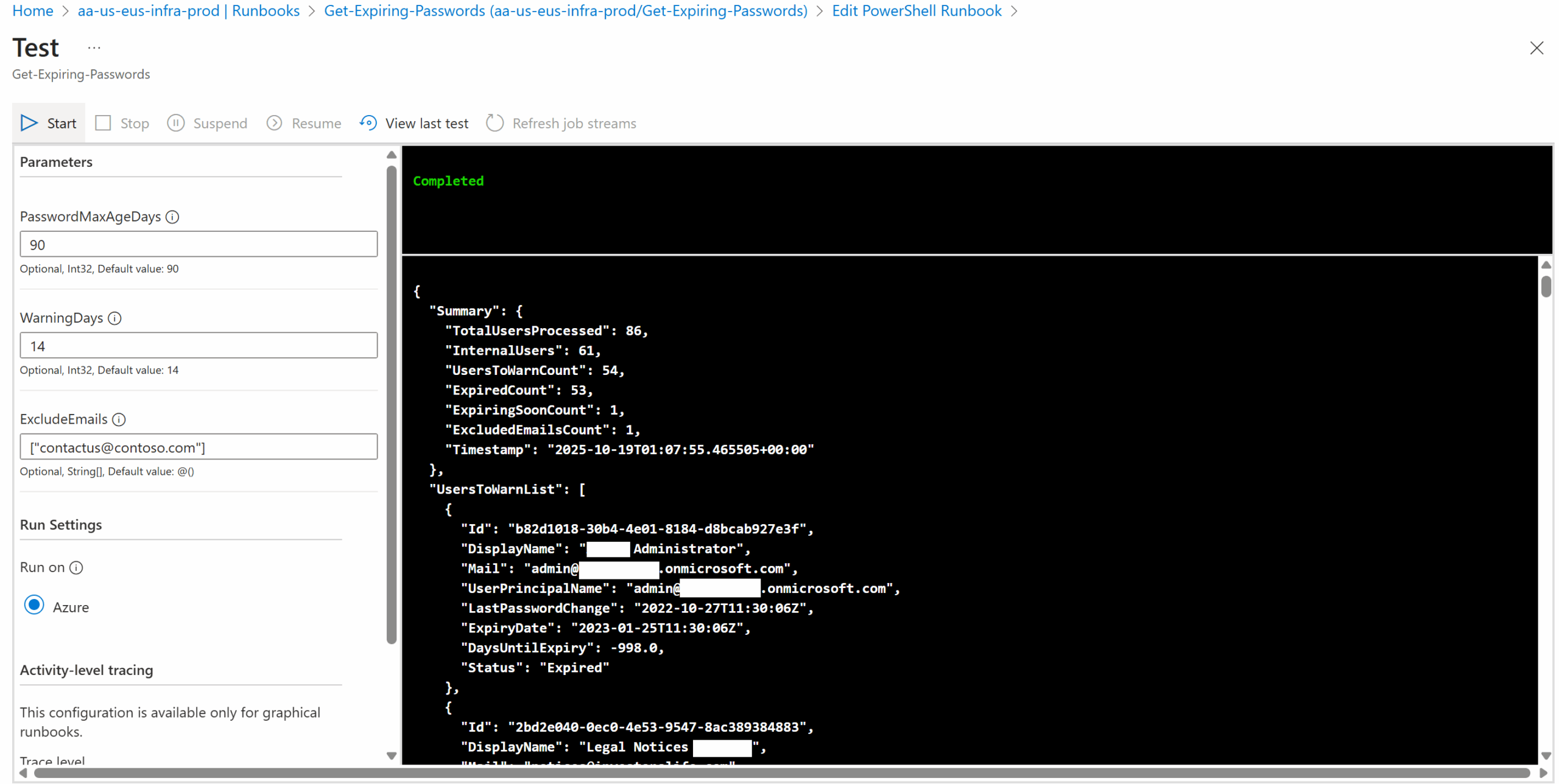
The format of the data returned will look as such:
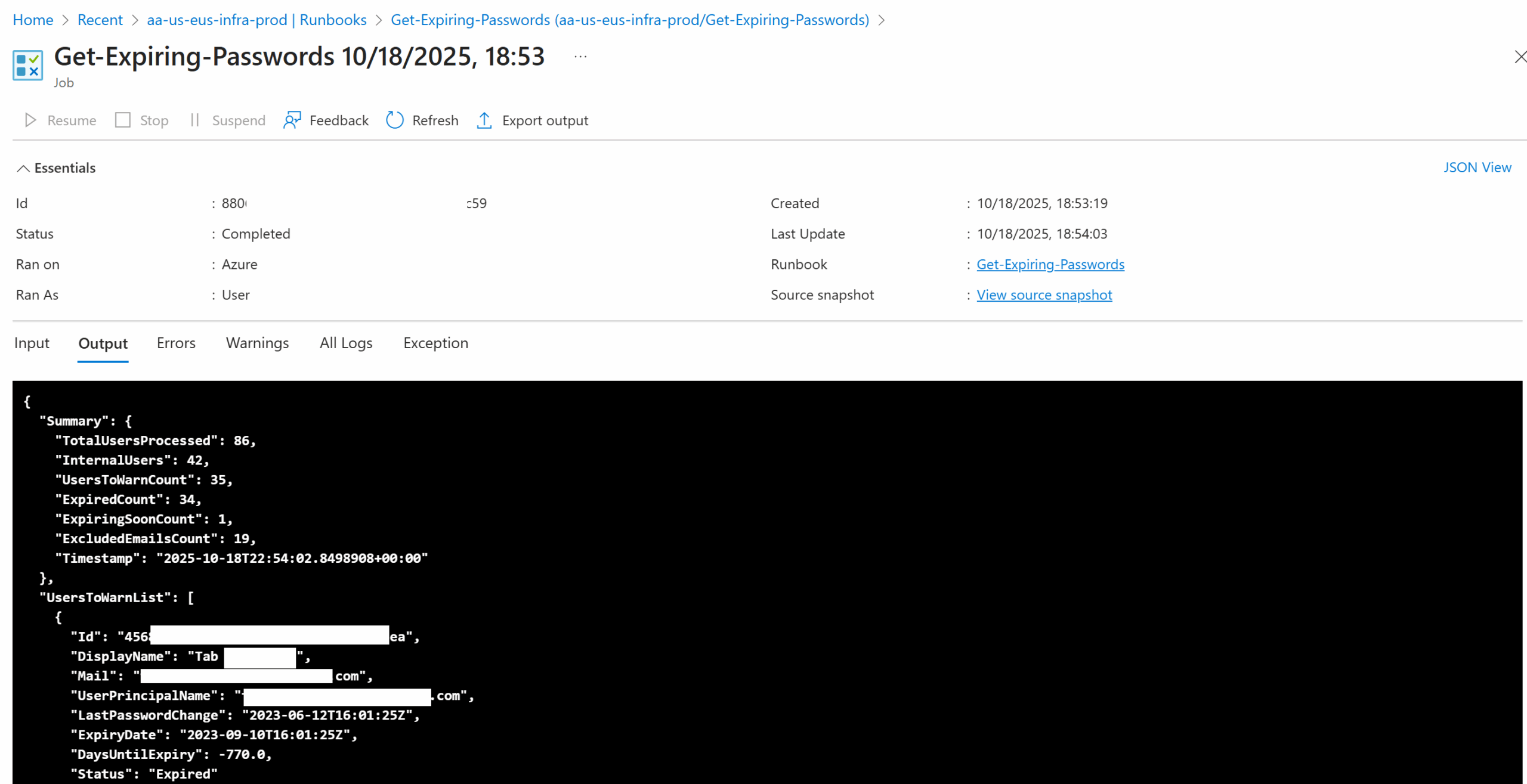
Note the summary at the beginning highlighting information for the accounts processed, then followed by a list of users that either have passwords that has expired or will be expiring.
Step #1 – Create an Automation Account and Enable System Managed Identity (Automation Account Passwords)
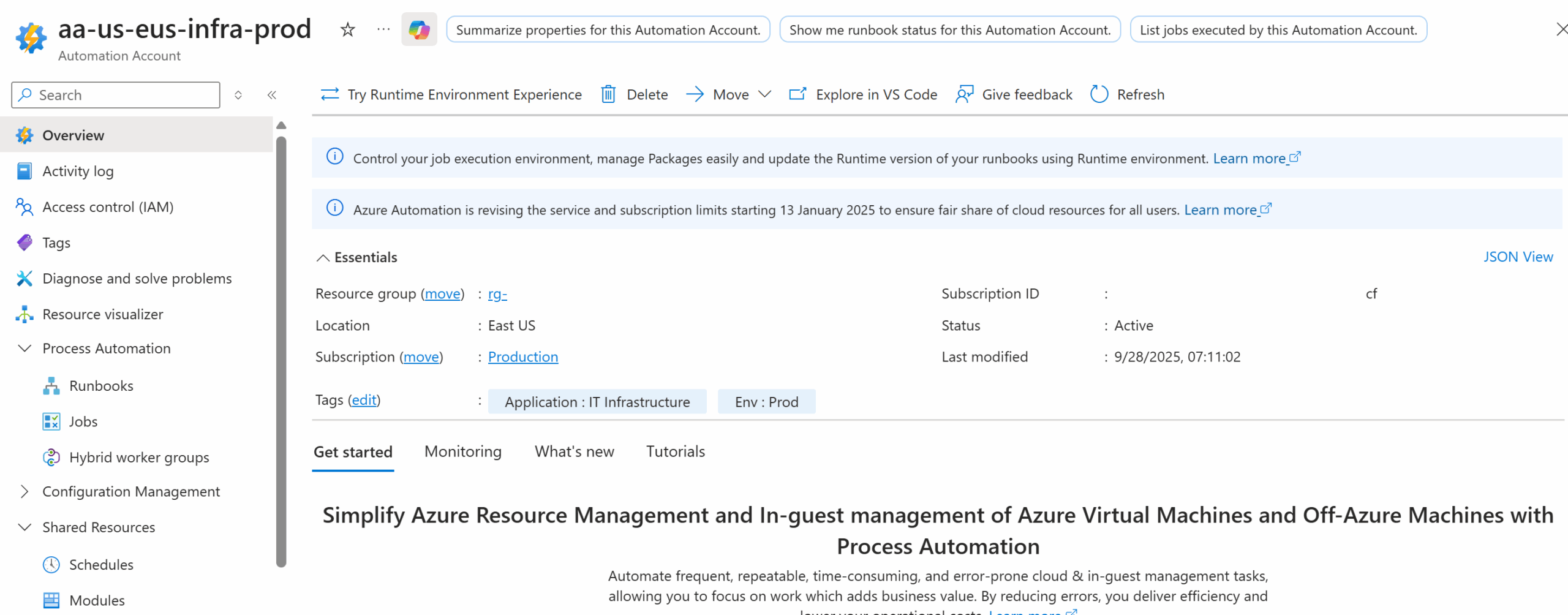
Begin by creating an Automation Account. If you are unfamiliar with this type of resource, it is best to give some thought around what type of Runbooks that you can bundle into your Automation Account. For the purpose of this example, I have an Automation Account that contain Runbooks of PowerShell scripts for various internal IT scripts:
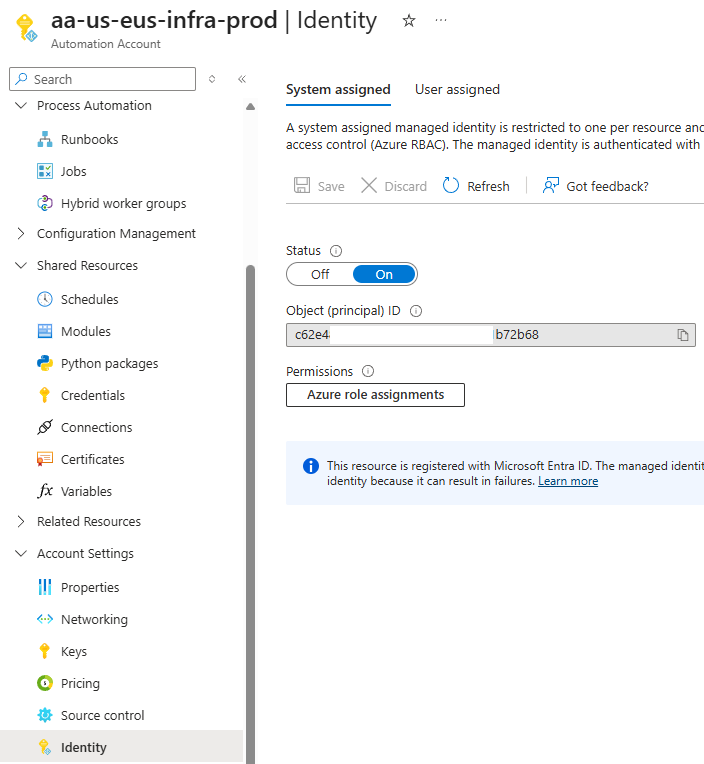
Proceed to enable the System assigned managed identity:
Step #2 – Configure required Microsoft.Graph permissions for the System Managed Identity
The PowerShell script uses Microsoft.Graph modules to retrieve Entra ID account information so the Automation Account will need the appropriate permissions to execute the cmdlet. Please refer to my previous post for how to assign the following 2 permissions to the system managed identity of the Automaton Account.
- Directory.Read.All
- User.Read.All
Granting an Automation Account Managed Identity (Enterprise Application) Access to MS Graph
Step #3 – Import Required PowerShell Modules
The PowerShell script that the Automation Account Runbook will execute requires 2 Microsoft.Graph modules:
- Microsoft.Graph.Authentication – https://www.powershellgallery.com/packages/Microsoft.Graph.Authentication/2.25.0
- Microsoft.Graph.Users – https://www.powershellgallery.com/packages/Microsoft.Graph.Users/2.25.0
Please refer to the following blog post for instructions on how to import the required version:
Step #4 – Configure the Automation Account Runbook with PowerShell Script
Create a runbook with the following configuration:
Name – <Name of your choice>
Runbook Type – PowerShell
Runtime Version – 7.2
Description – <Description of your choice>
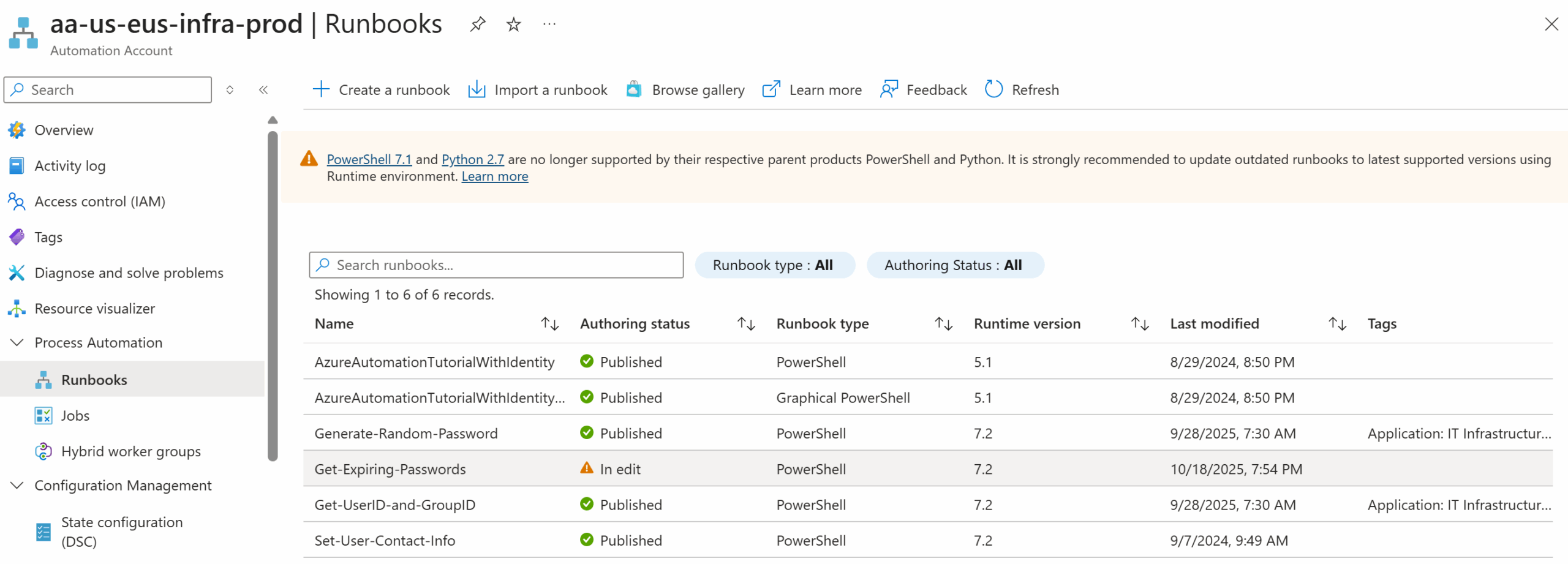
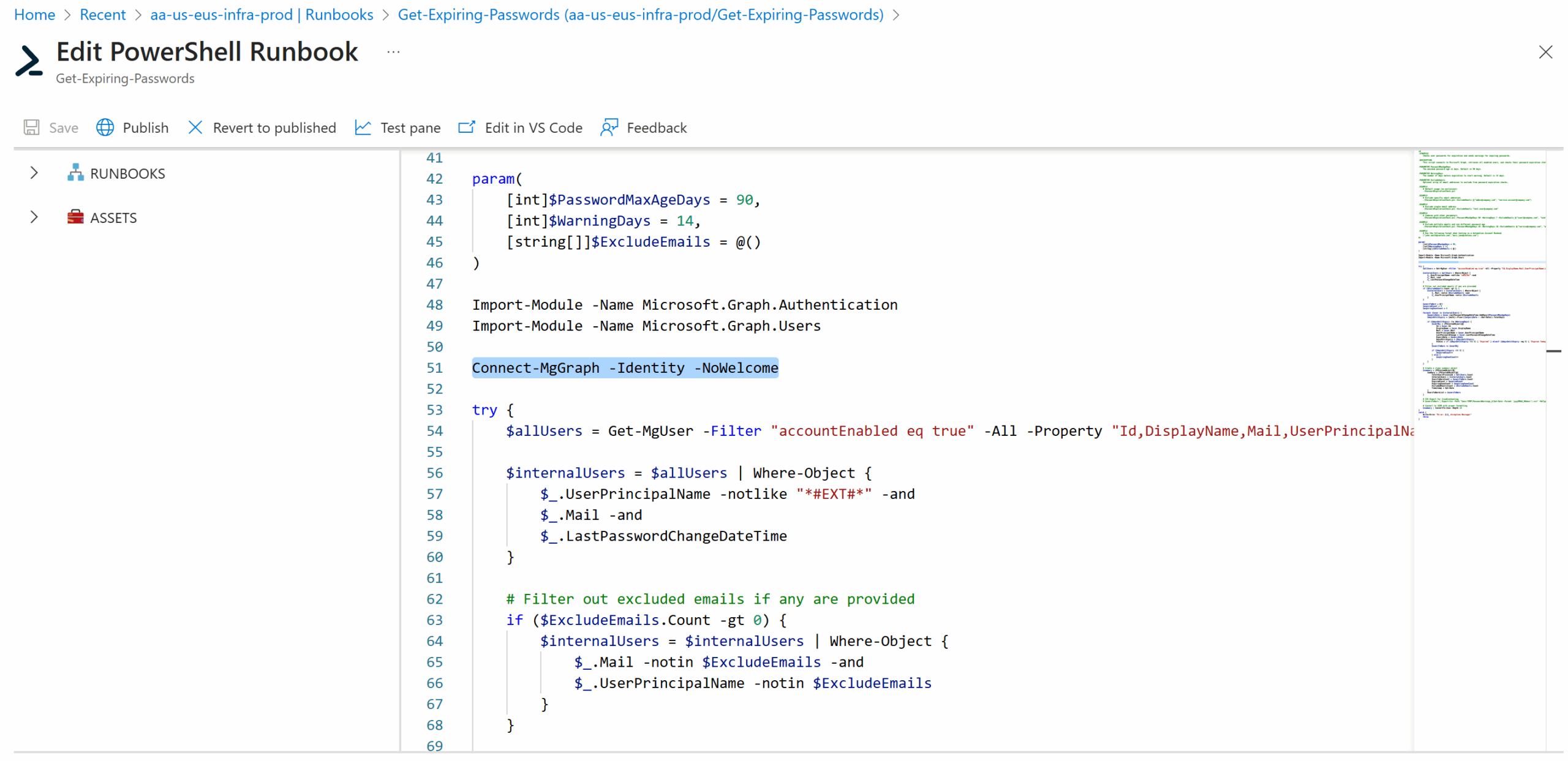
Proceed to paste the script into the runbook:
Test to verify that the script executes successfully:
With this Automation Account Runbook setup, we can proceed to create a Logic App that will use this runbook to generate and send out email notifications to users for expiring or expired passwords. I’ll be writing a follow up post for this to demonstrate the process.

