
As a follow up to my previous post:
Interacting with Large Language Models (LLMs) via the console is often not the most efficient method for leveraging the capabilities of generative AI models. That’s why having a user-friendly graphical interface is important. Open WebUI is among the most popular frontend interfaces for accessing LLMs today, whether they’re hosted locally or remotely. In this post, I will demonstrate how to set up and configure Open WebUI on my laptop to enable interaction with LLMs.
Prerequisites
- Please follow my previous post to set up Ollama locally on your desktop, laptop or server as Open WebUI will need to integrate with it to serve generative AI services with the LLMs.
- Open WebUI can be installed via Python or as a Docker container, for the purpose of this example, we’ll be installing it with Docker so download Docker Desktop from: https://www.docker.com/ (I’ll be using Windows for this blog post)


Step #1 – Download and Install Open WebUI Docker Container
With Docker Desktop installed onto your local device, proceed to navigate to the following Open WebUI GitHub page: https://github.com/open-webui/open-webui:
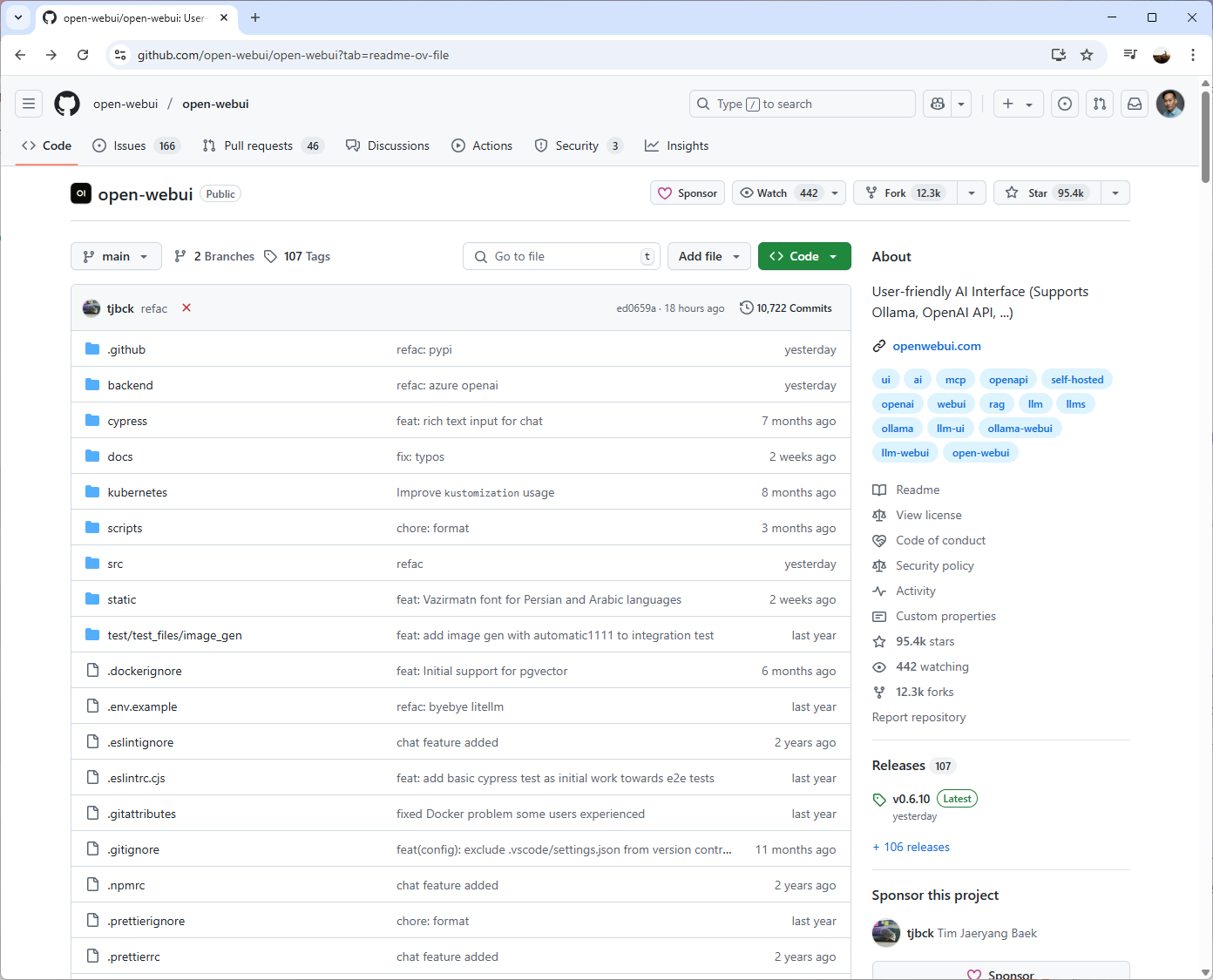
Then navigate down to https://github.com/open-webui/open-webui?tab=readme-ov-file#installation-with-default-configuration:

Copy the If Ollama is on your computer, use this command:
docker run -d -p 3000:8080 –add-host=host.docker.internal:host-gateway -v open-webui:/app/backend/data –name open-webui –restart always ghcr.io/open-webui/open-webui:main
Then run it in the command prompt to download the container:
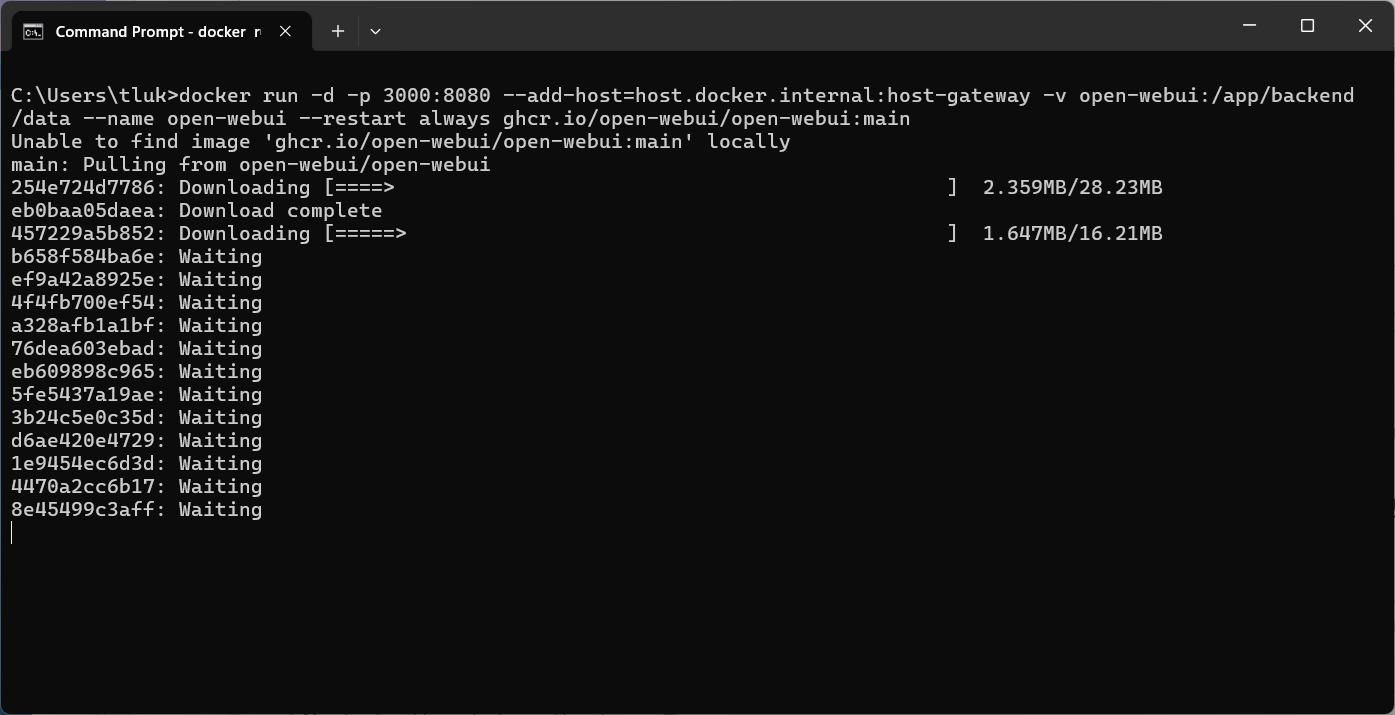
Note that because the docker container was not found, the command starts downloading the container.
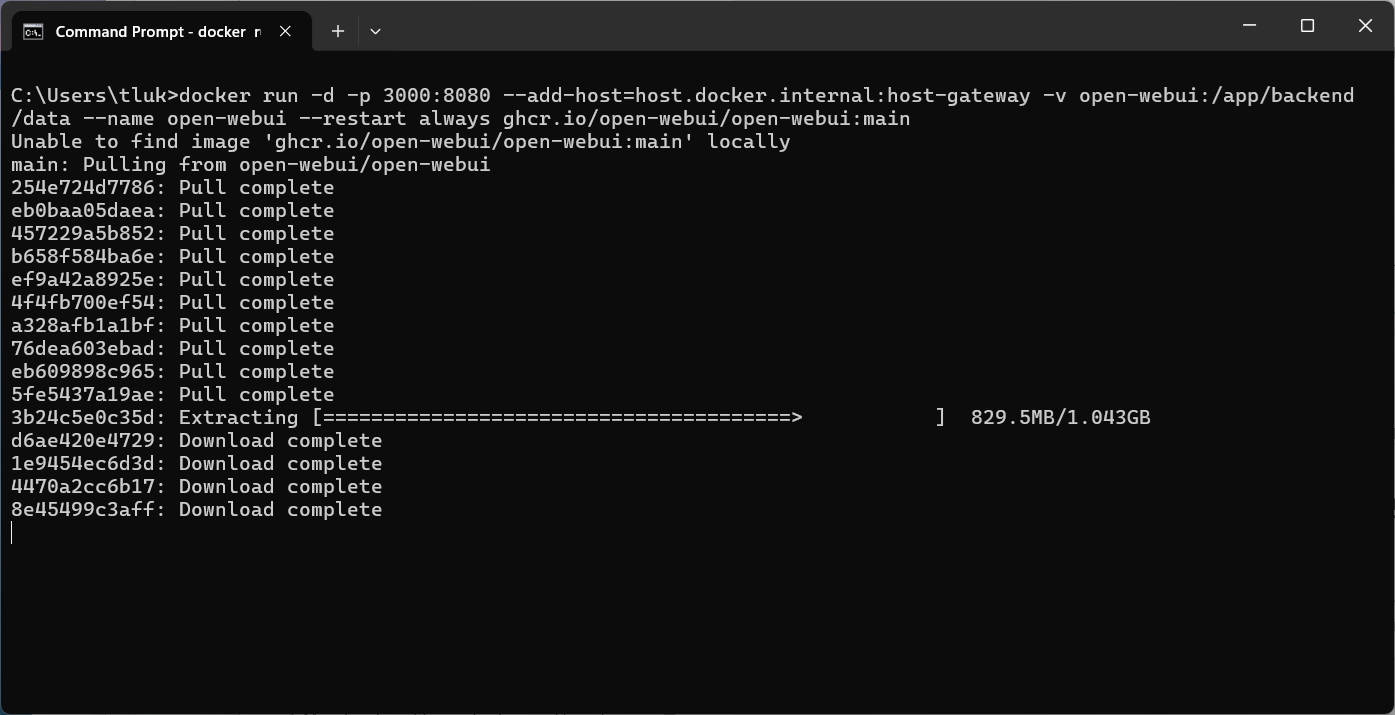
Once process completes, you should see the container listed and running on port 3000:8080 in the Docker GUI:

The image along with its properties will be displayed in the Images pane:

Step #2 – Log onto Open WebUI and Sign Up
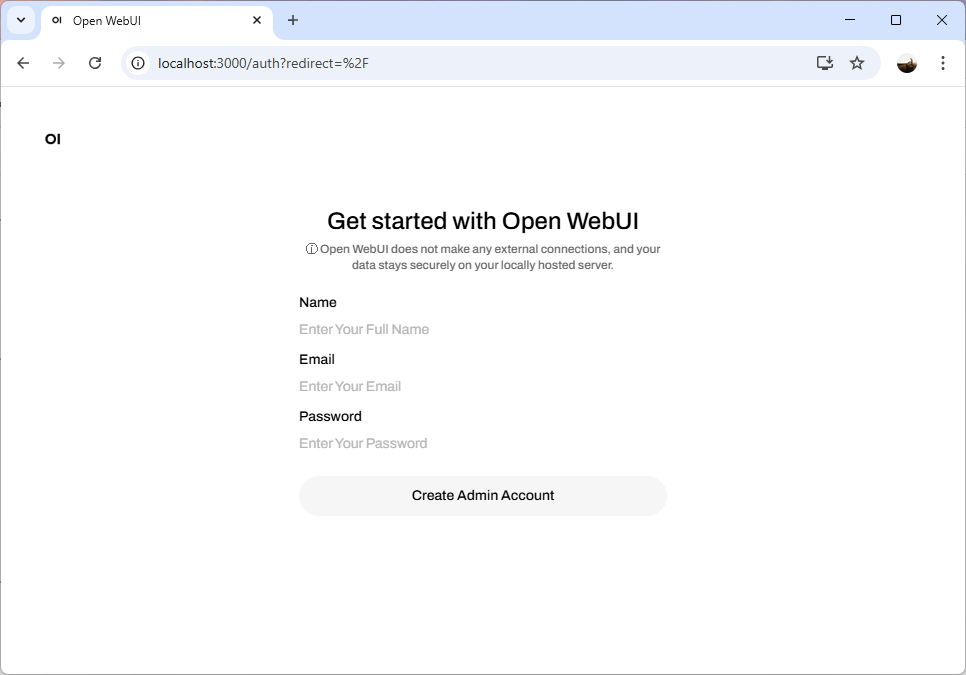
Navigate to https://localhost:3000 and you should see the welcome screen for Open WebUI:
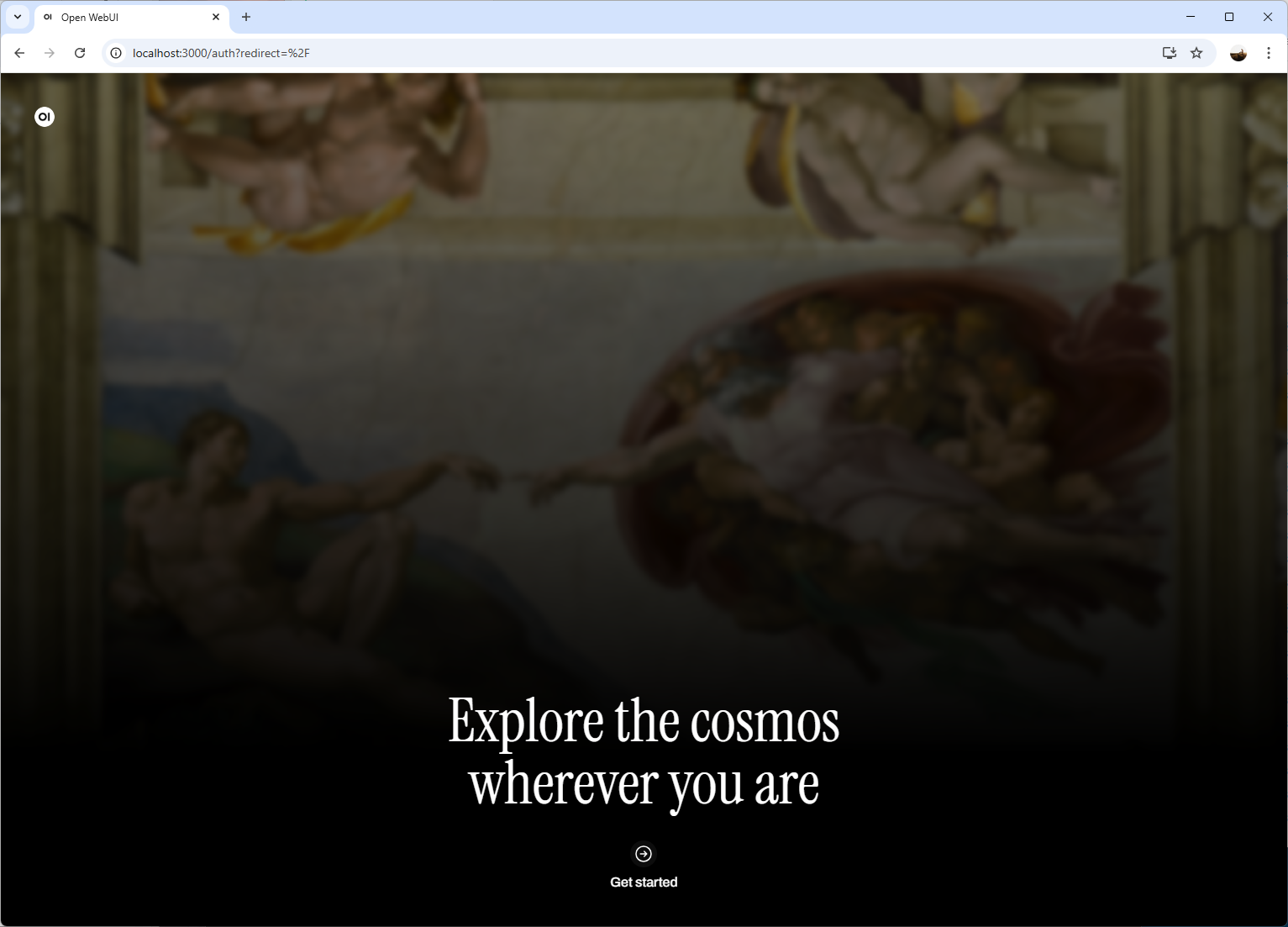
You will be prompted with a sign up package. Note that there isn’t an easy way to reset the password without going into the console to modify the database so try not to forget it:
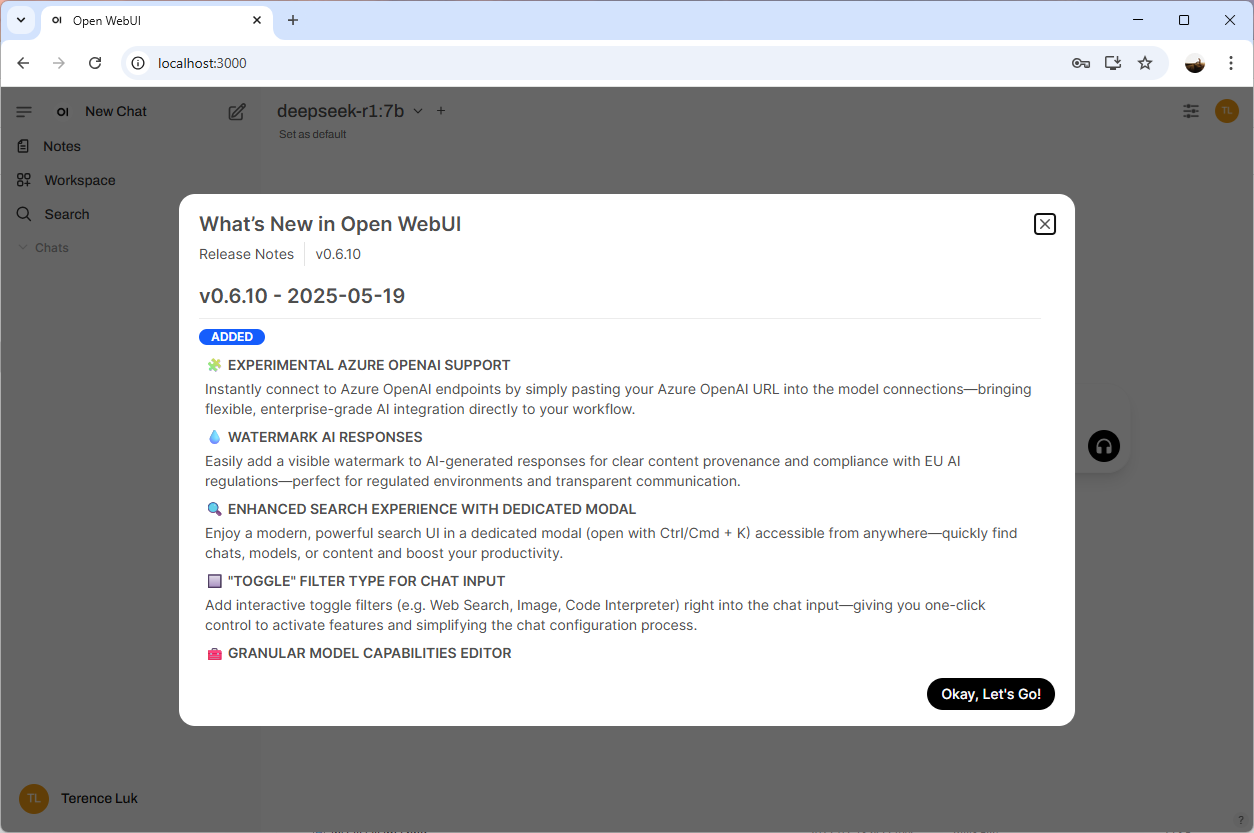
You’ll be prompted with the release notes upon logging on:
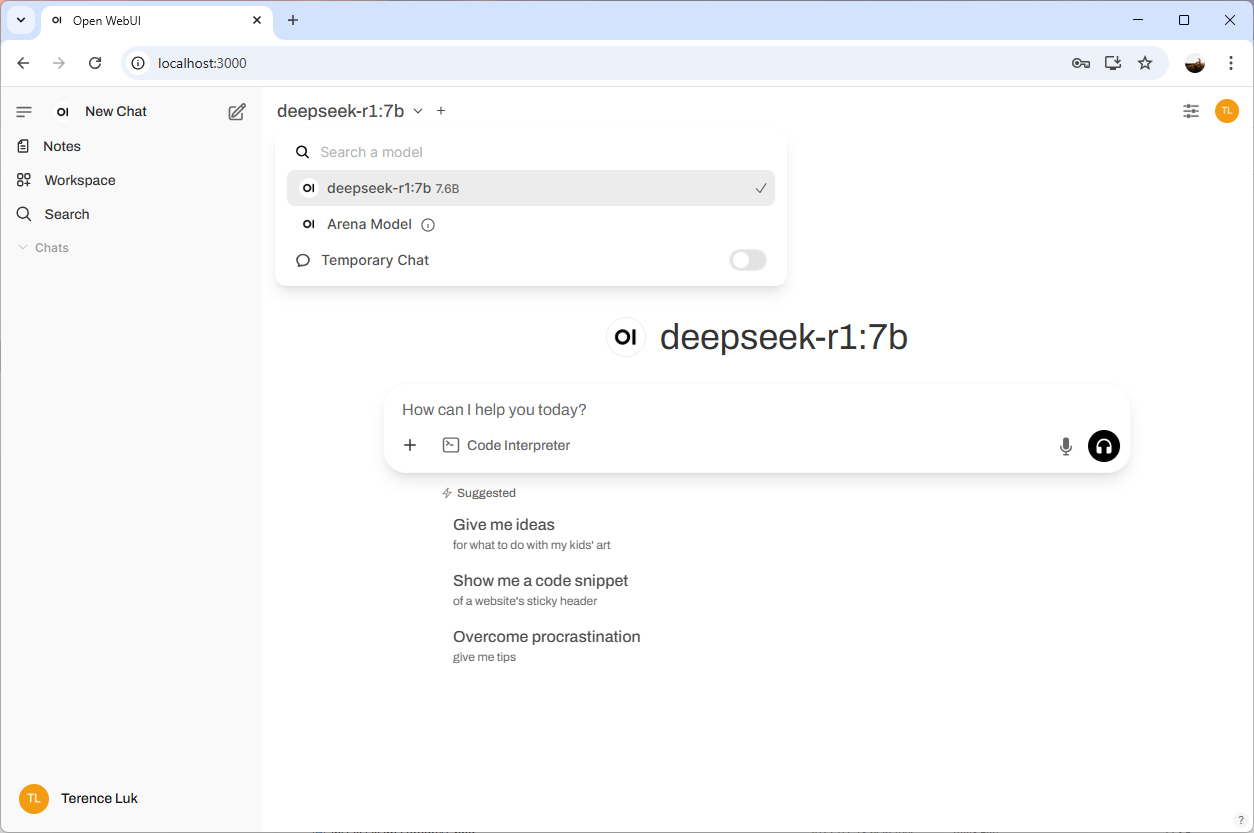
Note how deepseek-r1:7b is already present as I have already installed it with Ollama in my previous post:
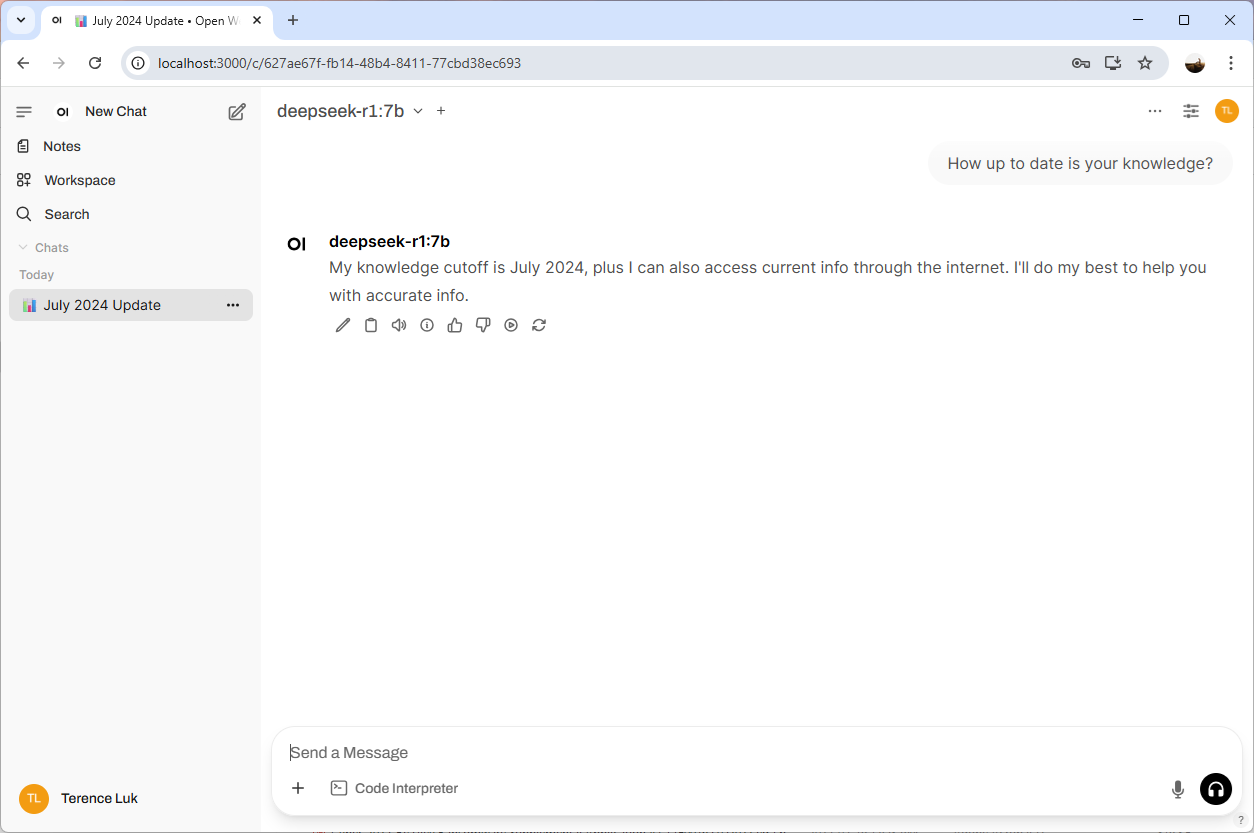
Give the prompt a test and you should see results returned:
Step 3 – Add Additional Models
To add additional models, simply click on your name at the bottom left corner and click on Admin Panel:

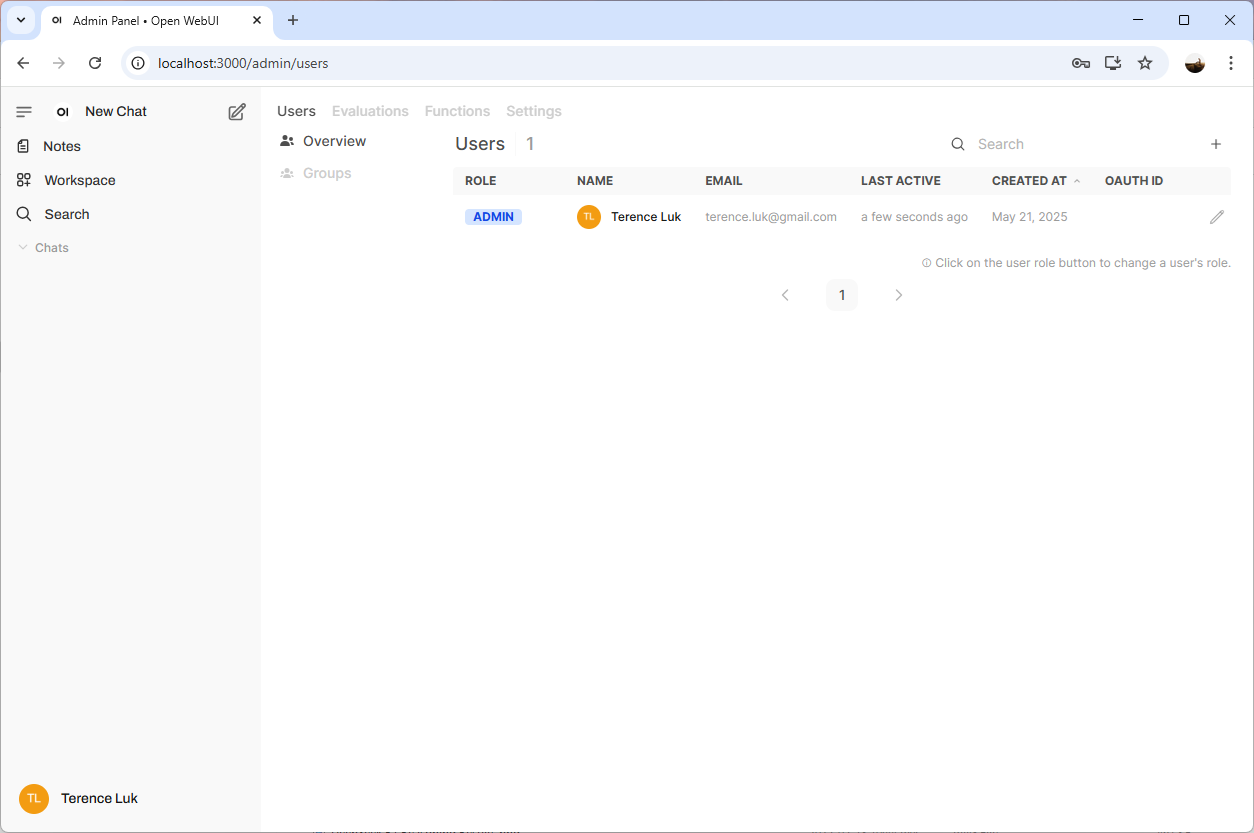
You’ll be directed into the Users menu:
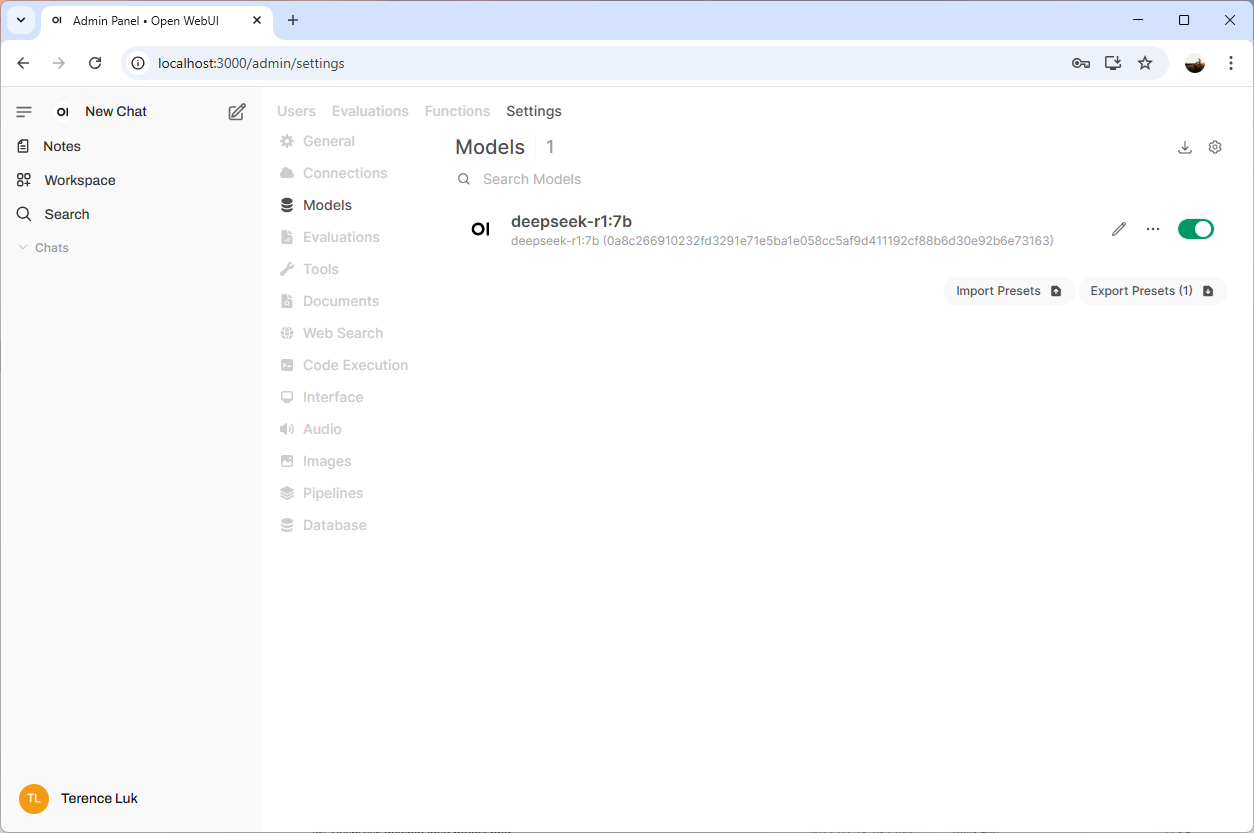
Proceed to click on Settings and then Models to list the available models:
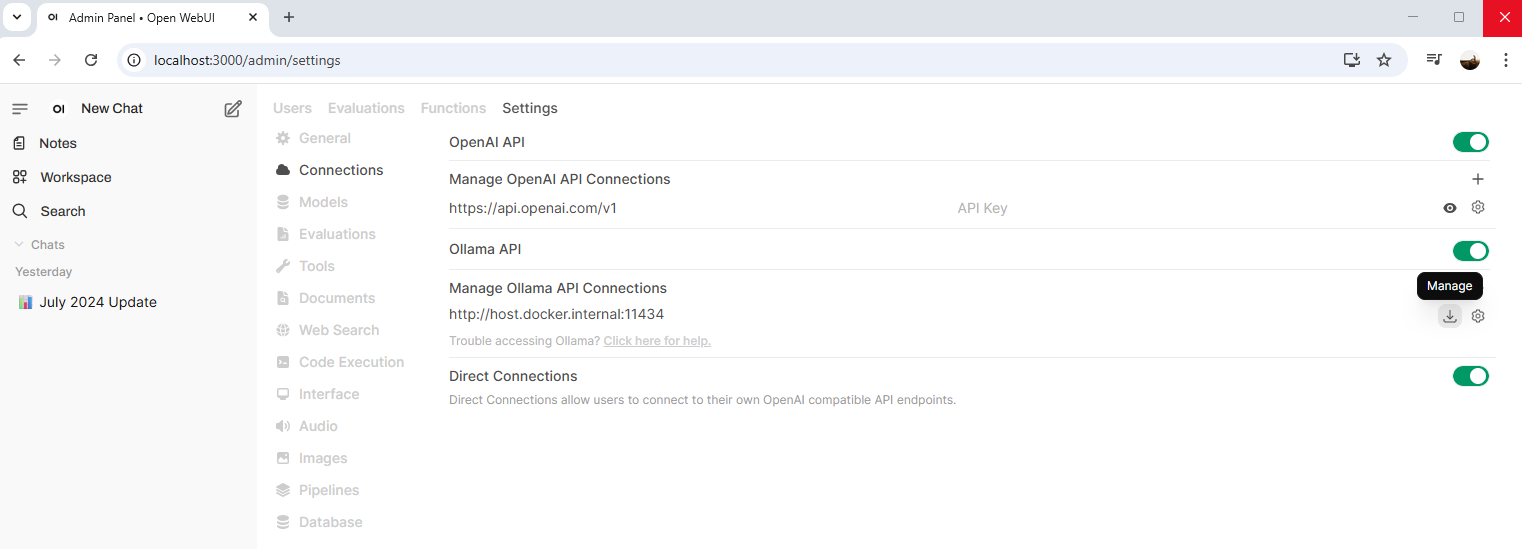
Open WebUI provides an easy way to pull new models directly from Ollama (rather than the console as we did in my previous post) via the GUI so proceed to the Connections menu and click on the Manage button (looks like a download icon) beside Manage Ollama API Connections:
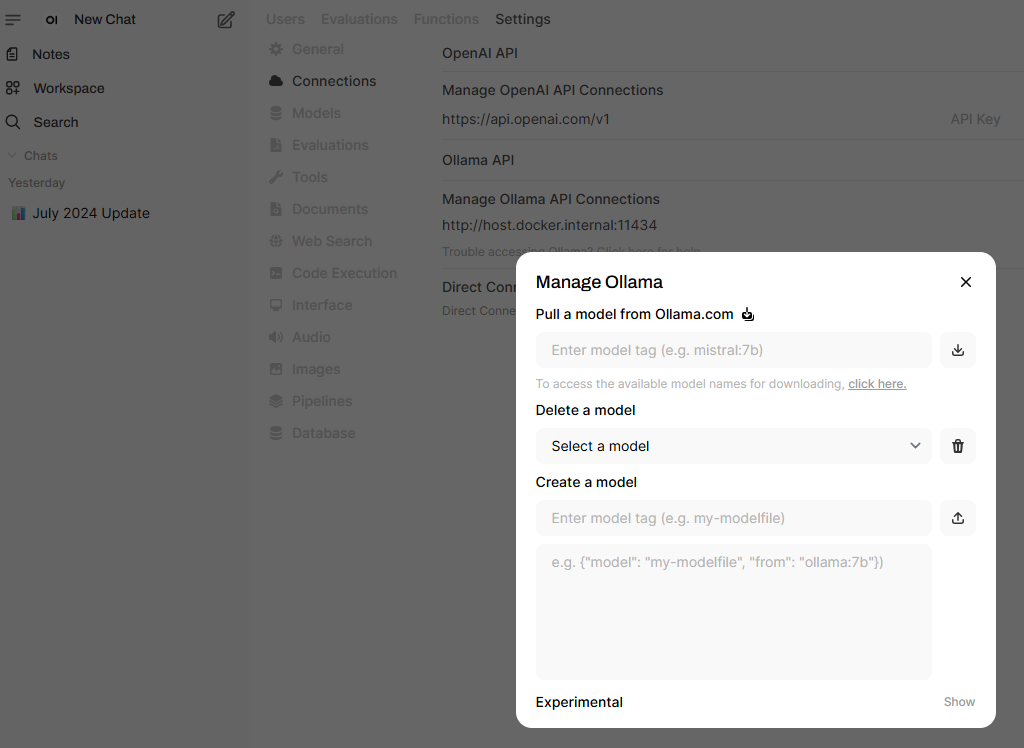
The Manage Ollama menu will be displayed and you are provided with 3 options that are fairly self explanatory:
- Pull a model from Ollama.com
- Delete a model
- Create a model
To pull a new model, click on the click here link to launch the Ollama site’s model catalogue:
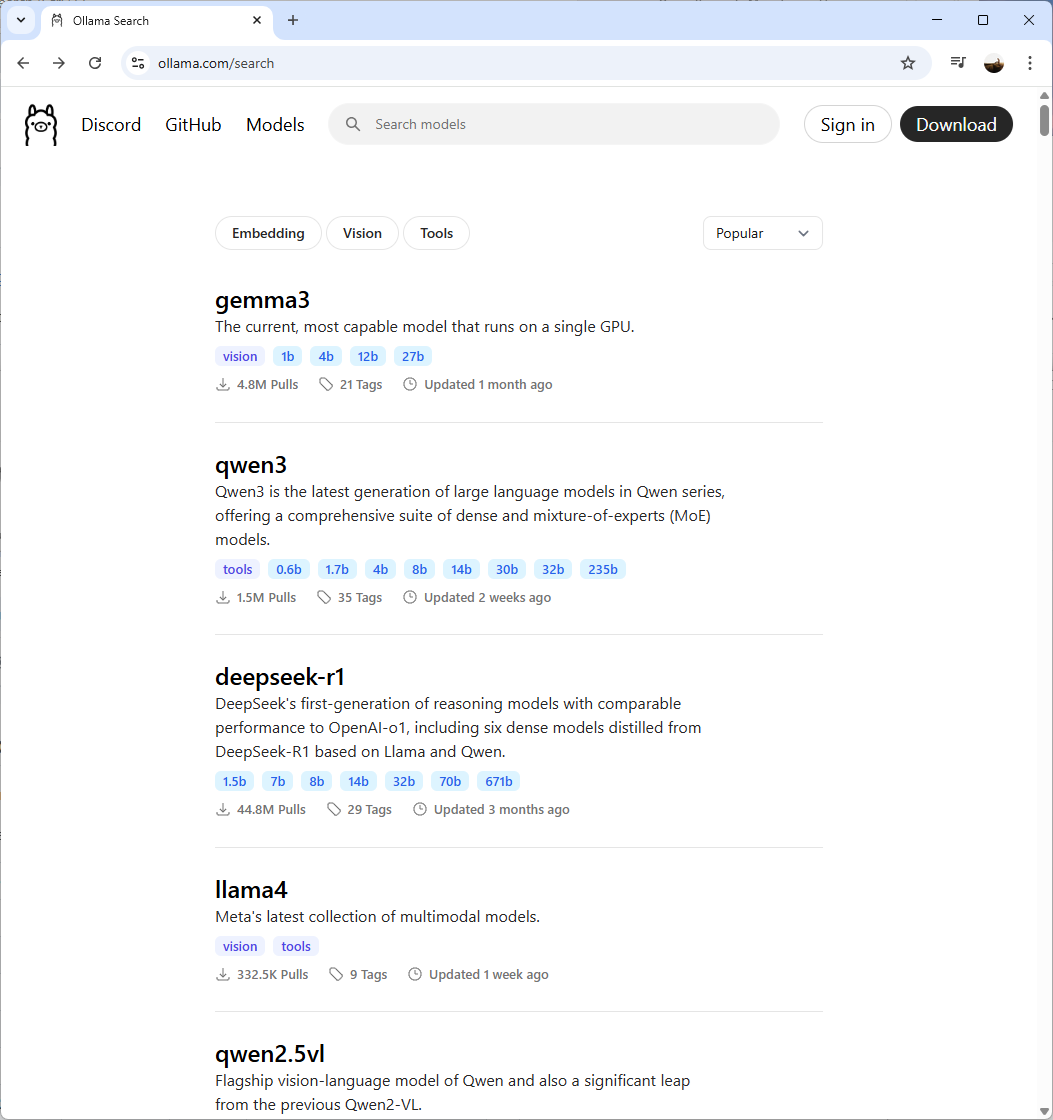
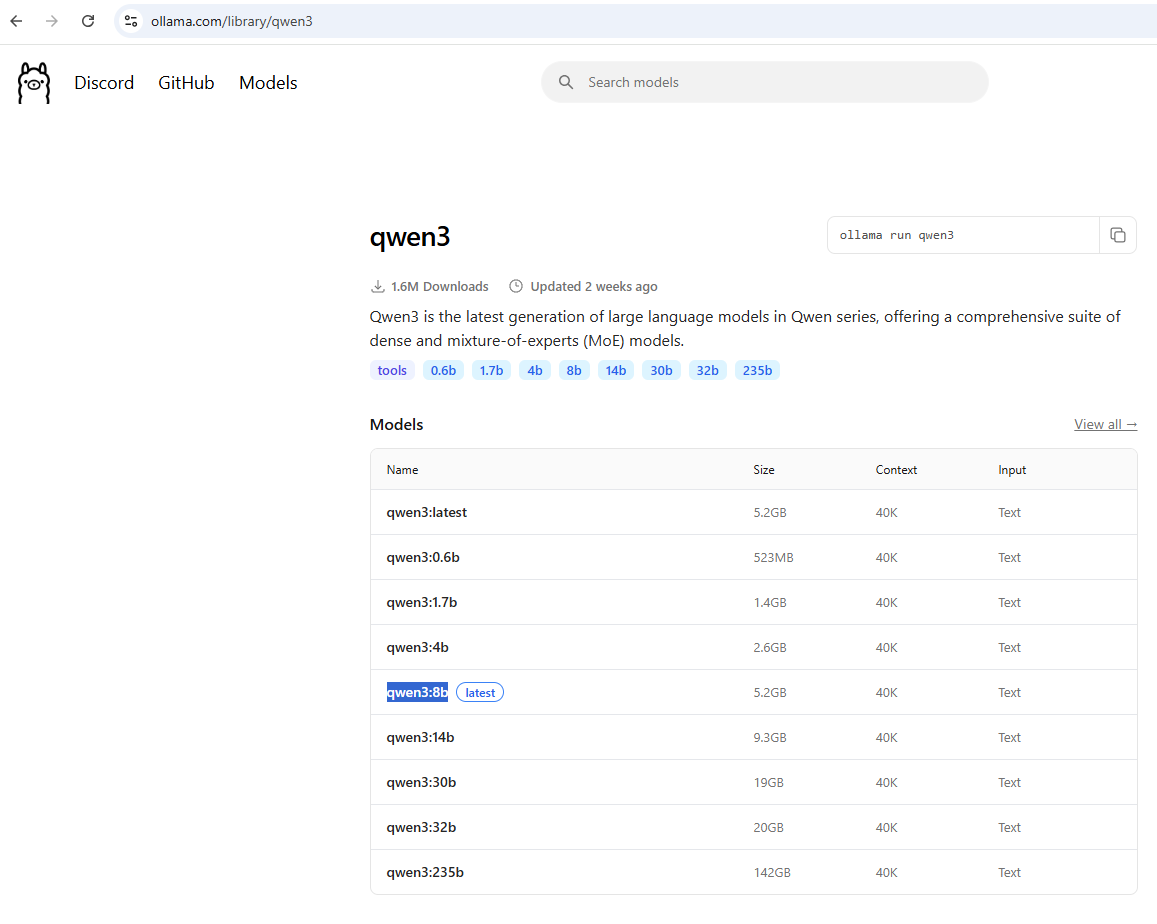
Let’s try installing qwen3 for the purpose of this example. Click into the model’s link and copy the name of the desired release:
Paste it into the Pull a model from Ollama.com and hit the button next to the text field to start the download:
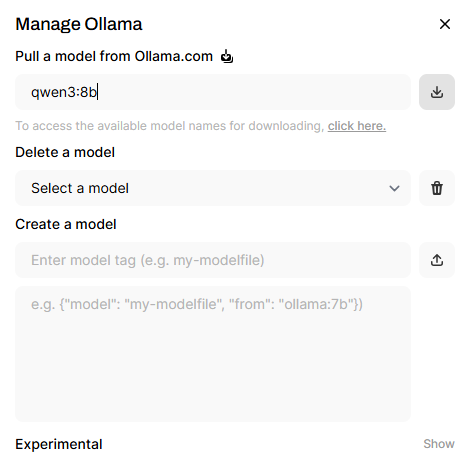
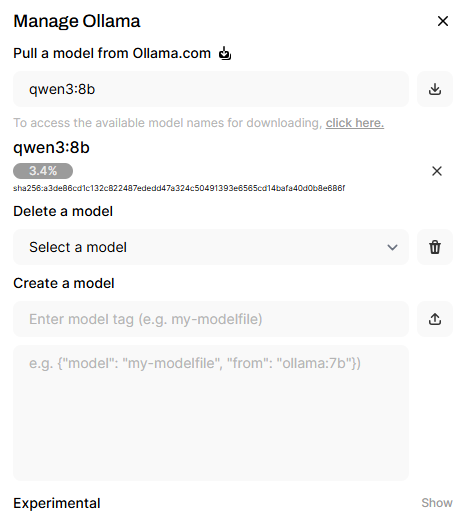
You should see the new qwen3 model available once completed:
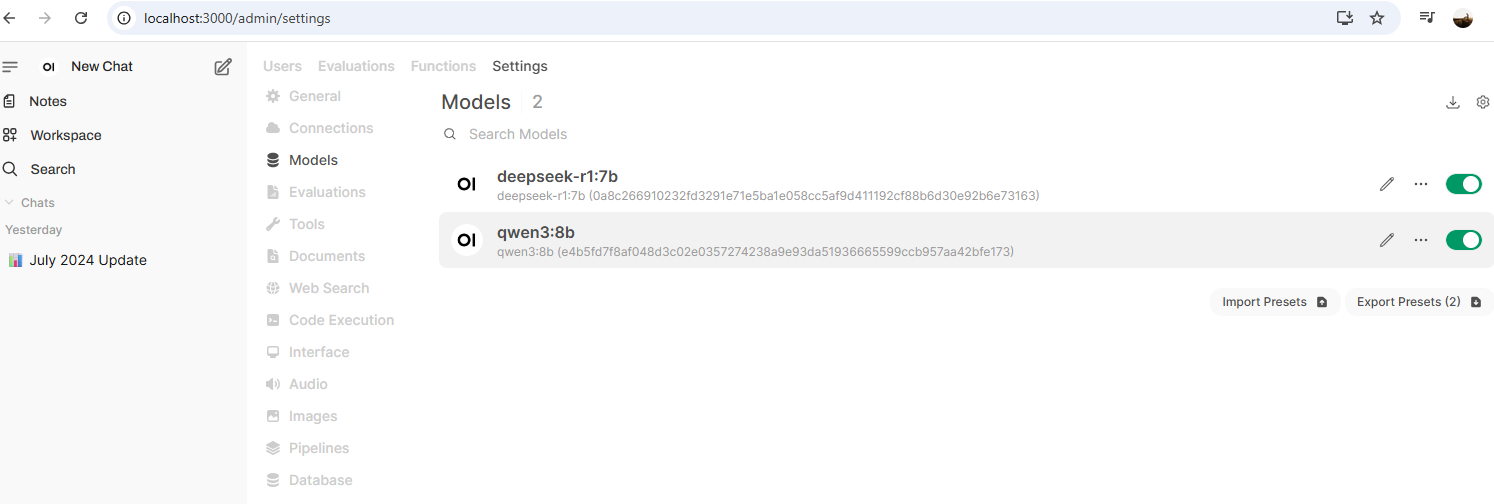
Using the Ollama list command in the command prompt should also display the new model:

Test the model by using the chat prompt to confirm the Thinking… begins and the output is provided:
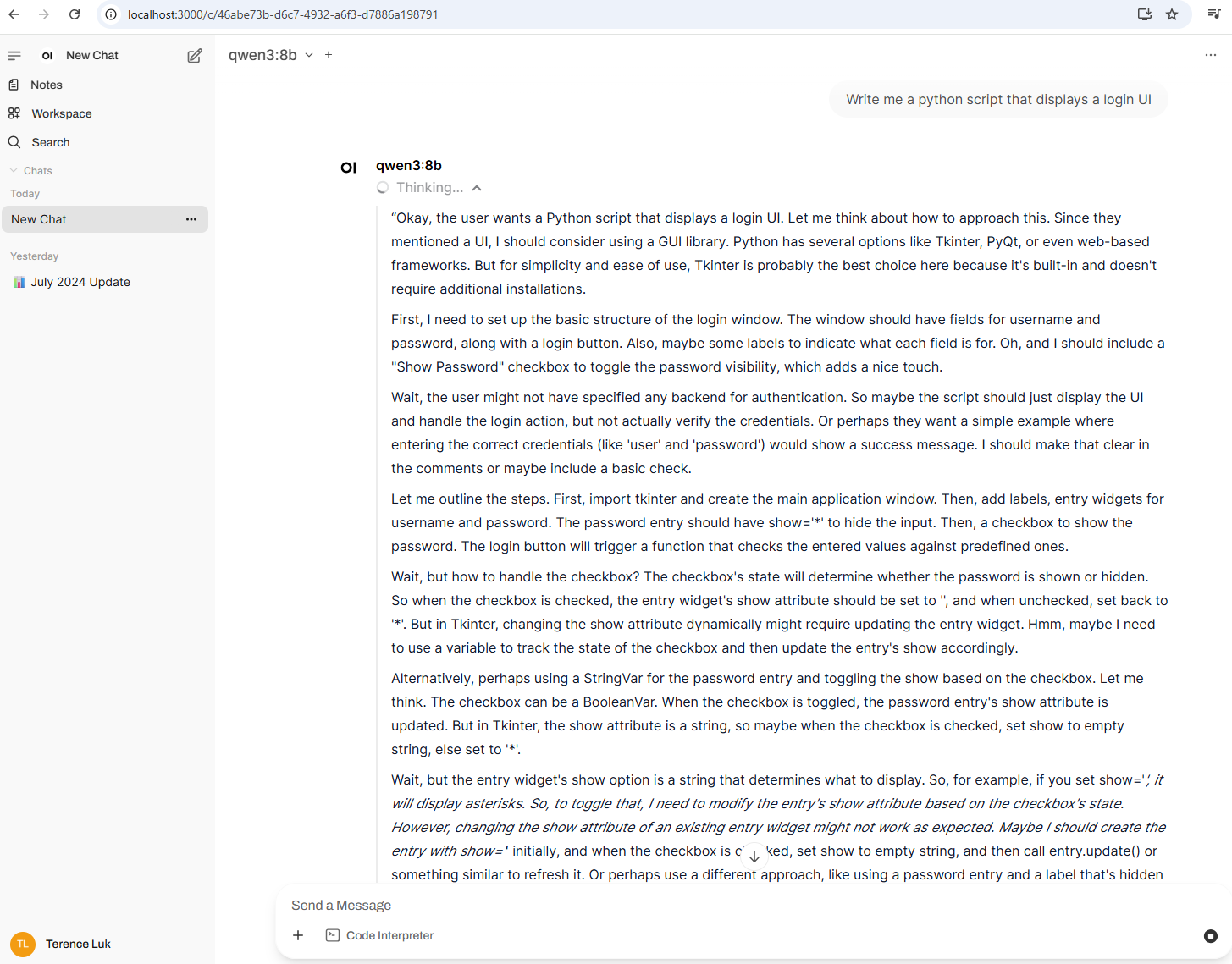
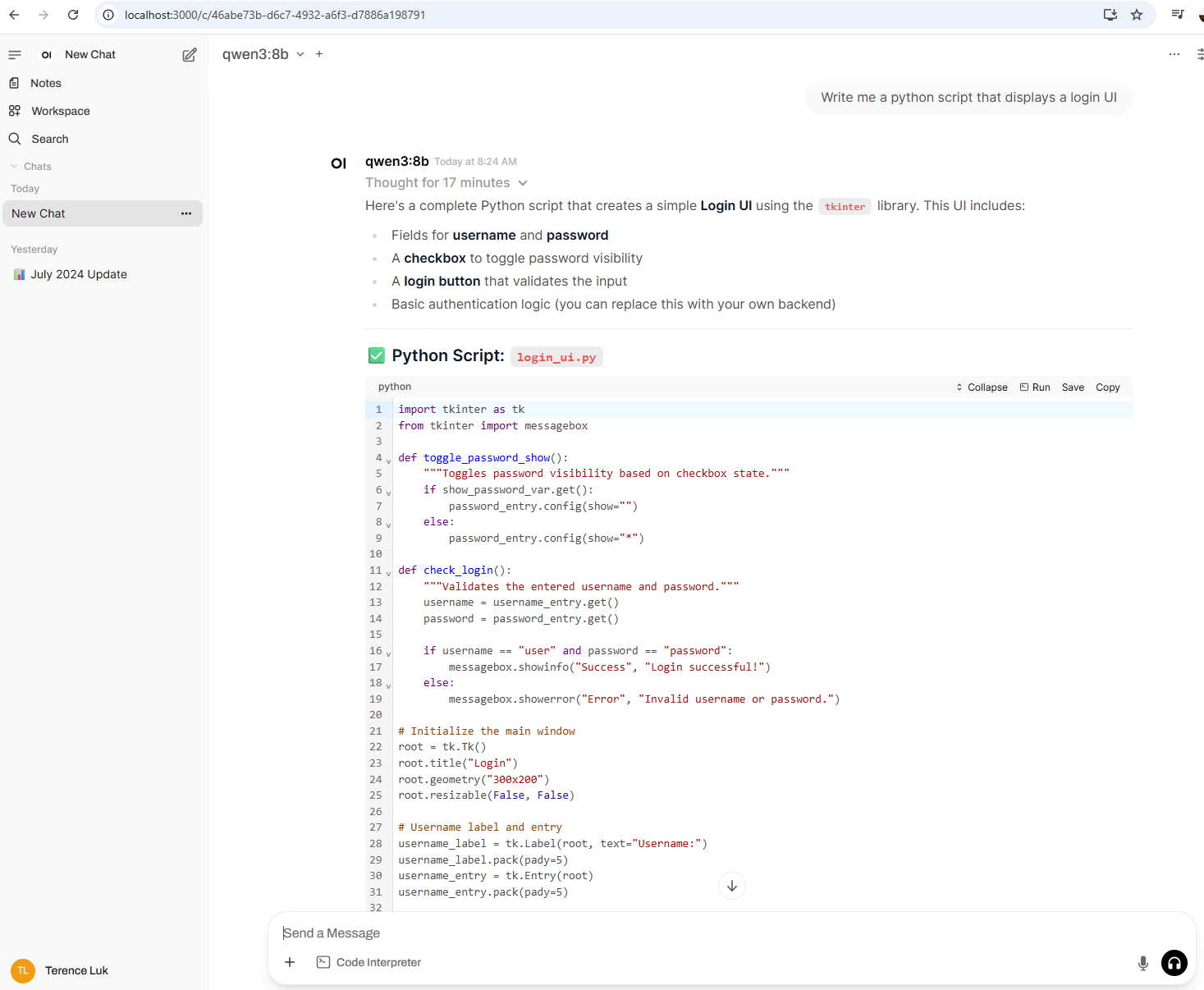
It took a bit of time on my not very powerful laptop but it eventually created the python script:
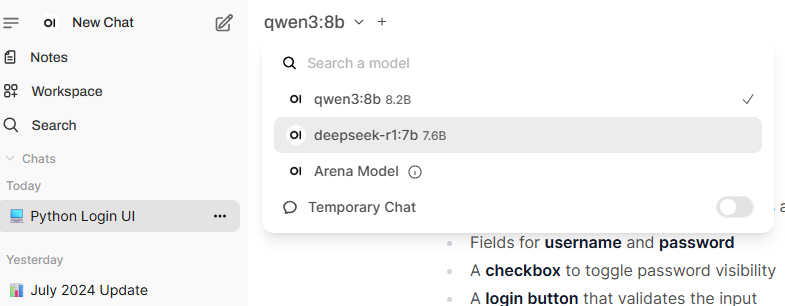
You can flip between the locally installed models as desired while in Open WebUI:
I hope this provides a good walkthrough of using Open WebUI and Ollama to run local LLMs.
For the next post, I will be demonstrating how to configure Open WebUI to use cloud hosted models from Azure and directly from OpenAI.

