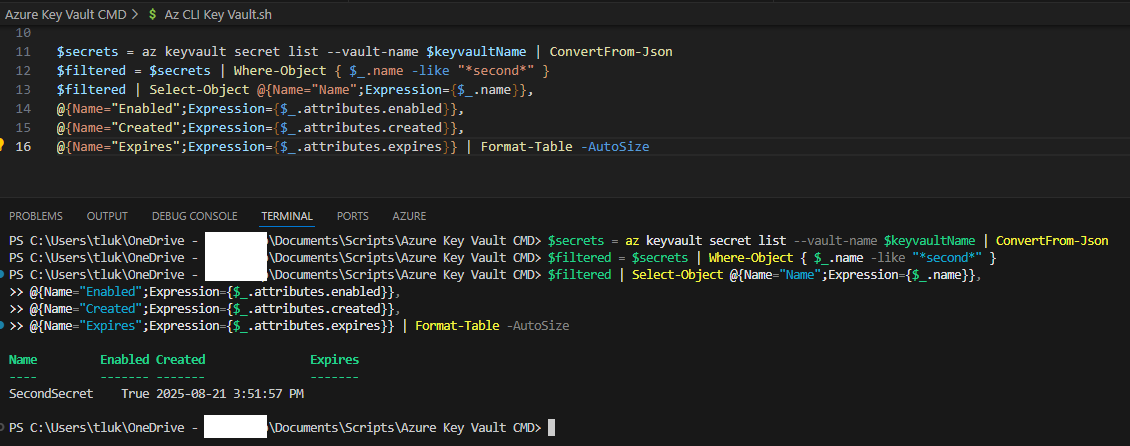
Administrators who need to retrieve Azure Key Vault secrets and have worked with Azure Key Vaults with a substantial amount of Secrets would understand how painful it is to use the portal.azure.com GUI and have to continuously click on the Load more link to display the next set of secrets in the Key Vault. Through my years of working with different clients and different Key Vaults with a large amount of secrets, I’ve compiled a list of Azure CLI commands as well as a batch file to retrieve secrets and would like to share them with this blog post.
Batch File – Does not require Azure CLI
Get Secret
For situations where I do not have Azure CLI installed on a device that I need to either:
- Retrieve a secret (when I am dealing with a Key Vault with many secrets)
- Test retrieving a secret from an Azure Key Vault (when connectivity troubleshooting)
… I use the following batch file that will use native command prompt commands and PowerShell to:
- Log in with a Device Code via https://microsoft.com/devicelogin
- Retrieve a secret and its properties from a Key Vault
The batch file can be found here in my GitHub repo: https://github.com/terenceluk/Azure/blob/main/Azure%20Key%20Vault/get-secret.bat
**Note that you cannot just copy and paste the contents into a command prompt to execute. You’ll need to create the .bat file and execute it.
The code in the batch file include the following explanation on how to include or not include switches:
:: ========================================================================
:: EXAMPLE CONFIGURATION
:: ========================================================================
:: All defaults
:: get-secret.bat
:: Different key vault only
:: get-secret.bat production-vault
:: get-secret.bat https://prod-vault.vault.azure.net
:: Different key vault and secret
:: get-secret.bat production-vault DatabasePassword
:: get-secret.bat test-vault ApiKey
:: Different key vault, secret, and tenant
:: get-secret.bat production-vault DatabasePassword mycompany.com
:: get-secret.bat prod-vault ApiKey 12345678-1234-1234-1234-123456789012
:: Default vault, different secret and tenant
:: get-secret.bat “” DatabasePassword mycompany.com
:: Default vault and secret, different tenant
:: get-secret.bat “” “” mycompany.com
:: Different vault, default secret, different tenant
:: get-secret.bat production-vault “” mycompany.com
:: Show help
:: get-secret.bat /?
:: get-secret.bat –help
:: ========================================================================
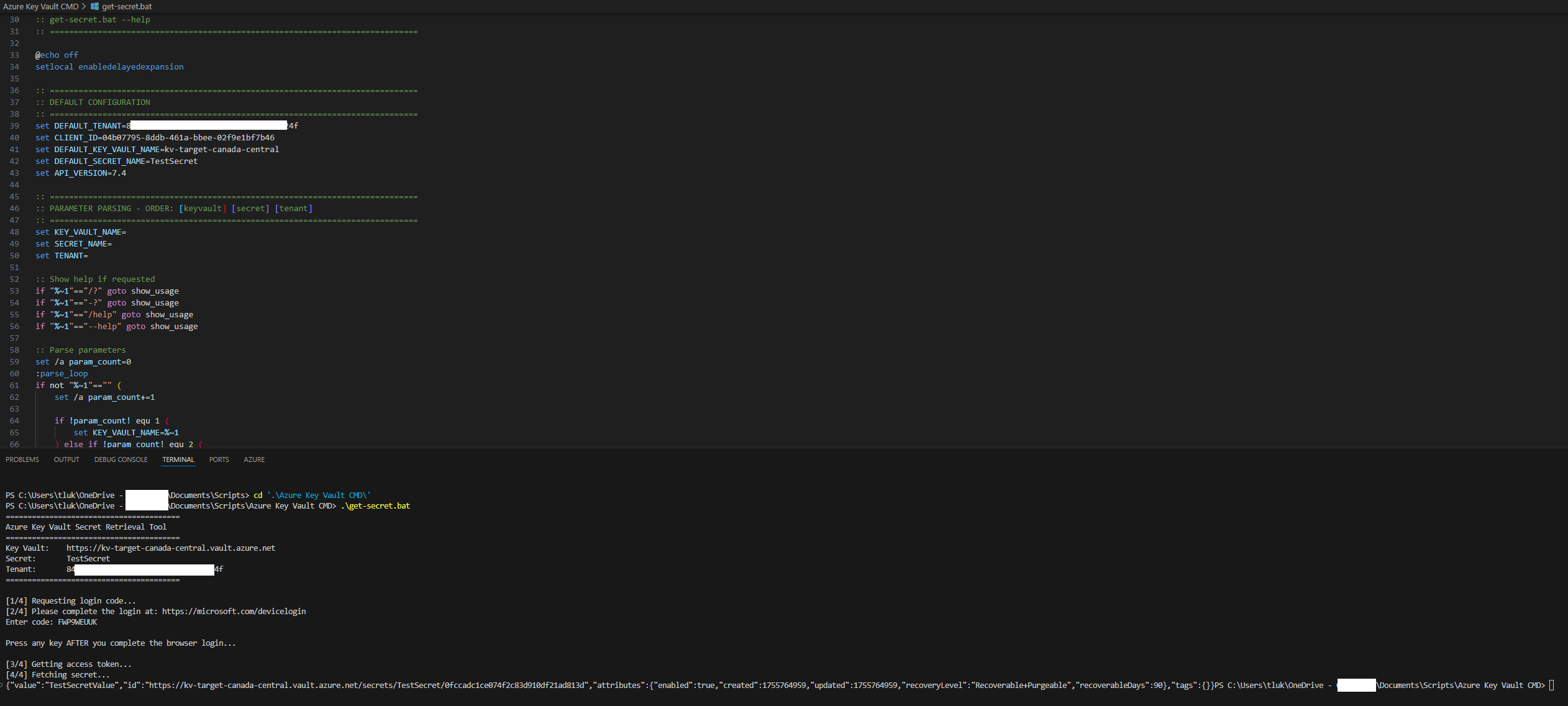
Here is a sample of the output:
Azure CLI: Retrieve Azure Key Vault Secrets
For scenarios where the endpoint I’m using has Azure CLI, the following are commands I use to retrieve Azure Key Vault secrets.
Begin by defining variables for the Azure Tenant, the Key Vault Name and the Secret (if we know) we want to retrieve.