
As a follow up to my previous post:
Another common issue I come across is when I attempt to download a certificate imported into a Key Vault from an App Service Certificate. What you’ll notice with such an import is that it is not placed into the Certificates blade, rather, it is placed into Secrets with the Type as application/x-pkcs12:

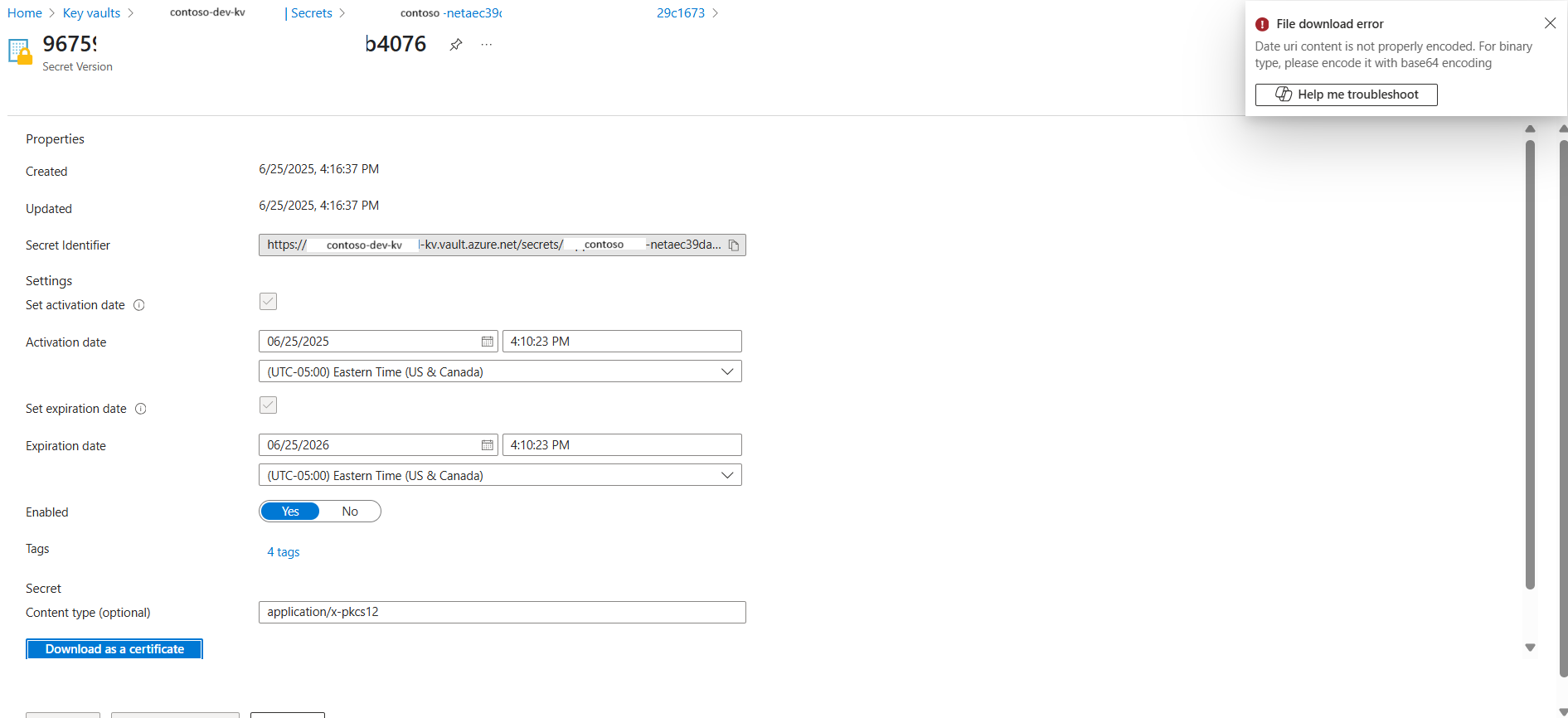
Clicking into secret will display the current version that was imported:

However, attempting to click on the Download as certificate button will display the error:
File download error
Date uri content is not properly encoded. For binary type, please encode it with base64 encoding
I haven’t had any luck finding a way to download the certificate from the Key Vault via GUI and what would always work for me is to use the Azure CLI for this as described here:
Export certificates from Azure Key Vault
https://learn.microsoft.com/en-us/azure/key-vault/certificates/how-to-export-certificate?tabs=azure-cli
Here is the command and parameters:
–vault-name <YourKeyVaultName> \
–name <YourCertificateName> \
–file <OutputFilePath> \
–encoding base64
az keyvault secret download \
–vault-name MyKeyVault \
–name MyAppCert \
–file “C:\certs\cert.pfx” \
–encoding base64
Note that the \ is used for bash. Swap the \ out with ` if executing in PowerShell.
Hope this provides anyone who might be looking to get around the portal export error.

