
One of the recent preview release from Microsoft that I’ve been excited about is the ability to use a Standard Logic App as a remote MCP Server (https://learn.microsoft.com/en-us/azure/logic-apps/set-up-model-context-protocol-server-standard). This, in my opinion, made a lot of sense because many organizations can have many complex business logic that are already built with as Logic App workflows and with a bit of tweaking, can serve as robust tools that AI Agents can leverage. I’ve been spending much of my spare time exploring this functionality and would like to demonstrate how to create a Logic App workflow that an AI Foundry agent can use as a tool to retrieve information.
This blog post will demonstrate the following:
- How to set up a Logic App workflow that will accept a formatted JSON to query Azure Resource Graph Explorer
- This Logic App will return either Success response with data or Error response with the failed details
- How to configure the Logic App to act as an MCP server
- Create an AI Agent that uses the Logic App as an MCP tool
- Use the AI Agent to query Azure Resource Graph Explorer
#1 – How to set up a Logic App workflow that will accept a formatted JSON to query Azure Resource Graph Explorer
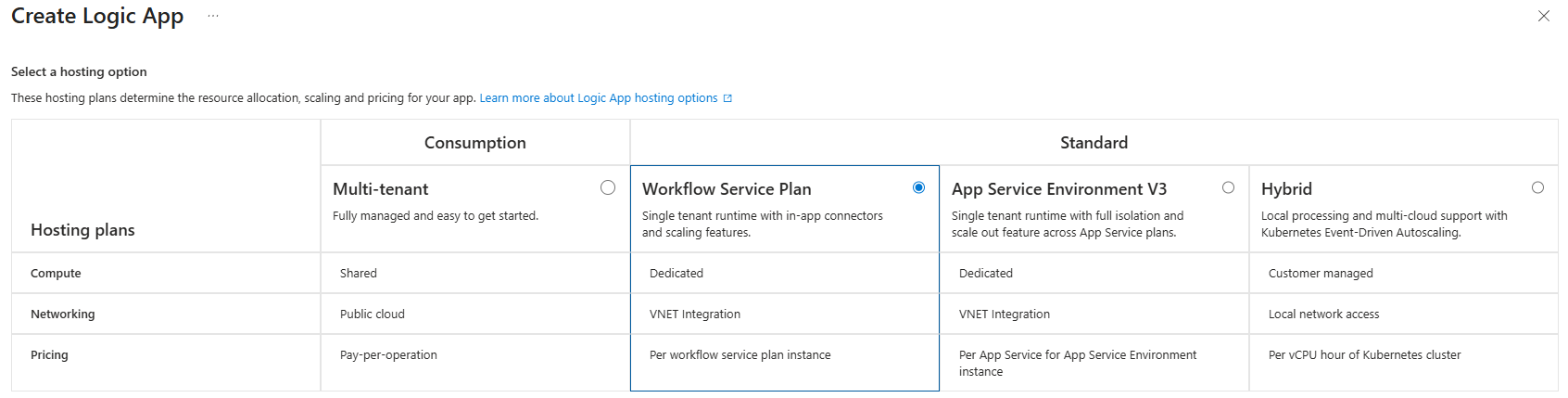
As of today, only Standard Logic Apps are supported to serve as an MCP server so begin by creating Workflow Service Plan logic app:
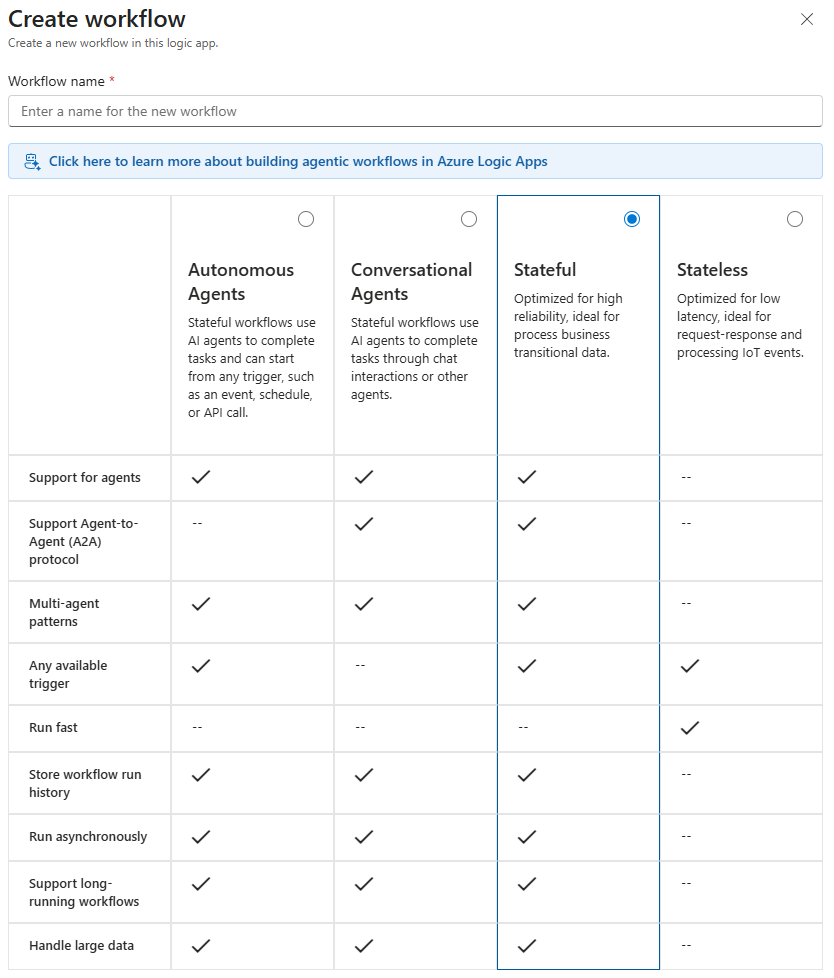
Proceed to create a Stateful workflow:
Proceed to configure the Logic App with System Managed Identity turned on:
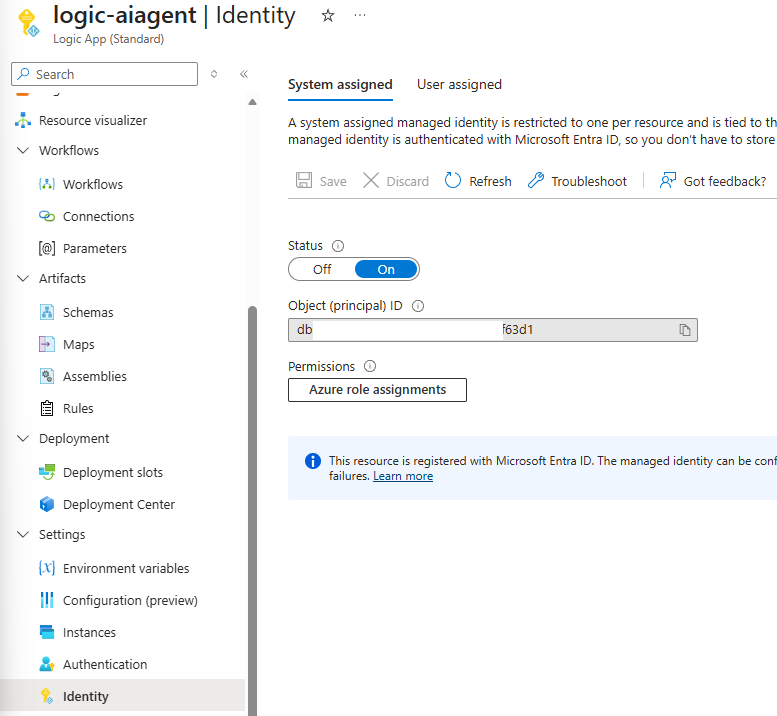
In order for this Logic App’s System Managed Identity to retrieve the information from other subscriptions, we will need to grant it permissions to those subscriptions. Unfortunately, there isn’t an easy way to grant it permissions to all subscriptions as using the Azure role assignments because the Scope options are limited to:
- Subscription
- Resource group
- Key Vault
- Storage
- SQL

One of the ways I’ve gotten around this is use a PowerShell script to assign Reader permissions to every subscription to the Logic App’s Managed Identity. This script can be retrieved from my GitHub repository: https://github.com/terenceluk/Azure/blob/main/Subscriptions/Grant-Logic-App-Subscription-Permissions.ps1
**Note that this will grant the Logic App Reader permissions to every subscription the account used to authenticate has.
I typically demonstrate the the configuration of the Logic App via the GUI because it’s easier to understand the flow but for this blog post, I will simply supply the screenshots of the actions and provide the Logic App code in which it can be copied and pasted to create the workflow: https://github.com/terenceluk/Azure/blob/main/Logic%20App/Azure-Resource-Graph-Explorer.json
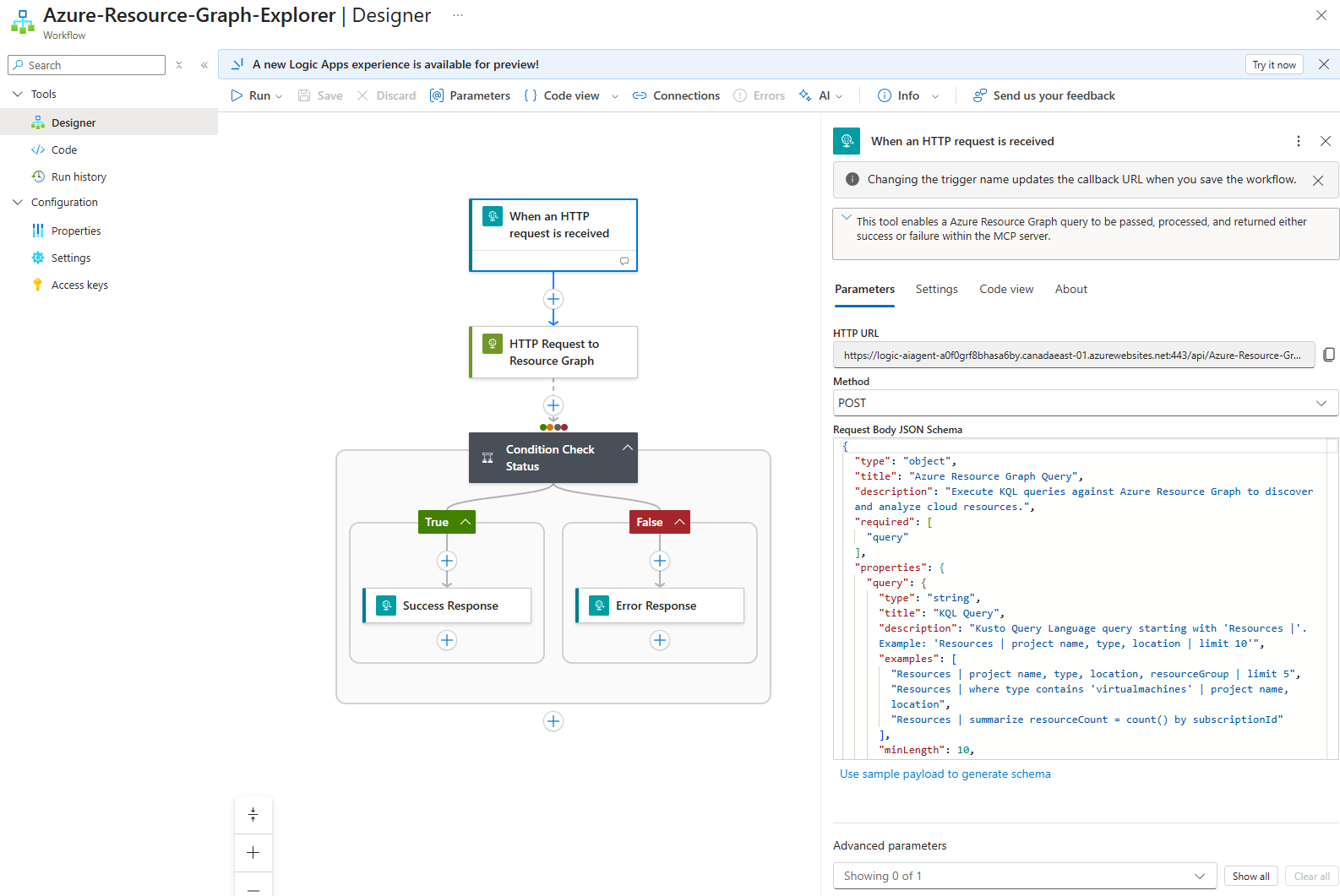
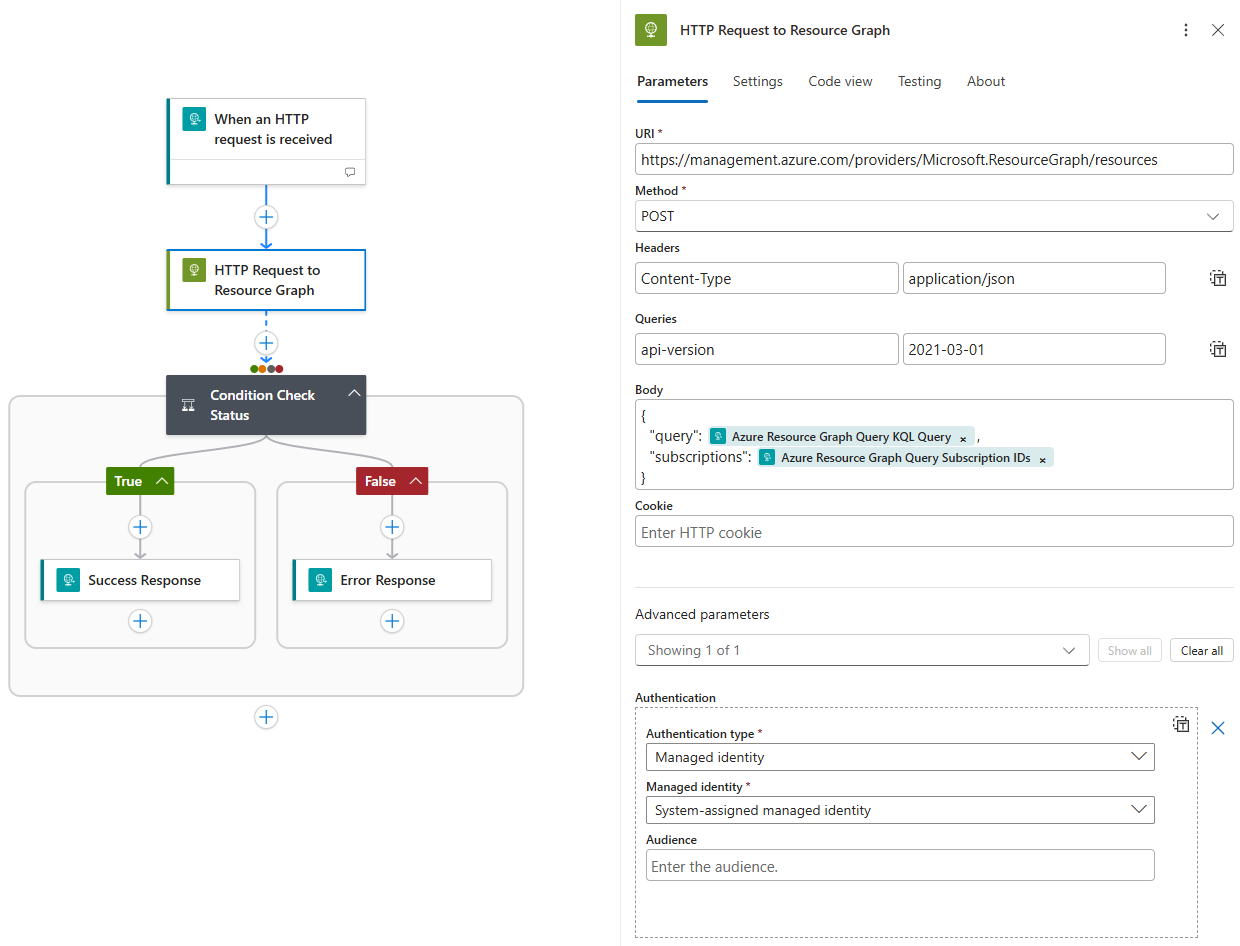
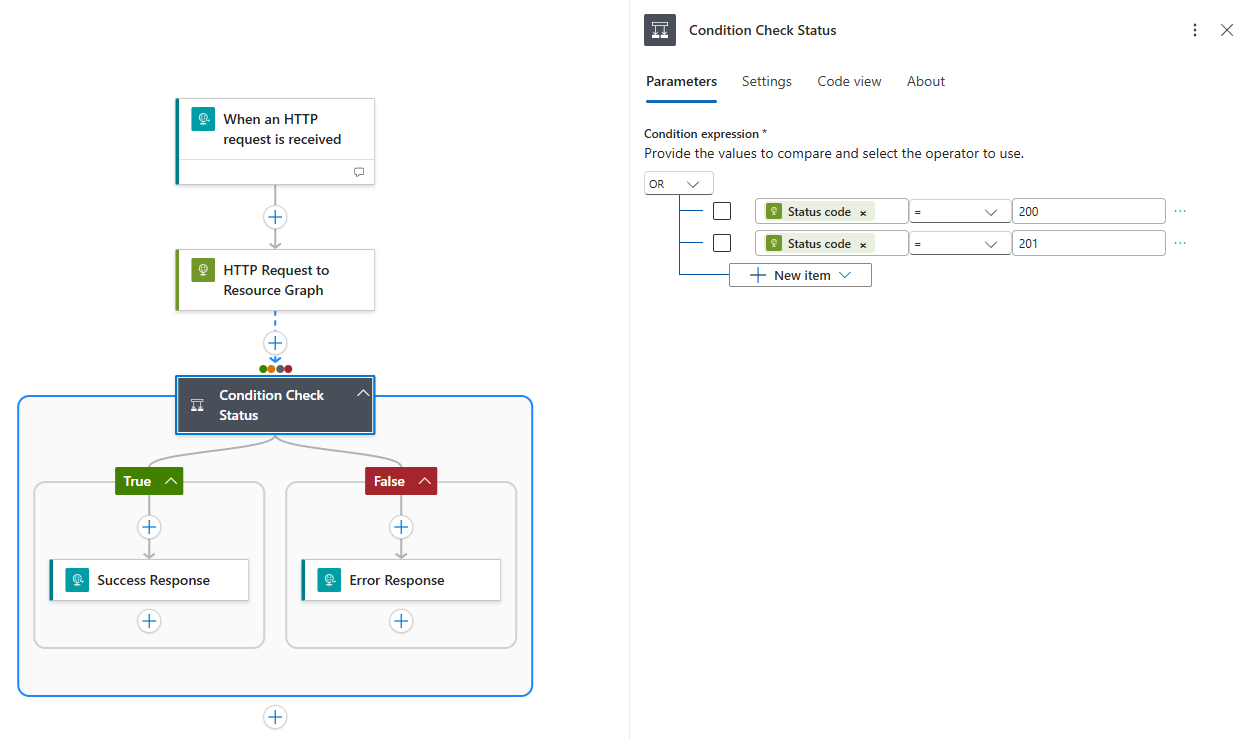
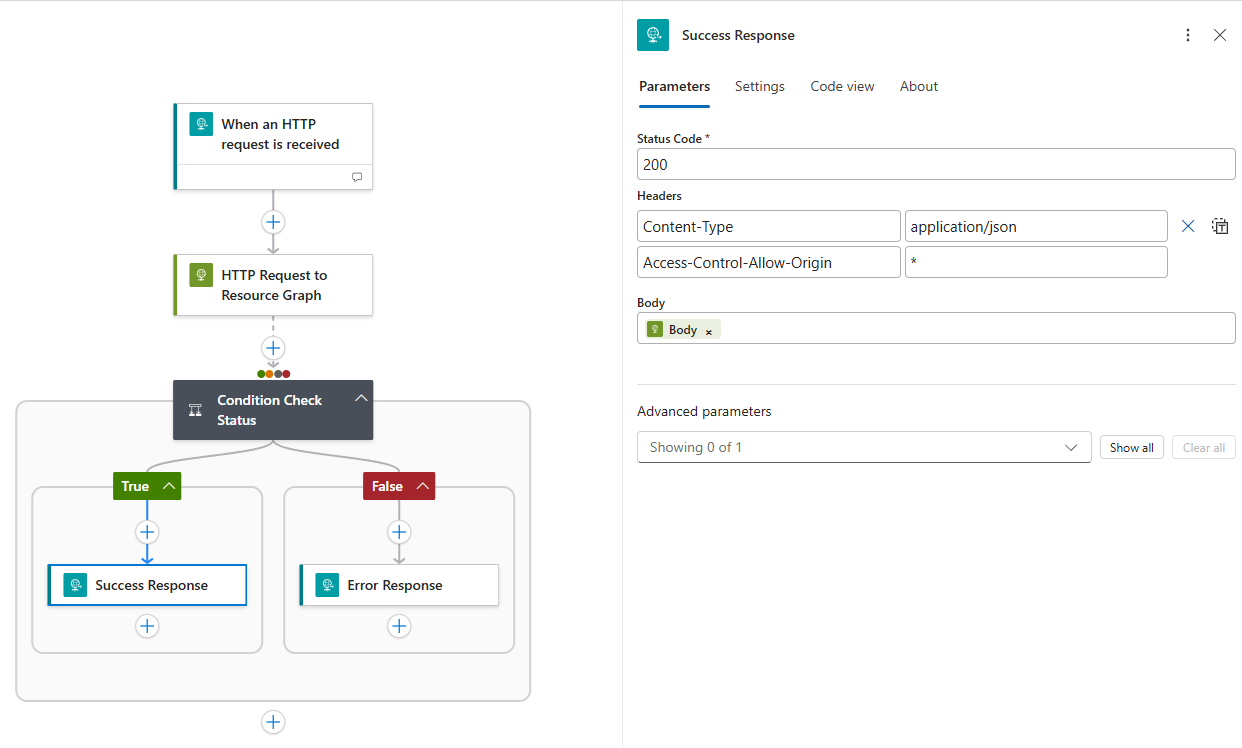
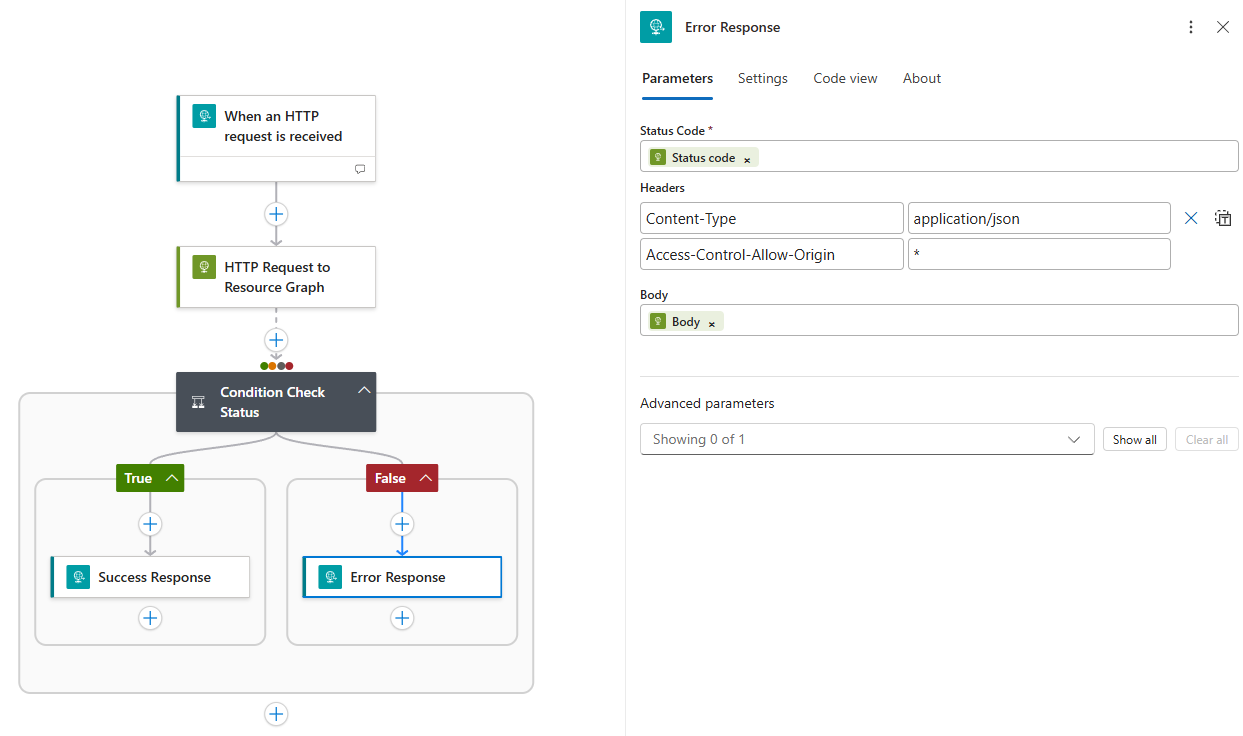
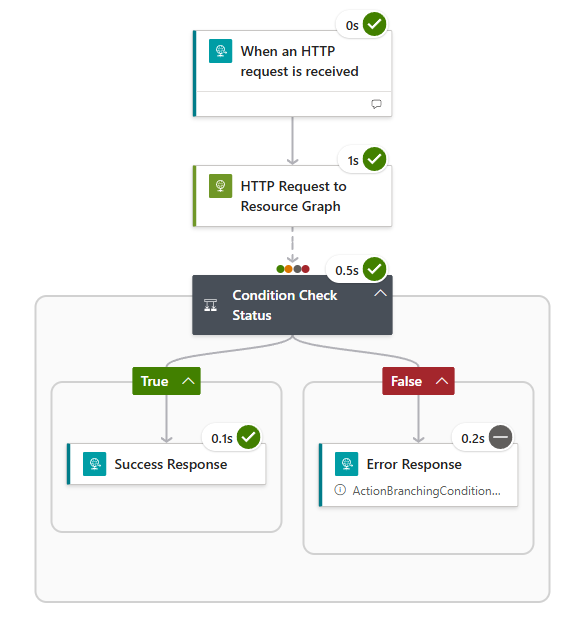
#2 – This Logic App will return either Success response with data or Error response with the failed details
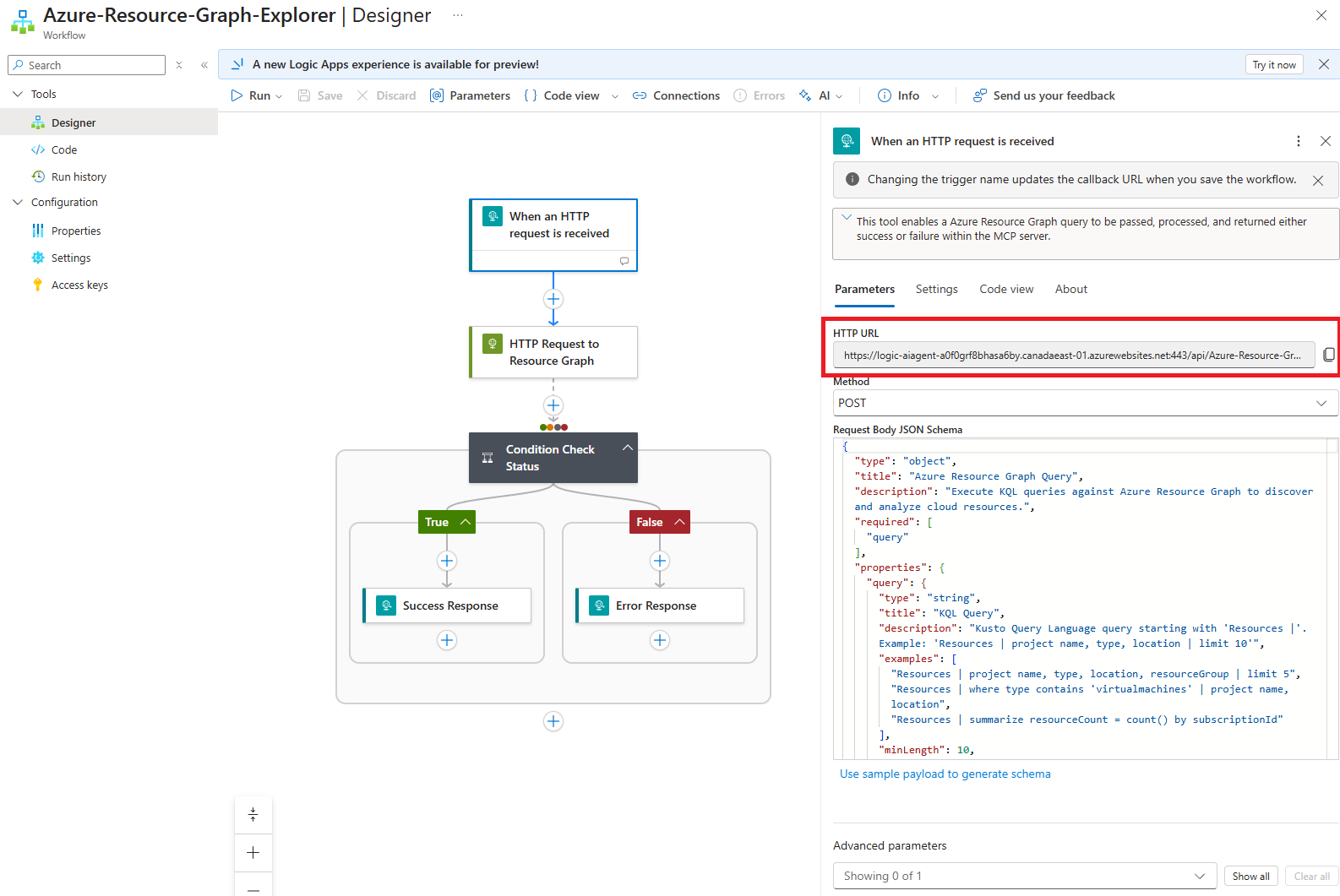
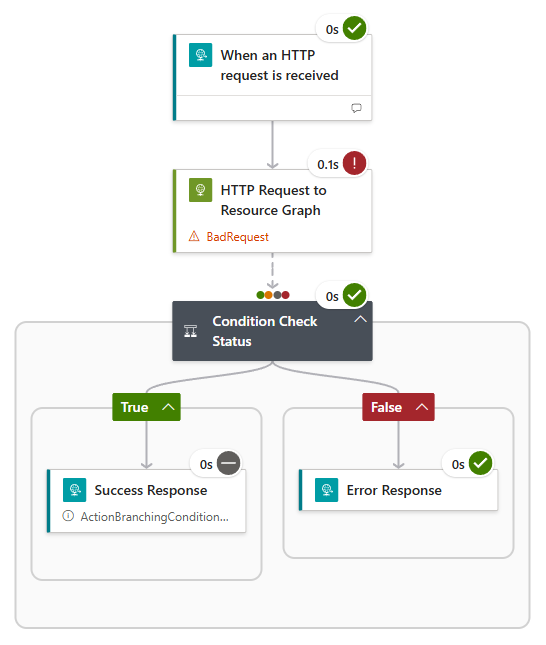
With the Logic App created, we can test it with Postman by copying the HTTP URL:
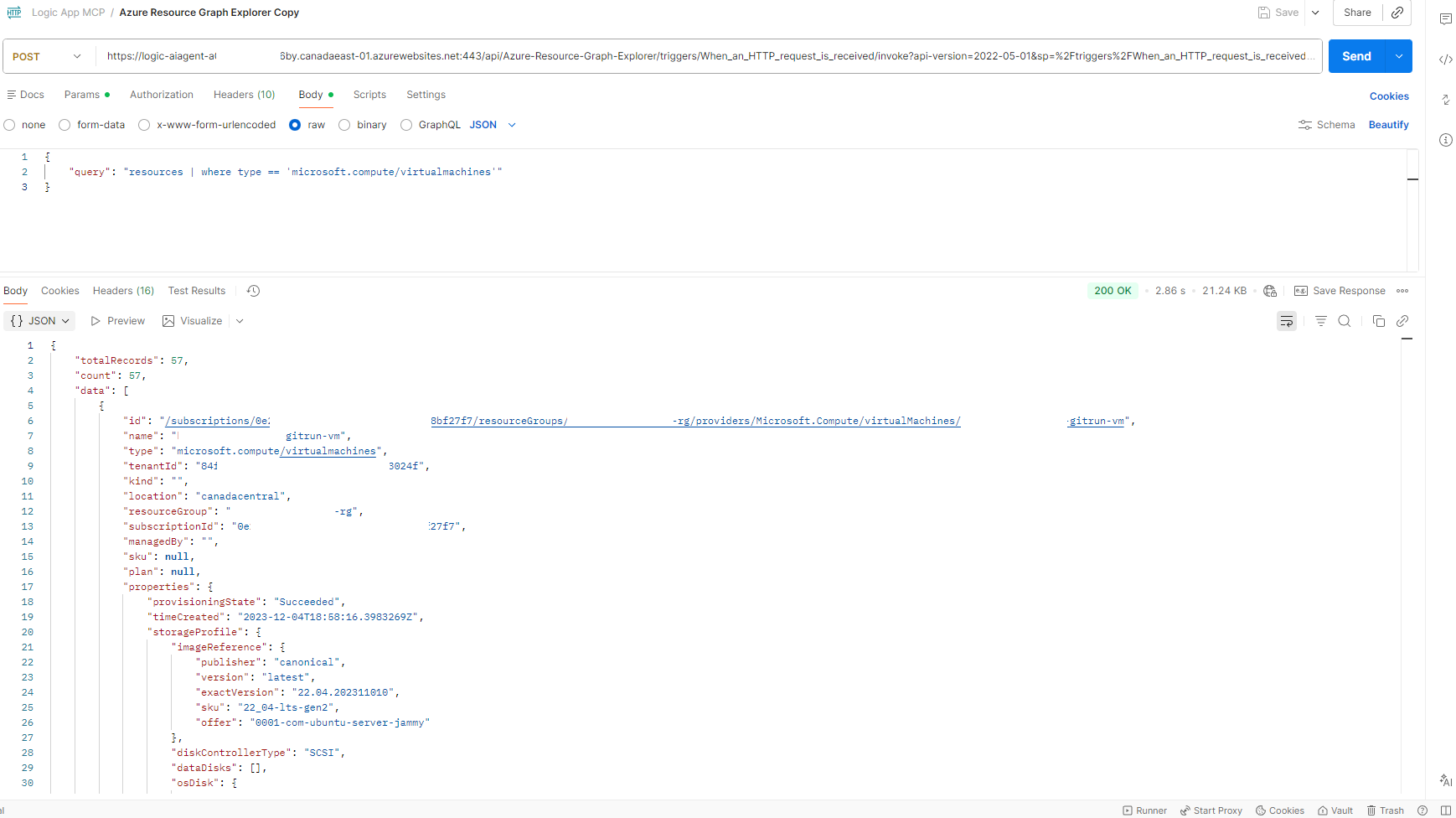
… and calling it with this body:
Success
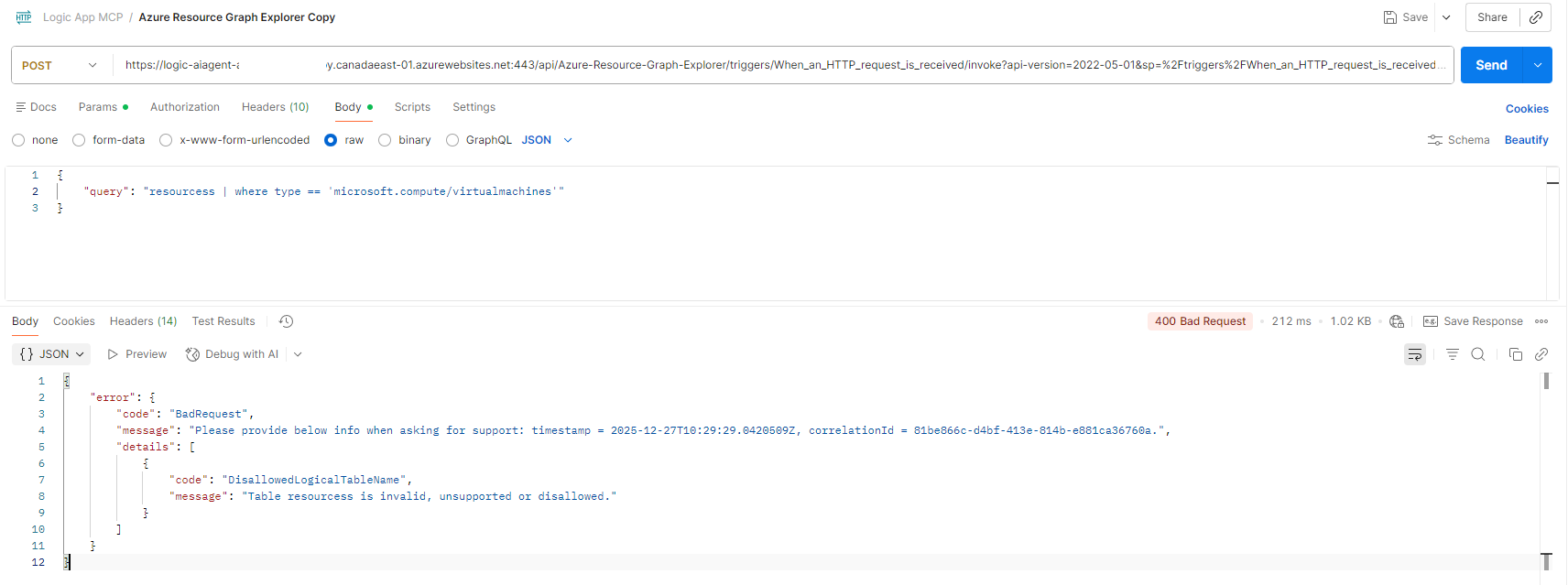
Failure (typo for resources)
#3 – How to configure the Logic App to act as an MCP server
With the Logic App workflow configured and tested, the next step is to configure it to act as an MCP server. There are two authentication modes available but for simplicity, we’ll configure the Logic App MCP server with Unauthenticated Anonymous Authentication. This is not recommended so I’ll be following up with another post to demonstrate how to set up authentication.
Navigate to the Development Tools heading of the Logic App navigation blade, click on Advanced Tools, and launch Kudu:
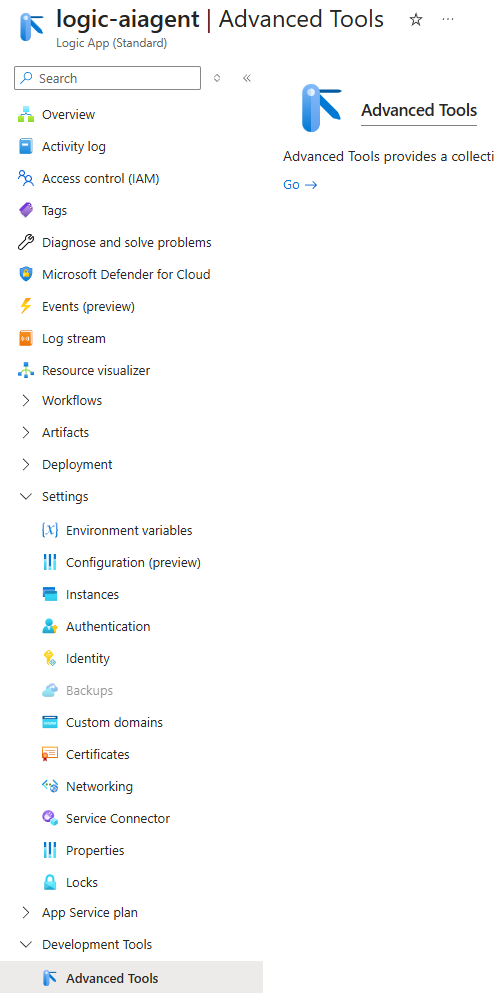
Once in Kudu, click on Debug console then CMD: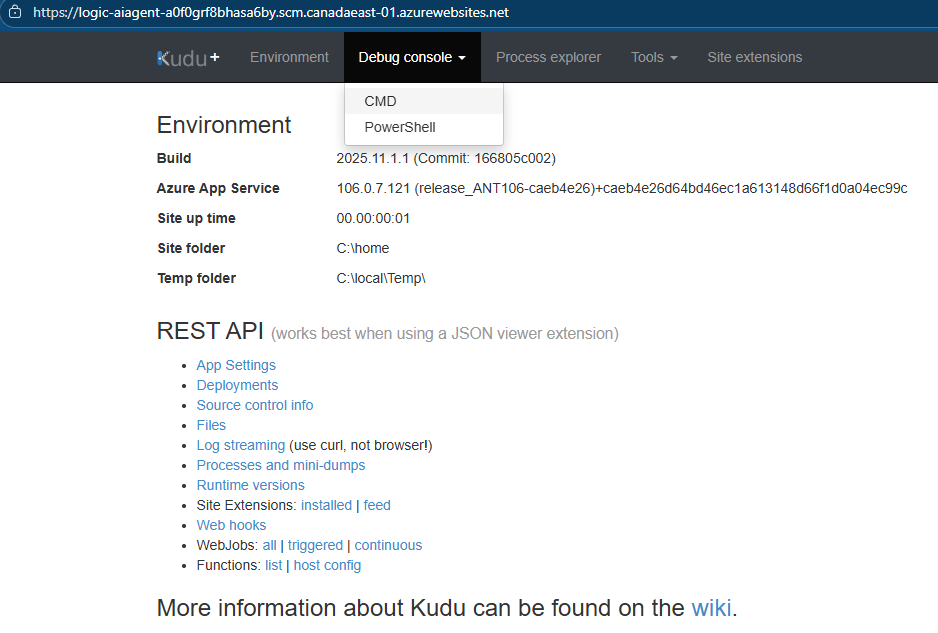
Navigate to site:
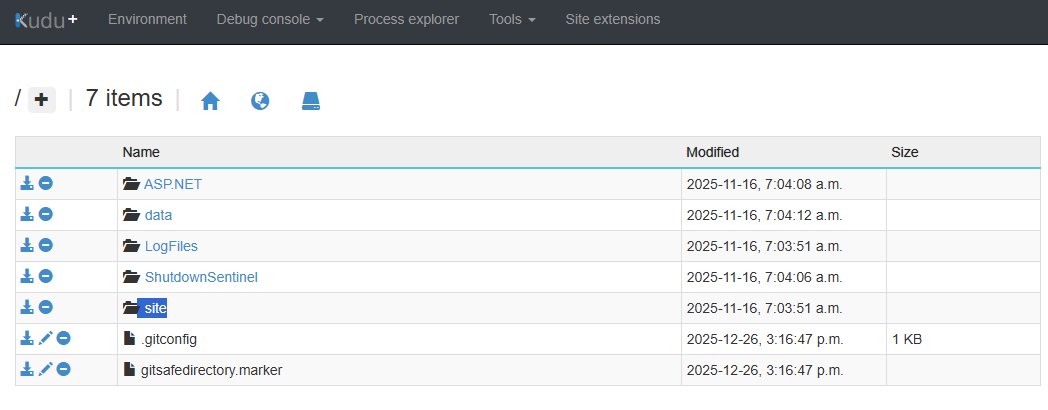
Then wwwroot:

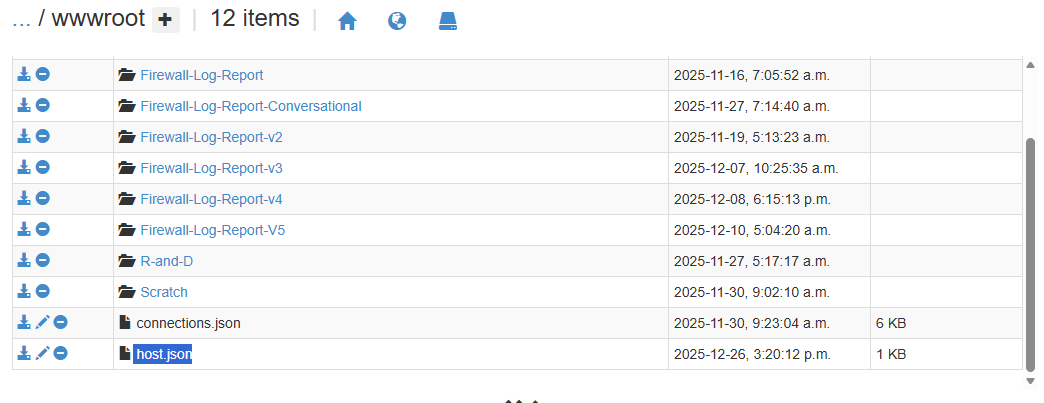
Then click on the pencil icon beside host.json to edit the file:
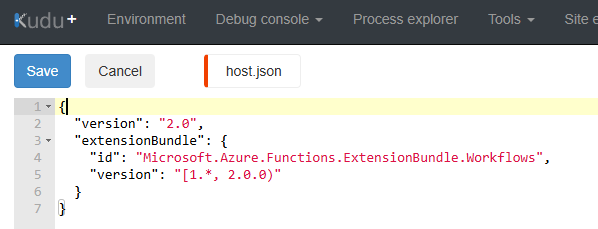
The default values in the host.json will be as such:
What we want to do is append the following to expose this Logic App as an MCP tool and allow for anonymous authentication (no authentication):
https://github.com/terenceluk/Azure/blob/main/Logic%20App/anonymous-host.json
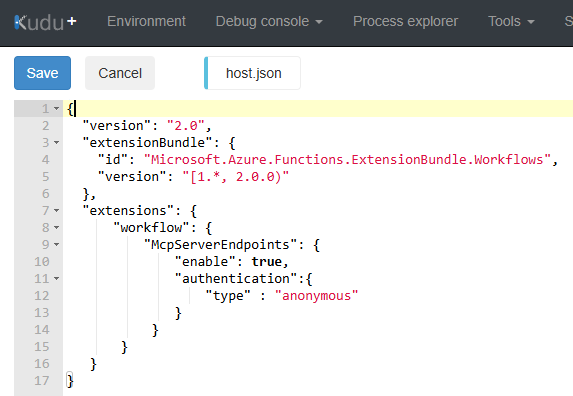
Save the changes.
#4 – Create an AI Agent that uses the Logic App as an MCP tool
With the Logic App configured, we can proceed to create the MCP tool in AI Foundry and create an to use the tool.
Proceed to use the Connect a tool in Tools to create a new tool:

Navigate to Custom then select Model Context Protocol (MCP) and click on Create:
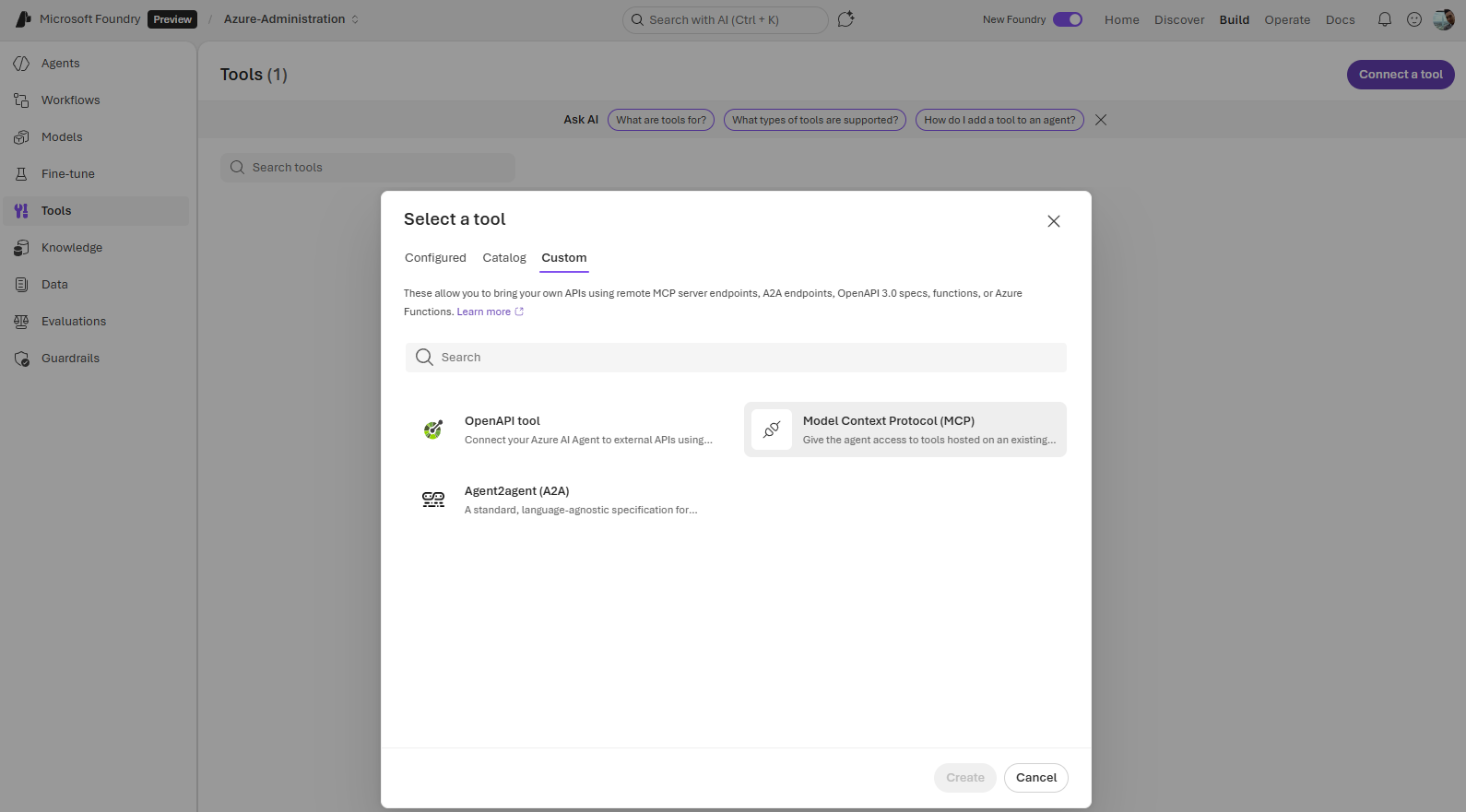
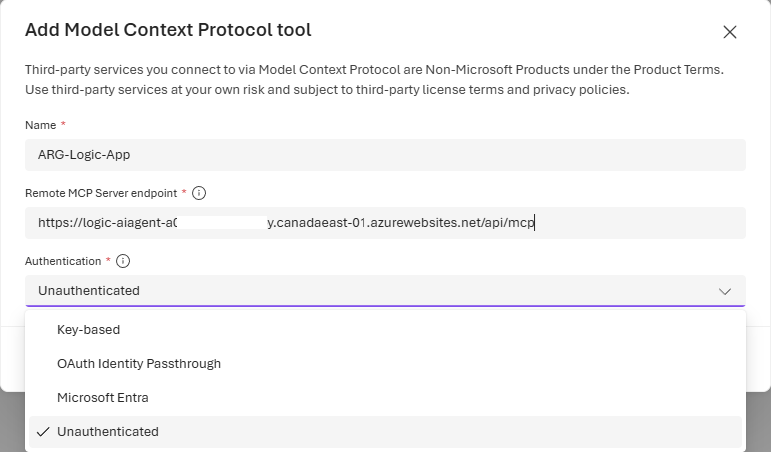
Provide a name for the MCP tool, then copy and paste the Logic App’s Default Domain URL with https:// prefix:

… into the Remote MCP Server endpoint text field and select Unauthenticated as the authentication:
Save the tool.
#5 – Use the AI Agent to query Azure Resource Graph Explorer
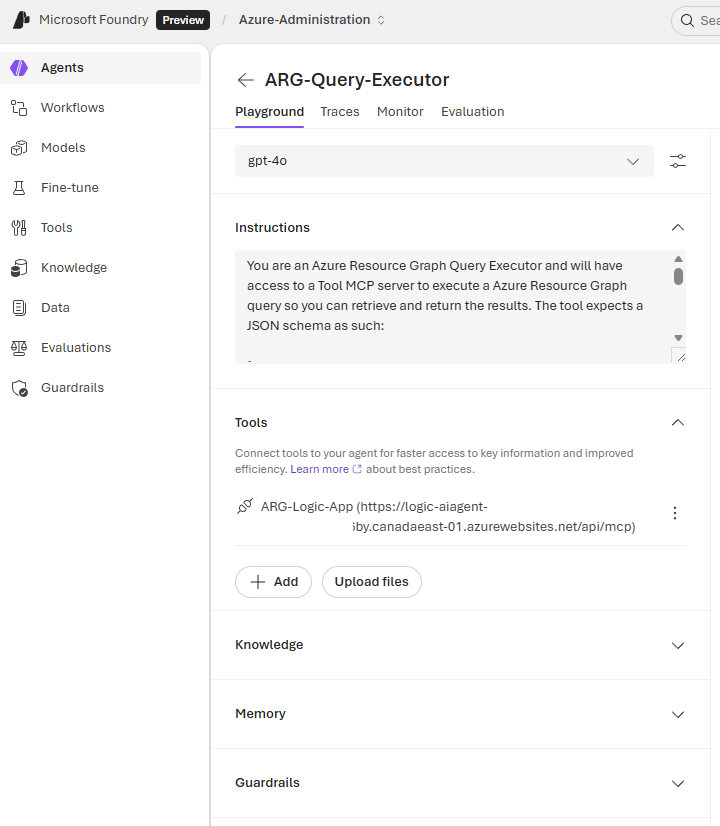
Next, proceed to create an AI Agent and assign the tool.
Instructions: https://github.com/terenceluk/Azure/blob/main/AI-Foundry-Agent-Instructions/ARG-Query-Executor-Agent.txt
We can now proceed to test:
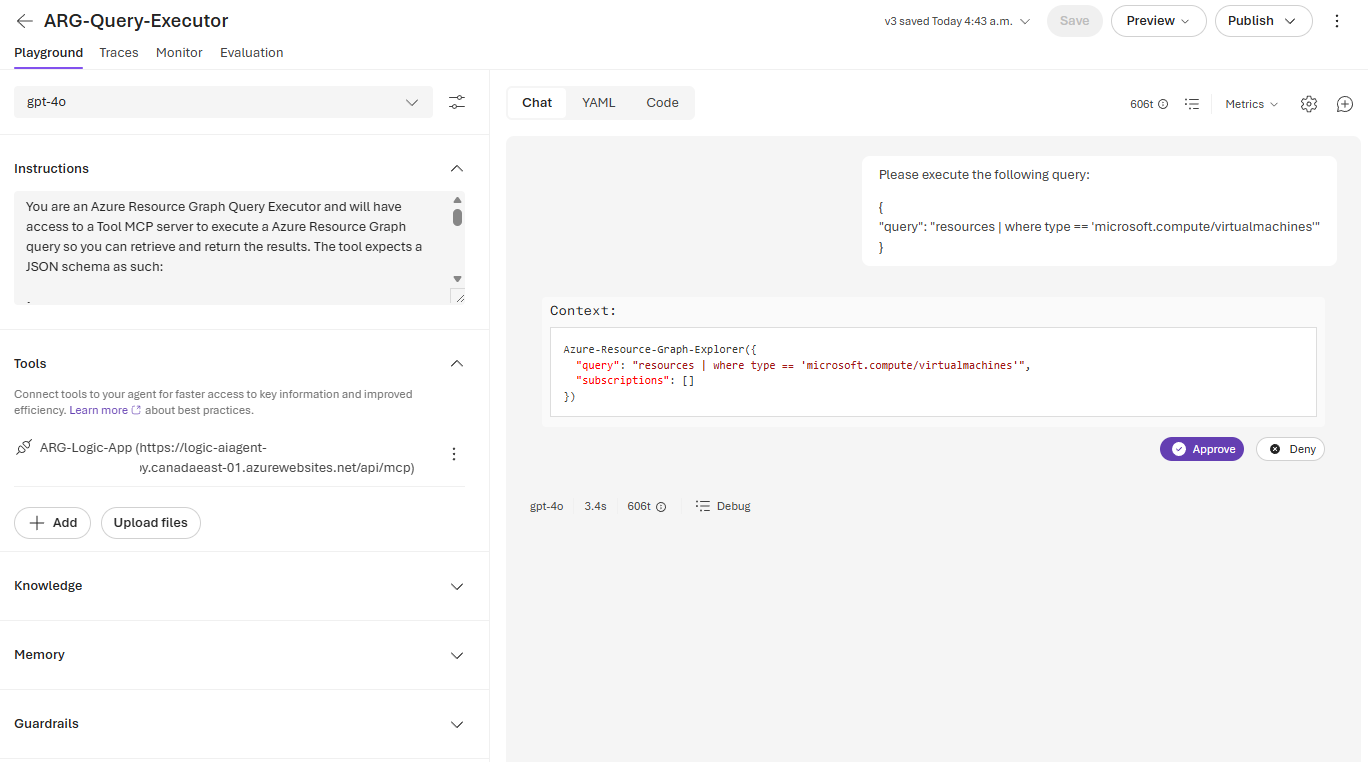
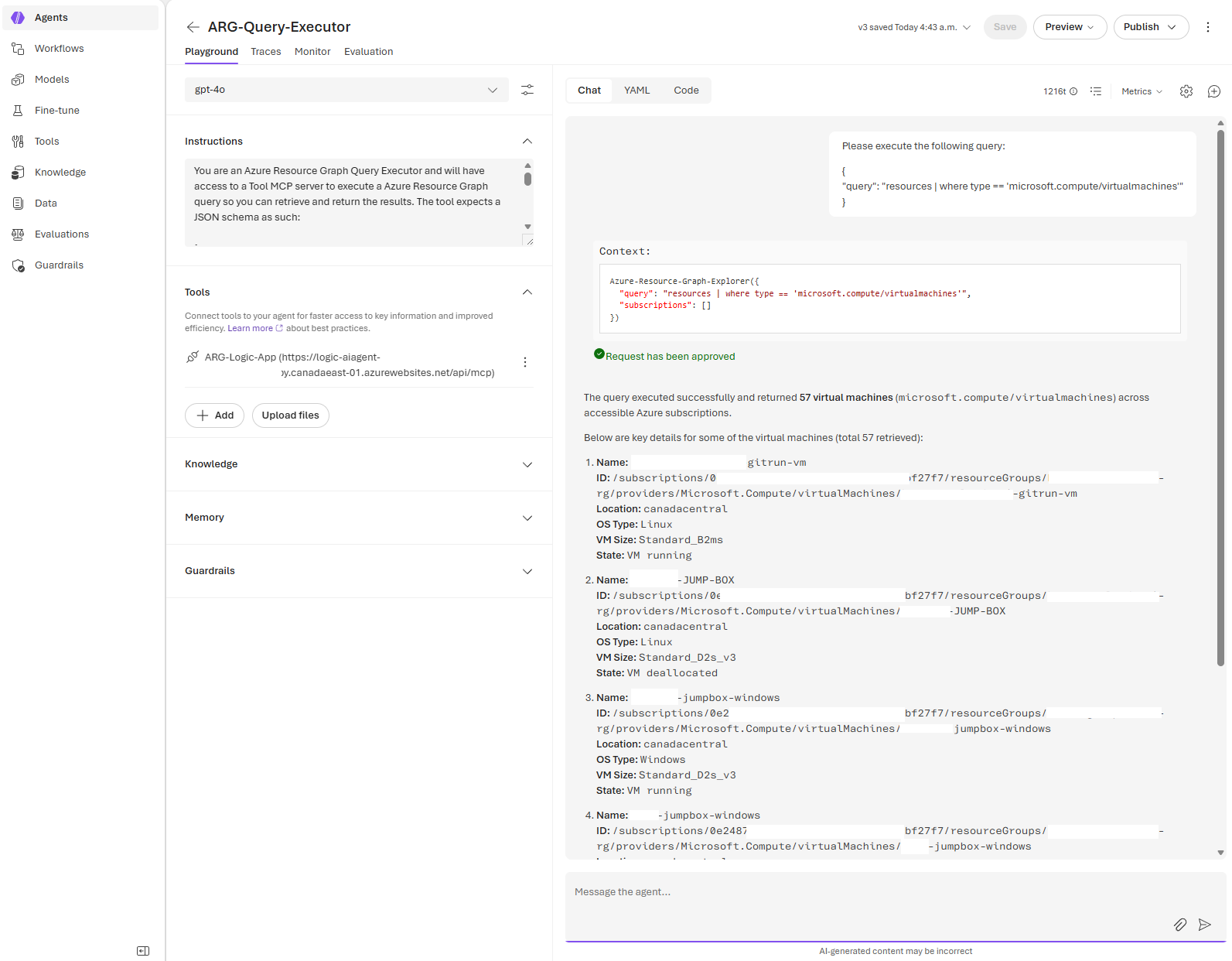
Being able to leverage existing Logic Apps as an MCP tool makes a lot of sense and enables organizations to reuse already operationalized workflows with minor tweaks. I’ll be continuing my AI journey and encourage everyone to do the same. Stay tuned for a follow up post to enable authentication for the MCP tool.

