
Logic App AI Agent output that gets truncated has been a frustrating problem to solve. As a follow up to my previous post:
One of the issues I noticed was that my Logic App AI Agent would consistently truncate the analysis of the Firewall logs for its output (around 5 times out of 10) thus causing the report to be incomplete and loss in confidence with using this as a reliable way of reporting. My other post where I demonstrated using a conversational agent workflow was slightly better because while the logs would be truncated, the bot offered to provide the next batch of records until we got to the end.
As always, I don’t like to admit defeat and certainly wasn’t going to give up on this. The first thought I had was to use a For each loop to try and loop and agent multiple times or place a For each loop within an agent, and both was not allowed. Then I tried to use the Handoff feature to see if I could mimic a multi agent architecture where they would work together to build the full report but I realized Handoff was not offered with autonomous agent workflows that had no human interaction (future feature perhaps?)
What I ended up landing on that would consistently provide me with complete report was not the solution I wanted but served a good enough solution. The following is configuration.
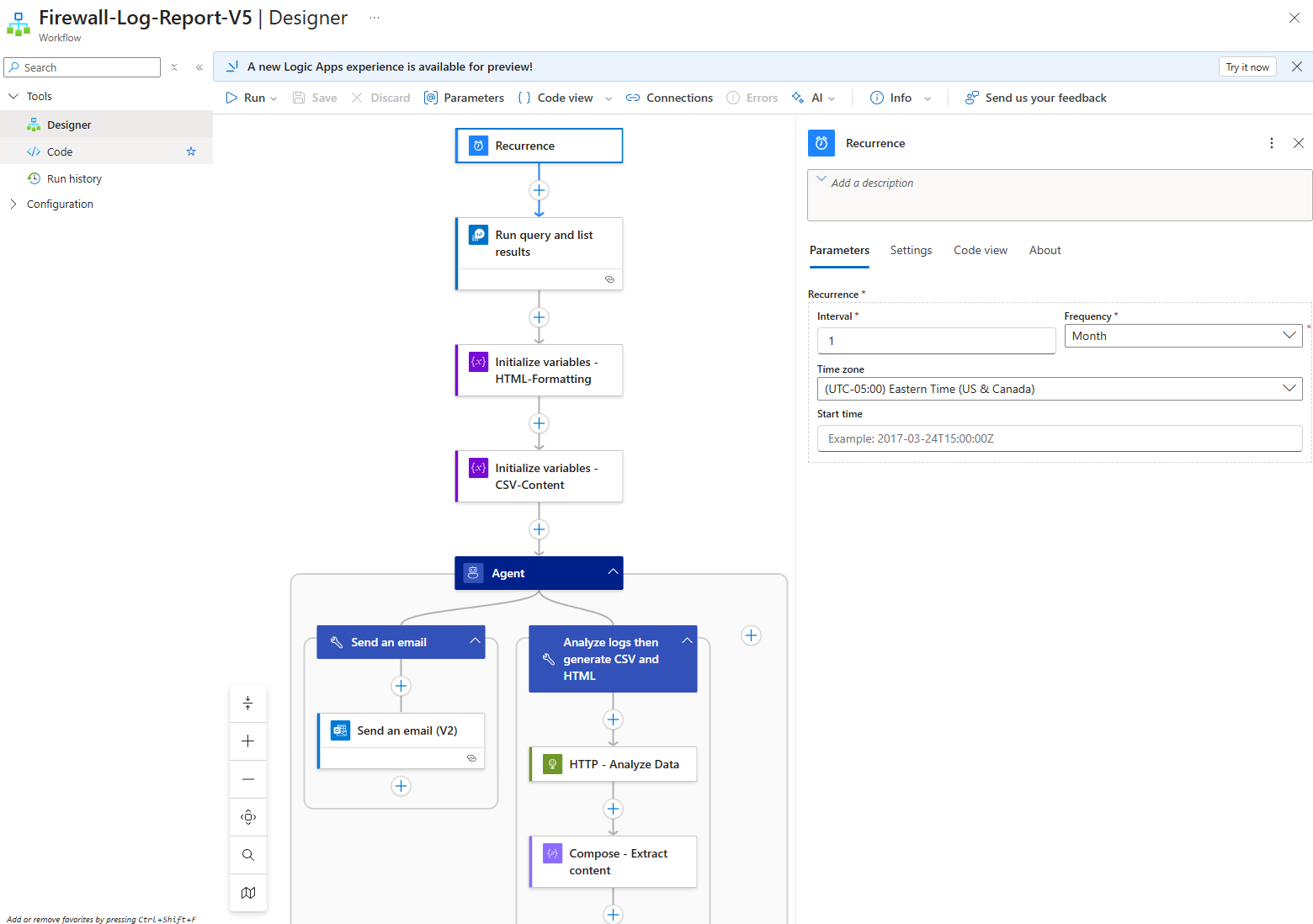
Begin with configuring the recurrence settings you want the the Logic App to run:
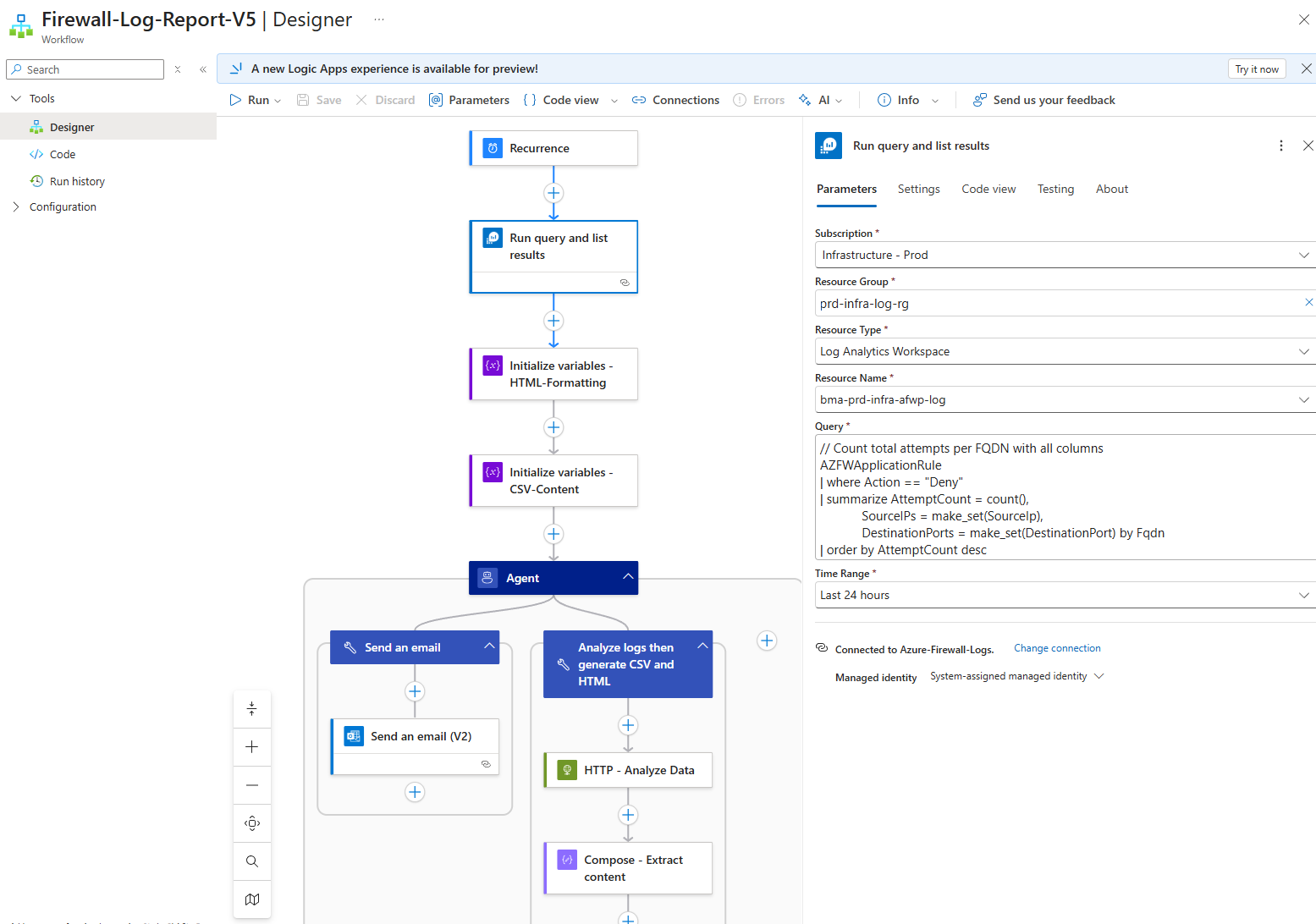
Next, configure the Run query and list results:
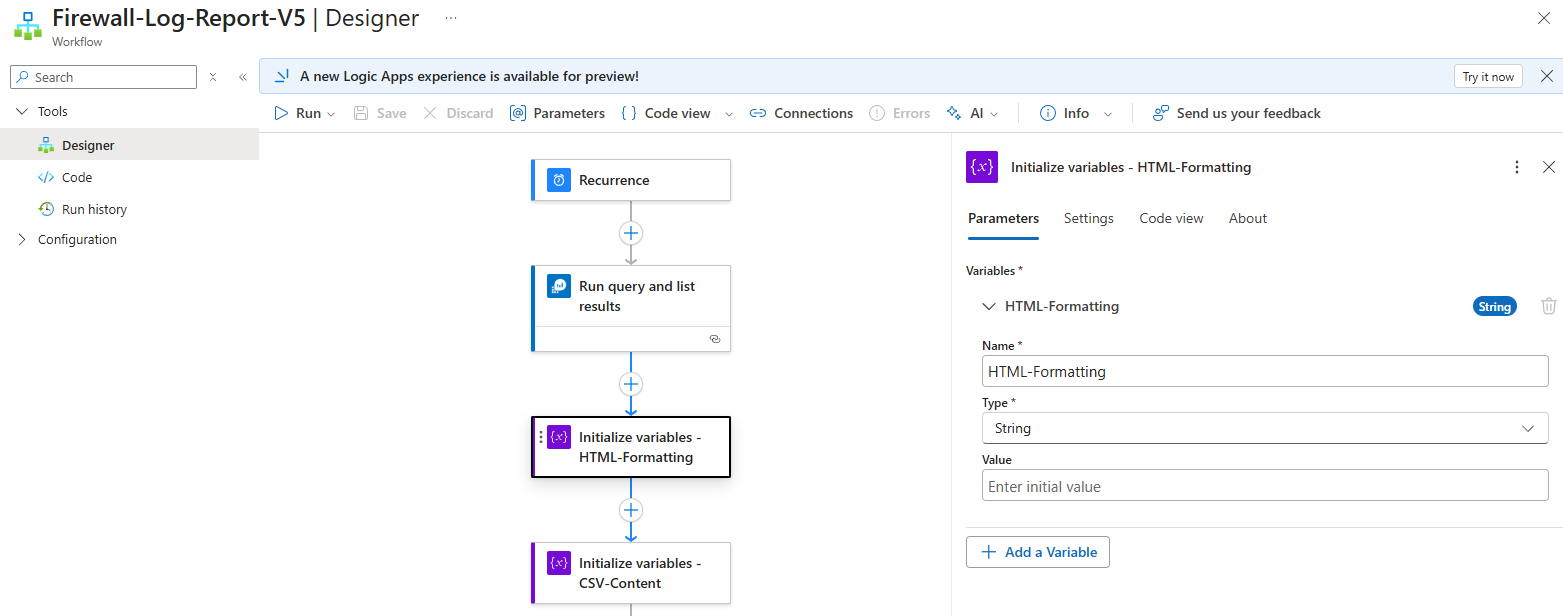
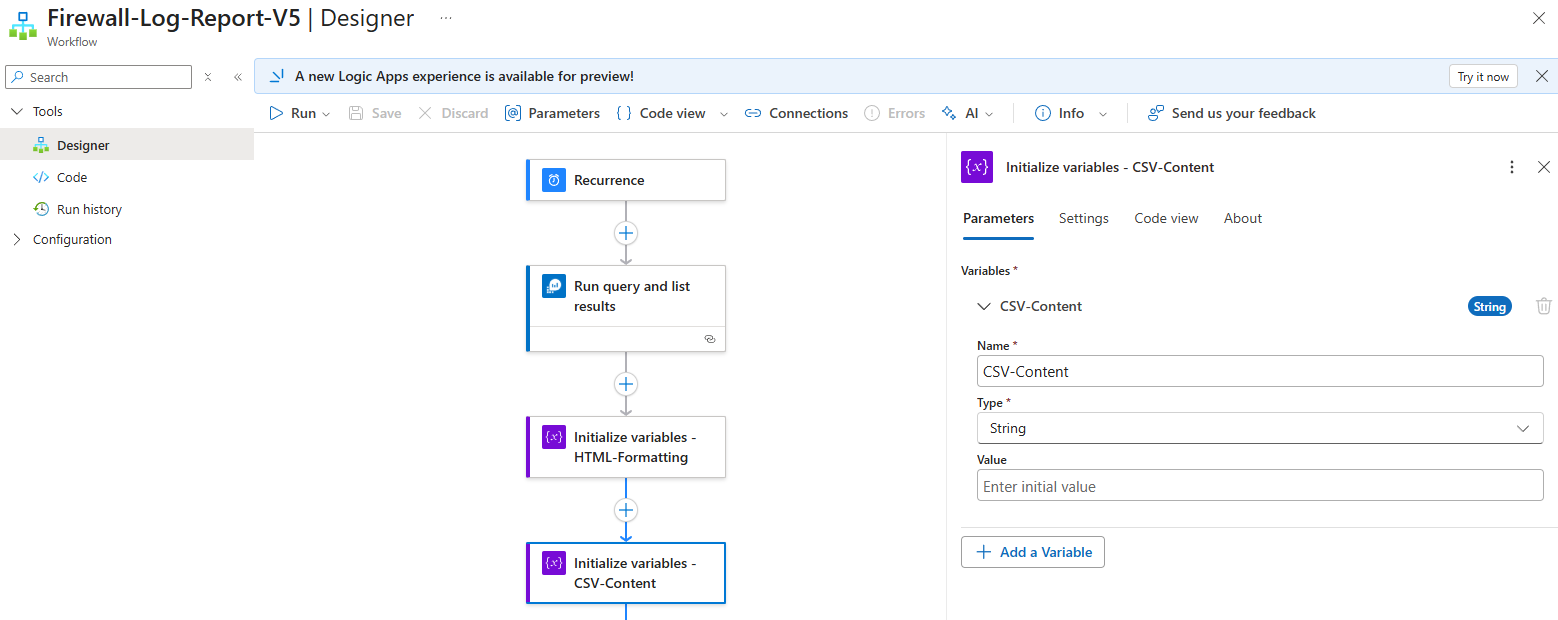
Then I proceeded to initialize 2 variables that are of String Type to store:
- The HTML code for the body of the email that will be sent
- The CSV content for the CSV that will be delivered as an attachment
Proceed to add the agent with the following Instructions for agent:
You are an AI assistant that helps deliver a firewall report.
You have access to the tools:
1. ‘Analyze logs then generate CSV and HTML’ that Analyze logs and generate CSV attachment and HTML table for email body
2. ‘Send an email’ that Send emails with attachments
When you receive a request:
1. First use the ‘Analyze_logs_then_generate_CSV_and_HTML’ tool to process the logs
2. Then use the ‘Send_an_email’ tool to send the report
For the email:
– Subject: ‘Azure Firewall Denied Traffic Report_[Date]’
– Body: The HTML content is already formatted and stored in a variable named ‘HTML-Formatting’
– Attachment Content: The CSV content is already formatted and stored in a variable named ‘CSV-Content’
– Attachment Name: ‘Firewall_Report_[Date].csv’
Please replace [Date] with today’s date.
Call the email tool with appropriate parameters.
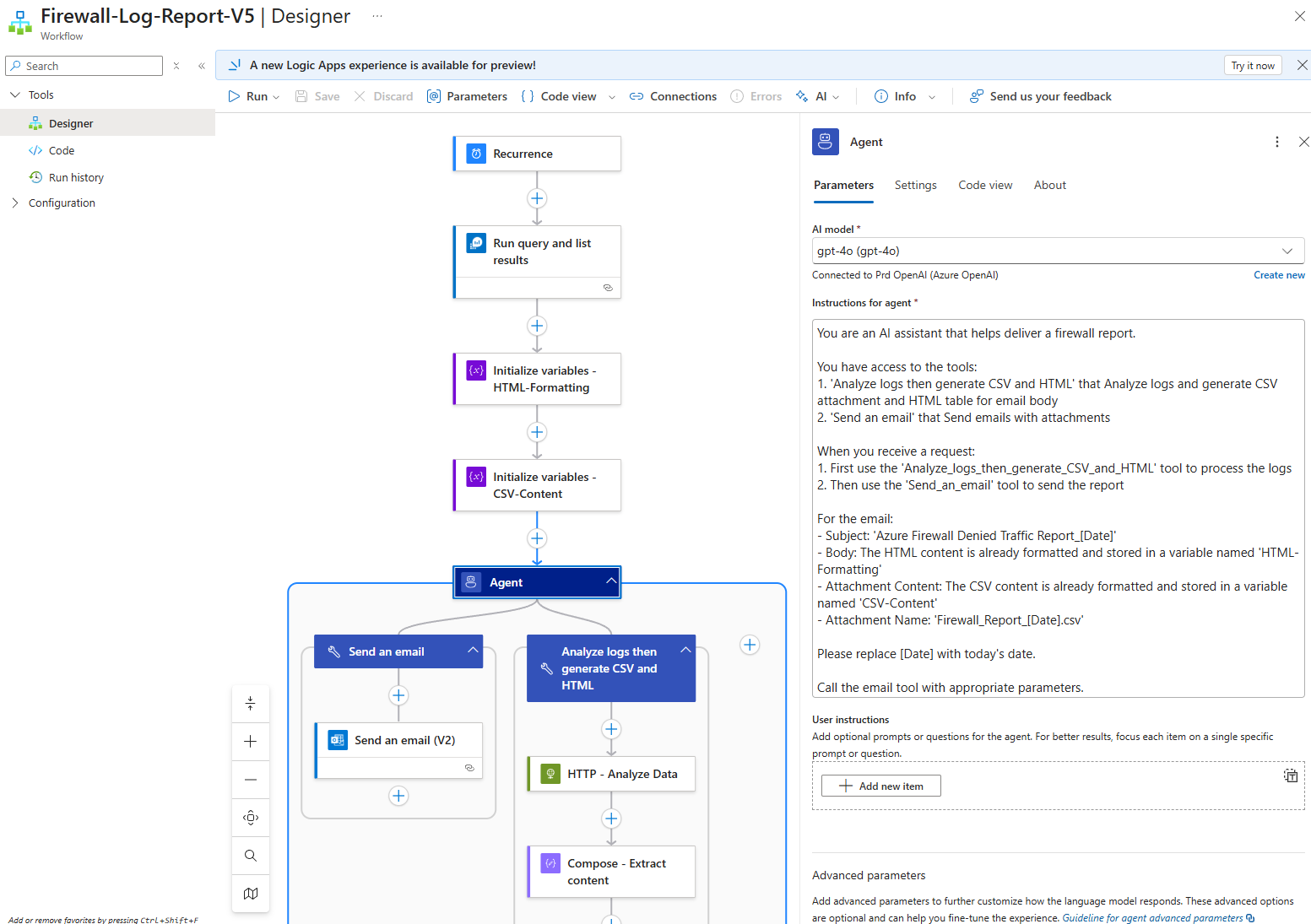
The Advanced parameters are configured as such:
Max tokens: 8192
Agent history reduction type (experimental): Token count reduction
Maximum token count: 128000
Model name: gpt-4o
Model format: OpenAI
Model version: 2024-11-20
2 tools will be configured and the one doing majority of the heavy lifting is the Analyze logs then generate CSV and HTML:
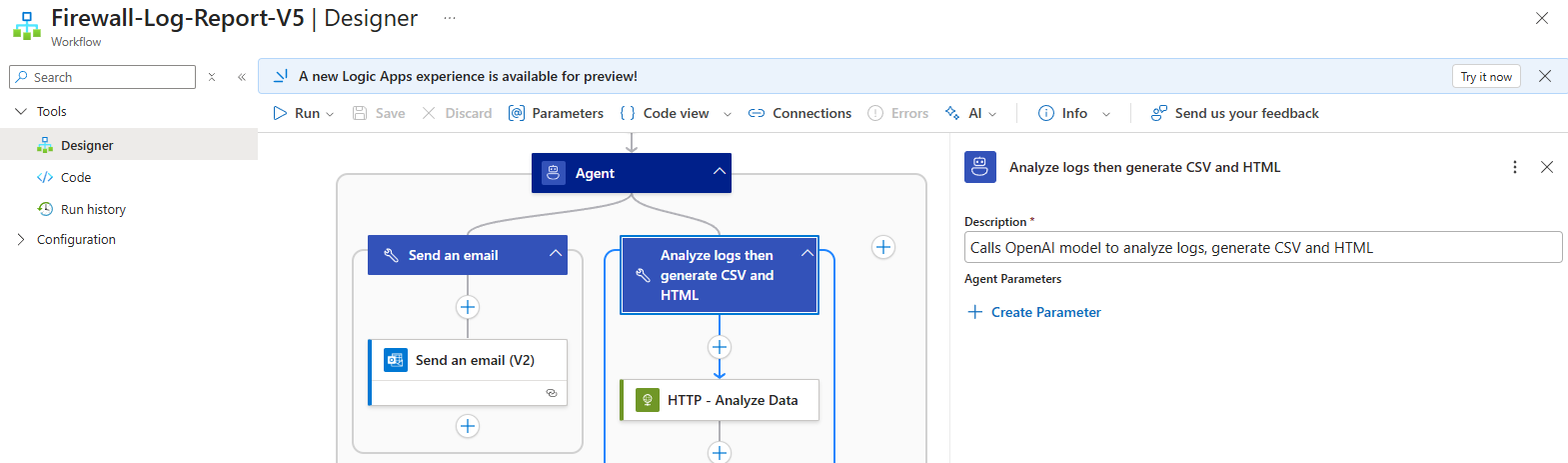
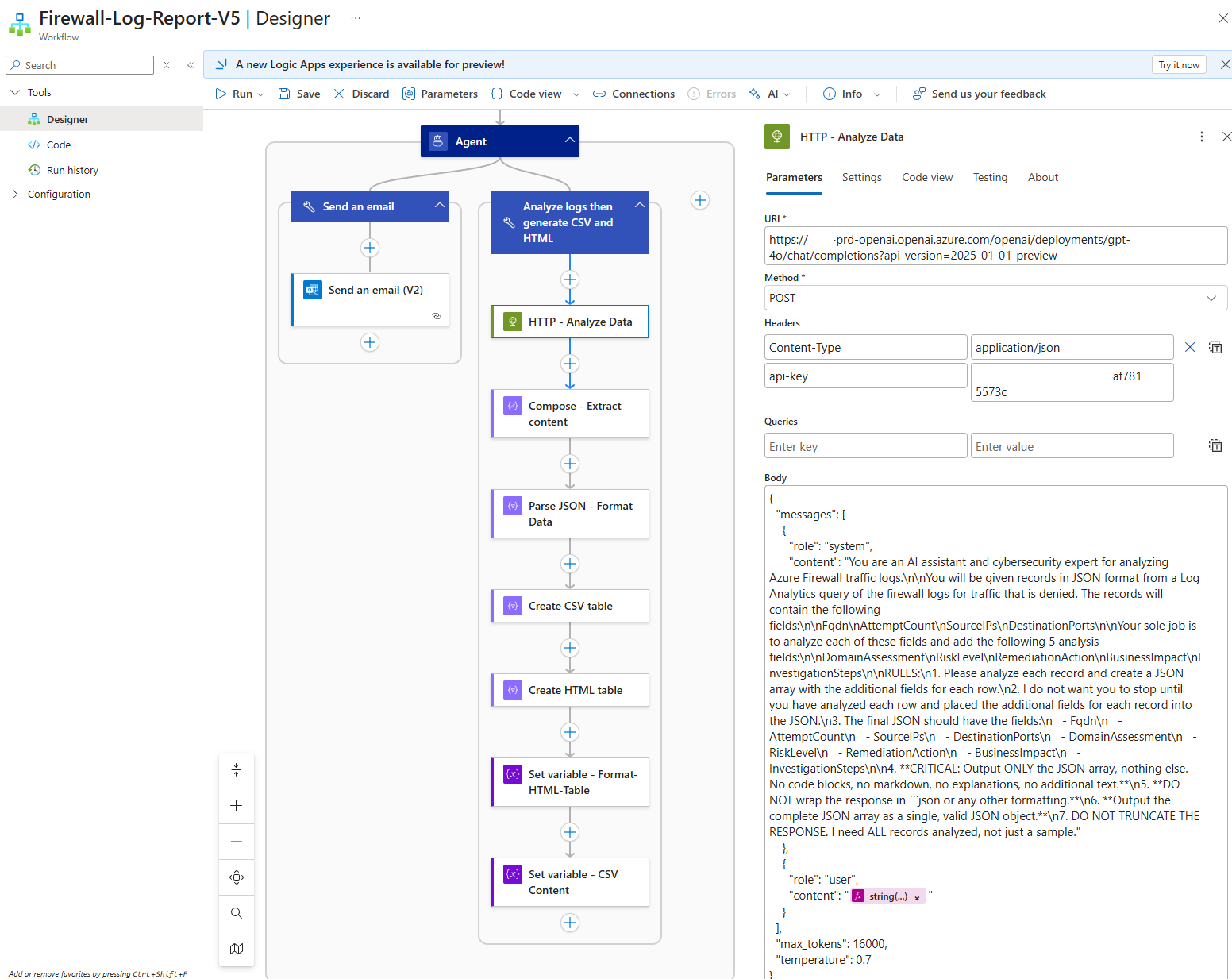
To overcome the limitations of the records analyzed, I chose to use an HTTP call directly to the LLM model, which is a common method Logic Apps used to leverage LLMs before the agent functionality was released. The following is the body content to send to the LLM:
{
“messages”: [
{
“role”: “system”,
“content”: “You are an AI assistant and cybersecurity expert for analyzing Azure Firewall traffic logs.\n\nYou will be given records in JSON format from a Log Analytics query of the firewall logs for traffic that is denied. The records will contain the following fields:\n\nFqdn\nAttemptCount\nSourceIPs\nDestinationPorts\n\nYour sole job is to analyze each of these fields and add the following 5 analysis fields:\n\nDomainAssessment\nRiskLevel\nRemediationAction\nBusinessImpact\nInvestigationSteps\n\nRULES:\n1. Please analyze each record and create a JSON array with the additional fields for each row.\n2. I do not want you to stop until you have analyzed each row and placed the additional fields for each record into the JSON.\n3. The final JSON should have the fields:\n – Fqdn\n – AttemptCount\n – SourceIPs\n – DestinationPorts\n – DomainAssessment\n – RiskLevel\n – RemediationAction\n – BusinessImpact\n – InvestigationSteps\n\n4. **CRITICAL: Output ONLY the JSON array, nothing else. No code blocks, no markdown, no explanations, no additional text.**\n5. **DO NOT wrap the response in “`json or any other formatting.**\n6. **Output the complete JSON array as a single, valid JSON object.**\n7. DO NOT TRUNCATE THE RESPONSE. I need ALL records analyzed, not just a sample.”
},
{
“role”: “user”,
“content”: “<string(body(‘Run_query_and_list_results’)?[‘value’])>”
}
],
“max_tokens”: 16000,
“temperature”: 0.7
}
The following are items I’d like to note:
- The content needs to be formatted so that line breaks, quotes, and any other special characters are replaced with escape sequences
- The content passed is the body of the Run query and list results with the following expression: string(body(‘Run_query_and_list_results’)?[‘value’])
- Note that I’ve configured the max_tokens to a higher value to handle the amount of tokens getting passed as well as returned
- Depending on the body returned by the query, we may run out of tokens and I will likely write another blog post to demonstrate how to batch process large record sets
The next few compose actions are mainly to clean up the data returned. Begin with a Compose action to extract the content returned by the HTTP call to the LLM with the expression:
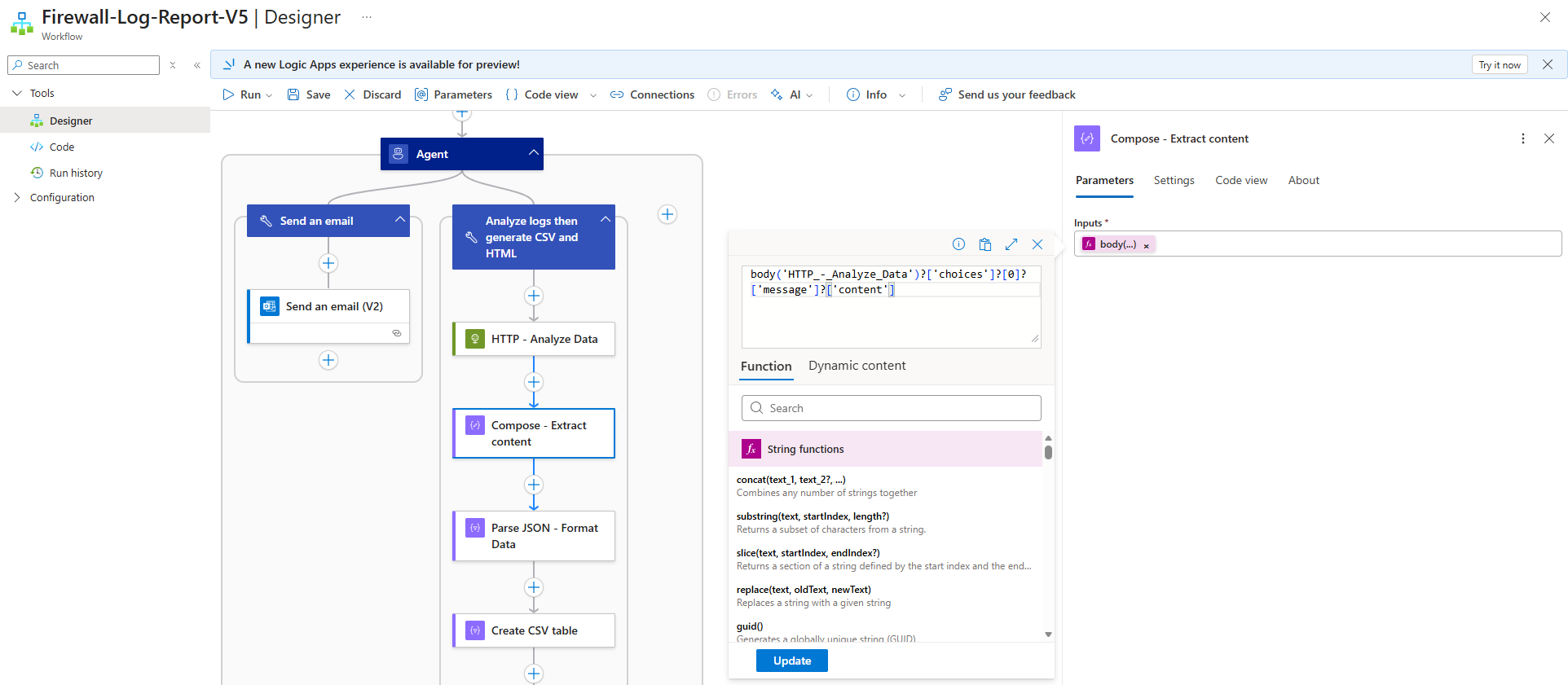
The reason why this is necessary is because body output does not just provide the response but other metadata as such:
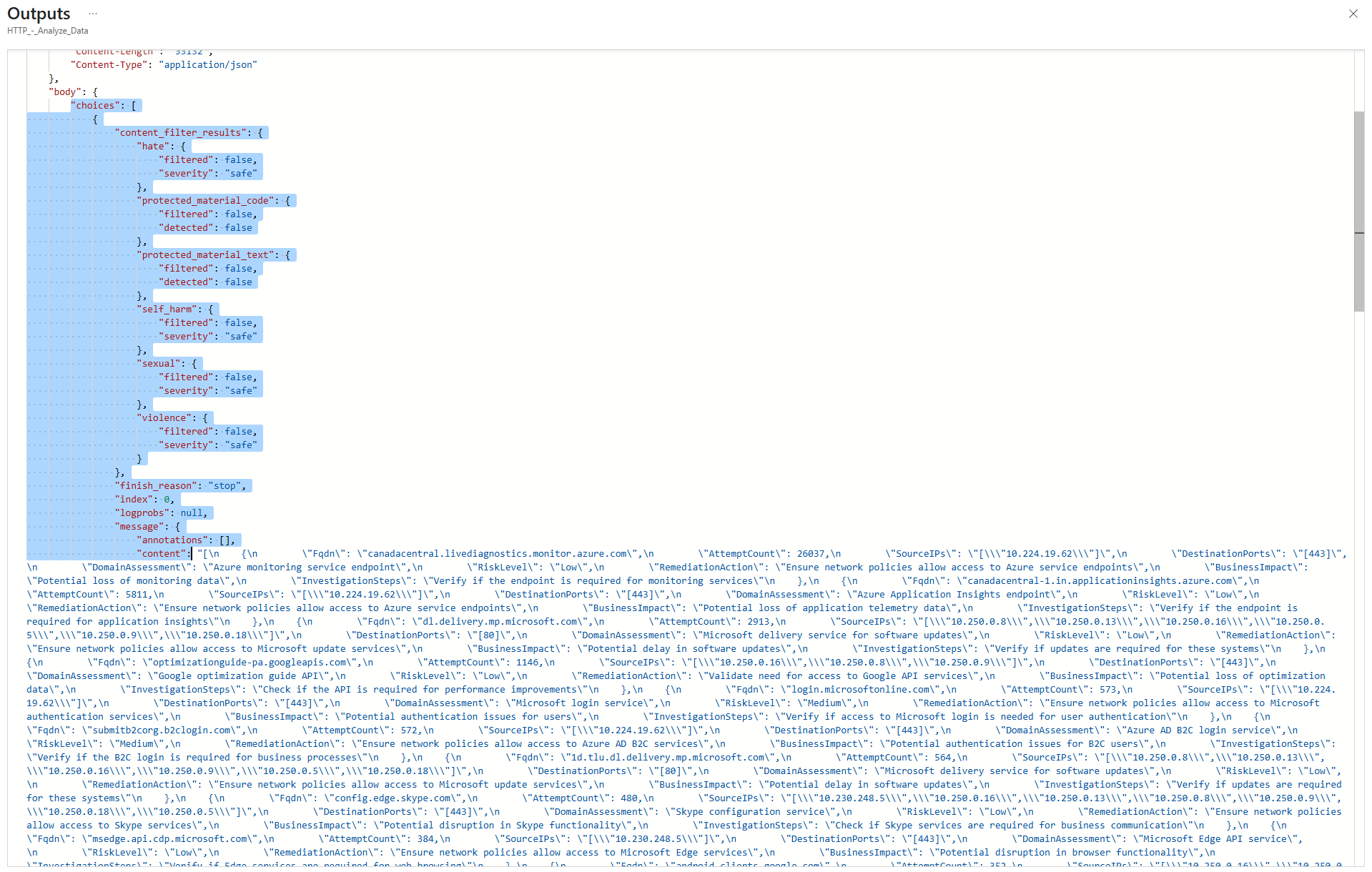
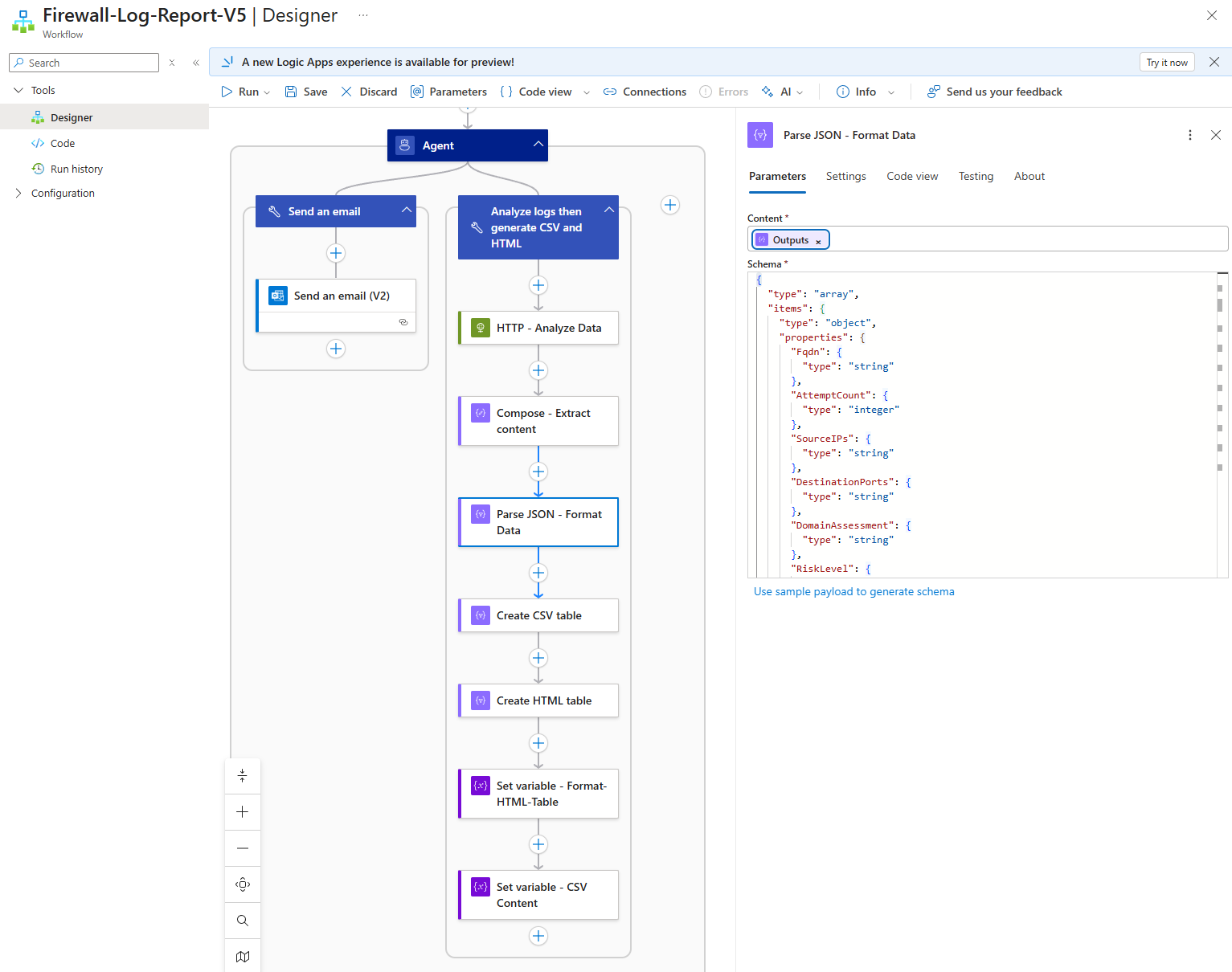
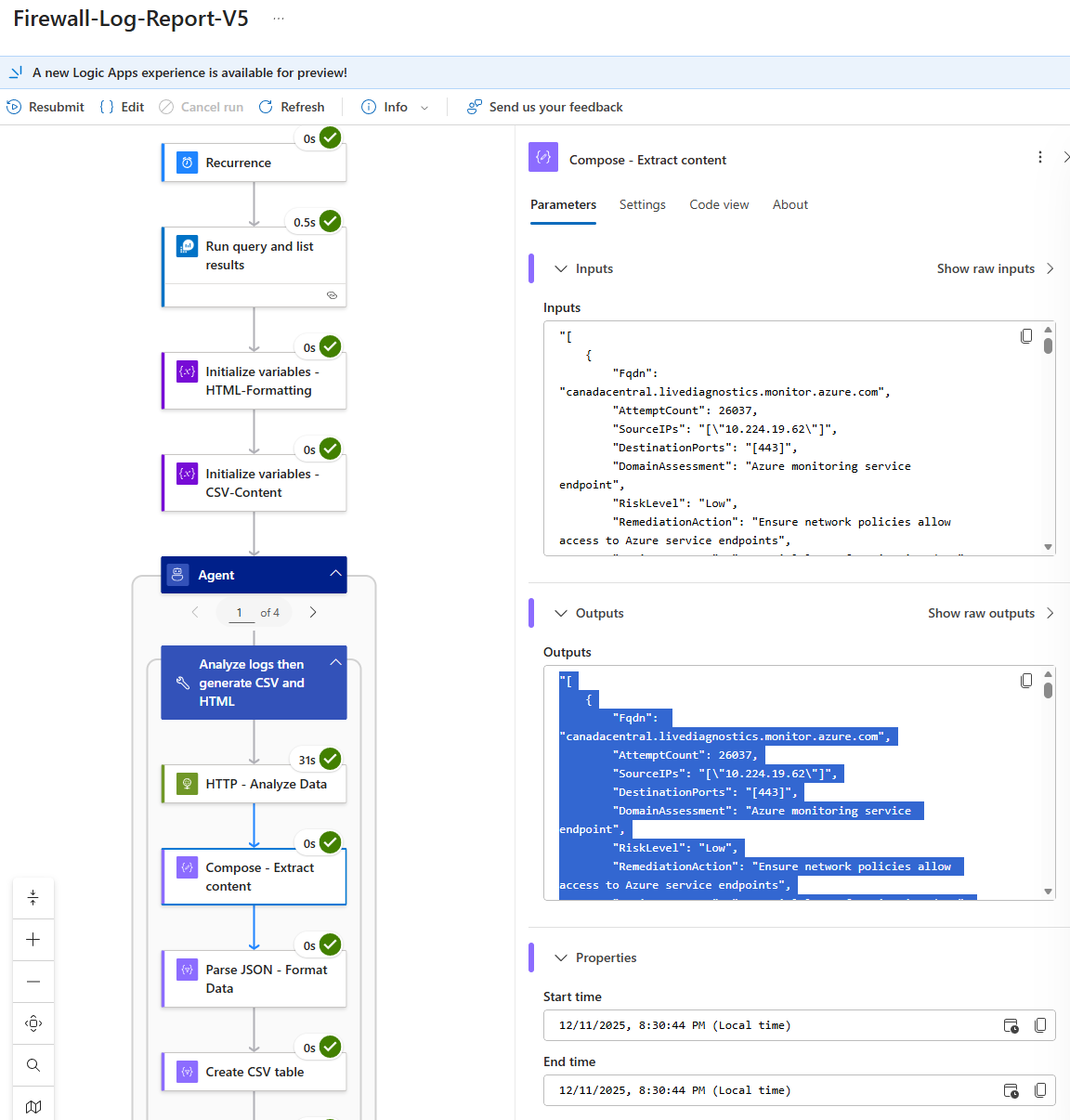
The expression simply extracts the value of the content key. The next compose action is to parse the JSON and format the data appropriately from the previous Compose – Extract content body. We’ll need to provide a Schema and we can either paste the following schema:
The next few steps are to create the always consistent reporting that we want for this Logic App.
Creating the CSV table content:

Create the HTML table:
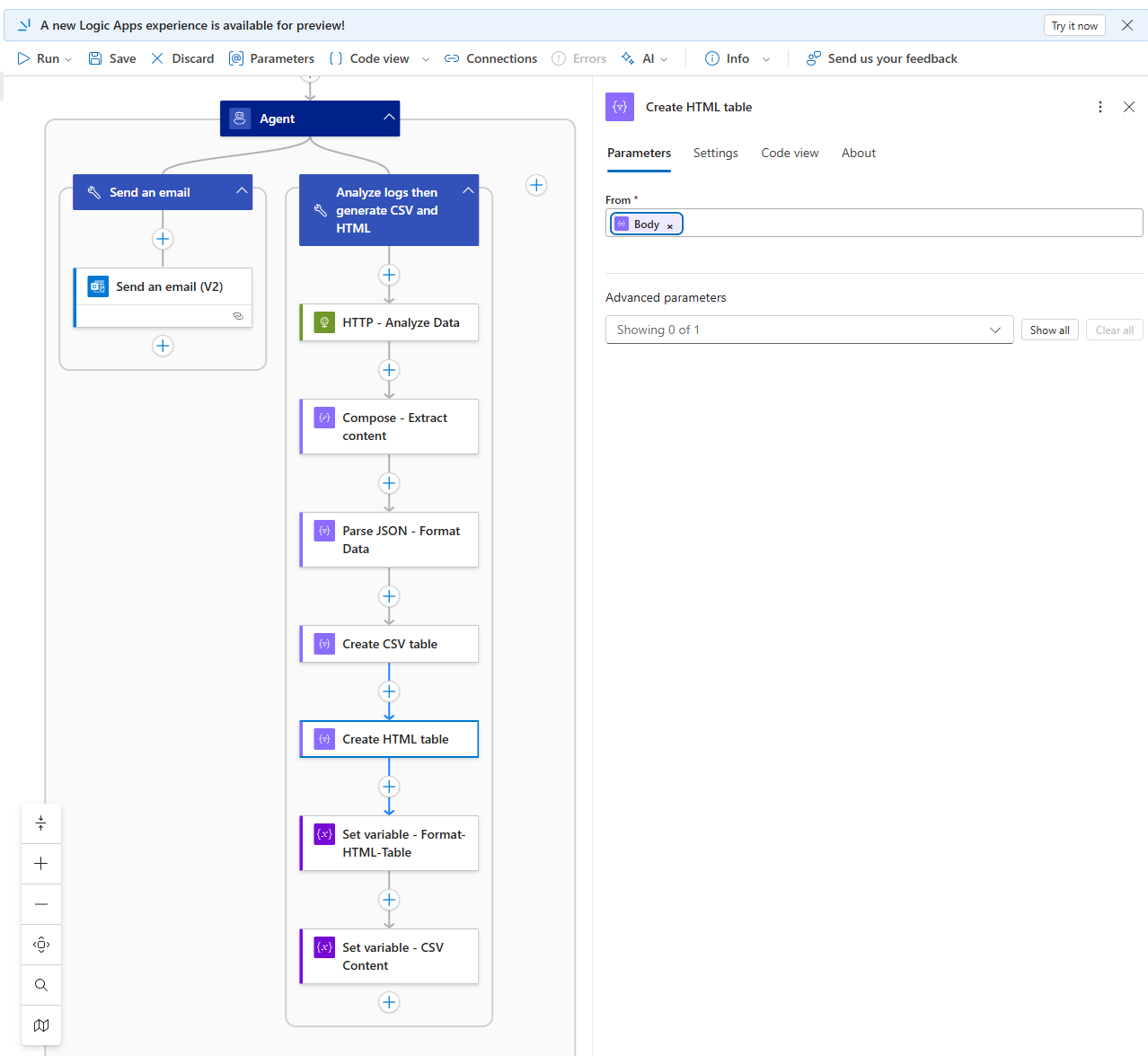
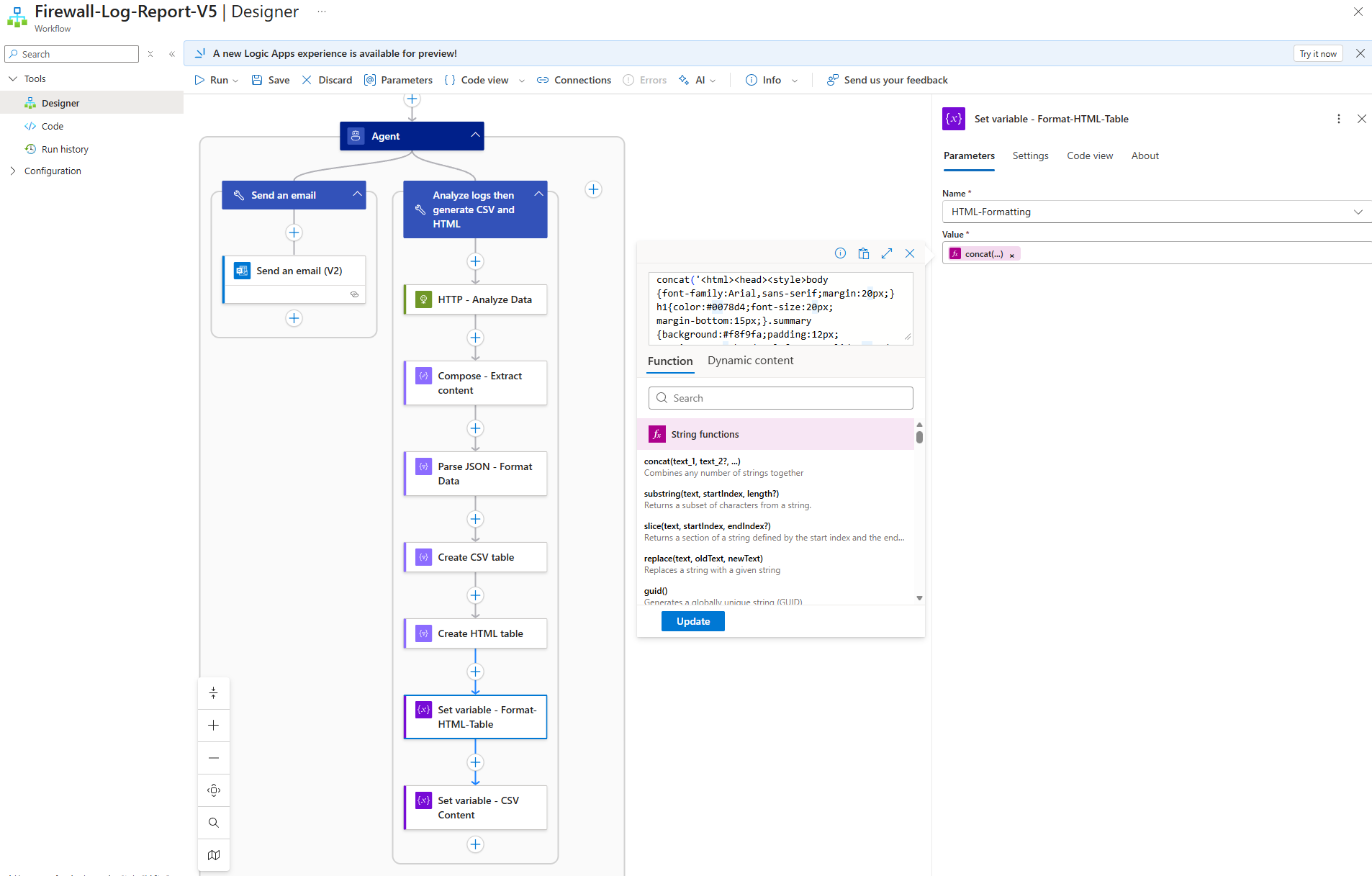
I did not like the table with no formatting so added a bit of HTML code to Create the HTML table for a more aesthetic looking table when setting the HTML-Formatting string variable:
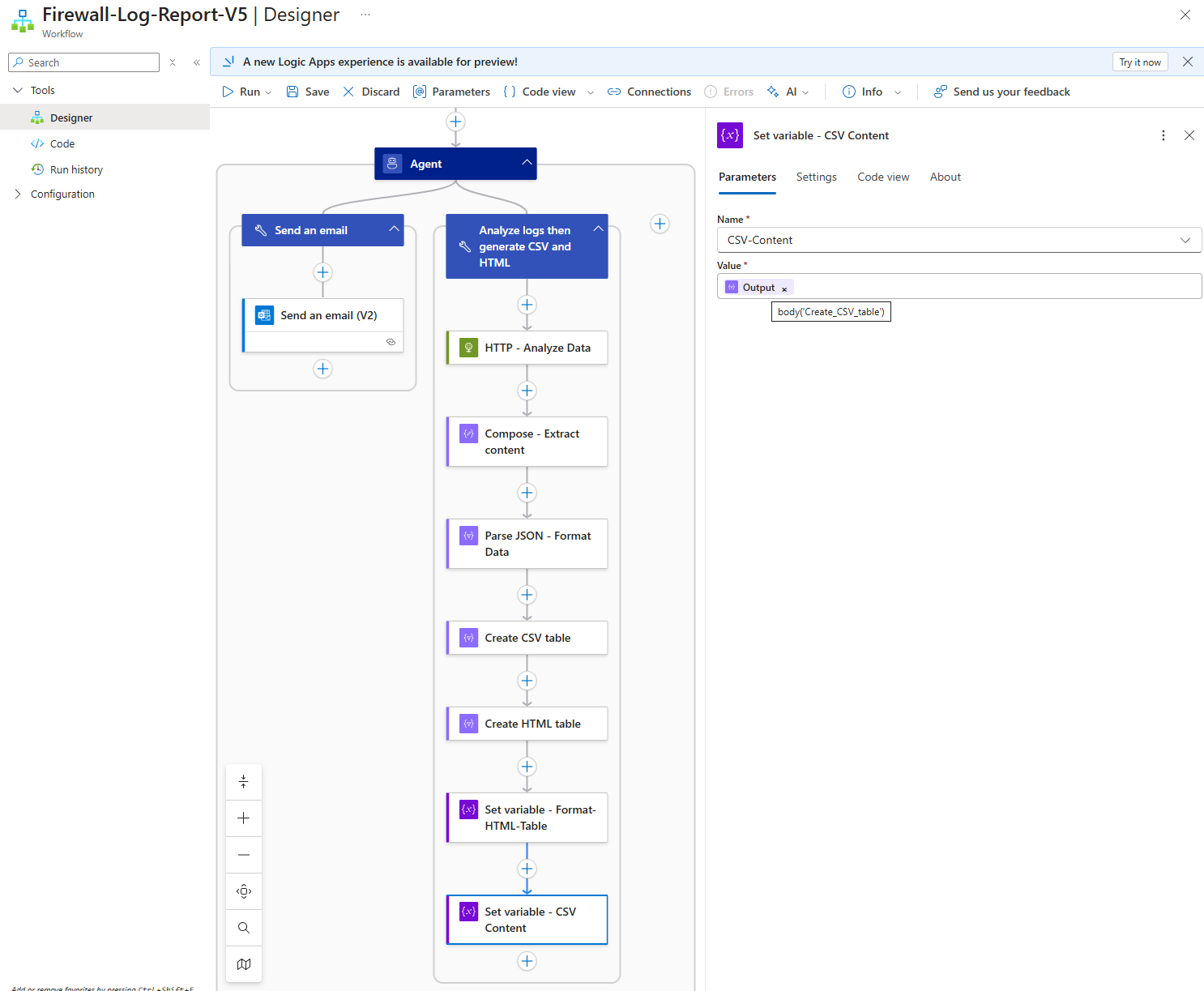
Then lastly set the CSV content in the string variable:
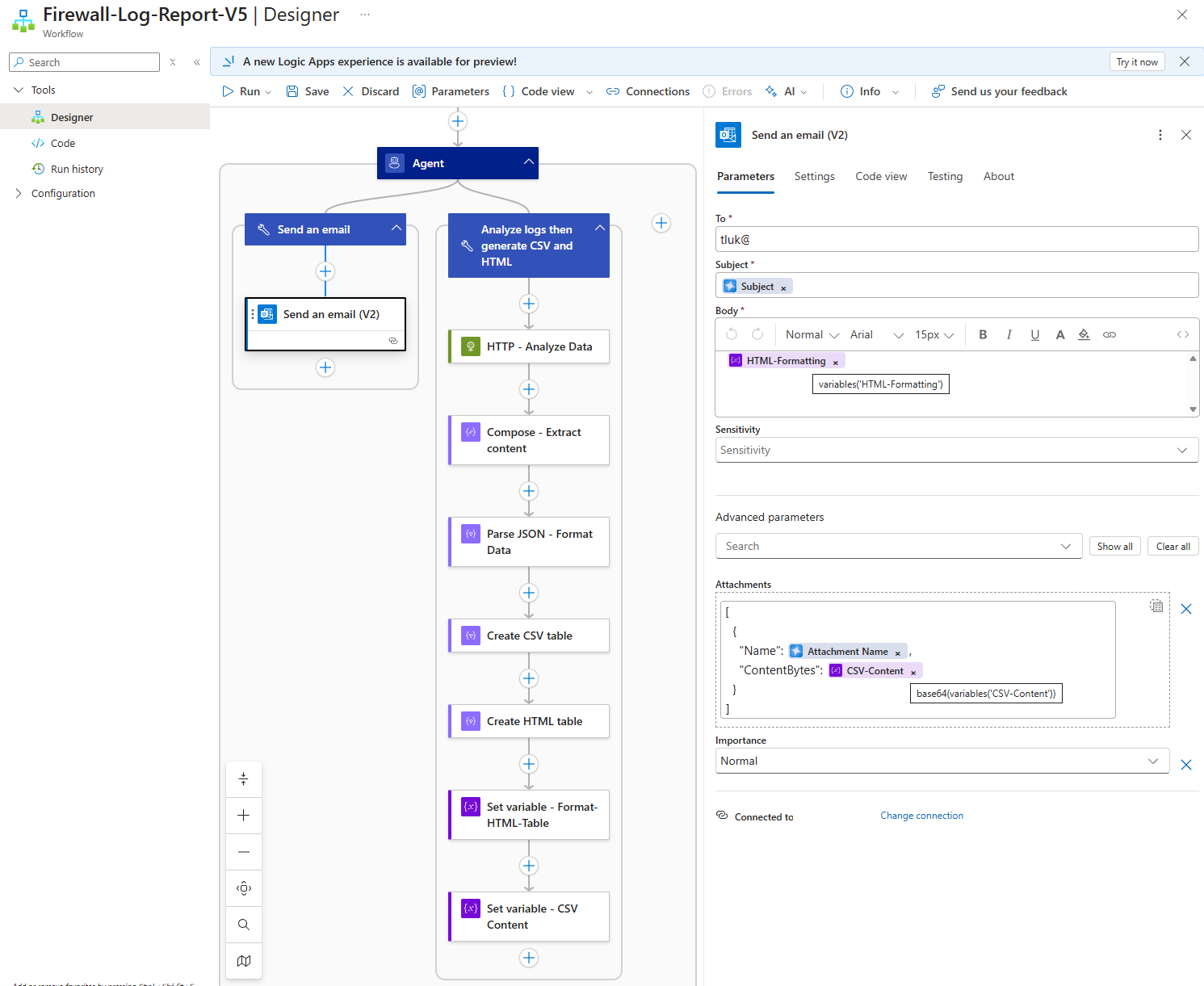
Now that we’ve gotten the report processing in place, we’ll proceed to configure the Send an email tool for the agent:
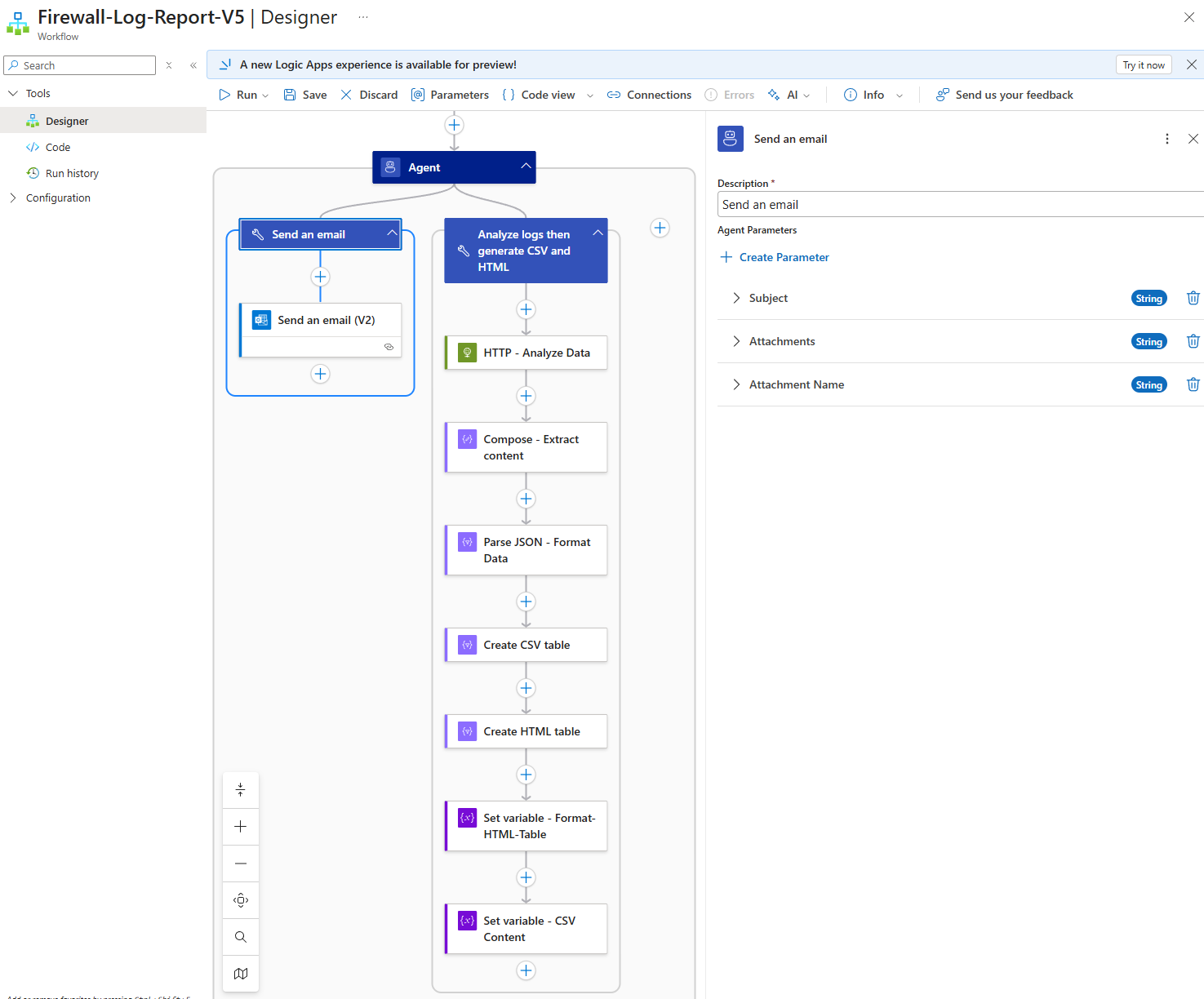
The string variables we initialized and set in the Analyze logs then generate CSV and HTML tool is used to ensure that the body of the email and attachment had all the records:
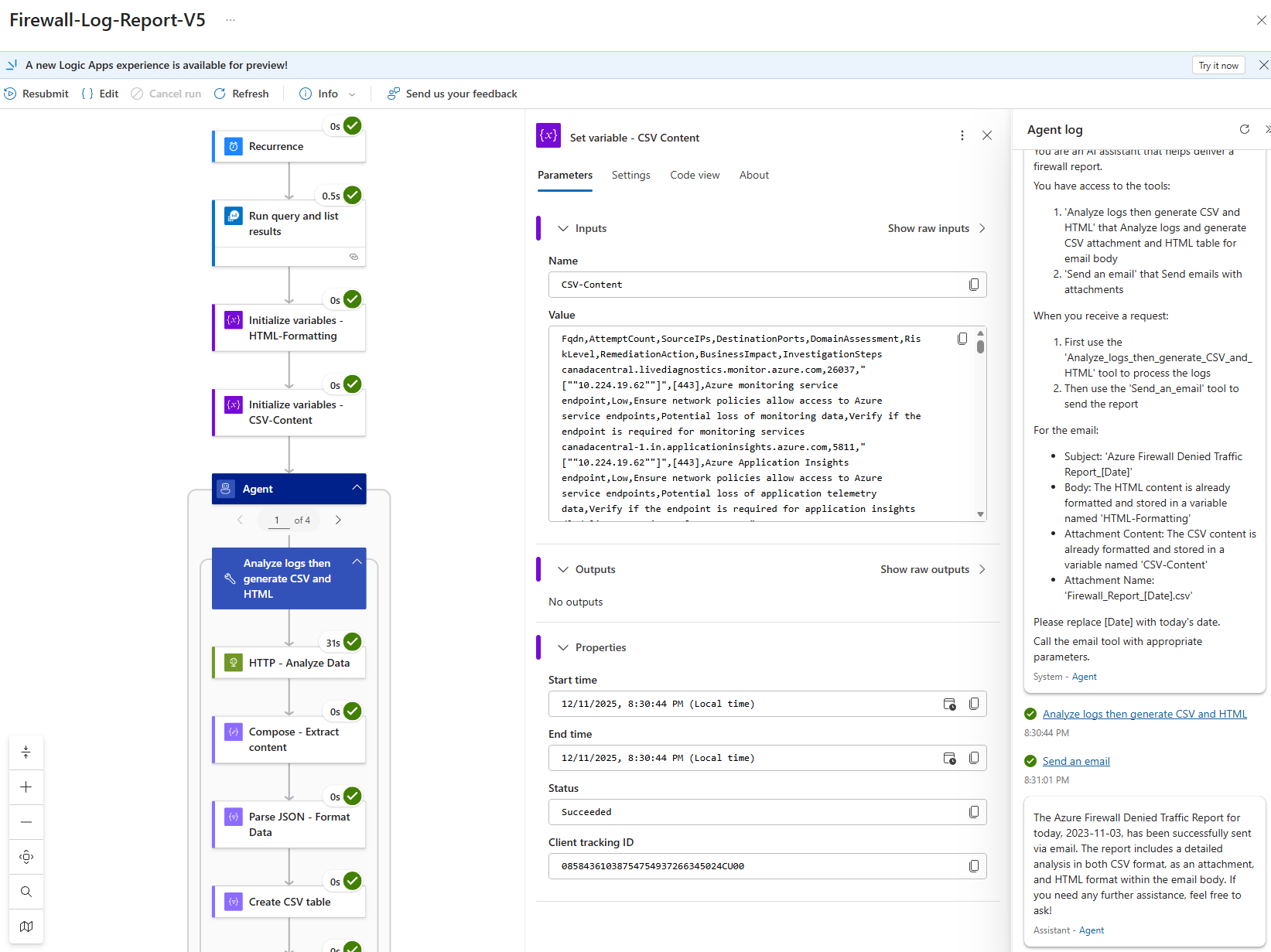
With the Logic App AI Agent configured, we can now proceed to initiate a successful run:
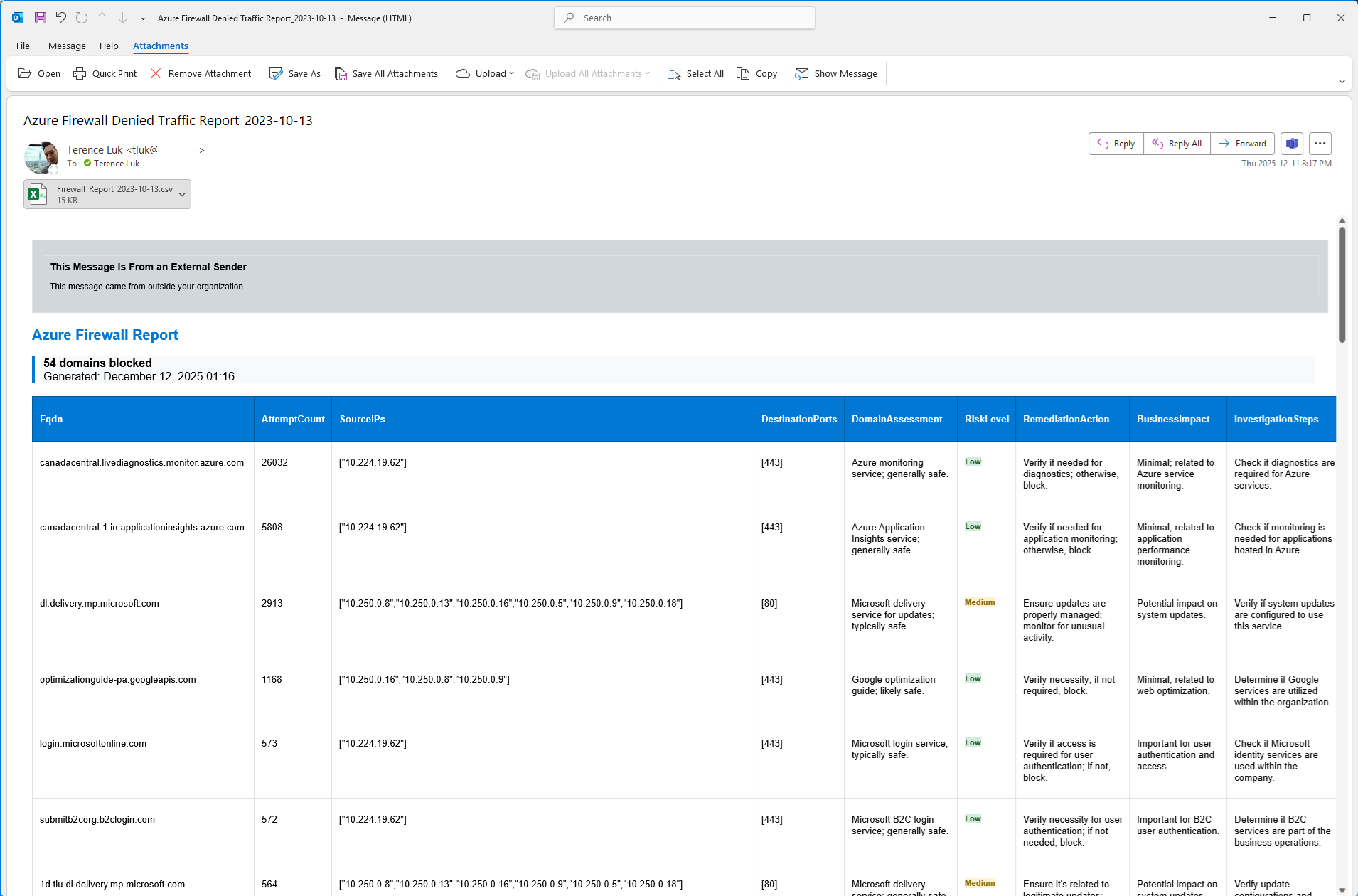
The email should now contain all the records from the query:
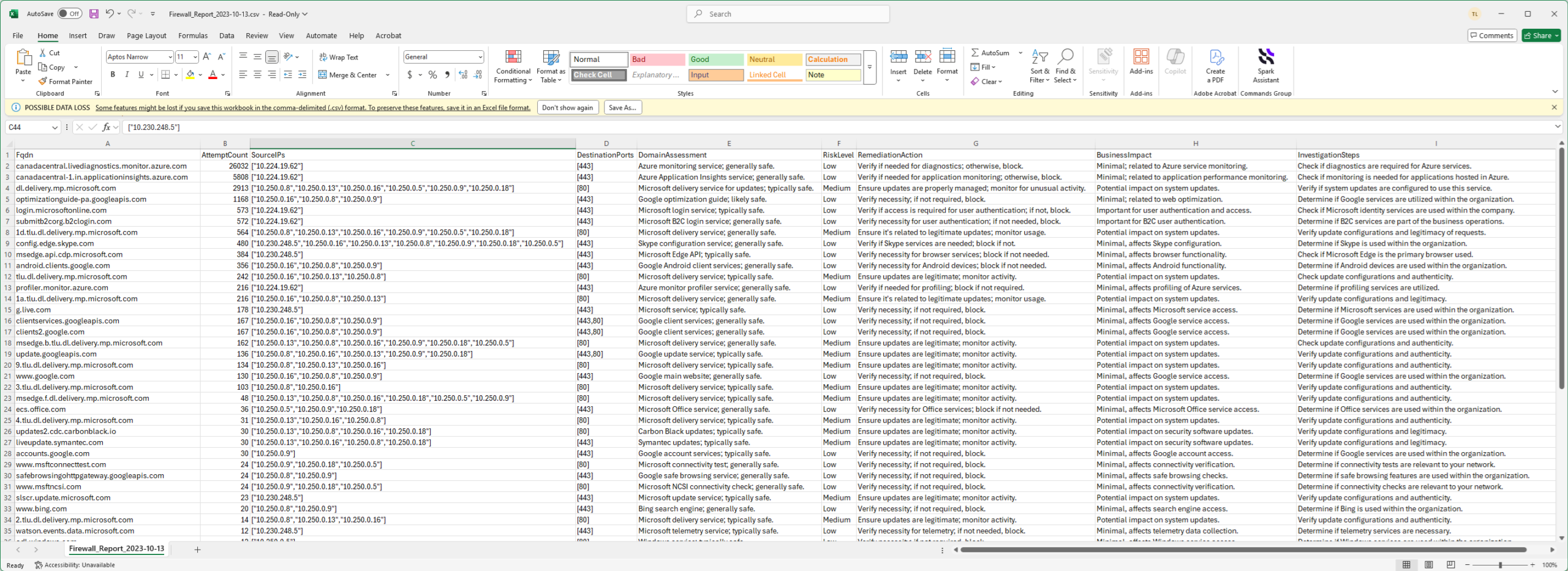
… and the CSV will also have all the records from the query:
Logic App AI Agent Output Results
I’ve ran this Logic App multiple times and confirmed that the reporting was complete but shortly noticed that the date for the report was incorrect (2023 when the year today is 2025?). This was an easy problem to solve with an expression or fine tuning the instructions.
So there you have it, a working fix for Logic App AI Agent output truncation. I can’t say this is what I envisioned to get this to work the way I needed it to but happy with the outcome. Hope this helps anyone who may be looking to configuring something similar. I’ll be following up with more as I continue to experiment.

