
As I continue to explore creating AI-powered automation with Logic App, one of the use cases I wanted to test was incorporating RAG (Retrieval-Augmented Generation) into the workflows as well as leverage multiple agents that are configured to handoff tasks to each other thus having a multi-agent architecture in the overall solution. I have a lot of ideas I’d like to try out but as my first trial, I decided to create a simple chat bot that allows a user to ask 3 different topics:
- Questions about a model of an HP laptop where the chatbot uses AI Search to retrieve the information from indexed user guides that I have uploaded into a storage account
- Check the warranty status of their laptop where the chatbot can query an Azure SQL database that stores an inventory of laptop models with serial numbers and warranty status
- Submit a warranty repair request where the chatbot will hand off information to another agent to process the request and send an email confirmation to the user
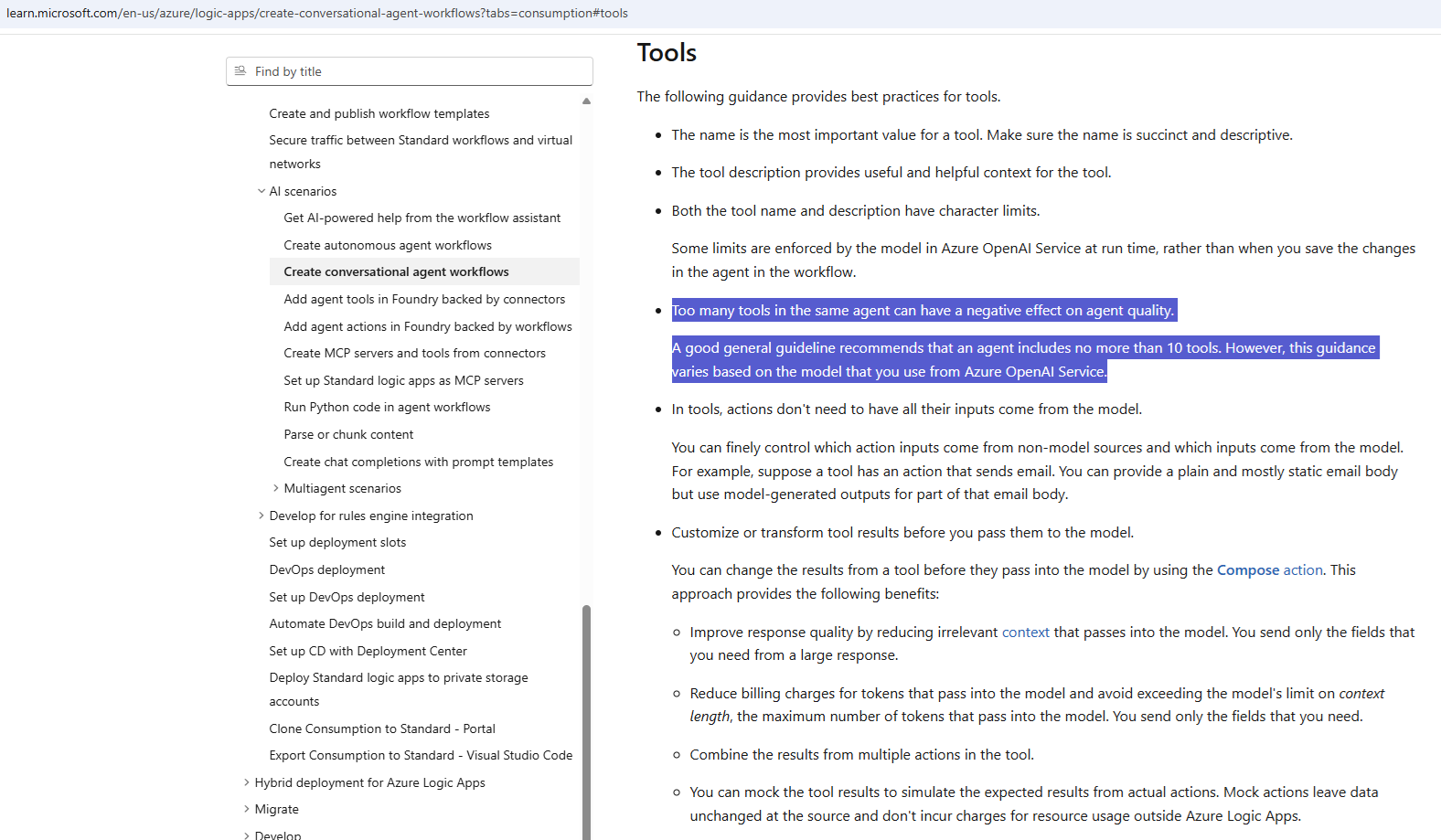
The purpose of the above 3 is to demonstrate how multiple agents with their set of tools can service these requests and how we can limit the amount of tools configured for each agent as the Microsoft documentation recommends configuring too many tools for the same agent:
https://learn.microsoft.com/en-us/azure/logic-apps/create-conversational-agent-workflows?tabs=consumption#tools
- Too many tools in the same agent can have a negative effect on agent quality.
- A good general guideline recommends that an agent includes no more than 10 tools. However, this guidance varies based on the model that you use from Azure OpenAI Service.
Let’s start with what the Logic App workflow looks like:
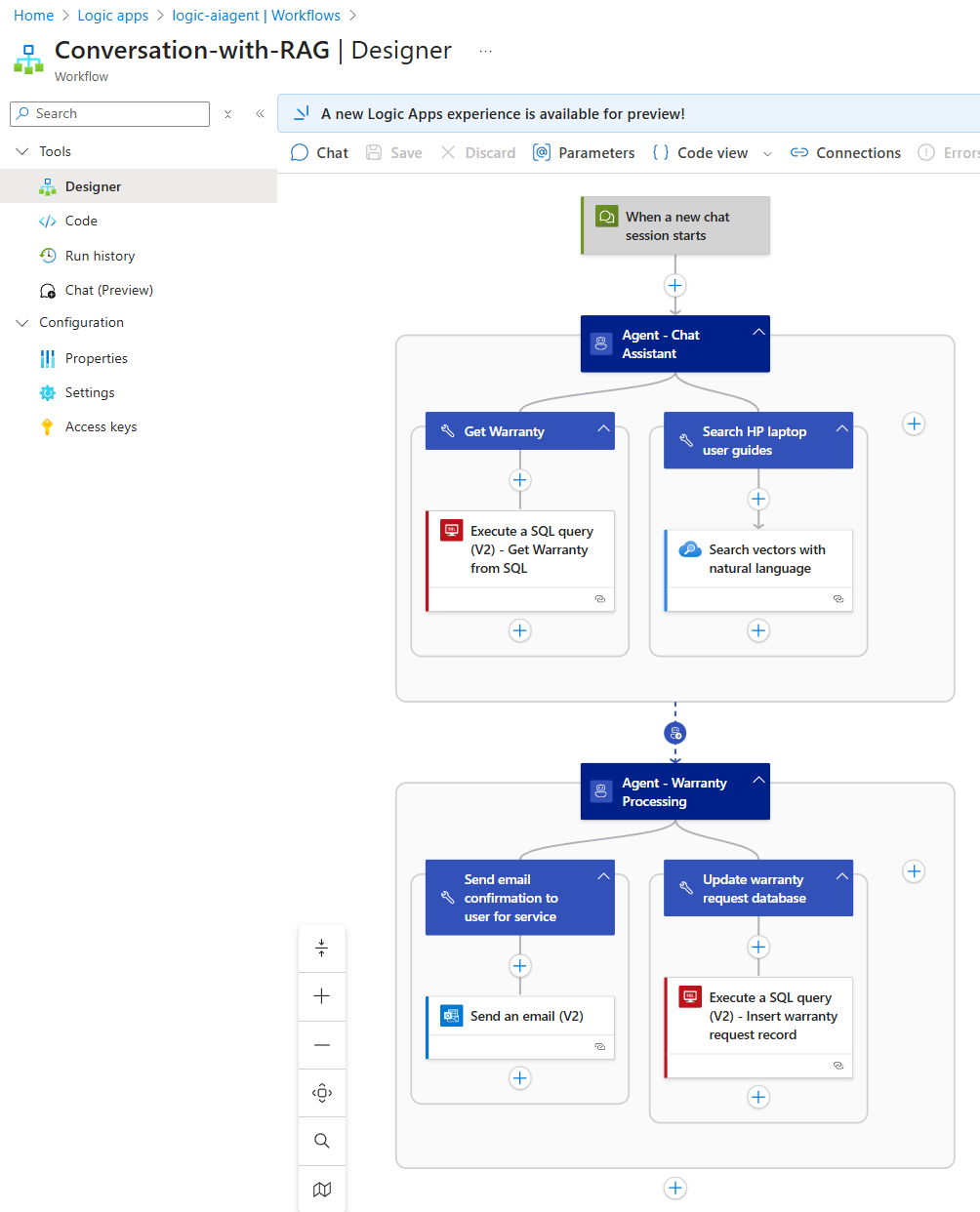
Agent – Chat Assistant
The first agent named Agent – Chat Assistant is responsible for interacting with the user in the chat window and its instructions are as follow:
You are a helpful technical support representative who has access to a user guide with the tool “Search HP laptop user guides” that allows you access to the following laptop models:
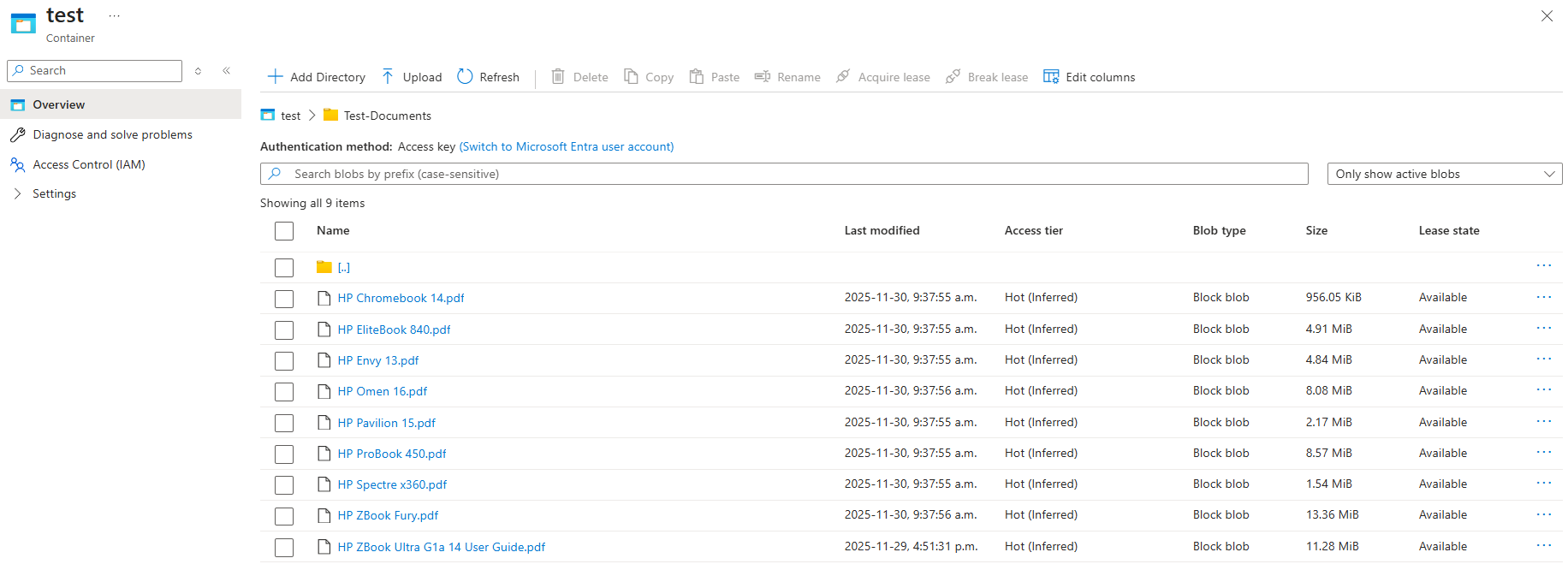
HP Spectre x360
HP Envy 13
HP Pavilion 15
HP Omen 16
HP EliteBook 840
HP ZBook Fury
HP ProBook 450
HP Chromebook 14
HP ZBook Ultra G1a
Please help answer questions asked and only provide answers from the user guides as well as retrieve warranty information by requesting the serial number of the laptop by using the tool “Get Warranty”.
You are also able to help submit a warranty request where you will hand off to the Agent – Warranty Processing agent. The hand off is going to be the 3 information:
1. LaptopID
2. Email address of the user so we can email a confirmation to them
3. RepairDescription
4. SerialNumber of the laptop
The LaptopID and SerialNumber are retrieved with the tool “Get Warranty”, the email address and RepairDescription needs to be asked in the chat.

The tools configured for the agent are:
Get Warranty Tool
This tool uses the Execute a SQL query (V2) – Get Warranty from SQL to query an Azure SQL Database I created with sample data contained in
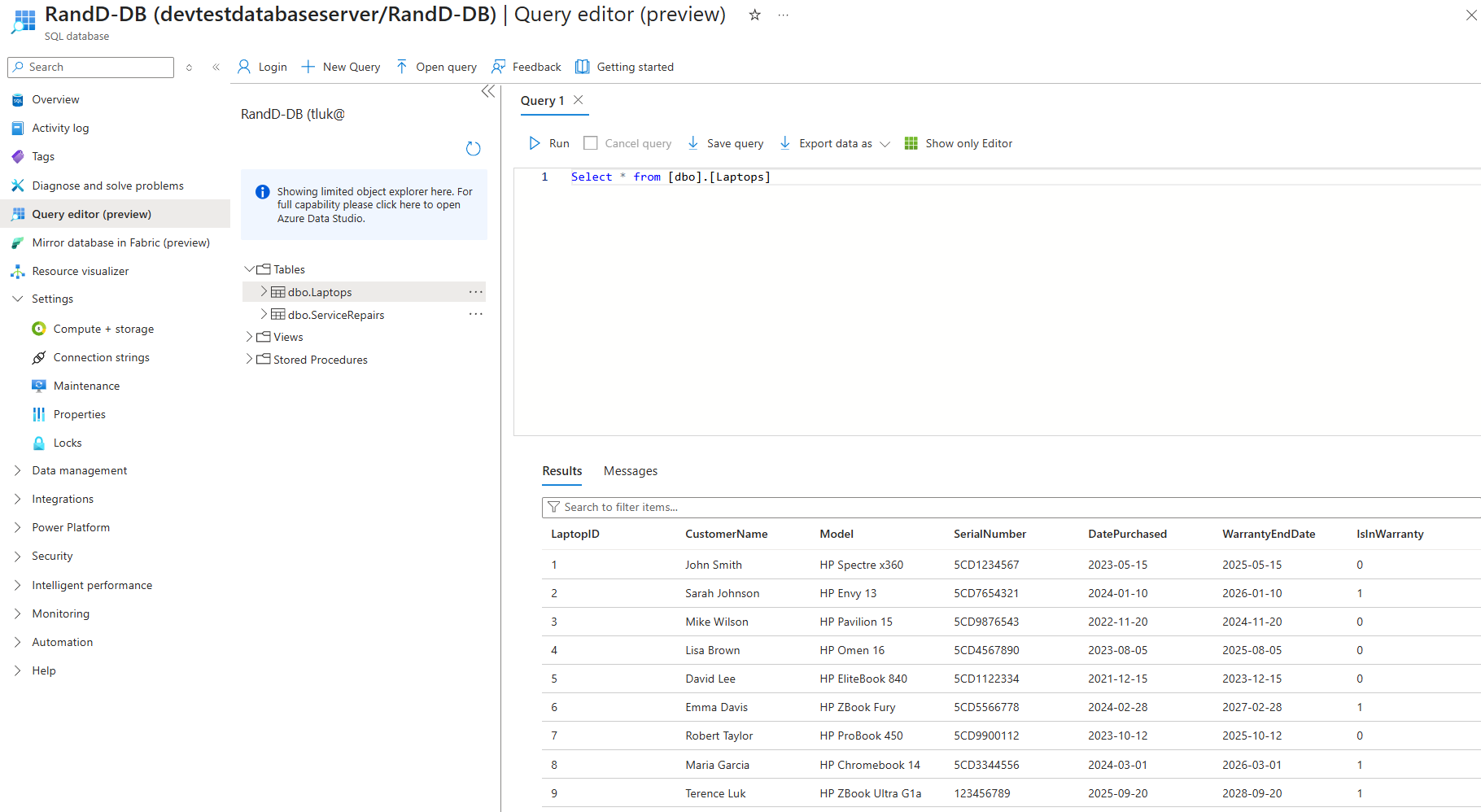
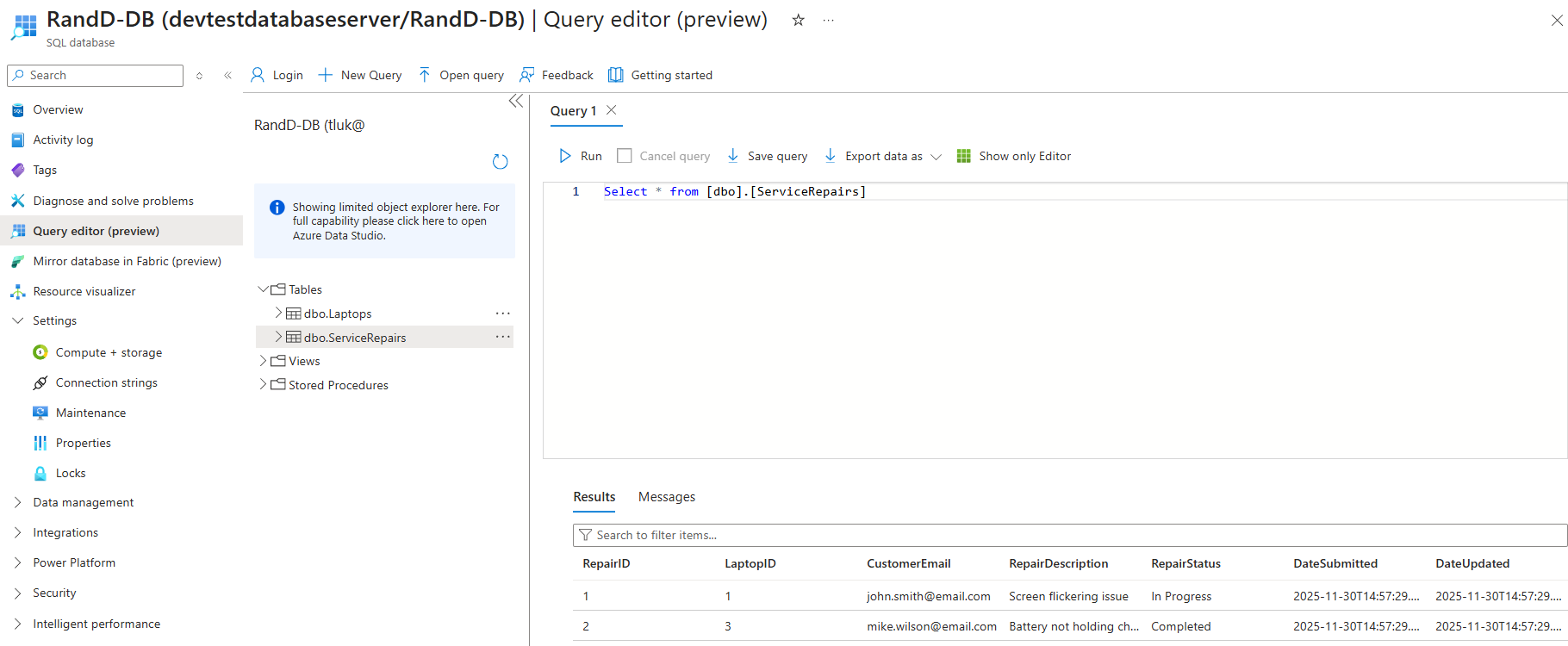
To receive the warranty status of the laptop, the following query is used where the Laptop Serial Number is an Agent Parameter:
SELECT
LaptopID,
CustomerName,
Model,
SerialNumber,
DatePurchased,
WarrantyEndDate,
IsInWarranty,
CASE
WHEN IsInWarranty = 1 THEN ‘Under Warranty’
ELSE ‘Warranty Expired’
END AS WarrantyStatus
FROM Laptops
WHERE SerialNumber = ‘<Laptop Serial Number>‘
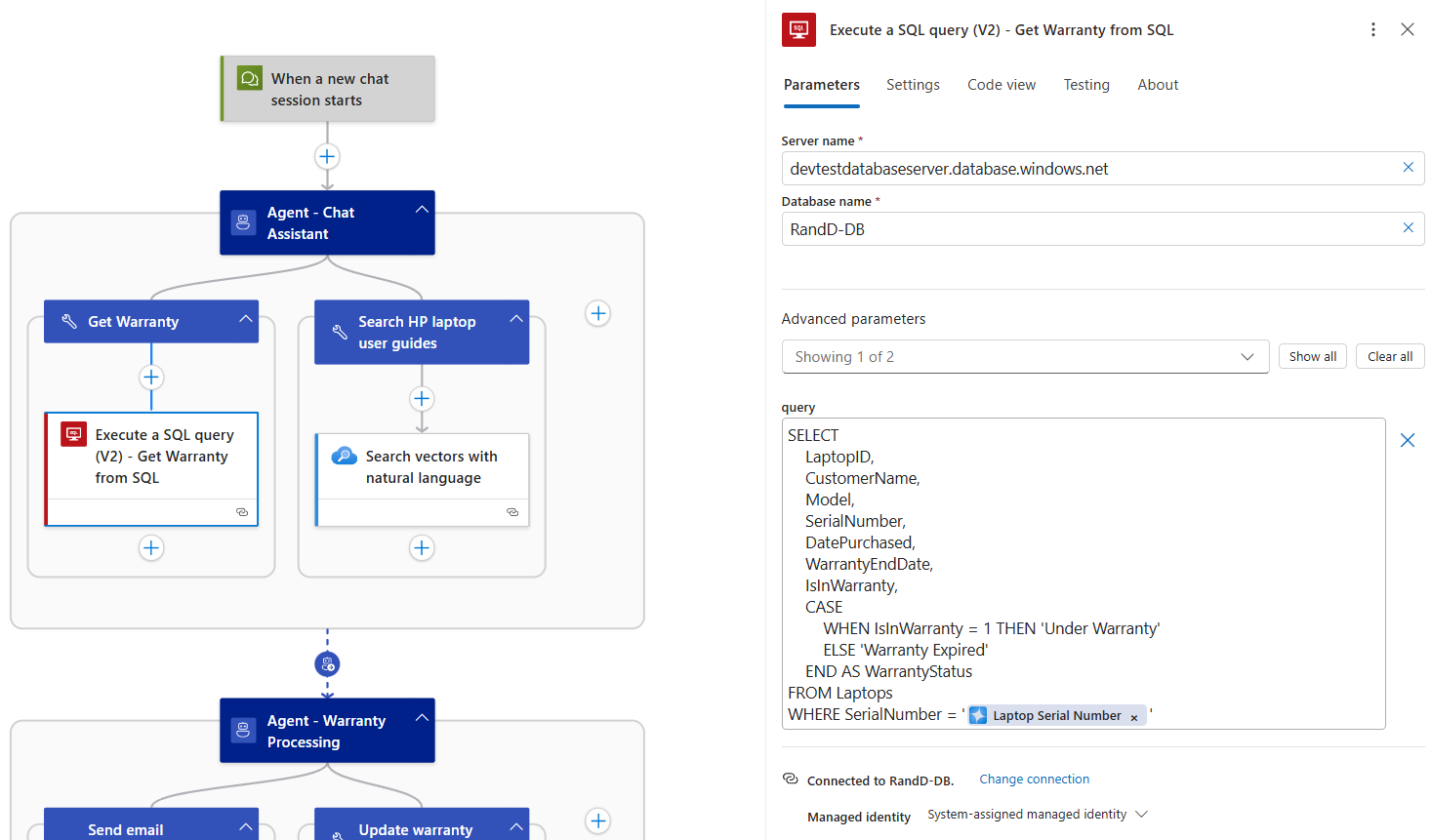
**Note that I’ve granted the Logic App’s Managed Identity db_datareader and db_datawriter roles to the database so it can select and insert data into the table.
Search HP laptop user guides Tool
The second tool uses the Search vectors with natural language (still in preview during the writing of this post) to leverage an AI Search configured to index the content of the user guides I’ve uploaded into a storage account. I won’t go too deep into the configuration of this as I’ve demonstrated it in the past:
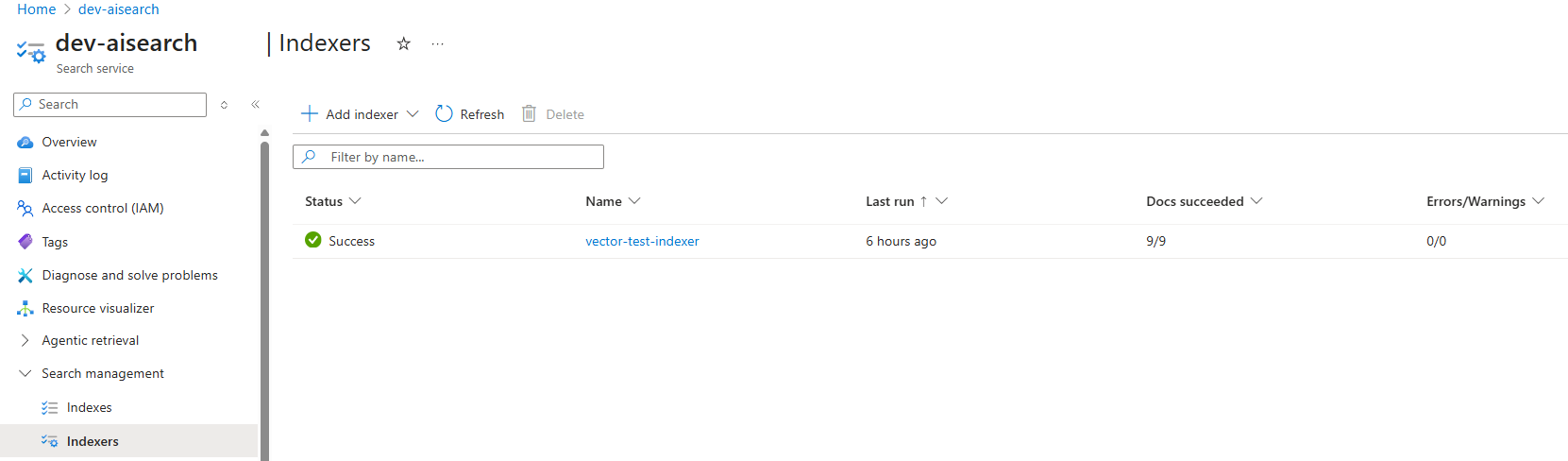
The following are the user guides in the storage account that are indexed by AI Search:
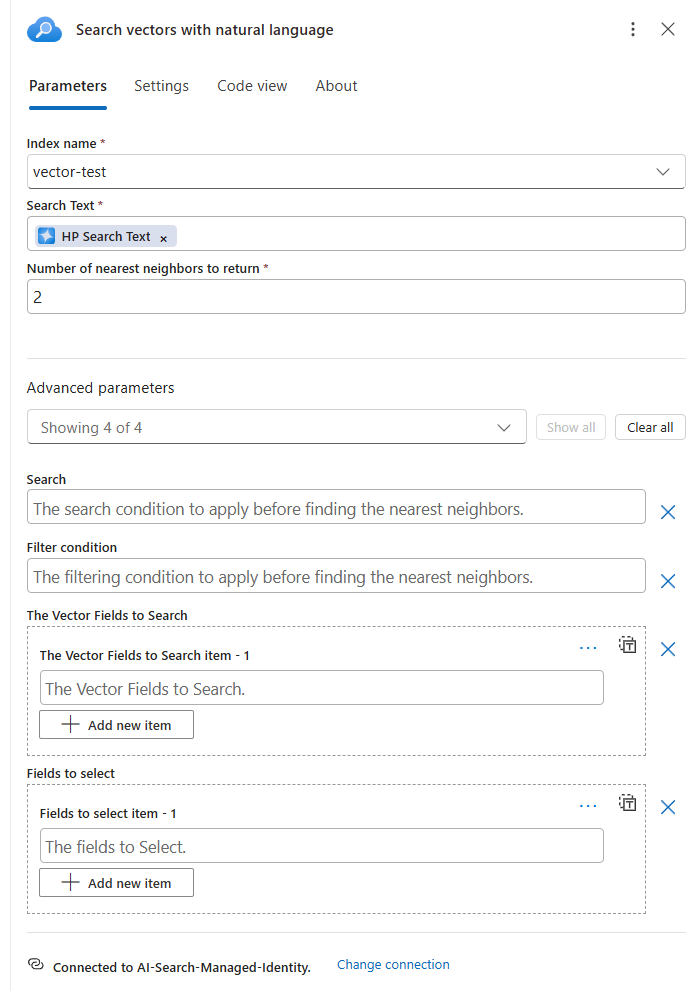
I’ve kept the configuration of the Search vectors with natural language fairly simple with only the HP Search Text agent parameter as the Search Text and the nearest neighbors to return configured as 2:
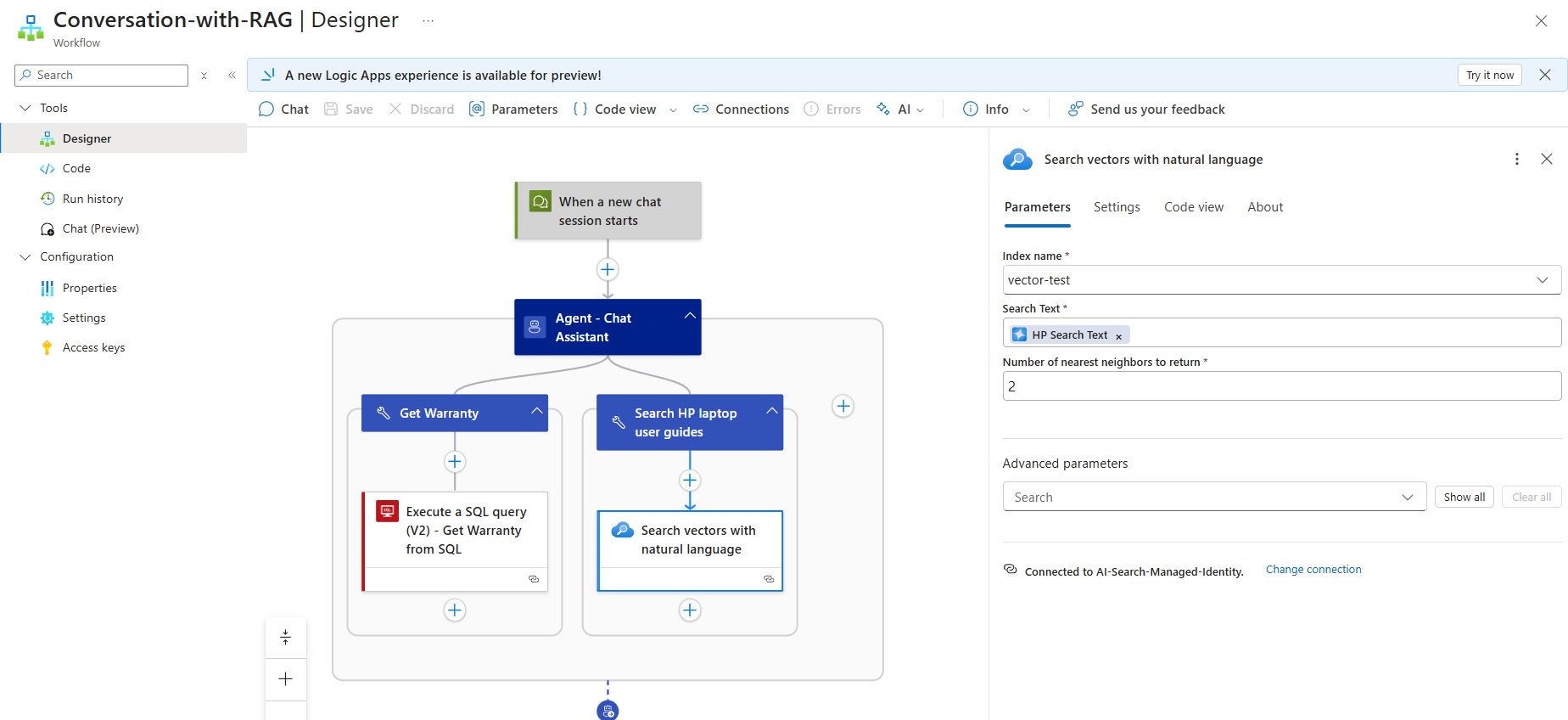
There are additional parameters that can be configured but the documentation isn’t very clear so I’ve excluded them for now:
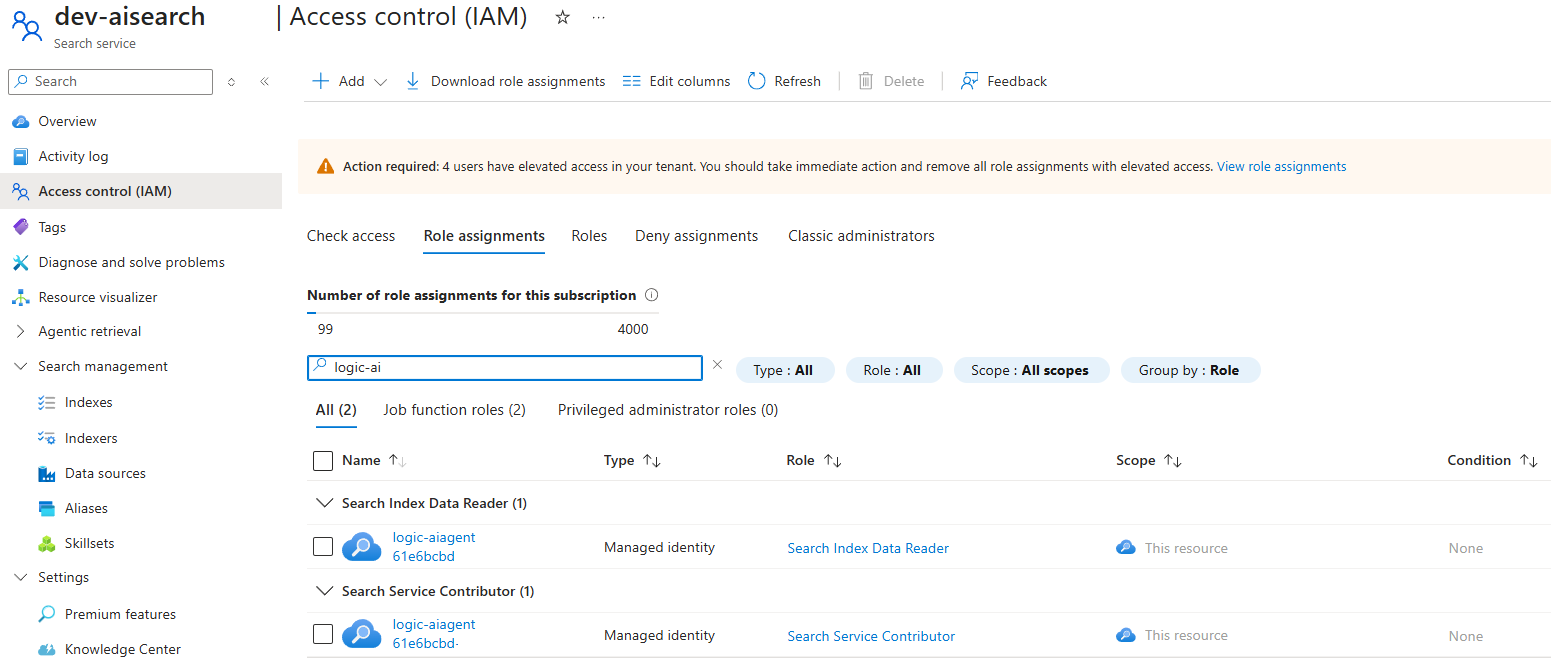
Lastly, the AI Search is configured to grant the Managed Identity of Logic App with the following permissions so it can connect and use the required services:
- Search Index Data Reader
- Search Service Contributor
Agent – Warranty Processing
The next agent, which serves as a hand-off agent is used to process the warranty service request from the Agent – Chat Assistant and its instructions are as follow:
You are a AI agent that helps process warranty information. Your role is to receive a hand off from the Agent – Chat Assistant so you can update the SQL database tracking the repair, compose an d email to send to the customer who submitted a warranty request for repair of their laptop.
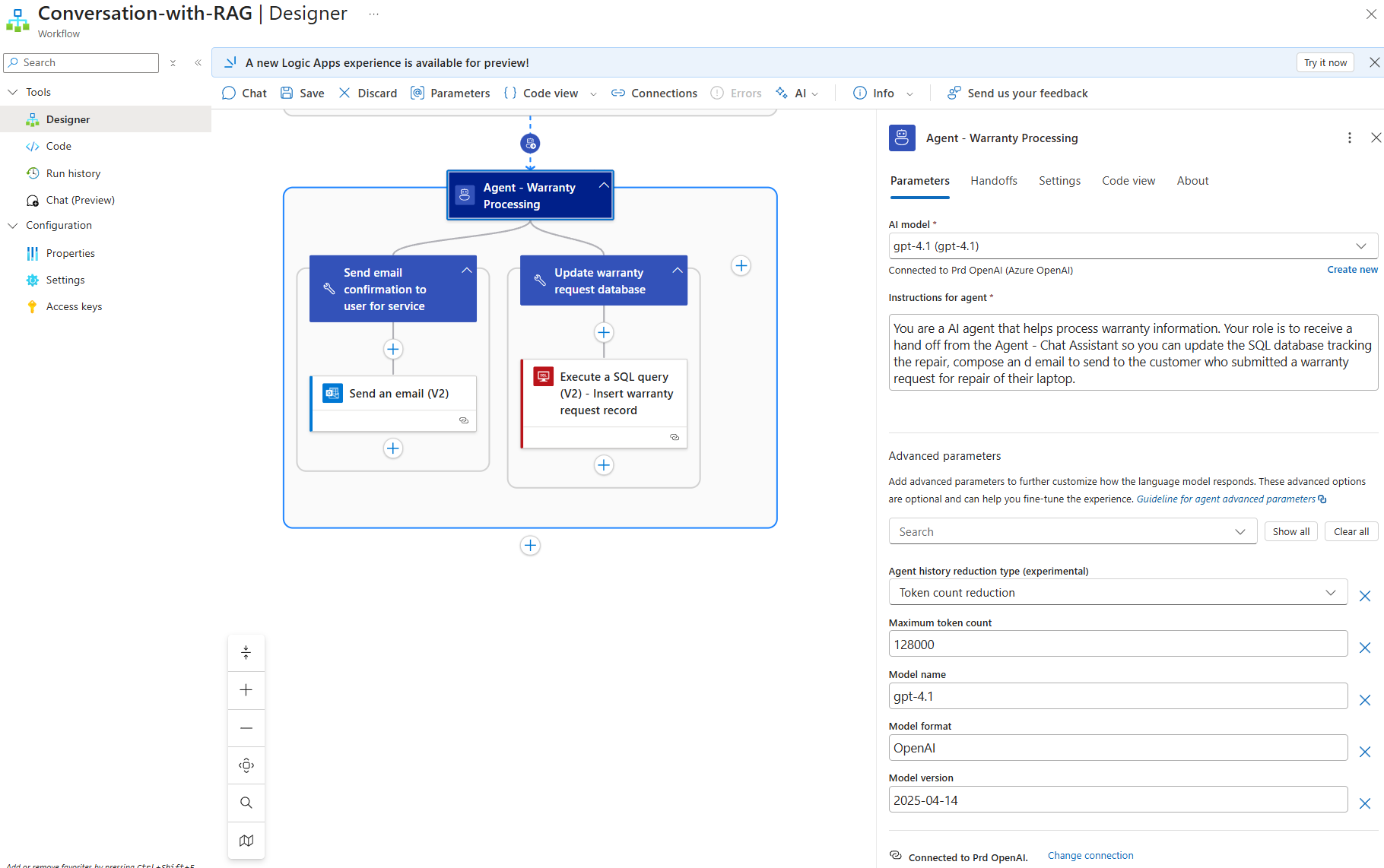
The tools configured for the agent are:
Update warranty request database Tool
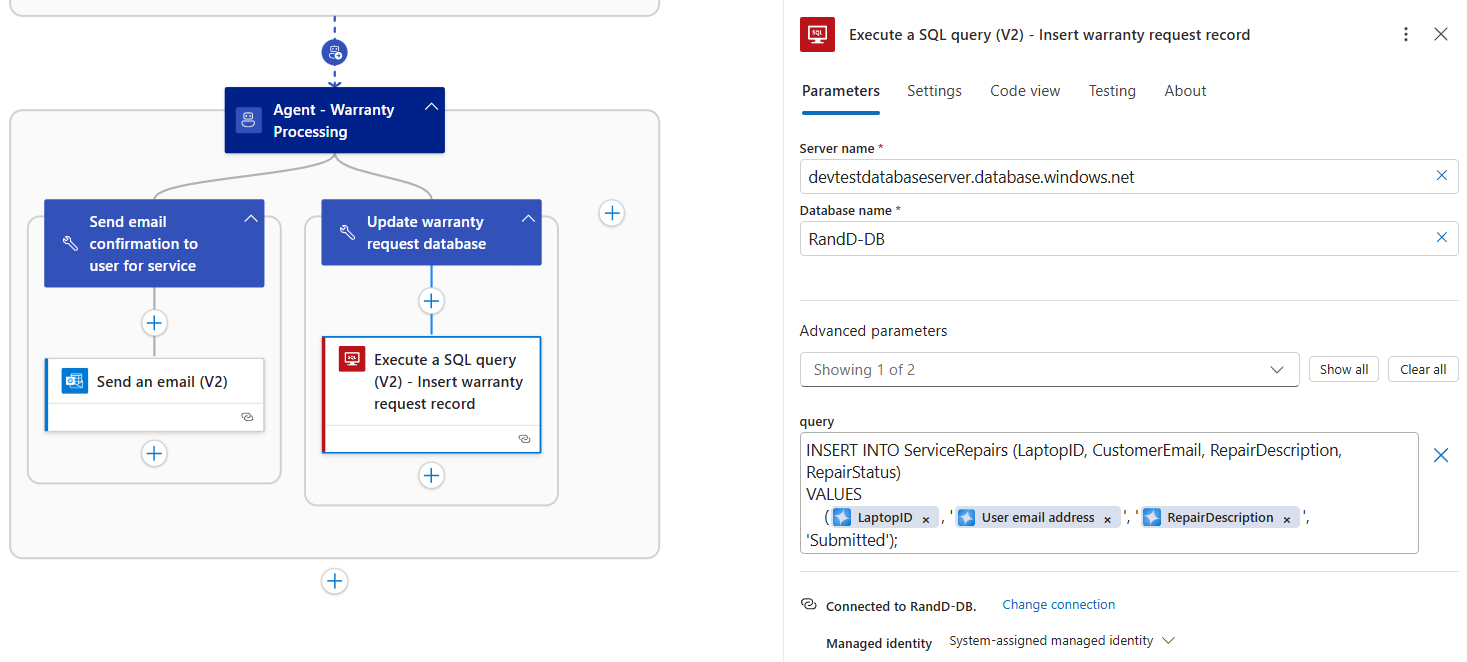
This tool uses the Execute a SQL query (V2) – Get Warranty from SQL to insert a new record into the Azure SQL Database I created earlier to track the service request. The parameters passed are collected and passed by the previous agent during the hand-off:
INSERT INTO ServiceRepairs (LaptopID, CustomerEmail, RepairDescription, RepairStatus)
VALUES
(, ‘<LaptopID>‘, ‘<User email address>‘, ‘Submitted’);
Send email confirmation to user Tool
The second tool uses the Send an email (V2) to create and send a confirmation email to the user chatting with the agent that their service request has been received. The parameters passed are collected and passed by the previous agent during the hand-off:
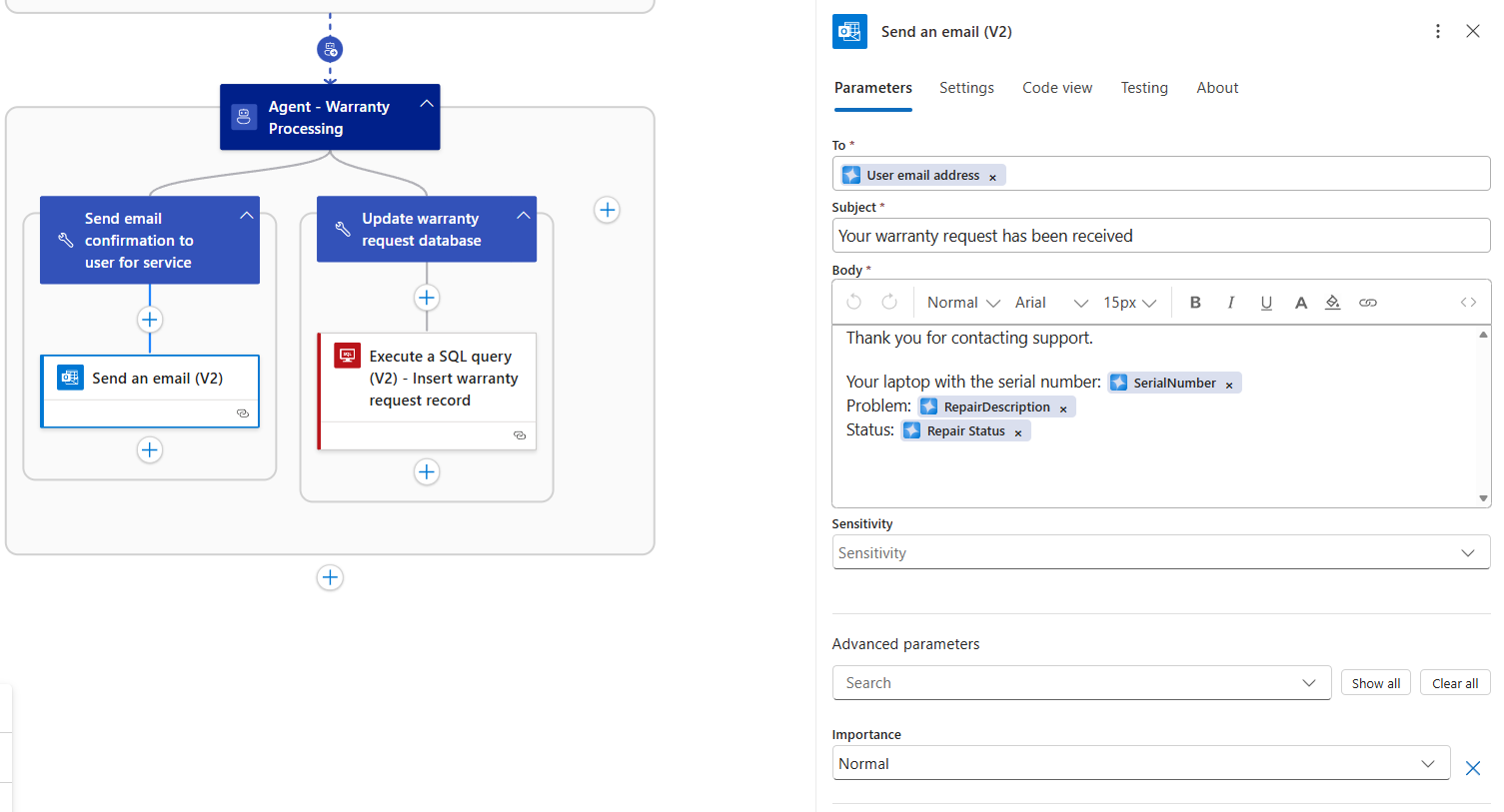
With the configuration demonstration out of the way, let’s now have a look at the chat experience.
Chat Topics that leverage RAG Tool
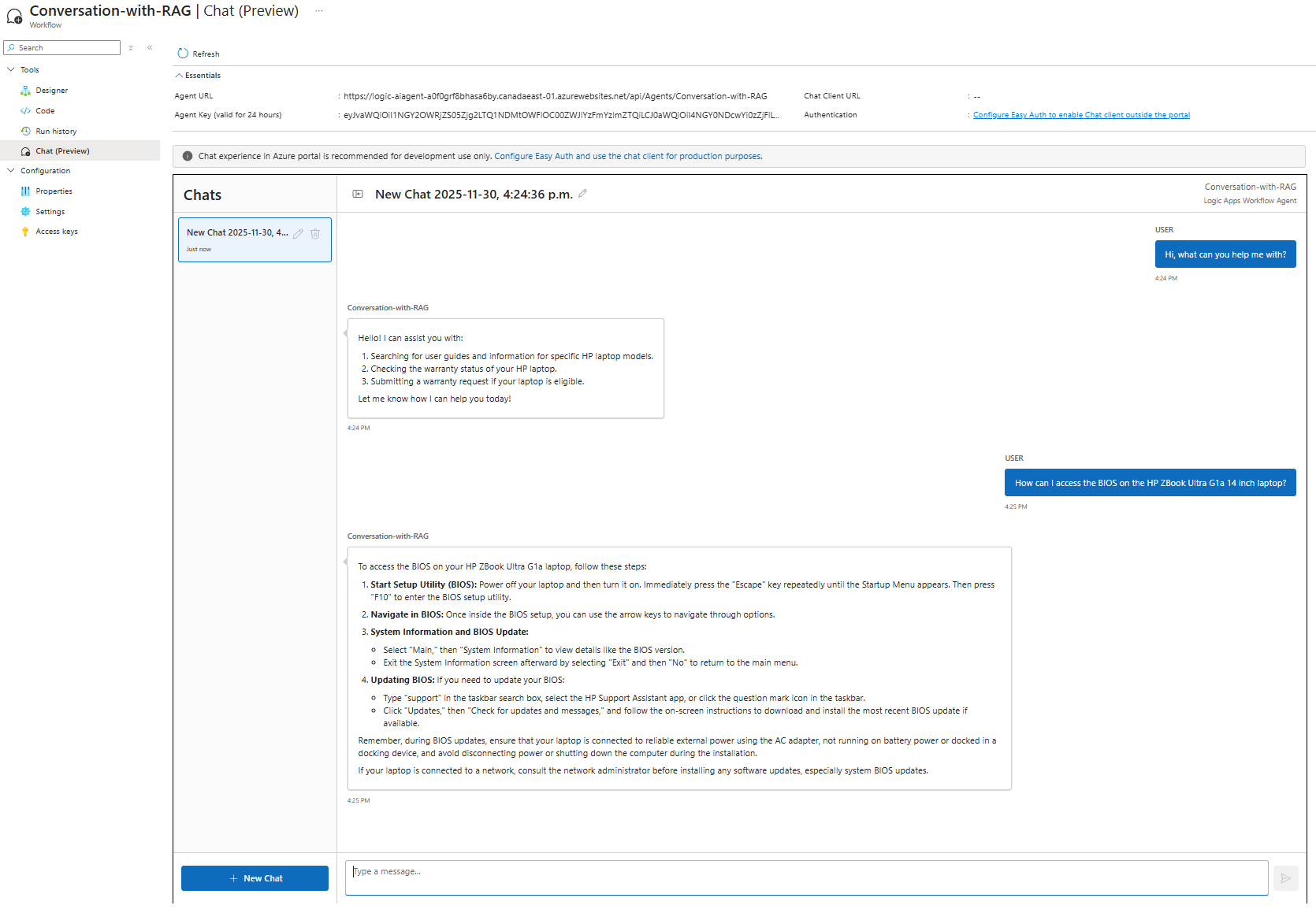
Questions around BIOS access for different laptop models:
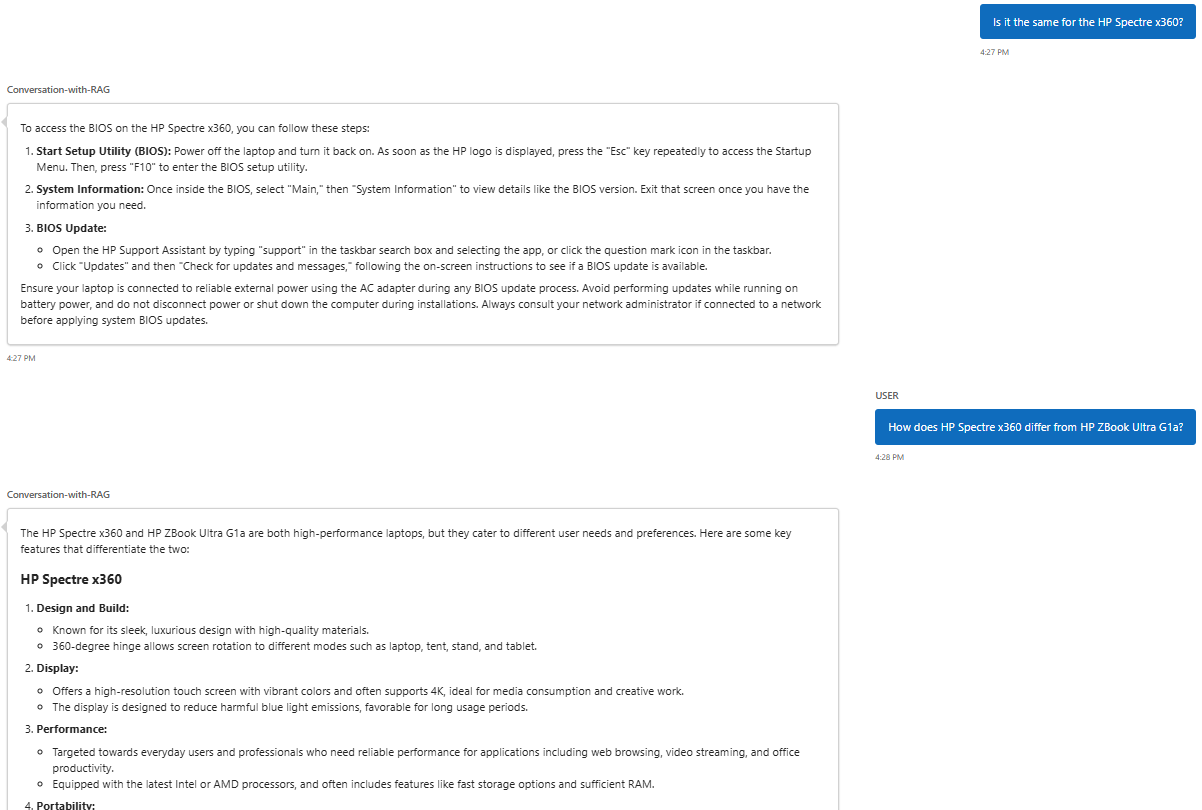
Comparison between the two laptops:
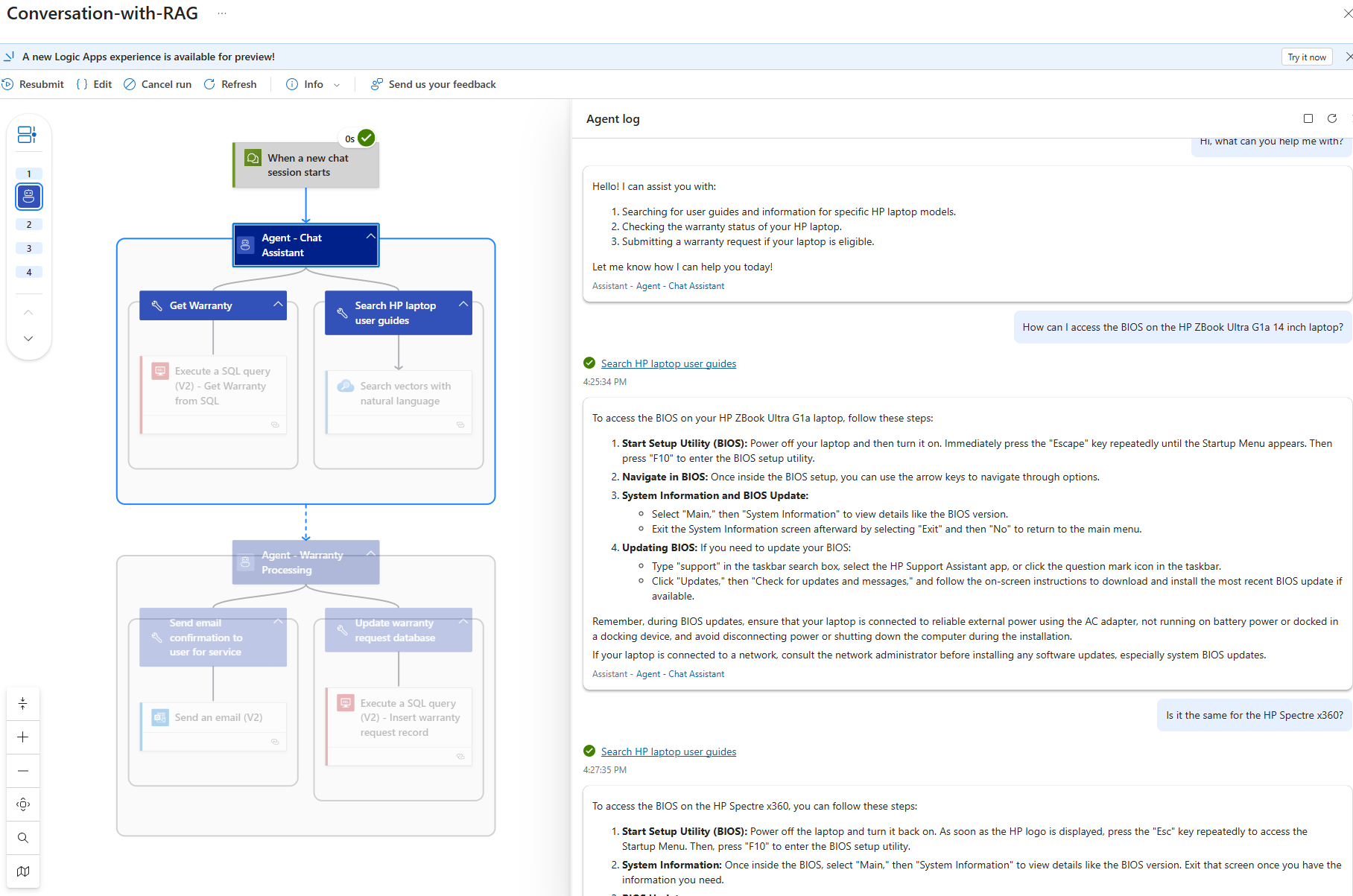
Here is a screenshot of the Run history which depict what is happening behind the chat:
Chat Topic that retrieves data from Azure SQL Database
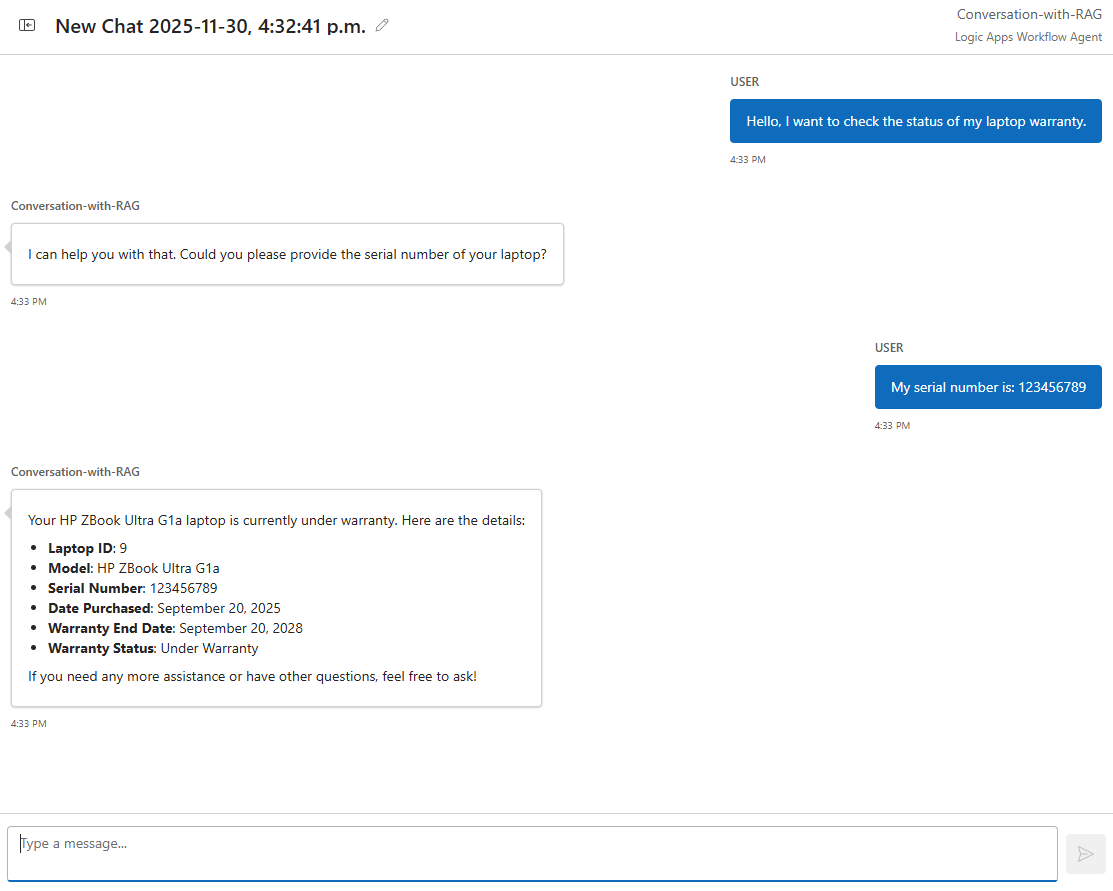
Determine whether a laptop is under warranty (information retrieved from Azure SQL Database):
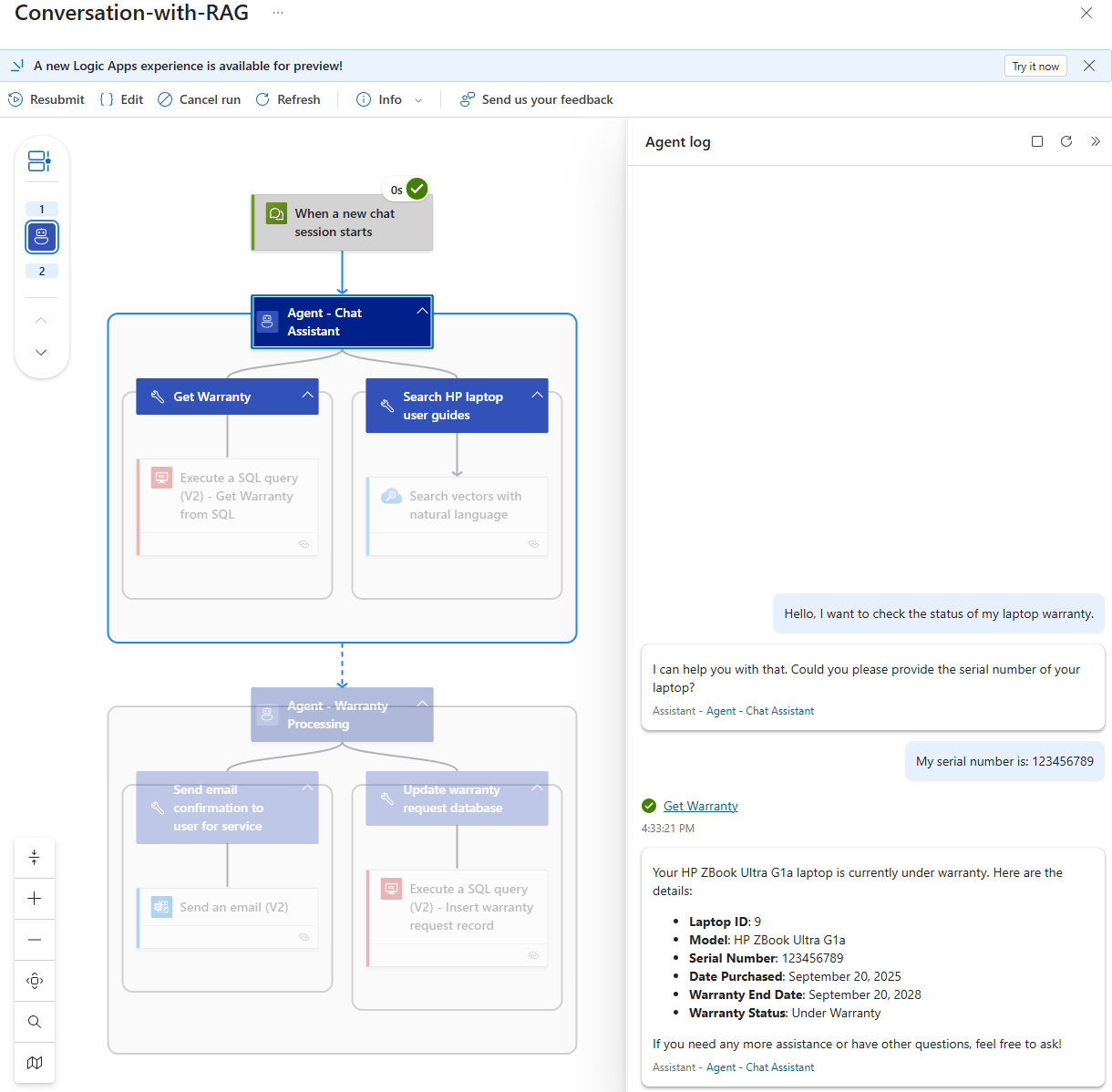
Here is a screenshot of the Run history which depict what is happening behind the chat:
Chat Topic that initiates Agent Hand-Off
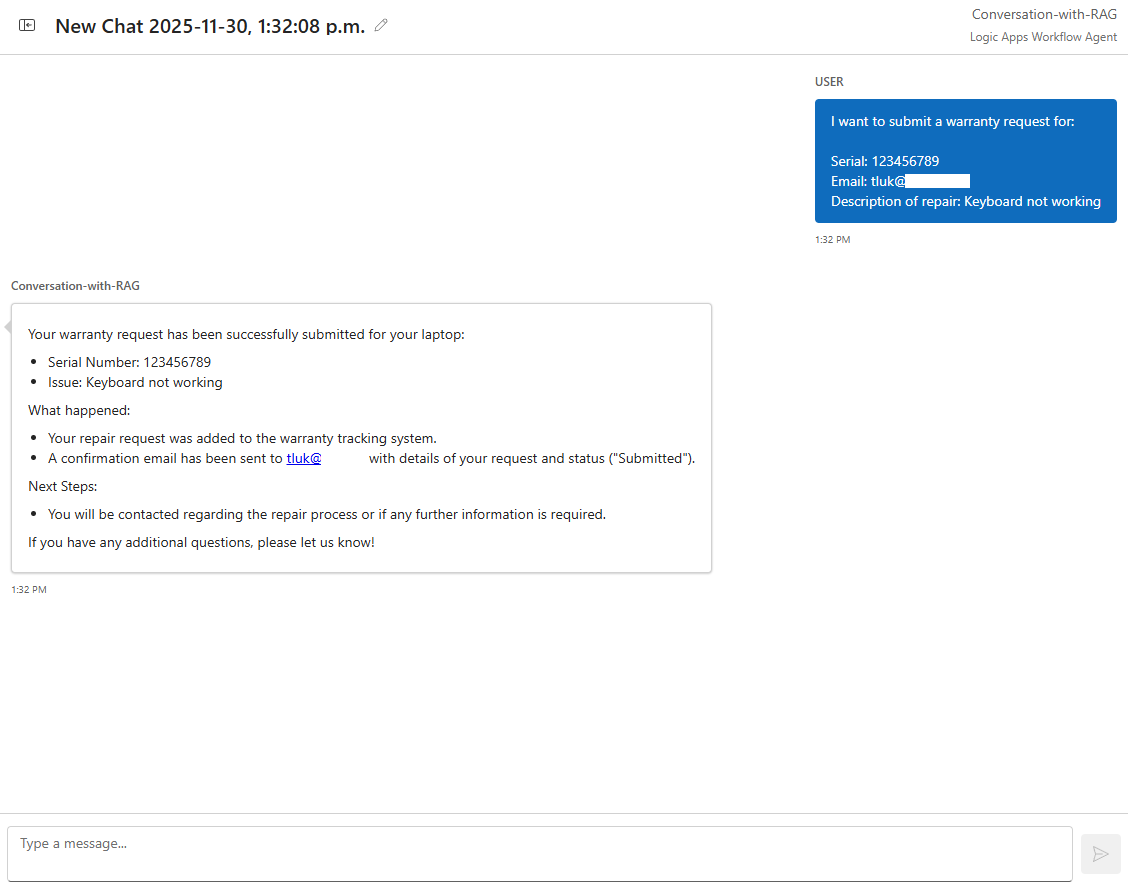
Let’s now proceed to ask for a warranty service request that will initiate the agent hand off.
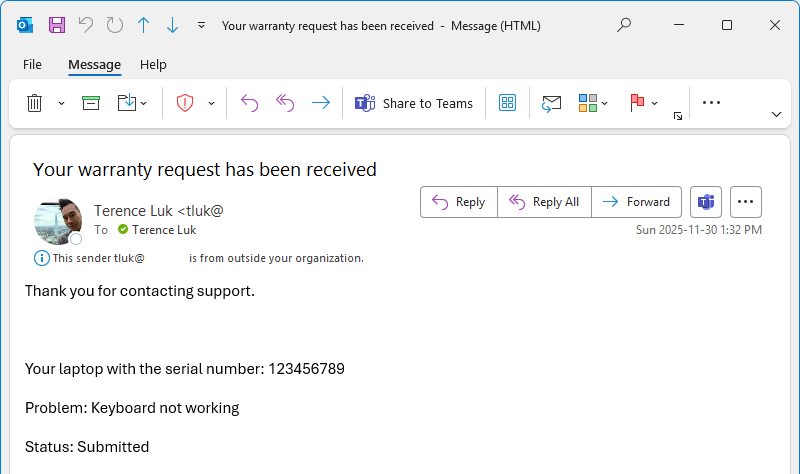
Here is the basic email that was sent as the confirmation:
Here is the updated database table with the additional record:

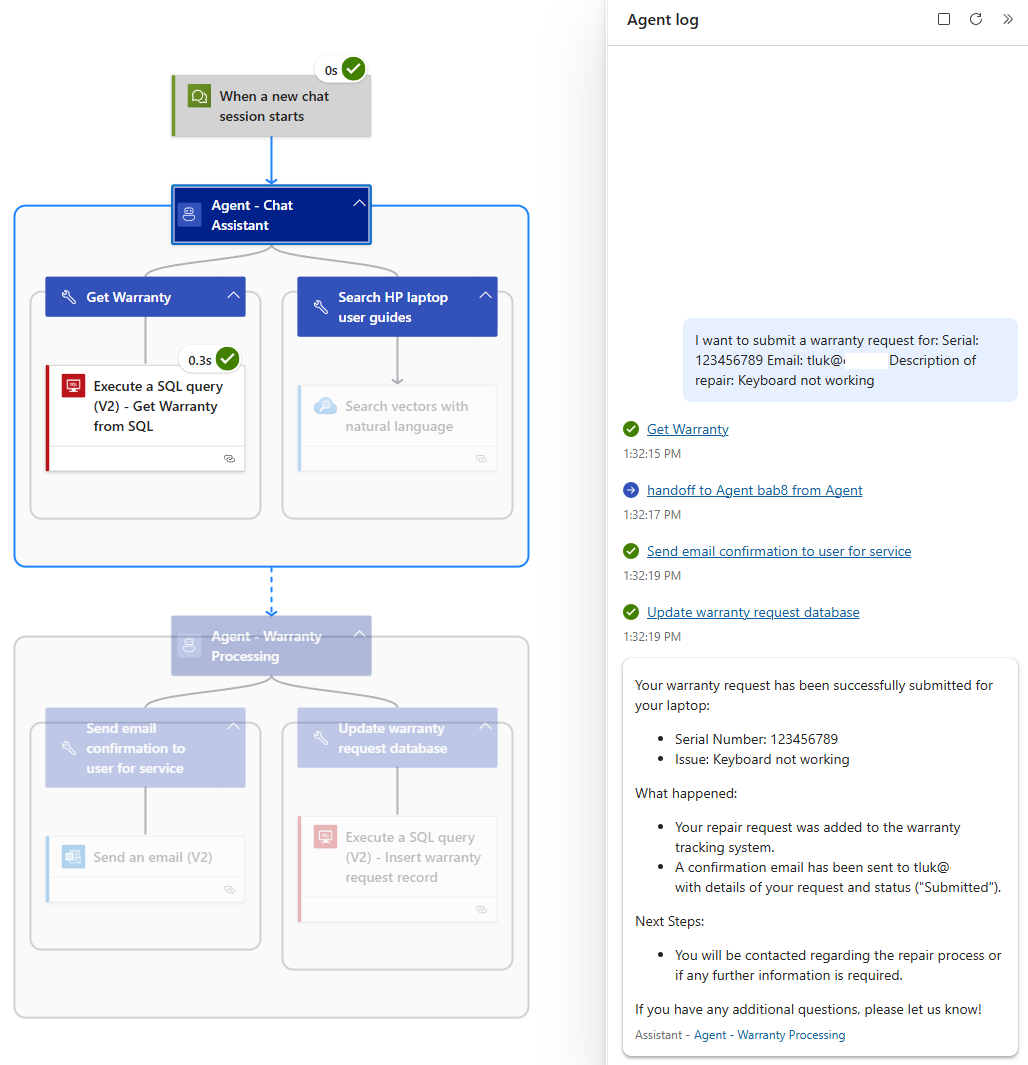
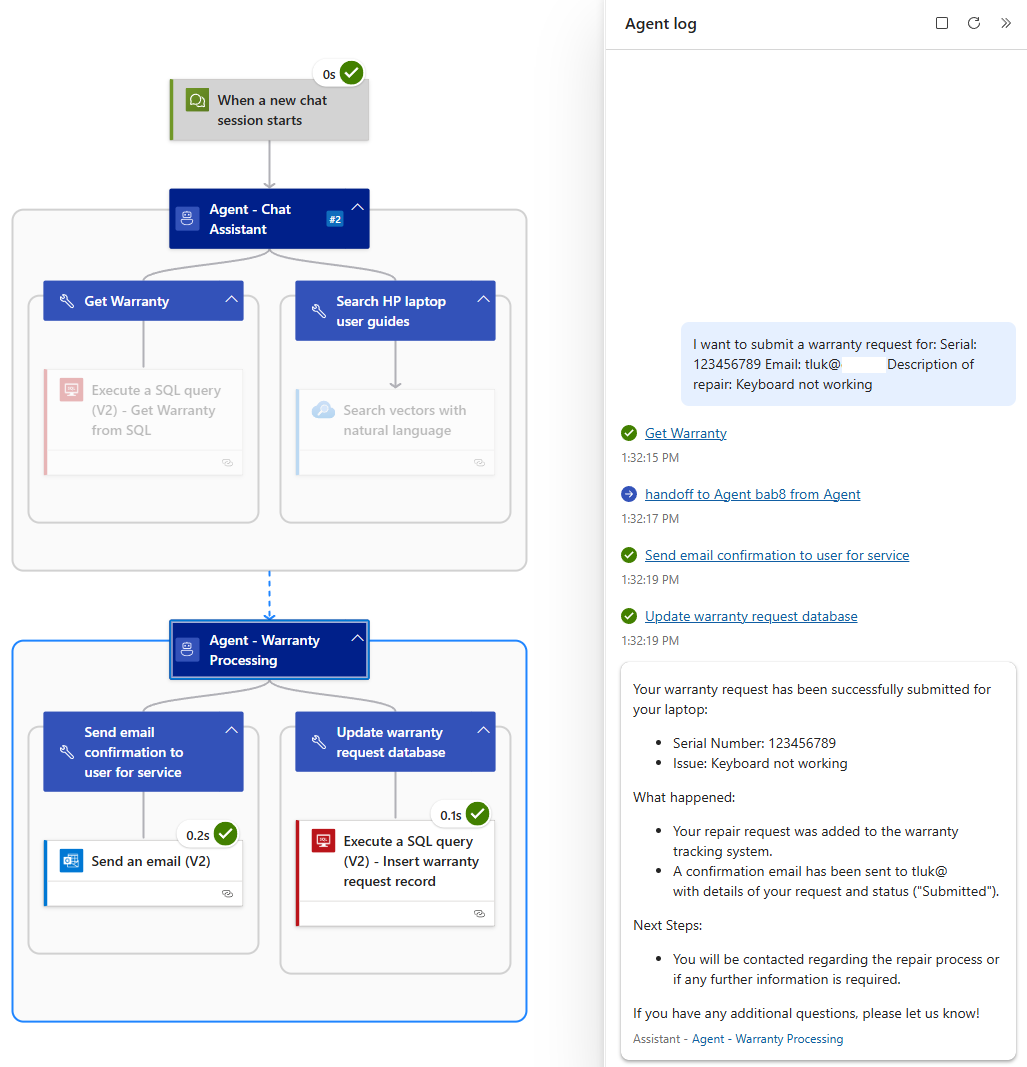
Here are two screenshots of the Run history which depict what is happening behind the chat:
The agent hand-off capabilities of the conversational agent workflows opens up a vast amount of possibilities and I’m excited to continue exploring more complex designs with bi-direction (this example is mainly 1 direction) hand-offs.

