
As a follow up to the following 2 of my previous posts:
Configuring a Logic App to run an Azure AI Search Service Indexer to index new documents for RAG
One of the issues I noticed with the way I’ve demonstrated on how to check if a document was indexed before initiating the start of the indexer doesn’t scale very well if multiple files have been placed onto a storage account with multiple indexer runs initiated. This was apparent when I set up a SharePoint site that would allow files that are uploaded to trigger a Logic App that will then copy the files to a storage account for the Azure AI Search Service indexer to index documents.
After thinking the sequence of activities and potential Logic App actions, I managed to create a flow that could handle uploads whether for 1, 10, 100 or more documents. This post serves to document the steps that I want to share as well as provide myself a reference if I every had to do this again in the future.
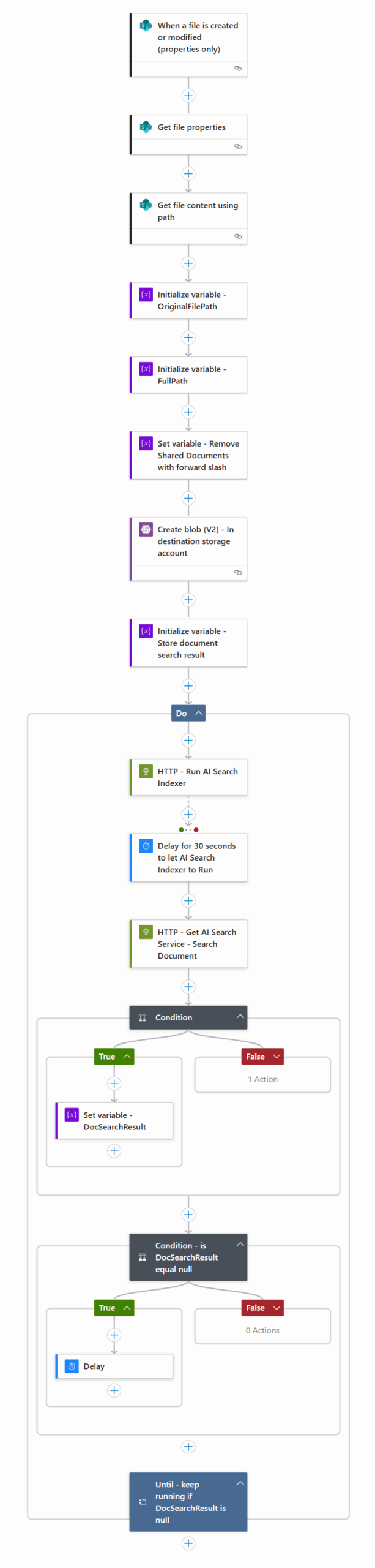
The Logic App’s sequence of actions as shown in the following screenshot:
Begin with setting the trigger to When a file is created or modified (properties only) and configure the properties of the SharePoint site this Logic App will be monitoring for files to be uploaded:

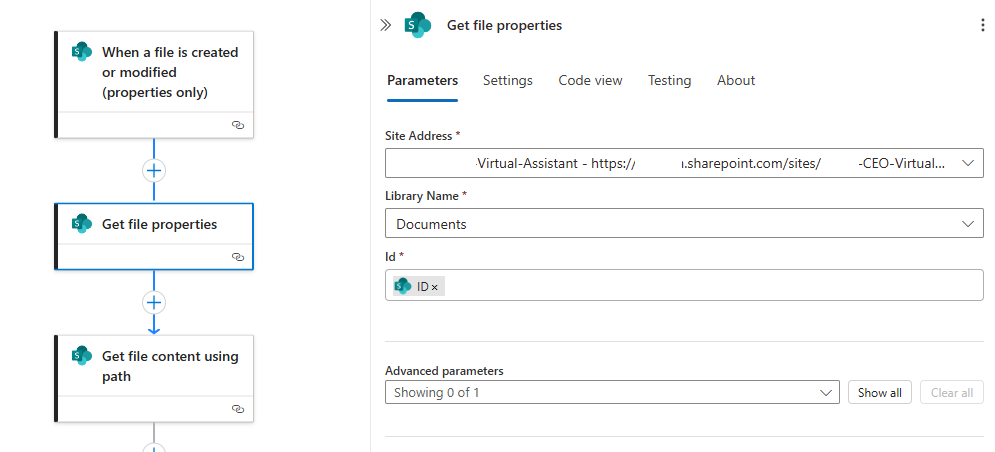
Add the action Get file properties and configure the properties of the SharePoint site’s document library, then specify the ID of the previous When a file is created or modified (properties only) as the value:
Proceed to add the action Get file content using path and specify the File Path as the Full Path from the When a file is created or modified (properties only) trigger:

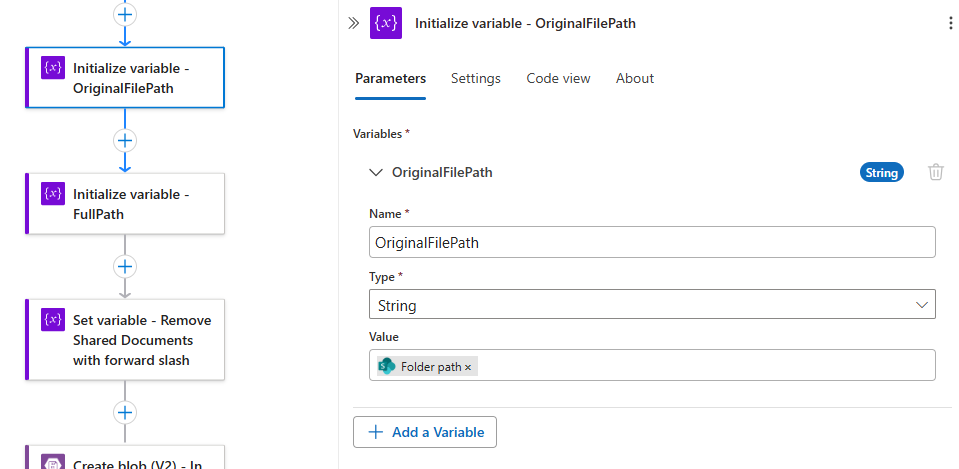
Let’s now initialize some variables we’ll need for the processing. Create a new Initialize variable – OriginalFilePath and configure as such:
Name: OriginalFilePath
Type: String
Value: The Folder path file returned from Get file file properties
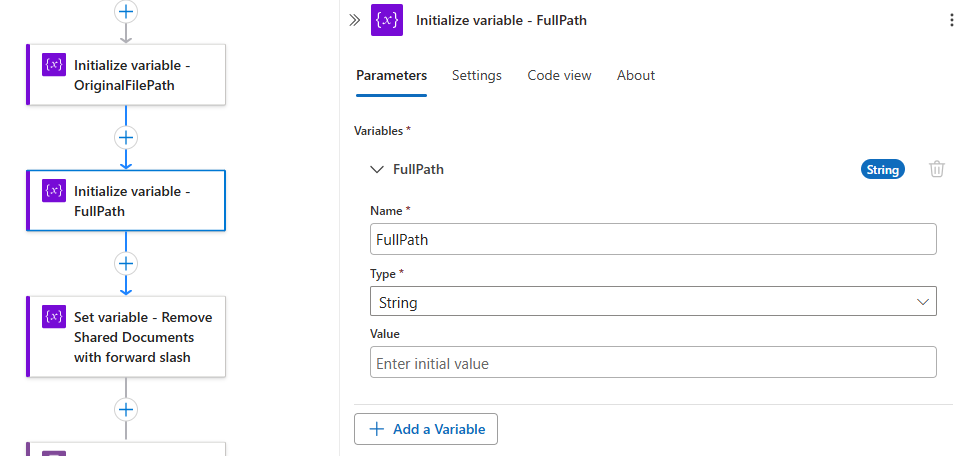
Create a new Initialize variable – FullPath and configure as such:
Name: FullPath
Type: String
Value: <leave empty>
Create a new Set variable – Remove Shared Documents with forward slash and configure as such:
Name: FullPath
Type: String

The purpose of this step is essentially removing the first 17 characters of the SharePoint site file path (Shared Documents/) so we can get the directory of the folder. Here is an example of the OriginalFilePath value:
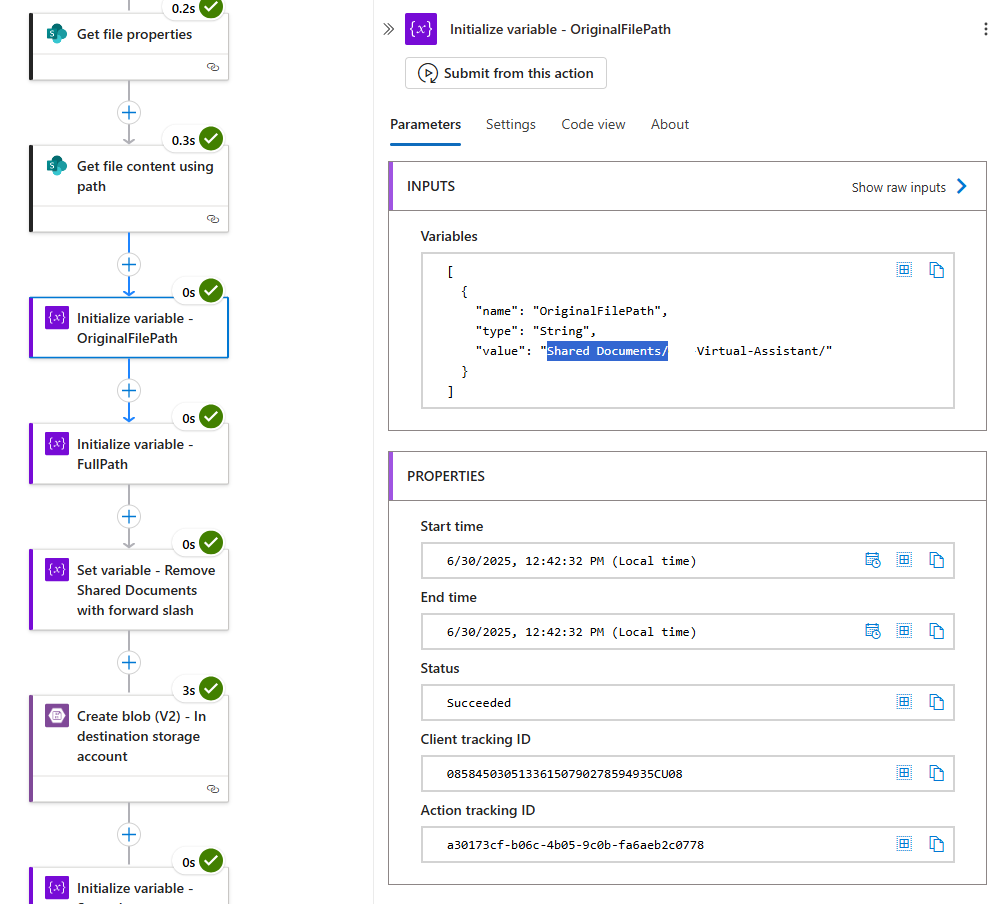
Here is the string manipulation result (Note that we’ve retained the / at the end):

Now that we’ve extracted and created the variables and data we need, proceed to add the action Create blob (V2) – In destination storage account to copy the file to the Storage Account where we will be indexing the file with AI Search:
Storage Account Name or Blob Endpoint: <The name of the storage account>
Folder Path: <The container where files will be placed – note that you can use the folder icon on the right to browse to the container>
Blob Name: The FullPath variable with Get file properties’ Filename with Extension value
Note how I did not include a / between the FullPath variable and Get file properties’ Filename with Extension value because the FullPath already has a training /.

Blob Content: The file content of the Get file content using path previous action
Note that I am using the System-assigned managed identity of the Logic App to write to the Storage Account:

With the handling of the trigger and copy of the SharePoint file to the Storage Account actions configured, we will not proceed to handling the indexing of the file. Begin by configuring a new variable named Initialize variable – Store document search result that will store the search results of the file (determine whether the file has been indexed):
Name: DocSearchResult
Type: String
Value: <leave empty>

Next, create a Until loop:

Within the loop, add the action HTTP and name it HTTP – Run AI Search Indexer and fill in the parameters. The purpose of this step is to trigger the AI Search indexer via the API to start indexing any new documents placed into the Storage Account. I won’t go into the details as my previous 2 posts:

What I’ve found during the design and testing of the Logic App is that it is not practical to try and continuously loop the actions to run the indexer and check if the document is indexed because when more than 1 file is uploaded, the 2nd attempt to run the indexer HTTP – Run AI Search Indexer would fail and causes the Logic App run to stop because it is already running. Furthermore, if the 2nd file has already landed into the storage account when the indexer has been ran from the 1st file, then the indexing would pick it up. This in turn means that one way of handling multiple files that are uploaded is simply attempt to run the indexer service and regardless whether the action fails, proceed to wait 30 seconds, then search for the document. If 2 or more files were uploaded, the 3rd action HTTP – Get AI Search Service – Search Document would find the document.
With this in mind, we would configure the Delay for 30 seconds to let AI Search Indexer to Run action to Run after with the settings:
Is successful and Has failed
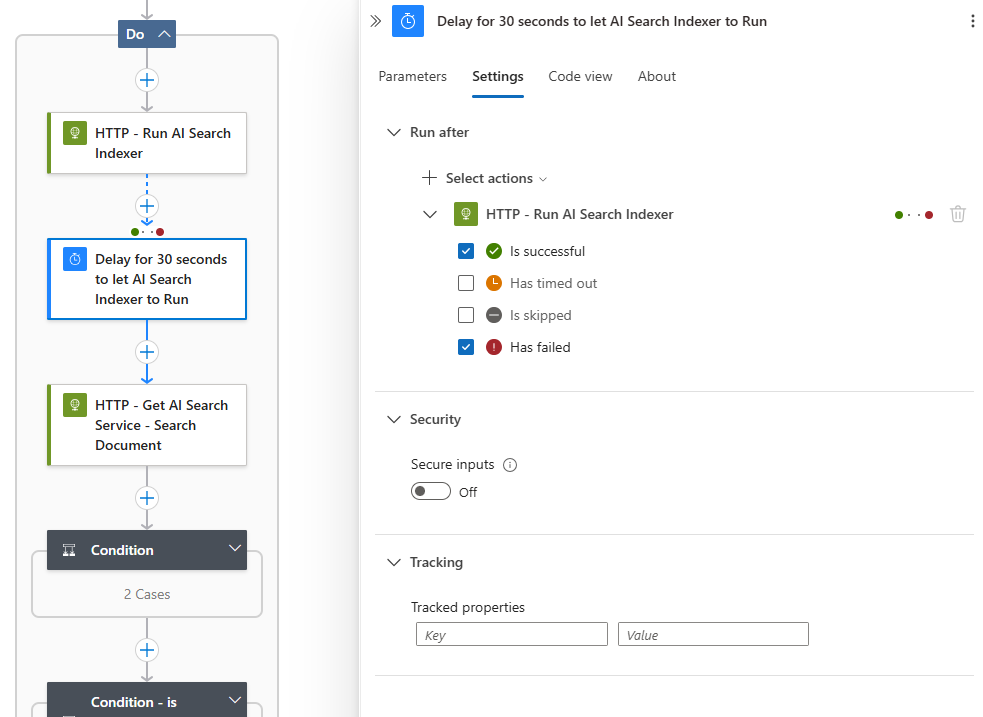
30 seconds delay after, the action HTTP – Get AI Search Service – Search Document will attempt to find the document:

More information for the Body content can be found in my previous post.
The next condition will now check to validate that the previous HTTP action has returned a Status Code of 200:
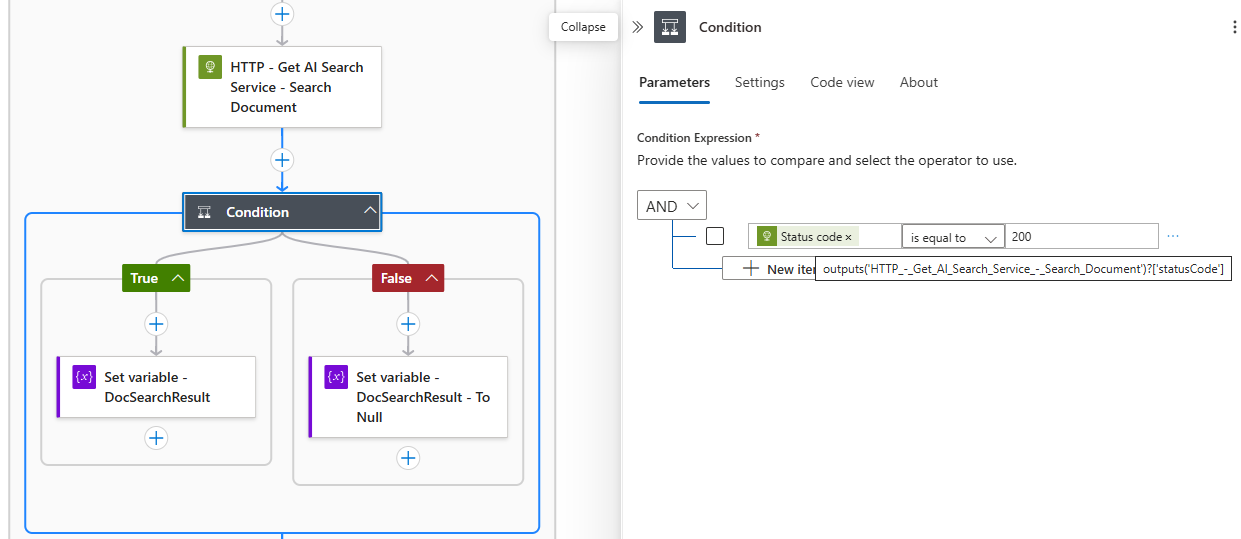
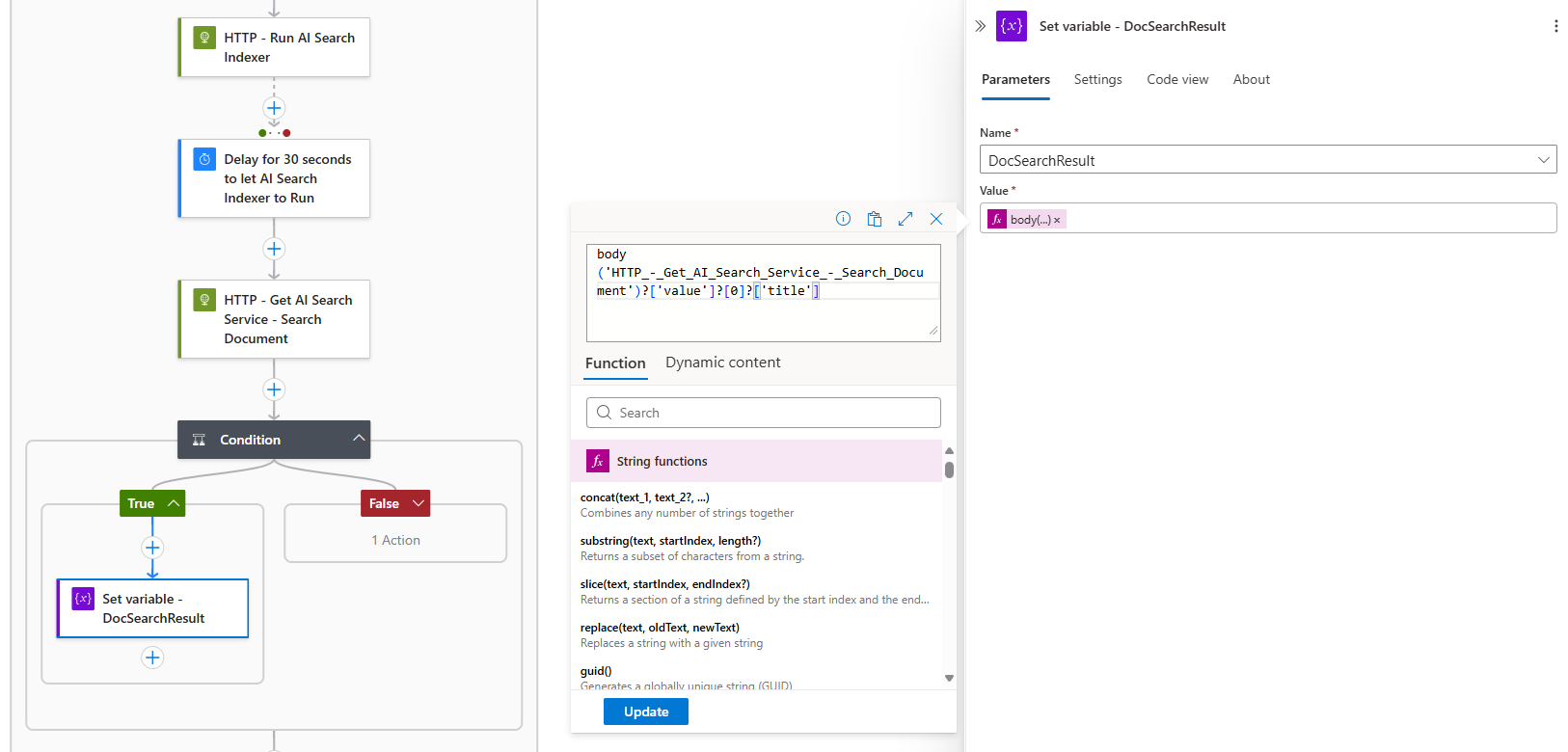
If the Status Code other than 200 was returned, we will set the DocSearchResult to an empty string:
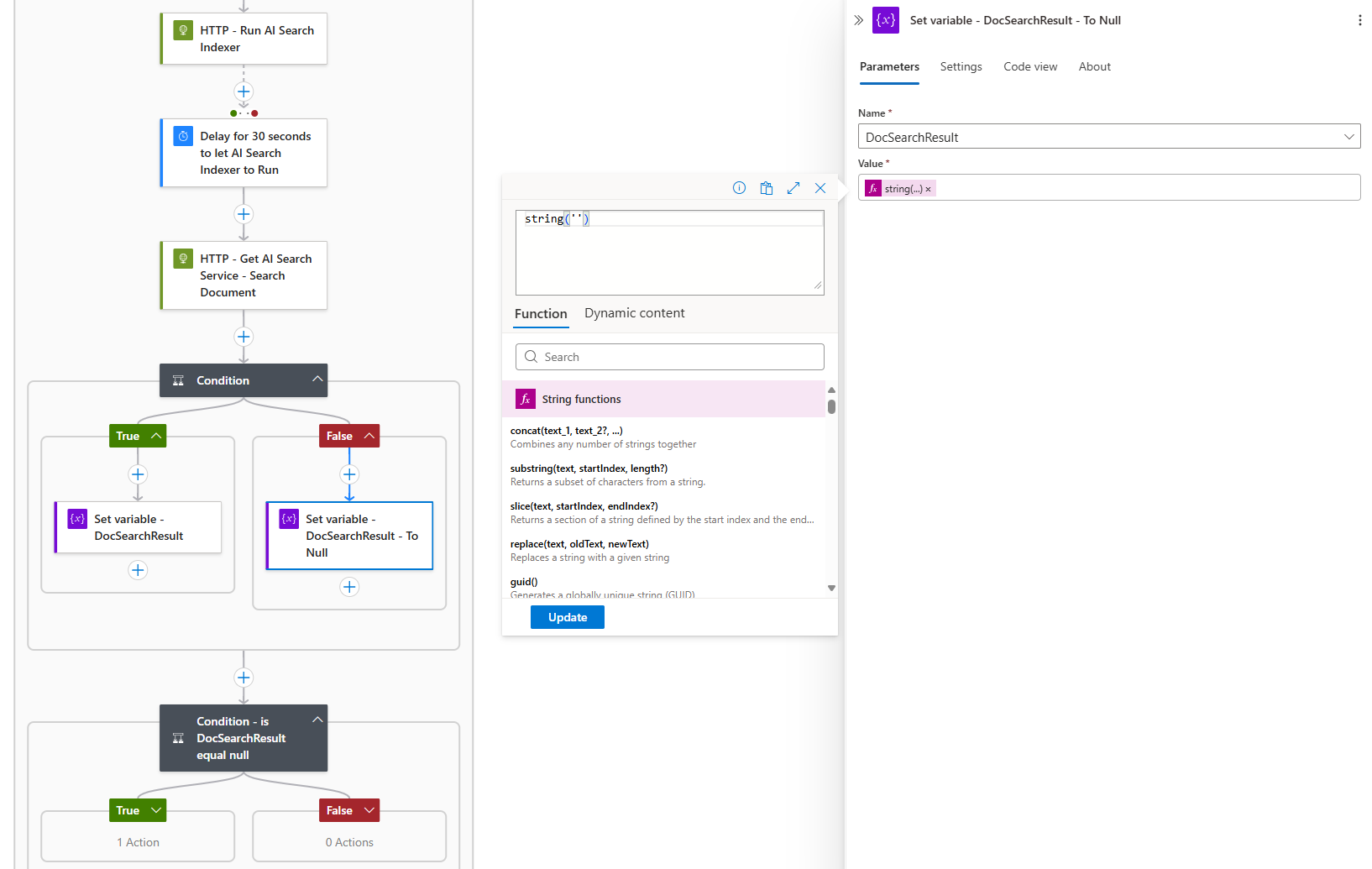
Next, we will use another Condition to evaluate whether the DocSearchResult is equal to an empty string or not:

If the document was not found, then we’ll proceed to delay the Logic App run by 1 minute and the Until value will loop again as DocSearchResult is not equal to <empty string> is false (when it is not an empty string, the loop will stop):

I’ve tested this and was able to confirm that multiple files uploaded to SharePoint would be handled appropriately across the multiple runs of the Logic App. Hope this helps anyone who might be looking for a demonstrate of this.

