
Azure Firewall Logs are something I work with often, and troubleshooting them well starts with reviewing them carefully. Being a team lead who is also technical means that I am involved in a lot of escalated support requests where I would still need to roll up my sleeves and perform actual troubleshooting. I’ve always liked technical work and find a lot of joy training colleagues through my approach to troubleshooting and investigating issues.
One of the common components I get involved in, which will most likely will continue, is the Azure Firewall because all traffic transits through it. I’ve always enjoyed querying an Azure Firewall’s Log Analytics workspace to trace transiting traffic but as an environment becomes large with many subnets, it becomes difficult to identify which subnet the SourceIp or DestinationIp belongs to. The Azure Firewall doesn’t have such labels so I decided to figure out a way to solve this problem.
The solution I landed on was to create a custom table in the Log Analytics Workspace that contain the VNet and Subnet information so I can merge the data with KQL as I query the logs for AZFWNetworkRule and AZFWApplicationRule and I will demonstrate this in this blog post.
Step #1 – DCE and DCR to support a new custom table in the Azure Firewall Log Analytics Workspace
In order to enrich the Azure Firewall log queries with additional information, we’ll need to create a new custom table in the Azure Firewall Log Analytics Workspace:
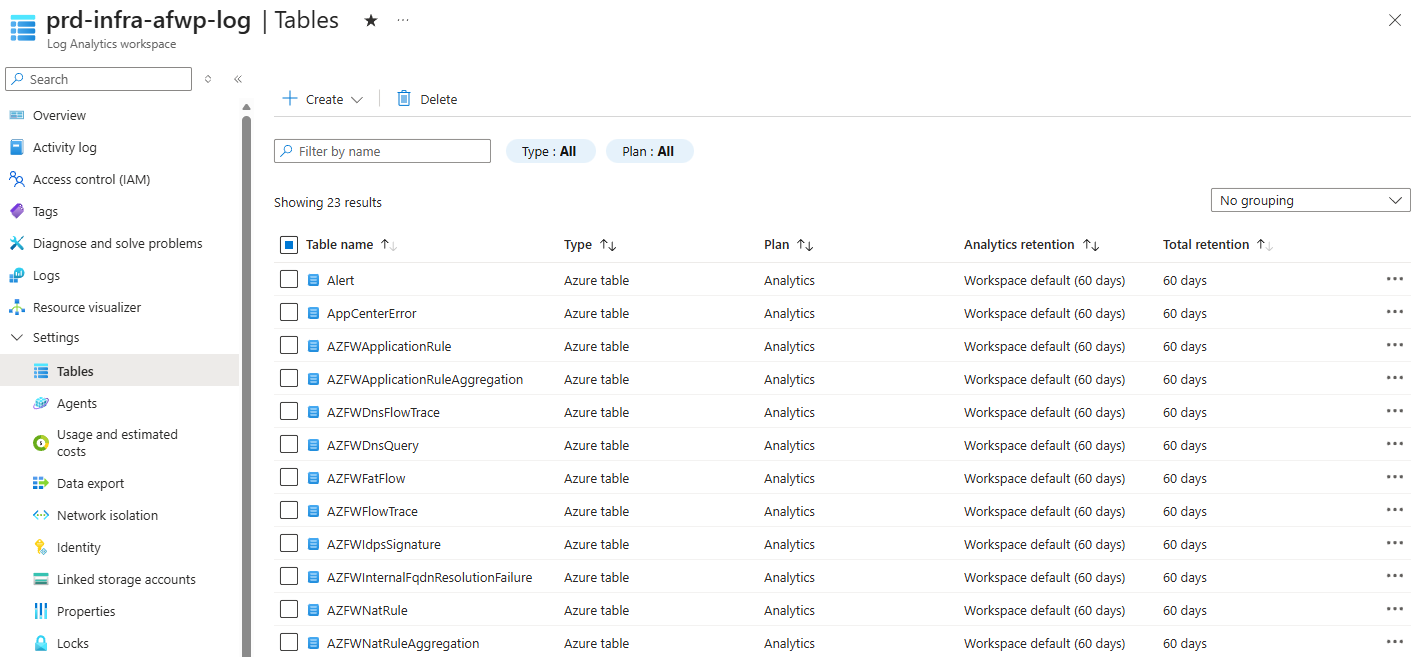
Before you can actually create a new table with New custom log (Direct Ingest) from the Log Analytics Workspace GUI:
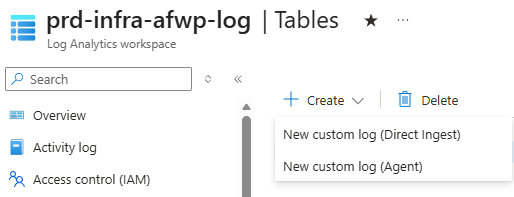
We’ll need to first create the required Data collection rule and Data collection endpoint that serves as a way to feed data into this log:
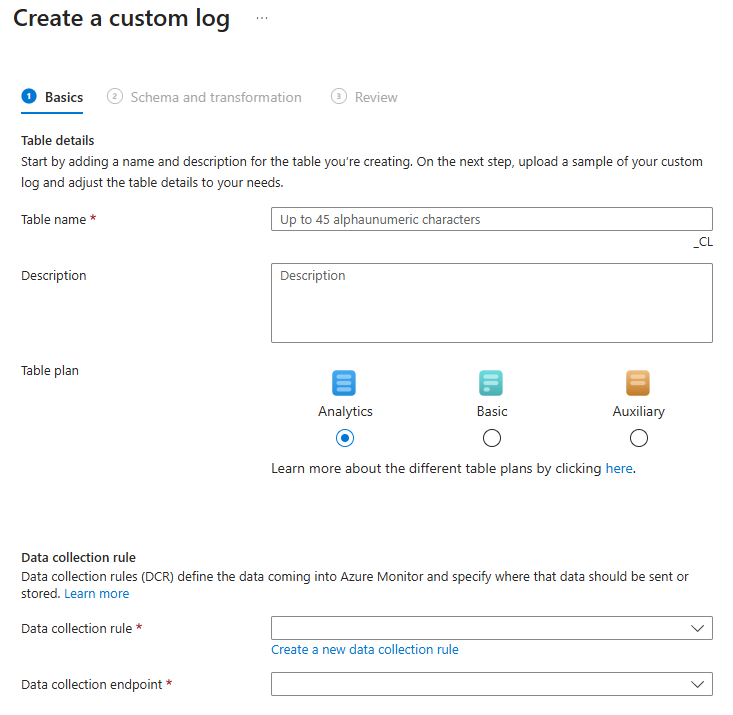
I won’t go into the details of a DCR and DCE but will provide the following documentation:
Data collection rules (DCRs) in Azure Monitor
https://learn.microsoft.com/en-us/azure/azure-monitor/data-collection/data-collection-rule-overview
Data Collection endpoints in Azure Monitor
https://learn.microsoft.com/en-us/azure/azure-monitor/data-collection/data-collection-endpoint-overview?tabs=portal
Begin by creating a DCE, which the DCR will reference:
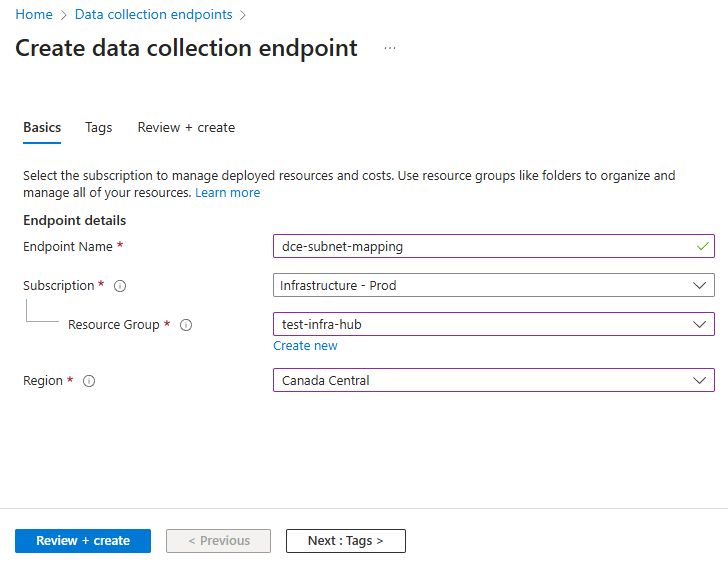
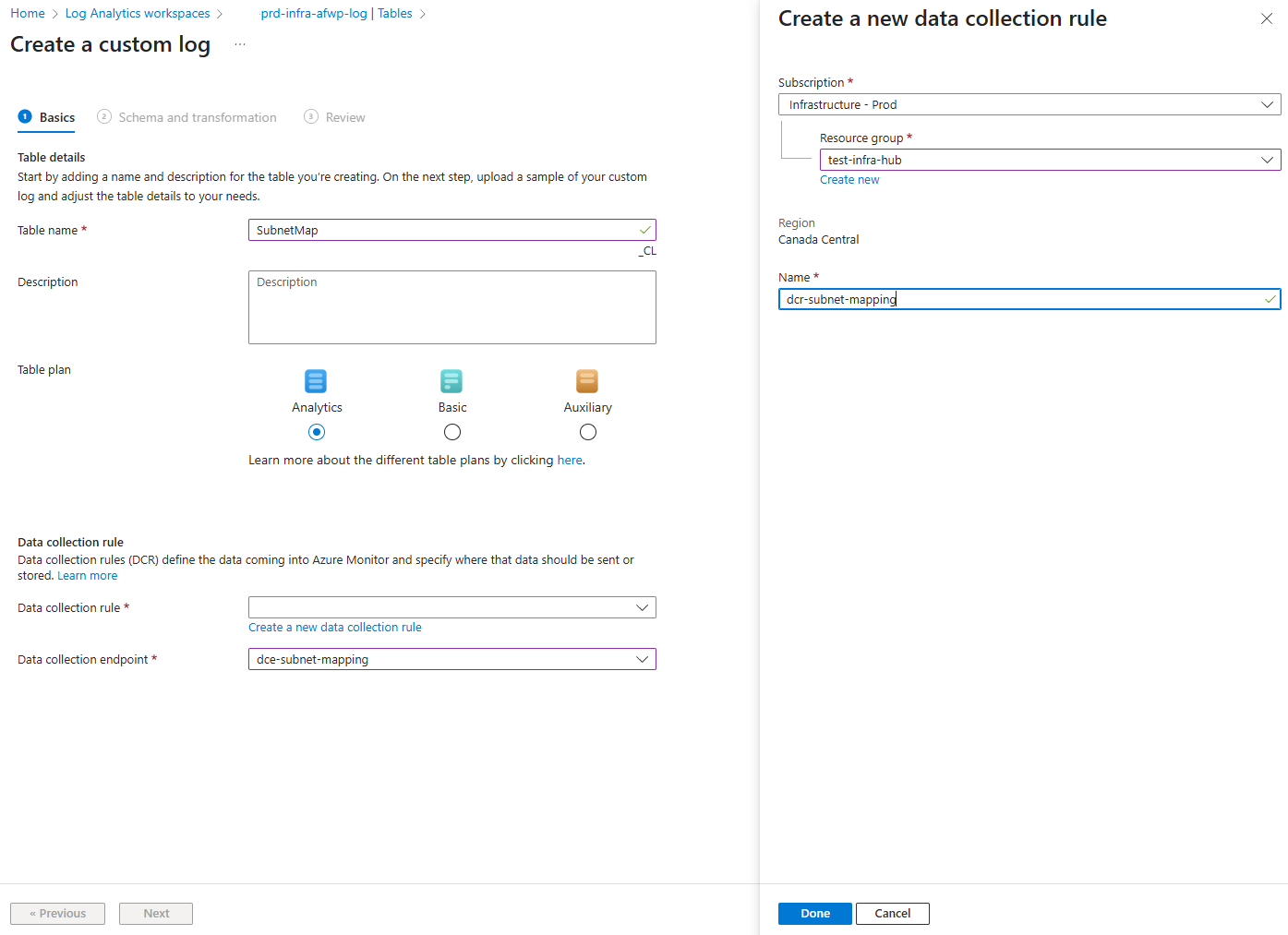
Next, we can create the DCR while creating the custom log as such:
Provide the name of the custom table and note that the suffix of _CL is automatically appended. Select the Create a new data collection rule to create the DCR and select the previous Data collection endpoint that was created:
The next step in the wizard is for us to define the schema for this custom log table:
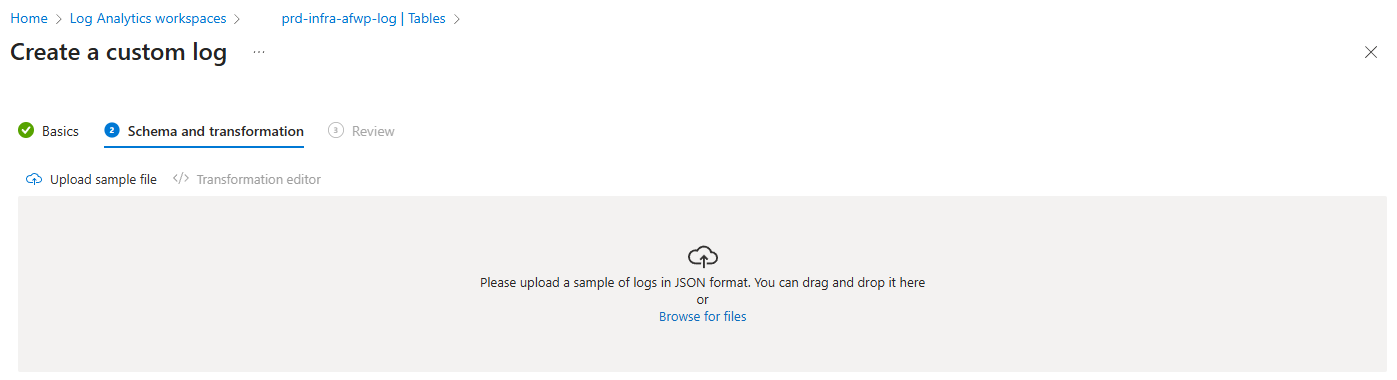
I’ve included the JSON file with the schema in my following GitHub repository: https://github.com/terenceluk/Azure/blob/main/Azure%20Firewall/subnet-schema-sample.json

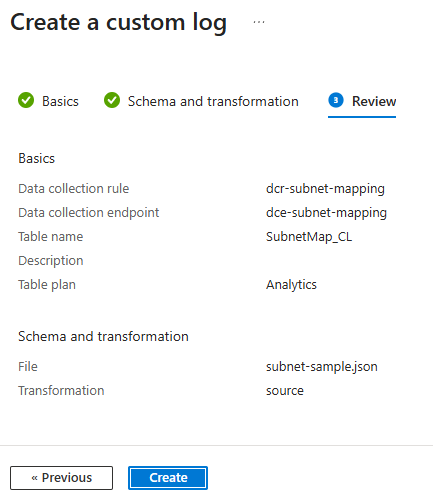
Proceed to create the custom table:
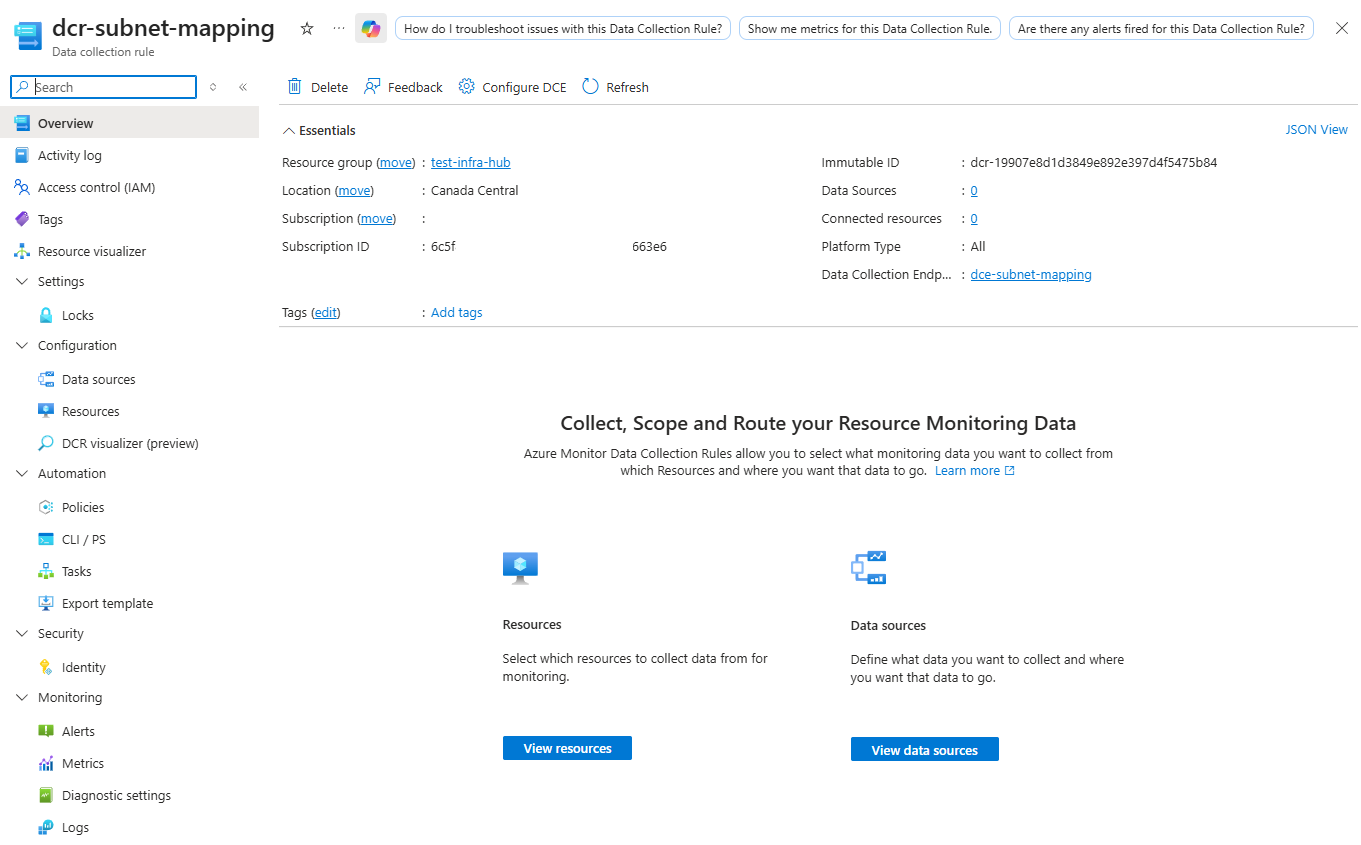
Once completed, you see the new DCR created along with the custom table named SubnetMap_CL:
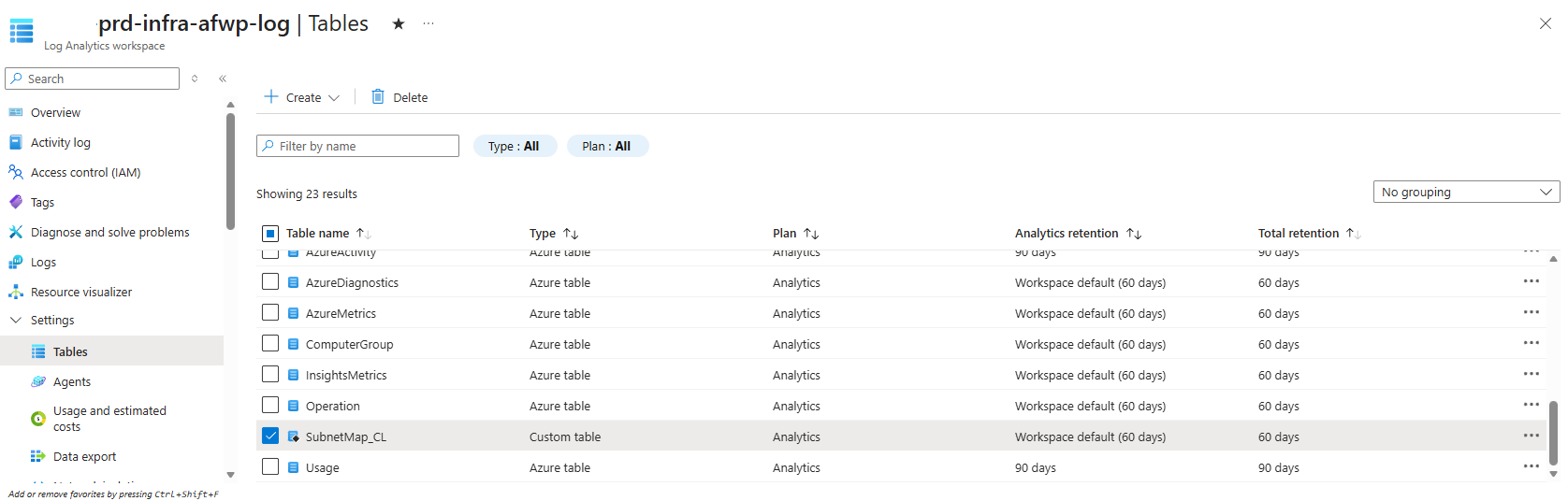
With the custom table created, we can quickly test to validate that it is configured to what the expectations are by using a PowerShell script with an administrator’s identity to insert a record.
Begin by assigning the account that will be used to log in via Connect-AzAccount the Monitoring Metrics Publisher role on the Data collection rule’s RBAC configuration:
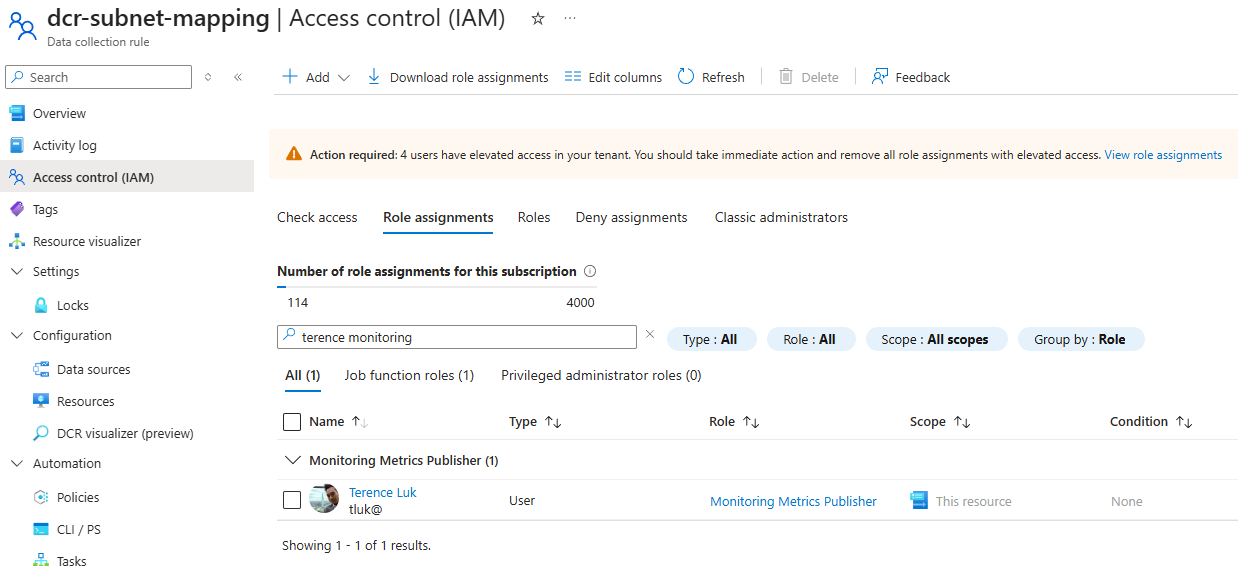
Then edit these values:
Set-AzContext -SubscriptionId “12345678-1234-1234-1234-123456789abc” | Out-Null # Update with Subscripotion containing DCE
$DCE_HOST = “dce-subnet-mapping-xxx.canadacentral-1.ingest.monitor.azure.com” # Update to DCR “Logs Ingestion” without https://
$DCR_ID = “dcr-4234234e8dads82342492e397d4f542342384” # Update to DCR “Immutable ID”
… for the script in my GitHub repository: https://github.com/terenceluk/Azure/blob/main/Data-Collection-Rule/Test-Custom-Table-Insert.ps1
Execute the script:
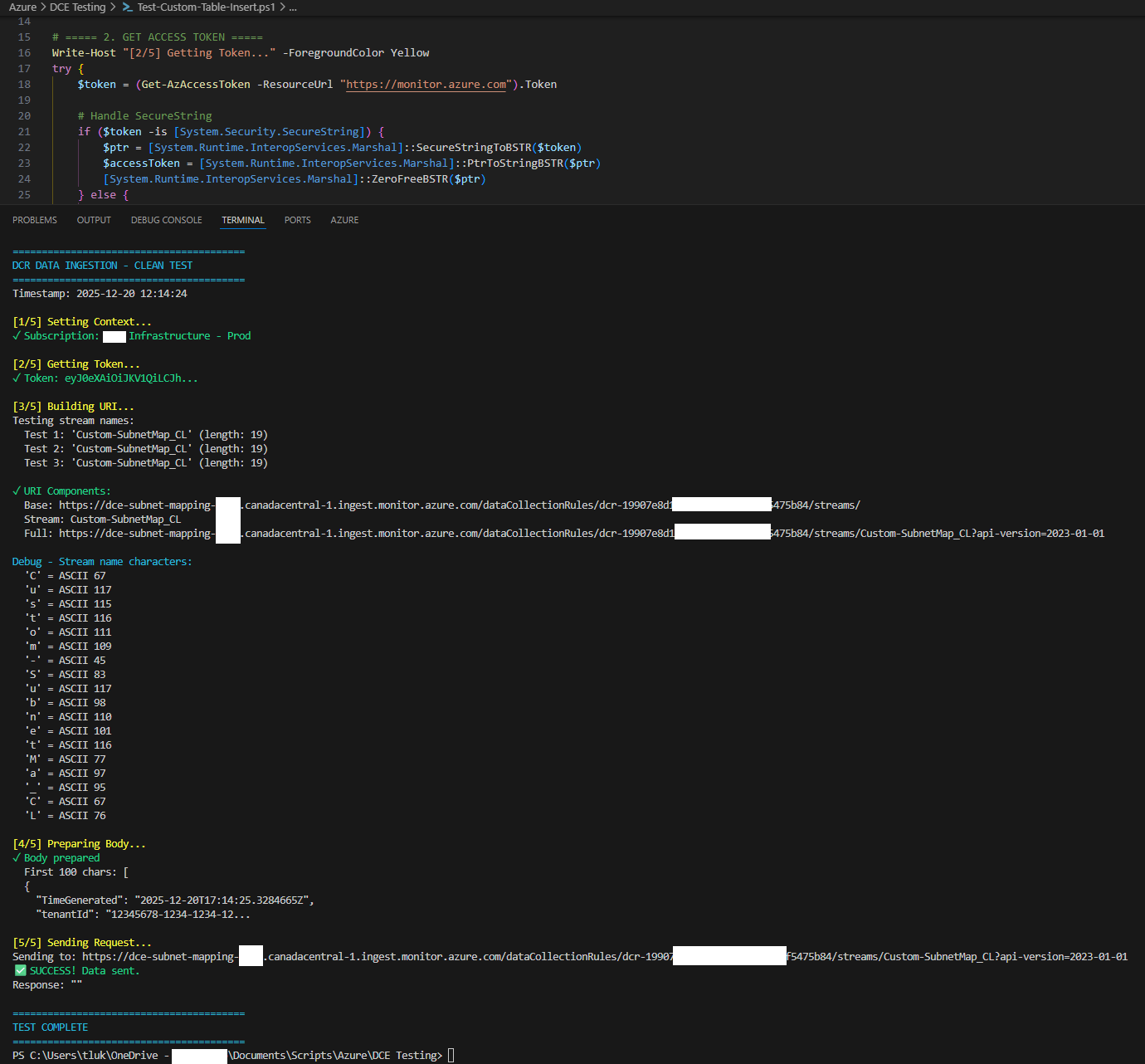
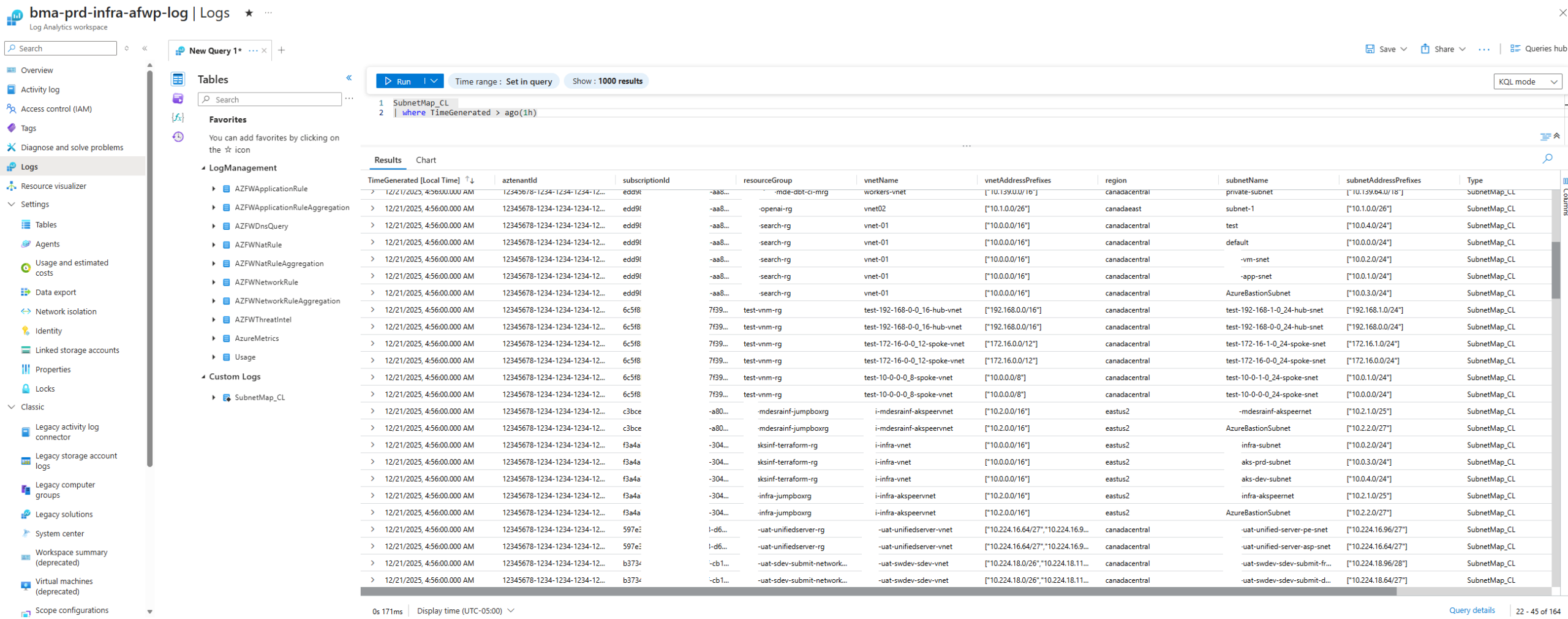
Wait for a couple minutes and we should see this new record inserted:

Step #2 – Configure Logic App to insert VNet and Subnet information into the custom table
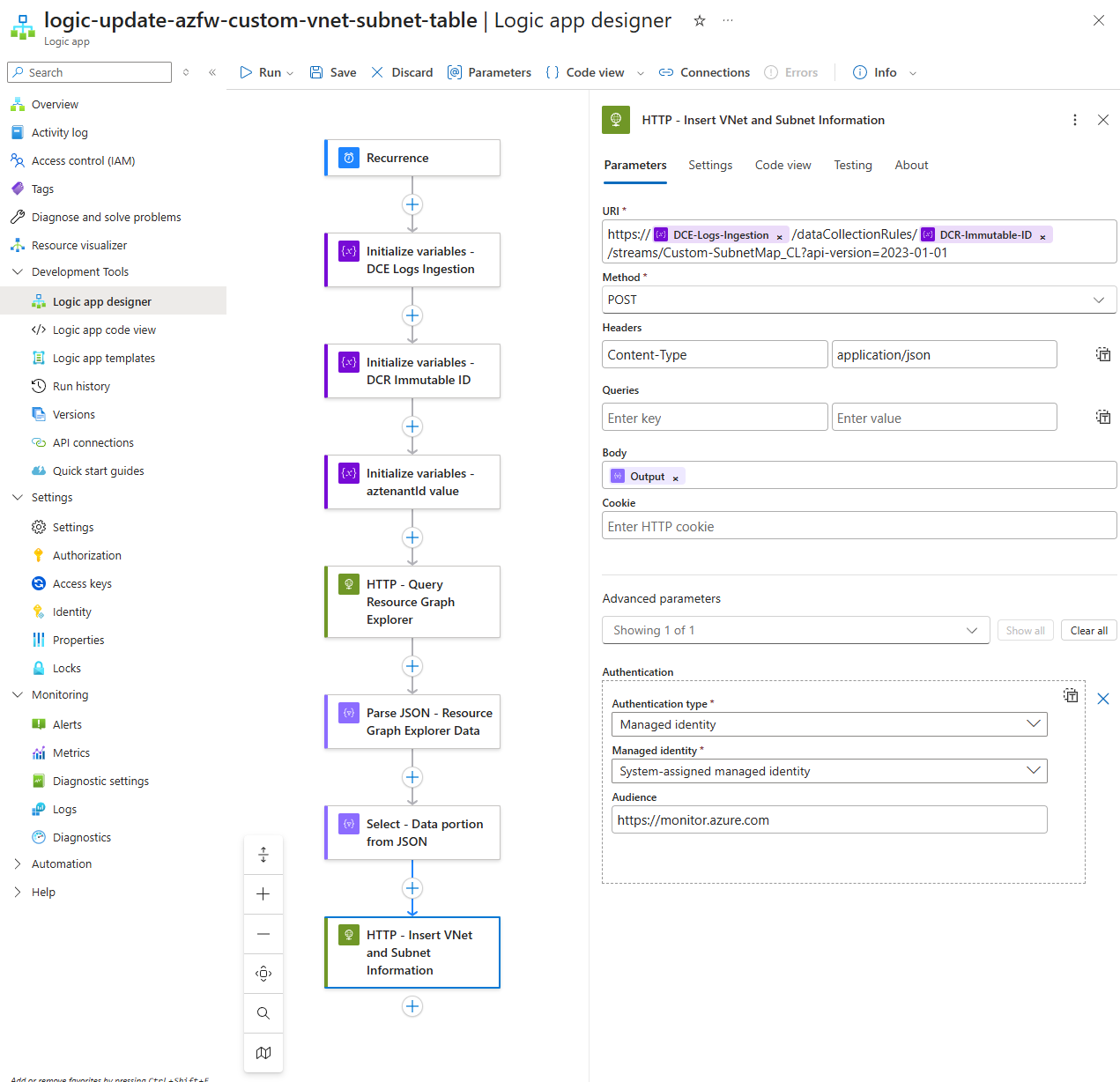
With the Custom table created and DCR + DCE ready for ingestion, we can proceed to configure the Logic App that will:
- Fetch the VNets and Subnets on a recurring schedule
- Insert the VNets and Subnets information into the Custom SubnetMap table
**Note that Log Analytics Workspace table records cannot be modified so every bulk insert of records will be added to the table. This means that the volume of records will continue to grow until the retention starts removing the records. If the retention of the data isn’t configured to be very long then the cost should not be substantial but if the retention is set to many days or years, it may be worth while to purge the data (purge activities are also charged). For the purpose of this example, we’re running the Logic App once a month.
Begin by creating a new Logic App with System Managed Identity turned on:
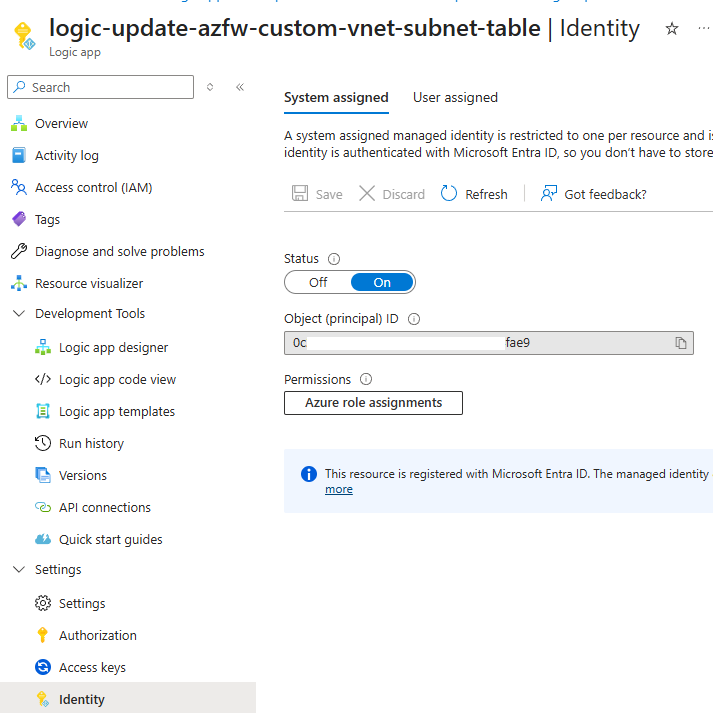
In order for this Logic App’s System Managed Identity to retrieve the Virtual Network and Subnet information from other subscriptions, we will need to grant it permissions to those subscriptions. Unfortunately, there isn’t an easy way to grant it permissions to all subscriptions as using the Azure role assignments because the Scope options are limited to:
- Subscription
- Resource group
- Key Vault
- Storage
- SQL

One of the ways I’ve gotten around this is use a PowerShell script to assign Reader permissions to every subscription to the Logic App’s Managed Identity. This script can be retrieved from my GitHub repository: https://github.com/terenceluk/Azure/blob/main/Subscriptions/Grant-Logic-App-Subscription-Permissions.ps1
**Note that this will grant the Logic App Reader permissions to every subscription the account used to authenticate has.
Proceed to configure the Logic App as such:
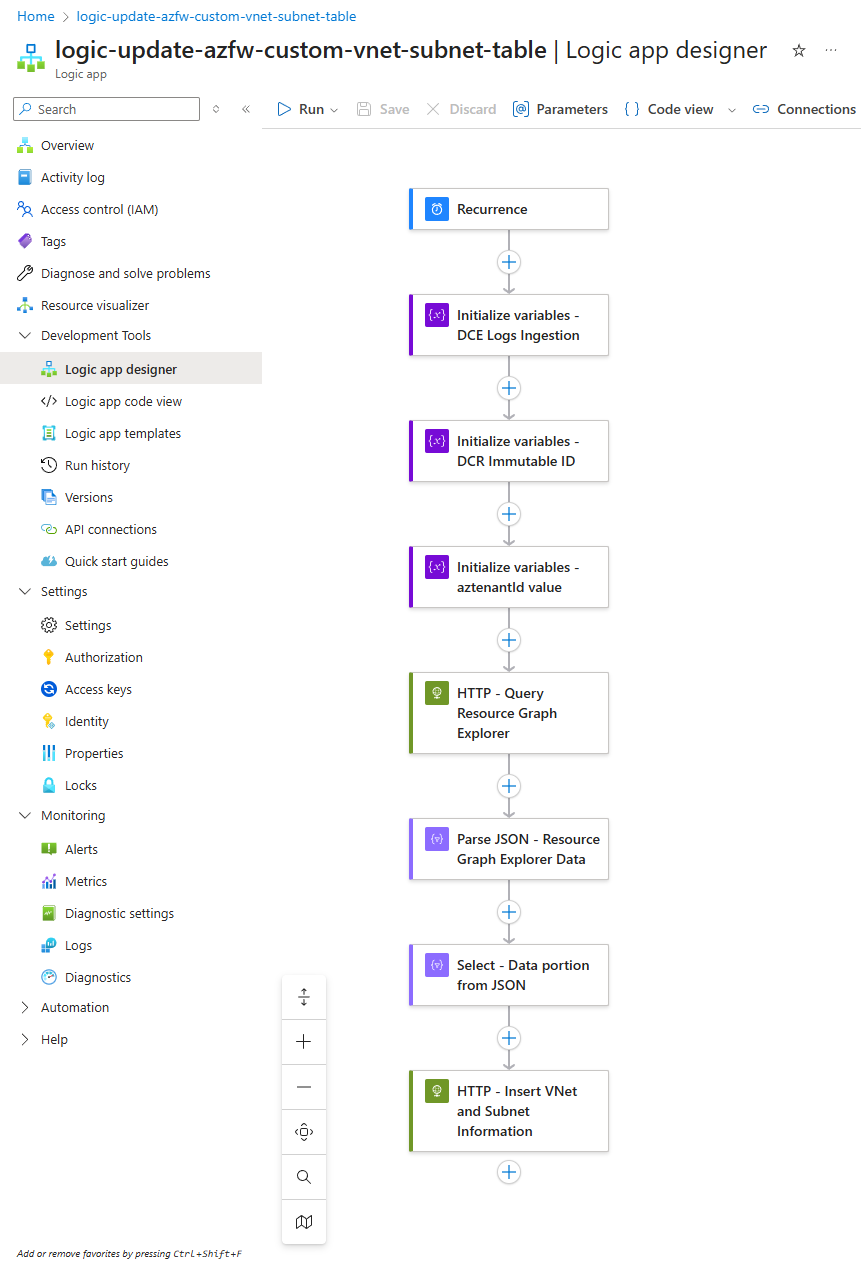
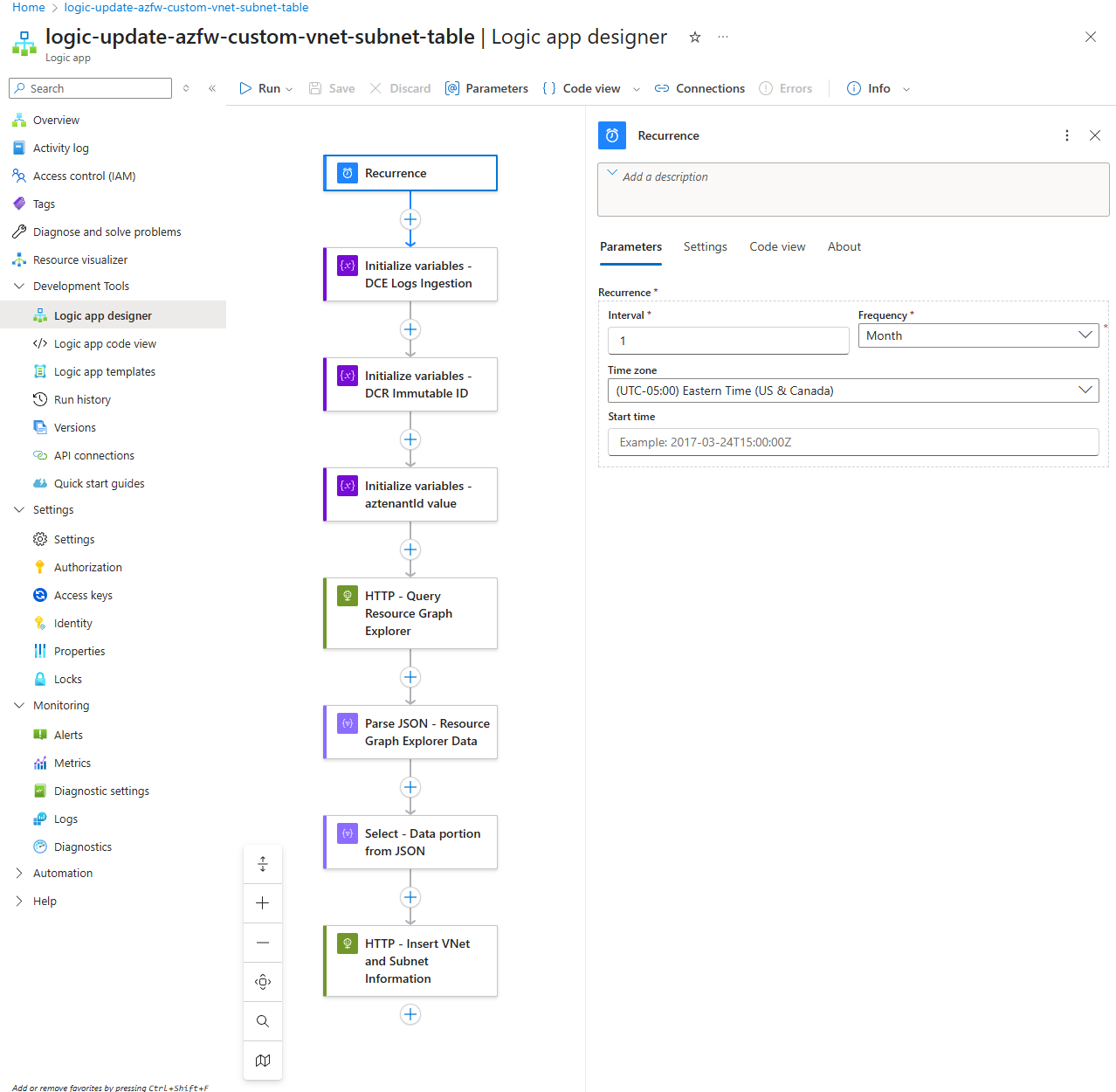
Specify the desired recurrence for the Logic App to retrieve and insert VNet and Subnet information into the custom table:
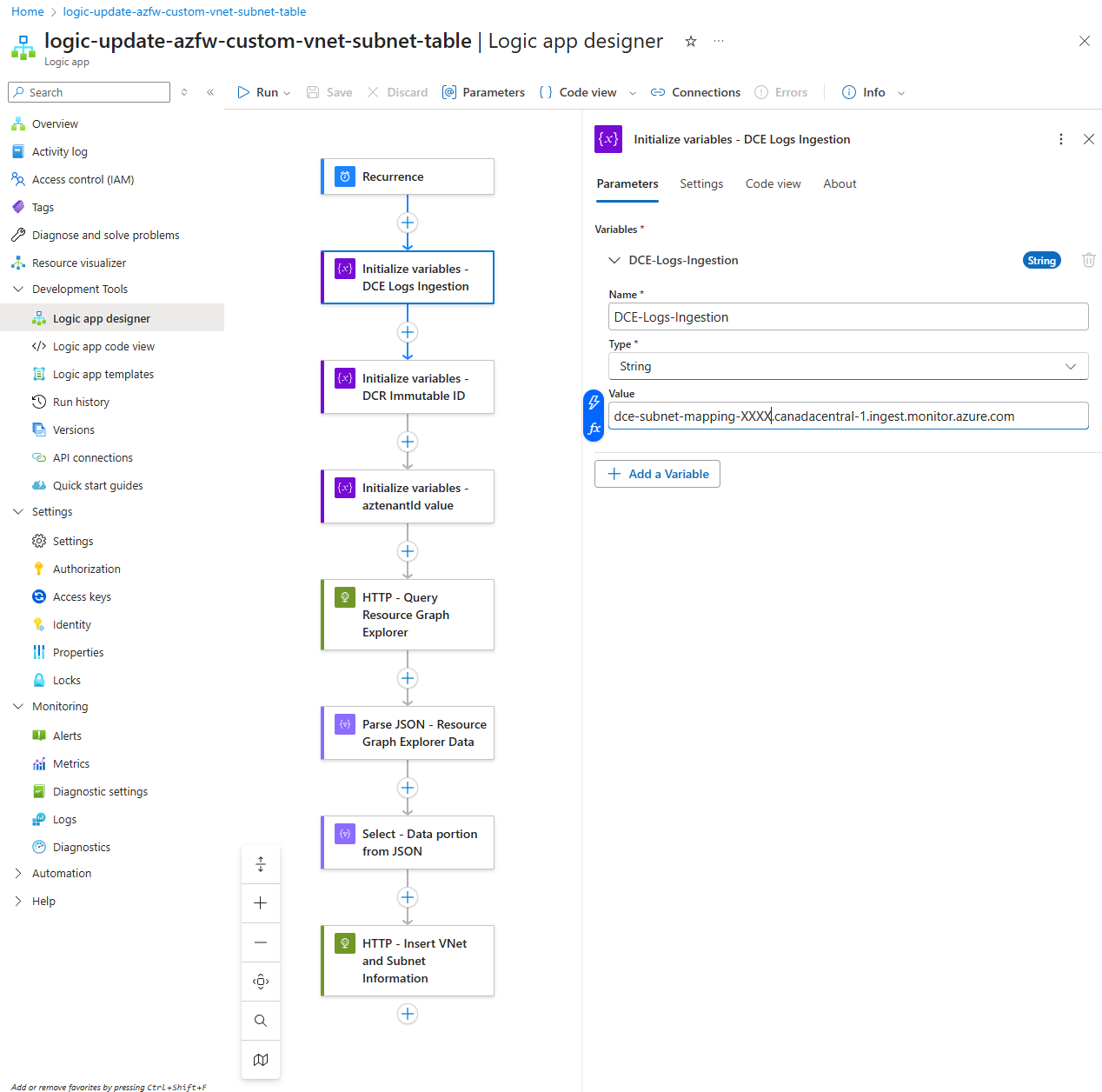
We’re going to define the Data Collection Endpoint’s Log Ingestion value here, which we will use to create the HTTP request later. We can also use the Parameters functionality but I chose to define it here as it more clear during the demonstration:
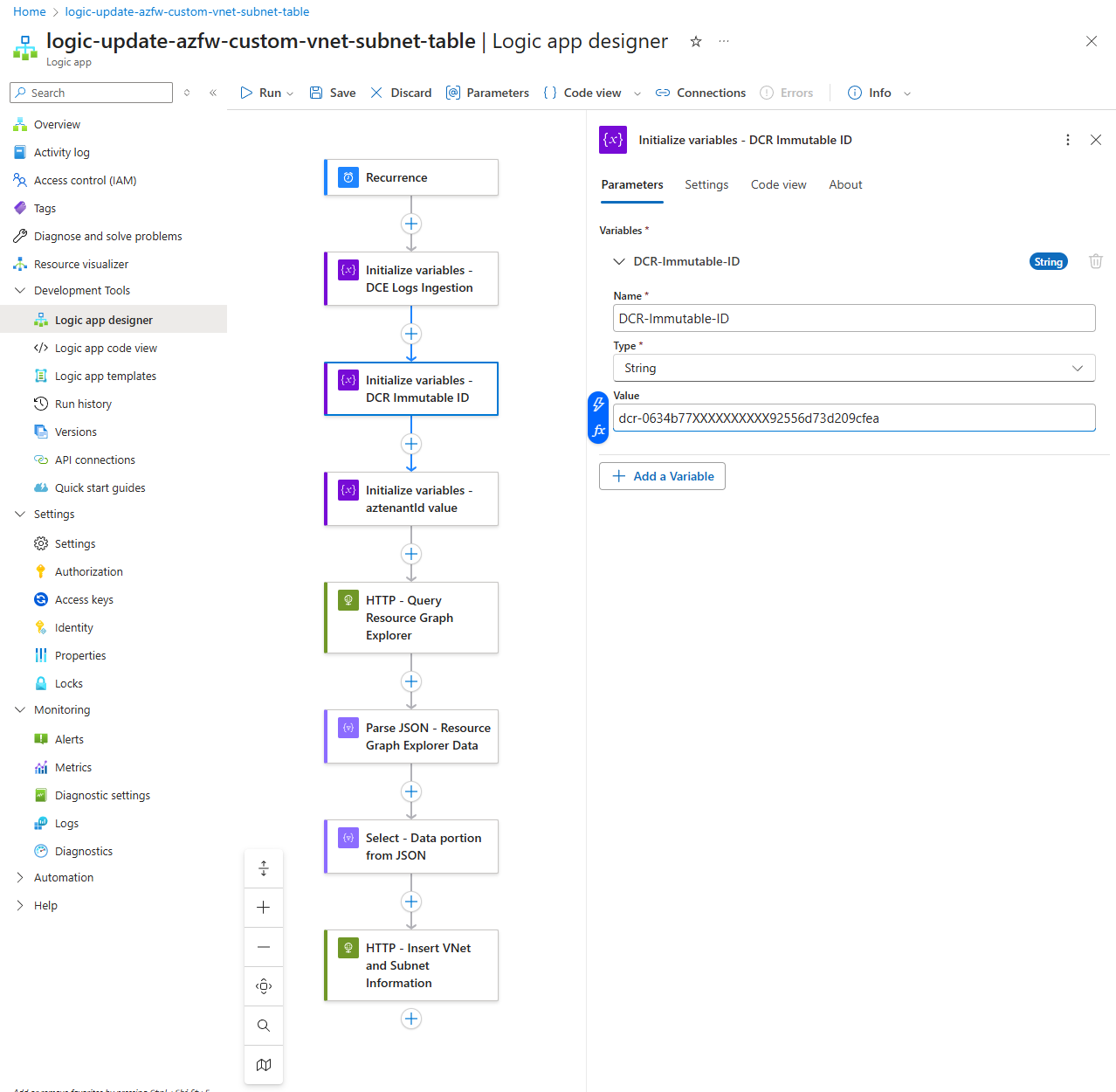
Next, we’ll do the same for the Data Collection Rule’s Immutable ID:
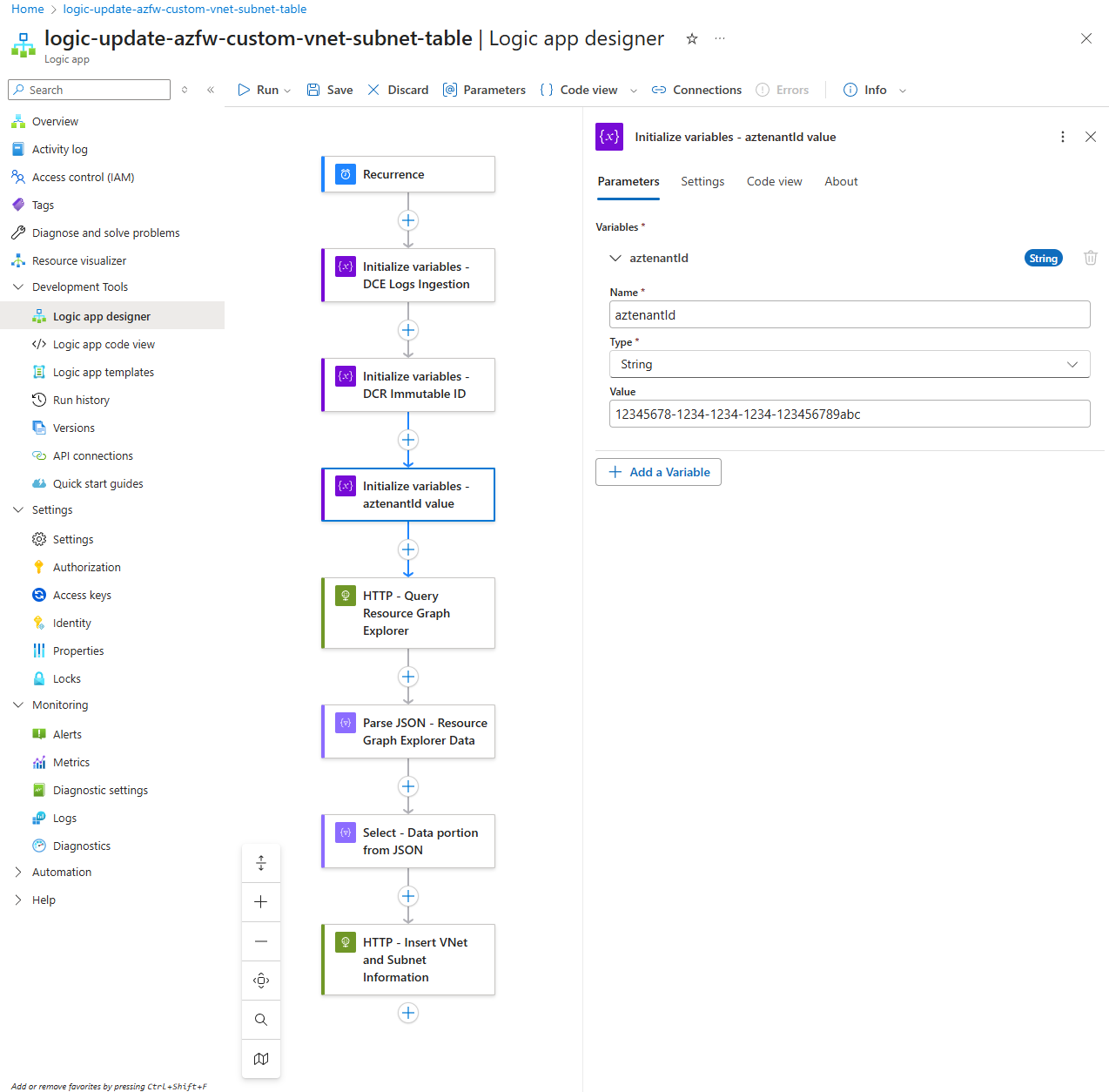
The reason why I am defining a variable to store the Azure Tenant’s ID is because certain resource retrieved by Azure Resource Graph Explorer does not contain the Tenant ID and this is the case for our VNets and Subnets. The purpose of this additional field is so we can have the option of manually inserting additional VNets and Subnets into the custom table that may be in another tenant that this Logic App is unable to retrieve:
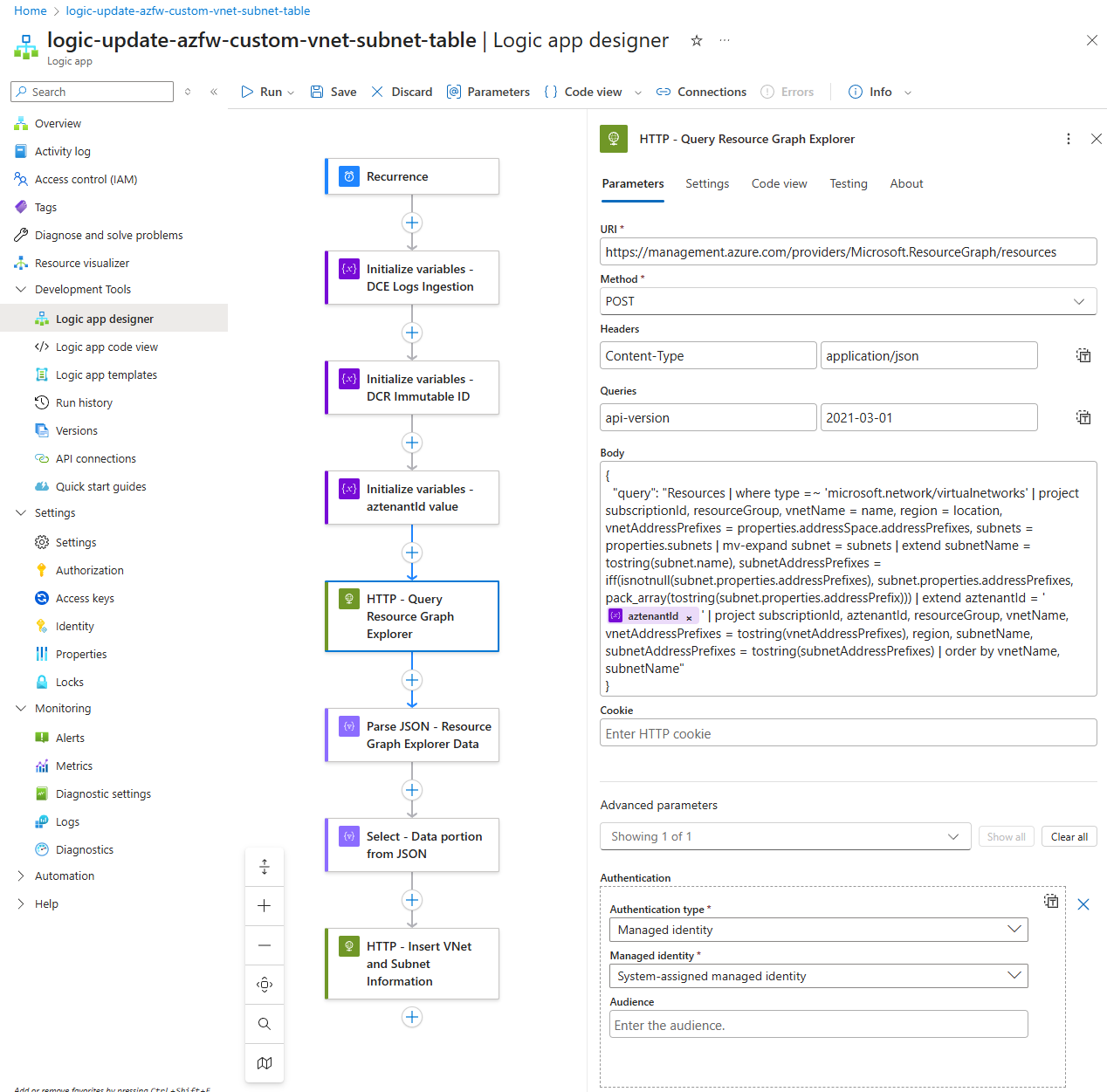
With the variables defined, we will proceed to query Azure Resource Graph Explorer to retrieve the VNet and Subnet information. The query used in the portal.azure.com can be found here in my GitHub repository: https://github.com/terenceluk/Azure/blob/main/Kusto%20KQL/Retrieve-VNet-Subnet-Information.kql
Line breaks are not accepted in the body so here is the query with line breaks removed:
{
“query”: “Resources | where type =~ ‘microsoft.network/virtualnetworks’ | project subscriptionId, resourceGroup, vnetName = name, region = location, vnetAddressPrefixes = properties.addressSpace.addressPrefixes, subnets = properties.subnets | mv-expand subnet = subnets | extend subnetName = tostring(subnet.name), subnetAddressPrefixes = iff(isnotnull(subnet.properties.addressPrefixes), subnet.properties.addressPrefixes, pack_array(tostring(subnet.properties.addressPrefix))) | extend aztenantId = ‘‘ | project subscriptionId, aztenantId, resourceGroup, vnetName, vnetAddressPrefixes = tostring(vnetAddressPrefixes), region, subnetName, subnetAddressPrefixes = tostring(subnetAddressPrefixes) | order by vnetName, subnetName”
}
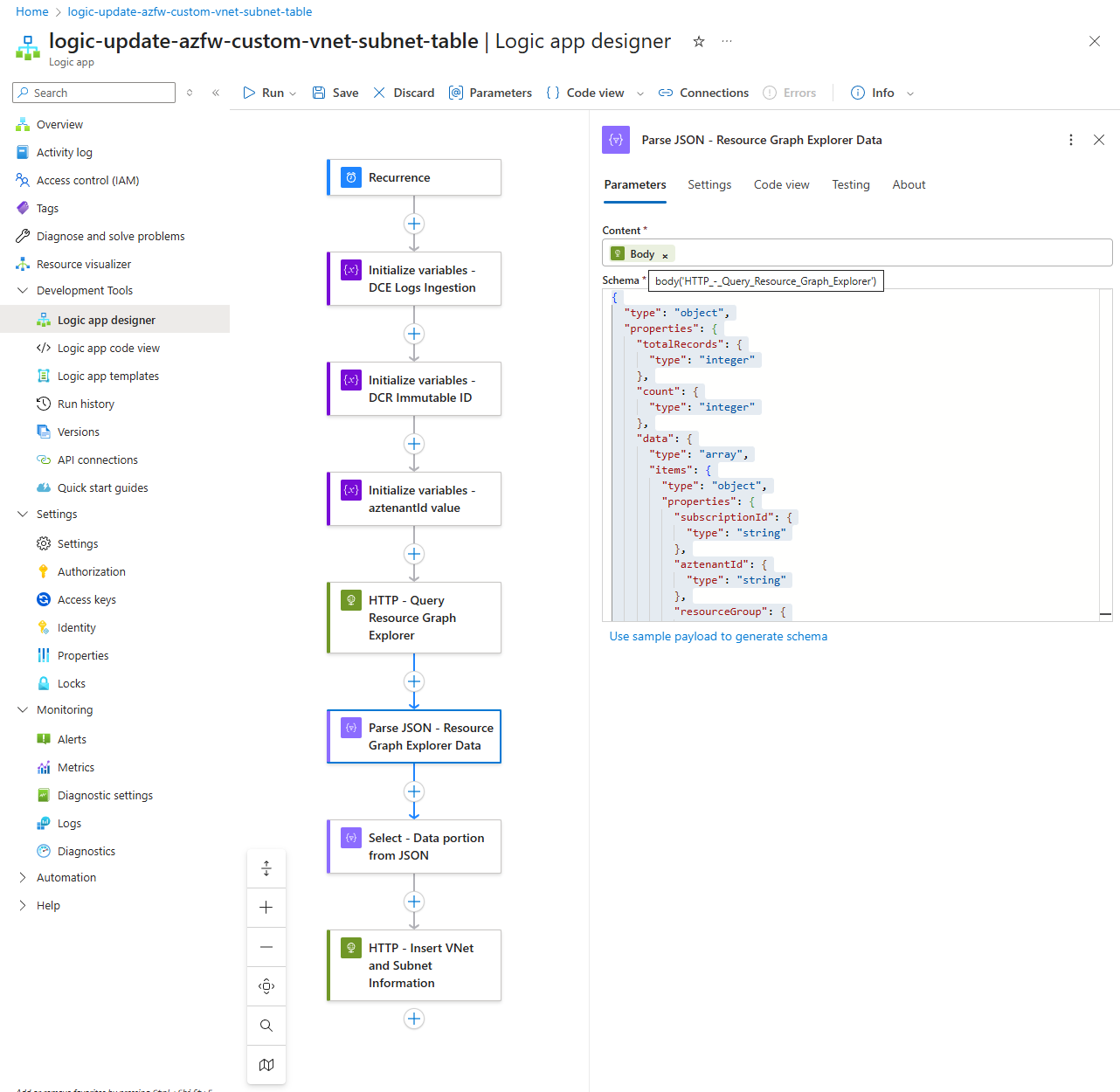
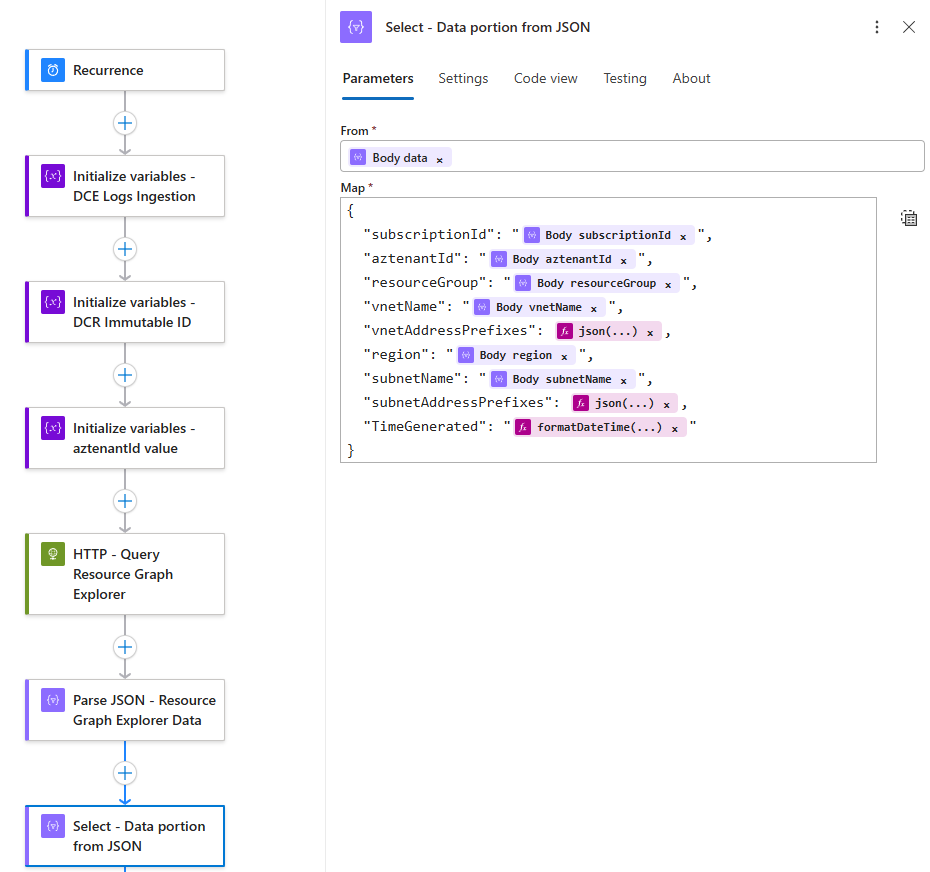
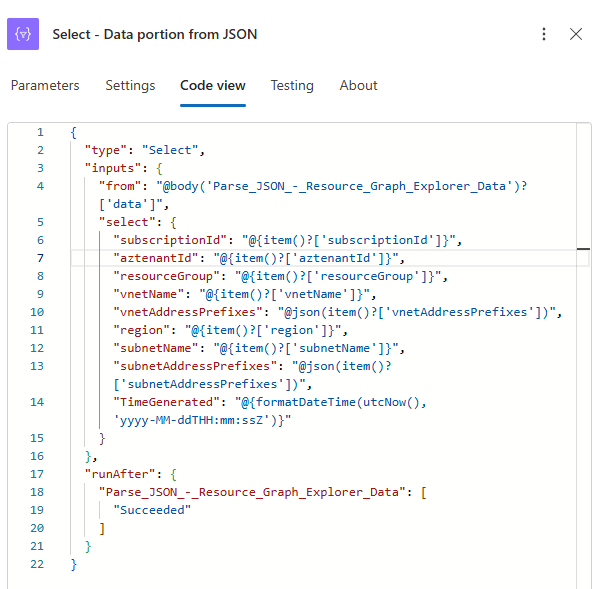
We’ll now need to parse the JSON returned in the previous HTTP request. Use the schema below (you can also run the Logic App once to get the output and then use the Use sample payload to generate schema) and use the body of the previous HTTP request as the Content:
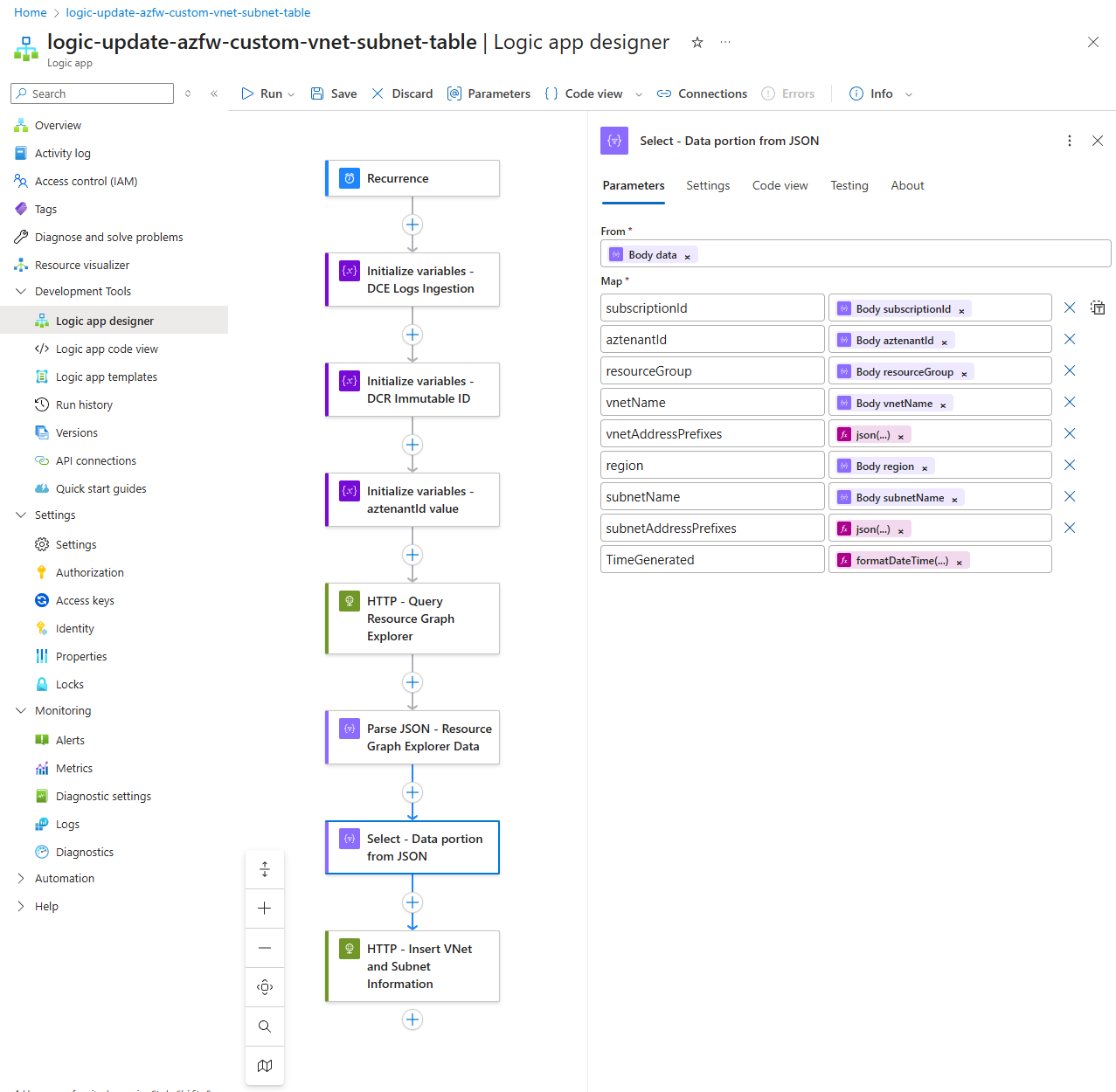
Step #3 – Enriched querying of Azure Firewall Logs
- AZFWNetworkRule
- SubnetMap_CL
Where I needed to fetch data with different time stamps. The challenge I had was that my intent is to refresh the SubnetMap_CL every 30 days so when I query the logs and join the table where I use the Time Range to retrieve records with relation to the TimeGenerated, field, it would set this for both tables.
This caused an issue because if I wanted to retrieve only the past 10 minutes of AZFWNetworkRule logs, the query would do the same for SubnetMap_CL and this would not work because SubnetMap_CL would return no records and therefore no matches would occur. This issue took me a full day to resolve and the short story is I decided to duplicate the TimeGenerated column for the SubnetMap_CL then use that to filter the time.
Time Range for AZFWNetworkRule
// Set time range for Azure Firewall rules (respects portal time picker)
let firewallTimeRange = 2m; // Examples: 15m, 1h, 4h, 24h, 7d
// Set time range for SubnetMap data (bypasses portal time picker)
let subnetTimeRange = 30d; // Examples: 1d, 7d, 30d, 90d
Filters for AZFWNetwork Rules
AZFWNetworkRule
| where TimeGenerated > ago(firewallTimeRange)
// ============================================================================
// FILTER EXAMPLES – UNCOMMENT AND MODIFY AS NEEDED
// ============================================================================
// === RFC1918 FILTERS ===
// | where ipv4_is_private(SourceIp) // Source is RFC1918 private IP
// | where not(ipv4_is_private(SourceIp)) // Source is NOT RFC1918 (public)
// | where ipv4_is_private(DestinationIp) // Destination is RFC1918
// | where not(ipv4_is_private(DestinationIp)) // Destination is NOT RFC1918
// | where ipv4_is_private(SourceIp) and not(ipv4_is_private(DestinationIp)) // Outbound to internet
// | where not(ipv4_is_private(SourceIp)) and ipv4_is_private(DestinationIp) // Inbound from internet
The example AZFWNetworkRule query can be found in my GitHub repository here: https://github.com/terenceluk/Azure/blob/main/Kusto%20KQL/Enriched-Azure-Firewall-Logs-Query-AZFWNetworkRule-with-VNet-Subnet-Information.kql
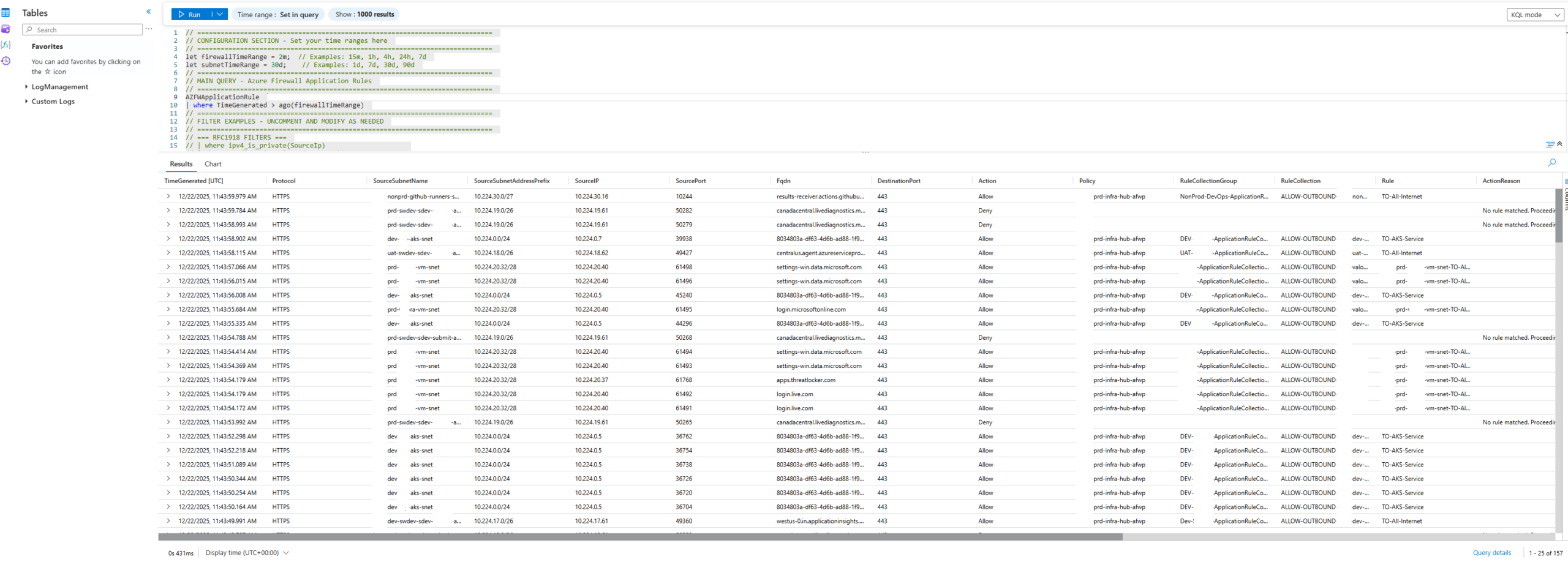
If you are querying for AZFWApplicationRule, the sample query can be found here: https://github.com/terenceluk/Azure/blob/main/Kusto%20KQL/Enriched-Azure-Firewall-Logs-Query-AZFWApplicationRule-with-VNet-Subnet-Information.kql
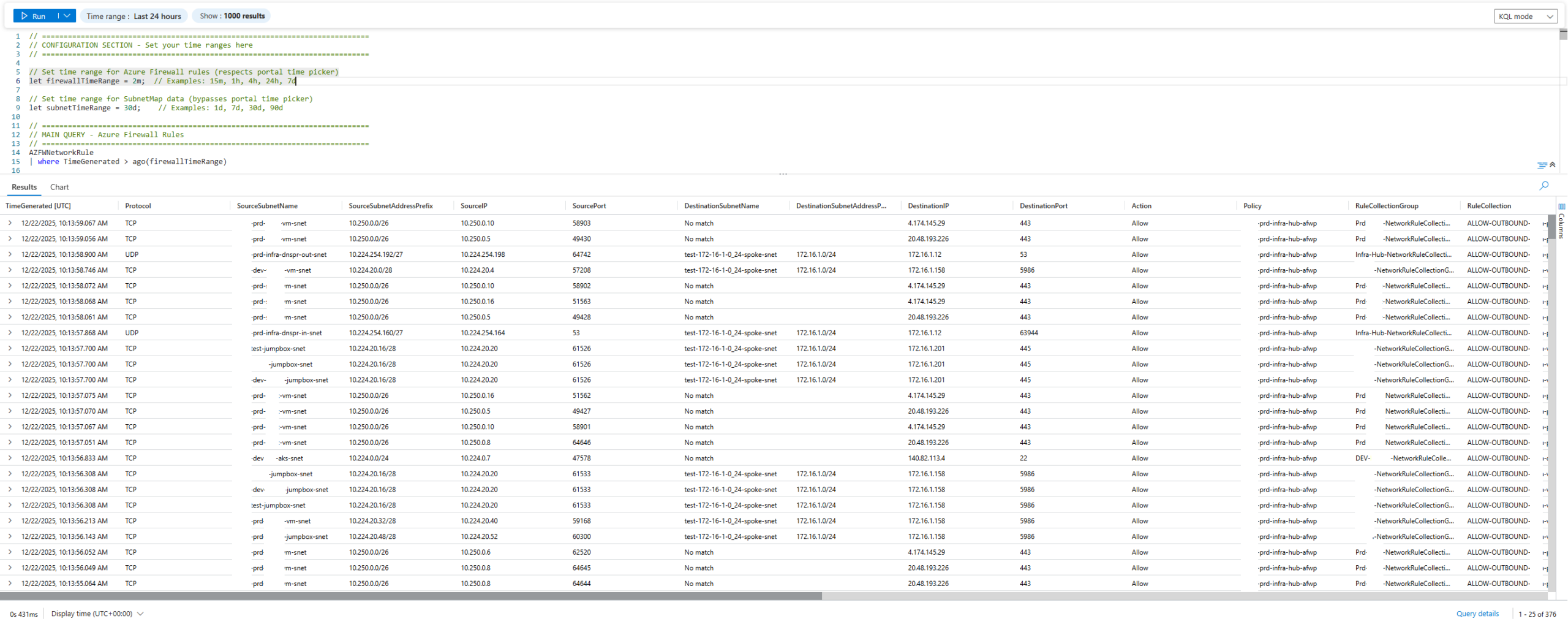
Sample Query Outputs
The following are sample outputs from the queries.
AZFWNetworkRule
AZFWApplicationRule
Closing Summary
This initiative took much longer than I had expected due to the adjustments I’ve made to what I wanted to include into the custom table, the query and how multiple address spaces and subnet prefixes (new feature as I outlined in one of my previous posts: https://blog.terenceluk.com/2025/09/creating-multiple-prefixes-for-subnets-in-an-azure-virtual-network.html) and finally a query that handled the multiple TimeGenerated values for the 2 tables in the query. I hope this helps anyone who is querying Azure Firewall Logs and may be looking for such a solution and likely can improve on it.

