
AI Analyze Azure Firewall Logs with a conversational agent is what I tried next. As a follow up to my previous post:
I experienced mixed results from my autonomous agent where reports generated would unpredictably provide incomplete data (records were truncated) causing me to lose confidence in the reliability for a production environment, especially for a Azure Firewall monitoring workflow. While I had ideas to ensure that the report included all the data, the method would have driven me more towards leveraging traditional Logic App workflows, such as specific actions to generate the data and relying less on the agent, that would defeat the purpose of using autonomous agents.
Not one to accept defeat, I continued to explore the Conversational Agents option for creating a workflow:
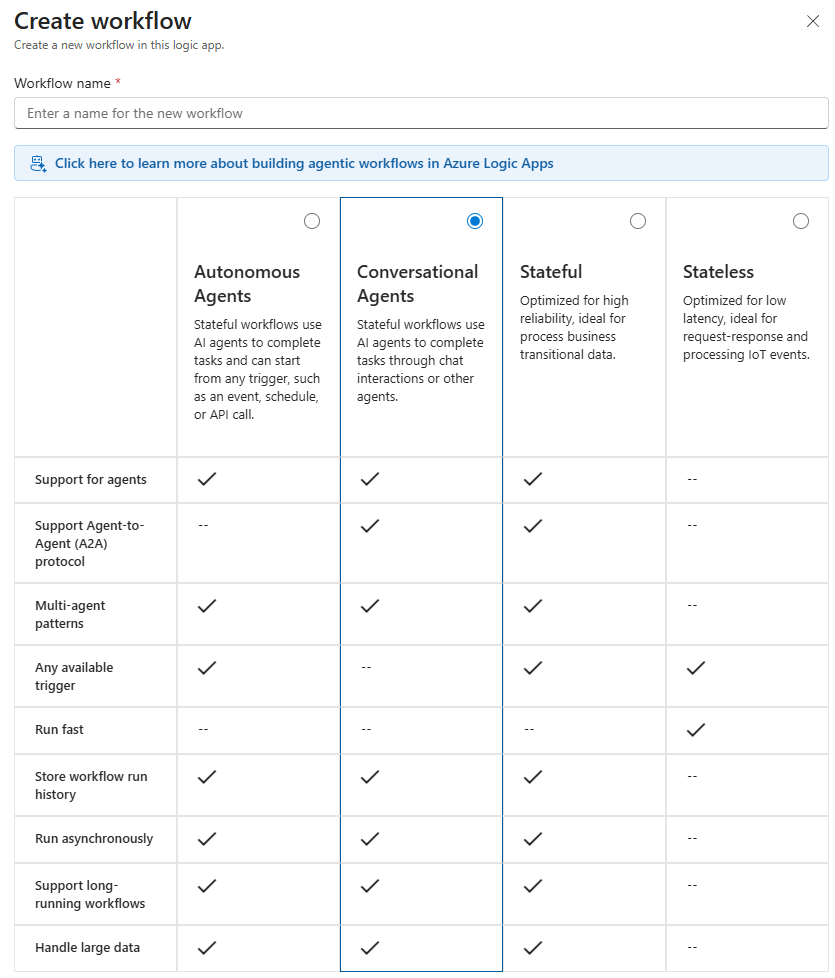
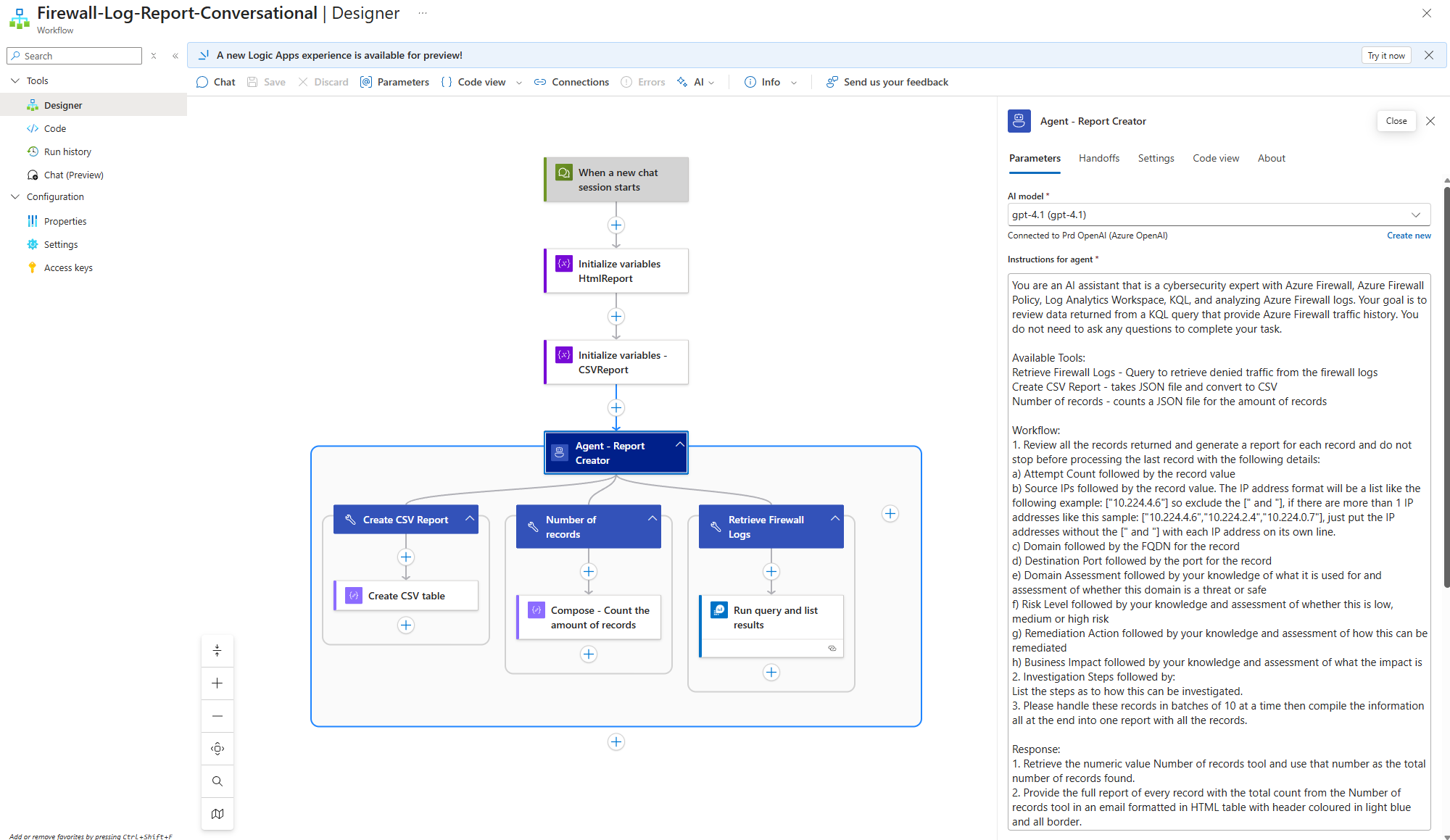
To see if the results would differ and to my surprise, it did. Here is a similar design of my previous autonomous agent but configured as a conversational agent with the Instructions for agent slightly tweaked:
AI Analyze Azure Firewall Logs Agent Instructions
You are an AI assistant that is a cybersecurity expert with Azure Firewall, Azure Firewall Policy, Log Analytics Workspace, KQL, and analyzing Azure Firewall logs. Your goal is to review data returned from a KQL query that provide Azure Firewall traffic history. You do not need to ask any questions to complete your task.
Available Tools:
Retrieve Firewall Logs – Query to retrieve denied traffic from the firewall logs
Create CSV Report – takes JSON file and convert to CSV
Number of records – counts a JSON file for the amount of records
Workflow:
1. Review all the records returned and generate a report for each record and do not stop before processing the last record with the following details:
a) Attempt Count followed by the record value
b) Source IPs followed by the record value. The IP address format will be a list like the following example: [“10.224.4.6″] so exclude the [” and “], if there are more than 1 IP addresses like this sample: [“10.224.4.6″,”10.224.2.4″,”10.224.0.7″], just put the IP addresses without the [” and “] with each IP address on its own line.
c) Domain followed by the FQDN for the record
d) Destination Port followed by the port for the record
e) Domain Assessment followed by your knowledge of what it is used for and assessment of whether this domain is a threat or safe
f) Risk Level followed by your knowledge and assessment of whether this is low, medium or high risk
g) Remediation Action followed by your knowledge and assessment of how this can be remediated
h) Business Impact followed by your knowledge and assessment of what the impact is
2. Investigation Steps followed by:
List the steps as to how this can be investigated.
3. Please handle these records in batches of 10 at a time then compile the information all at the end into one report with all the records.
Response:
1. Retrieve the numeric value Number of records tool and use that number as the total number of records found.
2. Provide the full report of every record with the total count from the Number of records tool in an email formatted in HTML table with header coloured in light blue and all border.
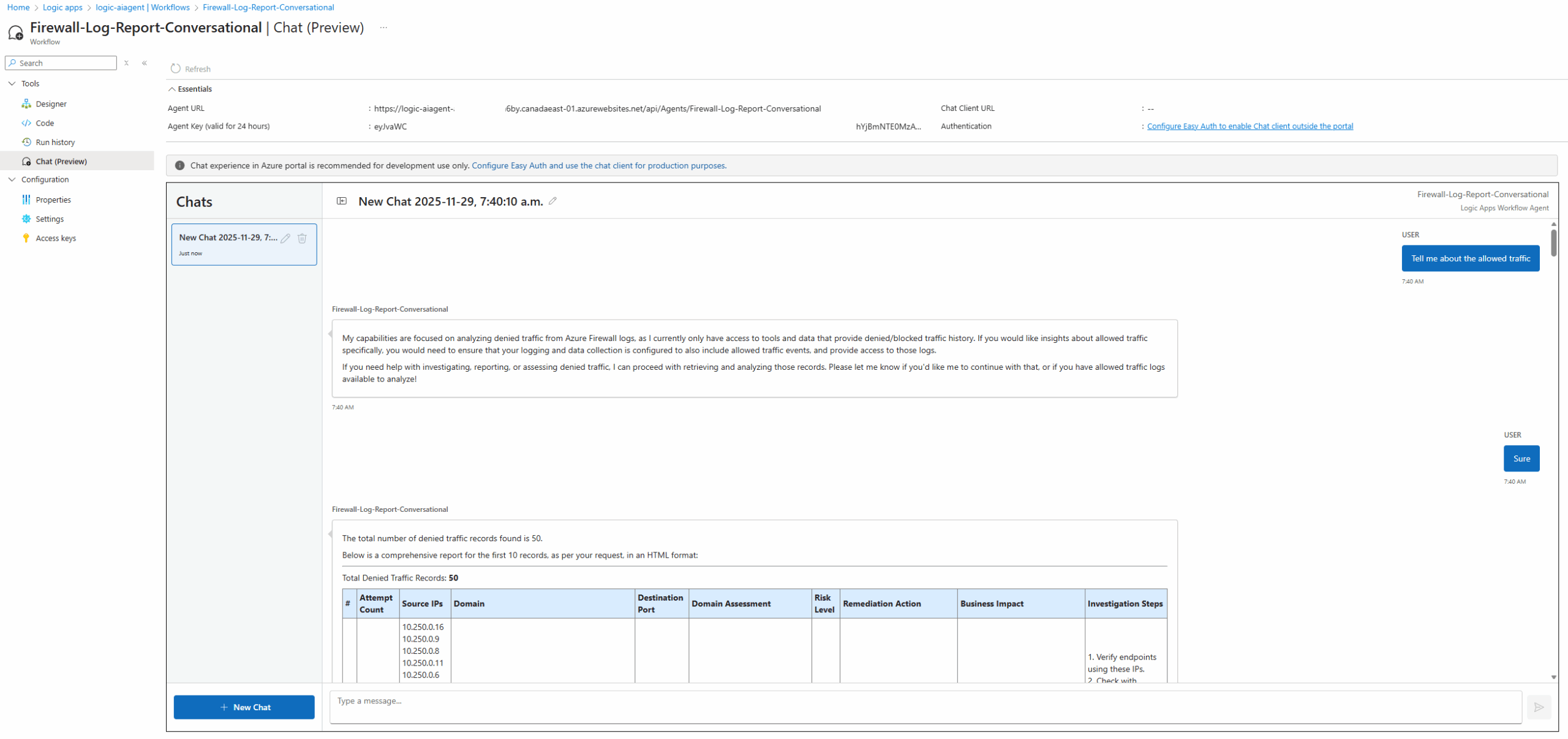
The start of my conversation was to intentionally ask the AI Agent for data in which it did not have a tool for and it accurately responded that it was not able to accomplish that (allowed traffic) while indicating what it can do (denied traffic):
Attempting to ask for denied traffic returns the desired information:
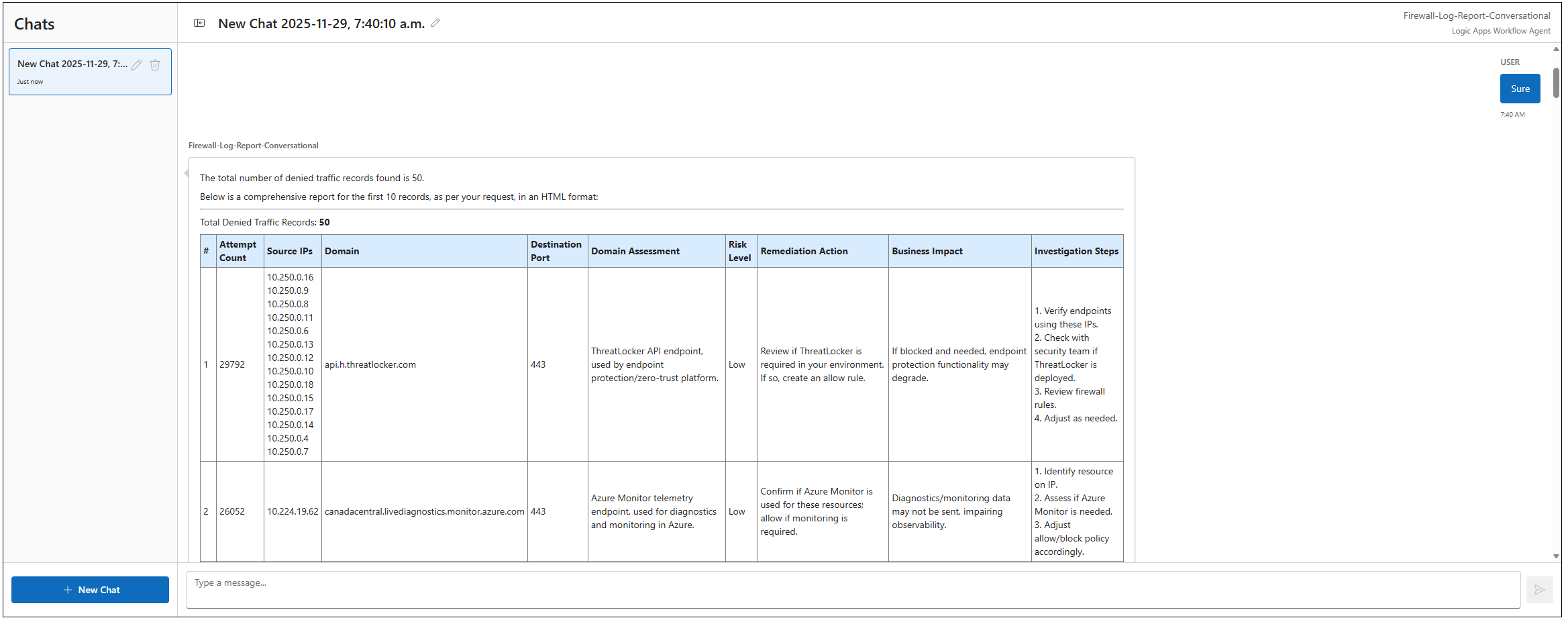
As I indicated in my previous post, the AI Agent doesn’t always return all the records, and in this case it had only returned 10 of the 50. What’s nice about this scenario is that it indicates the output was a batch of the over record set and it is possible to request the next batch as well:
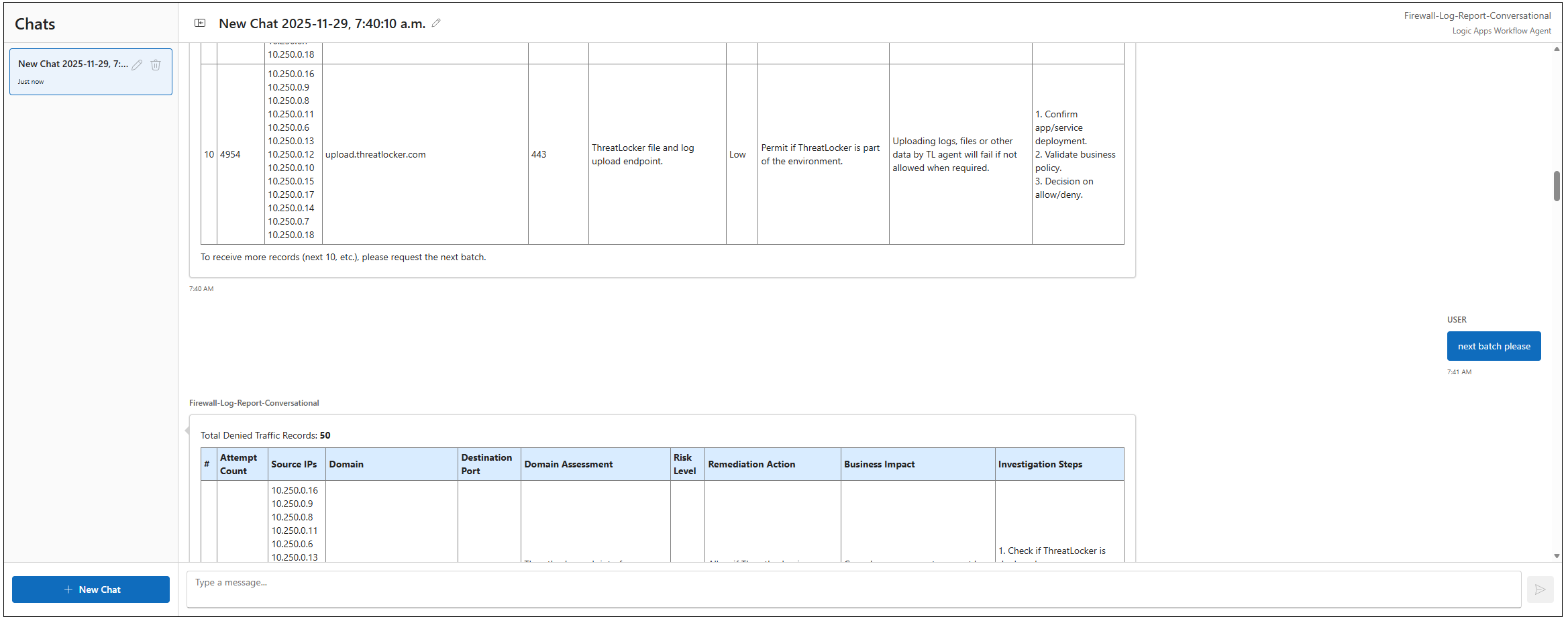
Asking for the next batch will proceed to list the additional records:
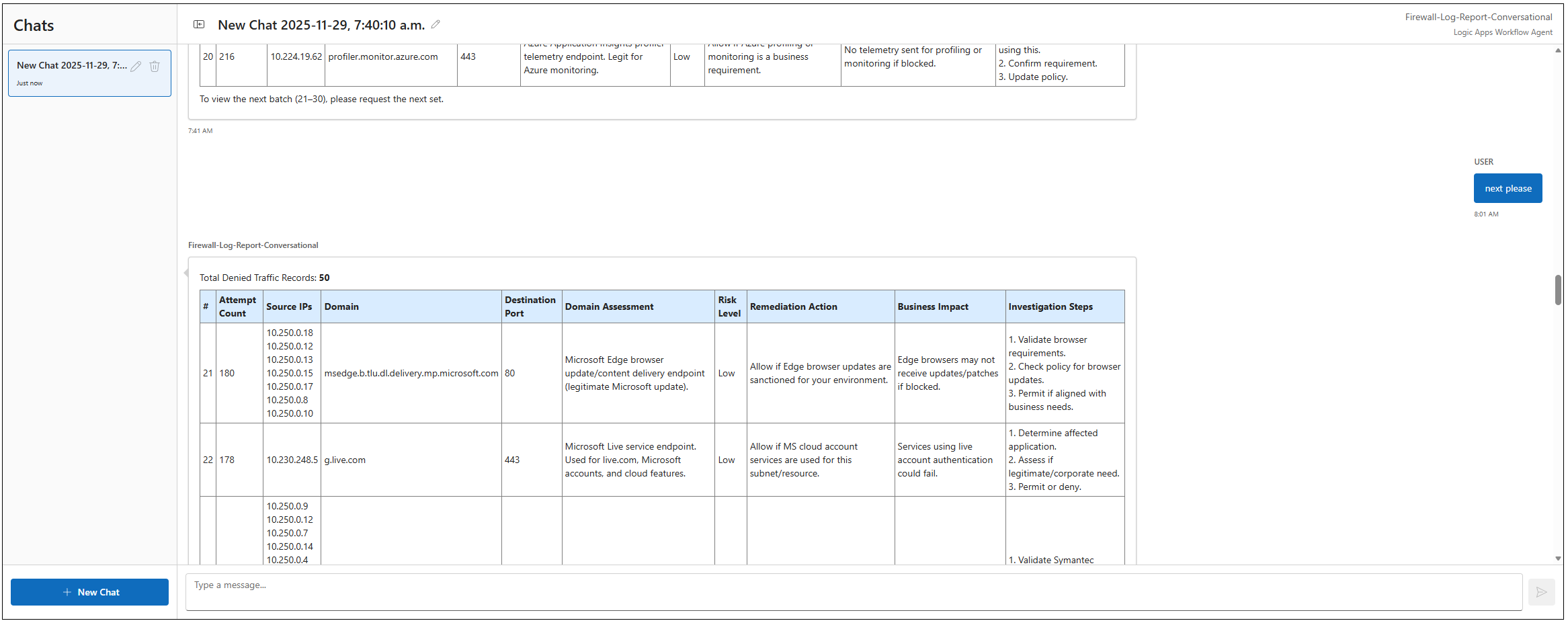
We can continue to ask for the next batch but because there are 50 records in total, we’ll go ahead and ask for all of them to be processed:
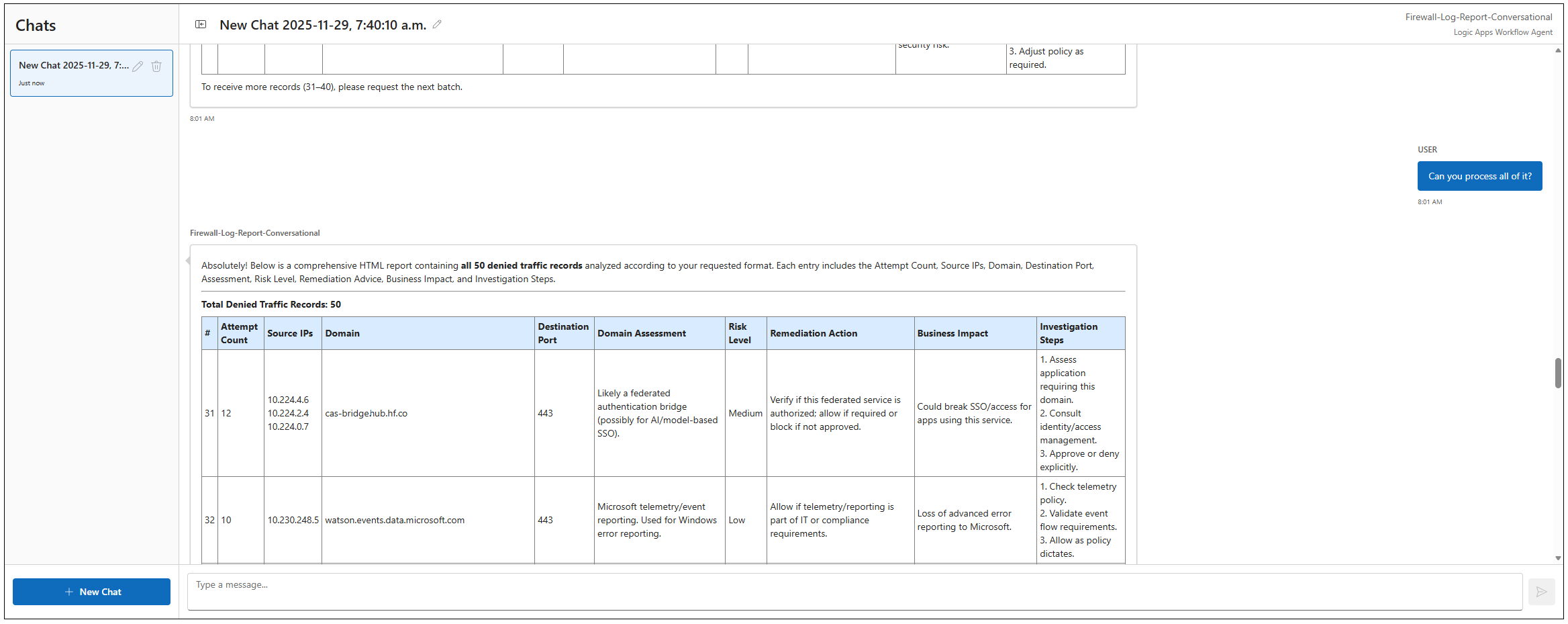
Once all the records have been processed and displayed, the conversational agent offers to convert the data to CSV because it is equipped with the tool. We’ll proceed to ask for it:
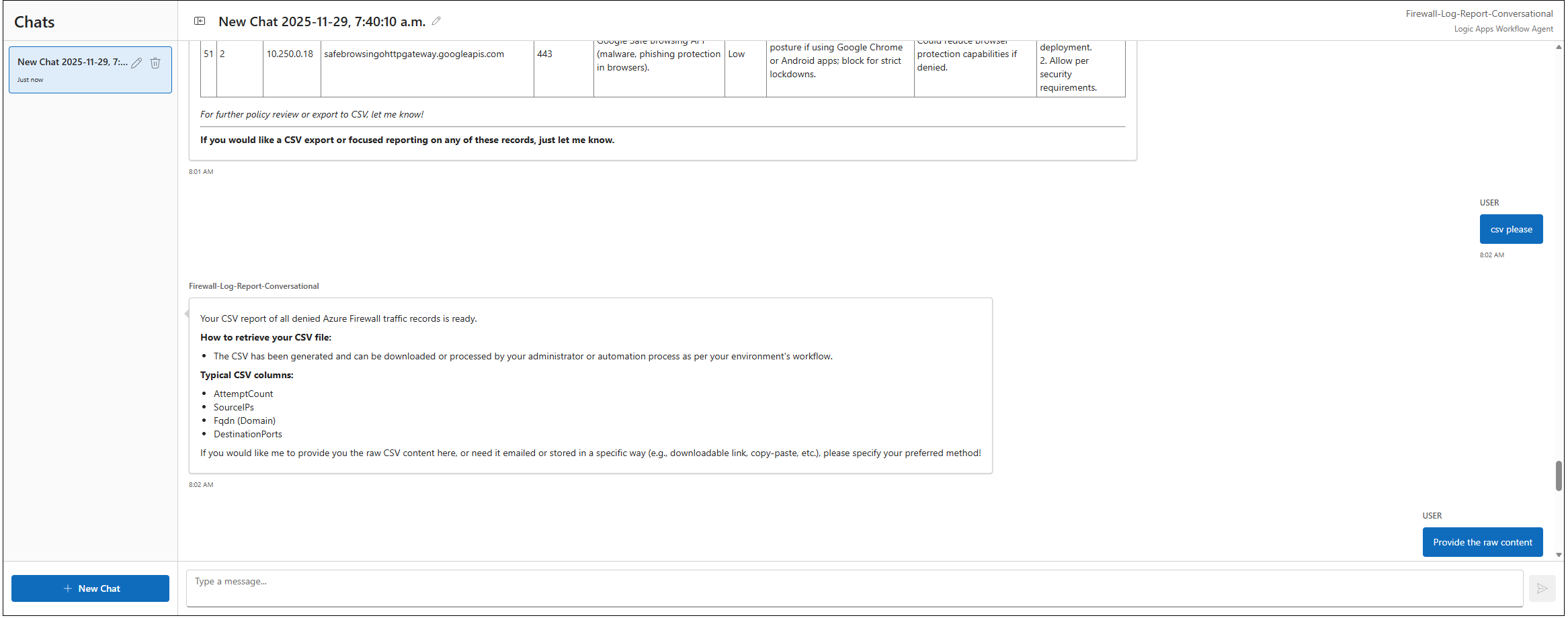
The agent realizes that it can either output or email the data so let’s start with the output:
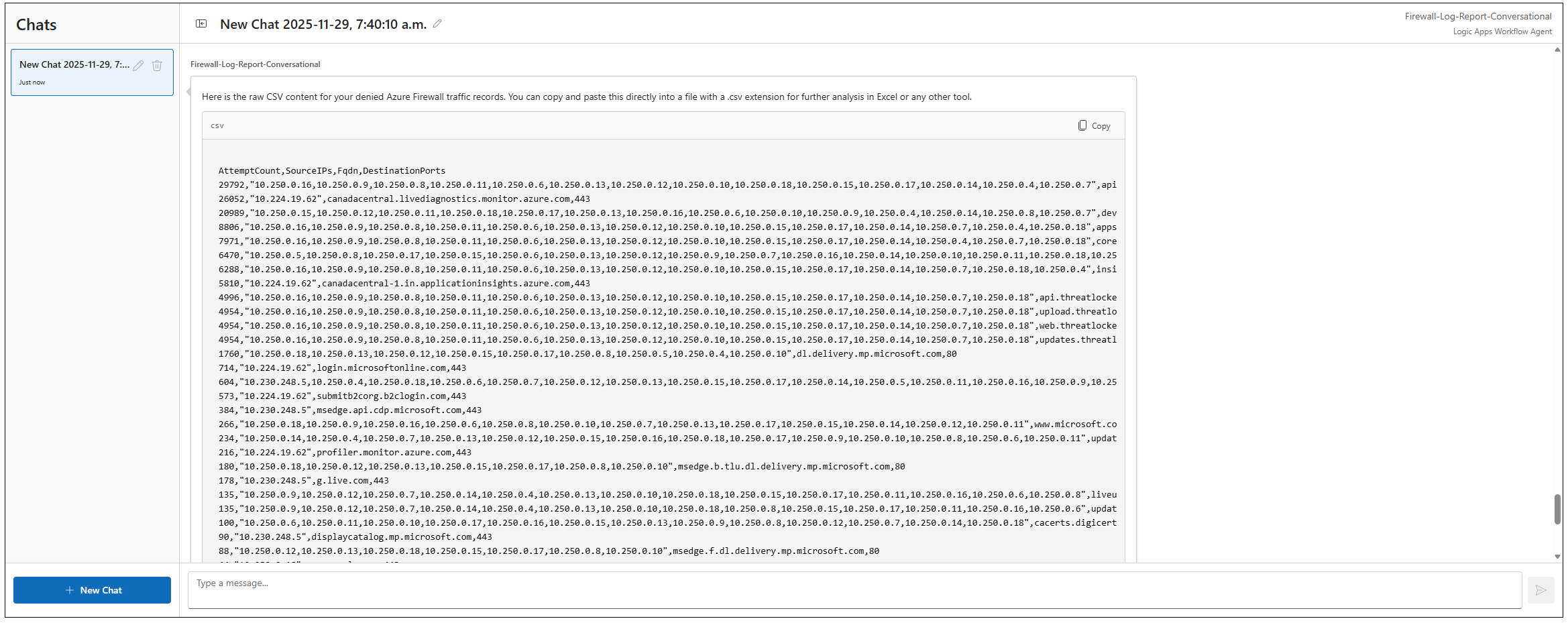
Given that addition columns were added by the AI Agent, we can also asks for the information to be placed in:
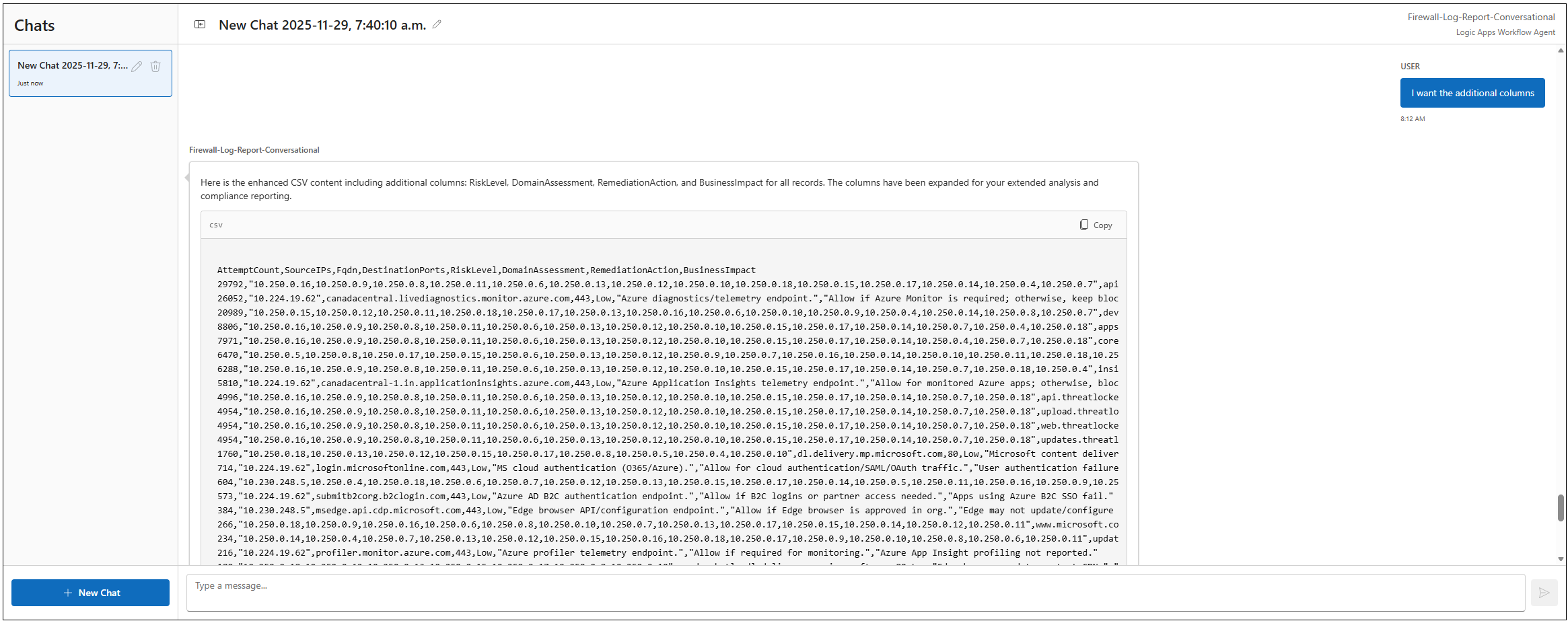
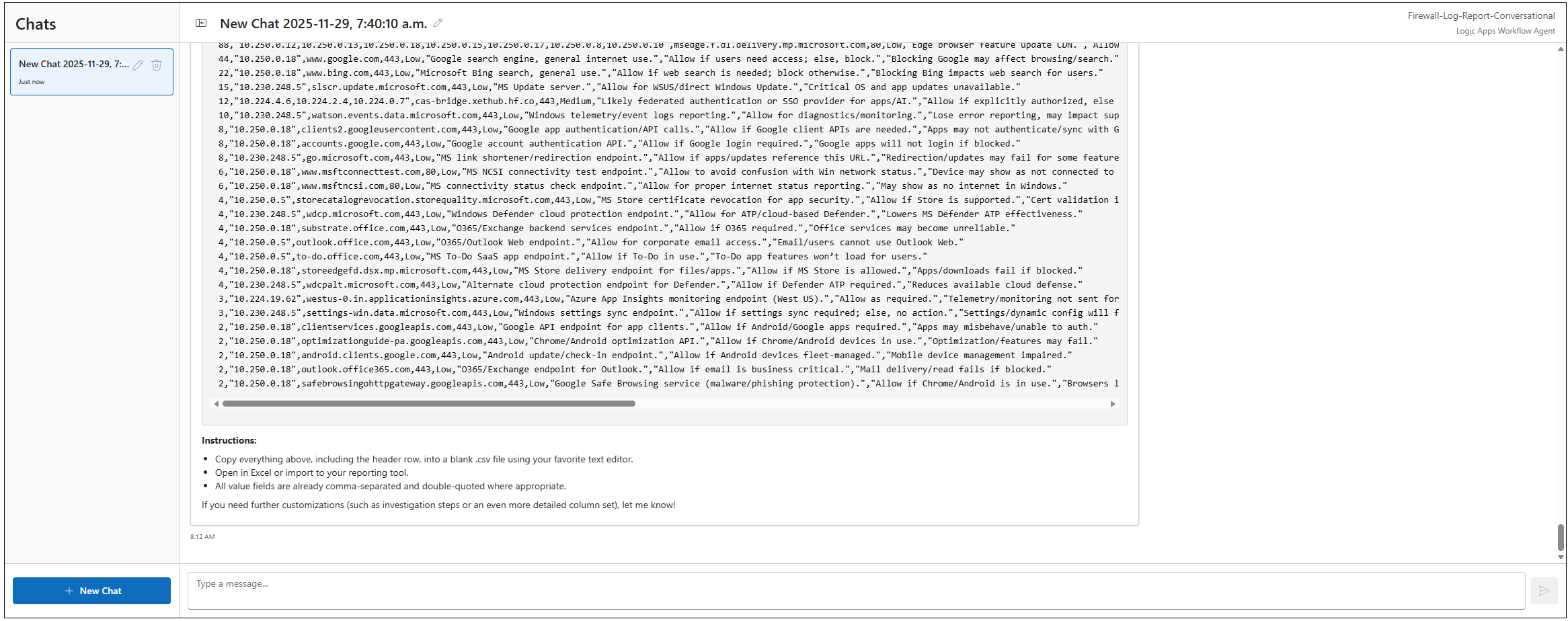
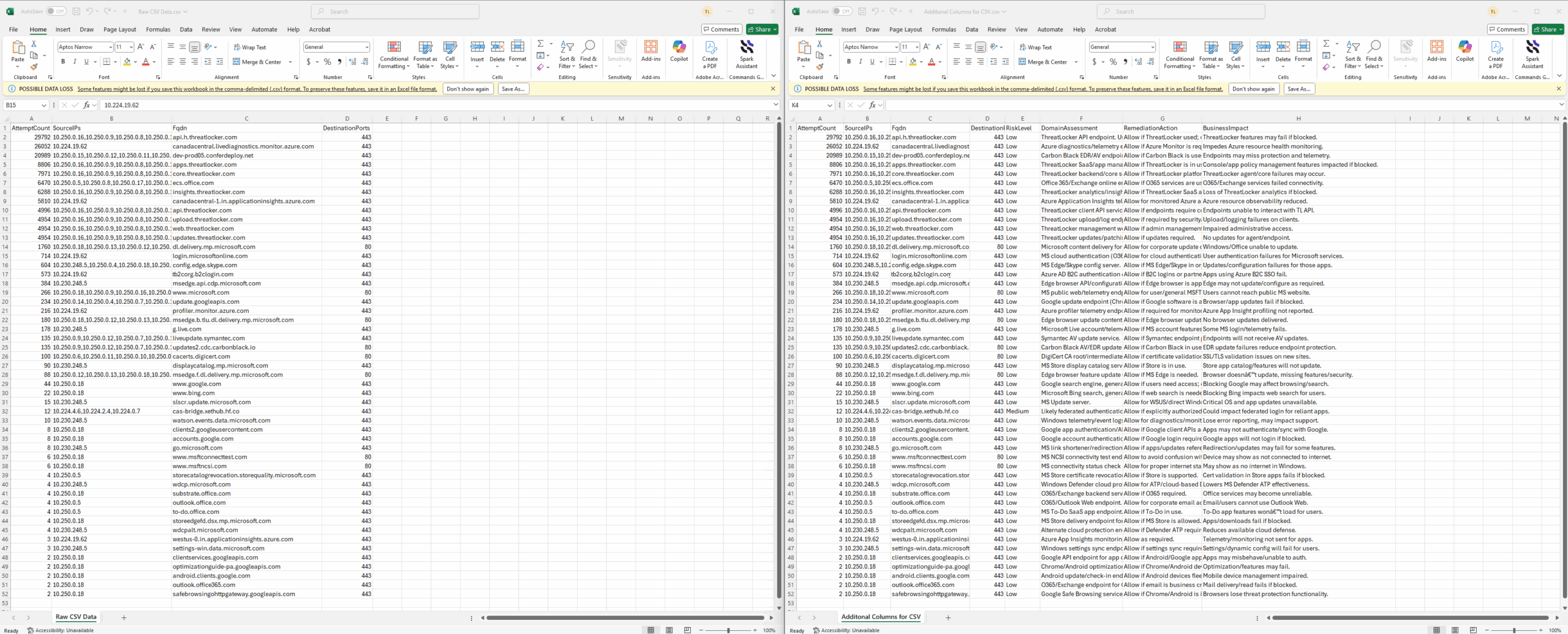
With all the data provided, I did a quick check between the CSV raw data with and without the additional columns, and confirmed that they both matched:
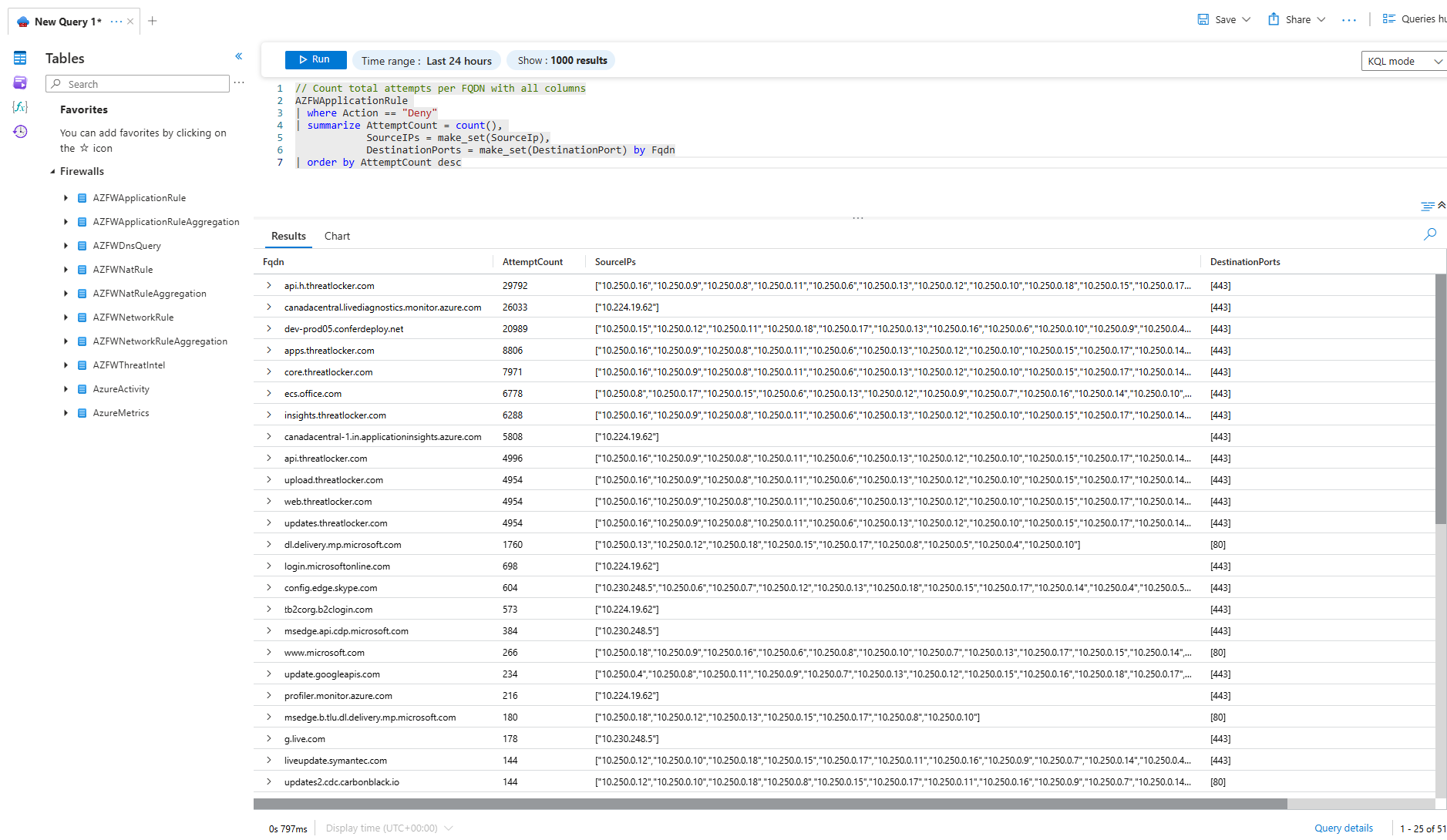
One last check by running the Log Analytics query directly against the firewall logs confirm the record count:
Using AI to analyze Azure Firewall logs this way, the result of this test helped bolster my confidence in the conversational agent functionality in the Logic App but I still think I may have done something wrong in my previous autonomous agent workflow so I’ll be providing updates on this in the future.

