
This post walks through handling WAF Blocked Actions Logic Apps style monitoring so you can catch and report on firewall blocks automatically.
As a follow up to my previous post:
Analyzing Anomaly Scoring mode for Web Application Firewall on Azure Application Gateway
Aside from interactively logging into the Azure Portal and querying the Log Analytics, what I’ve found to be useful is to set up scheduled reports that can be sent out via email when the WAF has initiated any blocks for inbound connections. This isn’t intended for regular production sites that potentially generate a substantial amount of blocks on the WAF as malicious threat actors are constantly launching attacks but rather, is useful for when a site is undergoing development and testers are performing test runbooks against it.
If the site is published externally then you’ll likely get some positives but the general idea is that most of the blocks may be legitimate traffic that warrants investigation.
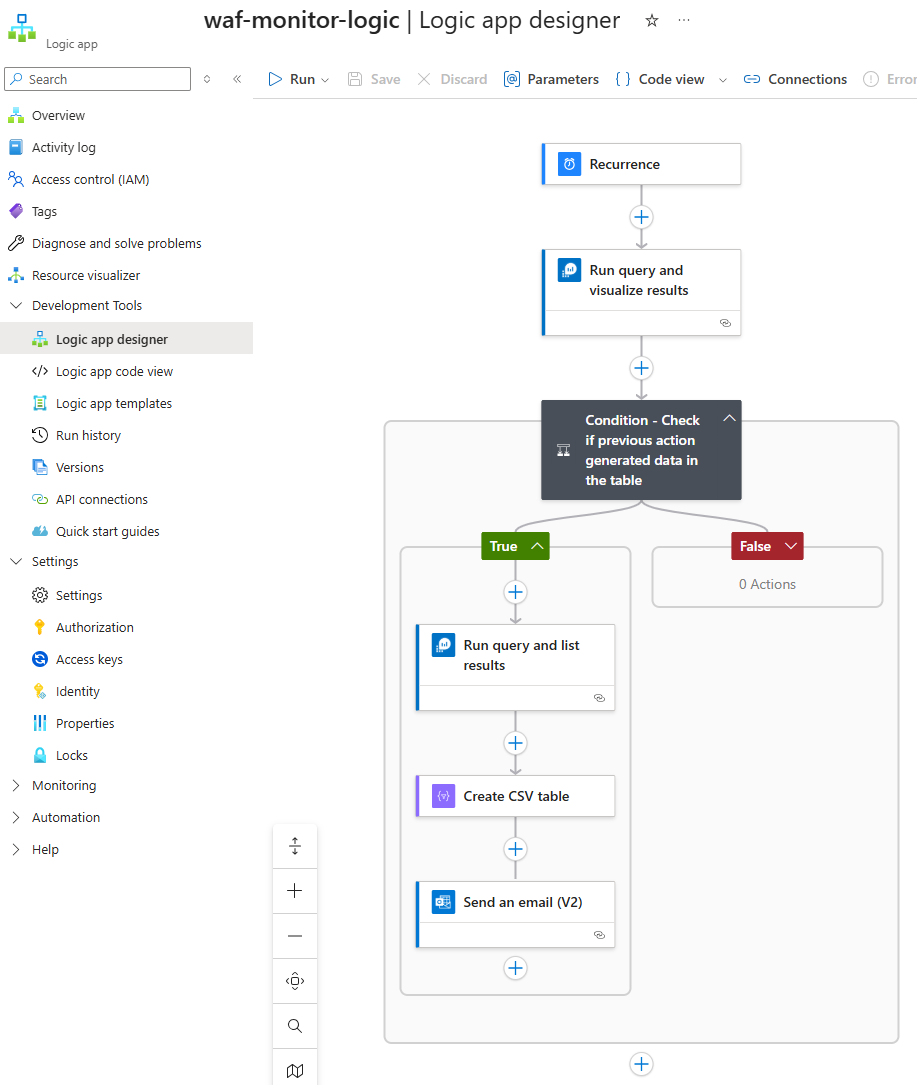
The way in which these reports can be created is through the use of Logic Apps and the flow of actions would look as such:
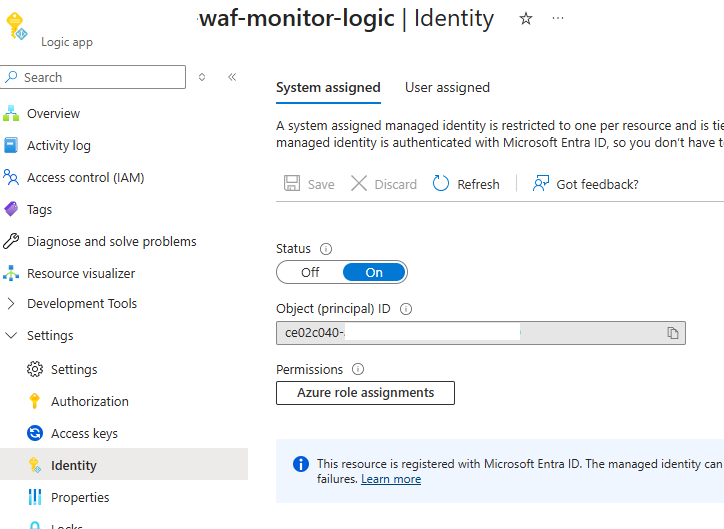
As a prerequisite so that the Logic App can query the Log Analytics Workspace, ensure that a System Managed Identity is created:
Then grant the System Managed Identity to the Log Analytics Workspace with the Log Analytics Reader RBAC role:

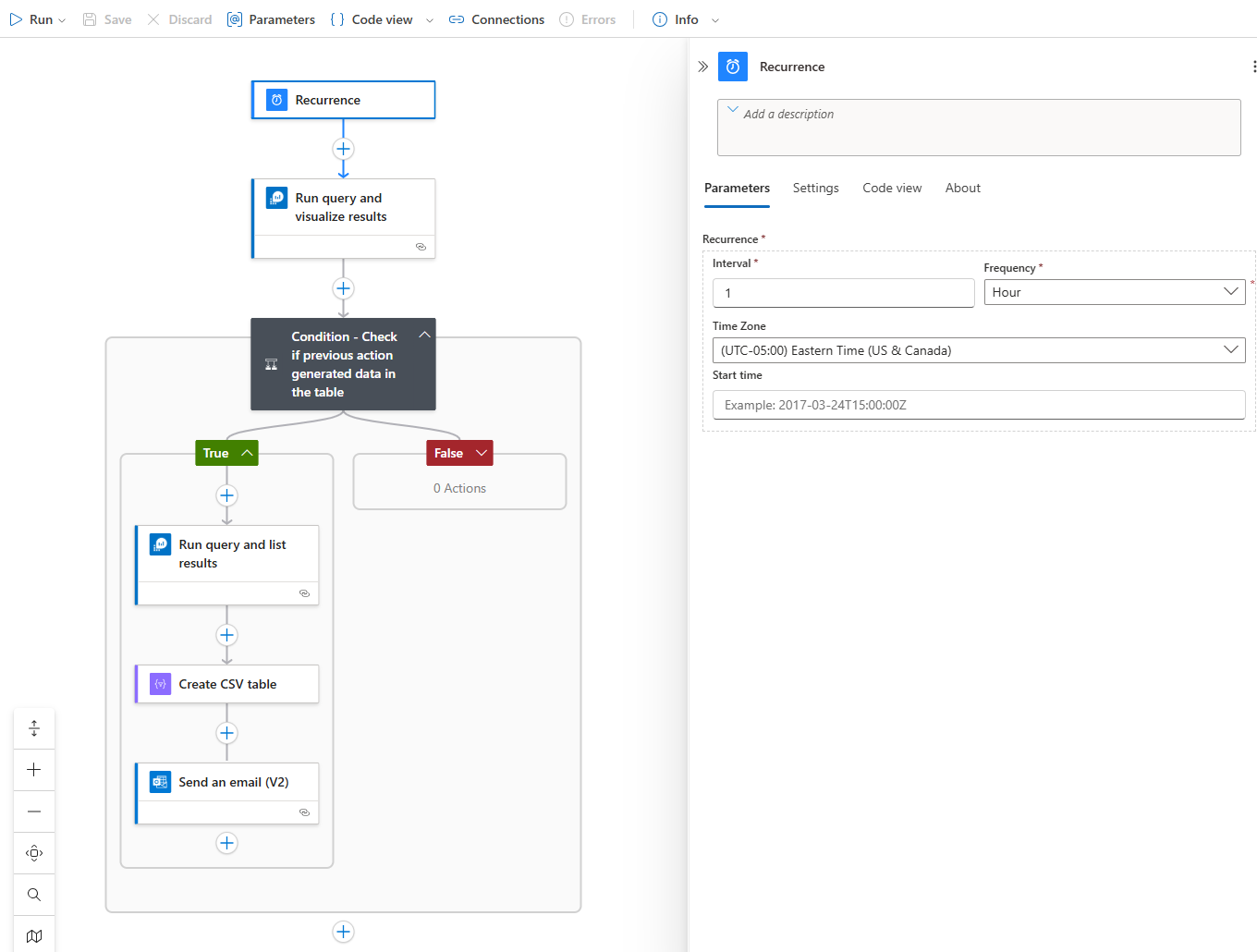
The first action is the to add a Recurrence trigger that will run according to a schedule of your choice. For this example, I will be running this Logic App every hour:
Next, we’ll use the Run query and visualize results to query the Log Analytics workspace for blocks found over the past hour:

The Query we’ll use is the same as my previous post but to reduce the amount of data displayed directly in the email notification, I’ve added a project line to only list select columns:
let blockedTx = AGWFirewallLogs
| where Action == “Blocked”
| distinct TransactionId;
AGWFirewallLogs
| where Action in (“Matched”, “Blocked”)
| where TransactionId in (blockedTx)
| extend ActionPriority = case(Action == “Blocked”, 0, 1) // Blocked first
| project TimeGenerated, ActionPriority, ClientIp, RequestUri, RuleSetType, RuleId, Message, Action, DetailedMessage, FileDetails, Hostname, TransactionId, DetailedData
| sort by TimeGenerated desc, TransactionId asc, ActionPriority asc
We will then add a condition to check whether the previous Run query and visualize results action actually generated any data because if there were no blocks then we won’t want an email. When this actual has generated no data, the Body of the output would is delivered in Base64:
PGJvZHk+VGhlIHF1ZXJ5IHlpZWxkZWQgbm8gZGF0YVRhYmxlLjwvYm9keT4=

… and when decoded will display:

The expression we’ll use to check whether the body contains no dataTable is:
not(contains(base64ToString(body(‘Run_query_and_visualize_results’)?[‘body’]), ‘no dataTable’))

If data was returned, we will then the Run query and list results to retrieve all of the columns for the blocked events, which we will use to create a CSV file to attach to the email as an attachment:

The Query we’ll use is the same as the above but with the project line removed as we want all the data in the csv:
let blockedTx = AGWFirewallLogs
| where Action == “Blocked”
| distinct TransactionId;
AGWFirewallLogs
| where Action in (“Matched”, “Blocked”)
| where TransactionId in (blockedTx)
| extend ActionPriority = case(Action == “Blocked”, 0, 1) // Blocked first
| sort by TimeGenerated desc, TransactionId asc, ActionPriority asc
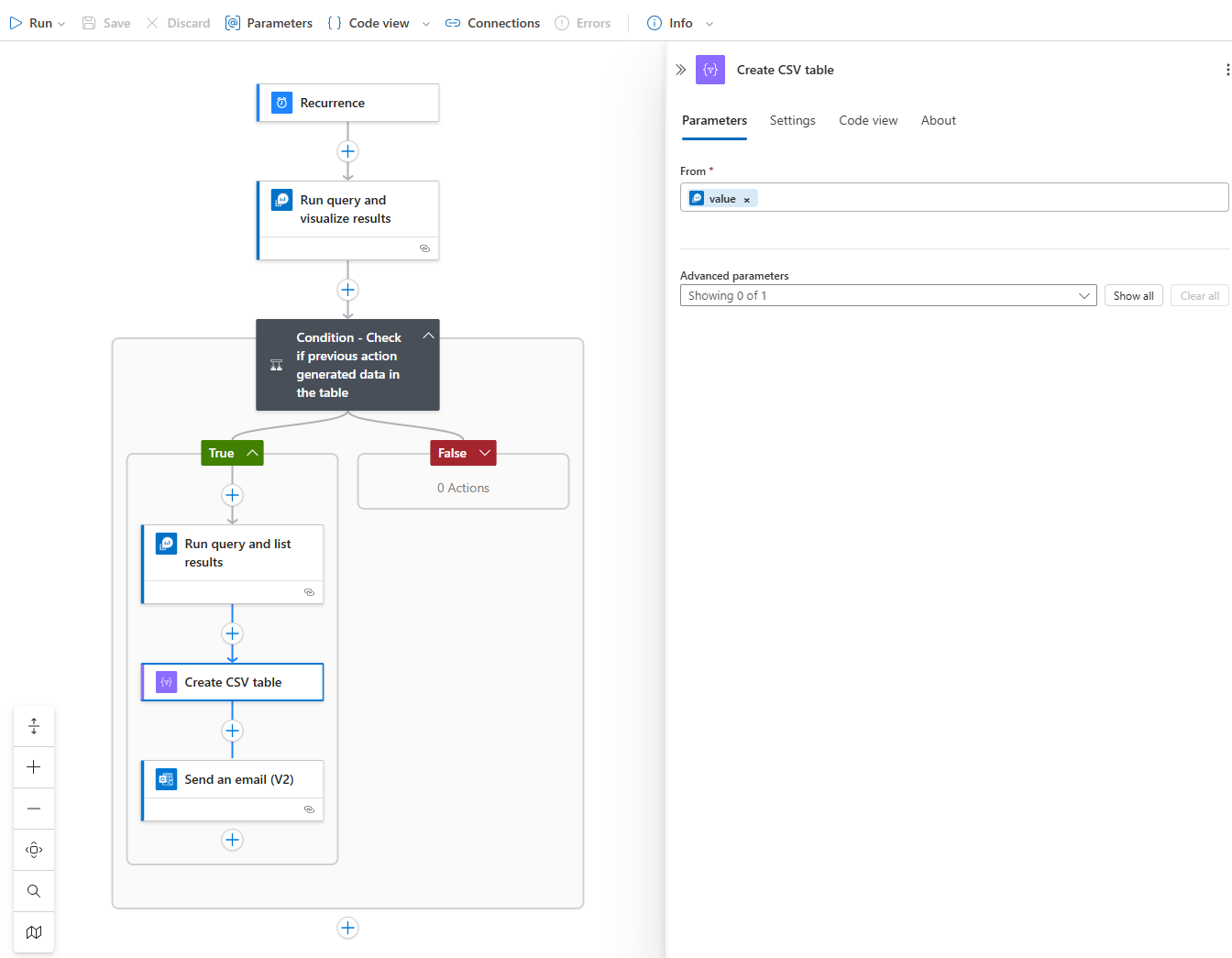
Add the action Create CSV table with the value of the previous Run query and list results to create a csv from the data:
Next, we’ll use the following expression to create the file name with the current timestamp:
concat(‘Hourly-WAF-Report-‘, utcNow(), ‘.csv’)

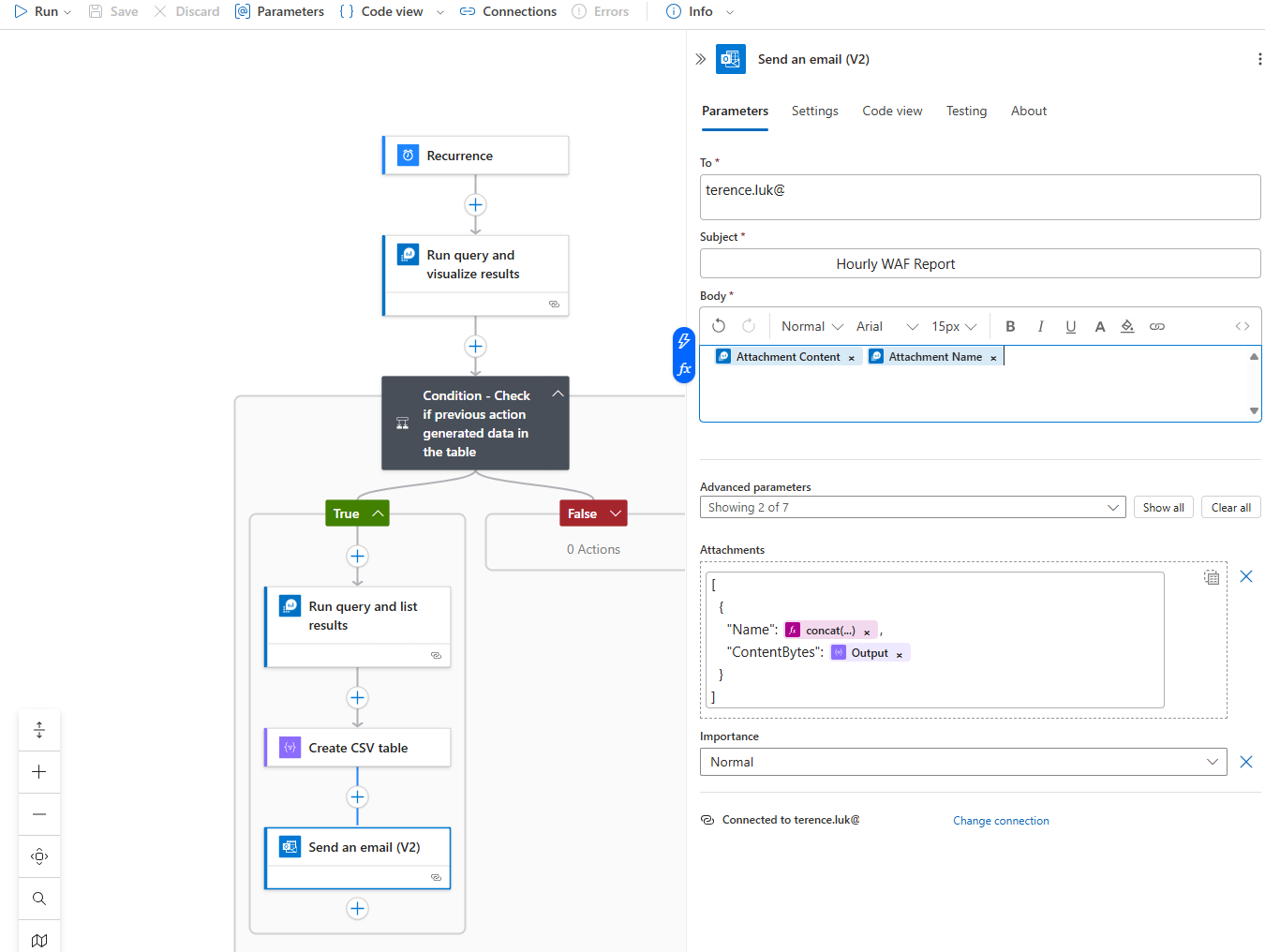
Proceed to save the Logic App and you should now have an automation that will generate and send email notifications out every hour if the WAF has had any blocks over the last hour. The email notification should look similar to the following:
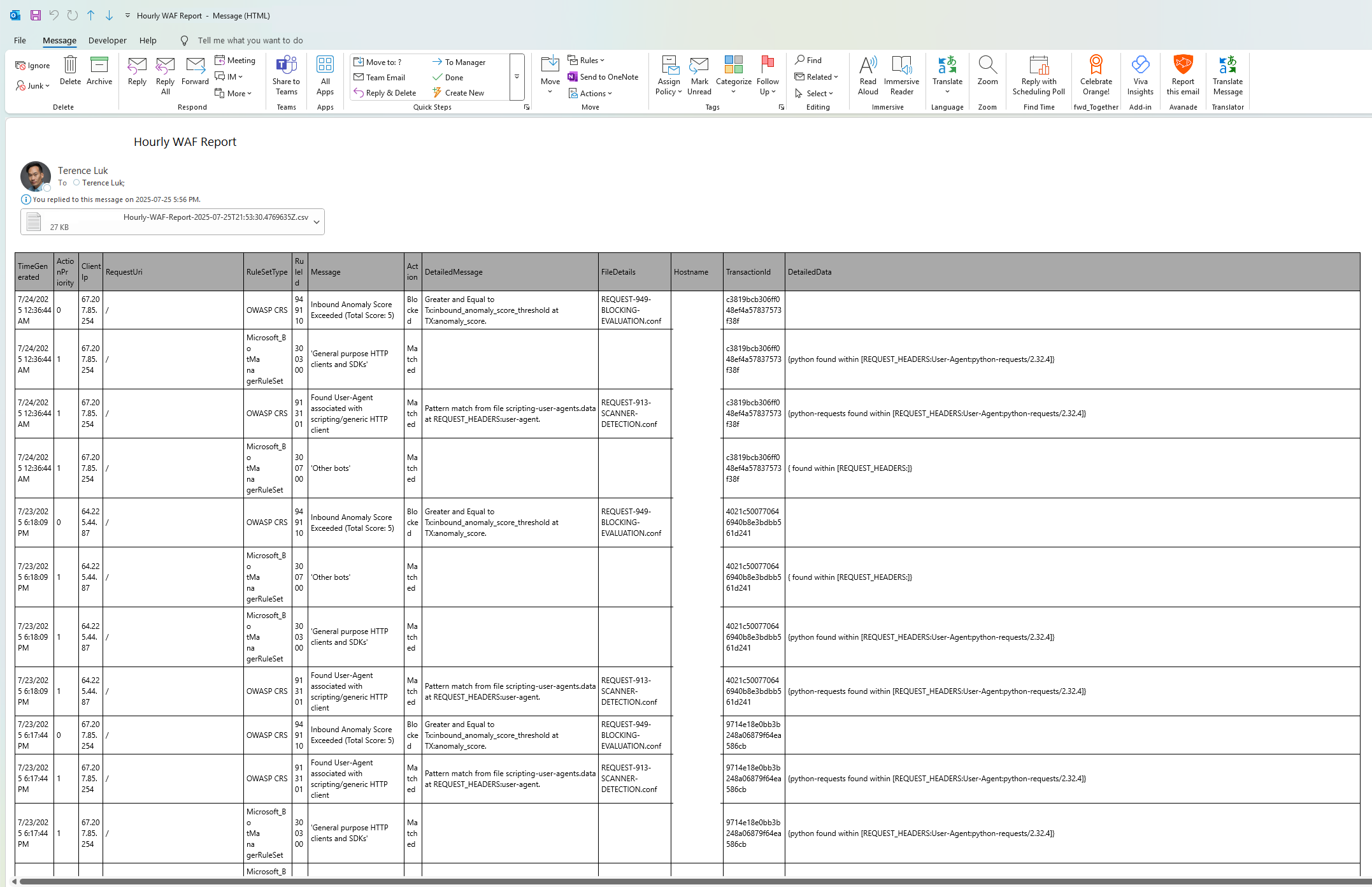
If you want to dress up the HTML table in the email with a coloured scheme, please see my previous post here:
Here is another similar post I’ve written in the past that generates a similar alert but for Entra ID logins:
Monitoring, Alerting, Reporting Azure AD logins and login failures with Log Analytics and Logic Apps
Final Thoughts on WAF Blocked Actions Logic Apps
Hope this helps anyone who may be looking for a way to monitor traffic that are blocked by WAF during an application development cycle as you do not want to be troubleshooting false positives when the application has gone live.

