
WAF Anomaly Scoring Mode is a key concept to understand when incorporating a WAF (Web Application Firewall) to protect public internet facing applications is critical as malicious threat actors are constantly searching for exploitable web services that are on the internet. Those who have managed firewalls and reviewed logs will see inbound traffic from all sorts of countries that typically have no business in attempting to connect to, say, their website hosted in Canada. These inbound requests are typically automated and a way for these threat actors to probe and detect any vulnerable solutions.
Azure provides layer 7 protection with the Application Gateway with Web Application Firewall capabilities by examining the inbound HTTP and HTTPS requests for threats. Out of the box, the Application Gateway web application firewall (WAF) leverages Azure-managed Default Rule Set (DRS) that are managed by Azure and receive updates to guard against new attack signatures.
Traffic received by the WAF from legitimate and illegitimate sources with will intent are analyzed and allowed or blocked based an Anomaly Scoring mode where the the WAF will take the inbound traffic to match a predefined set of rules that define traffic data patterns to score a severity level. Traffic that matches a rule isn’t immediately blocked as each rule has a numeric severity value between 2 to 5 and will contribute to a total score that defines whether the traffic should be allowed or blocked. The following table outlines the types of severity and the assigned value:
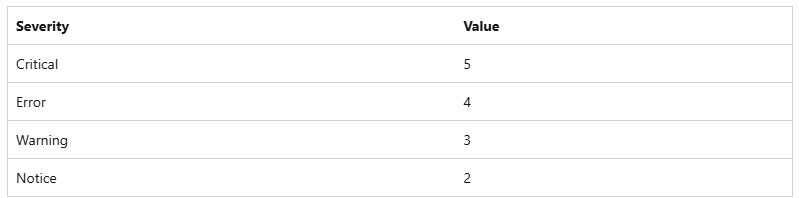
The threshold in which the WAF uses to determine whether traffic should be allowed or blocked is the value of 5. This means that a single Critical rule match is sufficient to block the request while any lower severity will not. Any other severity matches that equal or exceed the value of 5 will be blocked. More information about the anomaly scoring can be found in the following Microsoft documentation:
Anomaly Scoring Mode
https://learn.microsoft.com/en-us/azure/web-application-firewall/ag/ag-overview#anomaly-scoring-mode
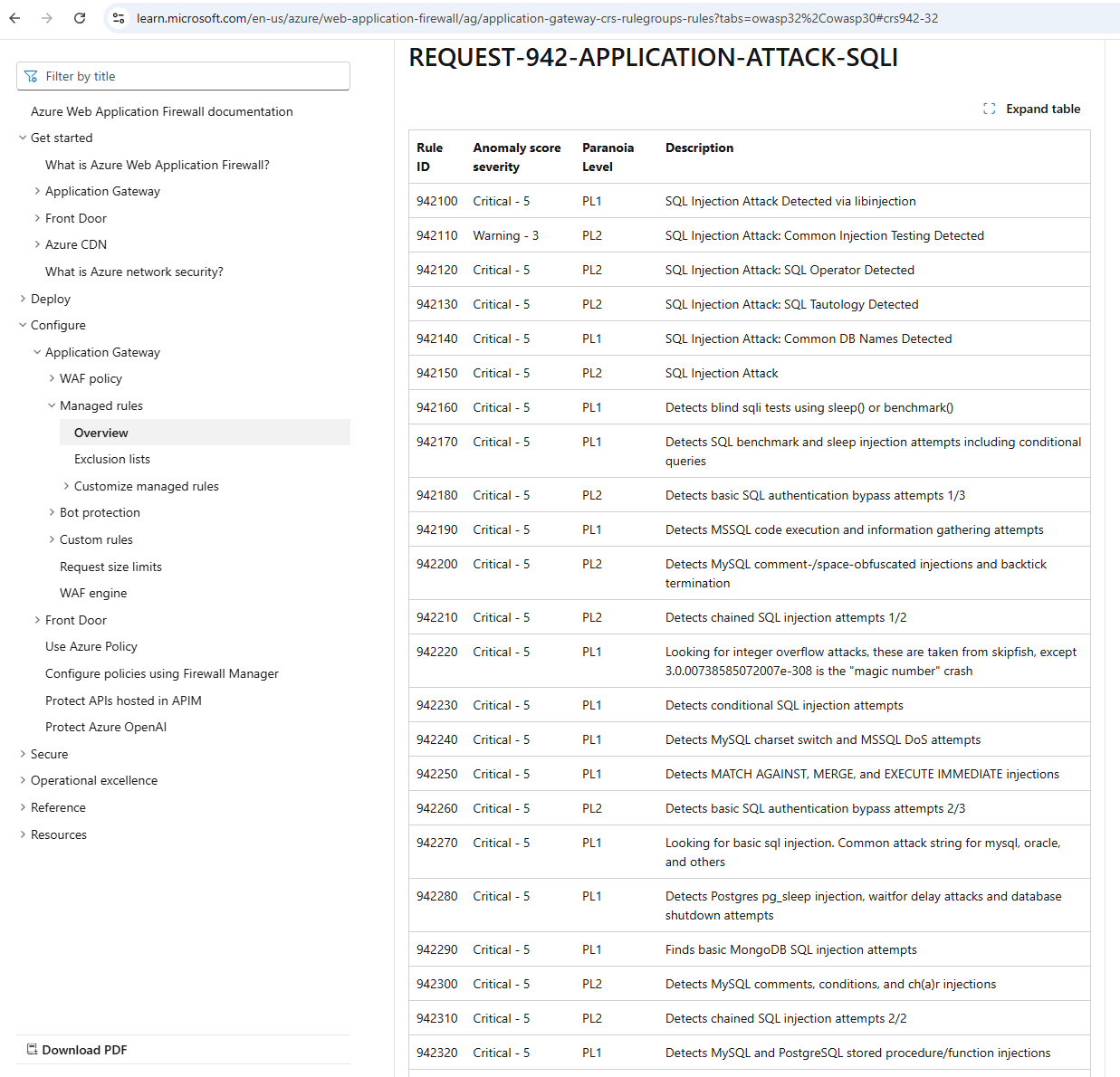
To better understand the type of rules that the WAF uses to match incoming traffic data, review the following Microsoft documentation where Rule IDs and anomaly score security are listed:
The first 3 digits of the RuleId can help you immediately identify the type of attacks and one of the most common ones I’ve seen are rules that begin with 942: https://learn.microsoft.com/en-us/azure/web-application-firewall/ag/application-gateway-crs-rulegroups-rules?tabs=owasp32%2Cowasp30#crs942-32
… which are attributed to SQL related attacks such as SQL Injection:
With the anomaly scoring established, what I’d like to do share in this blog post is how I typically troubleshoot legitimate traffic that is blocked by the WAF that will generate and display a 403 Forbidden message. The way in which this can be troubleshooted is to turn on the Diagnostic Settings for the Application Gateway so the incoming traffic requests would be logged into a Log Analytics workspace for review.
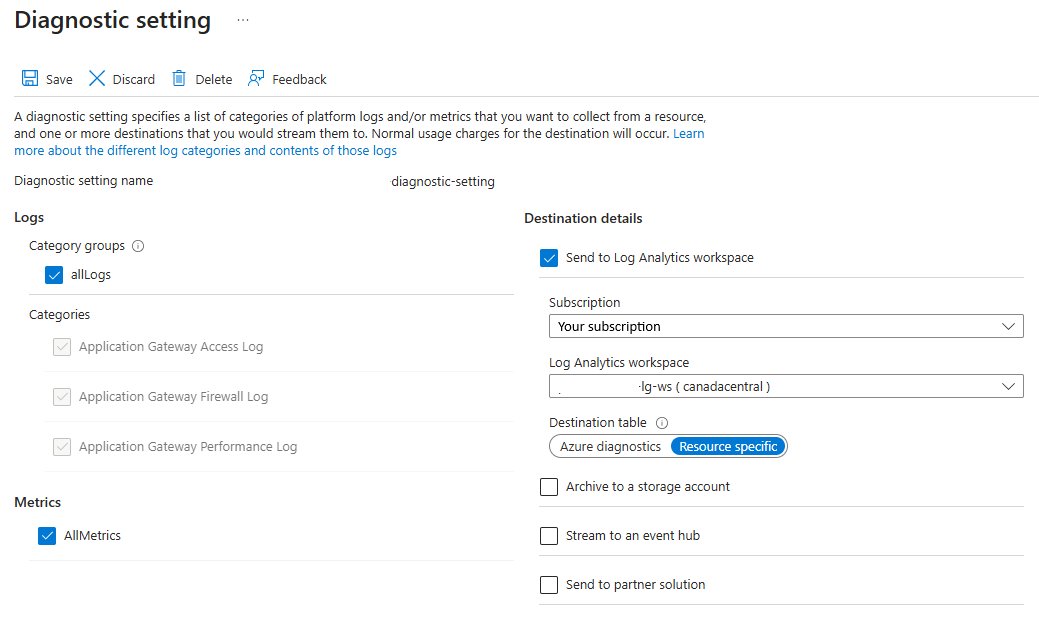
Note that you have the option to select the Destination table to be Azure diagnostics or Resource specific and I prefer the latter as selecting Azure diagnostics organizes the data in a way that I find very difficult to query with KQL.
The table we’re interested in querying is named AGWFirewallLogs and simply querying that table display the requests that are logged through either detection or prevention mode of an application gateway that is configured with the web application firewall. More information can be found in the following Microsoft documentation: https://learn.microsoft.com/en-us/azure/azure-monitor/reference/tables/agwfirewalllogs
To troubleshoot traffic that was blocked any of the WAF rules (managed or custom), we would need to:
- Locate the log entry with the Action labeled as Blocked (these entries will always have the RuleId 949110)
- Review all the entries with the Action labeled as Matched leading up to the Blocked entry that has the same TransactionId
Here are examples of the matches and blocks grouped together:
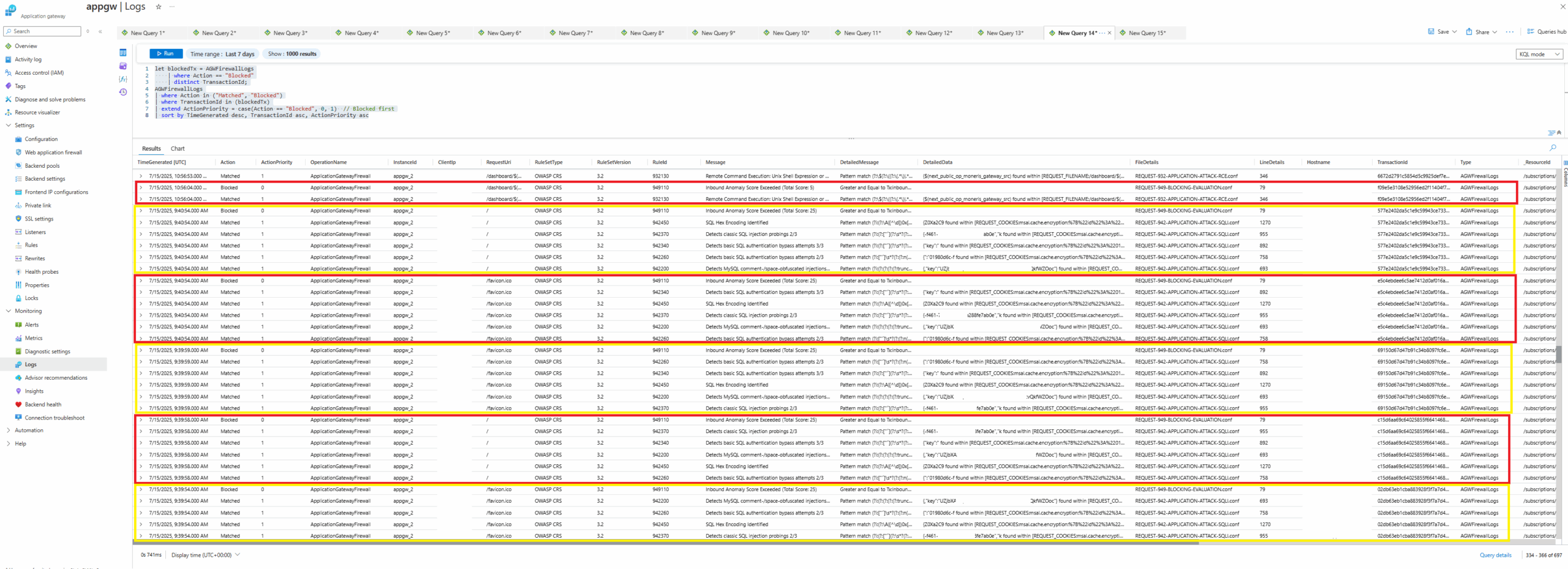
Thoroughly reviewing each set of blocked followed by matches entries will provide how the anomaly score is calculated. The top block demonstrates how 1 single critical severity RuleId match can immediately trigger a block as outlined by the entry’s Message with the output Inbound Anomaly Score Exceeded (Total: Score 5).
Reviewing the next block below will show how the inbound traffic matched 5 different 942xxx (SQL related attack) RuleIds, which generated a Inbound Anomaly Score Exceeded (Total: Score 25)
The query as shown in the screenshot:
let blockedTx = AGWFirewallLogs
| where Action == “Blocked”
| distinct TransactionId;
AGWFirewallLogs
| where Action in (“Matched”, “Blocked”)
| where TransactionId in (blockedTx)
| extend ActionPriority = case(Action == “Blocked”, 0, 1) // Blocked first
| sort by TimeGenerated desc, TransactionId asc, ActionPriority asc
Will first query and store a list of all the entries with the Action labeled as Blocked with district TransactionIds, then query the logs to retrieve all entries that have the Action labeled as either Matched or Blocked, then group them together by their TransactionId, then finally placing the Blocked entry at the top, followed by the Matched entries ordered by TimeGenerated in descending order. This generates the output as demonstrated in the screenshot above that allows an easy way of analyzing the blocked requests.
The way in which WordPress renders characters such as the quotes changes it to be unusable in KQL so retrieve all the queries in this post here in my GitHub repo: https://github.com/terenceluk/Azure/blob/main/Kusto%20KQL/WAF-Troubleshooting.kusto
Other useful KQL queries I use for troubleshooting WAF blocks are:
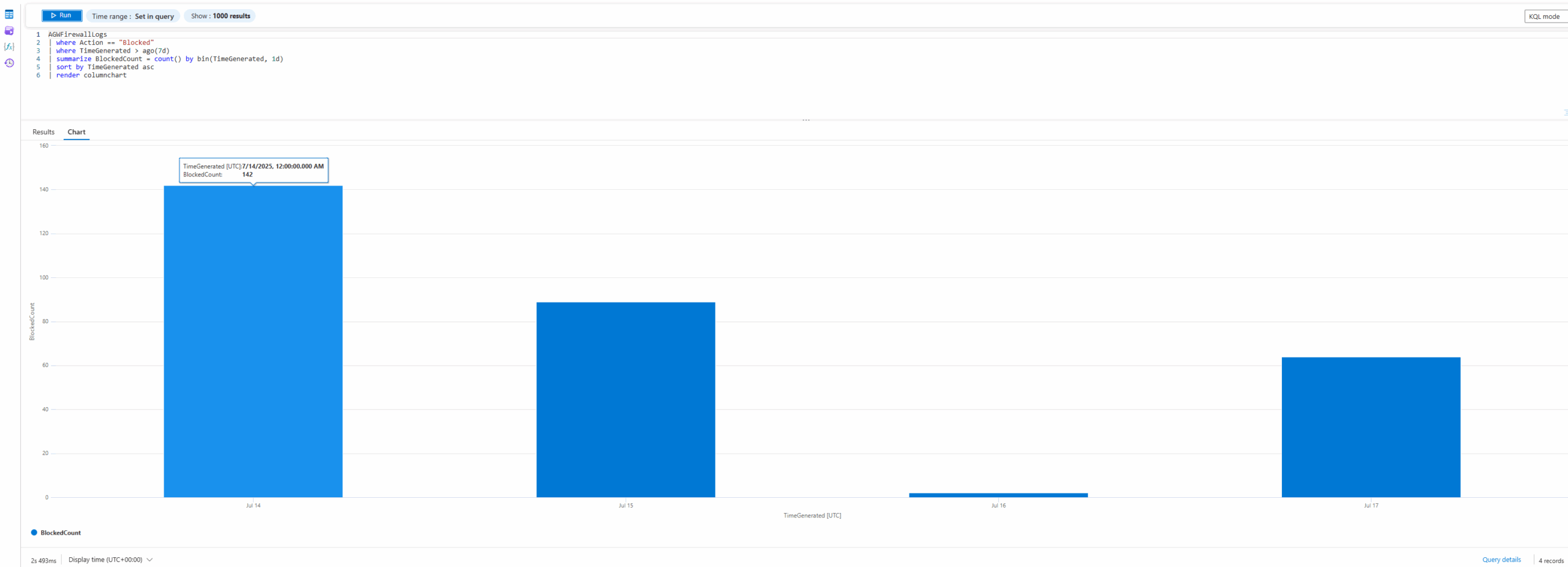
Blocks by Days
AGWFirewallLogs
| where Action == “Blocked”
| where TimeGenerated > ago(7d)
| summarize BlockedCount = count() by bin(TimeGenerated, 1d)
| sort by TimeGenerated asc
| render columnchart
That will display a column chart with the total amount of blocks by days over 7 days:
As well as different renderings of matches over the past 7 days:
Blocked by Type over 7 days
AGWFirewallLogs
| where Action == “Matched”
| where TimeGenerated > ago(7d)
| summarize MatchCount = count() by bin(TimeGenerated, 1d), RuleId
| sort by TimeGenerated asc
| render columnchart

AGWFirewallLogs
| where Action == “Matched”
| where TimeGenerated > ago(7d)
| summarize MatchCount = count() by bin(TimeGenerated, 1d), RuleId
| sort by TimeGenerated asc
| render barchart

Wrapping Up WAF Anomaly Scoring Mode
I hope this post is able to help anyone who may be looking for information on how to analyze and troubleshoot WAF logs to determine why traffic is blocked and also observe frequent matches that may require attention.

